What you’ll need:
Any Kommo plan (Base, Advanced, Pro, Enterprise, or 14-day trial).
Keep in mind:
To successfully import products, make sure the fields in your product list match the fields in your imported spreadsheet
Import files must not exceed 100 columns, 10,000 rows, or 2 MB. If you have a large catalog, split it into several smaller files before importing
Only users with the Admin role can add, remove, or rename custom fields
In Kommo, the product catalog is a centralized space for storing the products and services your business offers. It keeps details such as prices, SKUs, and descriptions organized and up to date, so your team can quickly access accurate information.
You can add products and services individually or upload multiple items at once from a file or spreadsheet.
This article explains how to use both methods.
Add products manually
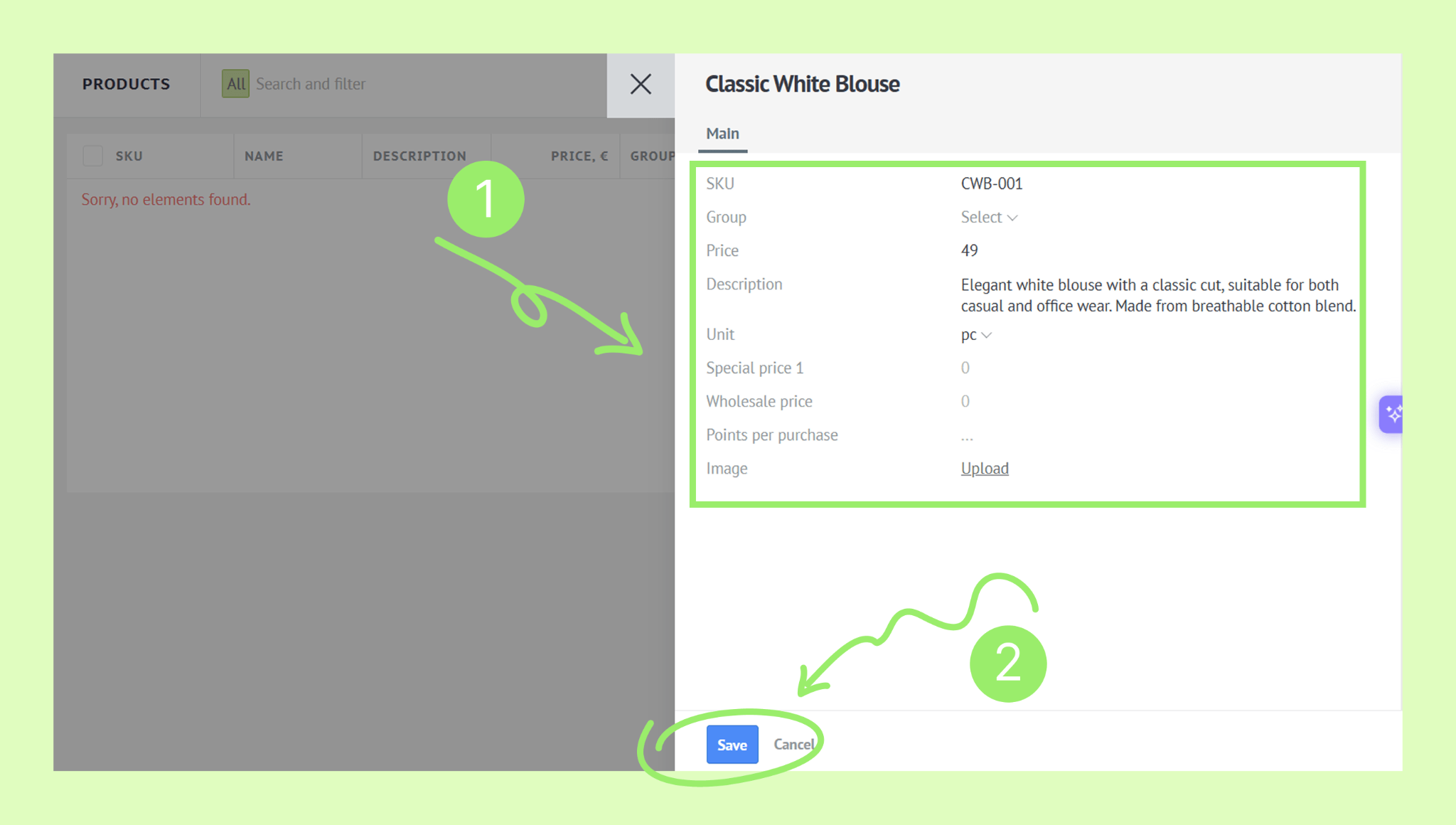
You can add products manually by filling in a product card. Each card has fields — such as Name, SKU, and Description — that you can customize to store only the details that matter to you. Learn how to customize product fields in this article.
Note: The Name field is mandatory and cannot be renamed or removed. You won't be able to save a product without filling it in.
To add a product manually:
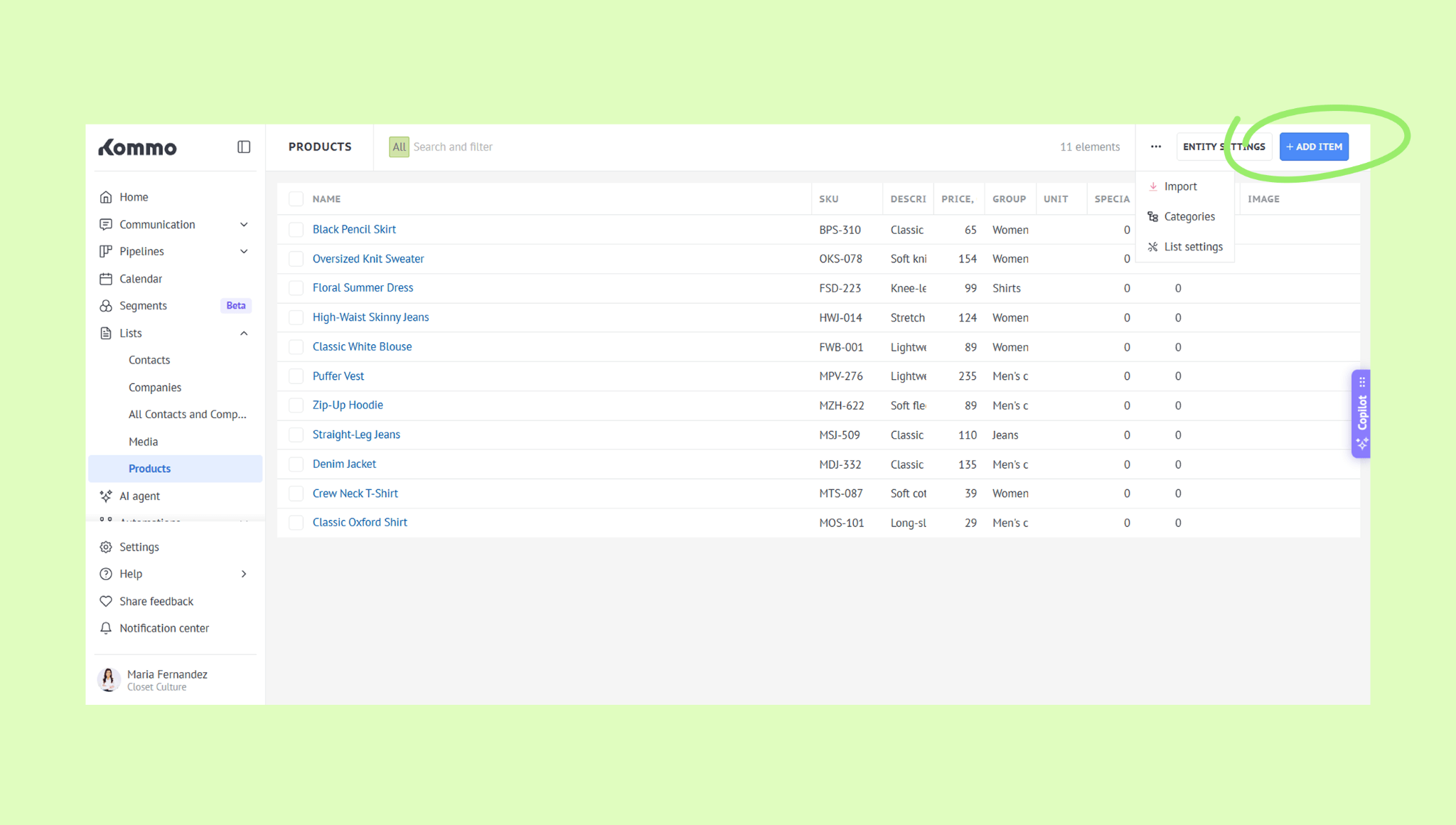
Go to Lists → Products, click + Add item.
Enter the product details, then click Save.
The product will show up in the list. Just click its name anytime to open the product card and see all the details.
Tip: Kommo doesn't have built-in duplicate control for products. If you're adding a large number of products or updating your existing catalog, check for duplicates manually — use the search bar to look for matching products by name or SKU, for example.
Import products from a file
You can import an existing product catalog into Kommo from a file. Select the file, match its columns to the corresponding product fields in Kommo, and complete the import.
Note: Every product must have a value in the Name field, so make sure your file includes this information. You can also customize your product fields before importing so they match the structure of your existing catalog.
Supported formats are:
.xls, .xlsx, .ods, or .csv files
Google Sheets
Tip: If your catalog includes dates — such as expiration dates — import it in .csv format using a comma as the delimiter.
To import products from a file:
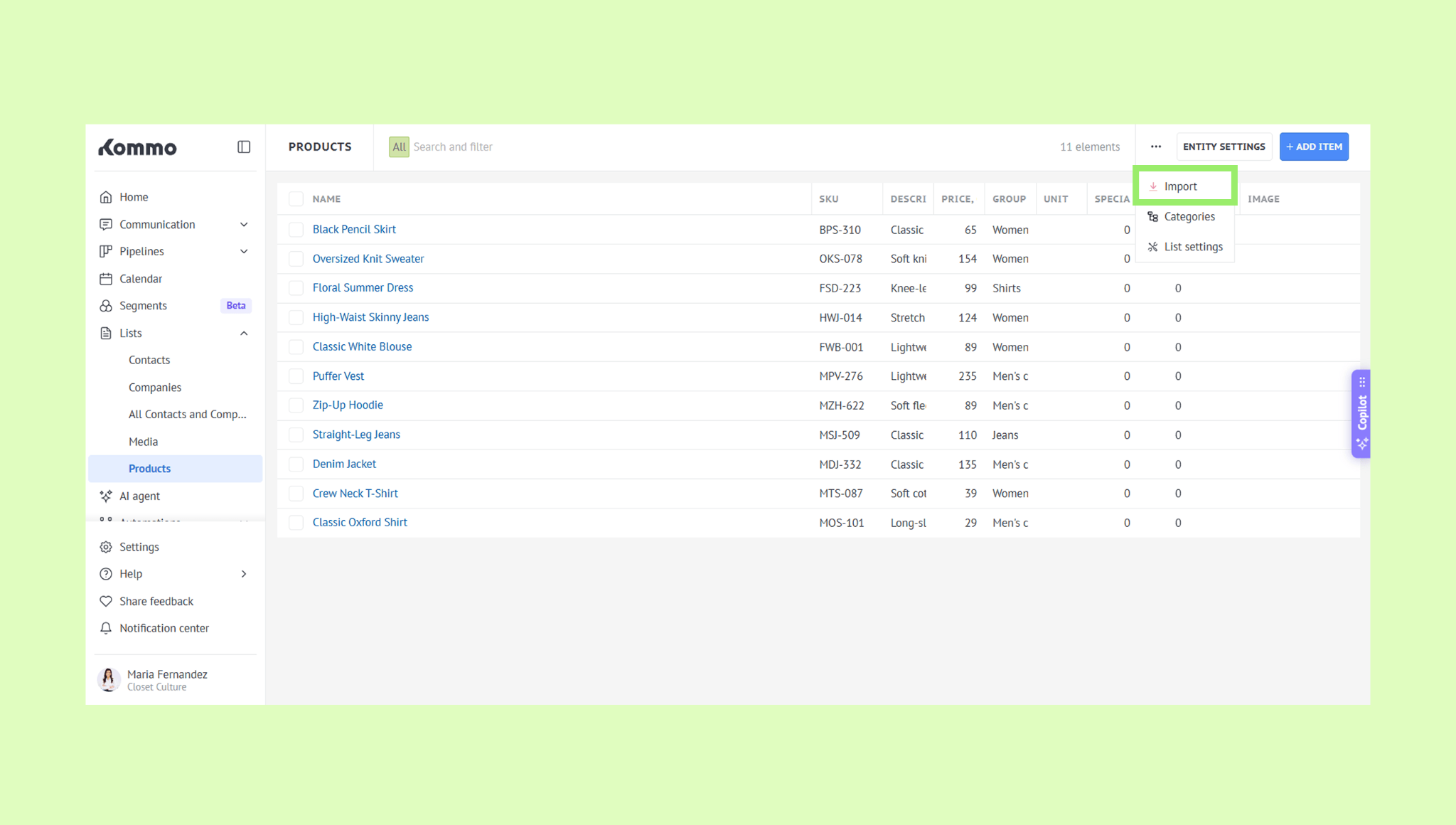
Go to Lists → Products, click the three-dot menu, and select Import.
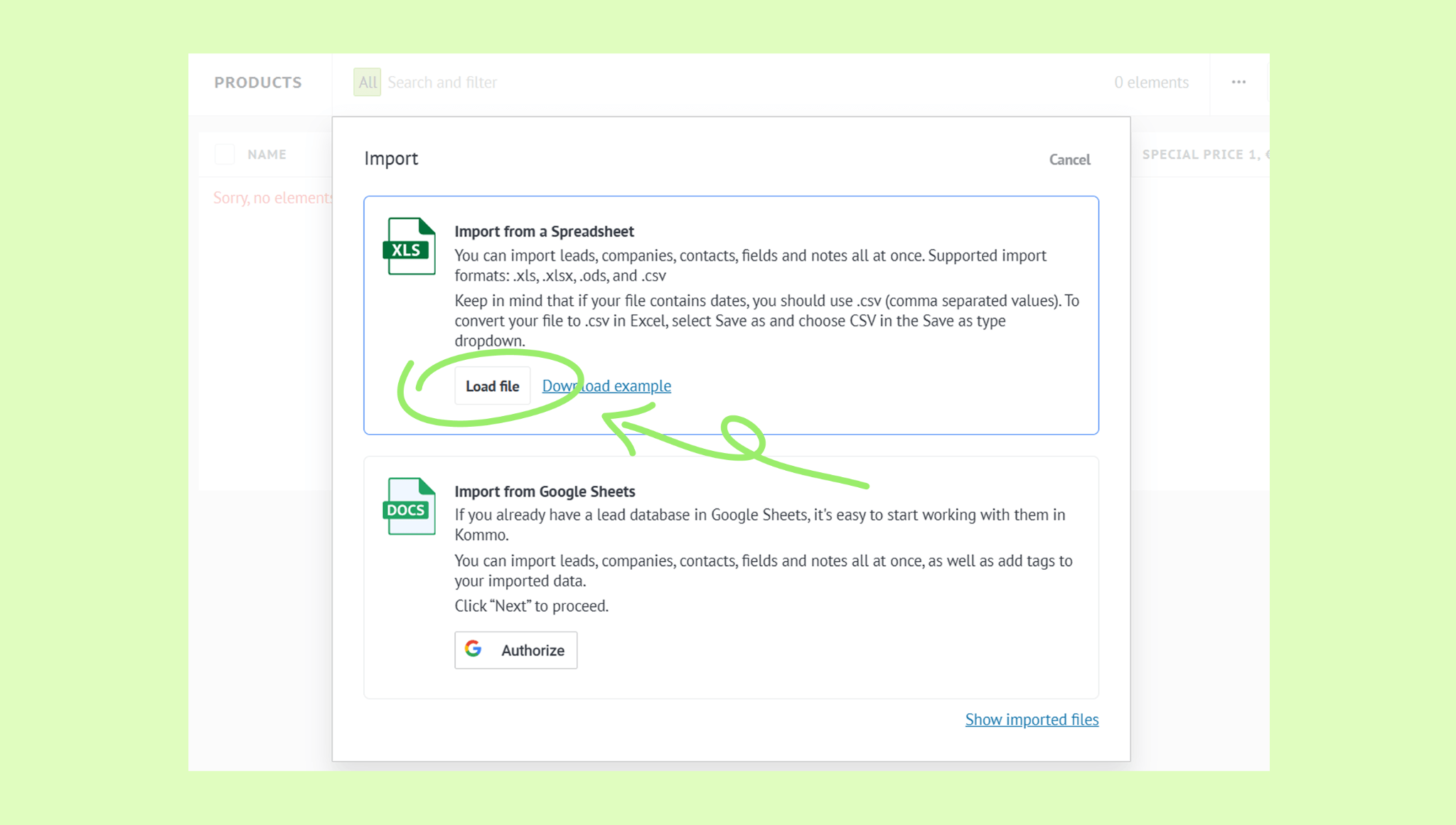
Click Load file and select a file from your computer.
Make sure the fields in your file match the fields in the product card.
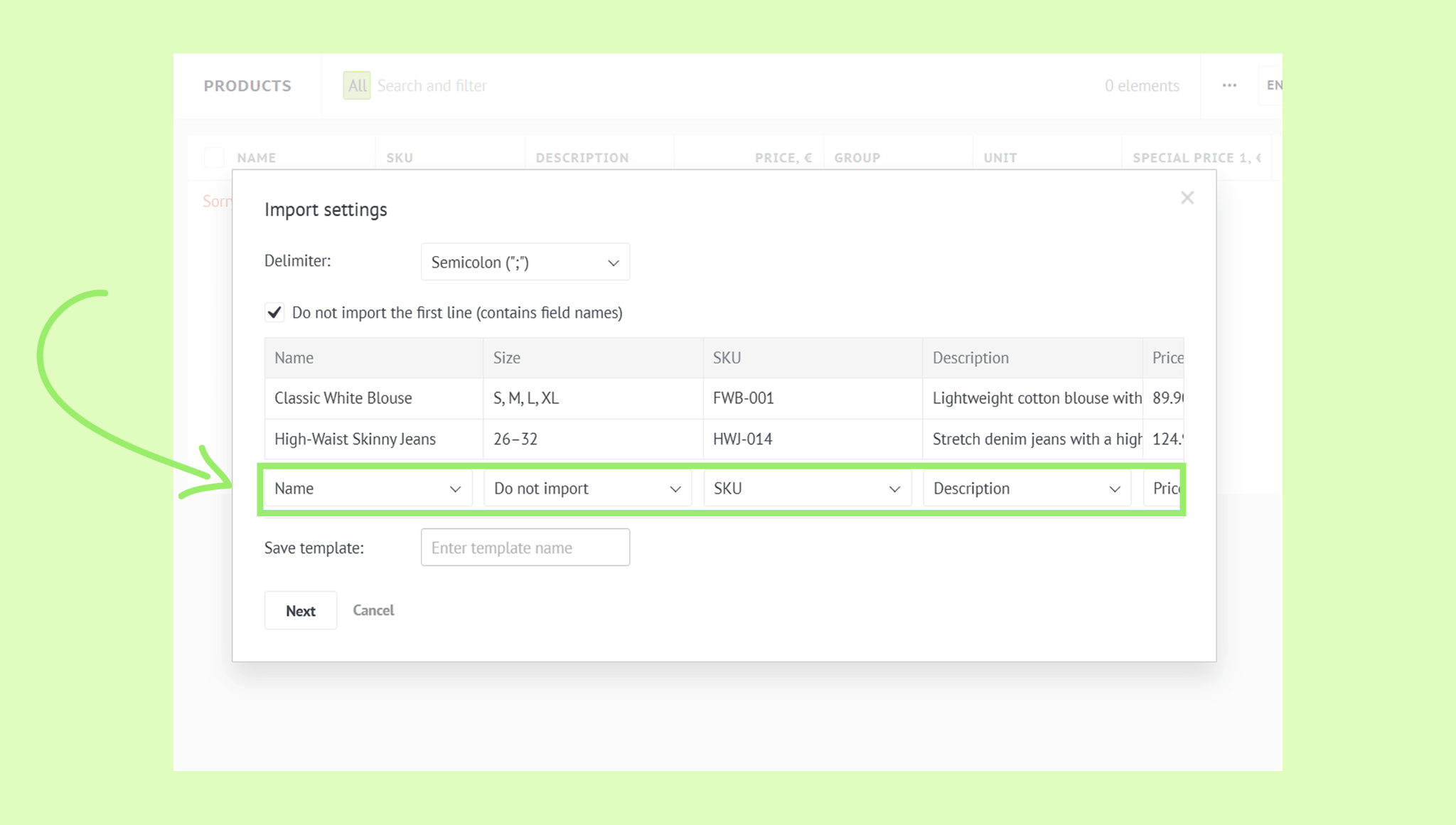
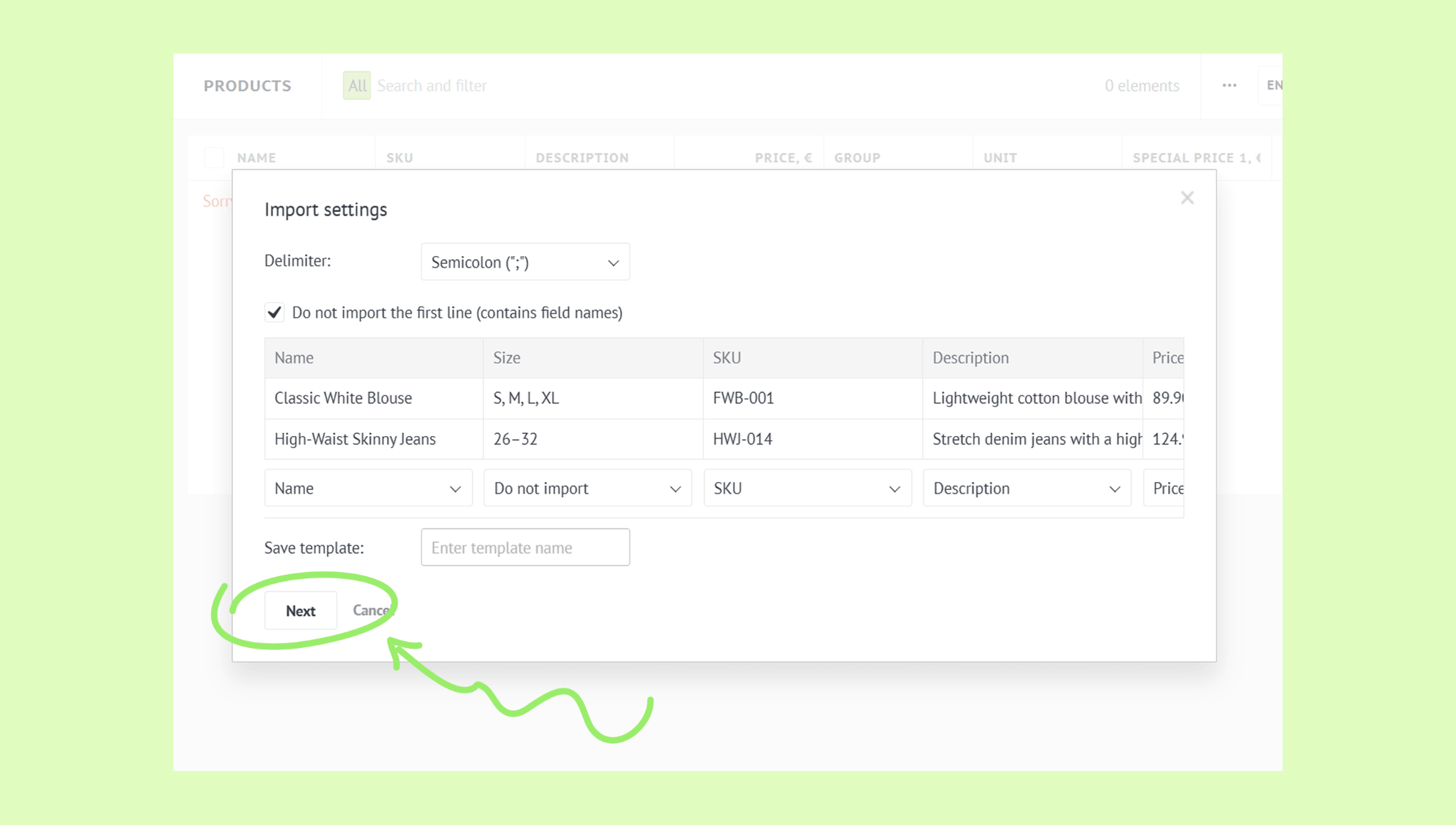
Click Next.
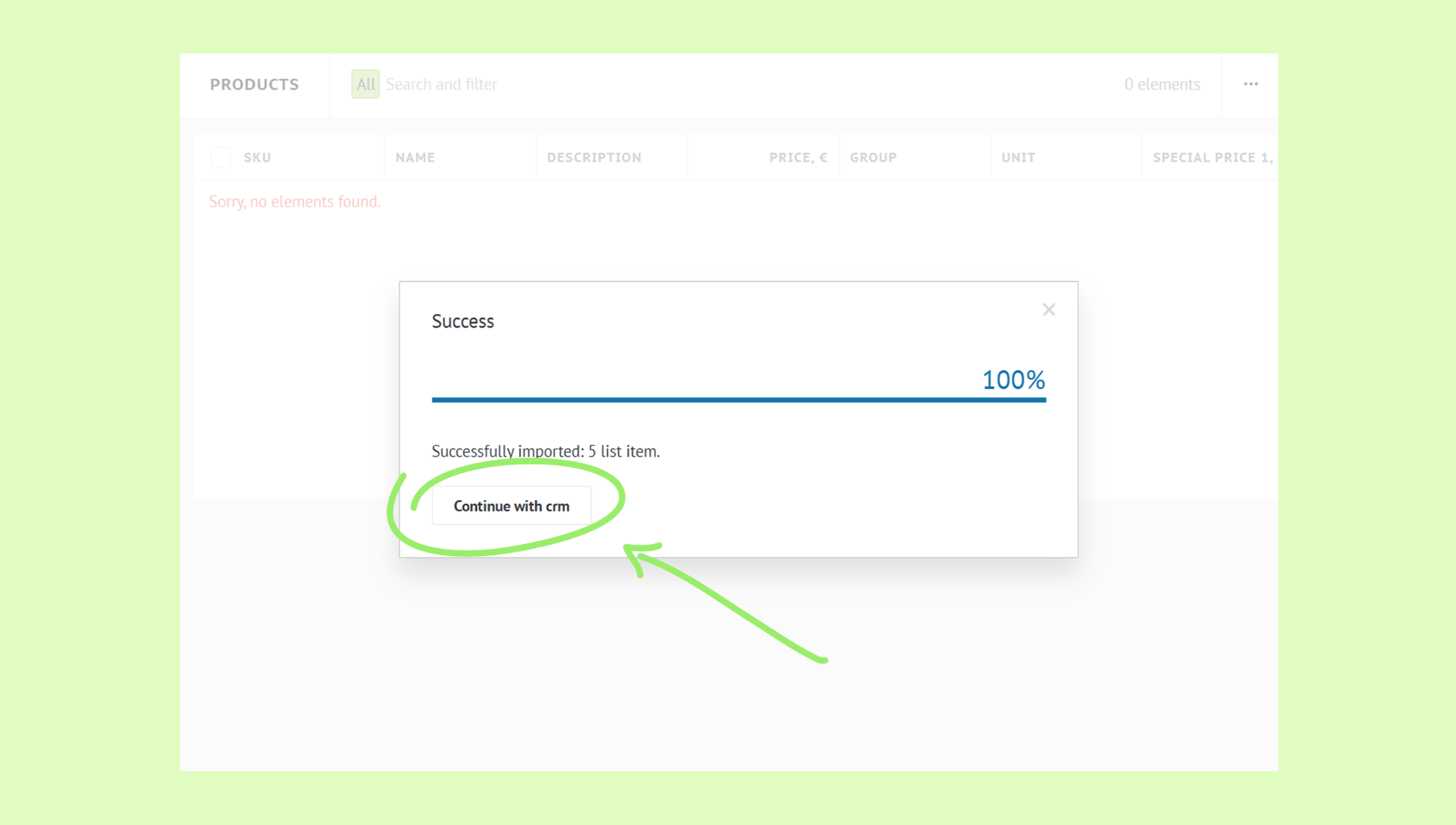
Click Continue with CRM to finish the import.
Tip: Kommo has no built-in duplicate control for products. If you re-import an updated file, all items will be added again, even if they already exist. To avoid duplicates, make sure your file contains only new products before importing.
Import products from a Google Sheet
You can also import products directly from a Google Sheet.
To import products from a Google Sheet:
Go to Lists → Products, click the three-dot menu, and select Import.
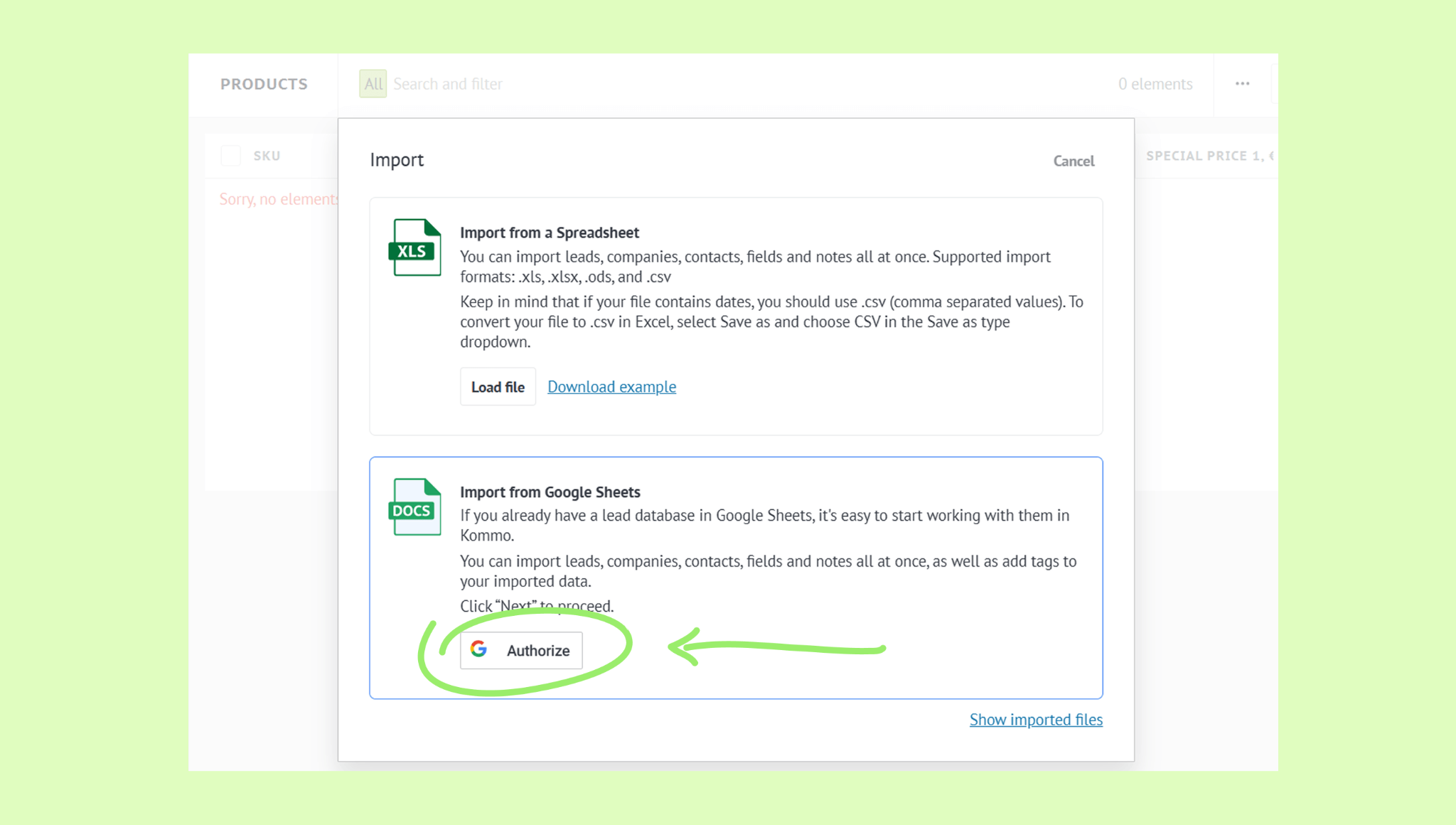
Click Authorize and sign in to your Google account.
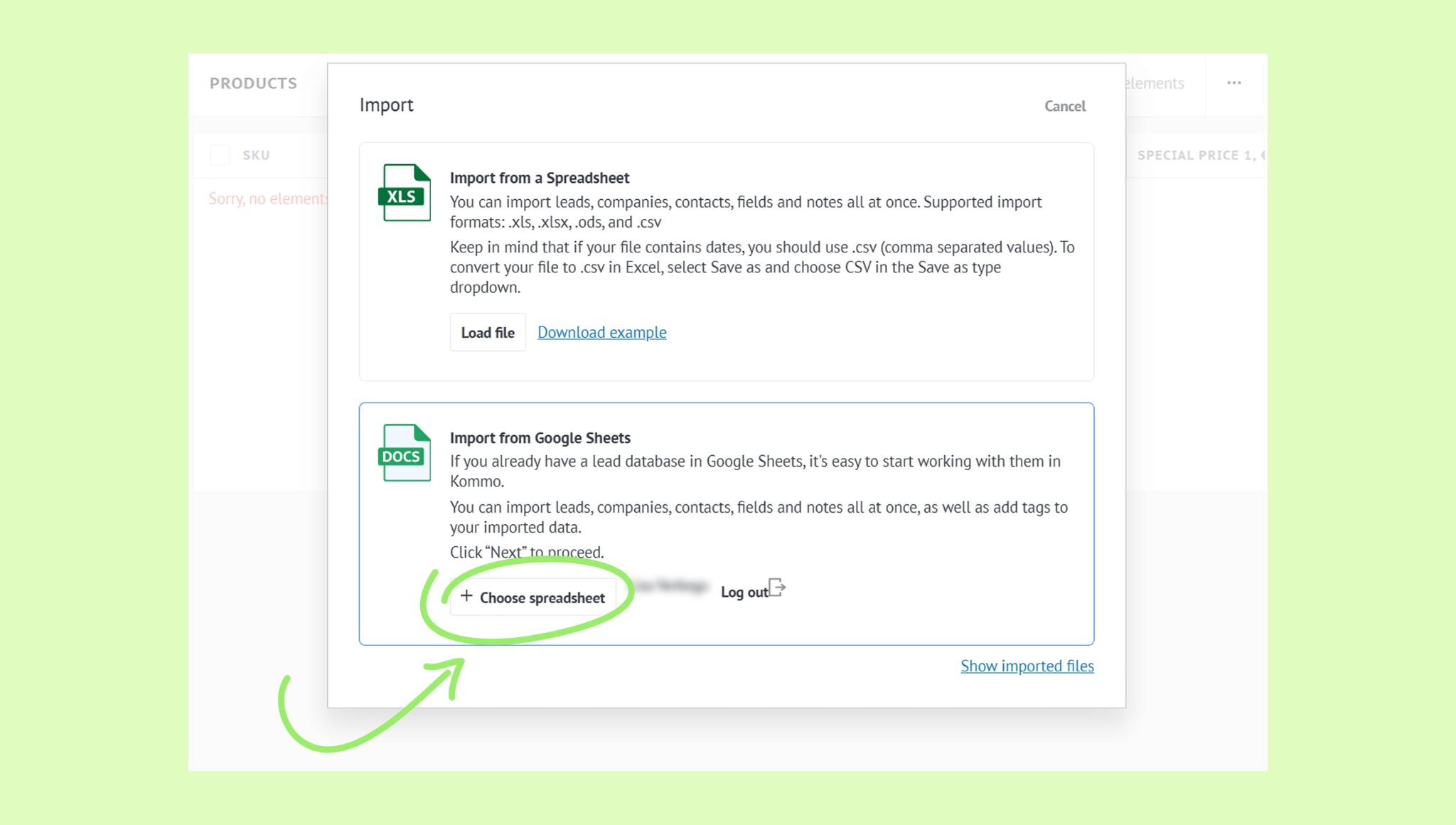
After returning to Kommo, click + Choose spreadsheet.
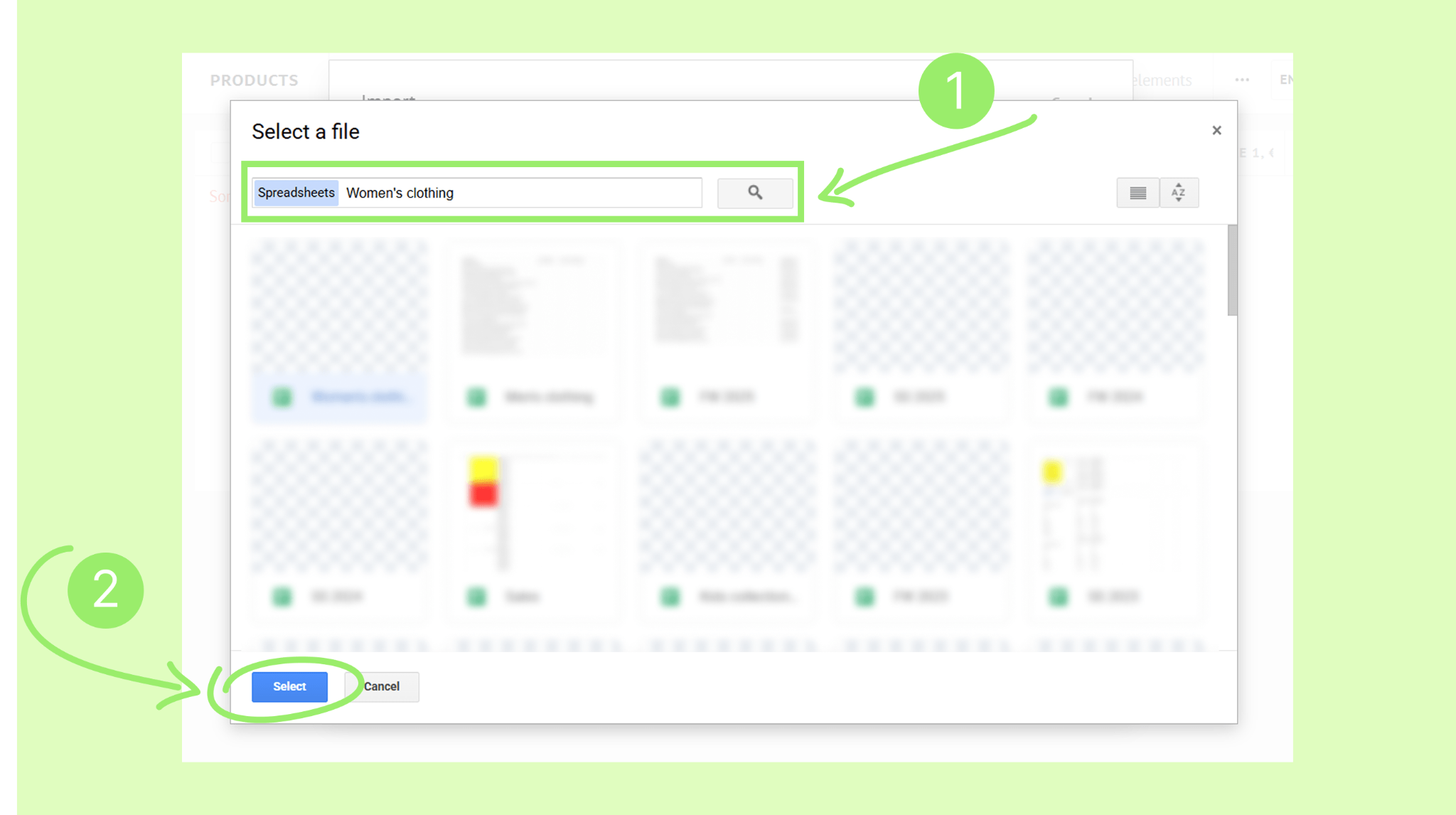
Use the search bar to find your spreadsheet, select it, and click Select.
Make sure the fields in the sheet match the fields in the product card.
Click Next.
Click Continue with CRM to complete the import.
Note: Kommo and Google Sheets are not synced. Changes made in one won't automatically appear in the other. So, if you update your Google Sheet, you'll have to run import again.
Connect your WhatsApp catalog to Kommo
If you use the WhatsApp Business integration, you can connect your WhatsApp catalog to Kommo. Your WhatsApp products will then be available in Kommo, where your team can access and share them while communicating with clients.
Learn more in this article.