What you’ll need:
Any Kommo plan (Base, Advanced, Pro, Enterprise, or 14-day trial)
In Kommo, the product catalog is a centralized space for storing the products and services your business offers. Linking products to leads helps your team keep purchase details connected to each sale. It helps you:
Track purchase history — all purchased items are stored directly in the lead profile.
Calculate sale values — add purchased products and their quantities, and Kommo will calculate the totals automatically.
Get detailed reports — Kommo uses sales data to generate analytics and reports.
This article shows how to link products to leads, view totals and purchase history, and access your reports.
How to link products to a lead
To link products to a lead:
Go to Pipelines, open the pipeline you need, and click the lead to open it.
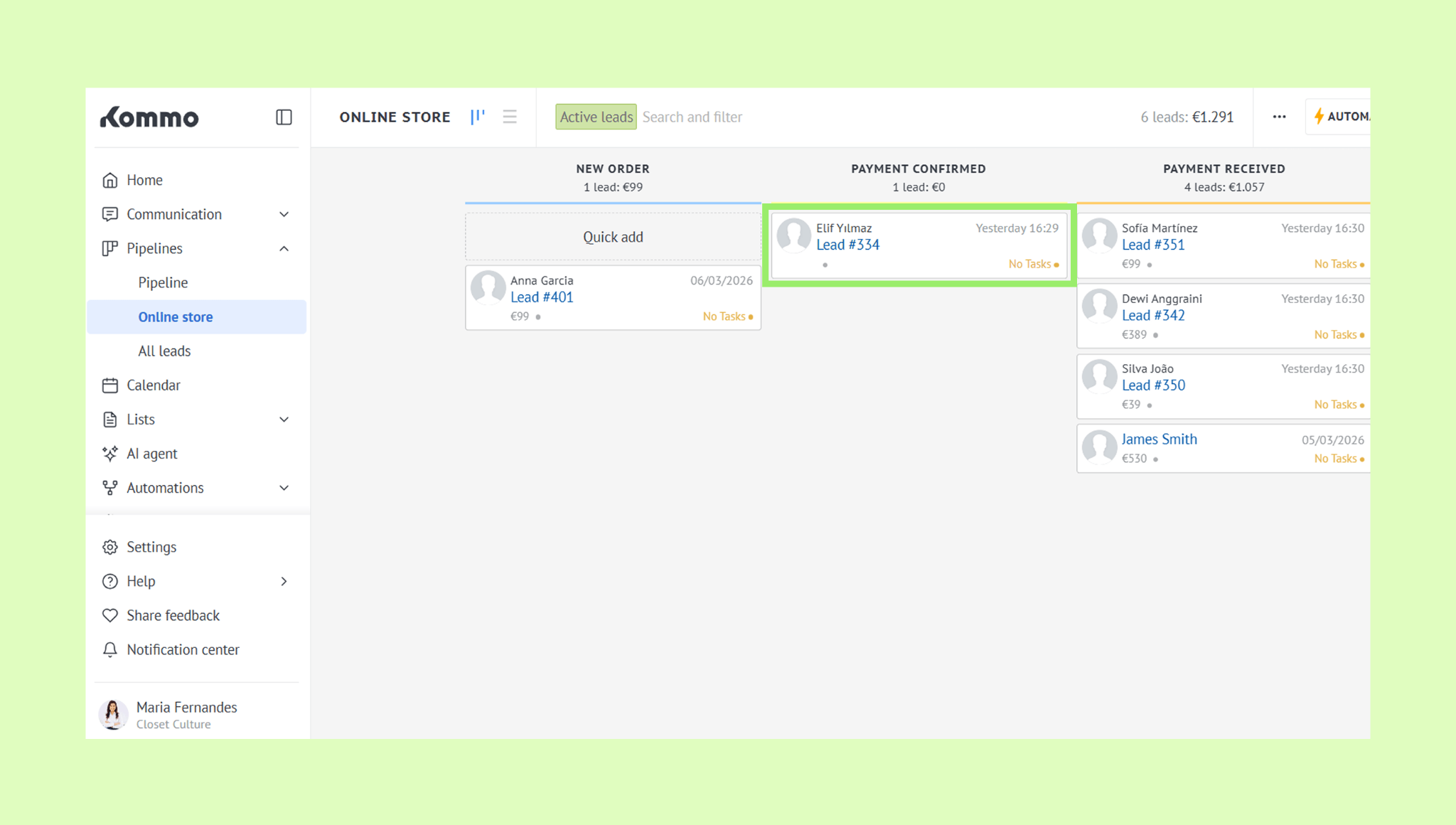
Click Products.
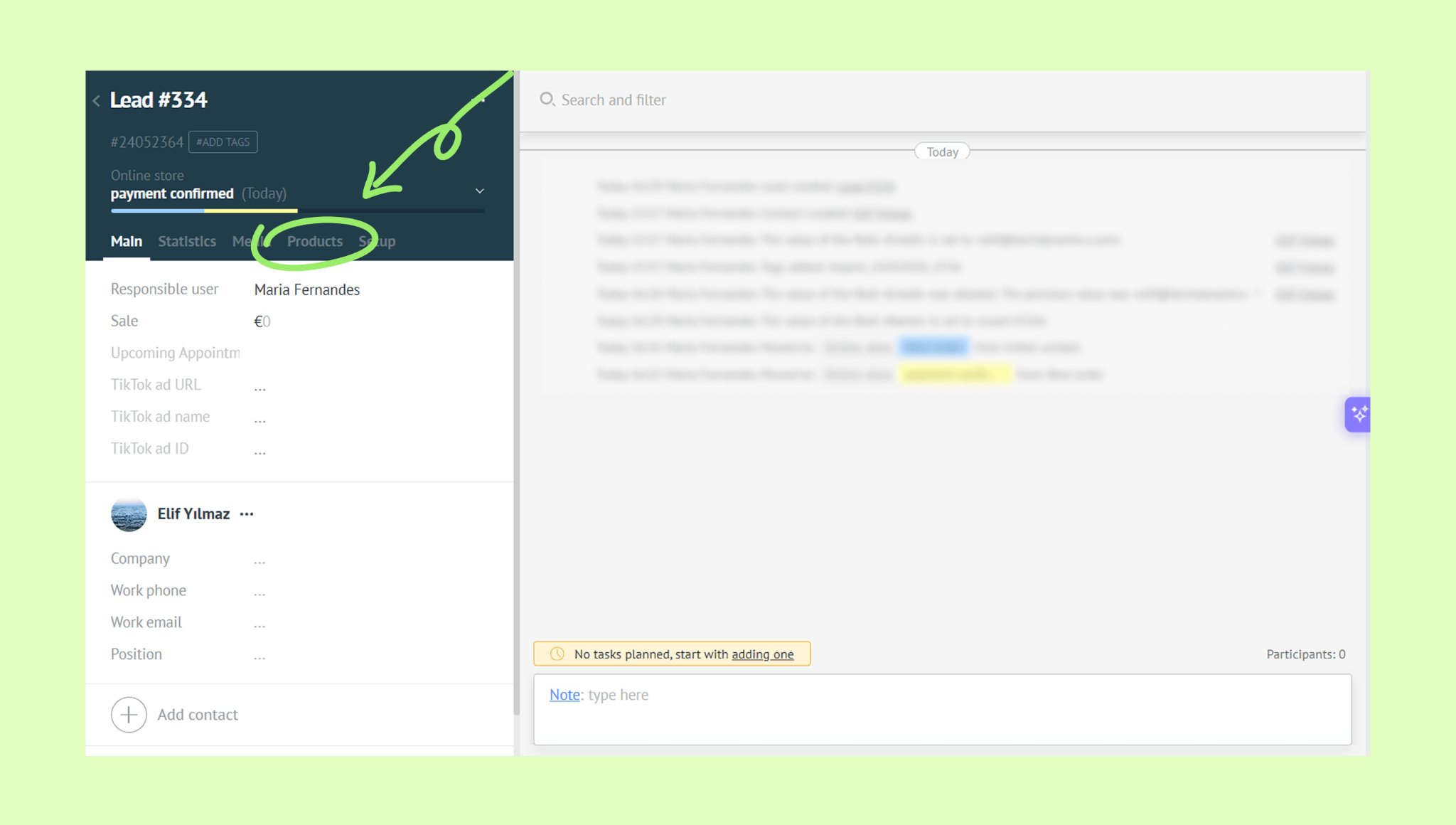
Click + Add.
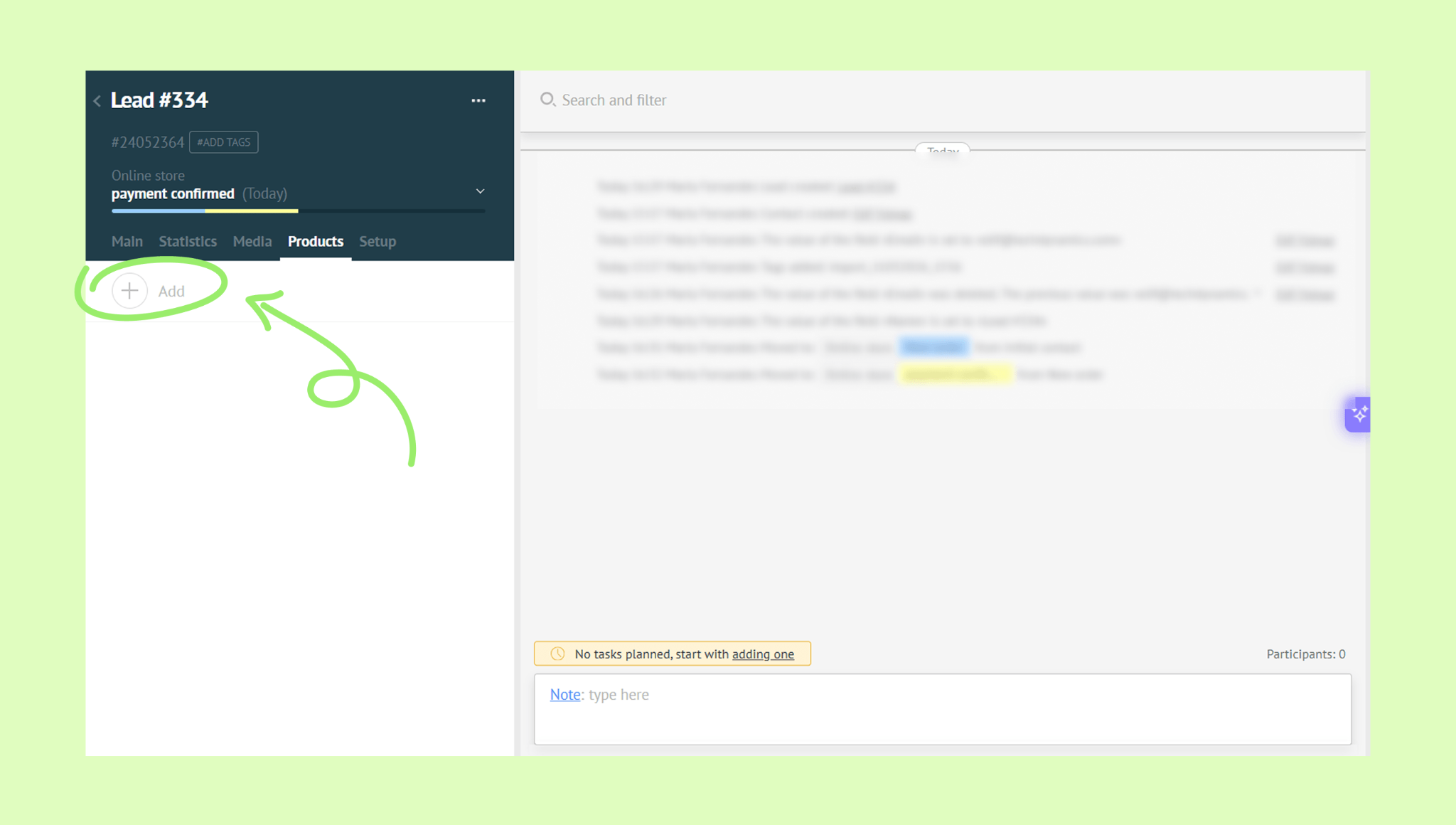
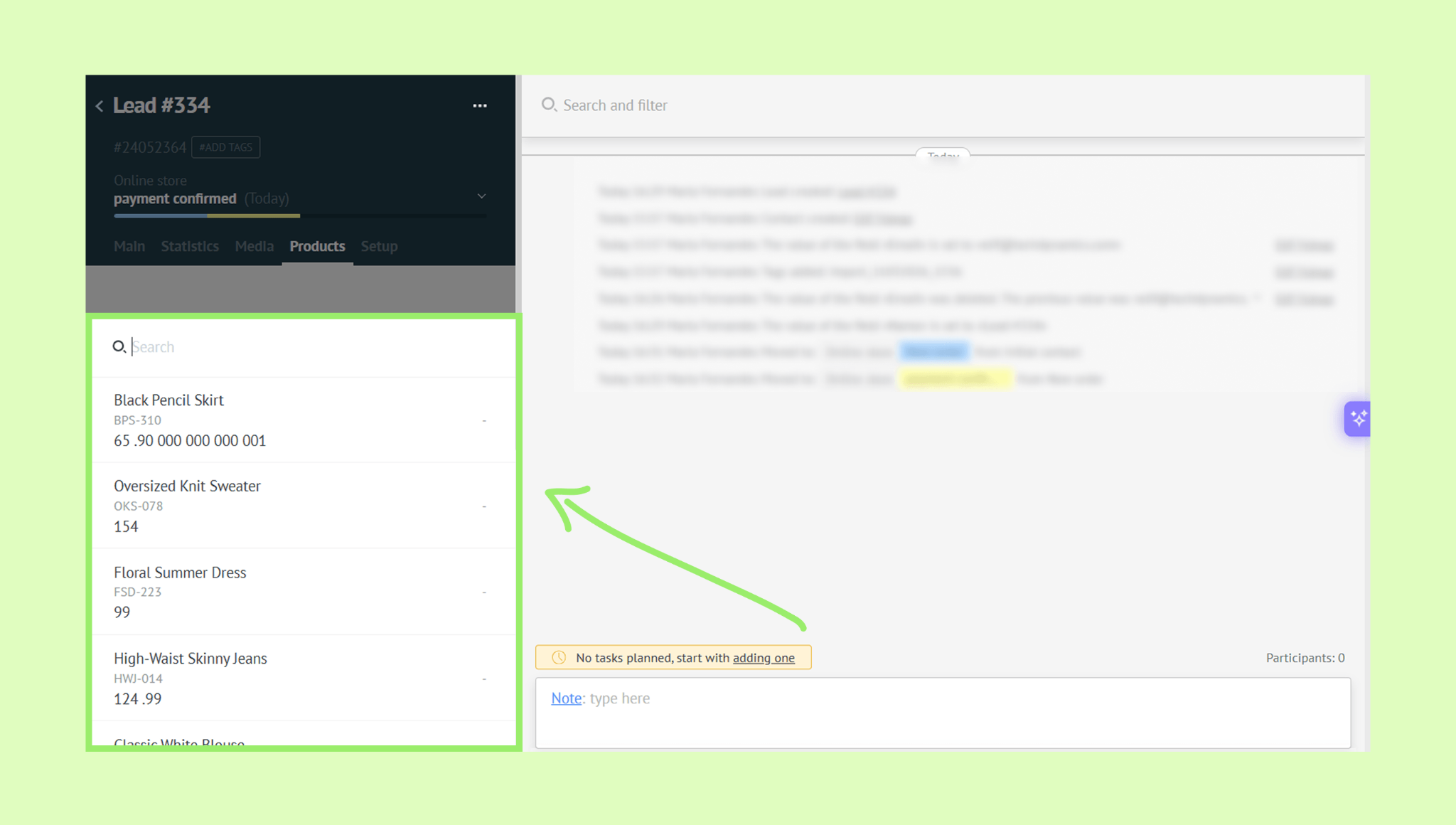
Search for a product or scroll through the list and select the product.
The product will be added to the lead profile, and the note will appear in the activity field.
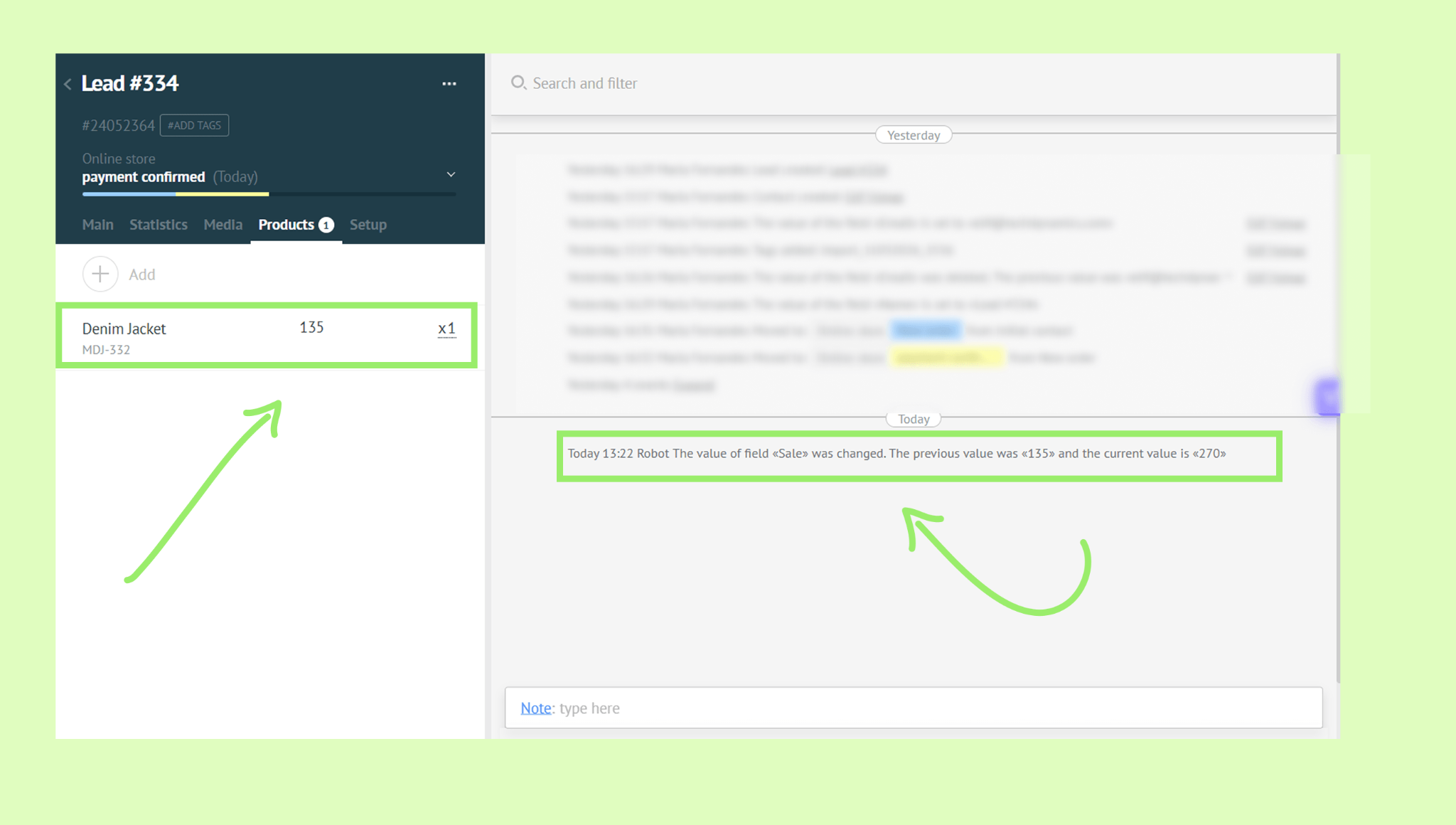
To change the quantity, click x1 (default), then enter the number of items purchased.
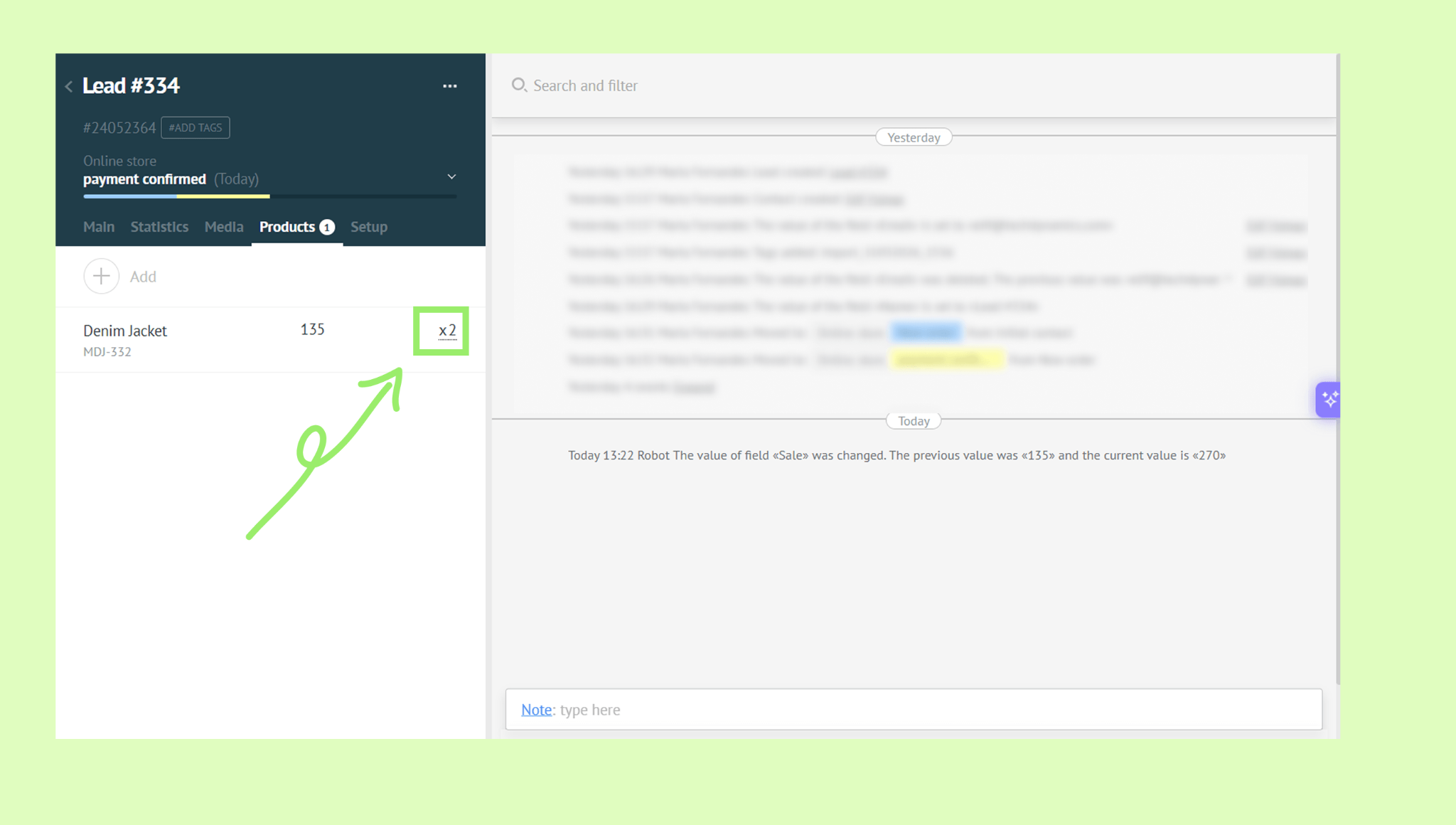
The total sale value will be calculated automatically, and the product will be saved to the lead.
How to remove products from a lead
Go to Pipelines, open the pipeline you need, and click the lead to open it.
Click Products, hover over a product, and click the red cross icon.
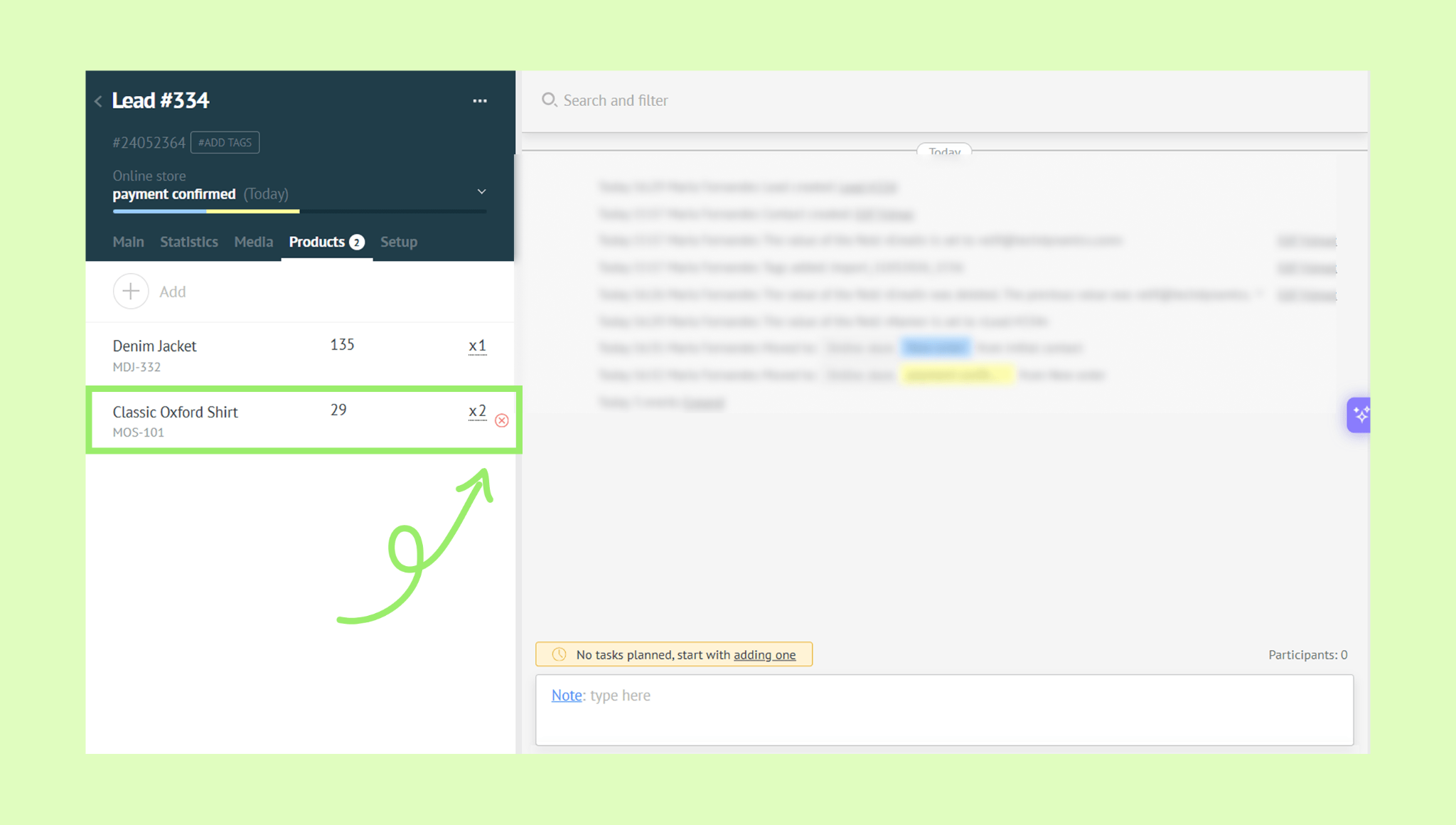
The product will be deleted automatically.
How to review lead’s purchase history and sales value
To review purchase history
Go to Pipelines and open the lead.
Open the Products tab.
All previously purchased items are listed there. You can also check the activity feed to see all changes made — for example, when a product was added or its quantity updated. 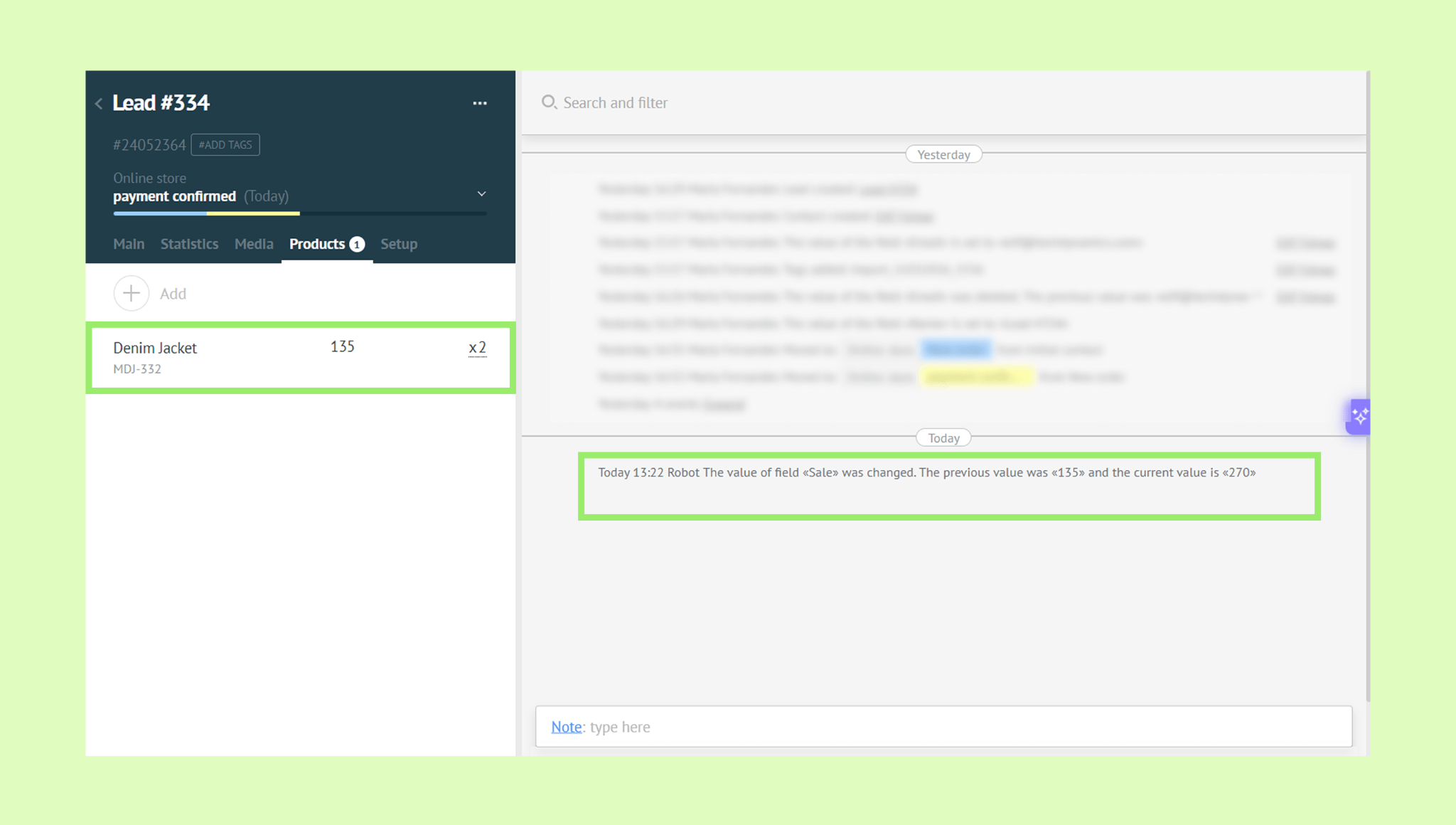
To review sales value
Go to Pipelines and open the lead.
Open the Main tab.
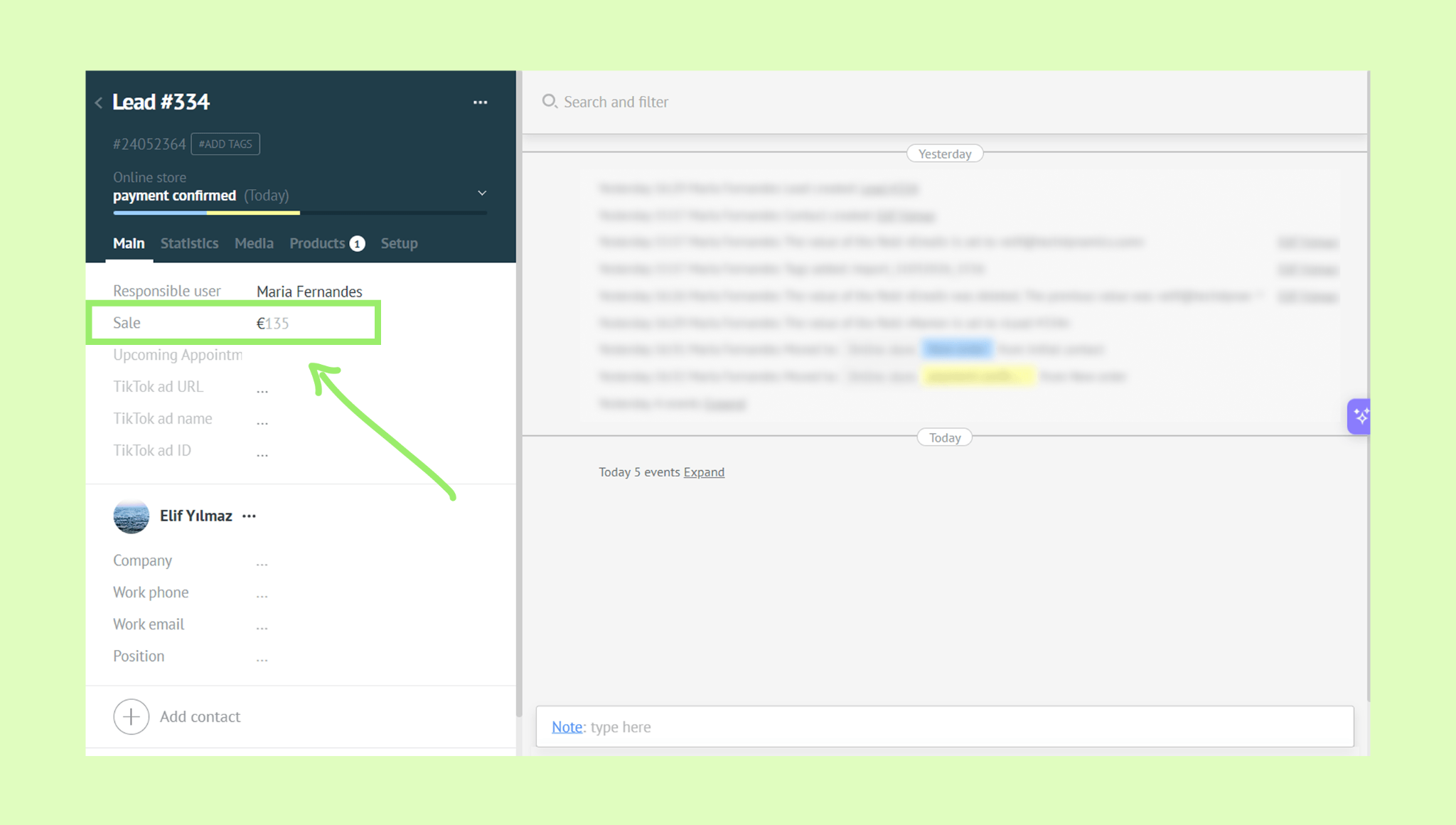
The total sale value is also shown in the lead preview within the pipeline. 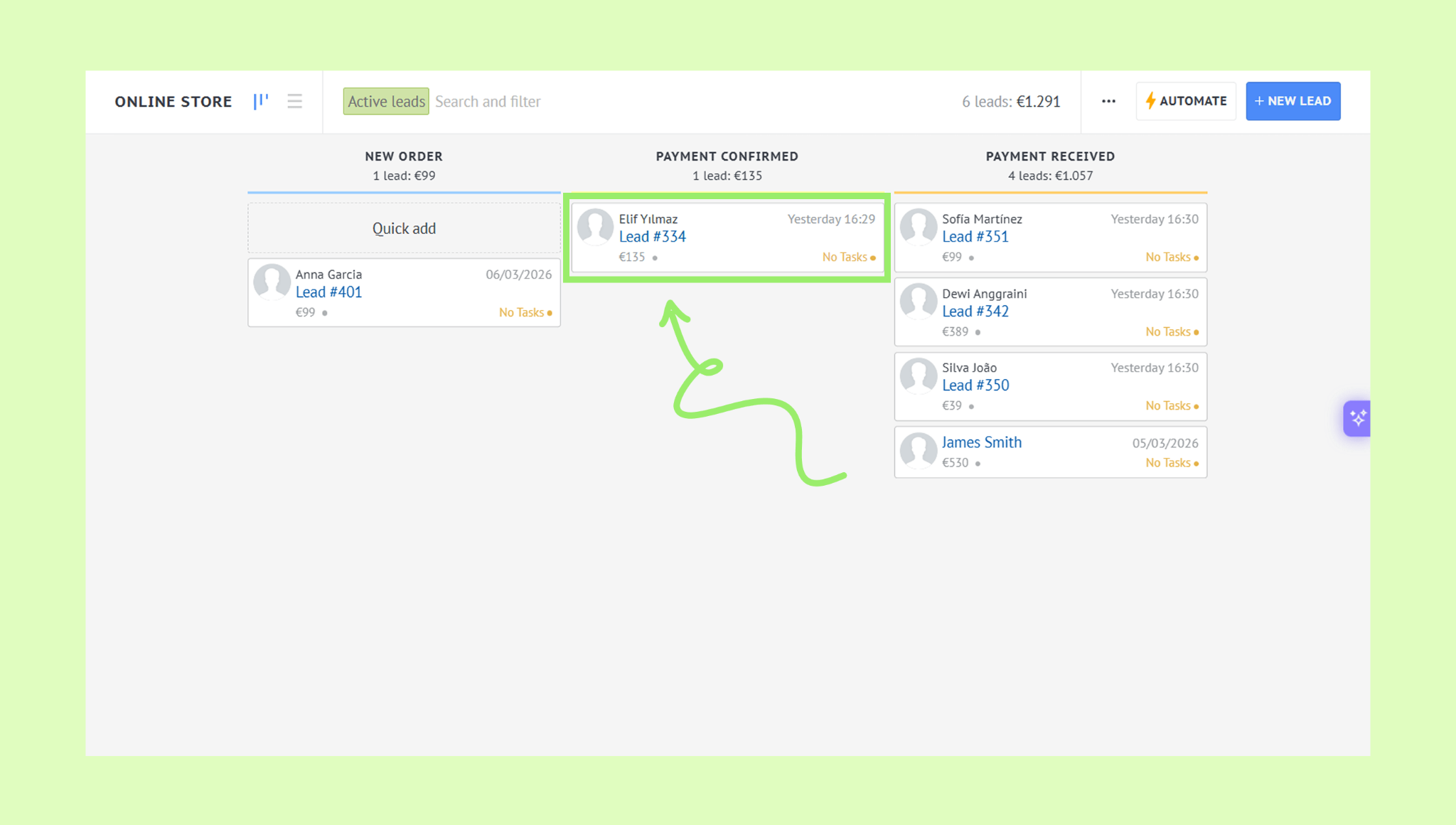
Note: You can view your sales statistics in the Win/Loss and Consolidated reports. Learn more about all report types in this article.