What you’ll need:
Any Kommo plan (Base, Advanced, Pro, Enterprise, or a 14-day trial).
Keep in mind:
Kommo AI works best when your messages match your interface language. It supports English, Indonesian, Portuguese, Russian, Spanish, and Turkish. Results may vary for other languages.
Only text is supported in this feature.
AI responses are generated based on available data, so results may vary depending on your content.
Kommo AI usage limits apply and may temporarily restrict access to certain features when reached.
In this guide, you’ll learn how to work with Conversation Summary and use it to generate summaries directly in your chats.
How to set up Conversation Summary
Conversation Summary lets you generate short summaries of individual conversations, helping you quickly understand key points and identify any unanswered questions.
Once Kommo AI is enabled, this tool is ready to use.
.png)
How to use Conversation Summary
To use this tool:
Go to Communications → Chat inbox and open a chat.
.png)
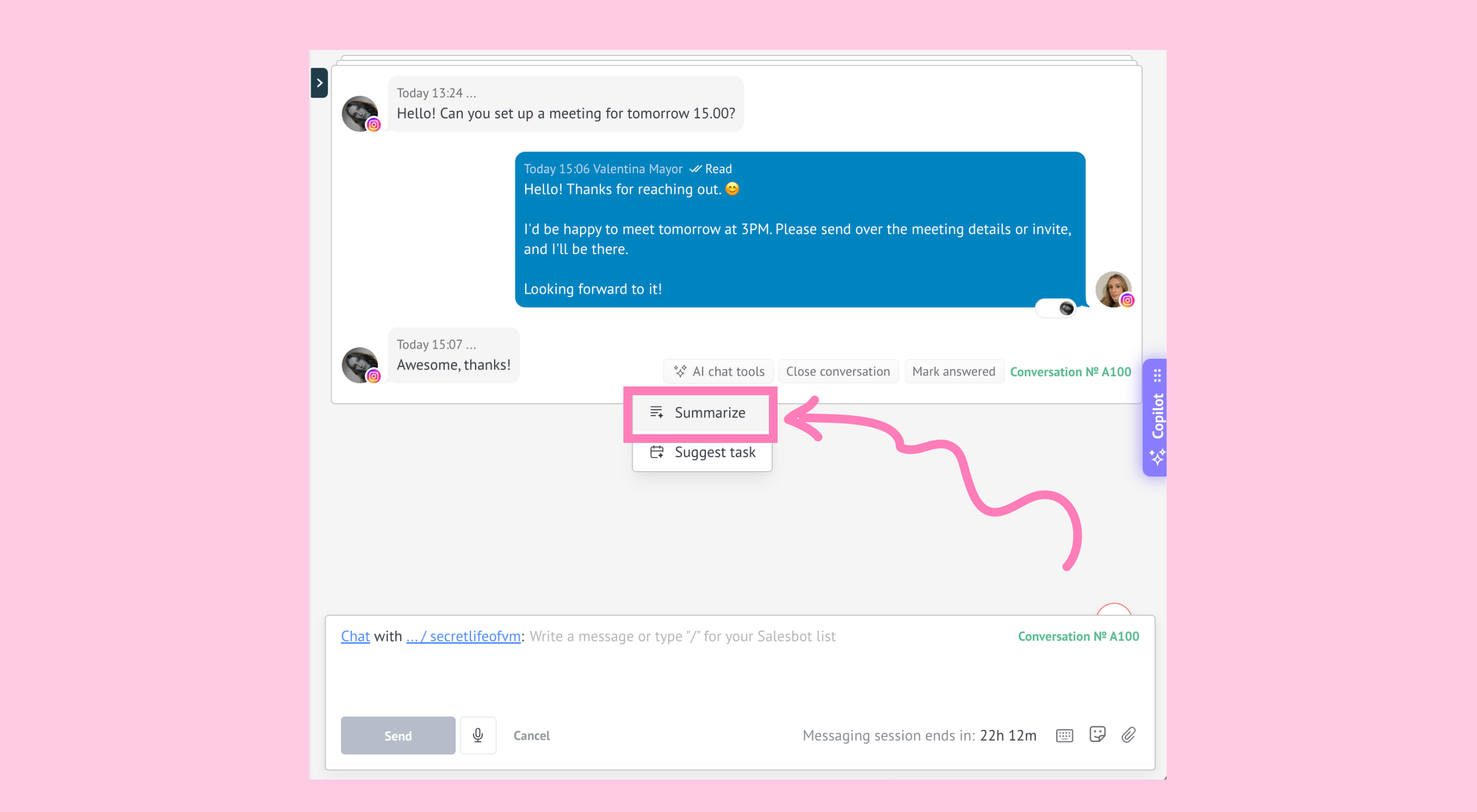
In the conversation history, click AI chat tools.
.png)
From the dropdown menu, select the Summarize option.
Kommo AI will generate a summary and add it as a note under the conversation.
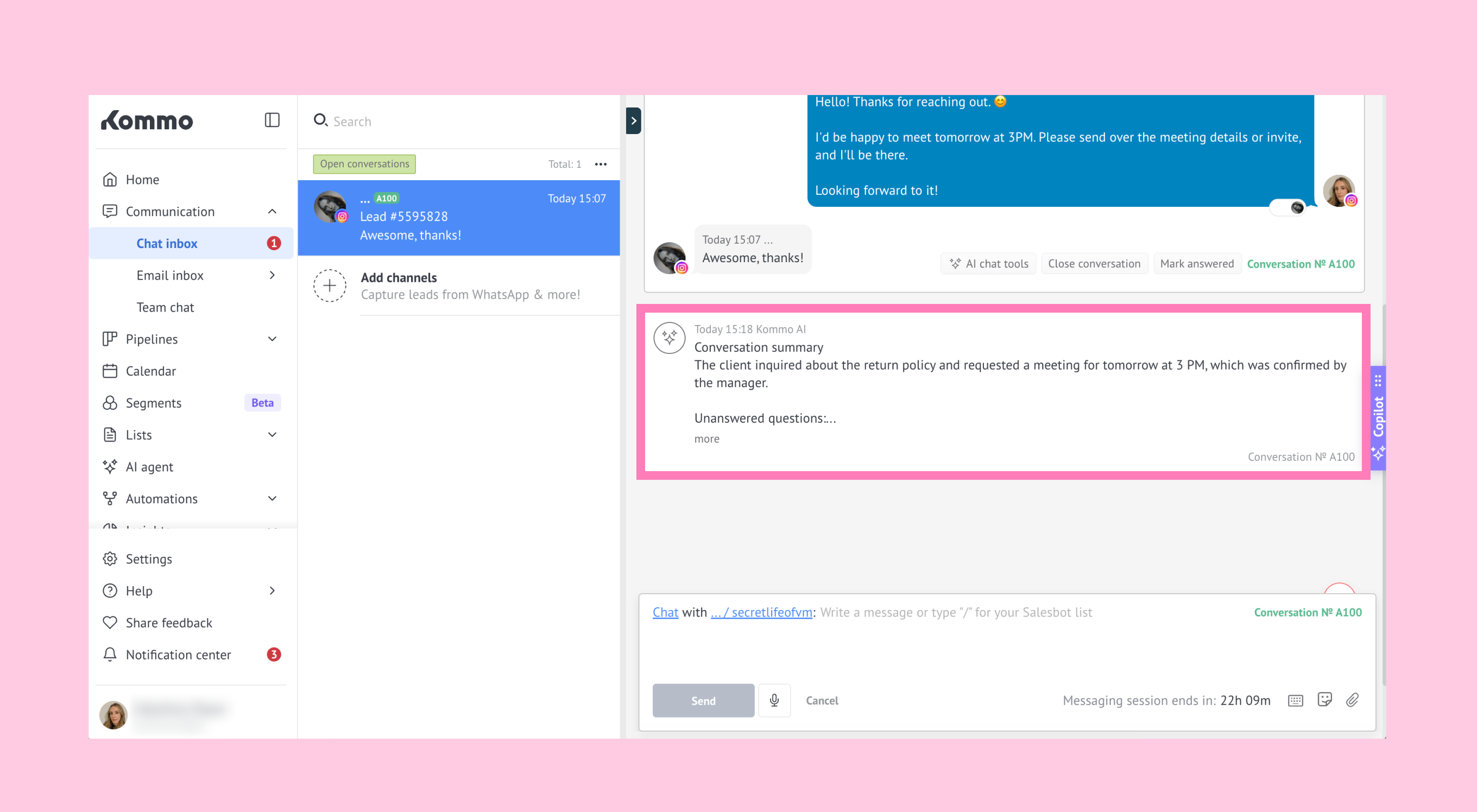
You can delete the summary at any time by hovering over the note and selecting the delete option.
Note: This tool works on individual conversations, not entire chats. On Enterprise plans, you can also search through generated summaries.
Example:
You’ve been chatting with a client about a custom order. They asked about the delivery time, requested a small discount, and said they need a couple of days to confirm with their team.
Instead of scrolling through the full conversation, you click AI chat tools → Summarize, and Kommo AI generates:
‘The client [client name] is considering a custom order and will confirm after checking with their team. They also asked about delivery time and a possible discount.’