What you’ll need:
Any Kommo plan (Base, Advanced, Pro, Enterprise, or a 14-day trial)
Note: Task Suggestions are not available on Base and Advanced plans created before May 4, 2026.
Admin or Owner access to enable this feature.
Keep in mind:
Kommo AI works best when your messages match your interface language. It supports English, Indonesian, Portuguese, Russian, Spanish, and Turkish. Results may vary for other languages.
Only text is supported in this feature.
AI responses are generated based on available data, so results may vary depending on your content.
Kommo AI usage limits apply and may temporarily restrict access to certain features when reached.
In this guide, you’ll learn how to enable Task Suggestions and use them to create tasks based on actions mentioned in your conversations.
How to set up Task Suggestions
Task Suggestions automatically detects tasks in your conversations by scanning incoming and outgoing messages. It identifies actions like follow-ups or scheduling and turns them into task suggestions.
To use this tool:
Go to Settings → AI settings.
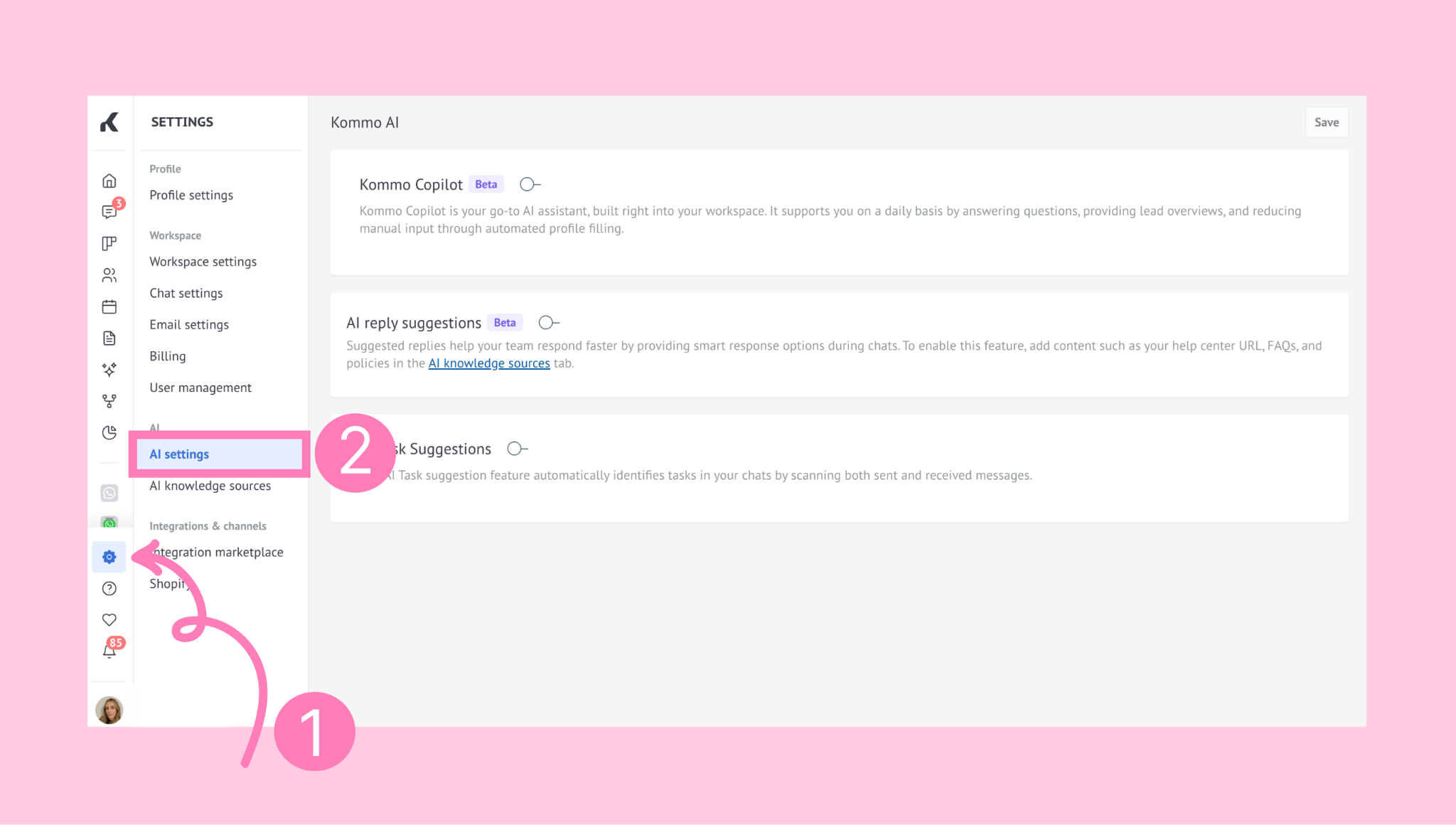
In the AI Task Suggestions section, turn the toggle on and click Save.
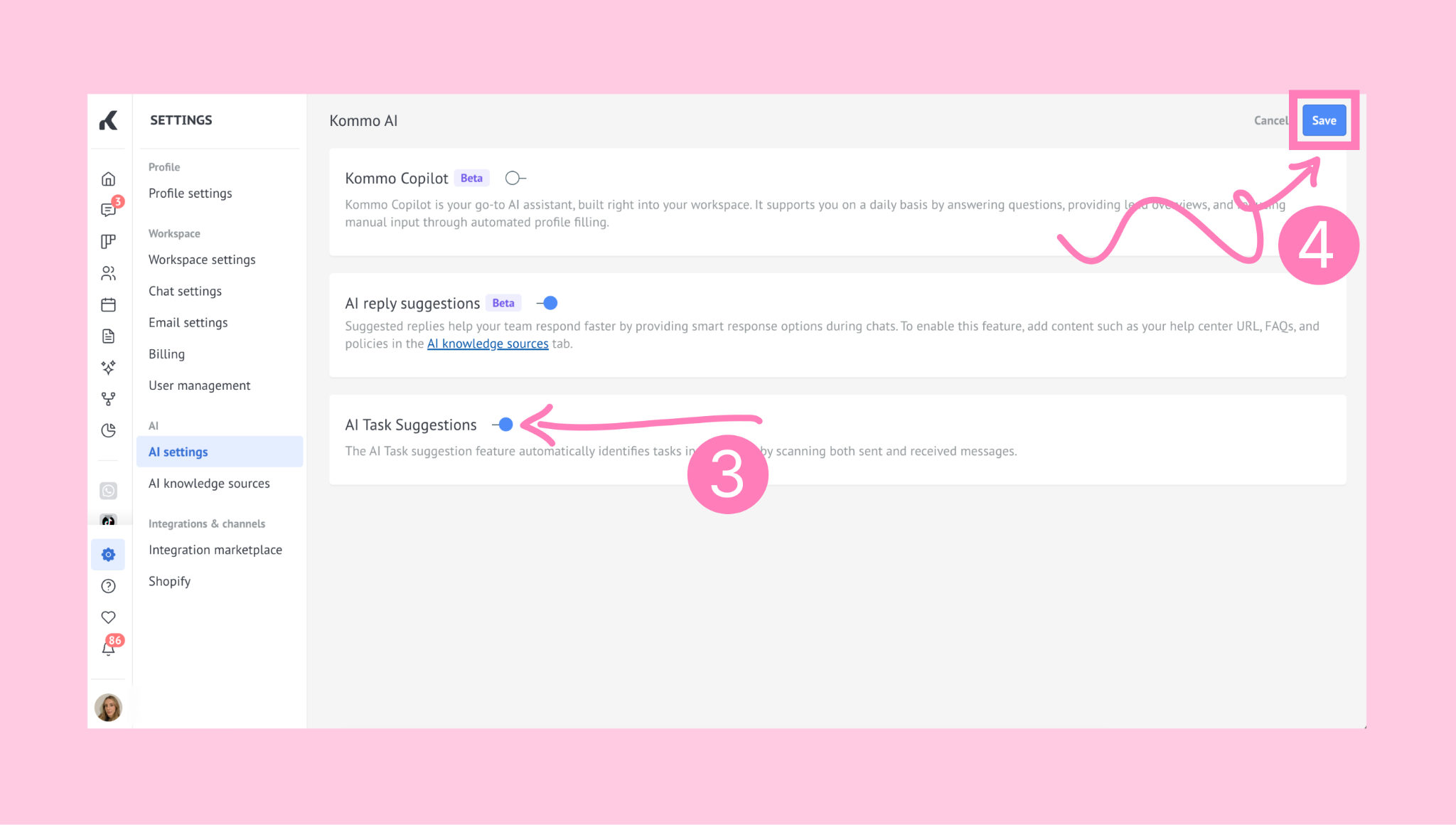
Note: On the Enterprise plan, this tool is enabled by default.
Once enabled, Kommo AI will monitor conversations and suggest tasks when relevant actions are detected. These suggestions are based only on the content of messages.
How to use Task Suggestions
Once it’s enabled, you can generate tasks in two ways:
A) Get a task suggestion automatically
Go to Communications → Chat inbox and start a chat with a lead.
.png)
As messages are exchanged, Kommo AI scans the conversation to detect actions that may require a task.
If a task is detected, the AI will generate a suggestion.
.png)
Important: If the lead already has active tasks, no new suggestion will be shown.
Note: The AI will display the suggestion only if you have not clicked on the chatbox window or if the chatbox is in Chat or Task mode.
.png)
Click the suggestion to create a task draft based on the message content.
The draft will include:Task subject
Deadline
Task type
Responsible user (the one that clicked on the task suggestion).
.png)
Note: The AI does not use general lead information (such as agent names, client details, products, or other entities) to create tasks. It relies only on information from messages. A task will only be created if the message directly includes an action that requires it.
Click Set to create the task.
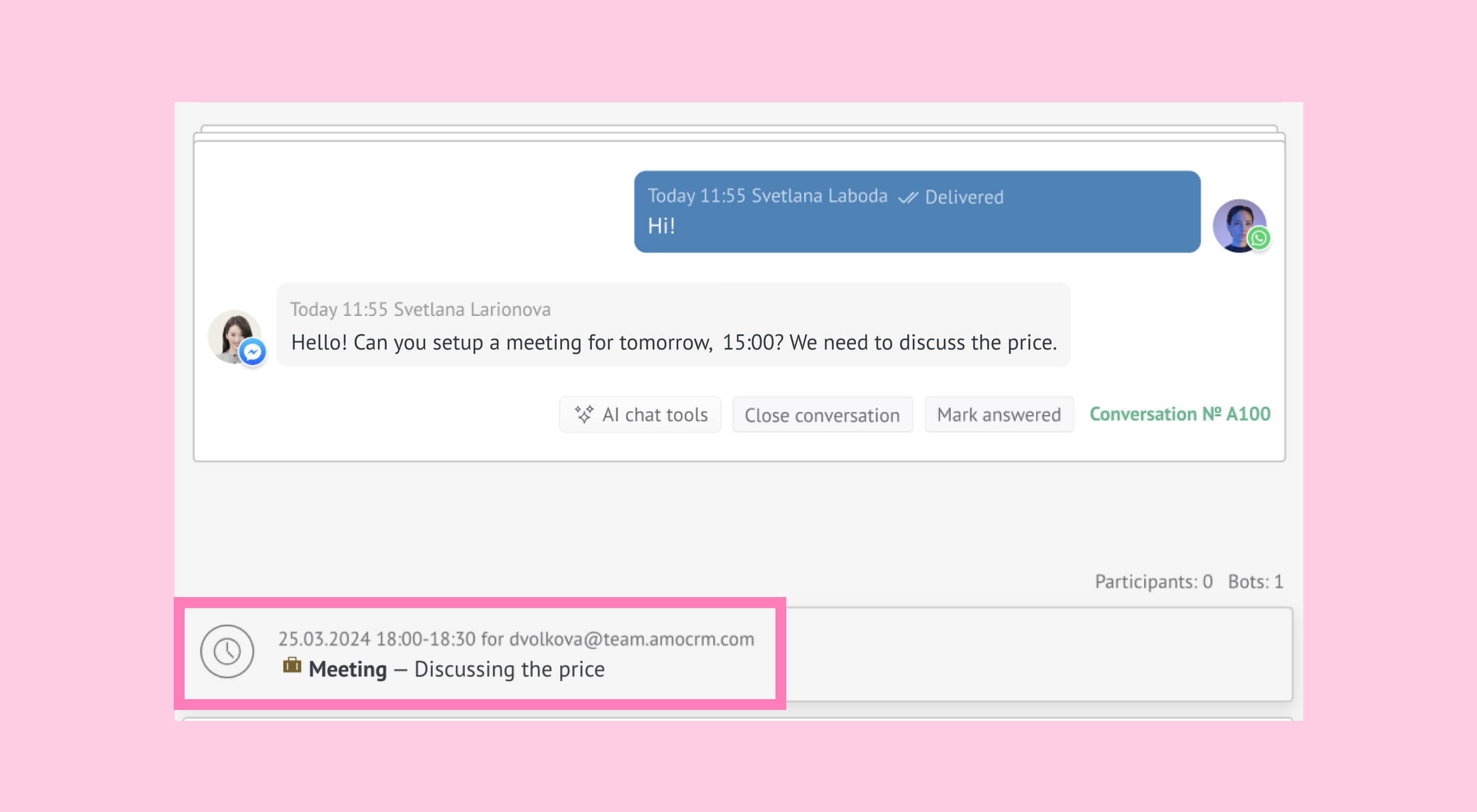
If a deadline can’t be determined, you’ll be asked to set one manually.
Important: In cases where the message includes both a task and a question (for example, ‘Do you offer discounts? Let’s discuss this tomorrow at 3 PM’), the AI will prioritize the Suggested Reply and provide a response instead of creating a task.
Example:
You’re discussing a proposal with a client, and they ask for a follow-up after reviewing it. They say:
‘I’ll review this with my team today. Can you follow up with me tomorrow at 3 PM?’
Kommo AI detects the follow-up request and suggests creating a task.
A task draft is created with:
Task subject: Follow up on proposal
Deadline: Tomorrow at 15:00
Task type: Follow-up
Responsible user: You
Then, you can review the details and create the task.
B) Generate a task suggestion manually
Click AI chat tools to open the dropdown menu.
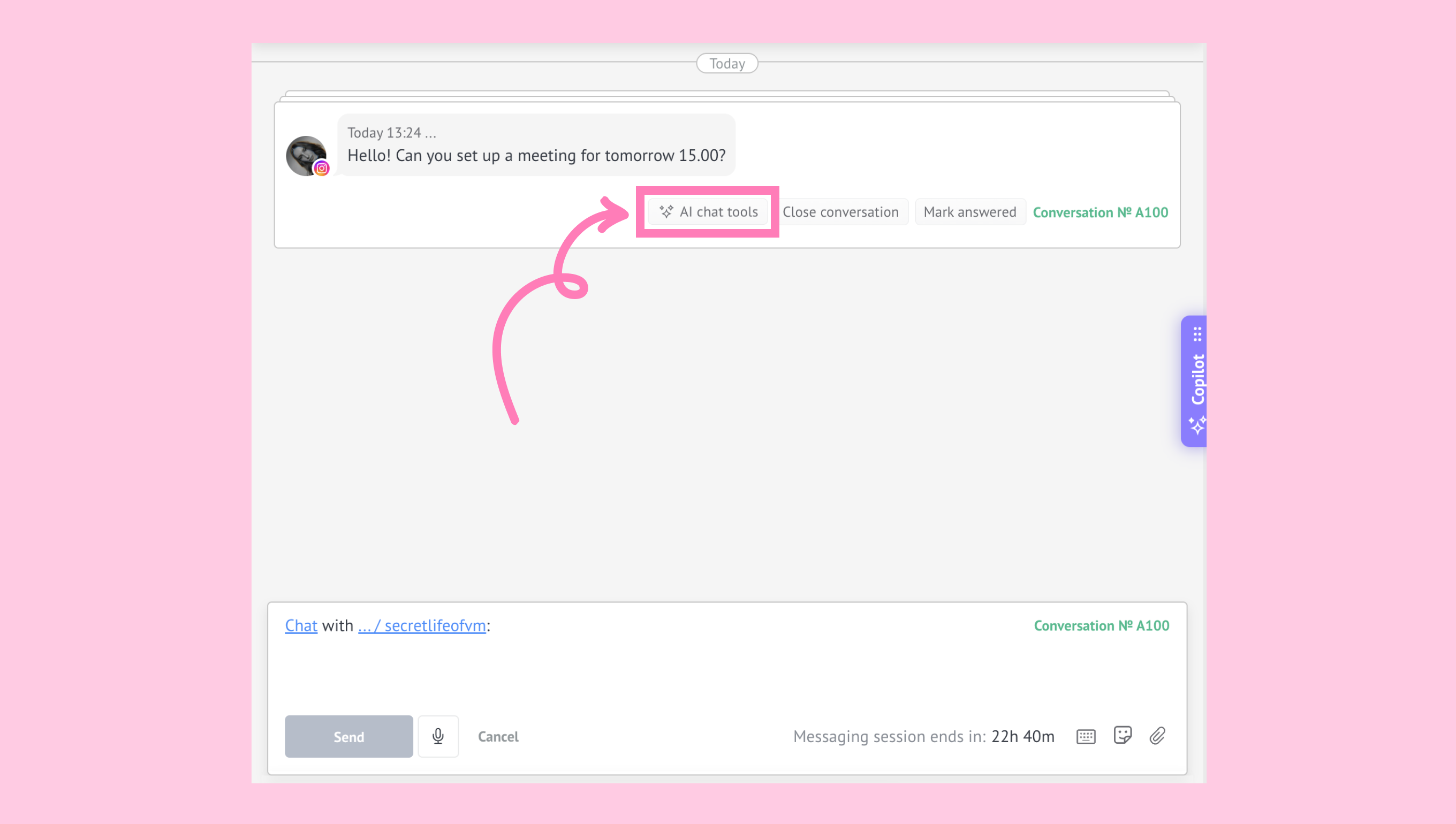
Select Suggest task.
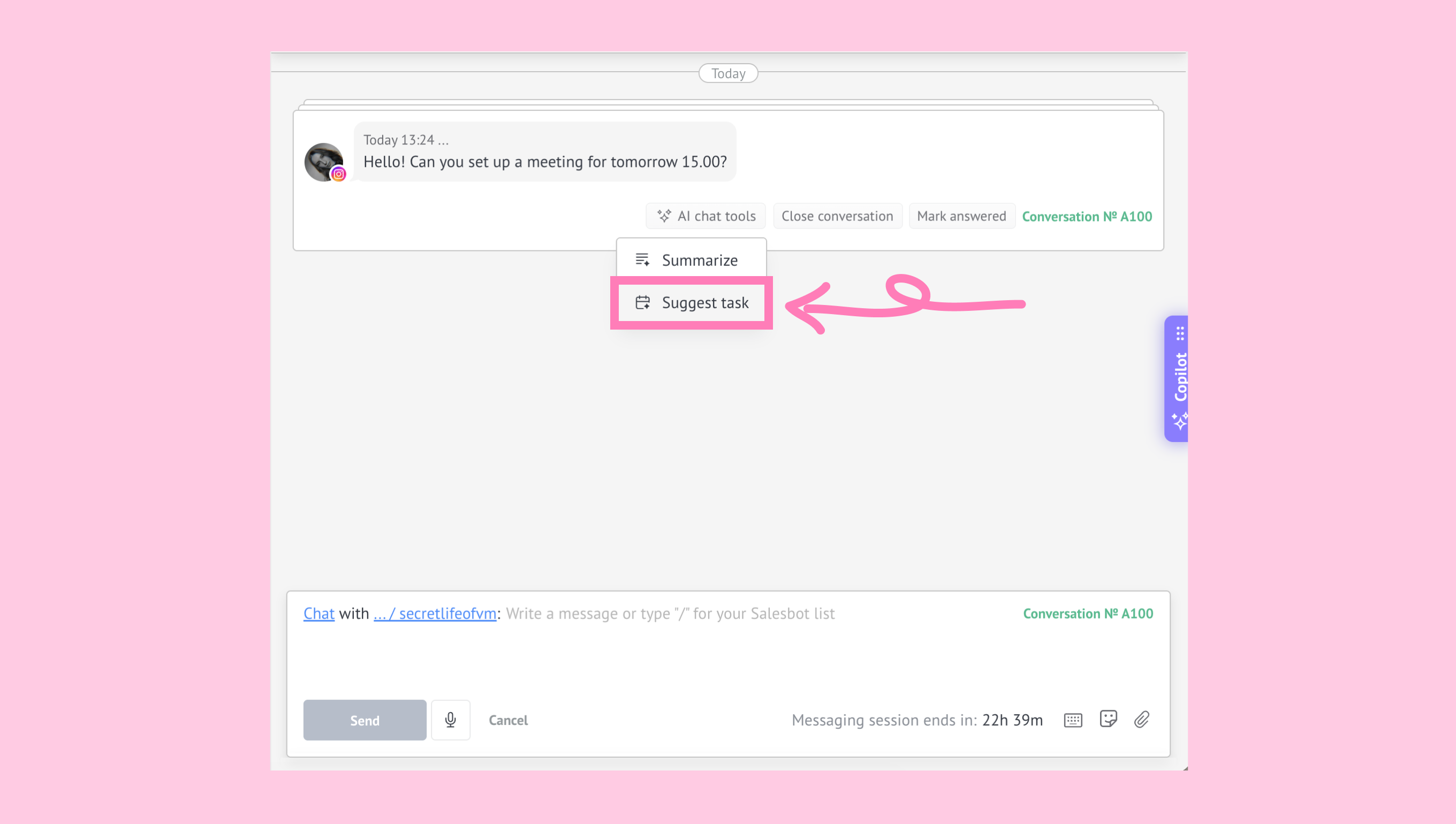
Wait while the task is being generated (a ‘Working on it…’ message will appear).
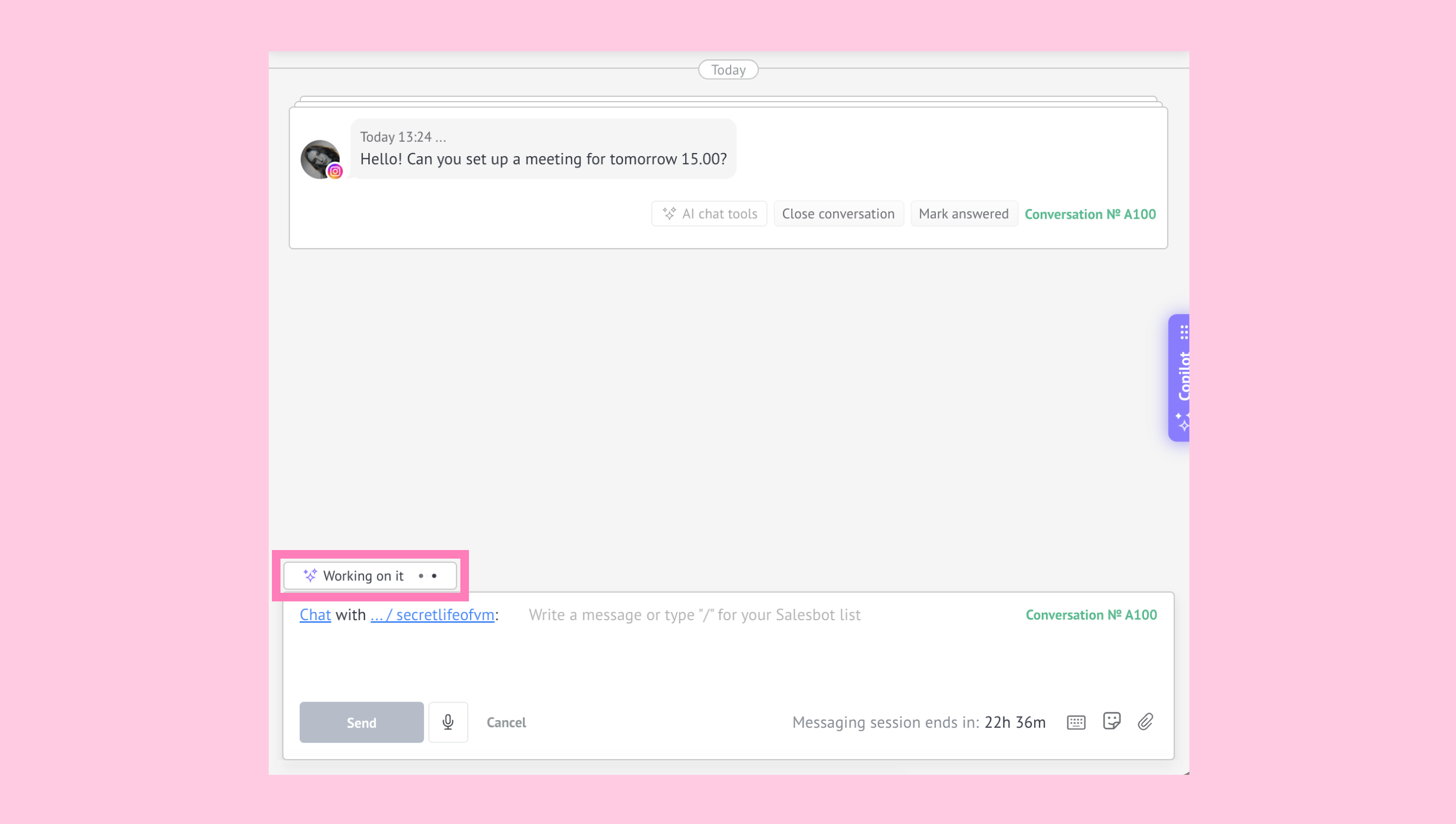
Once the task is ready, it will appear in the chat box.
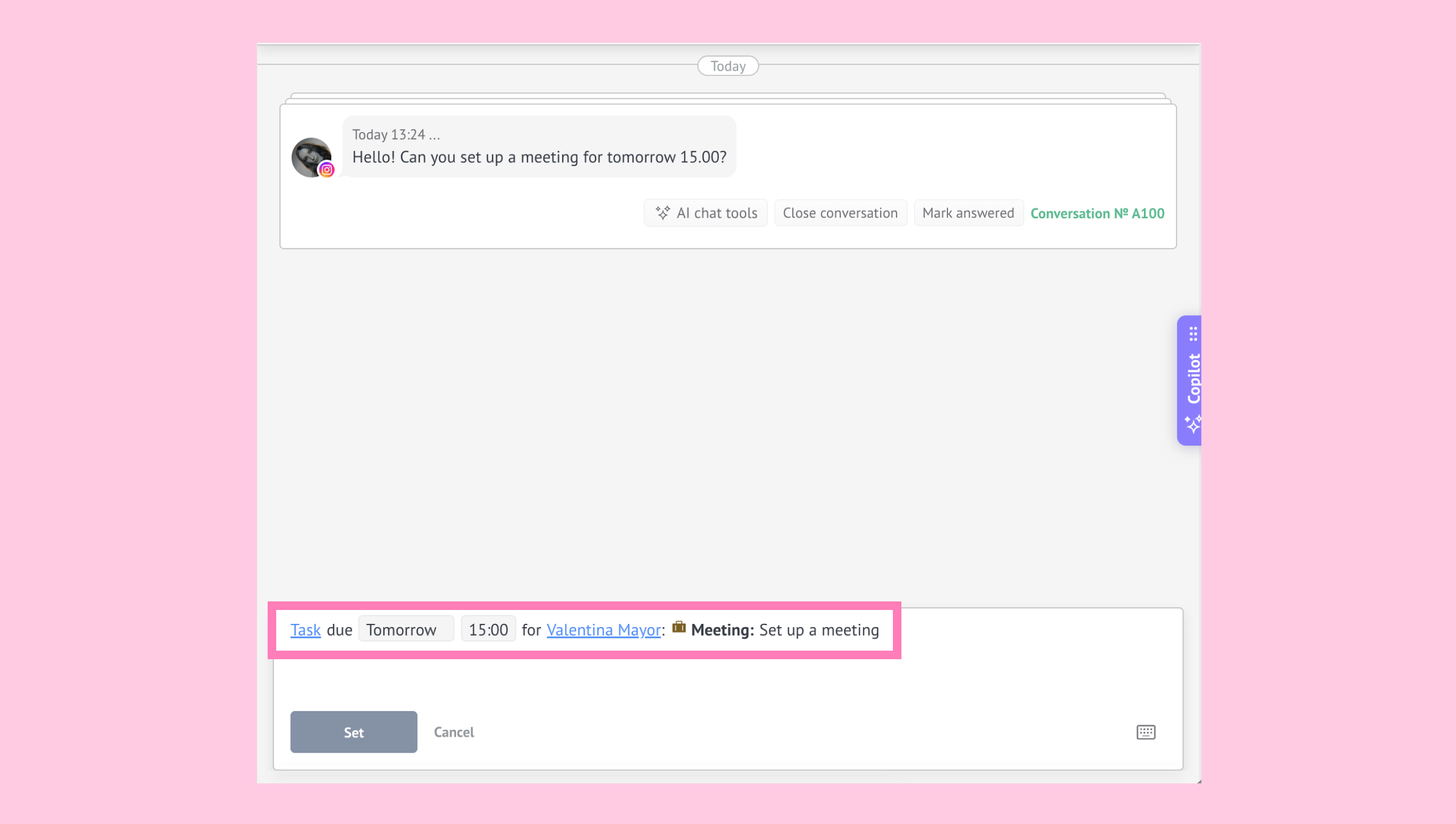
Review the task and make changes if needed.
Click Set to create the task.
Note: After a task suggestion has been used, the AI will no longer attempt to create tasks for that message or any earlier messages.
Example:
A client asks about your installation service, but no automatic task suggestion appears. They send:
‘I'm interested in the installation package. Could you send me the final quote on Friday afternoon?.’
You click AI chat tools → Suggest task.
Kommo AI generates a task with the following information:
Task subject: Send final quote
Deadline: In 7 days at 16:00
Task type: Follow-up
Responsible user: You
You can review the task, make changes if needed, and create it.
To learn more about working with tasks, refer to our Tasks article.