What you’ll need:
Any Kommo plan (Base, Advanced, Pro, Enterprise, or 14-day trial)
Any role with permission to create leads
At least one active pipeline (you can use the default or create your own)
Only Admins can delete leads or customize lead fields
Some fields may appear differently depending on your workspace’s custom setup
Leads are the foundation of your Kommo workspace — each one represents a potential customer, deal, or opportunity. By adding your first lead, you can begin organizing conversations, assigning teammates, and monitoring progress from the very first interaction.
How to create your first lead
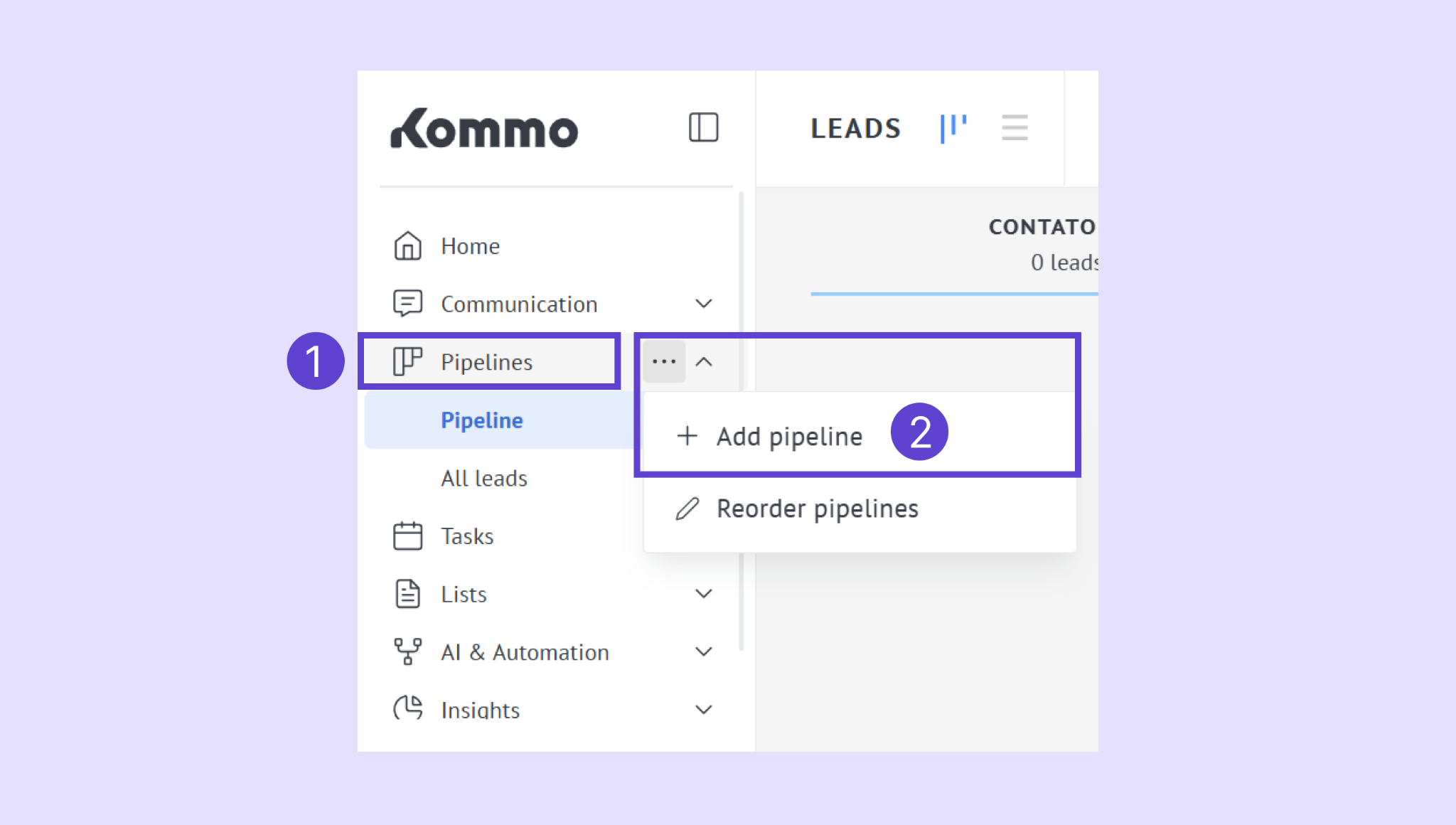
Go to Pipelines → select a pipeline or click in the three dots (...) → Add pipeline.
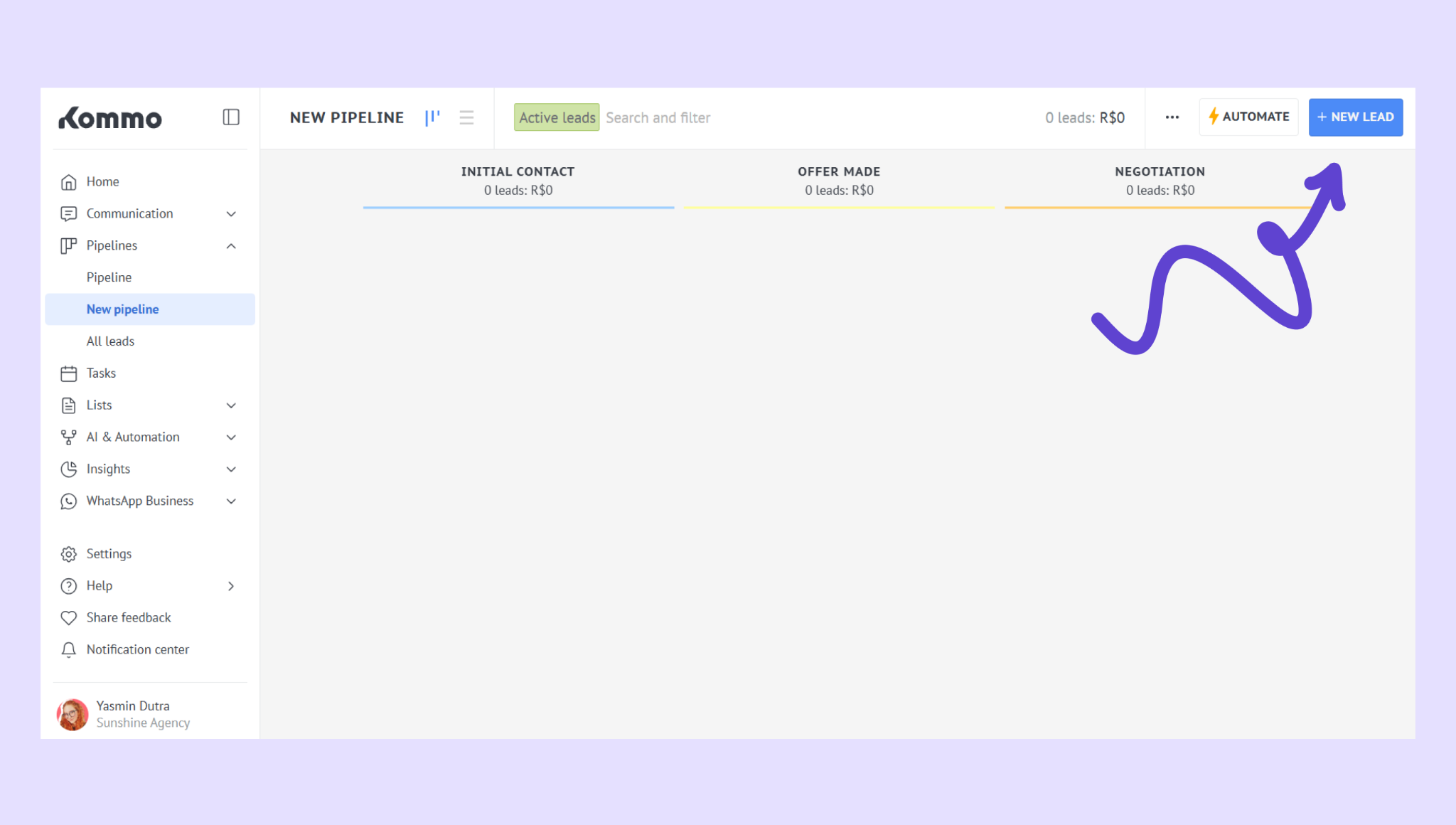
Click + New Lead.
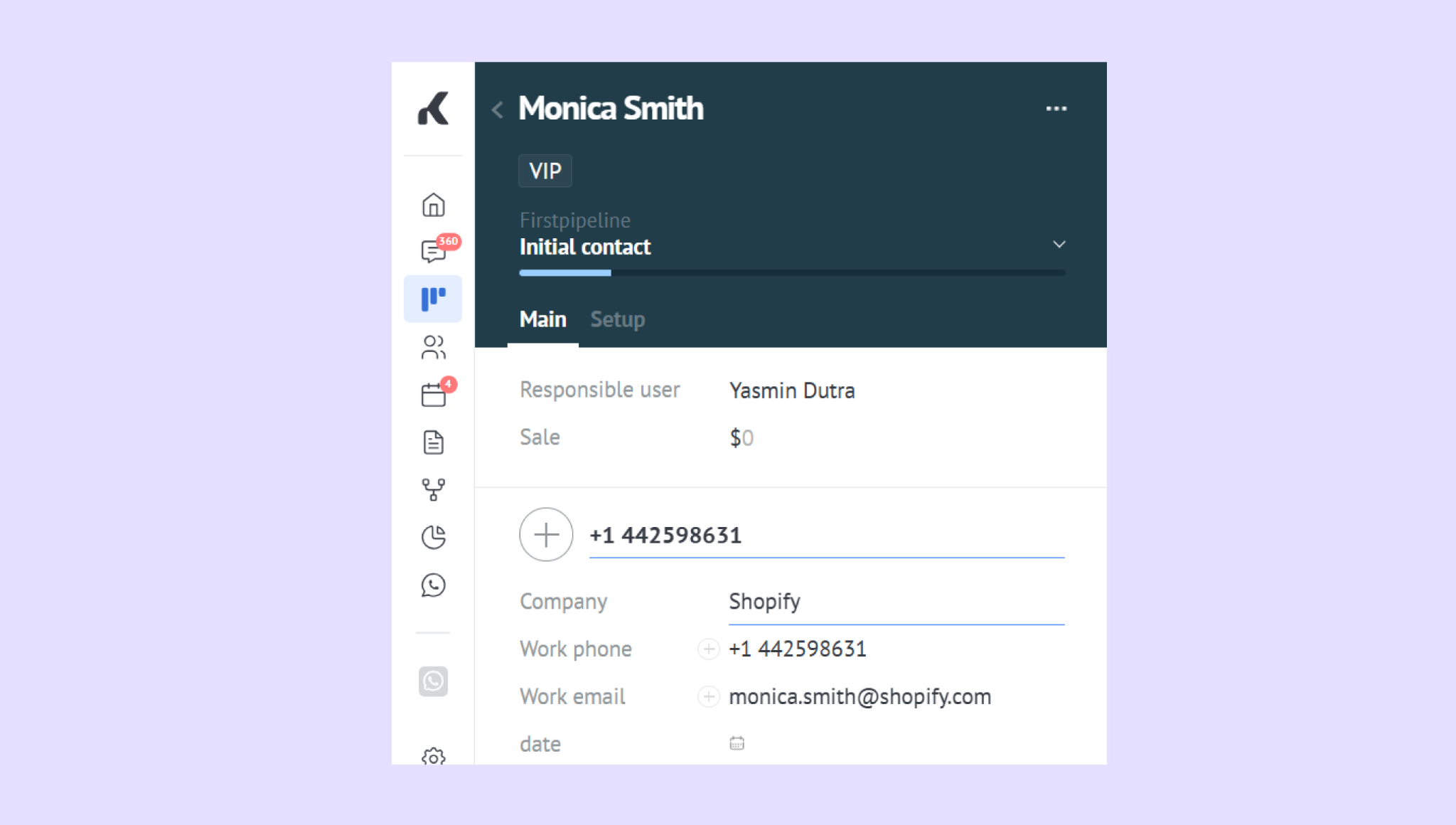
Enter the lead’s name and any known contact details (like email or phone).
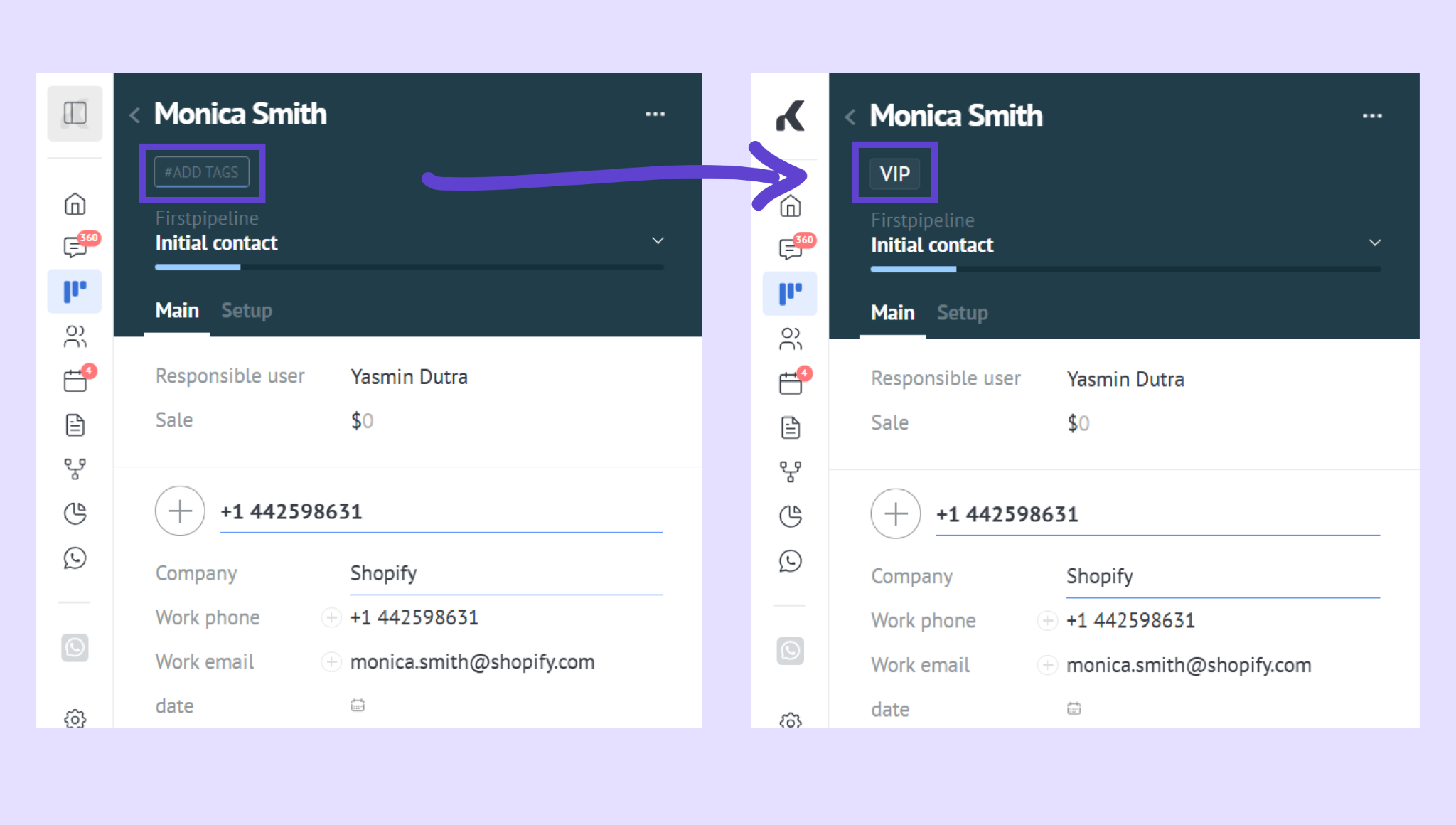
Add tags such as #vip, #partner, or #event2025 to categorize and find leads faster.
Assign the lead to a pipeline stage (e.g., “New” or “Contacted”).
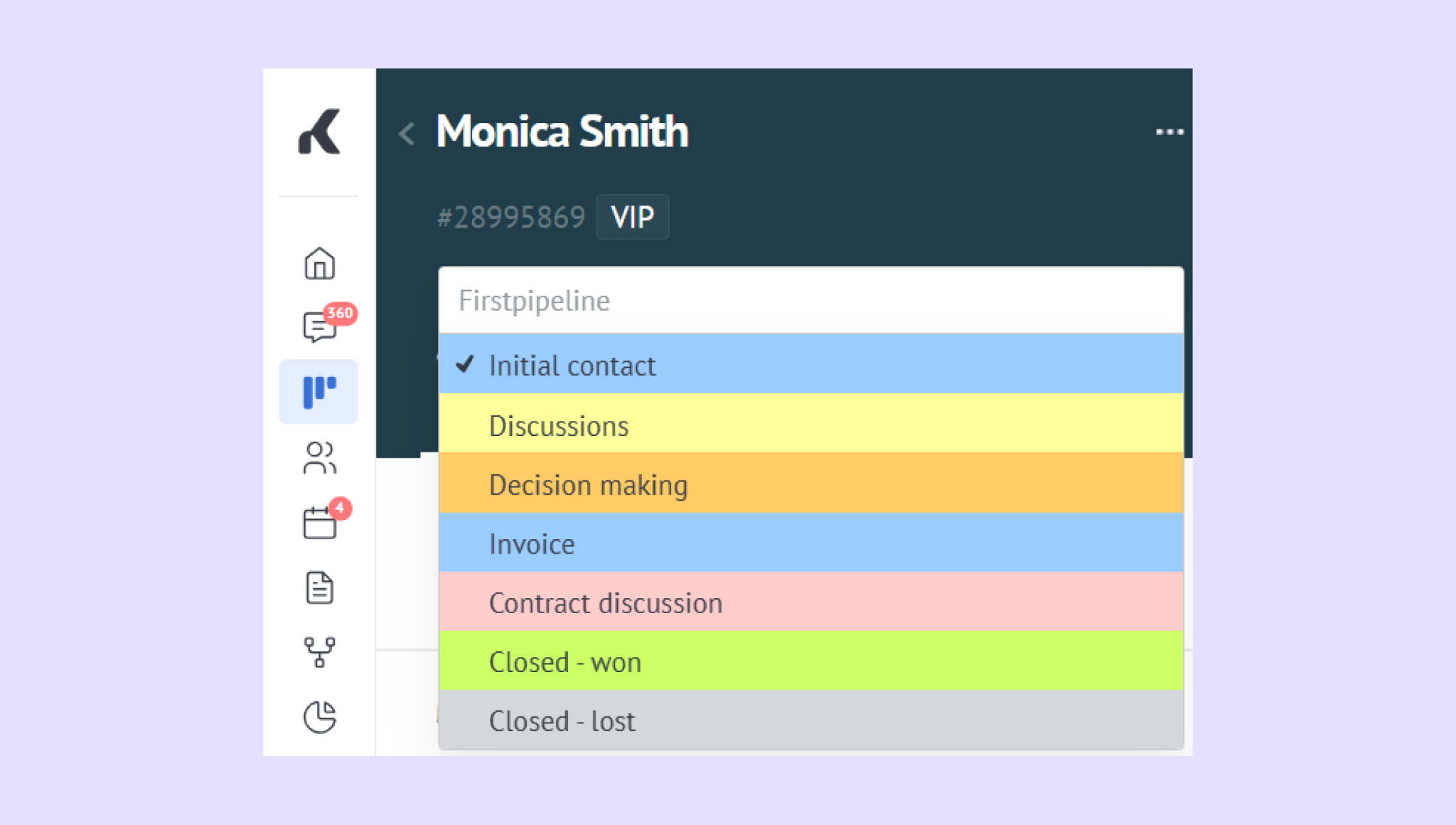
Click Save — your new lead card will open automatically.
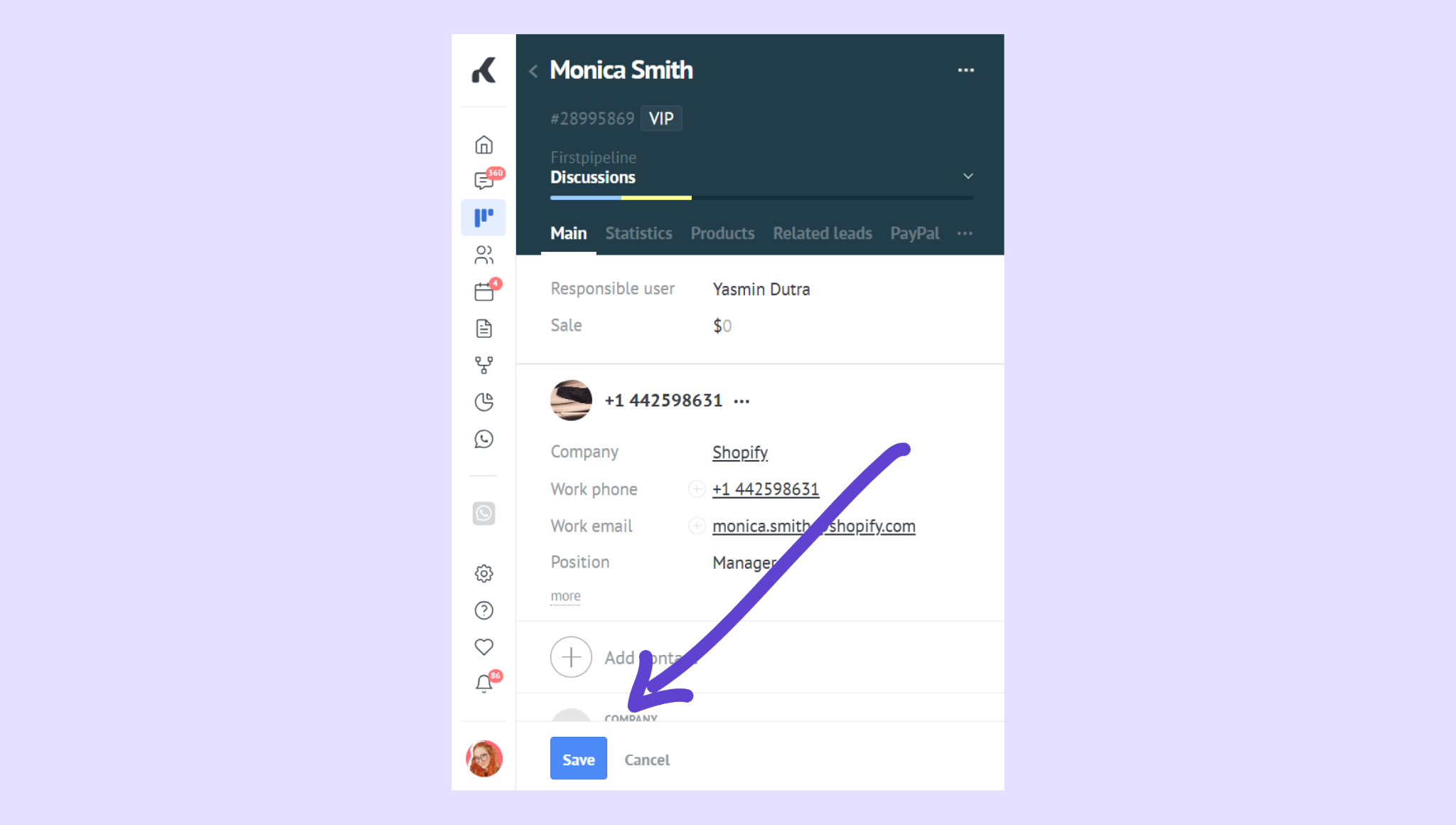
Tip: Add as much information as possible right away — it helps you segment and automate more effectively later.
Add contacts and companies
Inside the lead card:
Click Add contact to add or update contact details.
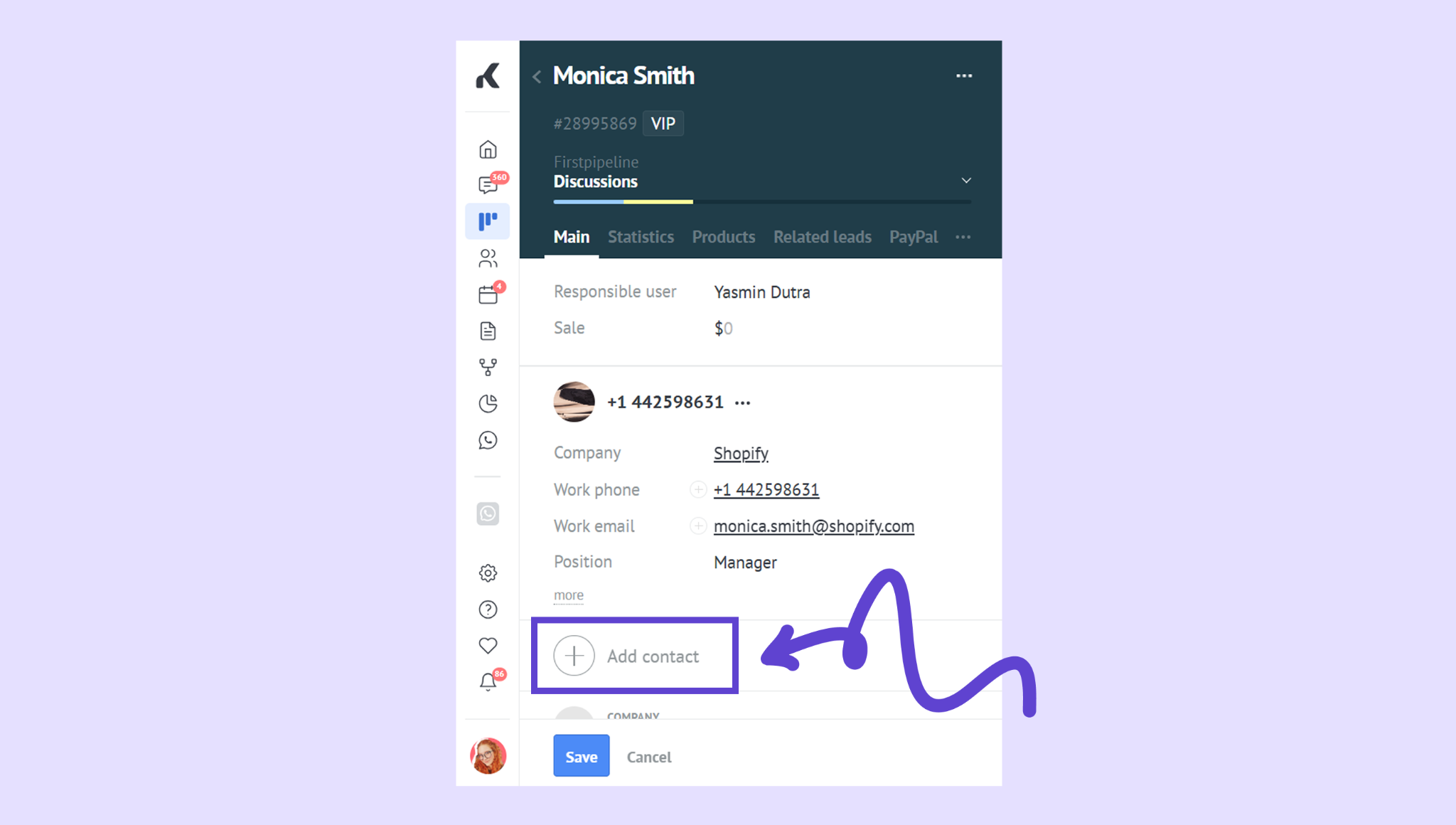
Click Add company to connect the lead to an organization.
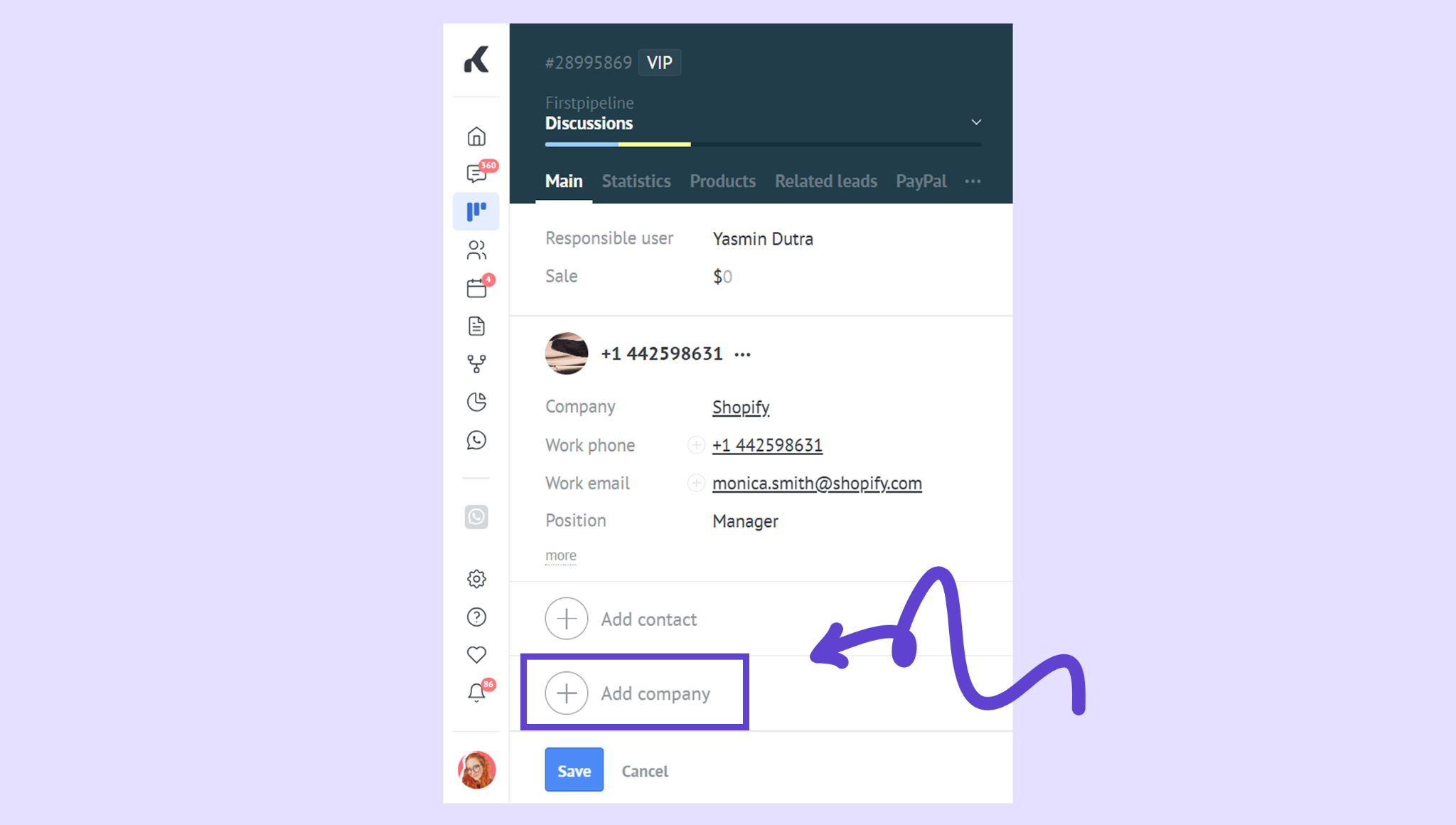
You can link multiple leads to the same company and to the same contact for better account management.
Import leads in bulk (optional)
If you already have leads stored elsewhere:
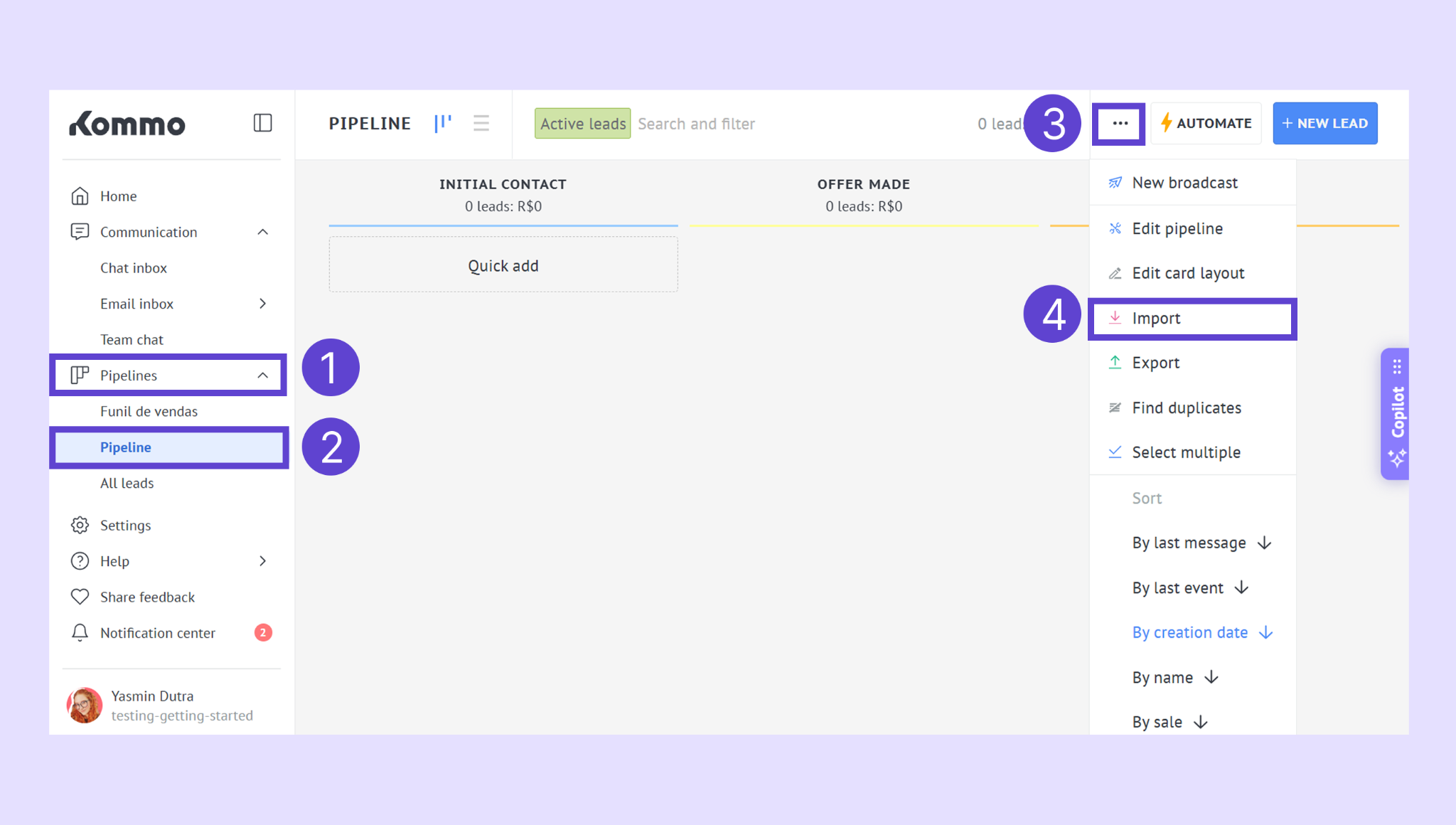
Go to Pipelines → select your pipeline → click the three dots (⋯) → select Import.
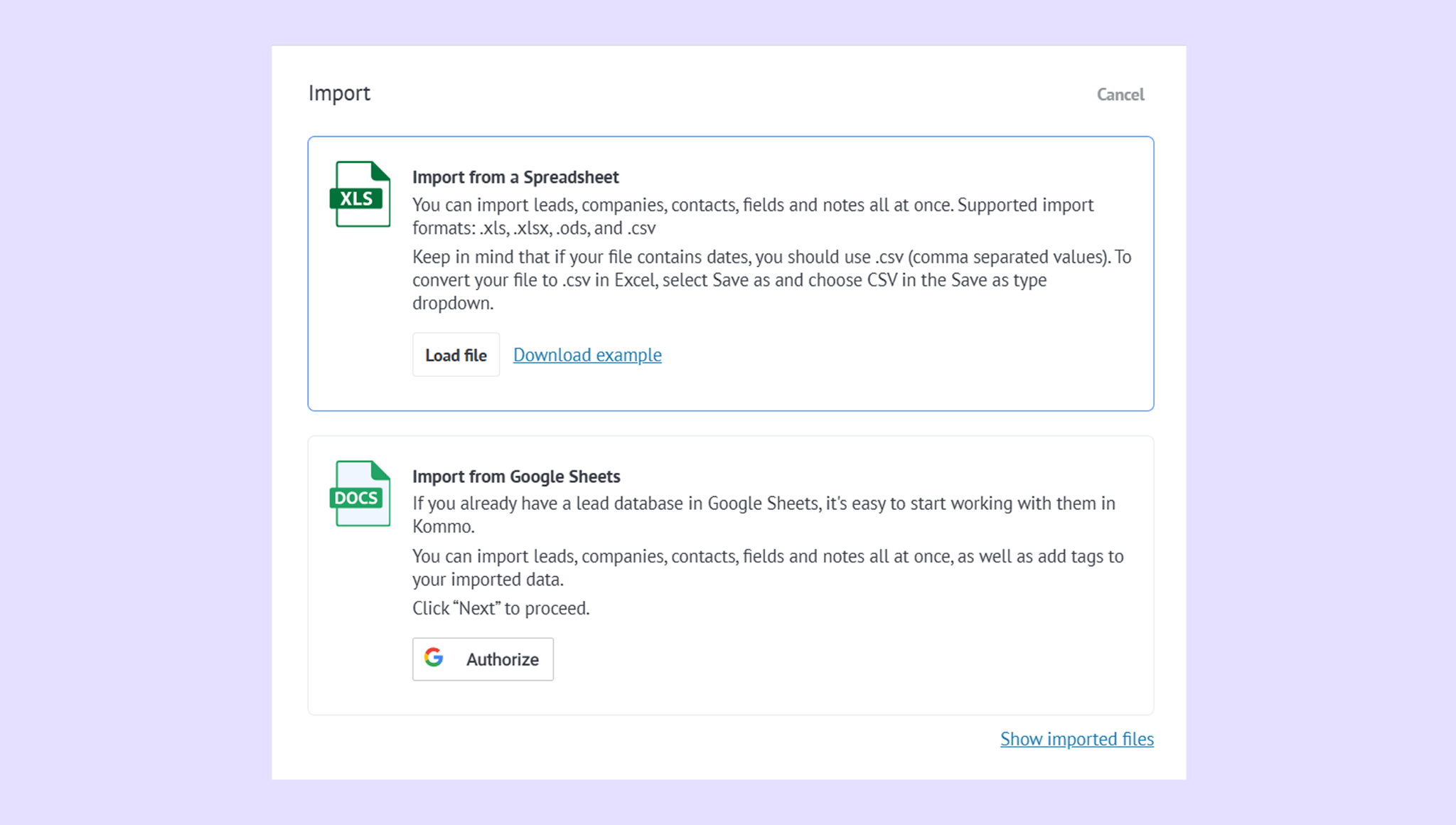
Upload a file (.xls, .xlsx, .ods, or .csv) or import directly from Google Sheets. Learn how to integrate Kommo and Google Sheets.
Map your columns to Kommo fields (e.g., “Phone,” “Email,” “Company name”).
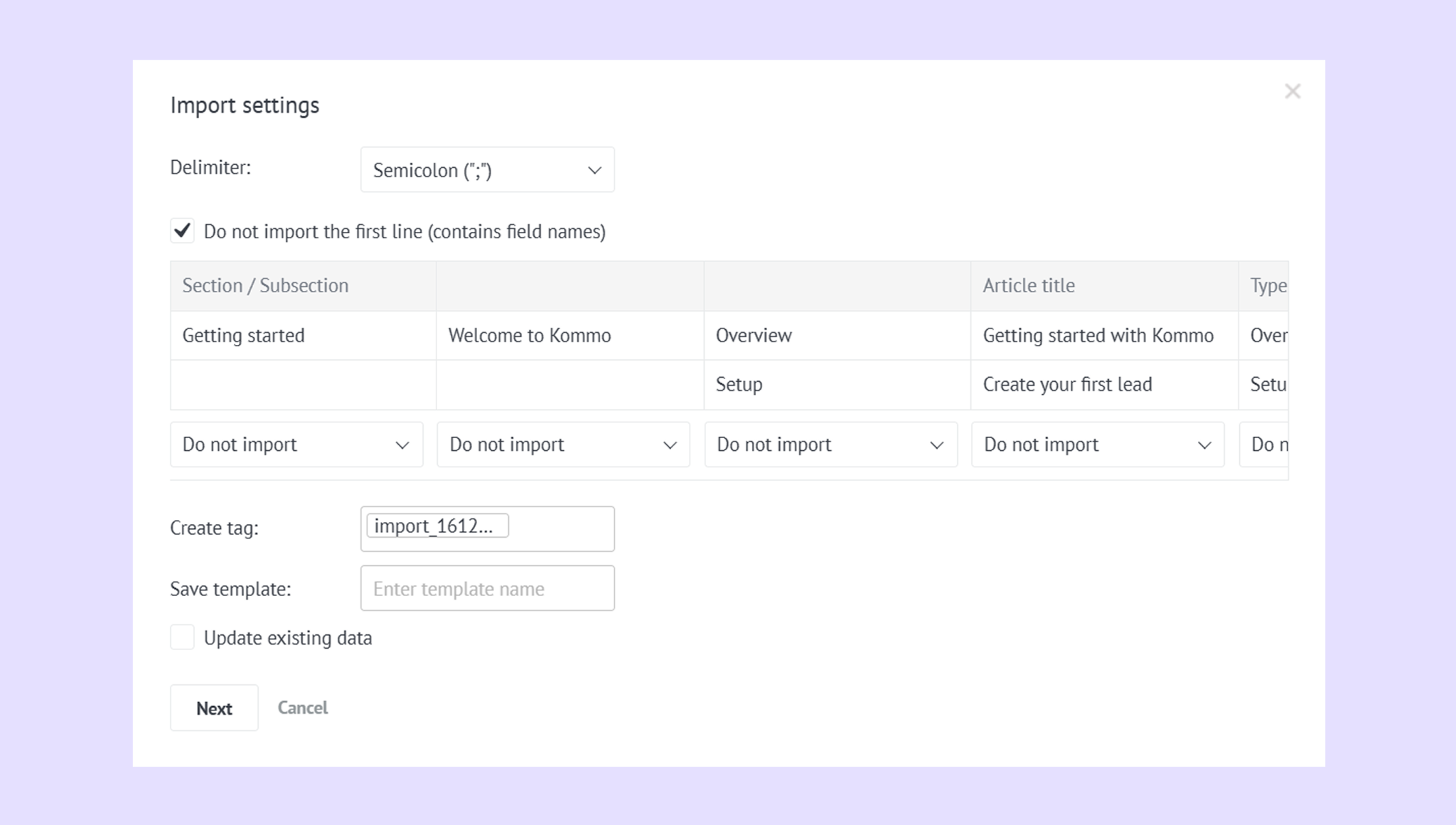
Click Import — all leads will appear automatically in your pipeline.
Verify the setup
Once added, you’ll see your new lead in the pipeline with the assigned stage and tags.
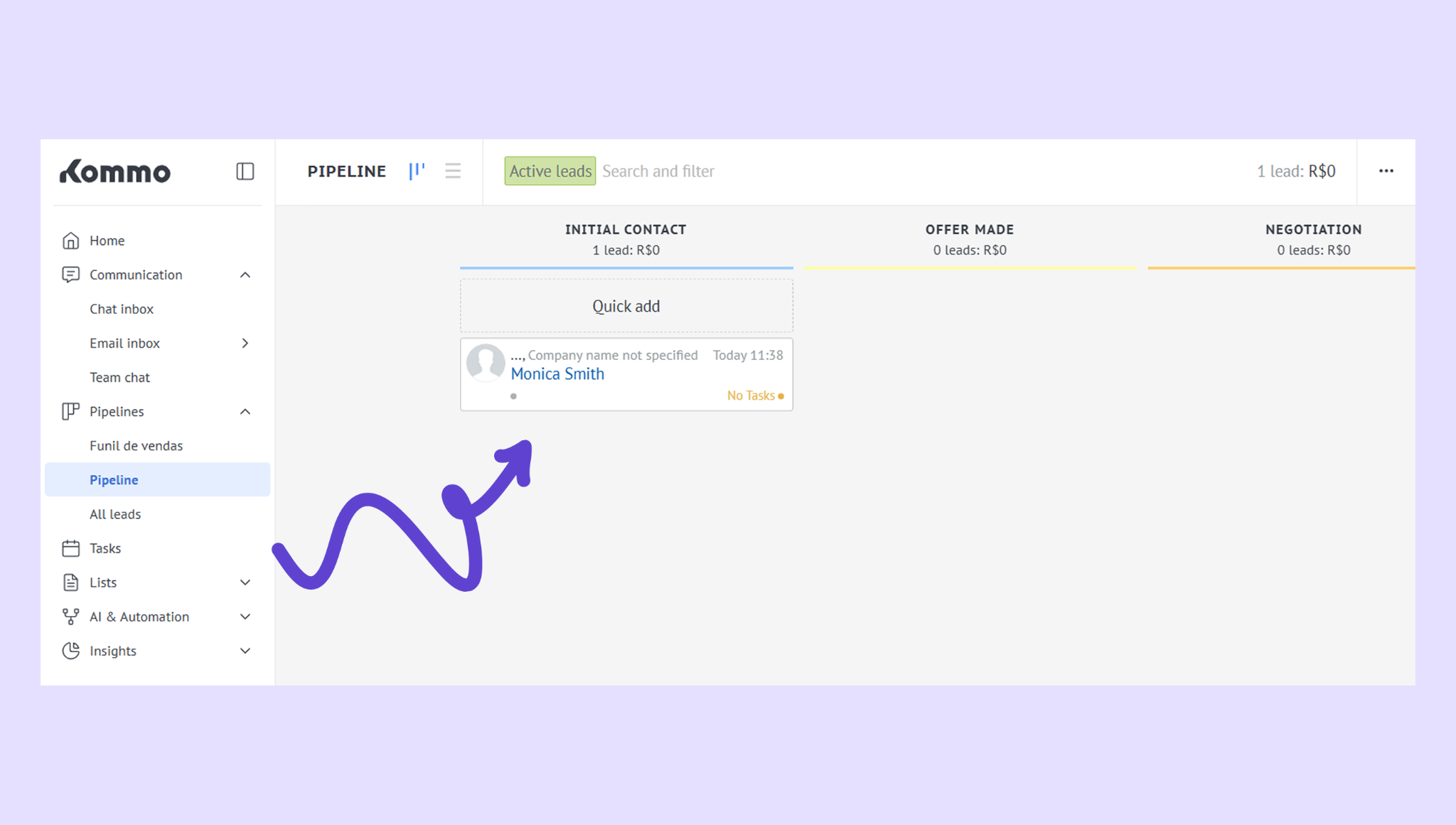
Open the card to confirm all details, tasks, and contacts display correctly.
Tip: Try sending a message or creating a task right from the lead card to start engaging.
If you need more help with setup or troubleshooting, feel free to reach out to our support chat or contact us via WhatsApp. You can also hire a Kommo partner to do all the hard work for you.
Not a user yet? Sign up for our 14-day free trial or book a free live demo.