What you’ll need:
Any Kommo plan (Base, Advanced, Pro, Enterprise, or 14-day trial).
A connected Facebook integration in Kommo.
Keep in mind:
Only verified Facebook Business pages can be connected; personal pages are not supported, and you must have admin rights to the page. To learn how to manage admin rights, check out this Meta article.
Each Kommo account can only connect to one Facebook account. If you have multiple pipelines, you can link a different Facebook Business Page to each one, but the same page cannot be connected to multiple pipelines.
You can only message customers within 24 hours of their last interaction. If more than 24 hours have passed, you must use a Meta-approved tag.
If a client hasn’t messaged you for over 7 days, you won’t be able to reply to them at all.
Facebook restricts promotional messages after the 24-hour window. Only certain types of messages can be sent, depending on Meta’s approved policies.
To learn how to connect Facebook messages and comments, see Connect Facebook to Kommo.
Once connected, you’ll receive in Kommo:
Direct messages sent to your Facebook Business Page
Comments on your posts
Messages sent in response to your stories
You will be able to answer lead questions, respond to comments and see their chat history. To learn how to send templates, set bots and a website chat button to Facebook, see Customize Facebook messaging.
Accept, delete, or link contacts
Any new messages, comments or reactions you receive will appear in the Incoming leads stage of your pipeline, with each sender assigned a unique chat.
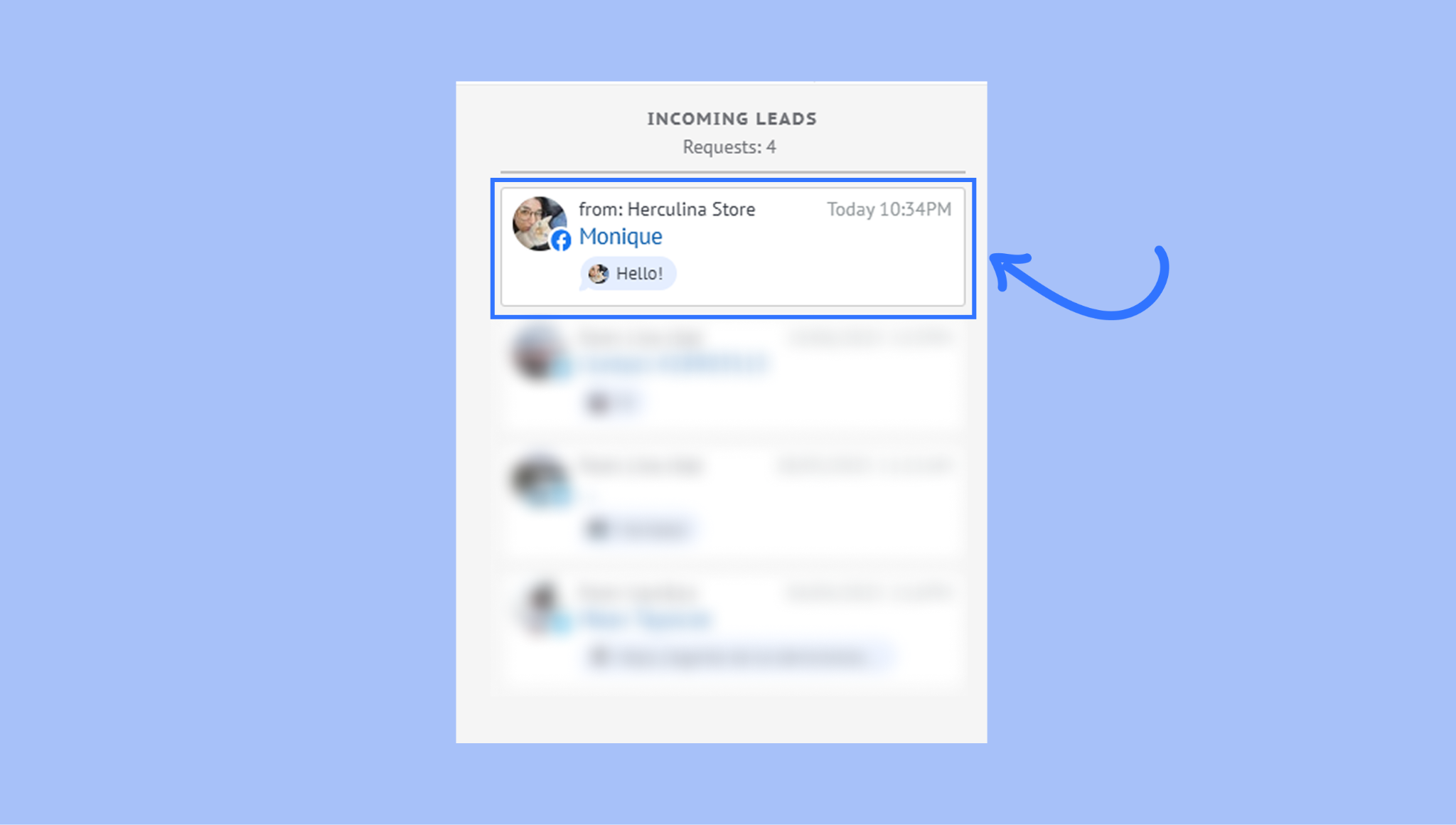
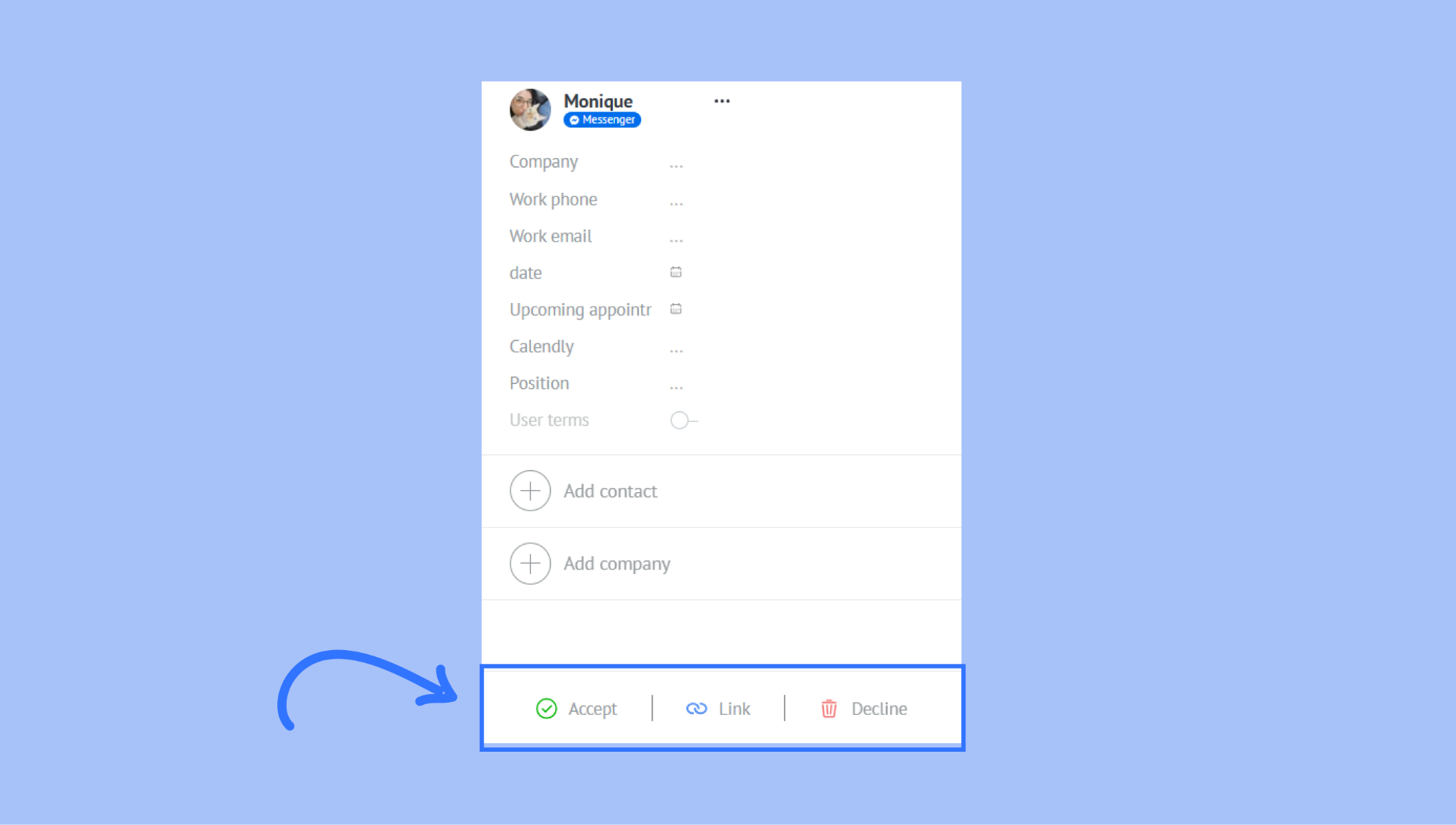
If the sender is a potential customer, click Accept to move them to the first stage of your pipeline.
If the sender is spam or not from your target audience, click Delete to remove them. When you delete it, the lead will only be recreated, along with the chat history, if the sender messages you again.
If the sender already exists in your database, click Link to connect the chat with their contact.
If someone messages you from multiple connected Facebook Pages, Kommo will create separate incoming leads for each page.
Note: Messages sent from your connected Facebook Business Page will be saved in Kommo chat history. However, messages sent from a personal Facebook account connected to that page won’t be synced to Kommo.
Comments
New comments will appear in your pipeline as new leads or as a new chat in an existing lead, depending on whether the contact already exists in your account. To respond with another comment, you need to click on View comment and comment directly on your Facebook post.
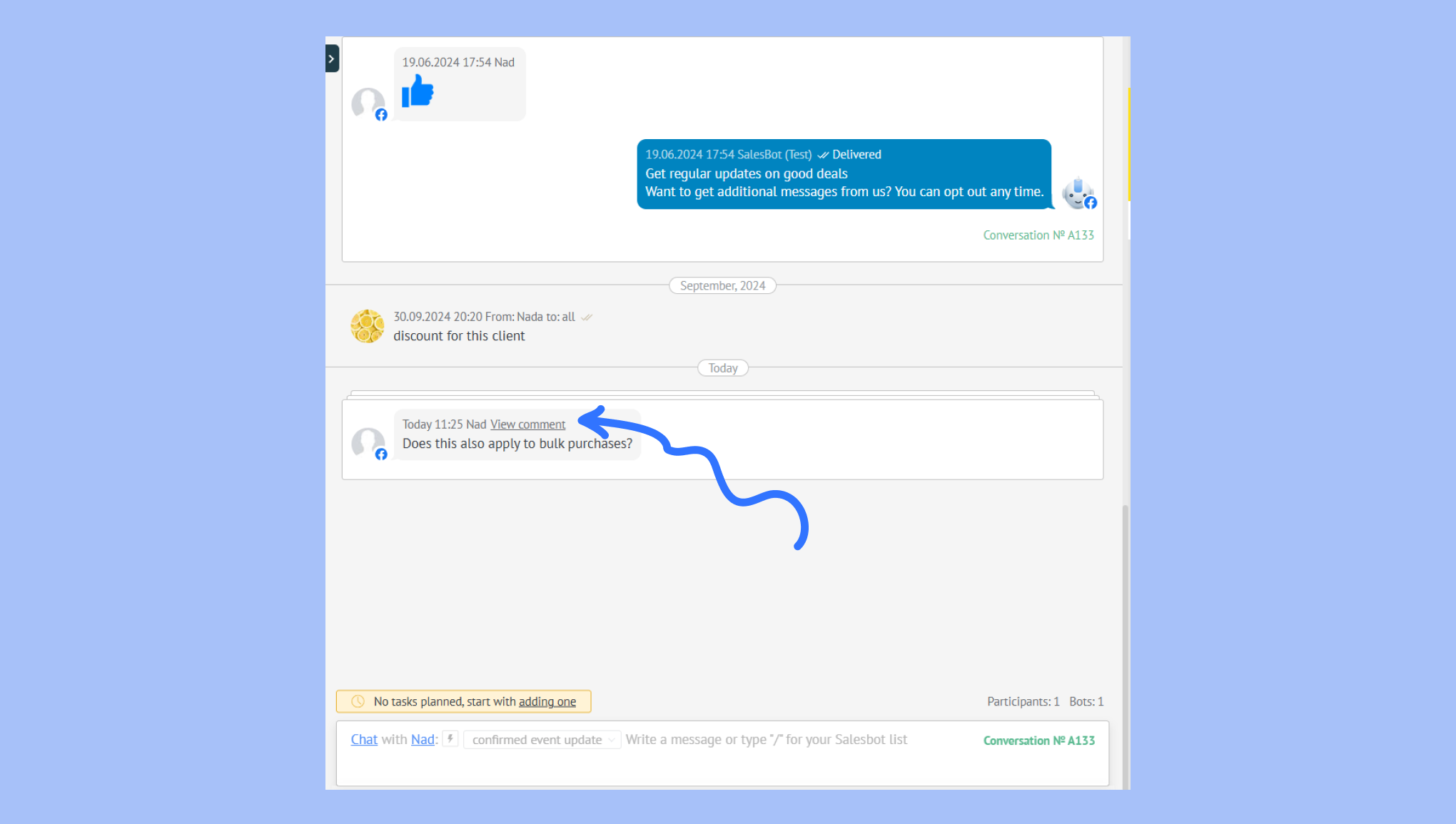
Note: You cannot send Facebook comments via Kommo. If you respond to a comment from Kommo, your message will be sent as a message in Messenger.