What you’ll need:
Available on the Pro and Enterprise plans, and 14-day trial.
Admin access in Kommo.
Keep in mind:
Bookings are available only if at least one booking type and time slot are configured.
The booking page becomes unavailable if no booking types are configured.
Disabled booking links can still be opened, but new bookings cannot be created.
Clients do not receive automatic notifications after booking unless they are configured in the booking settings.
Booking links allow Kommo users to share their booking page with clients through any communication channel, making it easier for clients to schedule bookings with your team.
When clients open a booking link, they can view available services, specialists, and time slots based on your booking settings.
Choose the right booking link
Depending on how you manage bookings in Kommo, you can use different types of booking links:
Team link – Usually used for new clients. When someone creates a booking through this link, Kommo creates a new lead or adds it to an existing one depending on the Duplicate control settings. Learn how to configure it in our article.
Lead-specific booking link – Used for existing contacts in Kommo. When a client creates a booking through this link, the booking remains linked to the same lead rather than creating a new one. This helps avoid duplicate leads and keeps booking history connected to the same contact.
Check the booking availability
Go to Calendar → click Booking settings.
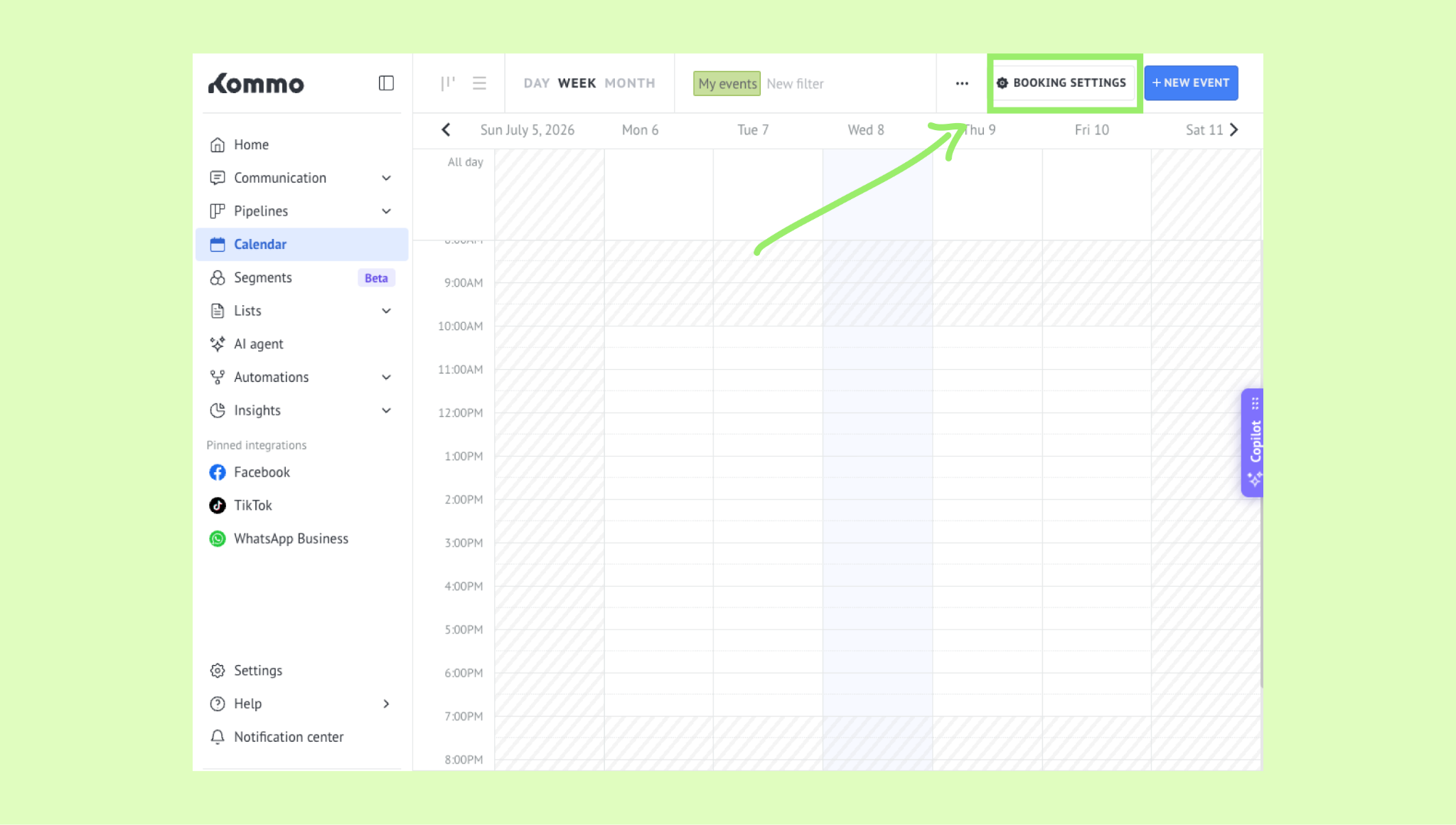
Go to the Booking page tab and make sure the Pipeline is assigned in the Booking source & lead routing section.
.png)
This will allow clients to create bookings through shared booking links.
Learn how to assign the pipeline to a lead source for booking in our article.
If you want to stop accepting bookings, delete this lead source from the pipeline on the Booking page tab by clicking trash icon next to selected icon. When the confirmation modal appears, click Delete.
.png)
When a pipeline is not assigned, the booking page is disabled. Clients can still open the booking page, but they won’t be able to create new bookings.
To learn more about how the booking page works, check our article.
Share your booking links
Before sharing booking links, make sure at least one booking type and available time slots are configured in your booking settings.
To learn how to configure booking settings, check our article.
You can now start sharing booking links with clients.
Share a team link
Go to Calendar → click Booking settings.
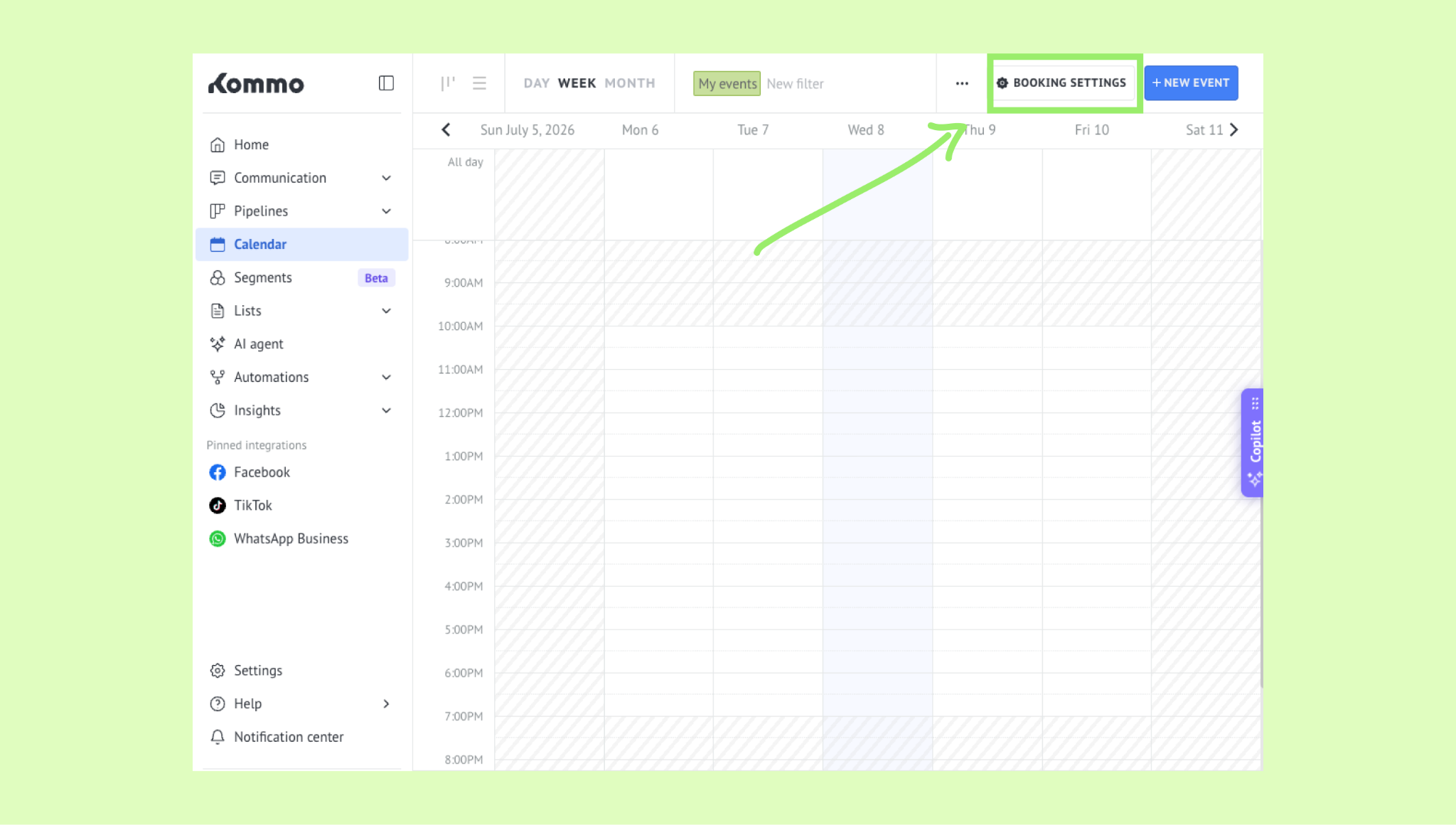
Go to the Booking page tab and click the copy icon near the link.
.png)
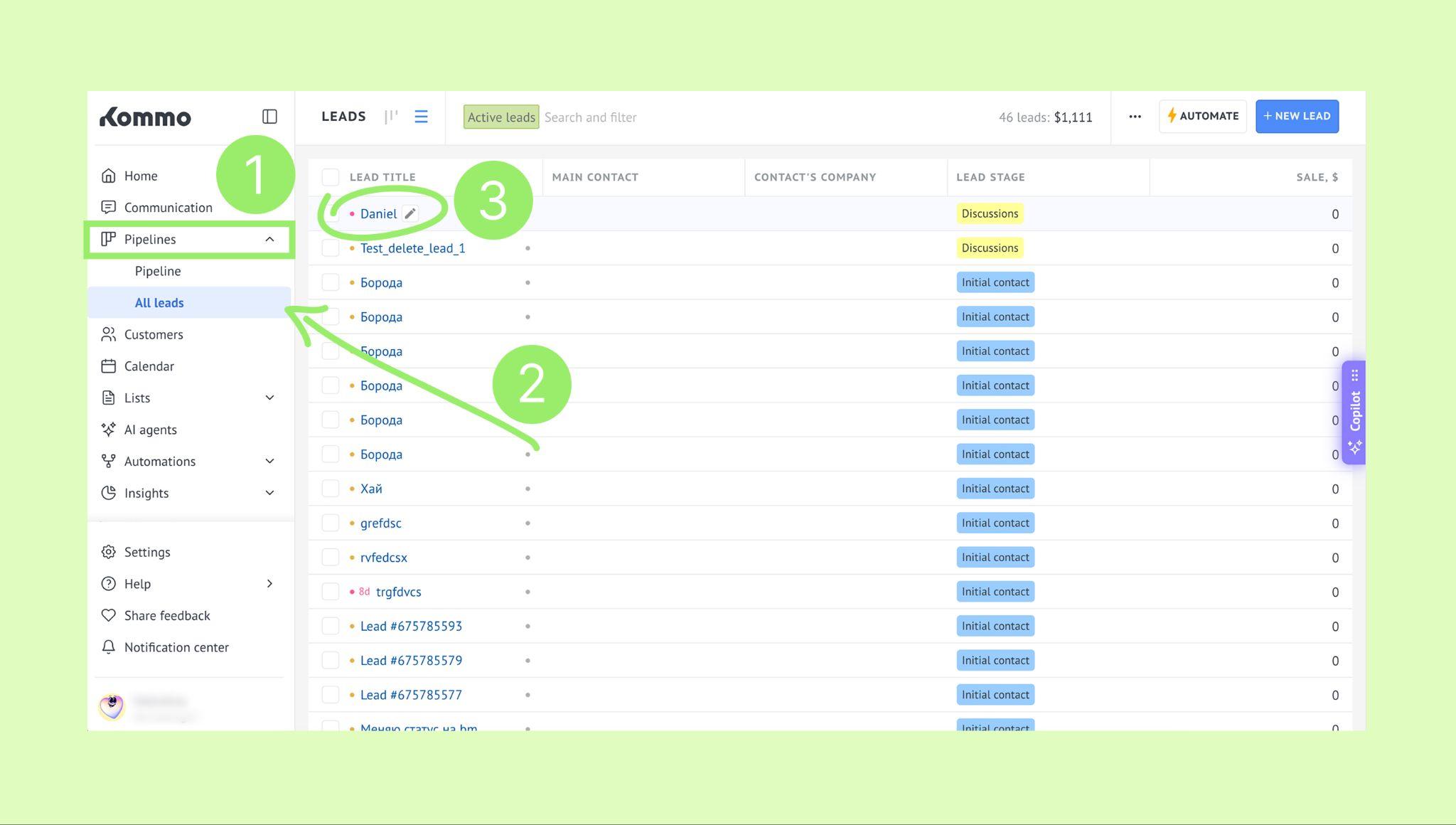
Go to Pipelines → All leads and click on a lead’s name.
Share the copied link with your clients.
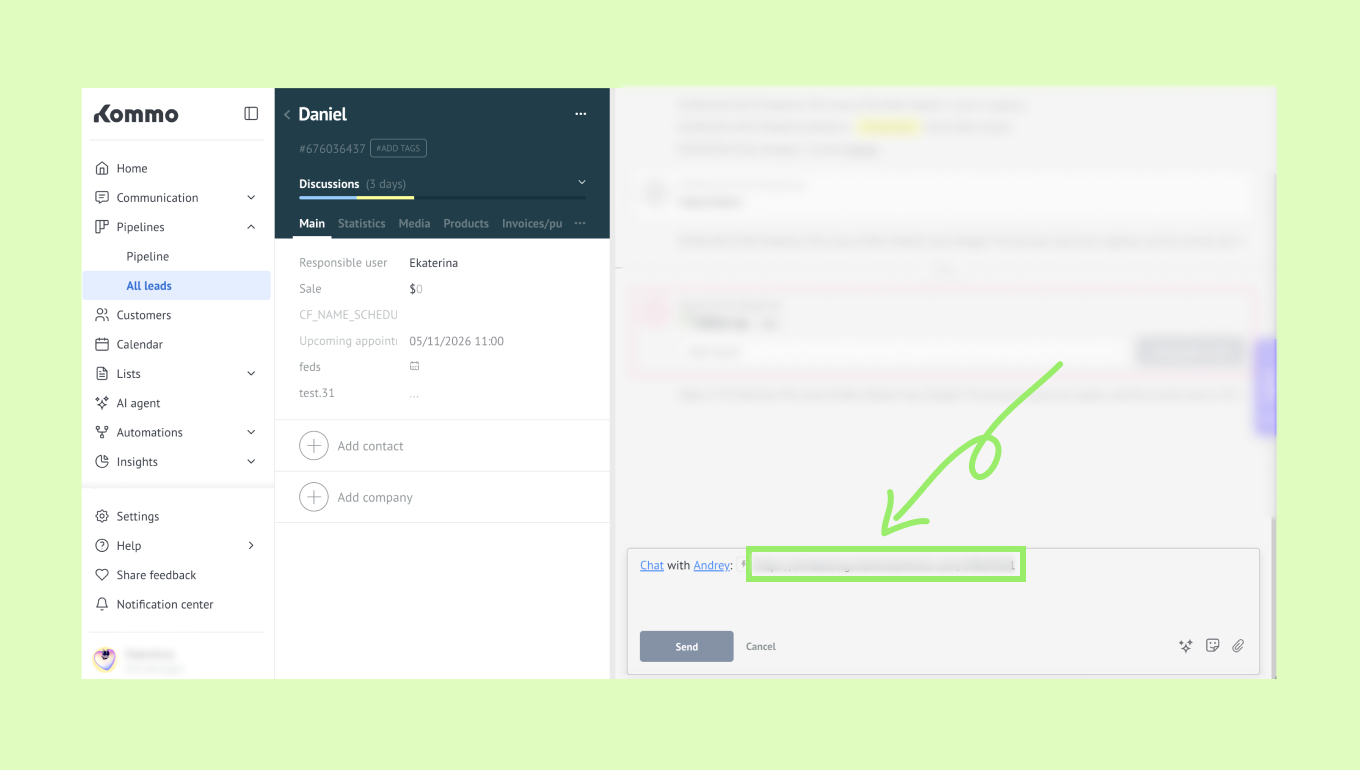
You can also start typing [boo… in the message field and select the booking link from the suggestions.
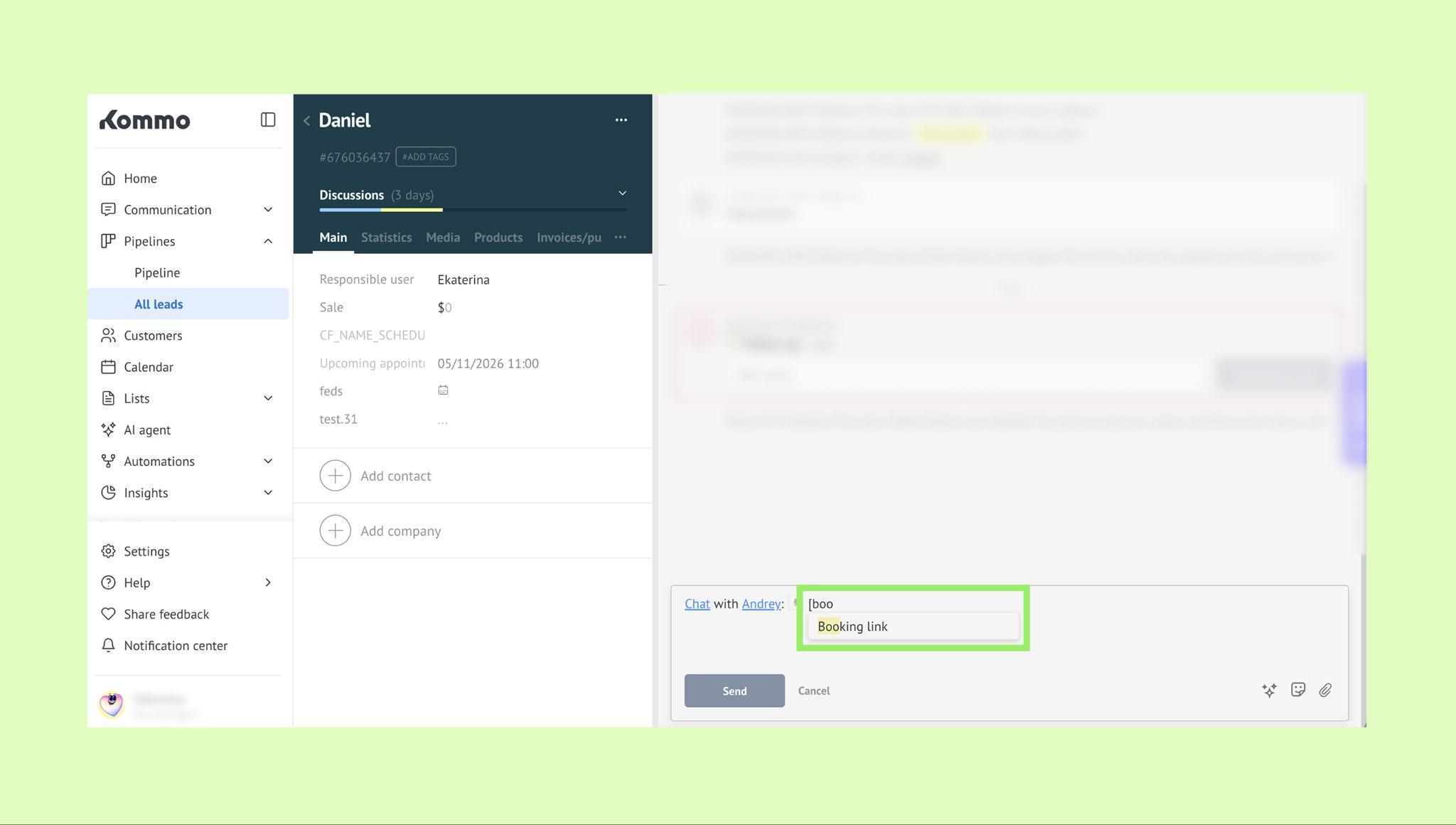
When clients open the link, they can access the booking page and create bookings based on your configured availability.
To learn more about how users can create bookings, check our article.
Share a lead-specific booking link
Open Pipelines → All leads, then select a lead.
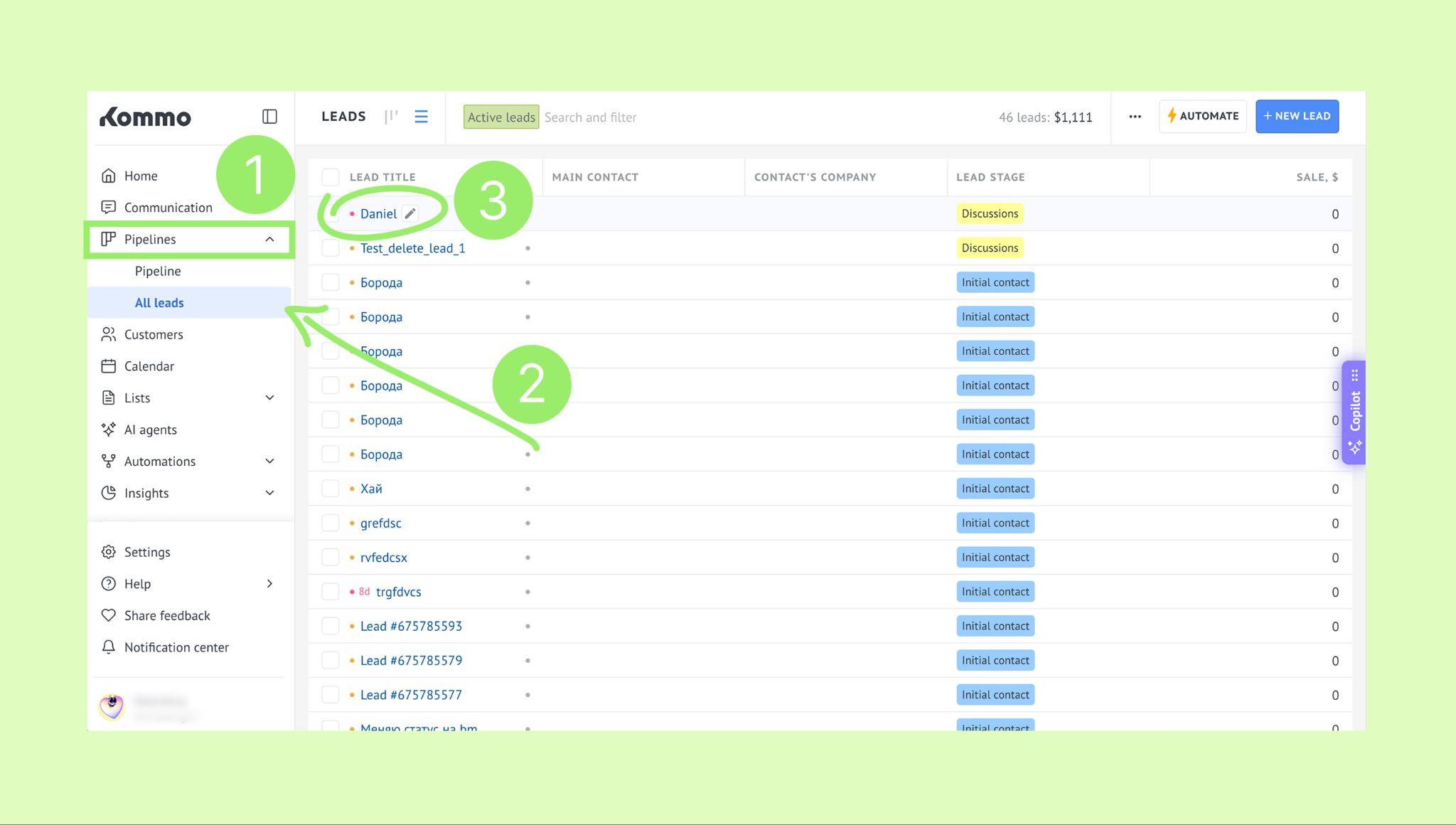
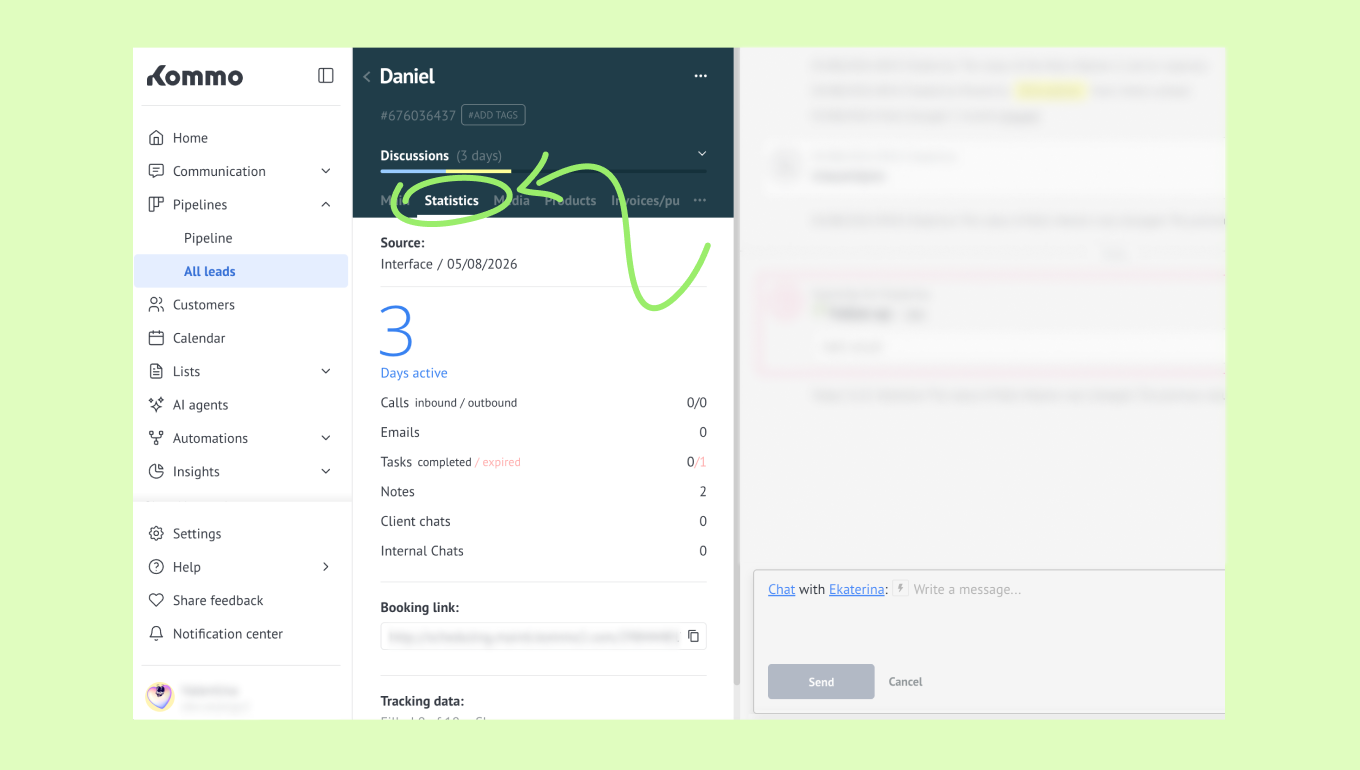
In the lead card, open the Statistics tab.
In the Booking link section, click the copy icon next to the link.
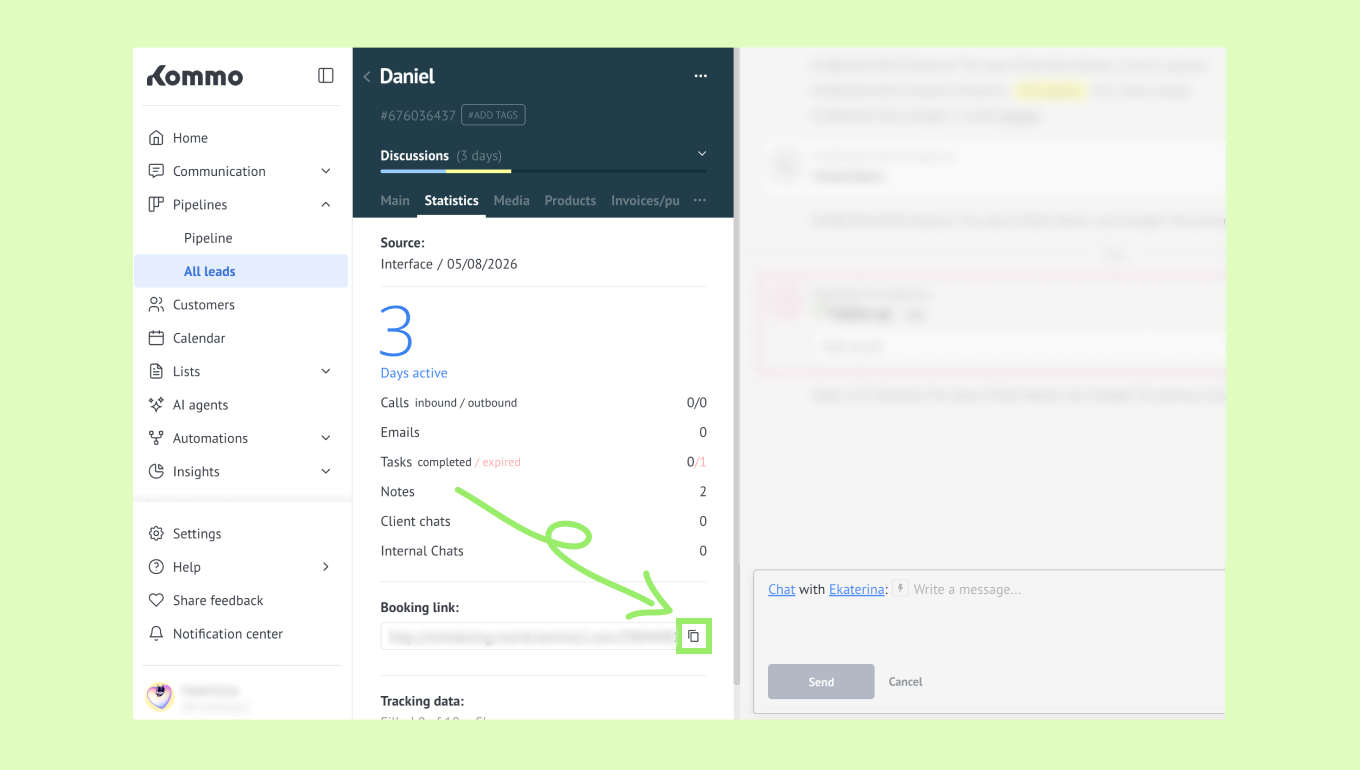
Paste the link into the message field.
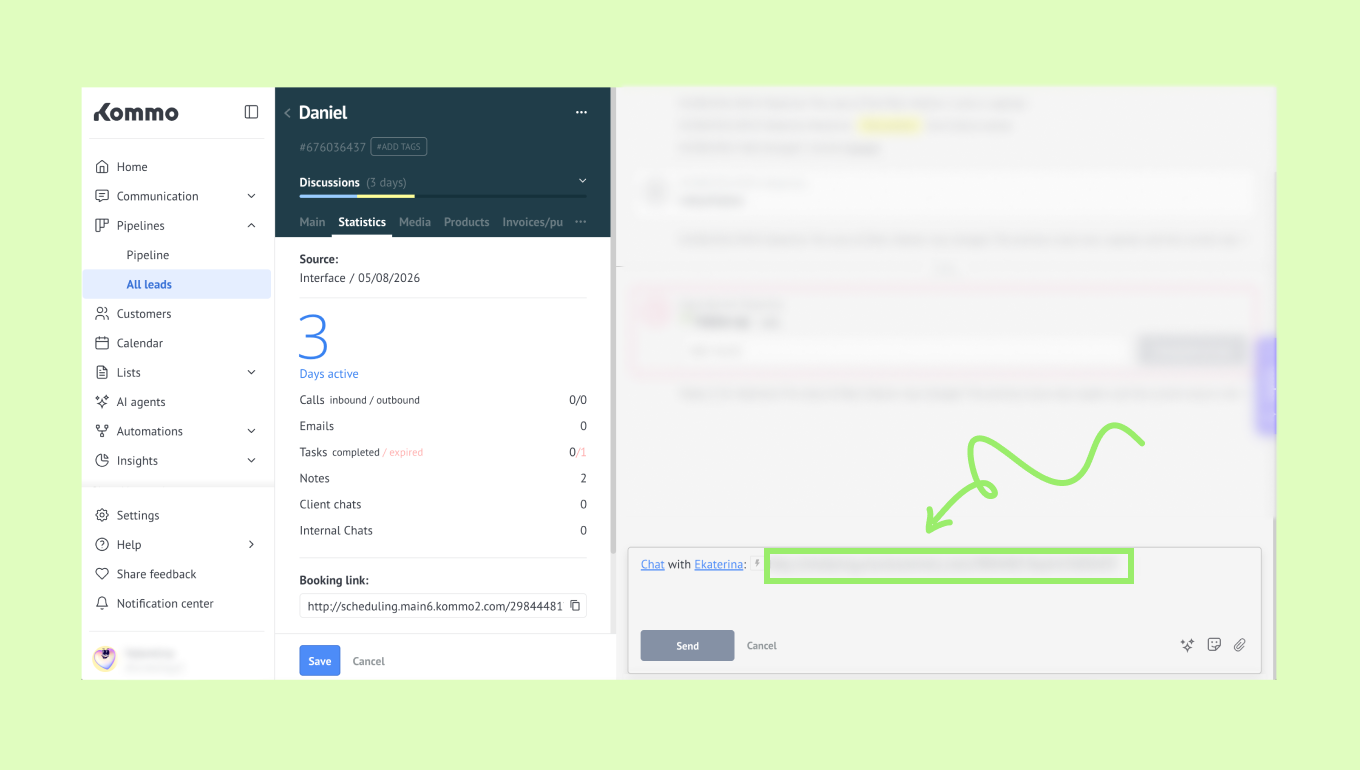
Send the message to the client.
When clients create a booking through this link, the booking stays connected to the same lead in Kommo.
Share booking links automatically
You can also share booking links automatically through:
A) Templates
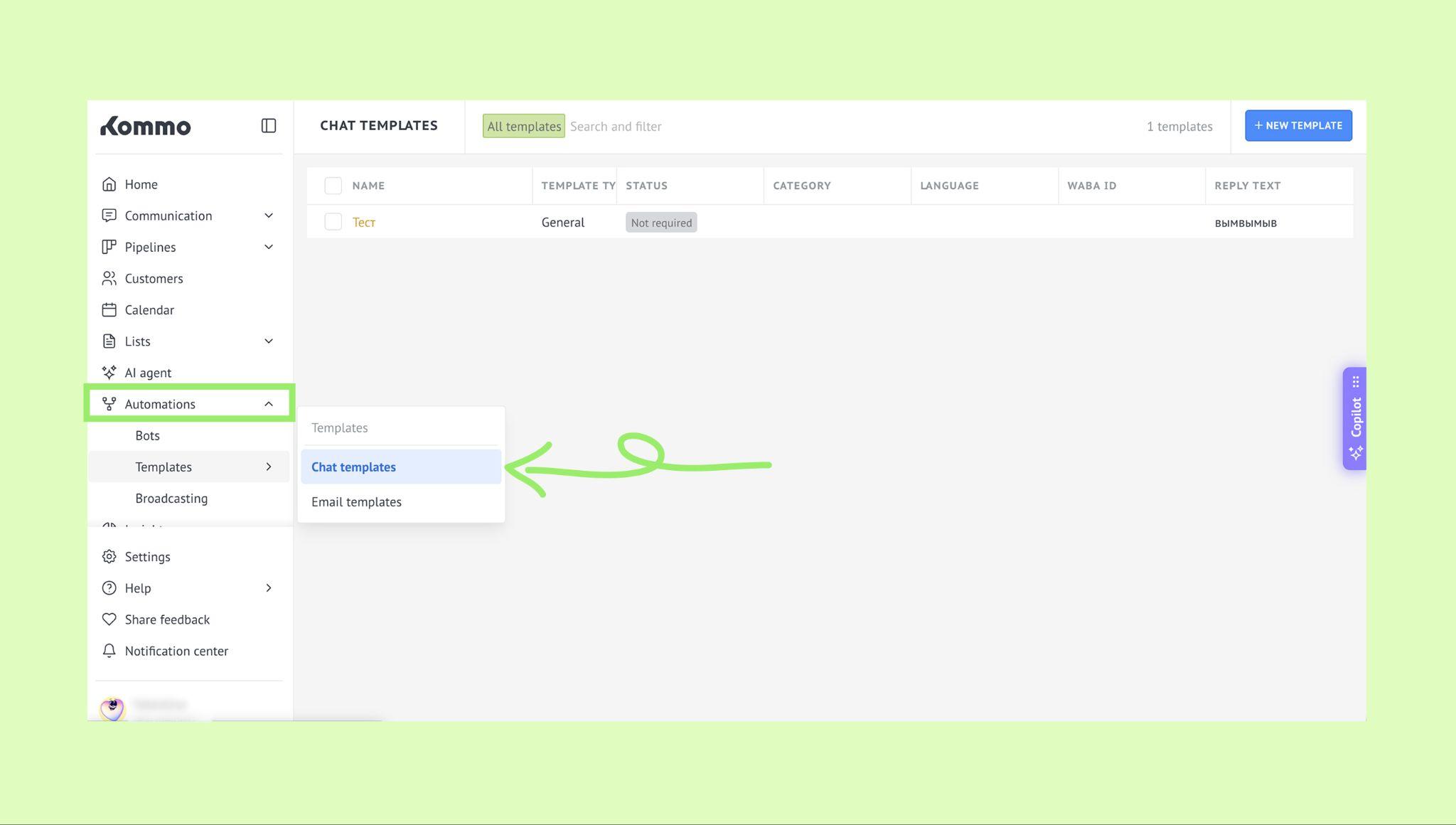
Go to Automations, hover over Templates → click Chat templates.
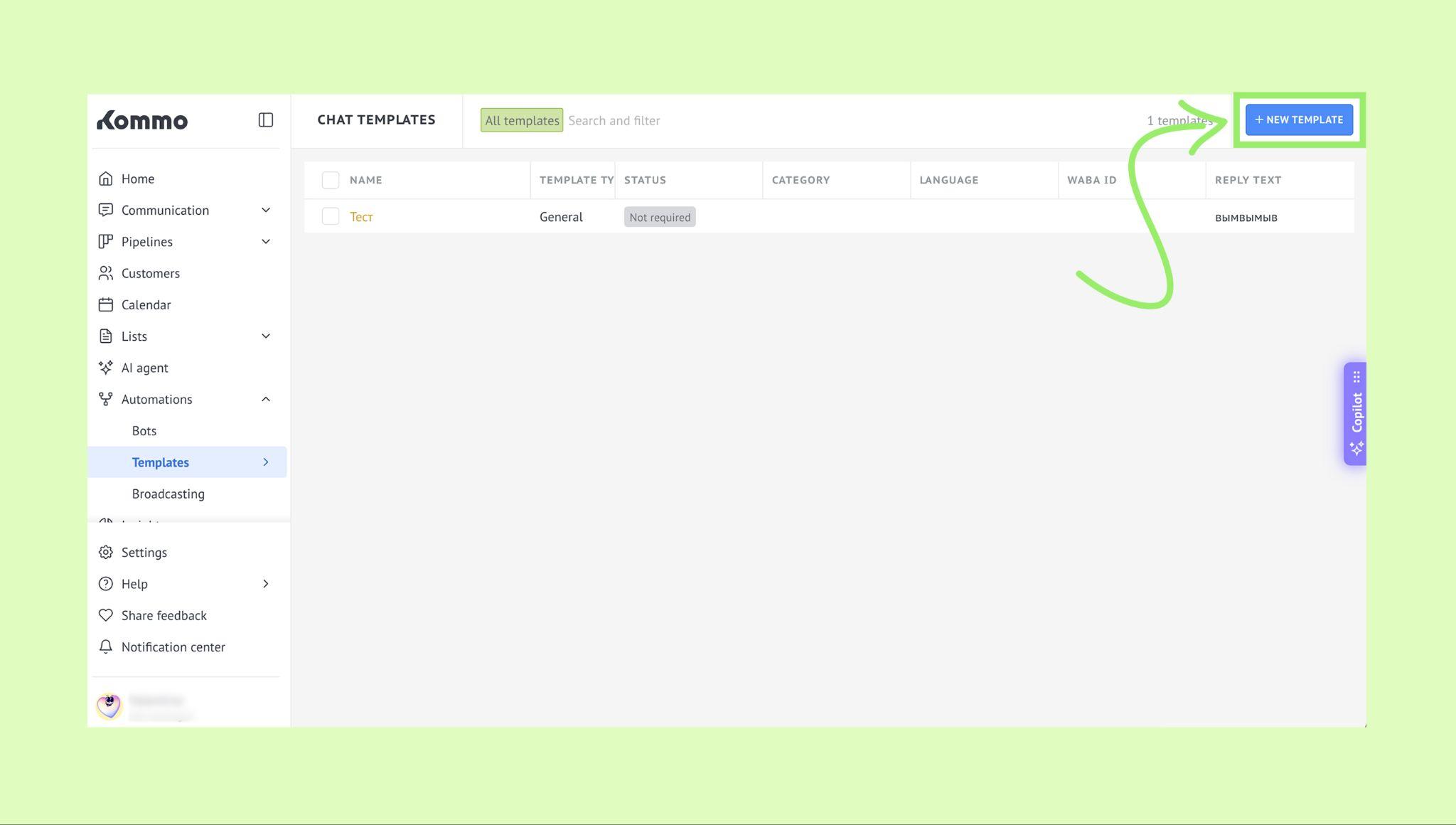
Click + New template.
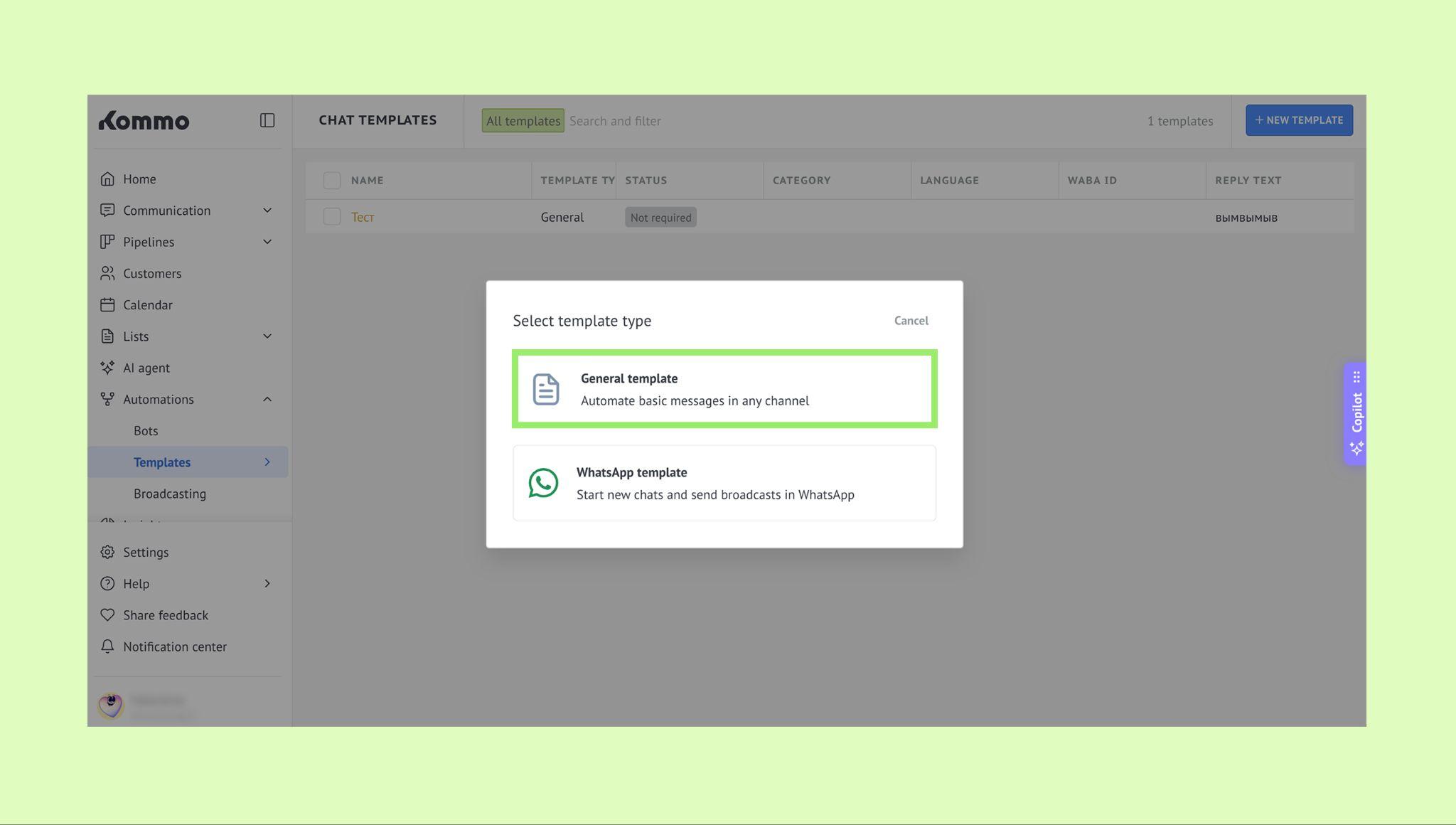
Select General template.
In the text field, start typing [boo… and select the booking link from the dropdown.
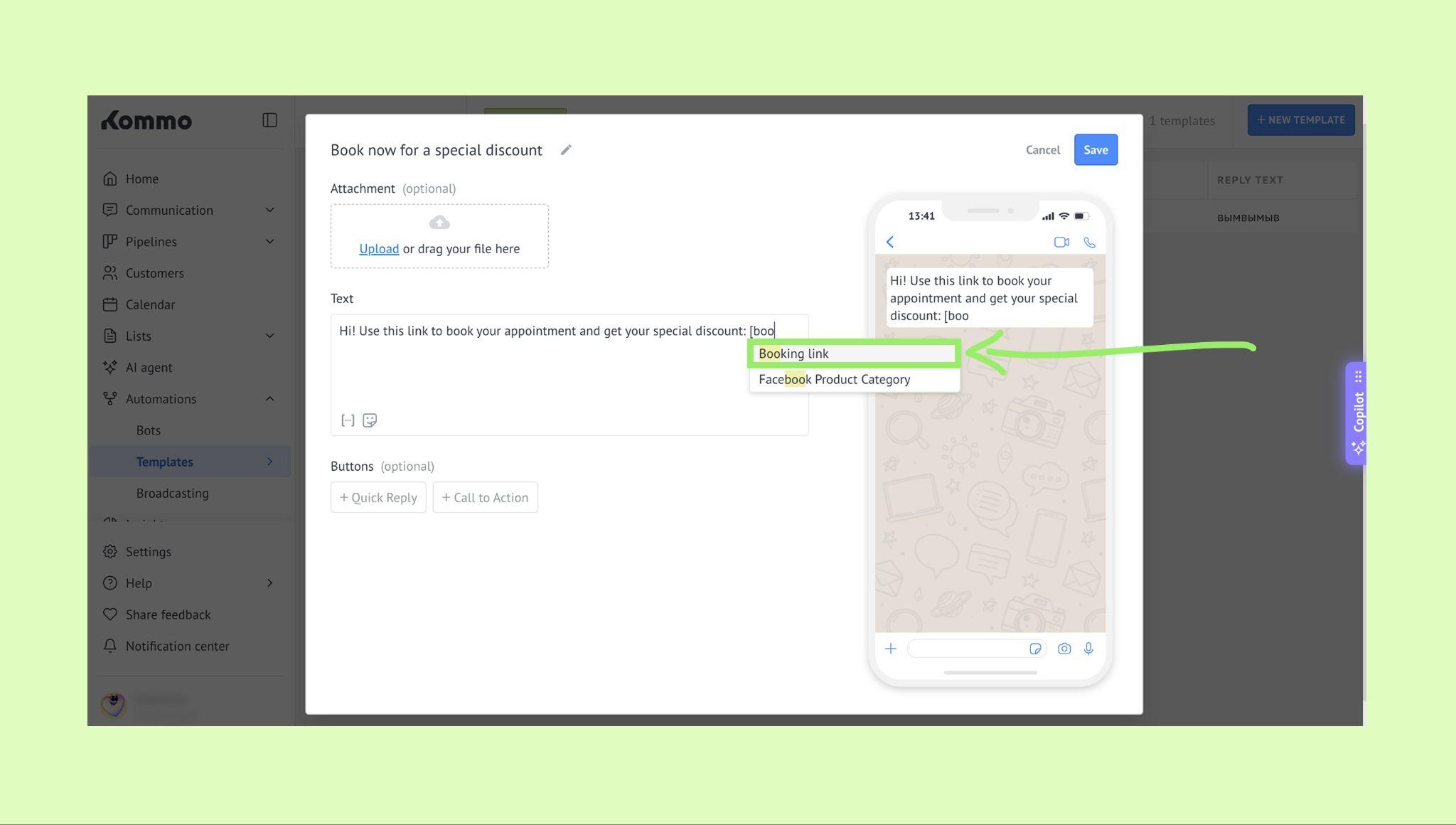
The team booking link will be added to the template and can be sent to clients automatically after the template is saved.
Learn more about how templates work in our article.
B) Salesbot
Go to Automations → click Bots.
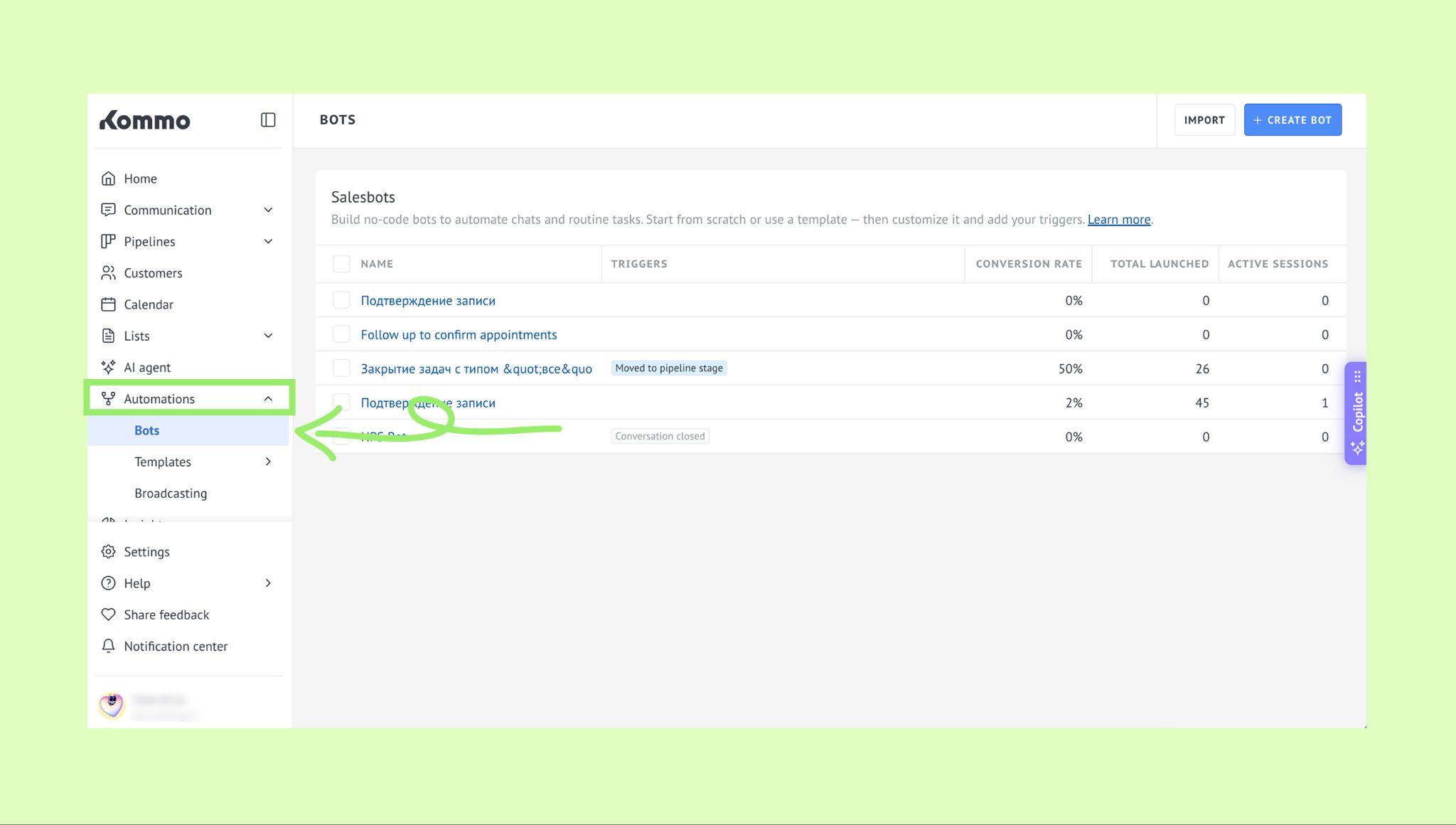
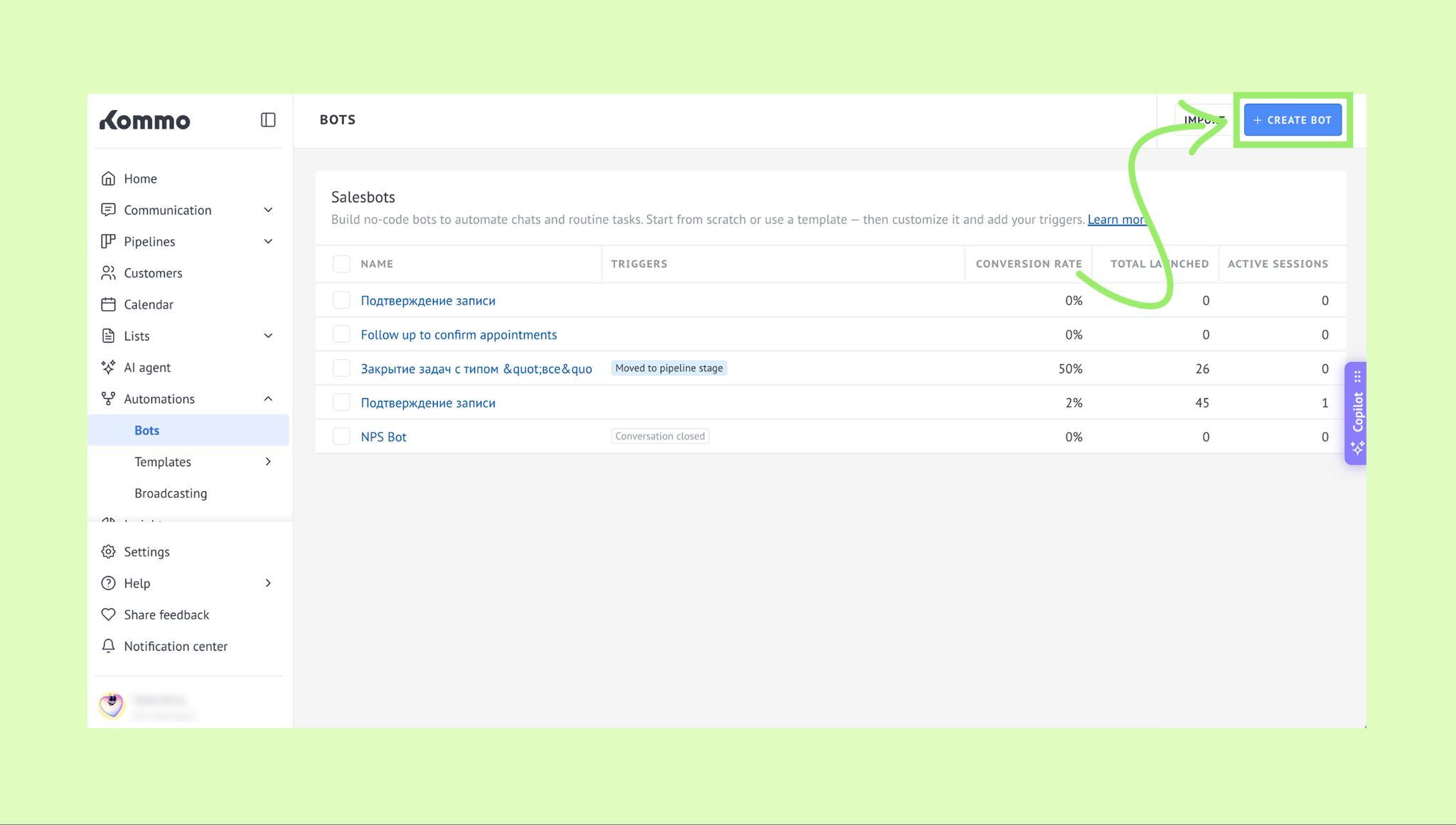
Click + Create bot.
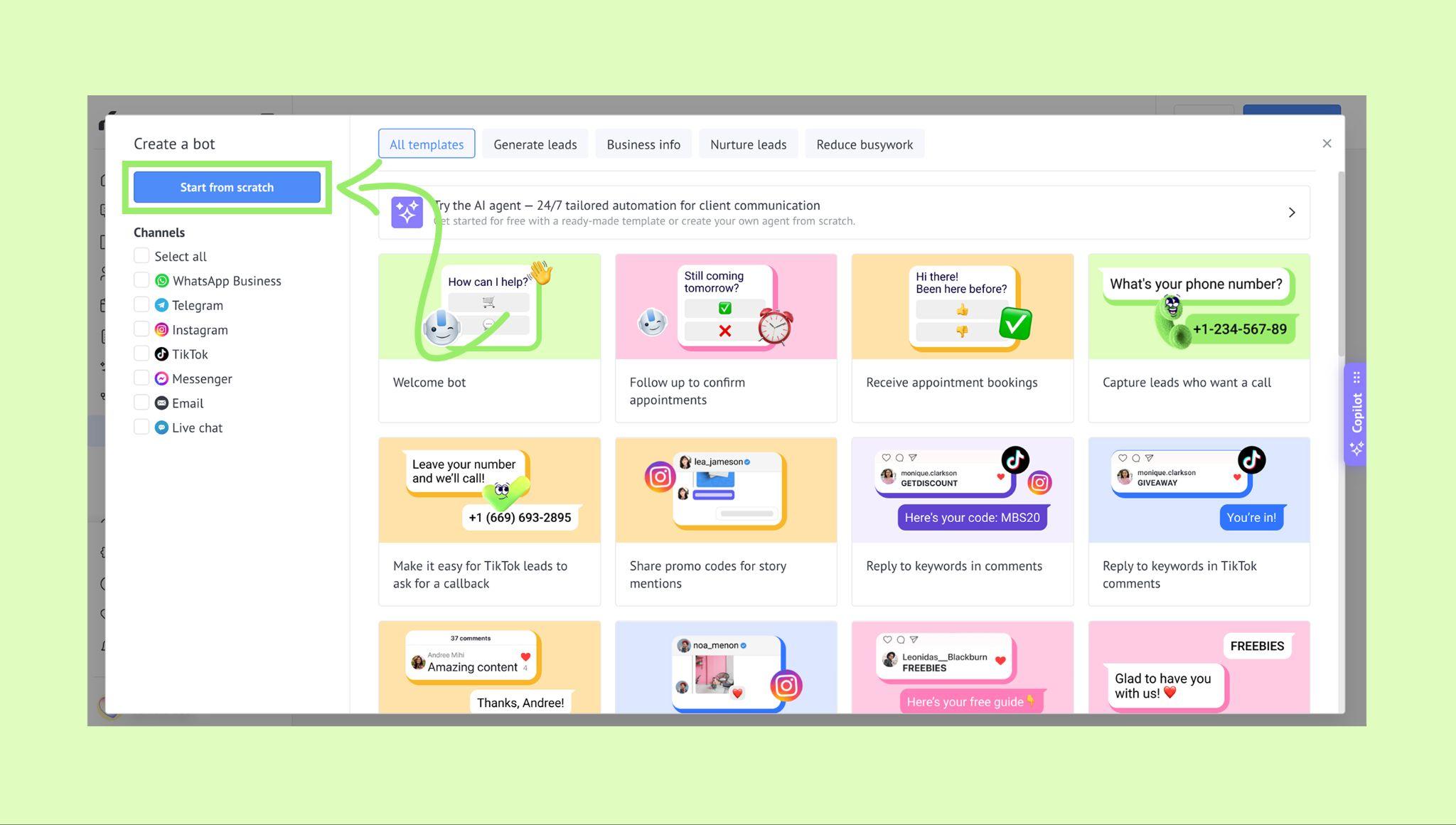
Click Start from scratch.
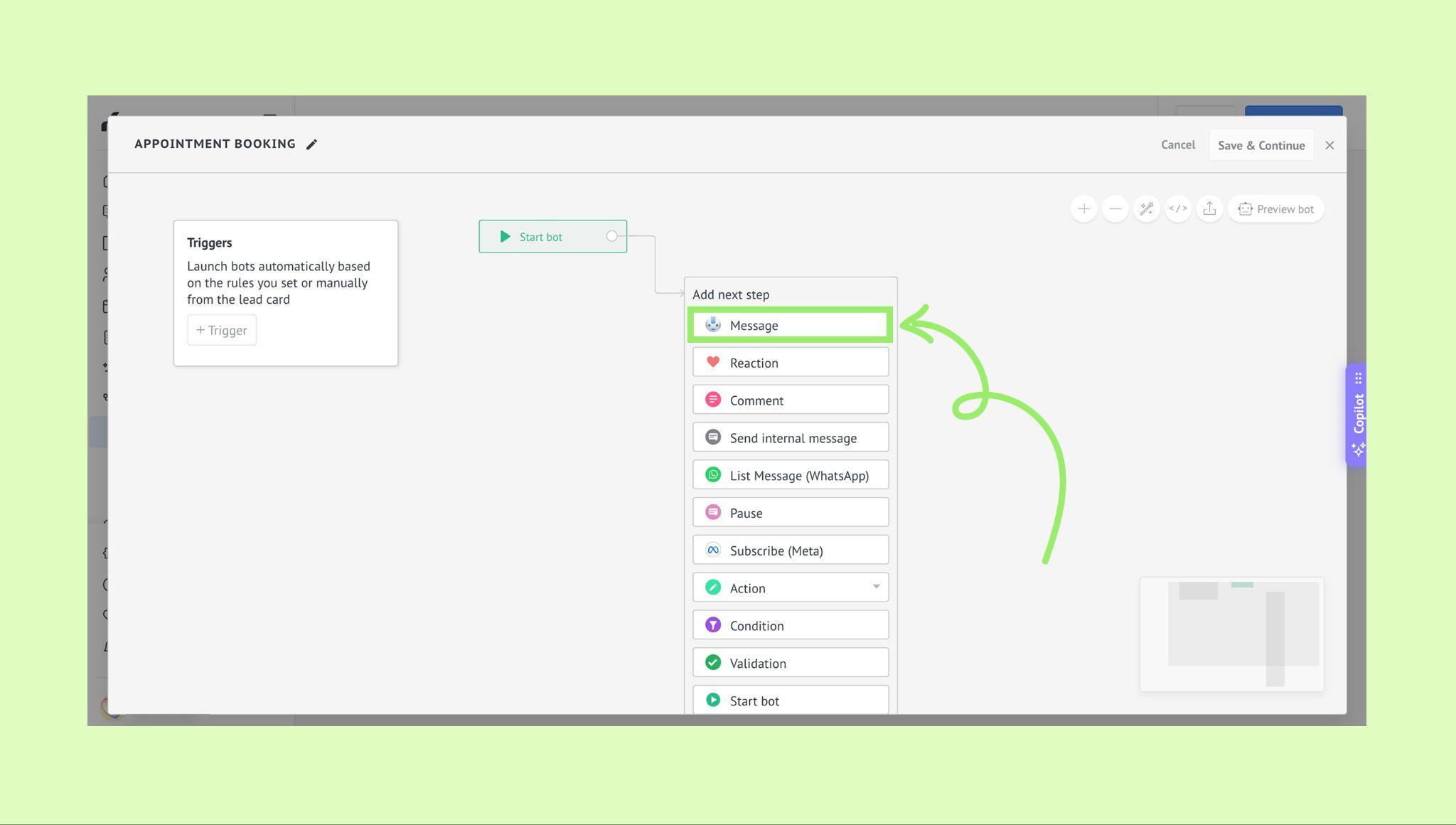
In the Add next step list, choose Message.
In the message editor, start typing [boo… and select a booking link.
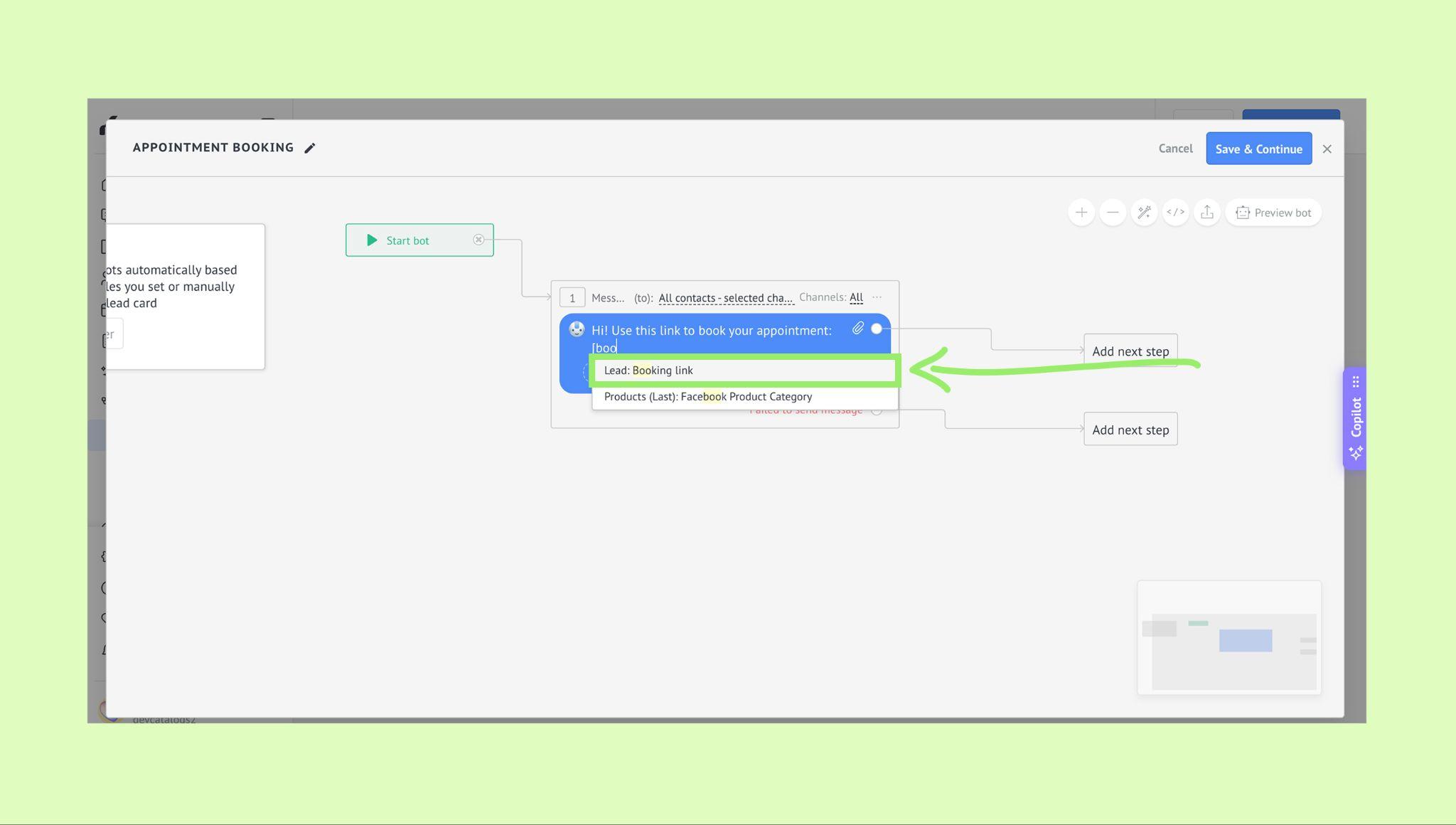
The team booking link will be added to the Salesbot message.
To learn more about how Salesbots work, check our article.