What you’ll need:
Any Kommo plan (Base, Advanced, Pro, Enterprise, or 14-day trial).
Admin access in Kommo.
Keep in mind:
Pipelines can only be hidden for specific roles, not for individual users.
This guide explains how to set pipeline permissions in Kommo to control what users can see and do in pipelines or individual stages.
Set up permissions for users
You can control access for each user, limiting which pipeline stages they can see or what actions they can perform.
To set user permissions:
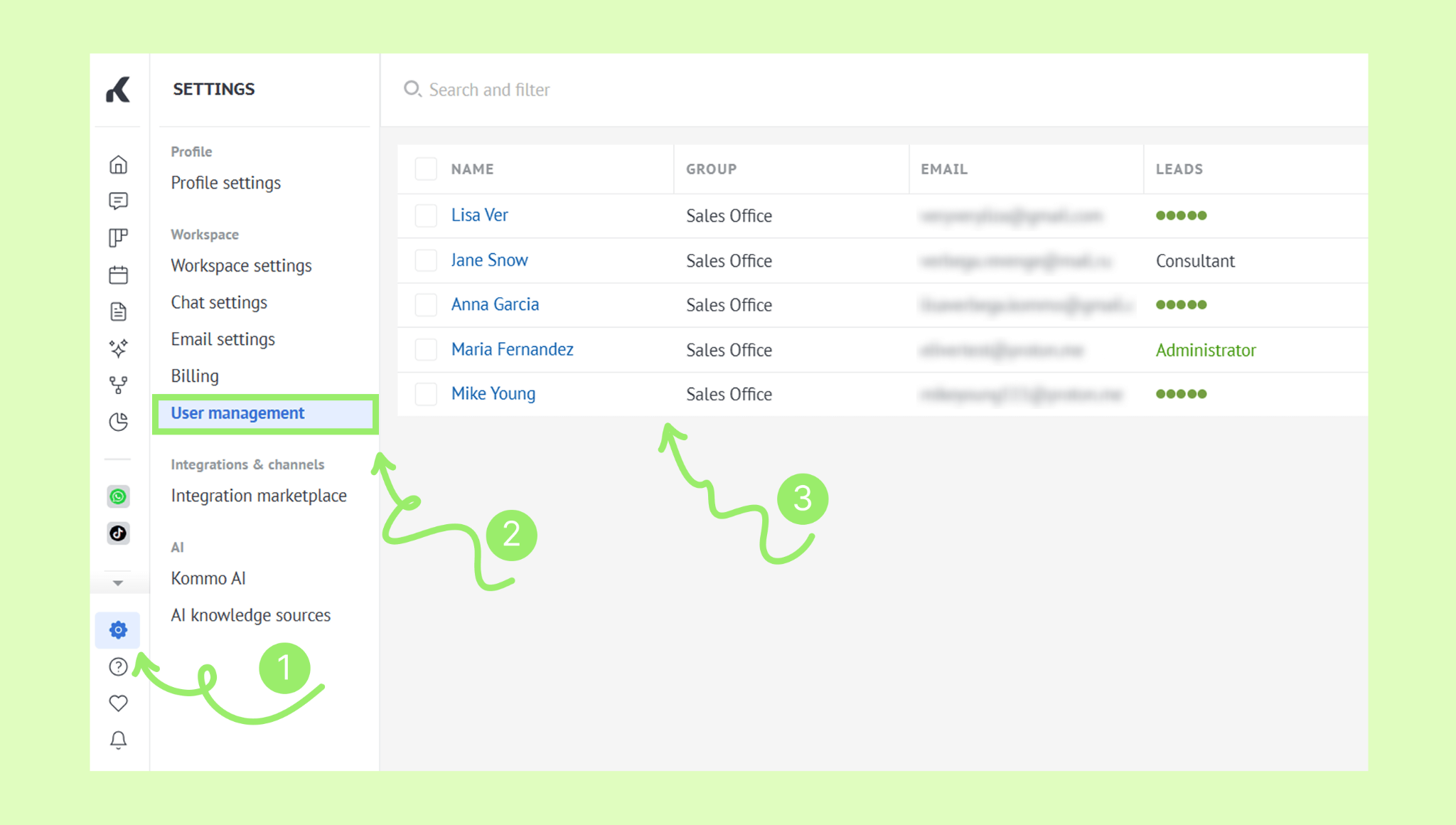
Go to Settings → User management. Click the user’s name to open their profile.
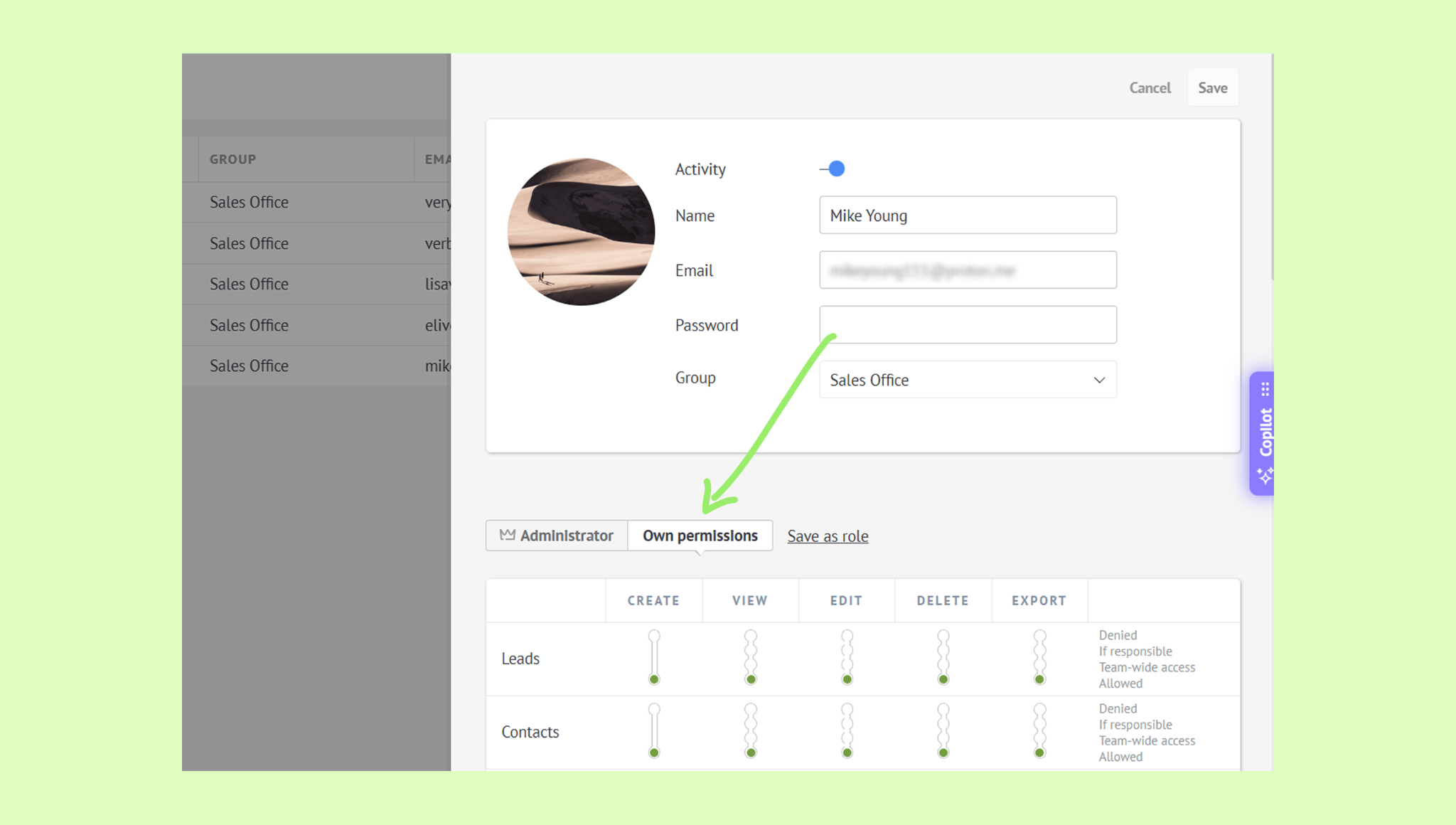
Click Own permissions.
Scroll down to Set permission to a pipeline stage.
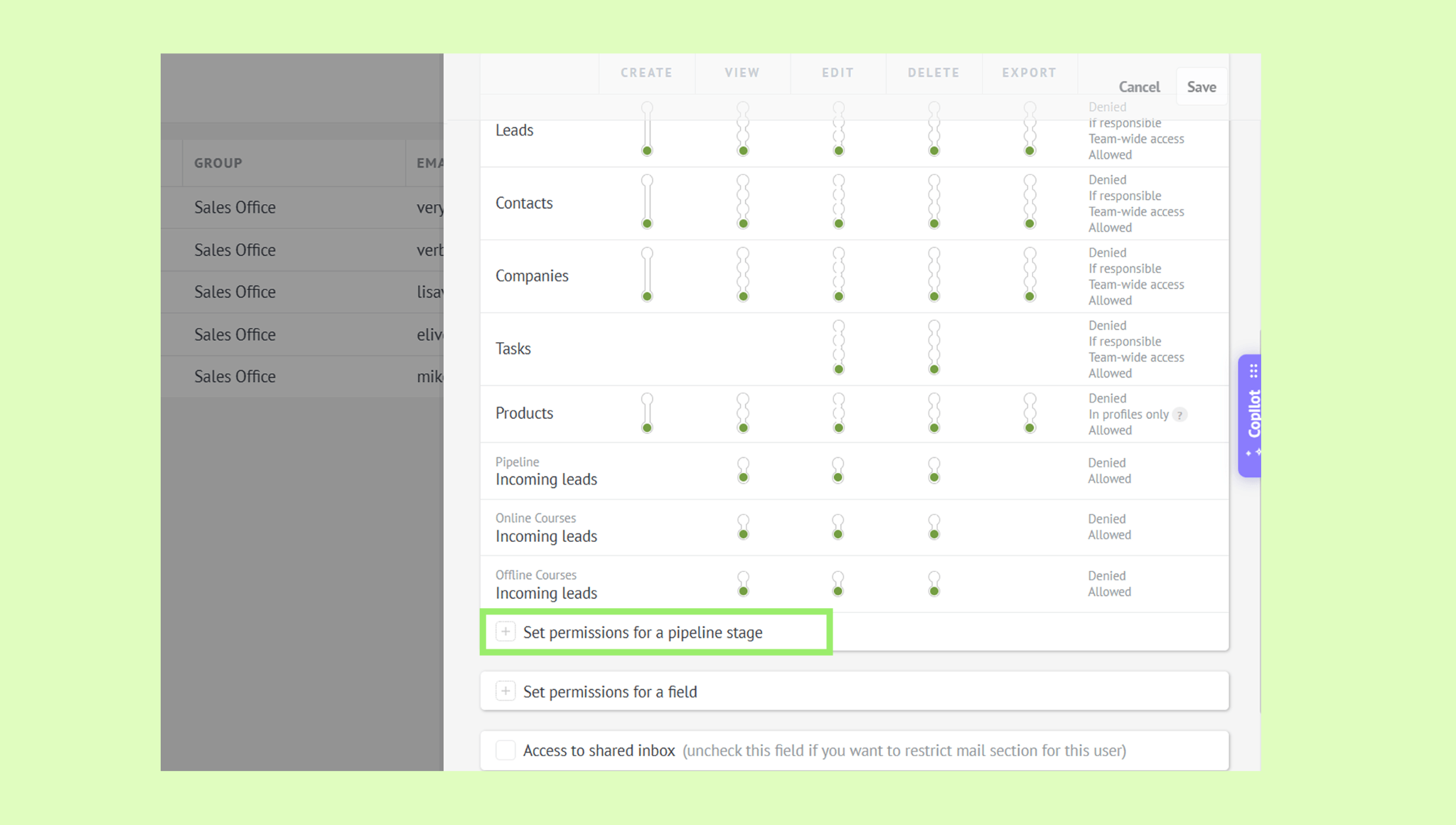
Select the pipeline and the stages you want to manage.
You can set permissions for each stage for the following actions: View, Edit, Delete, Export.
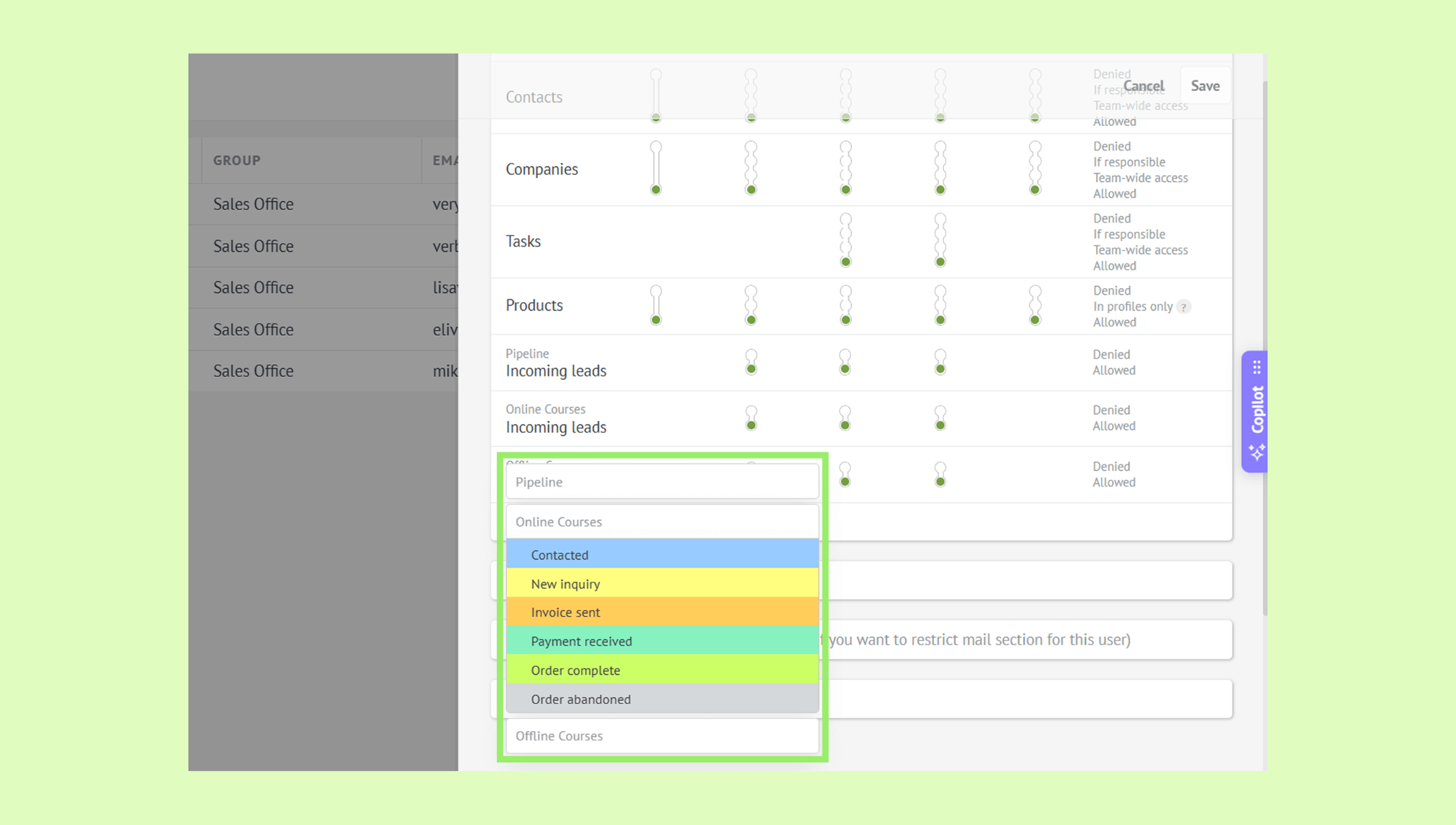
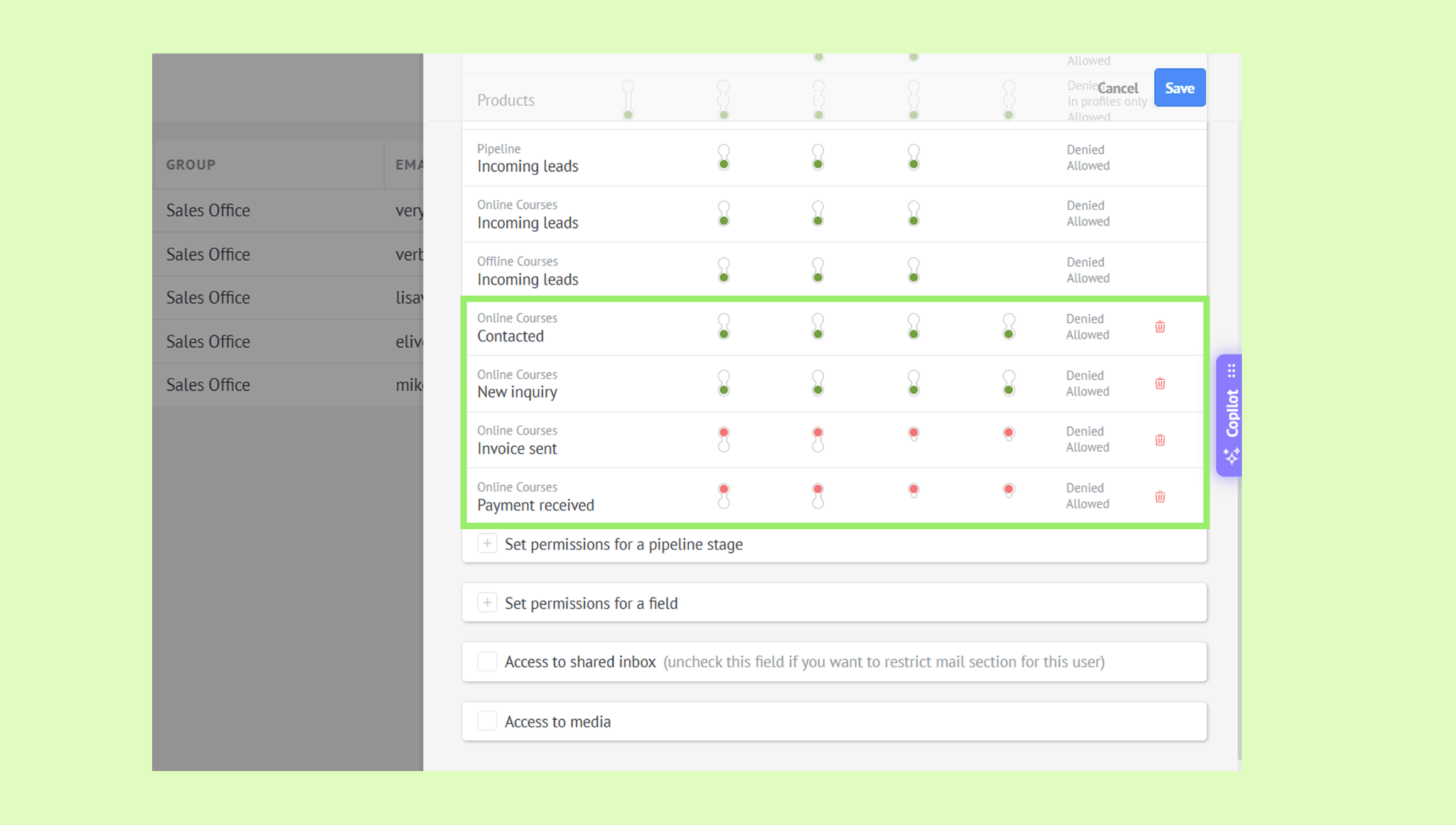
To allow or restrict a permission, toggle the switch next to each stage:
Upper position: Denied
Lower position: Allowed
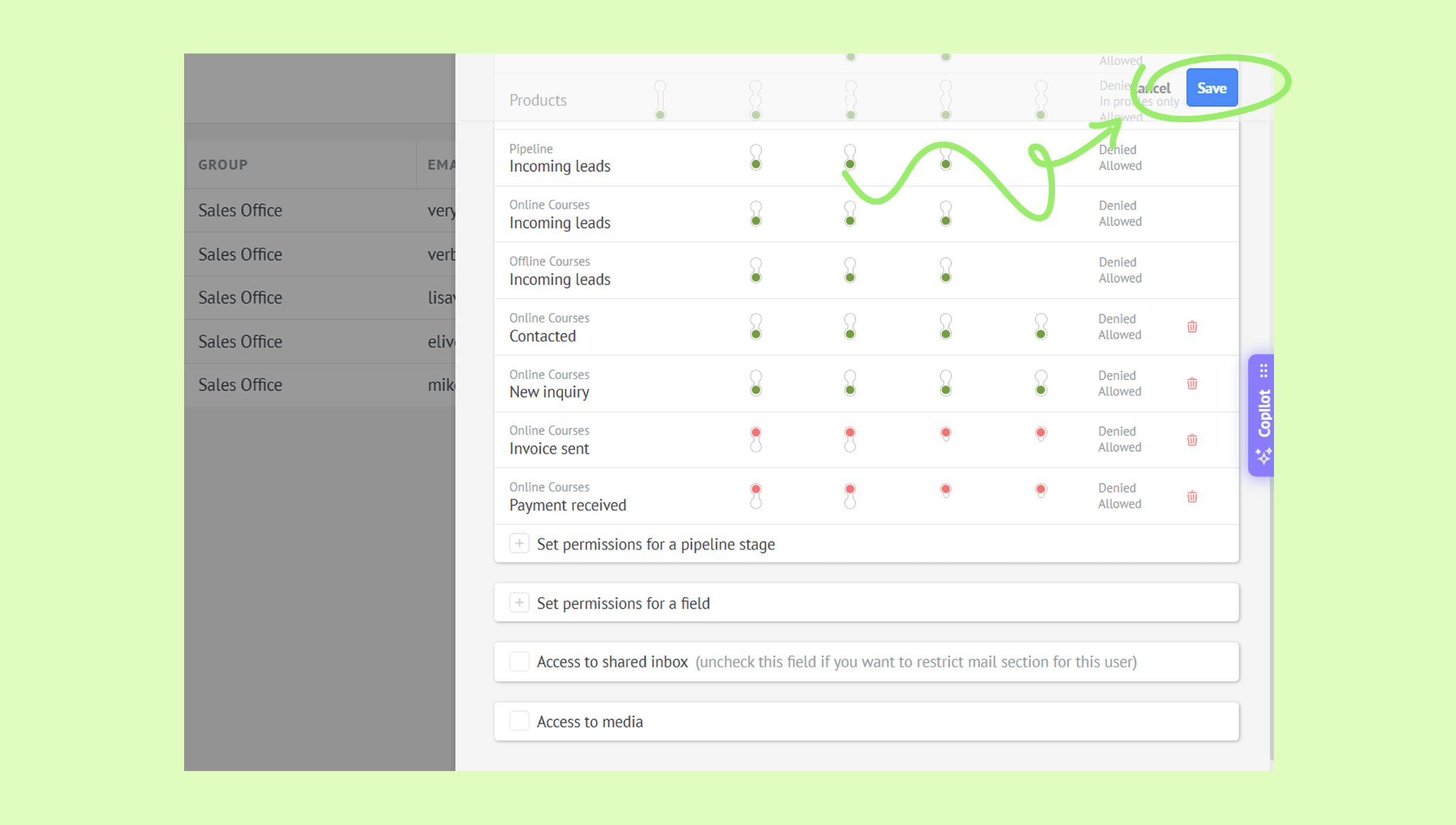
Click Save to apply the changes.
Set up permissions for a group of users
To set permissions for a group of users, first you have to assign a role to the users whose access to pipelines or pipeline stages you want to control. Then, set the permissions for that role.
Learn how to assign roles and configure role permissions in our Manage users and roles permissions article.
Hide a pipeline from a user
You can hide a single pipeline or the entire Pipelines section from a user’s left menu. If a pipeline is hidden, the user won’t be able to access any information related to it.
To do this, first assign a role to the user. Learn more about assigning roles and setting permissions in our Set permissions and access levels article.
After that:
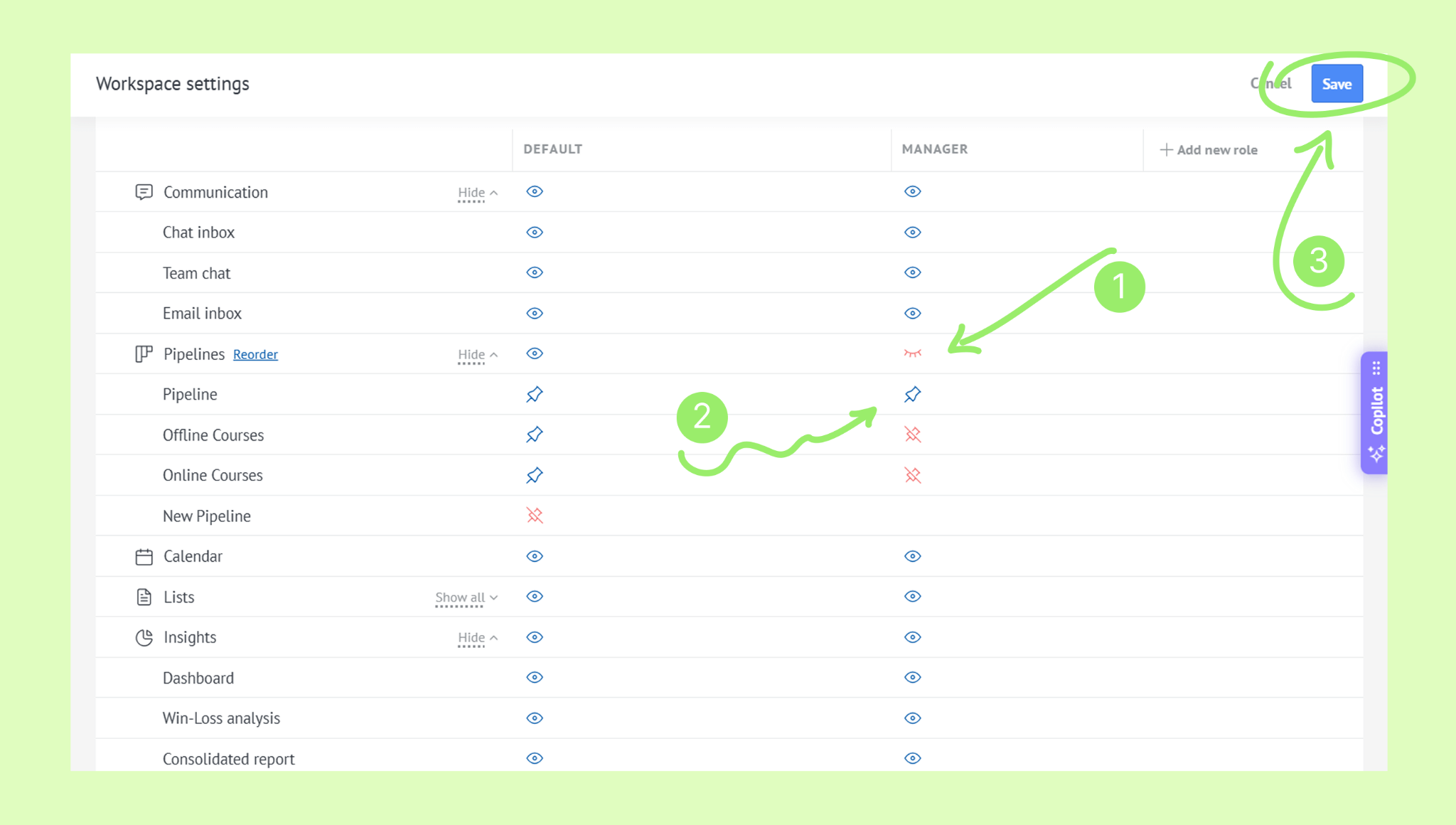
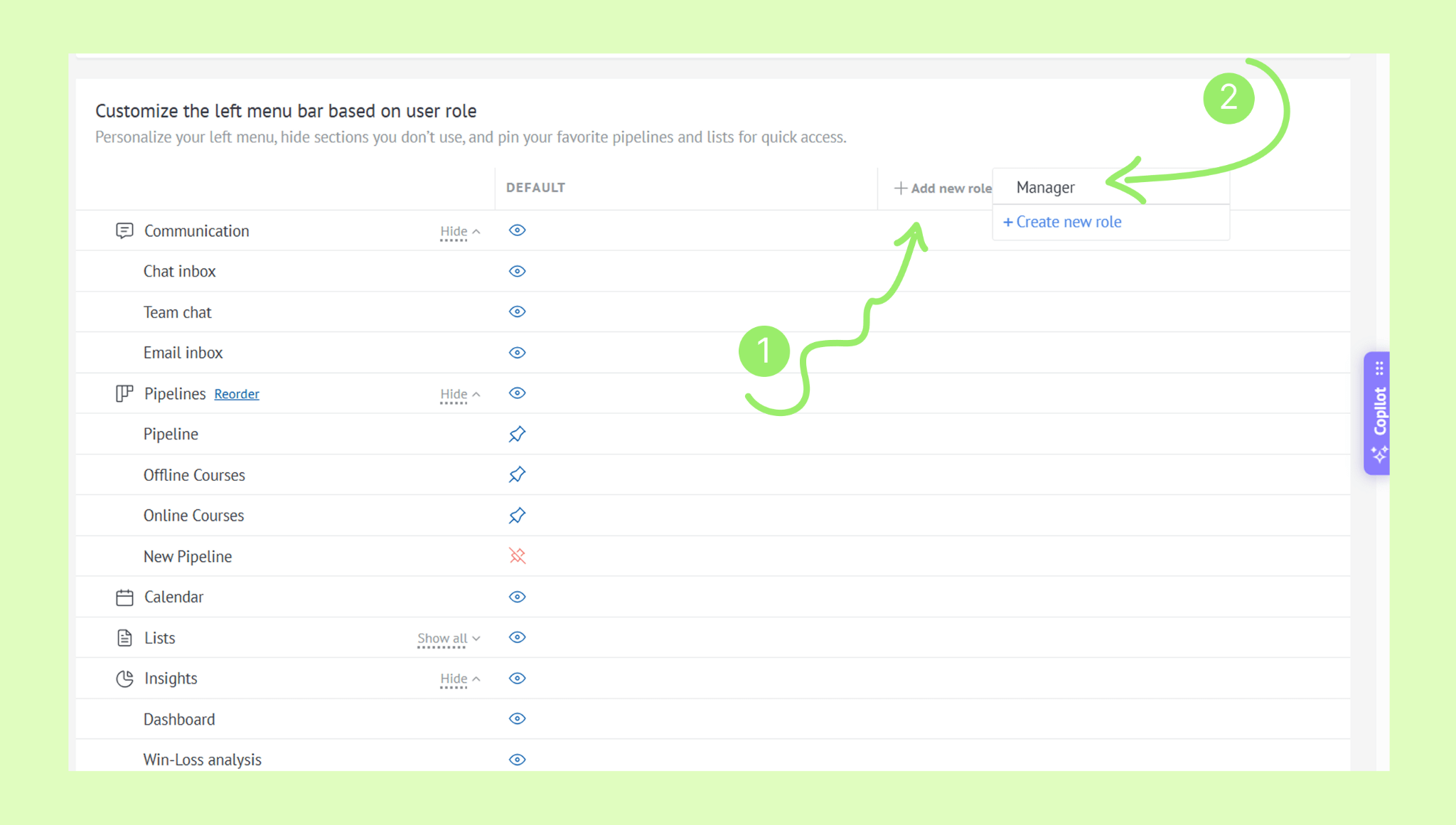
Go to Settings → Workspace Settings.
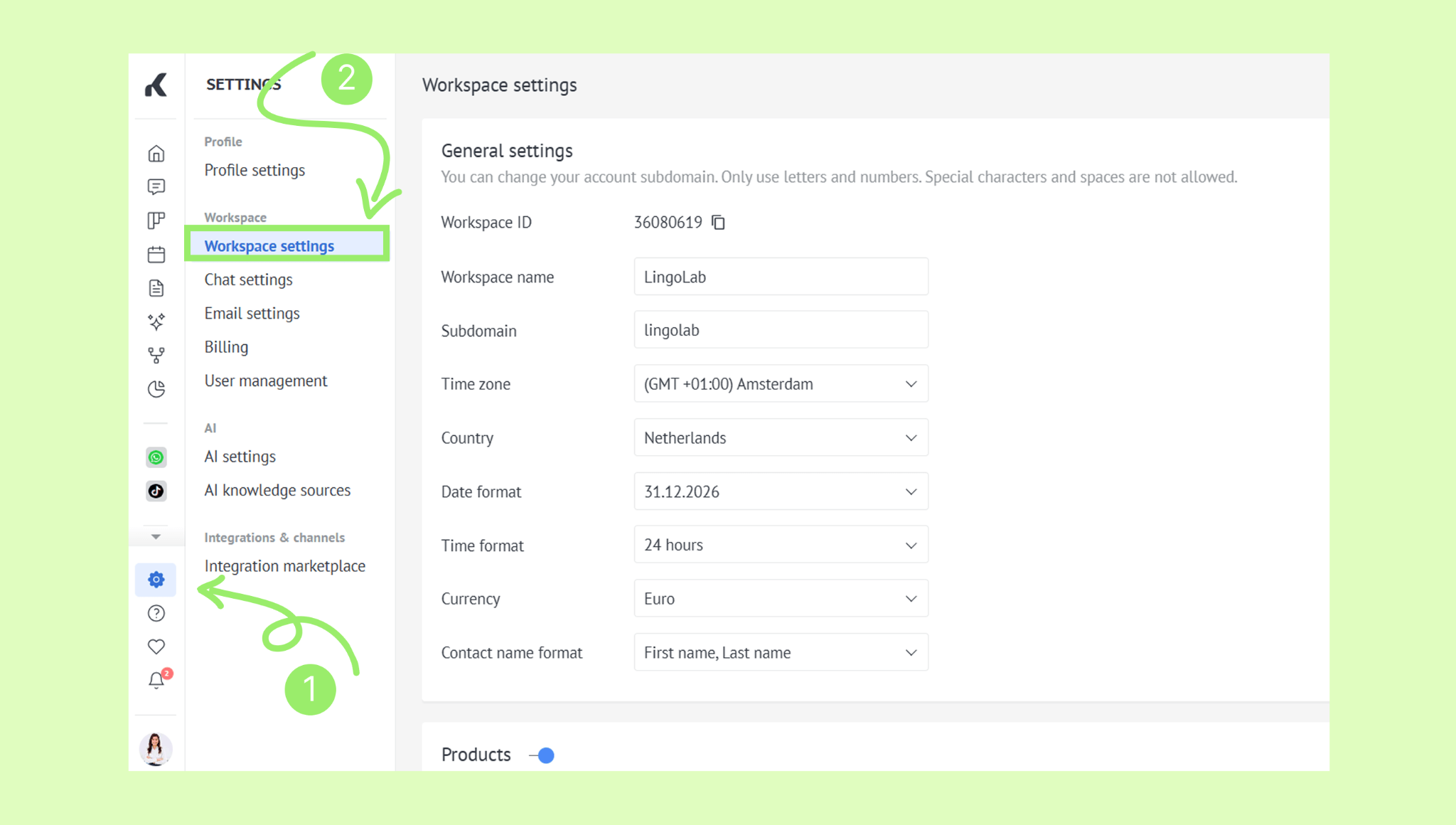
Scroll down to the Pipelines section.
Click Add New Role. → Select the role you want to limit access for.
To hide the entire Pipeline section, click the closed eye icon next to Pipelines. → Click Save.
Users assigned to this role won’t be able to see any pipelines.
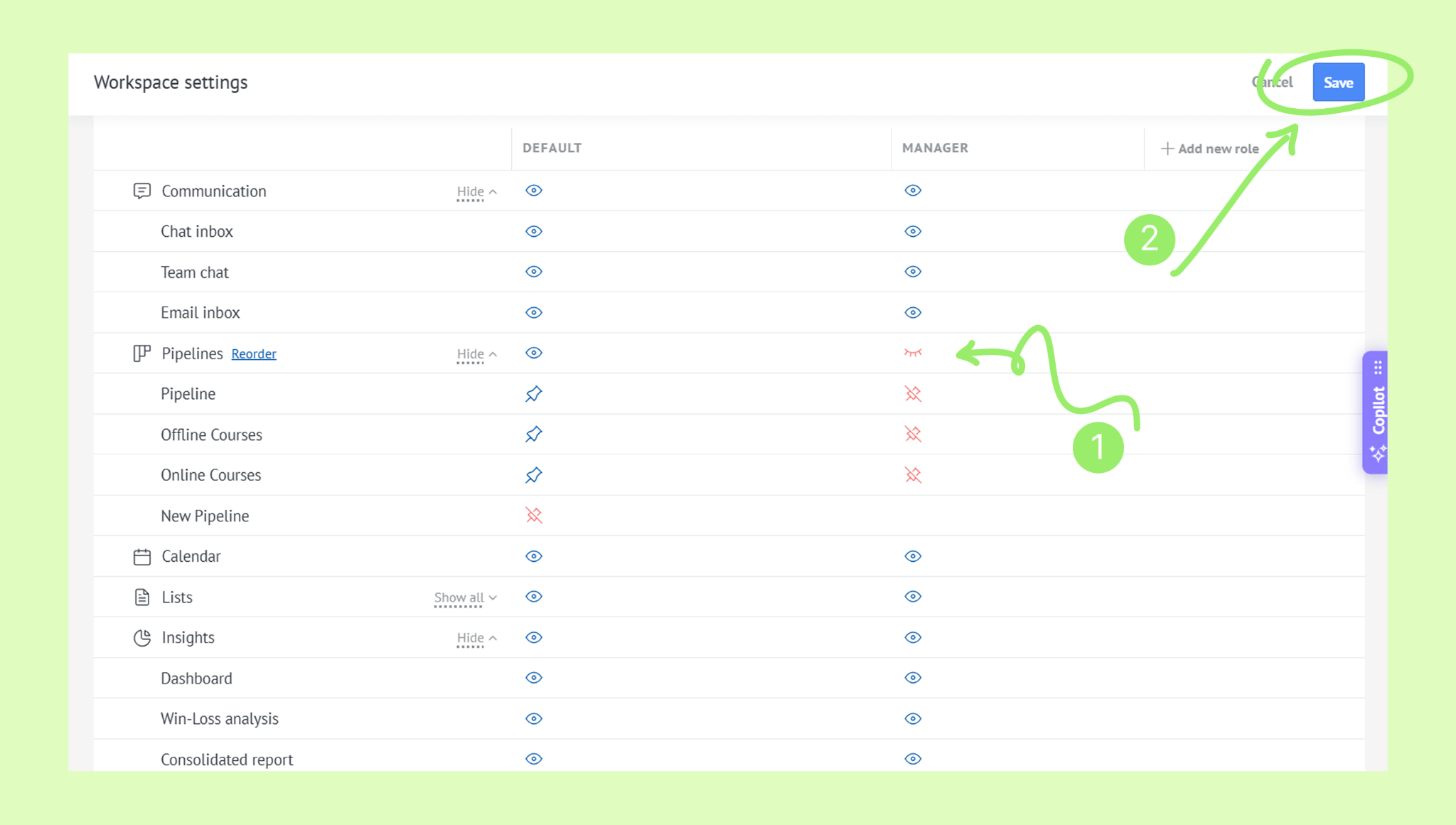
To give a user access to specific pipelines, click the red eye icon next to Pipelines to hide all.
Then click the red crossed pins for the pipelines you want visible – they’ll turn blue. Click Save.