What you’ll need:
Any Kommo plan (Base, Advanced, Pro, Enterprise, or 14-day trial).
Admin access in Kommo.
Stable internet connection and a modern browser.
Keep in mind:
Only users with the Admin role can edit pipelines and configure automations.
Each workspace can be connected to only one account for each channel (Facebook, Telegram, Instagram, WhatsApp, etc.)
Here are the most common issues our users encounter when working with pipelines in Kommo – and how to fix them.
Pipeline not visible
If a non-admin user cannot see a pipeline, its stages, or certain lead details, it may be due to access restrictions.
How to fix it:
Admin should check the user’s pipeline access permissions.
If needed, review how access permissions work in the Set up user permissions for pipelines article.
Incoming leads stage are not visible
The Incoming leads stage appears only when there is a new inquiry from an unknown account or number. If this account or number has interacted with your channel before, new messages from them won’t appear in this stage.
Once all incoming leads are processed, the stage is hidden until a new inquiry arrives.
How to fix it:
To verify that the Incoming leads stage is working correctly, send a message to the channel connected to the pipeline from an account that has never contacted this channel before.
See our Connect your first channel article for step-by-step instructions on connecting your business channels to pipelines.
Closed leads stages are not visible
The Closed-Won and Closed-Lost stages are hidden by default, so the pipeline shows only active leads.
How to fix it:
Click Active leads at the top of the page.
Select Won leads or Lost leads.
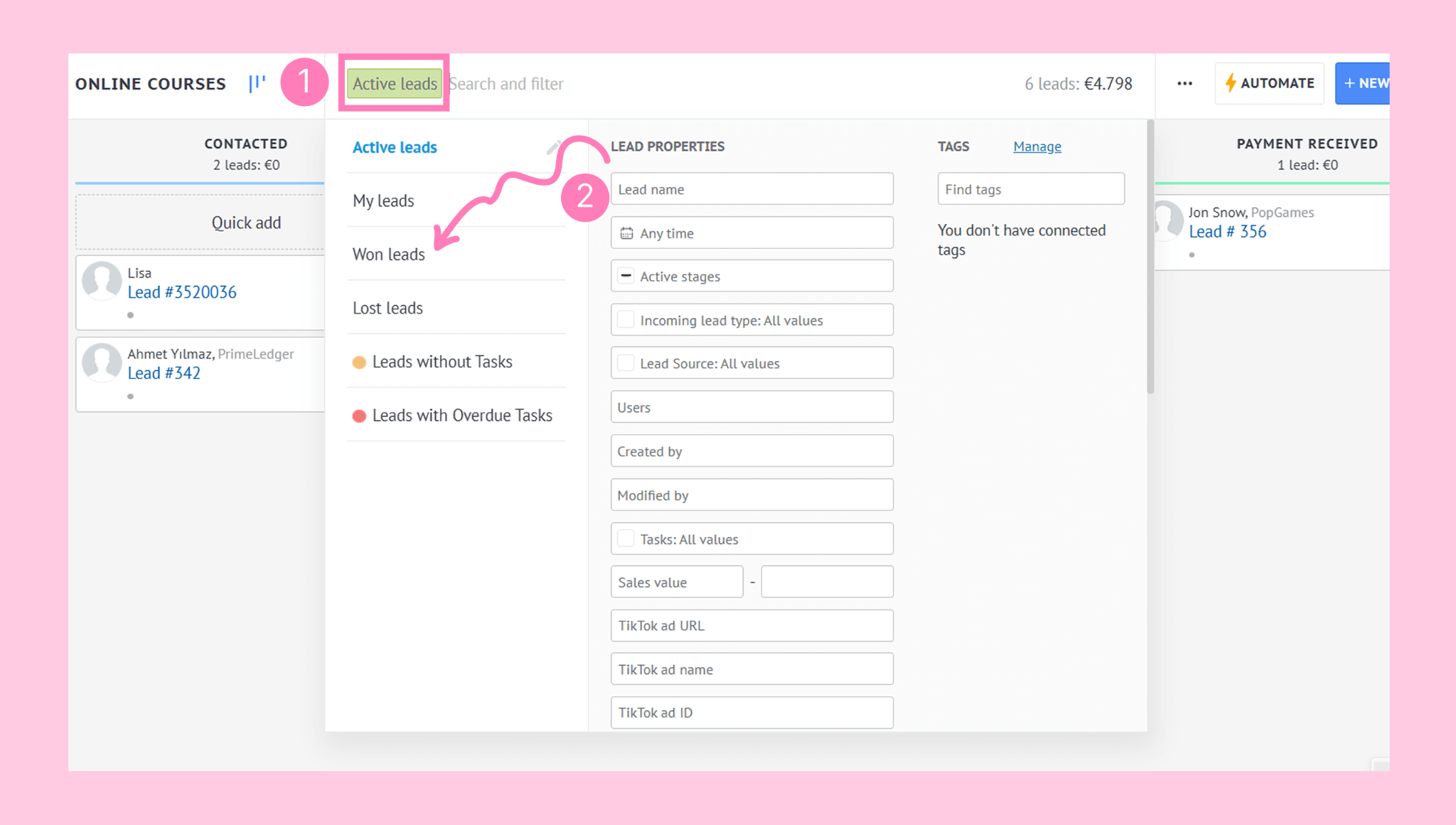
The selected stage will appear at the end of the pipeline.
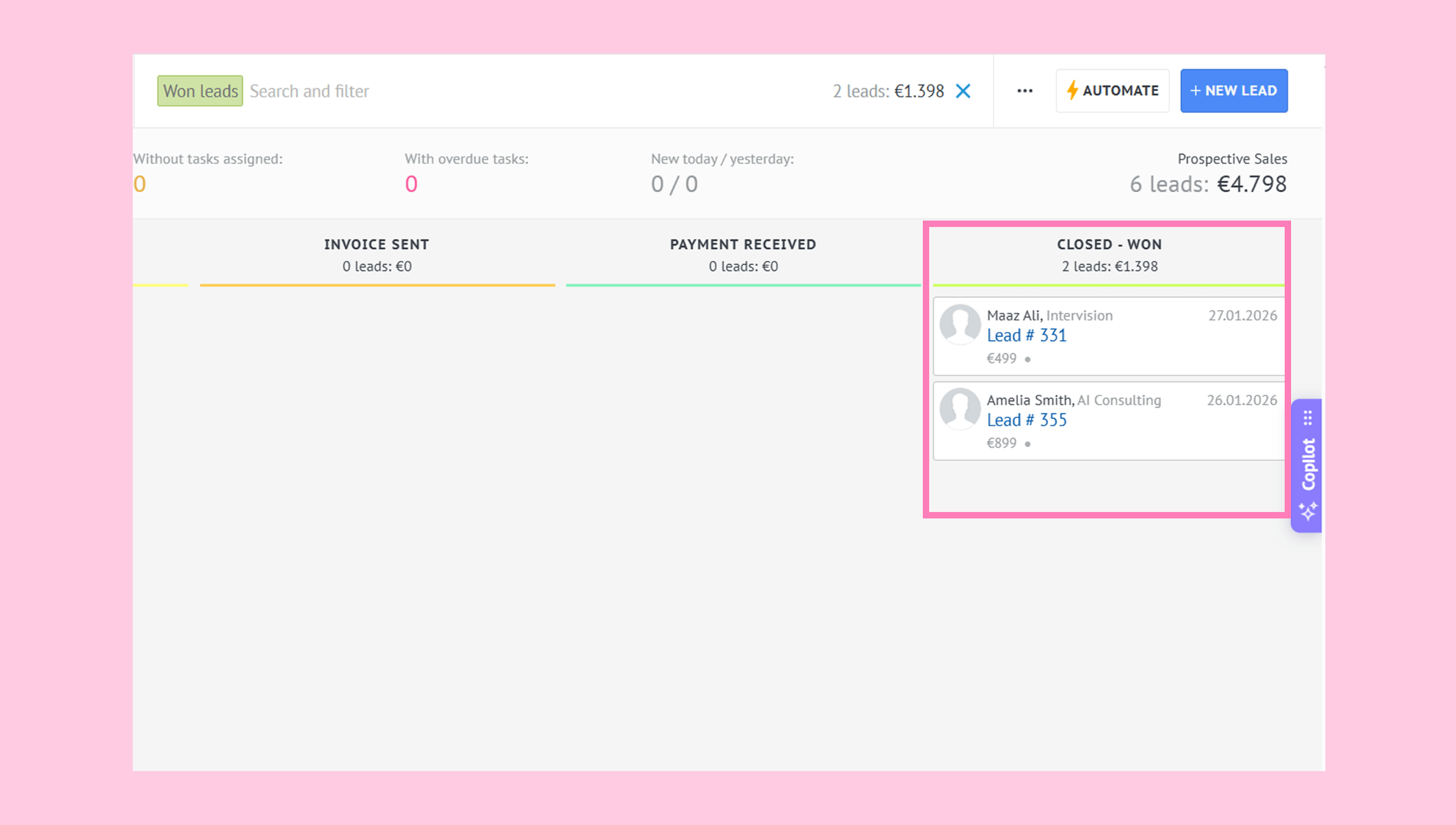
To return to active leads, switch the filter back to Active leads.
Can’t connect a channel to a pipeline
If you’re trying to connect WhatsApp, Instagram, Facebook, or any other channel, and the connection fails, it may be because another account of the same channel was previously connected to this pipeline.
Each workspace can be connected to only one account for each channel.
Even if you haven’t used the channel for your business before, there may be a test account still linked to the pipeline.
How to fix it:
Even if you haven’t used the channel for your business before, there may be a test account still linked to the pipeline.
Go to Pipelines → Hover over the Pipeline name. → Click three dots (...).
Click Automate.
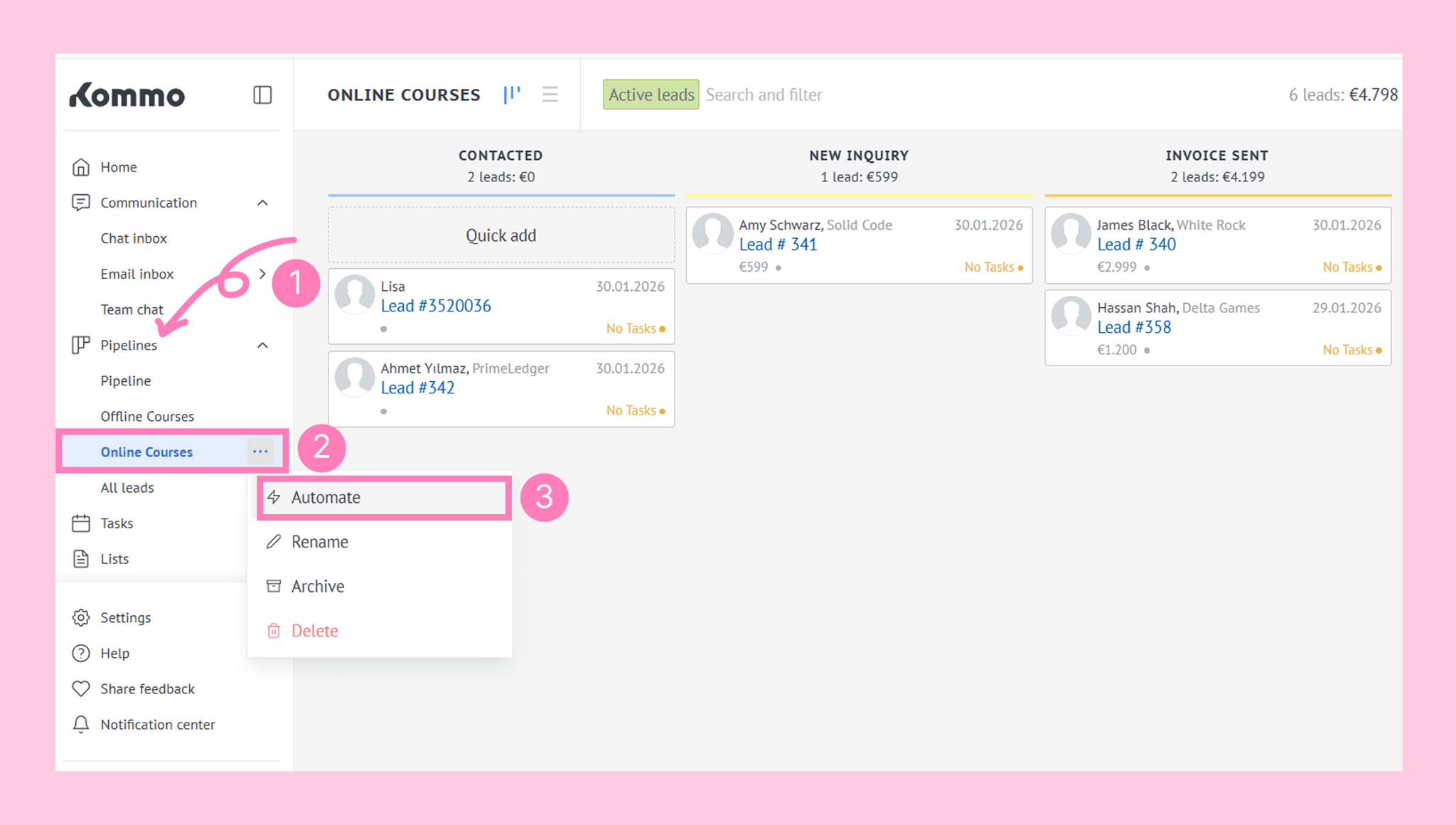
If a channel is connected, click the channel name.
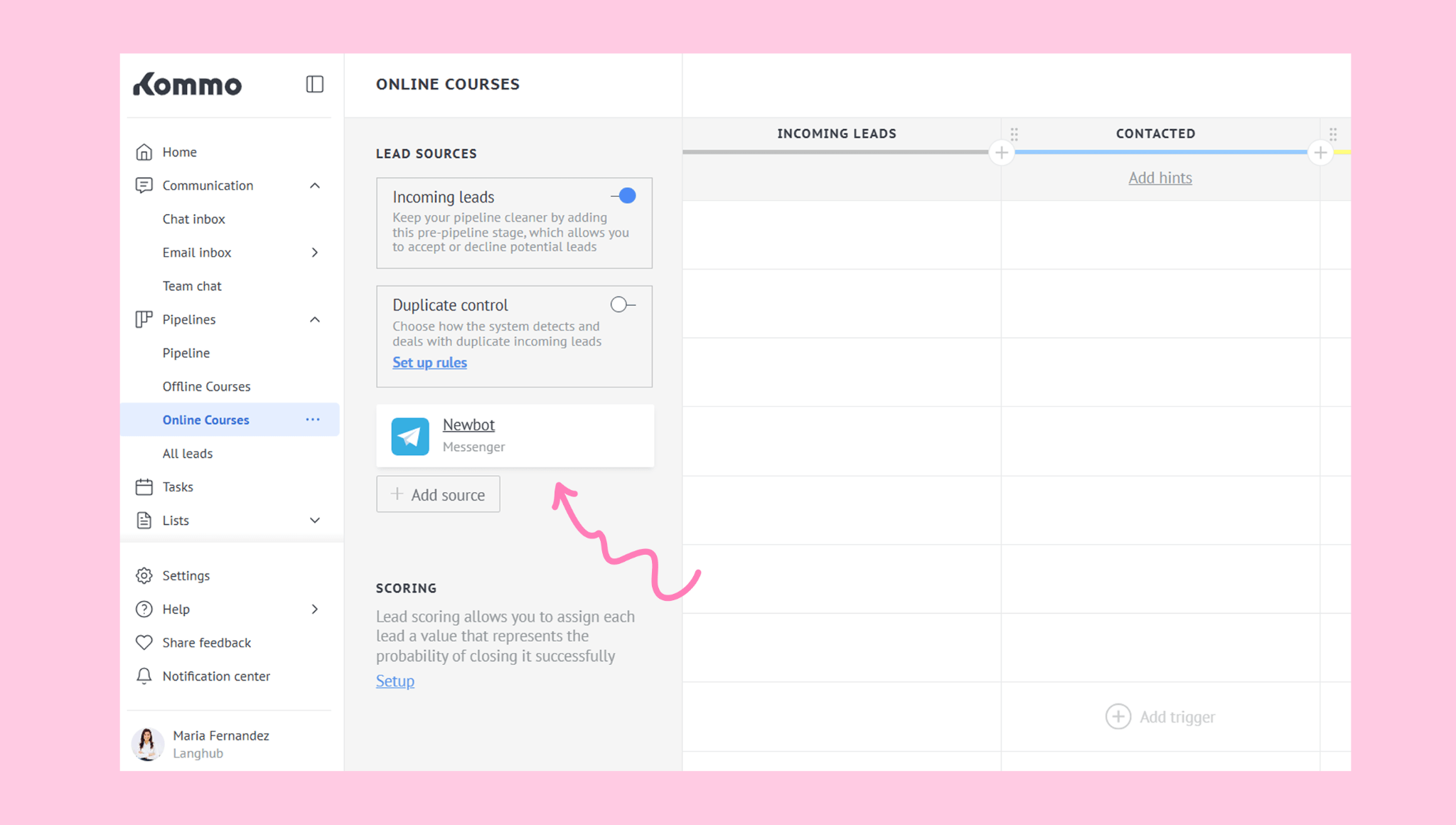
Select Uninstall.
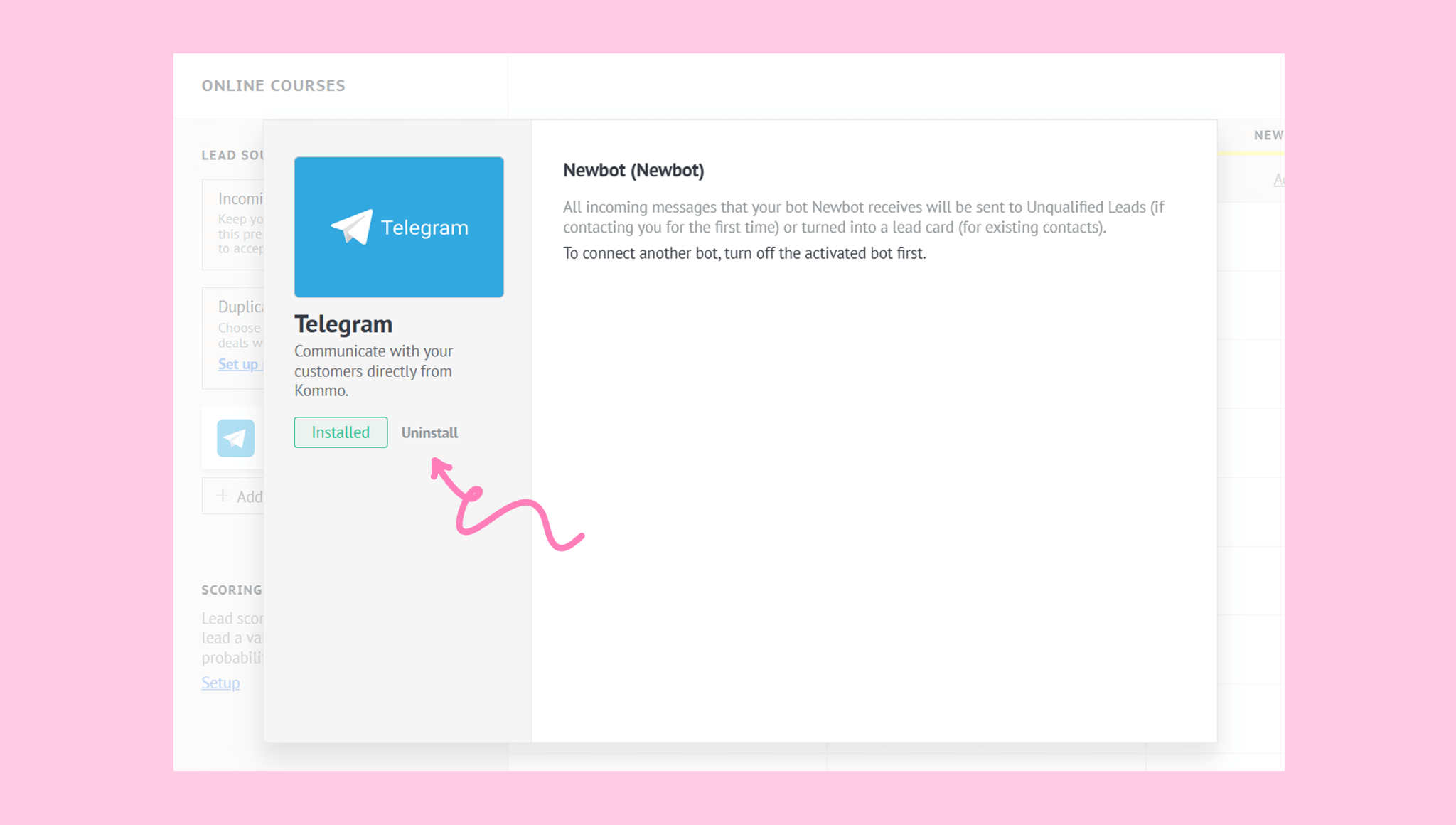
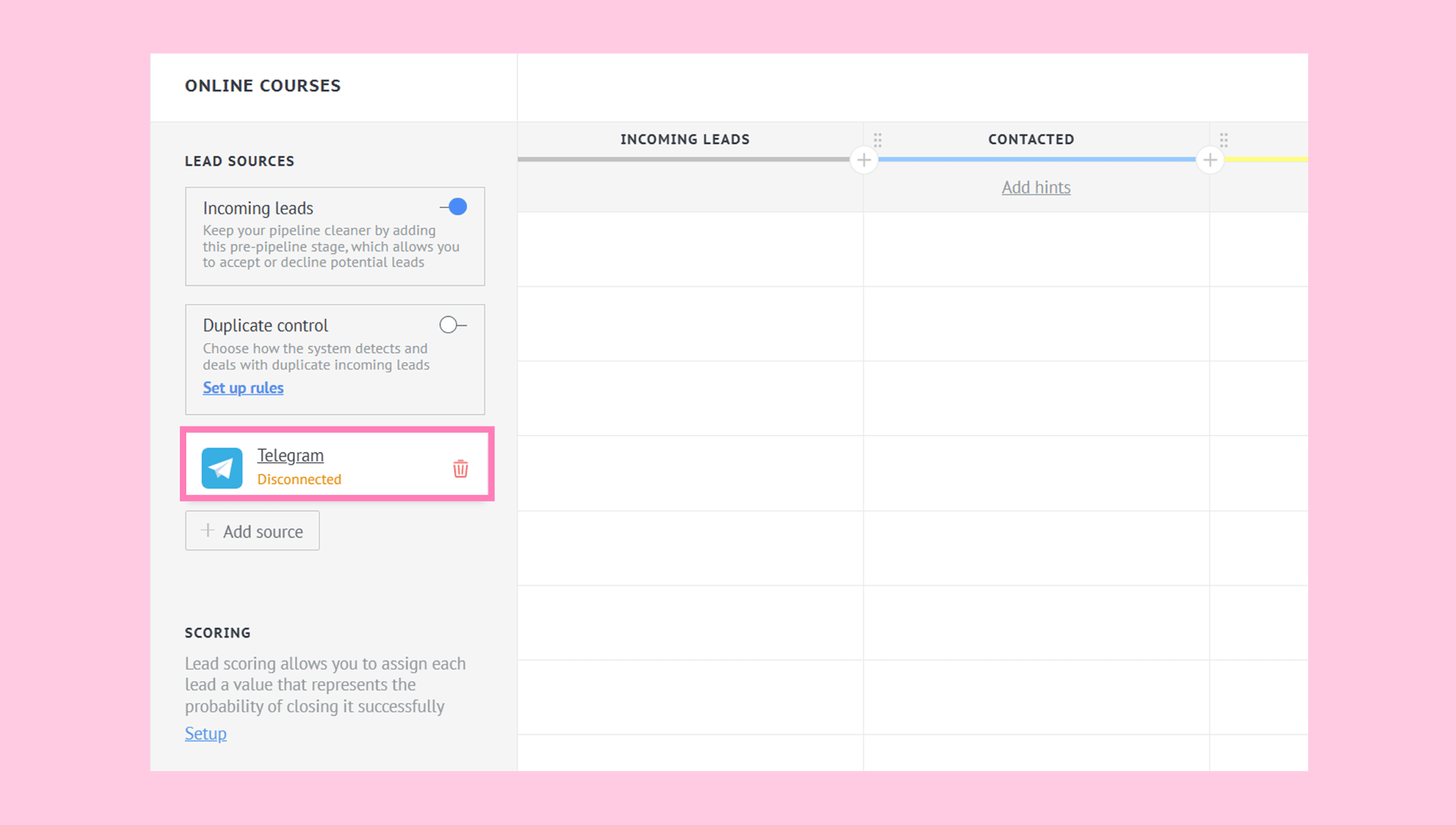
The channel will be disconnected automatically, and the Disconnected status will appear under the channel name.
If no other channel has been connected to your pipeline before, the issue may be due to channel limitations. Please check the relevant articles for any applicable restrictions: