What you’ll need:
Any Kommo plan: Base, Advanced, Pro, Enterprise, or a 14-day trial.
Permissions to access the report data.
The Activity log provides a complete audit trail of user activity across your Kommo account. It records changes made to leads, contacts, companies, tasks, and other objects, making it easy to review account activity, verify changes, and troubleshoot issues.
Use cases
Audit account activity — review a complete history of actions performed across your CRM account.
Verify record changes — track updates to leads, contacts, companies, fields, pipelines, and other objects.
Find specific activities — filter the log by date, user, object type, or activity to quickly locate individual changes.
Troubleshoot issues — investigate unexpected updates or missing data by reviewing who made changes and when.
Improve accountability — monitor user activity to understand how records are created, updated, and managed across your team.
How to view the Activity log
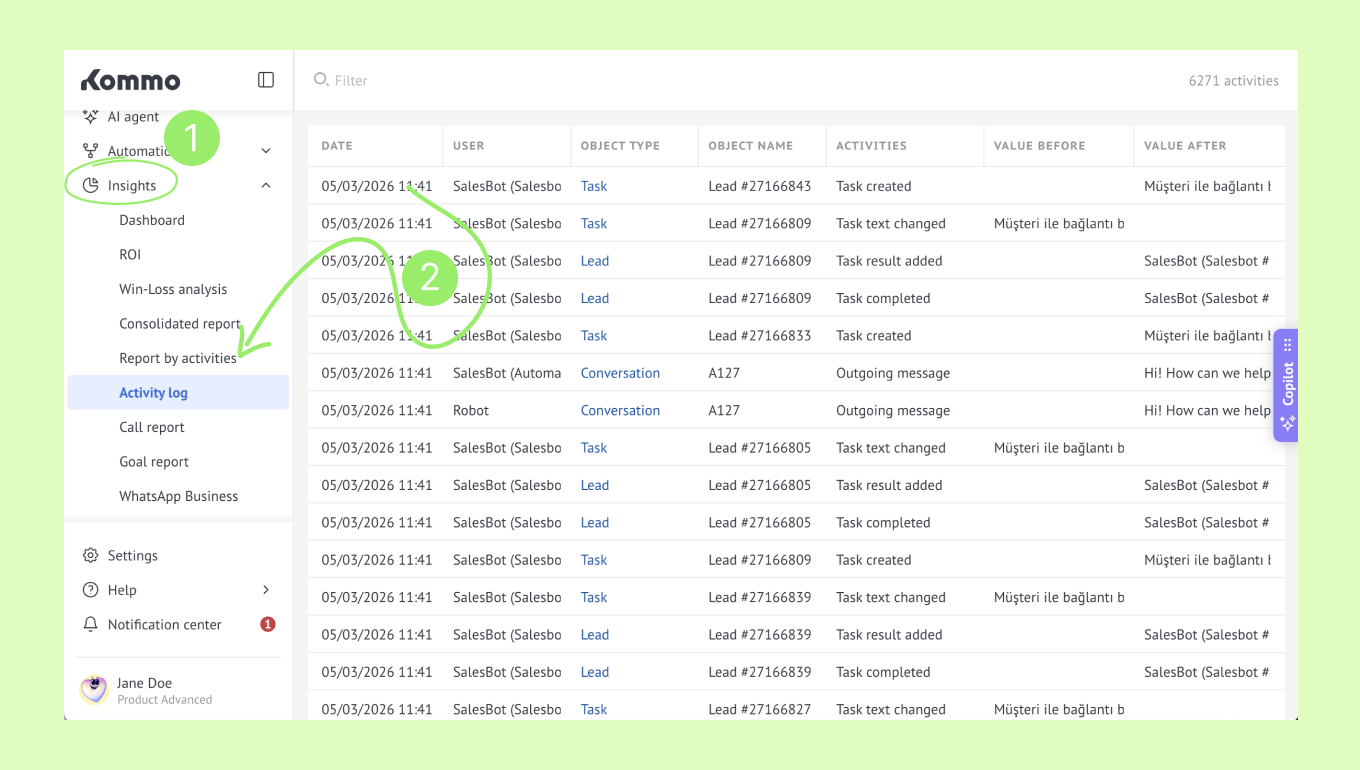
To access the Activity log, follow these steps:
Go to the Insights section in Kommo.
Click on Activity log.
What you'll find in the Activity log
The report displays all recorded activities in a chronological table, with each row representing a single action performed in your Kommo account.
For each activity, the table includes:
Date — when the action occurred.
User — the user who acted.
Object type — the CRM object affected (for example, a lead, contact, company, or task).
Object name — the name or identifier of the affected record.
Activity — the action that was performed, such as creating a record, updating a field, or adding a tag.
Value before — the previous value before the change (when applicable).
Value after — the new value after the change.
Use the Filter button at the top of the report to narrow the results by different criteria.
You can also refine the report directly from the table by filtering the values in the Date, User, Object type, Activity, Value before, and Value after columns, making it easy to focus on the records that matter most.