What you’ll need:
Any Kommo plan: Base, Advanced, Pro, Enterprise, or a 14-day trial.
Permissions to access the report data.
Connected communication tools (e.g., Twilio, RingCentral, CloudTalk). To learn more about communication integrations, read our articles.
Keep in mind:
You need at least one call recorded in the selected reporting period for the report to be generated.
The Call report in Kommo helps you analyze your team’s calling activity and review individual calls in one place. It gives you a quick overview of team performance and a detailed call log for the selected period.
Use cases
Monitor team communication — compare inbound and outbound calling activity across your sales team.
Measure call performance — analyze call volume, duration, and outcomes to understand interactions with clients better.
Review client conversations — listen to call recordings and download them for quality assurance, training, or follow-up.
Identify communication trends — compare call statistics over time to evaluate team responsiveness and engagement.
Evaluate telephony performance — analyze call data collected through your integrated telephony system to measure communication effectiveness.
How to view the Call report
To access the Call report, go to Insights → Call report.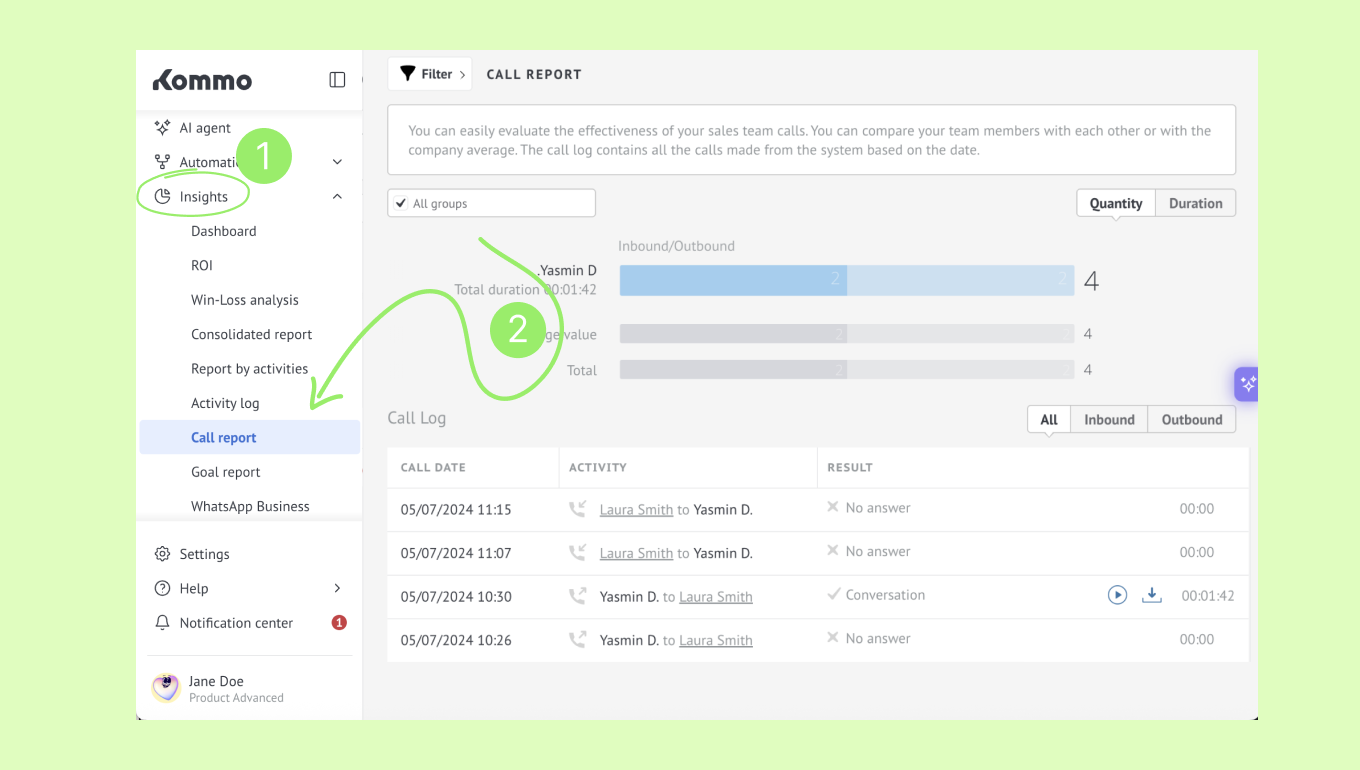
What you'll find in the Call report
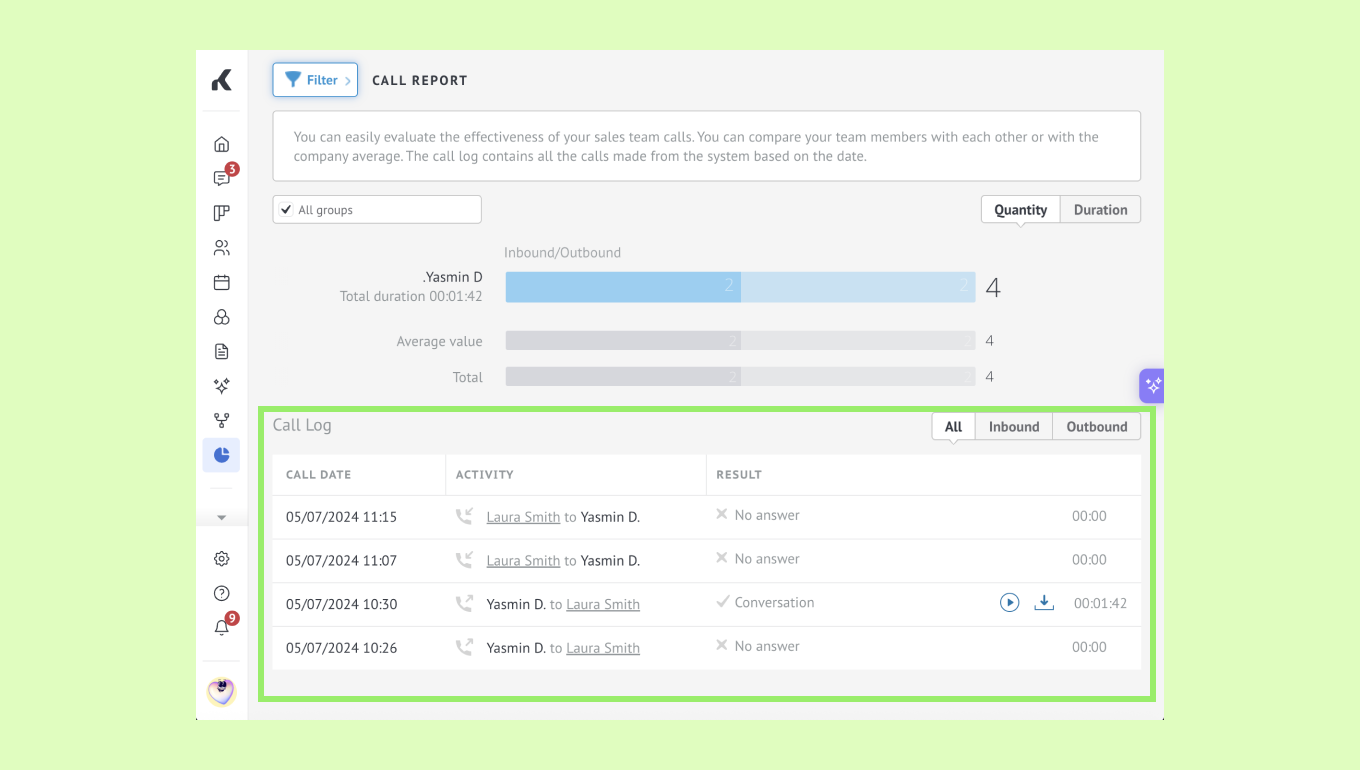
The upper section of the report shows team call statistics for each Kommo user. You can compare inbound and outbound activity, total calls, average call duration, and total call duration across your team.
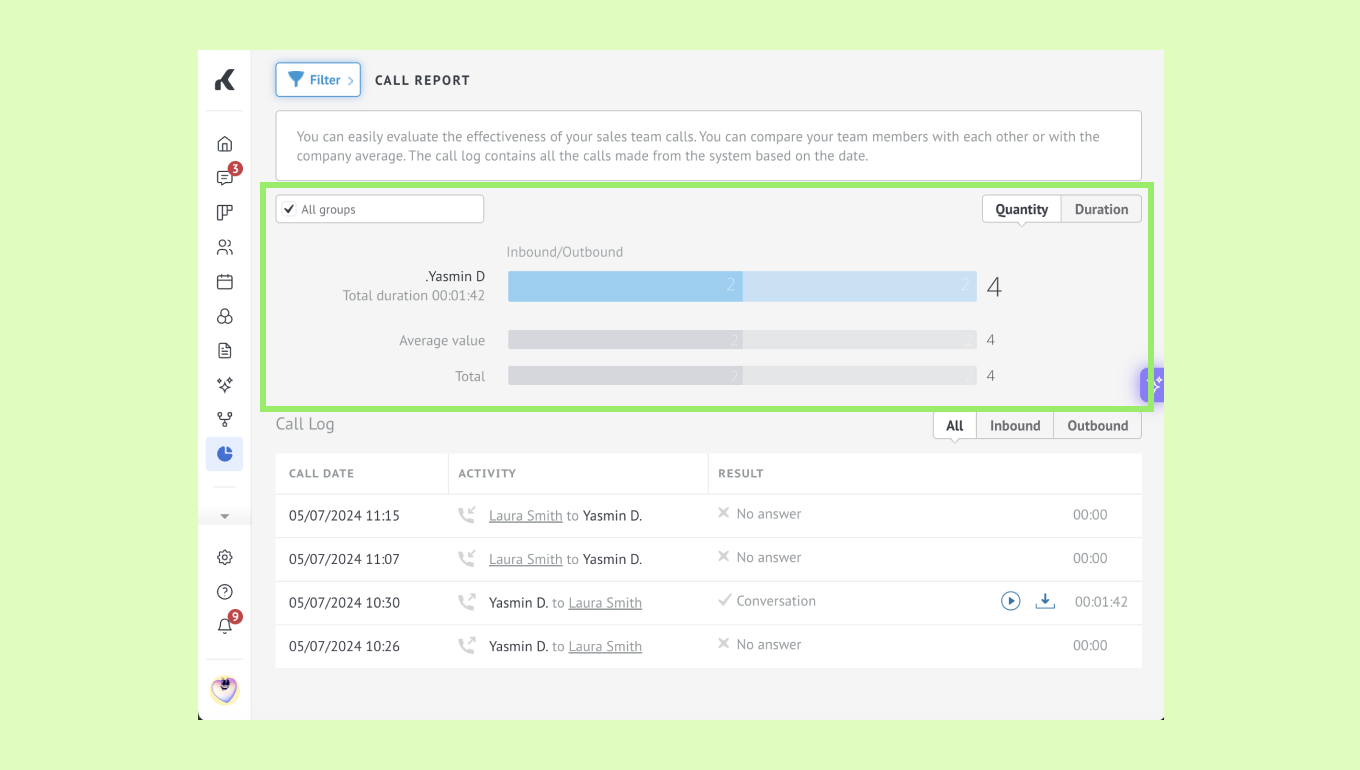
The chart helps you spot communication trends and see how team members perform relative to each other or to the company average.
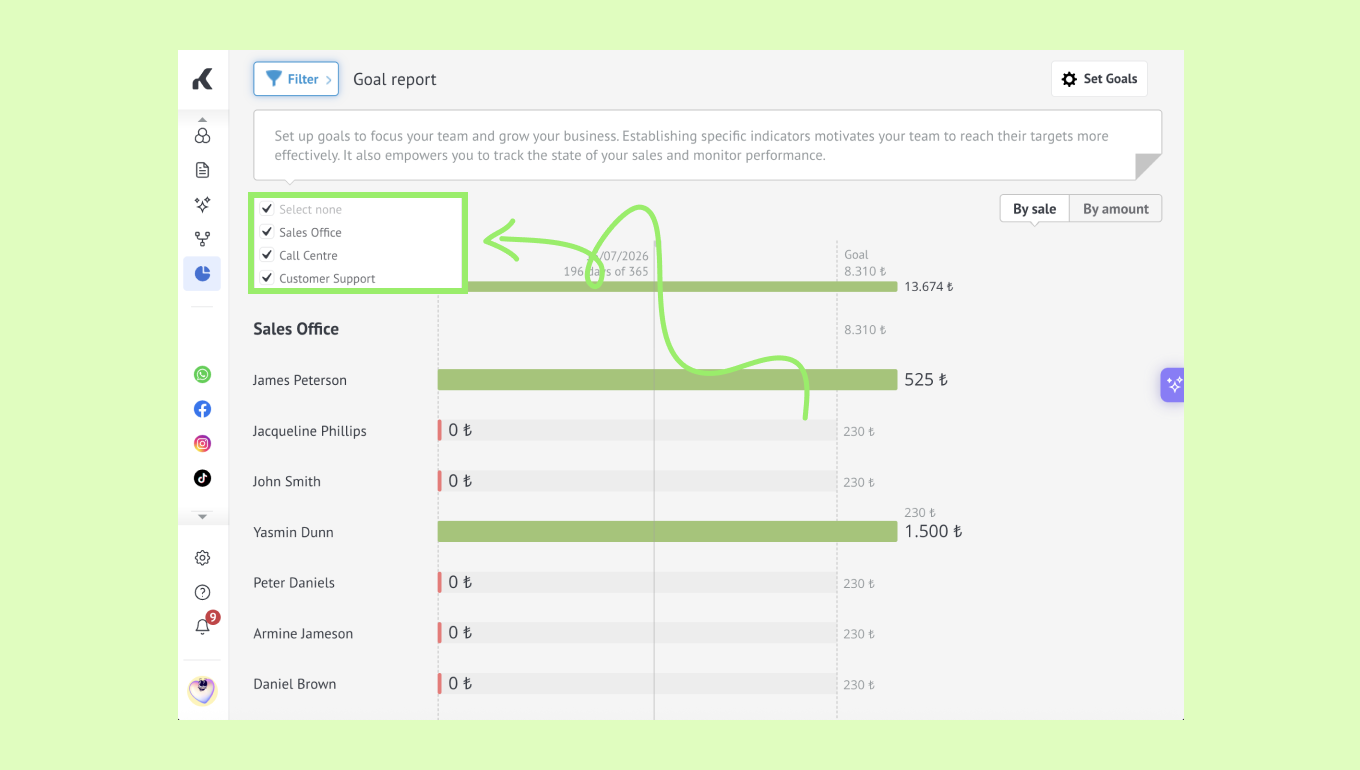
You can also see the call report for a specific user group. To do so, select the targeted group in the dropdown on the top left corner of the report.
Use the controls at the top to customize the report:
Quantity — View the total number of calls.
Duration — View the total time spent on calls.
Call log
The Call log lists every call included in the selected reporting period. Each entry shows the call date, activity, result, and duration. If a recording is available, you can review it directly from the report.
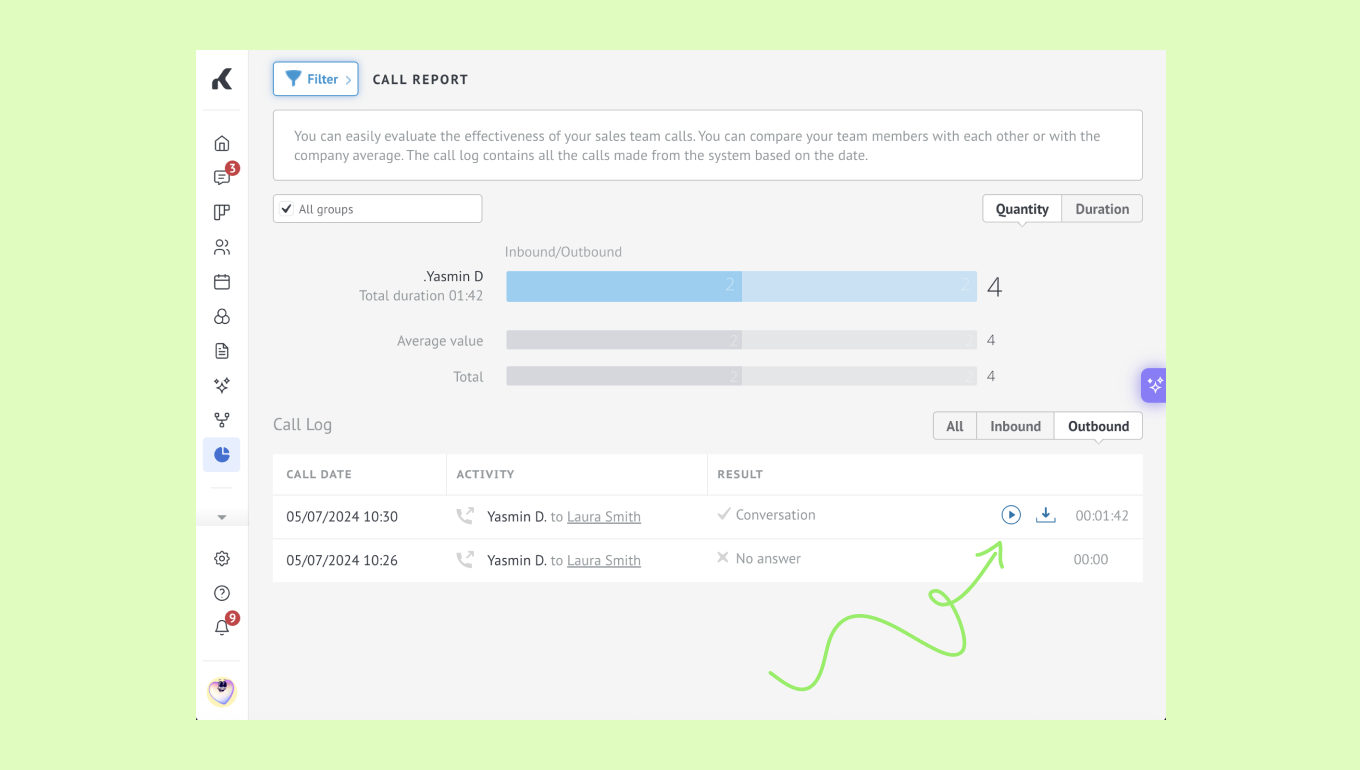
To listen to a recorded call, find it in the Call log and click the Play icon.
To save it, click the Download icon next to the recording.
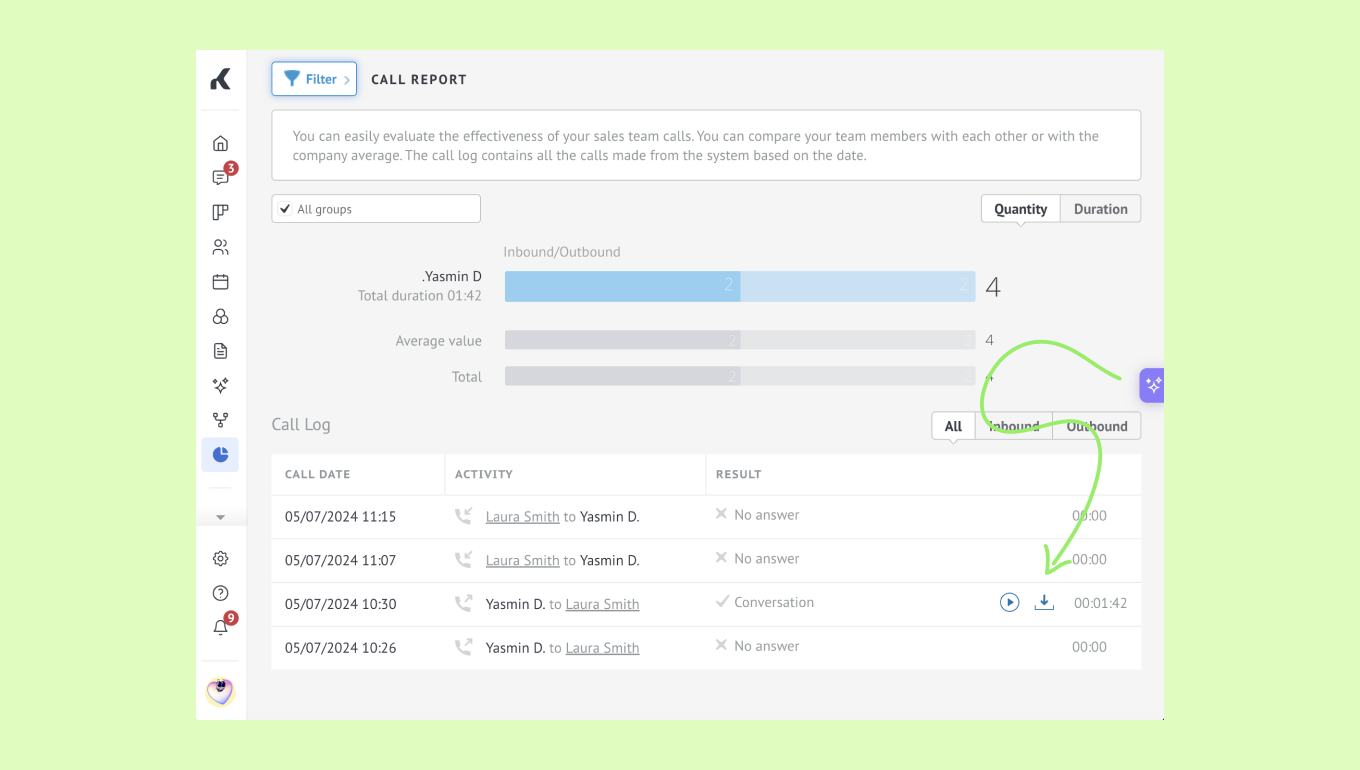
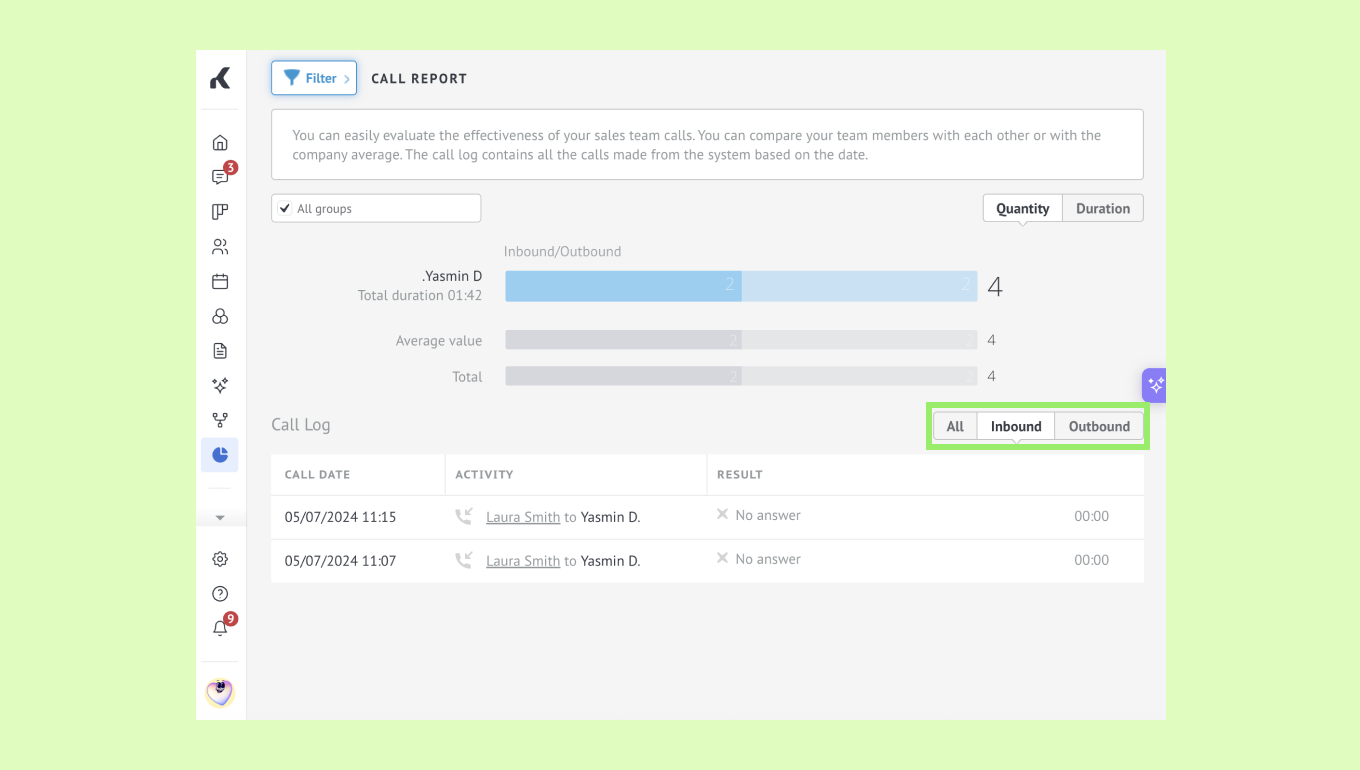
You can also use the switcher above the Call log to view all calls, inbound calls only, or outbound calls only.