What you’ll need:
A WhatsApp Business number connected to Kommo directly or through the WhatsApp Business app.
The WhatsApp Marketing Messages API enabled for your account. This is Meta’s service for sending Marketing templates and is required to use Max price. See how to enable it.
Admin rights to create templates, set prices, and use estimates.
A WhatsApp Business Account (WABA) with a supported currency.
Keep in mind:
Max price works with all Marketing template types in Kommo’s web version.
You can only send approved templates to clients who agreed to receive your messages.
Check the plan requirements for sending through chats, Salesbot, or broadcasts.
Choose the most you’re willing to pay for each delivered WhatsApp Marketing message. You can enter a price yourself or use Meta’s estimates to help you decide. This guide shows you how to set a price, change it, and check what you paid.
For pricing examples and an explanation of Meta’s estimates, see Max price for WhatsApp Marketing messages in Kommo overview.
Set a max price for a new template
You can set Max price below, equal to, or above Meta’s default Marketing rate for the recipient’s country. A lower cap may reduce deliveries; a higher cap allows you to pay more per delivery. See How Max price works for a comparison and example.
Set a max price manually
Enter the price in your WhatsApp Business account’s currency. You can’t choose a different currency or convert the amount here. The price must be greater than zero, with up to five decimal places – or three for CLP.
Follow the steps to create a WhatsApp Marketing template. When you reach Pricing:
Select Max price.
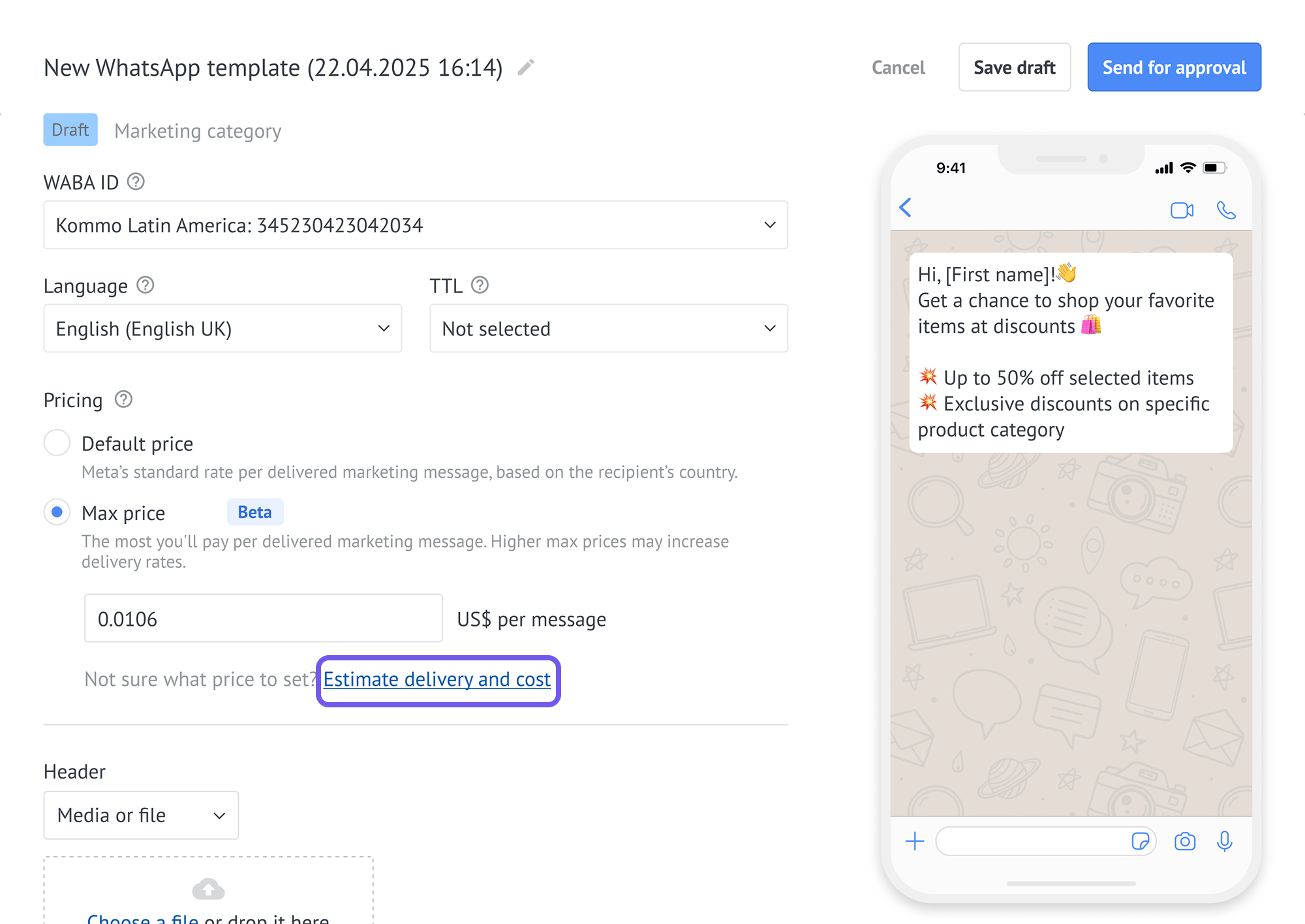
Enter the most you’re willing to pay per delivered message. For help choosing a price, click Estimate delivery and cost.
Finish the template and click Send for approval.
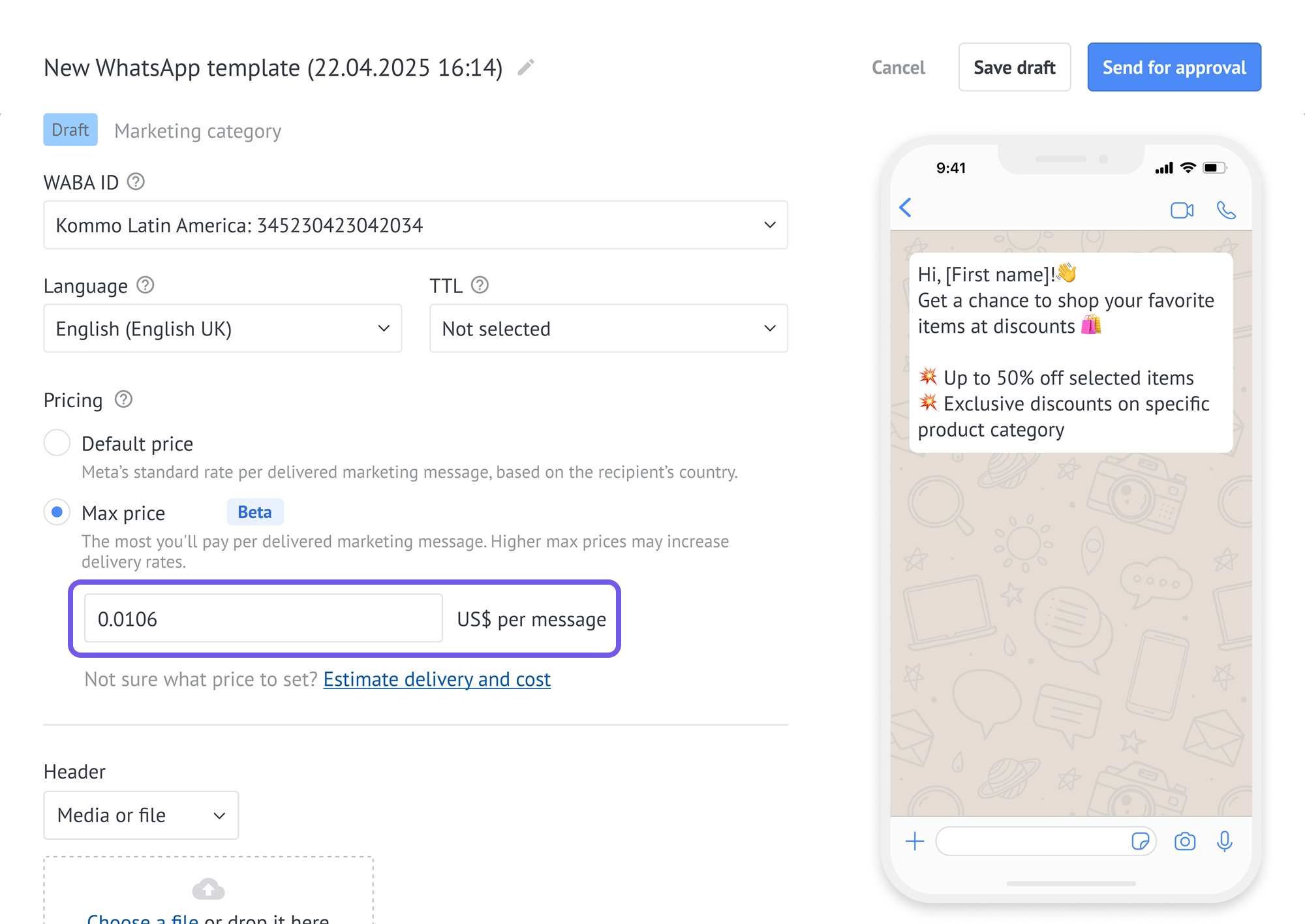
Note: If Max price is missing, check the Marketing Messages API setup. It’s enabled automatically when you connect a new number, but numbers connected earlier may need separate setup. After enabling it, reopen the template.
You can also set max price when creating a Marketing template while setting up a broadcast.
Choose a max price using Meta’s estimates
Follow the steps to create a WhatsApp Marketing template. When you reach Pricing:
Select Max price, then click Estimate delivery and cost.
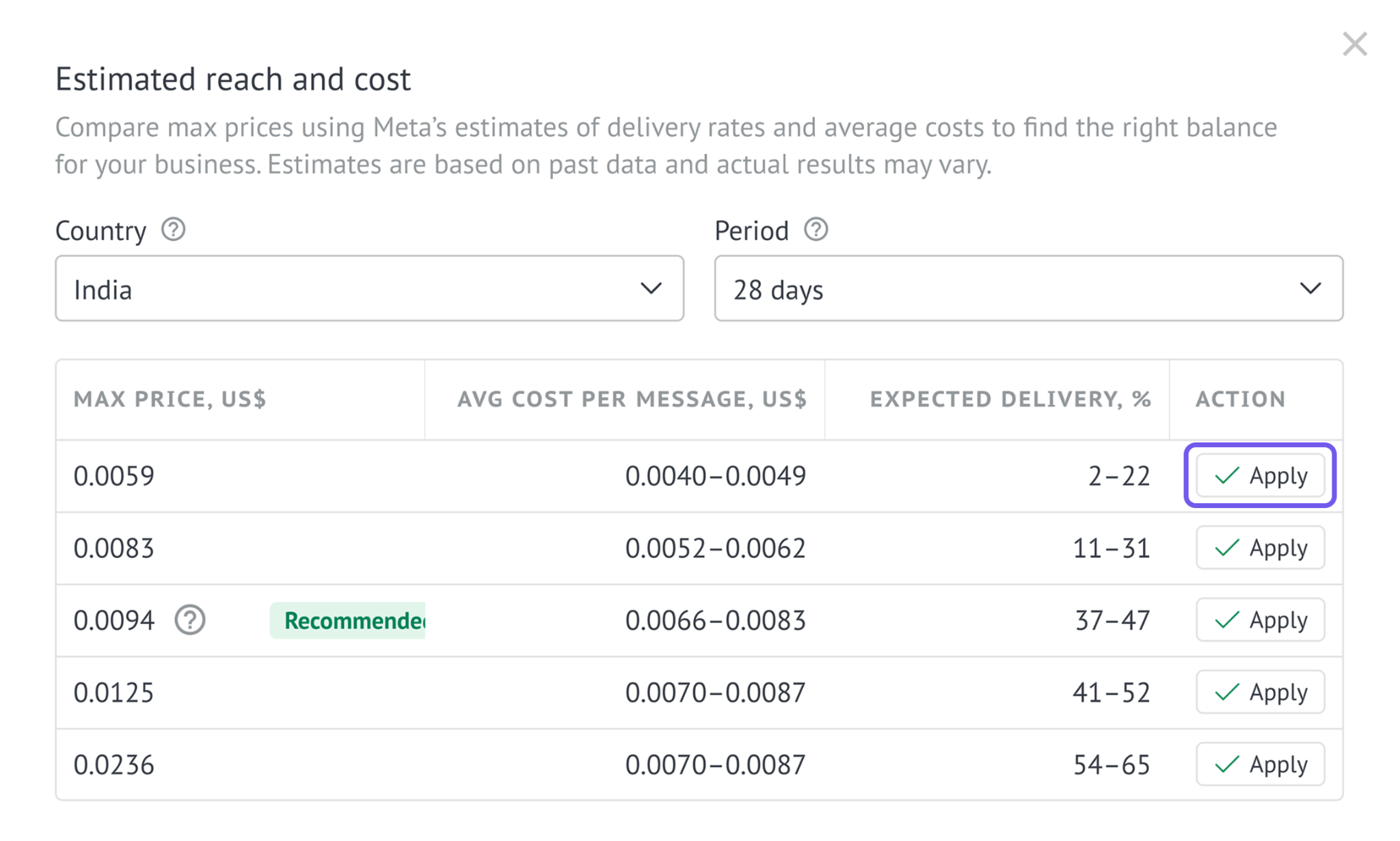
In the Estimated reach and cost window, select the recipient’s country under Country.
Under Period, choose which past period Meta should use for the estimates.
Compare Max price, Avg cost per message, and Expected delivery, %.
Click Apply beside the max price you want to use.
Finish the template and click Send for approval.
Note: These estimates use Meta’s data, not the contacts in your Kommo segment. They don’t guarantee how many messages will be delivered or what you’ll pay.
If no estimate is available, try another country or period, or enter a price manually.
Change or remove a max price
You can set, change, or remove a max price when a Marketing template is Approved or Rejected. You can’t change the price while it is In-review or Paused.
Important: Before changing the price, check where you use the template. The new price will also apply in chats, Salesbot, and broadcasts. You won’t receive a separate warning in each place. Your new price may take up to one hour to apply. Until then, Meta may still apply the previous price, and fewer messages may be delivered.
Go to Automations → Templates → Chat templates.
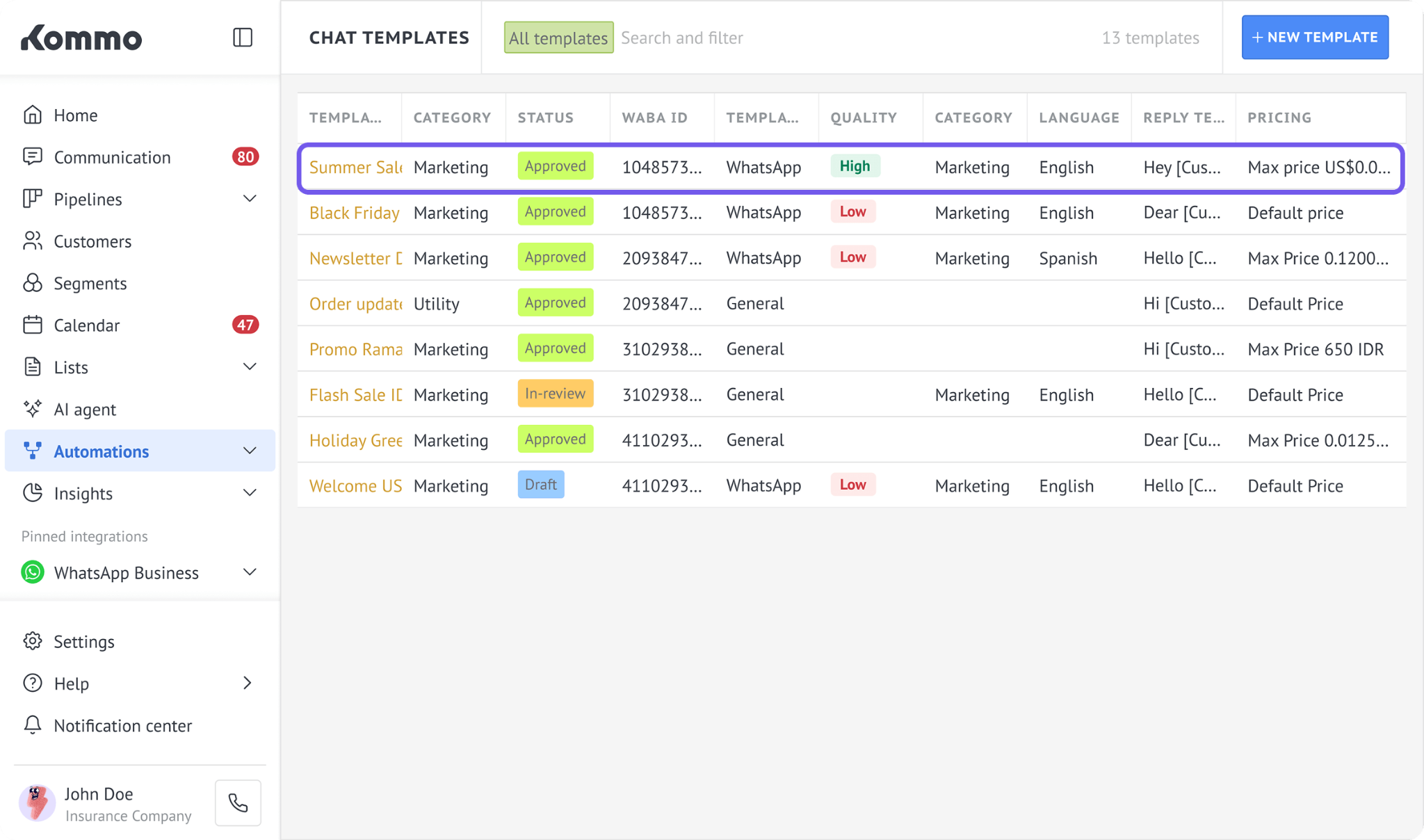
Open the Marketing template.
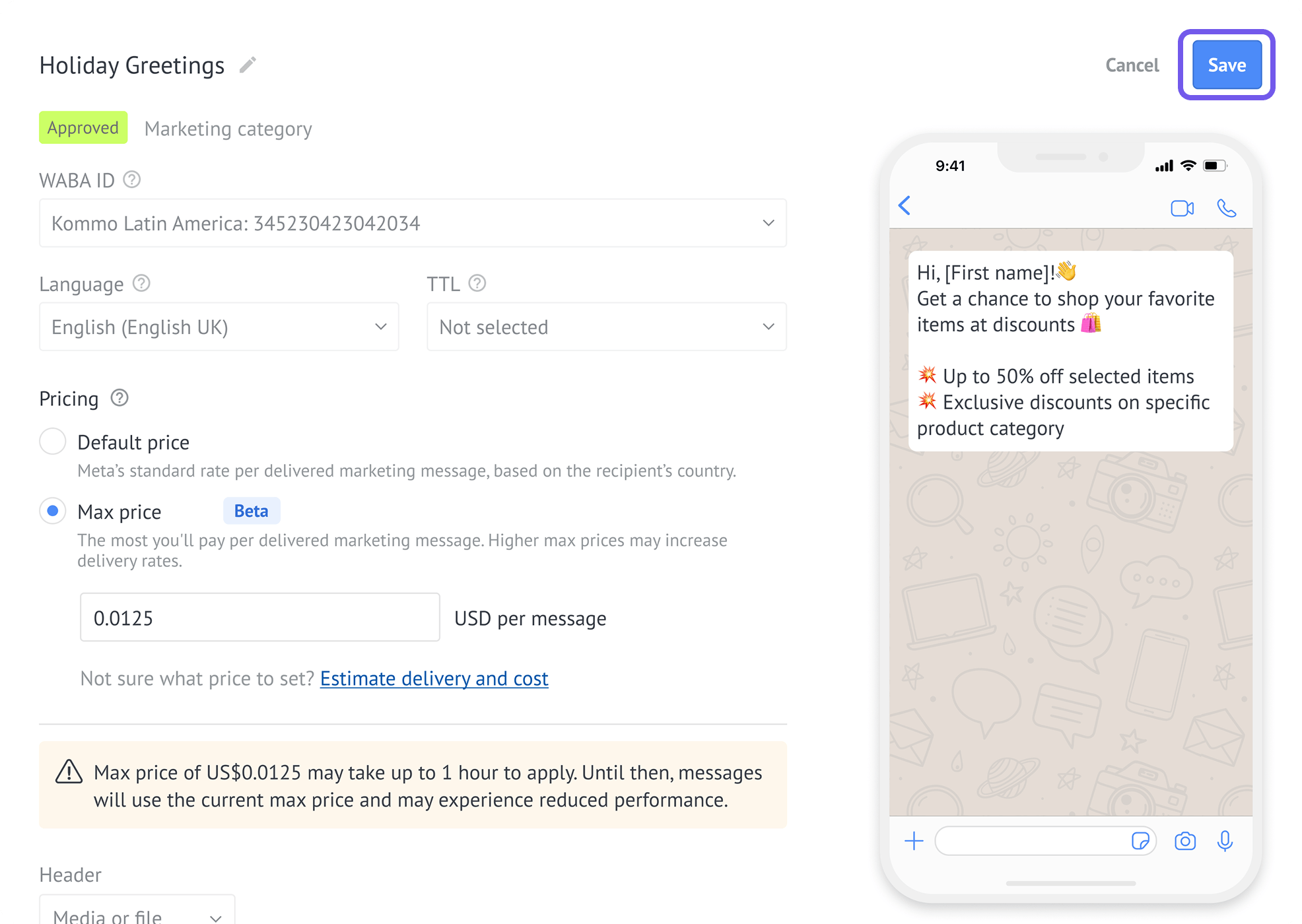
Under Pricing, select Max price and enter the new amount. To return to Meta’s standard pricing, select Default price.
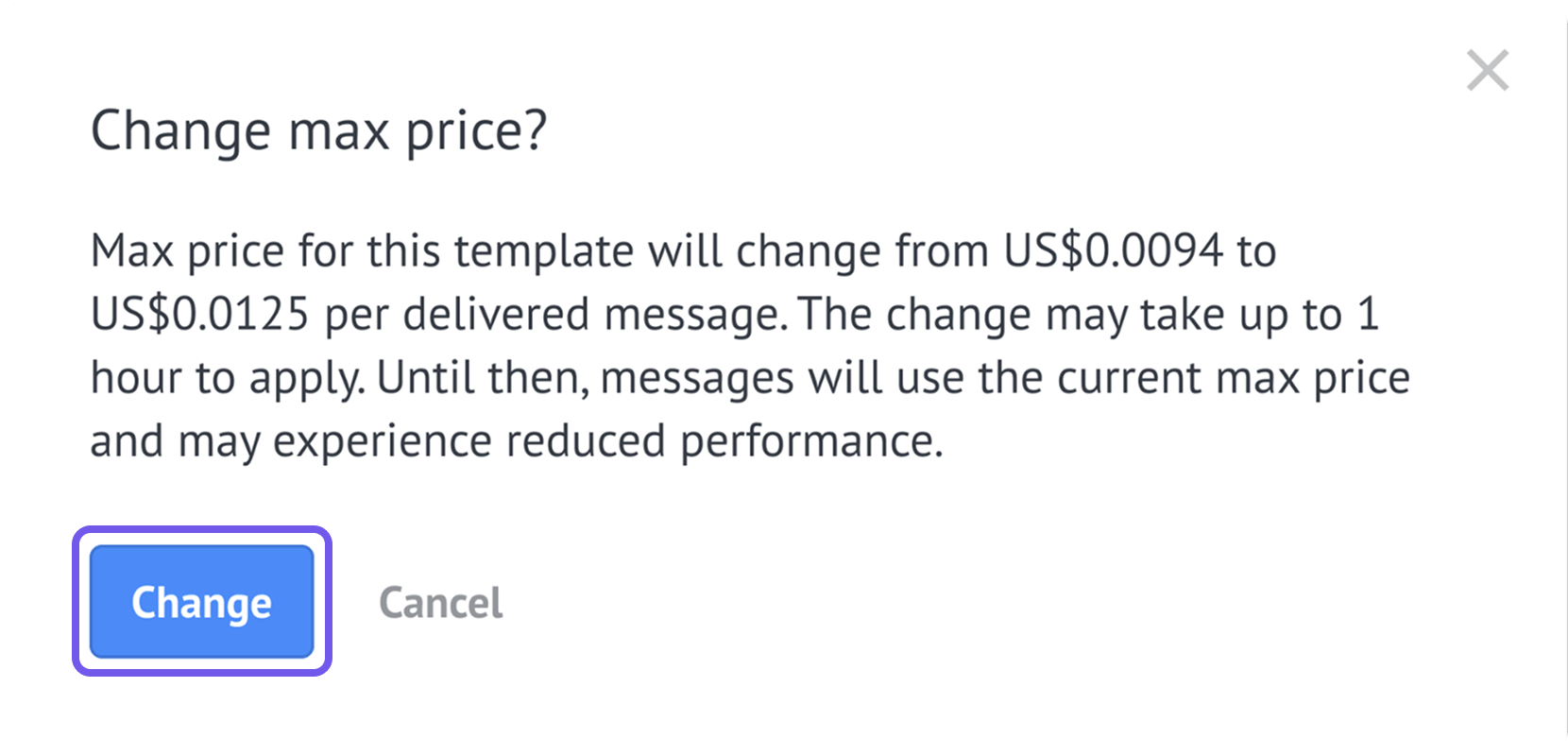
When the Change max price? window appears, click Change.
Click Save.
Changing the price does not send an approved template back for review. A rejected template still needs Meta’s approval before you can send it.
Messages you’ve already sent keep their original price and cost details. Meta allows up to 100 price changes per hour and 2,400 per day.
Send the template and check its price
After approval, select the template in a chat, Salesbot, or broadcast as usual. See Send templates with WhatsApp Business for sending instructions.
Chat templates list
Check the Pricing column to see whether the template uses max price or default pricing.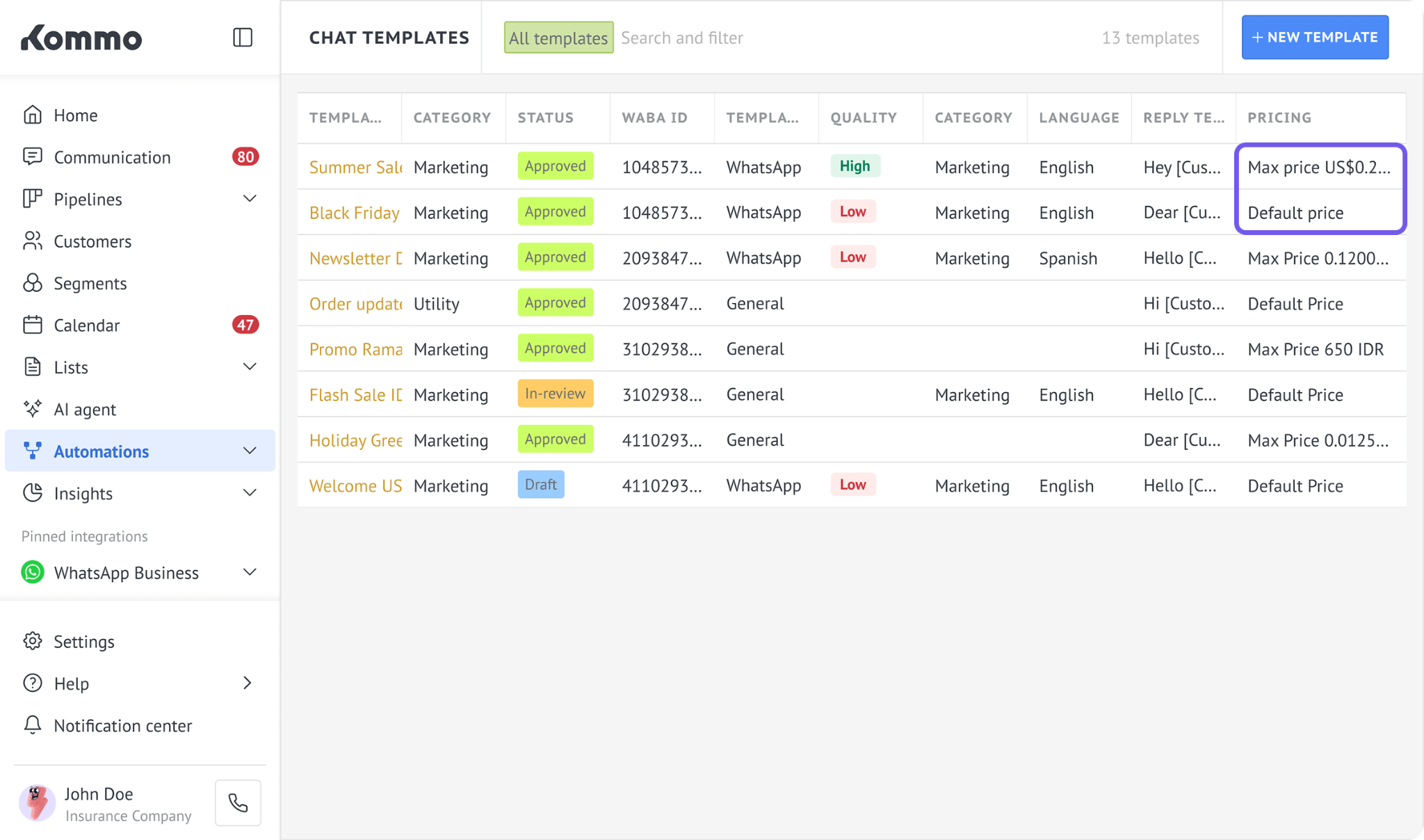
Chat
After selecting the template, hover over the $ icon in the top-right corner of the chat box to see its max price.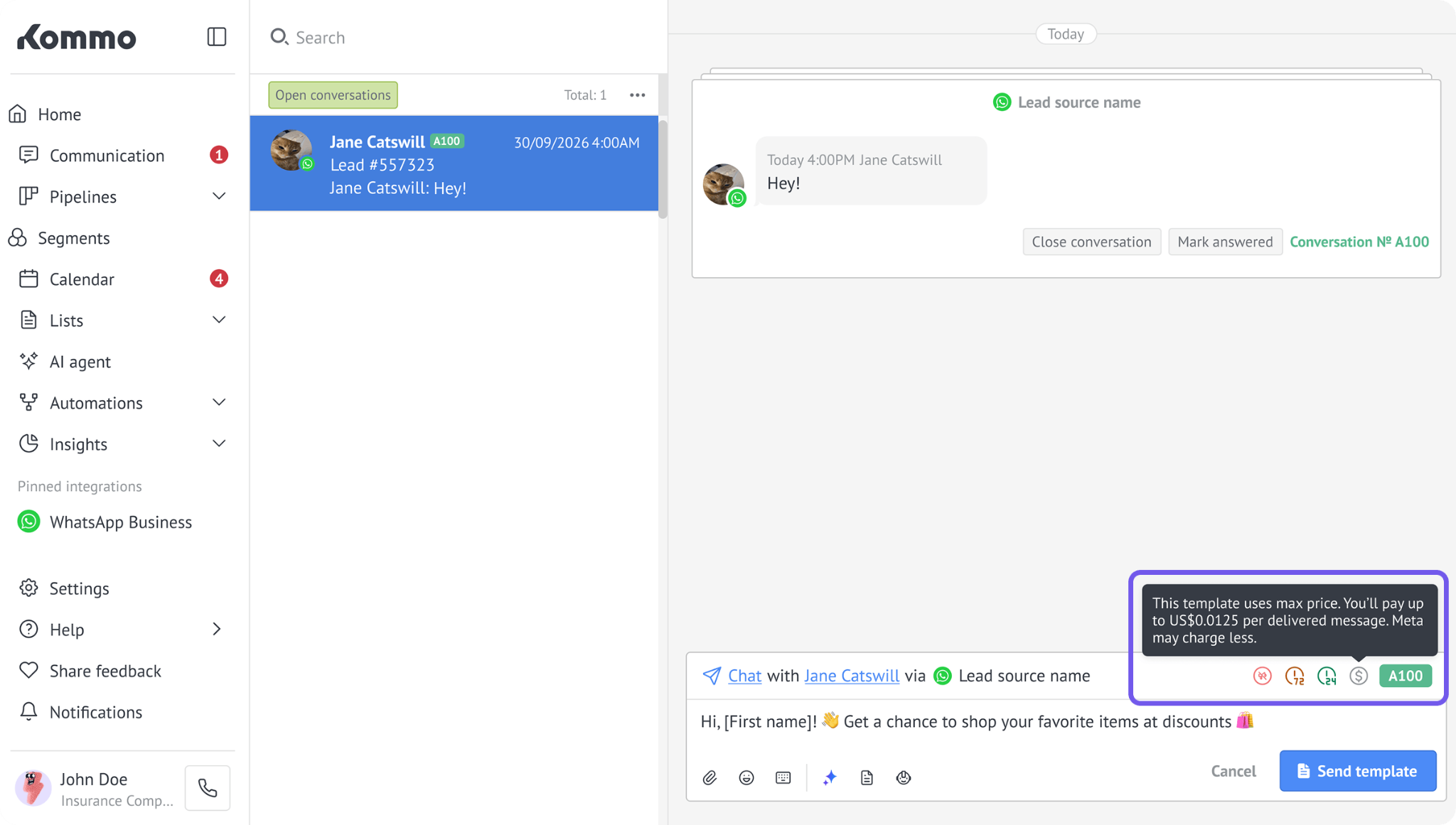
Salesbot
Hover over the $ icon beside the template name in the Salesbot message block to see its max price.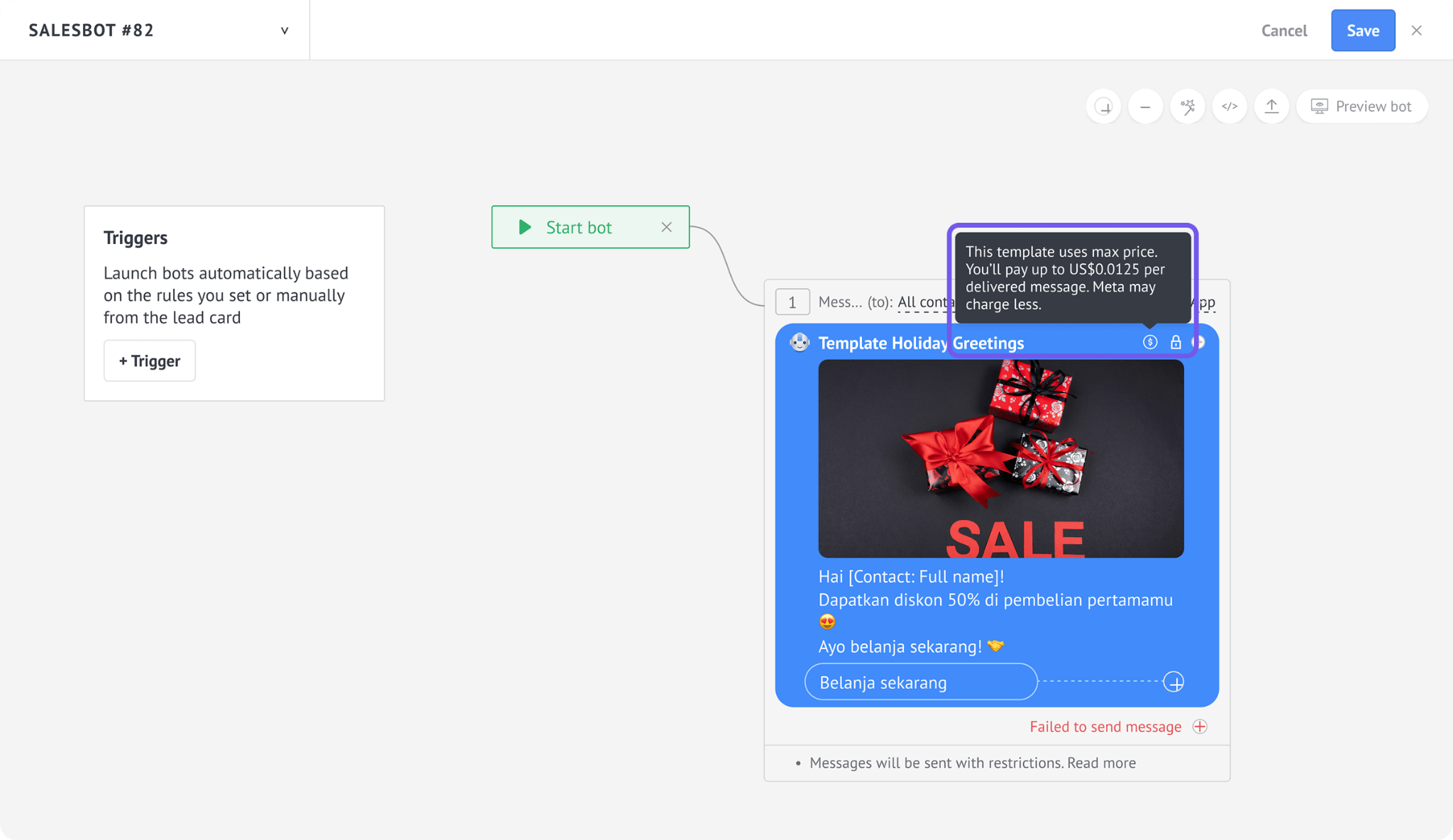
Broadcast setup
After selecting your template, check Estimated cost under Your broadcast, above the message preview. This helps you plan your spending. You may pay less if fewer messages are delivered or Meta charges less per message.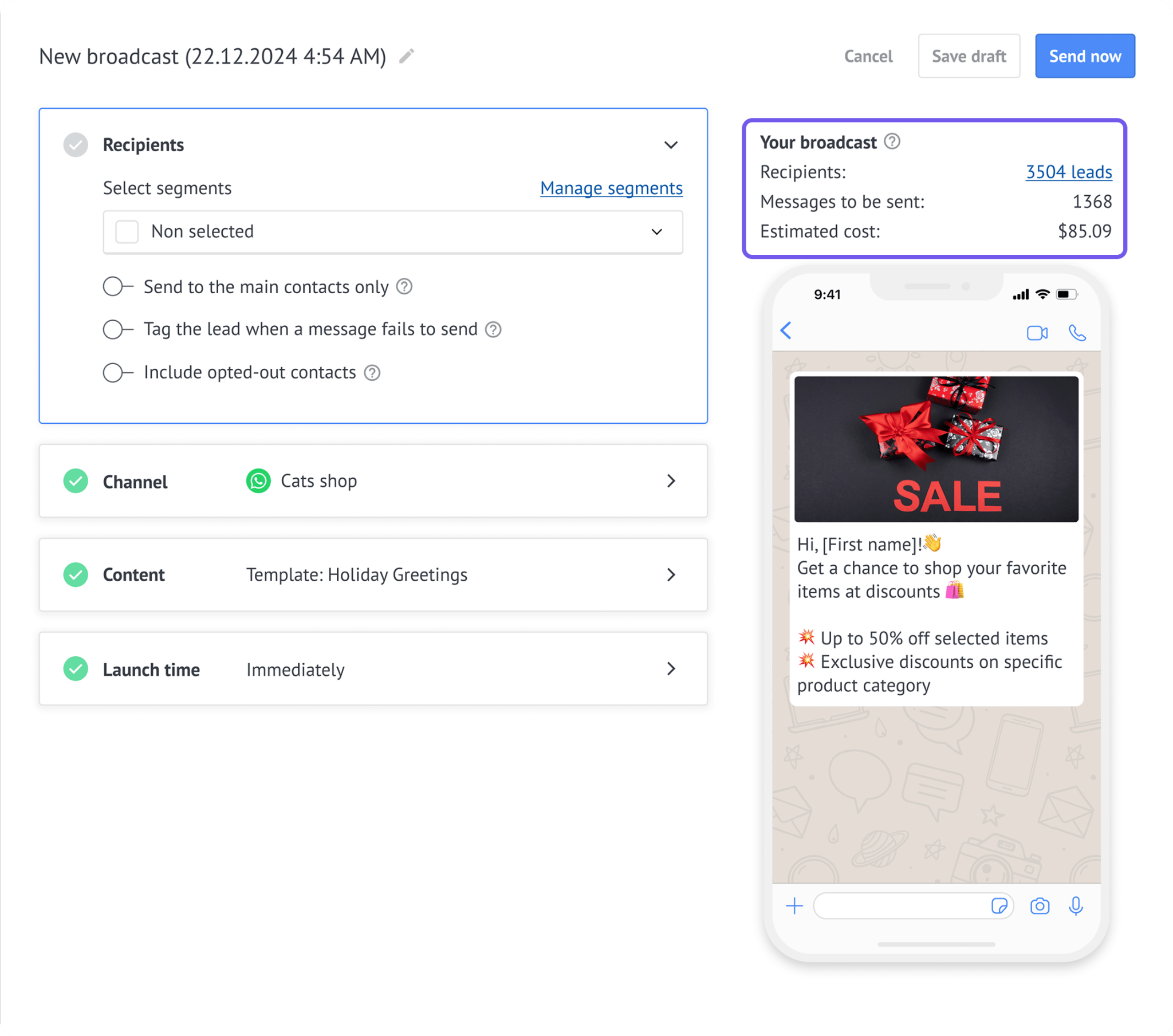
Check the actual delivery cost
Open the client’s conversation.
Find the sent template message in the feed.
Hover over the template icon beside the message’s timestamp.
Look for Cost in the box that appears. This is the amount Meta reports for that message.
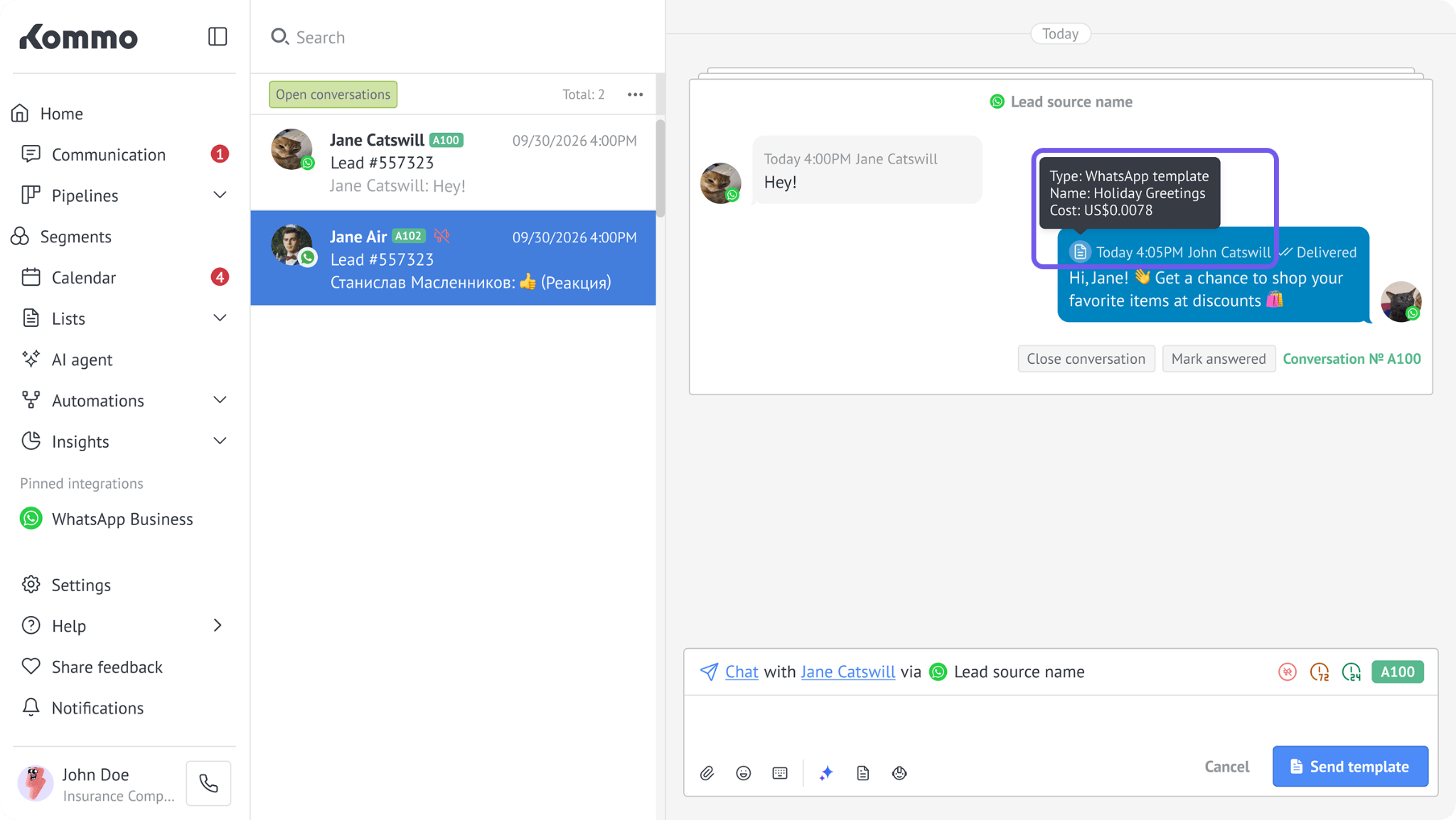
The cost appears after Meta reports it. If no cost is shown yet, it doesn’t mean the message was free.
You can check actual costs in the message feed. These costs are not included in analytics or broadcast statistics.
Max price limits
Marketing only: If you change a template from Marketing to another category, its max price is removed.
Supported currencies: AED, ARS, AUD, BRL, CLP, COP, EUR, GBP, IDR, INR, MXN, MYR, PEN, SAR, SGD, and USD.
External changes: If you change a template’s price in WhatsApp Manager, Kommo’s estimates for templates, broadcasts, and Salesbot will still use the price set in Kommo. However, messages will use the new price, and Kommo will show their actual cost once Meta reports it.
New templates: Meta may need up to 10 minutes to sync a new template before you can use it for marketing sends.
Troubleshoot Max price issues
Issue | What to do |
|---|---|
An estimate is unavailable | Try another country or period, or enter a price manually. |
Max price is unsupported in the recipient’s country | Use a template with default pricing or switch the template to Default price. |
The recipient has hidden their phone number | Use another message or a template without max price. You need the recipient’s phone number to use Max price. |
Marketing Messages API is not enabled | |
A technical sending error appears |
For help with other errors, see Troubleshoot WhatsApp message errors.
If a message isn’t delivered, check the error to see what to do next. Kommo won’t change your price or resend the message automatically.