What you’ll need:
Any paid Kommo plan (Base, Advanced, Pro, or Enterprise)
Admin access in Kommo
At least one completed order
Invoices are created only for paid orders
All invoices apply to the entire workspace, not individual users
The invoice currency is USD
Important: Some features described in this article may not be available yet. They will be released soon.
Kommo keeps your complete order history in one place, so you can easily review past purchases, check payment statuses, and access your invoices whenever you need them.
You can download an available invoice, request one if it wasn’t created automatically, or ask for an update if some information is incorrect. This article shows you how to do each of these in Kommo.
View your order history
Go to Settings → Billing, open the Order history tab.
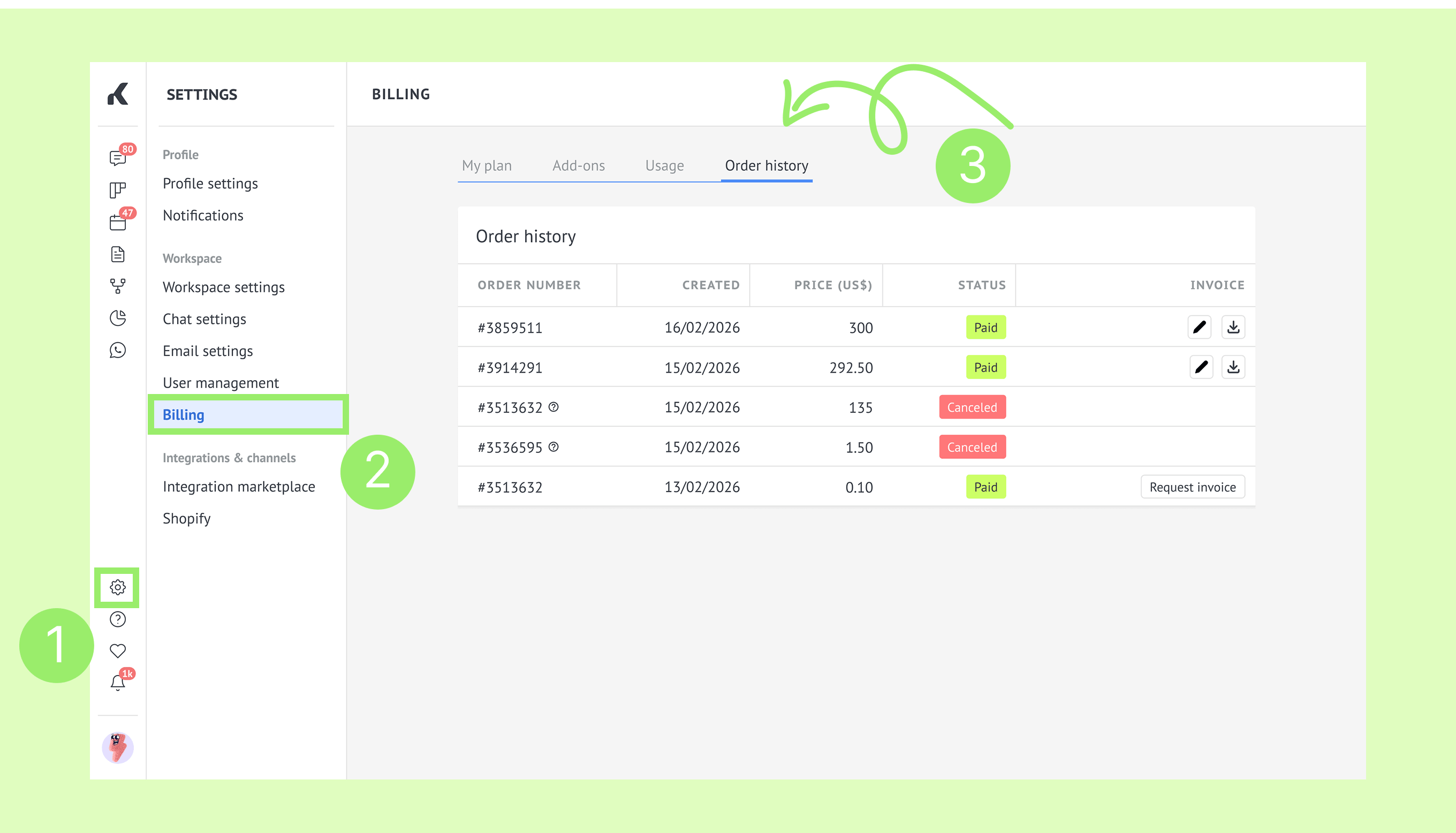
Note: If you’re on a Trial and haven’t made any purchases yet, the Order history tab will not appear on your Billing page.
Check your orders.
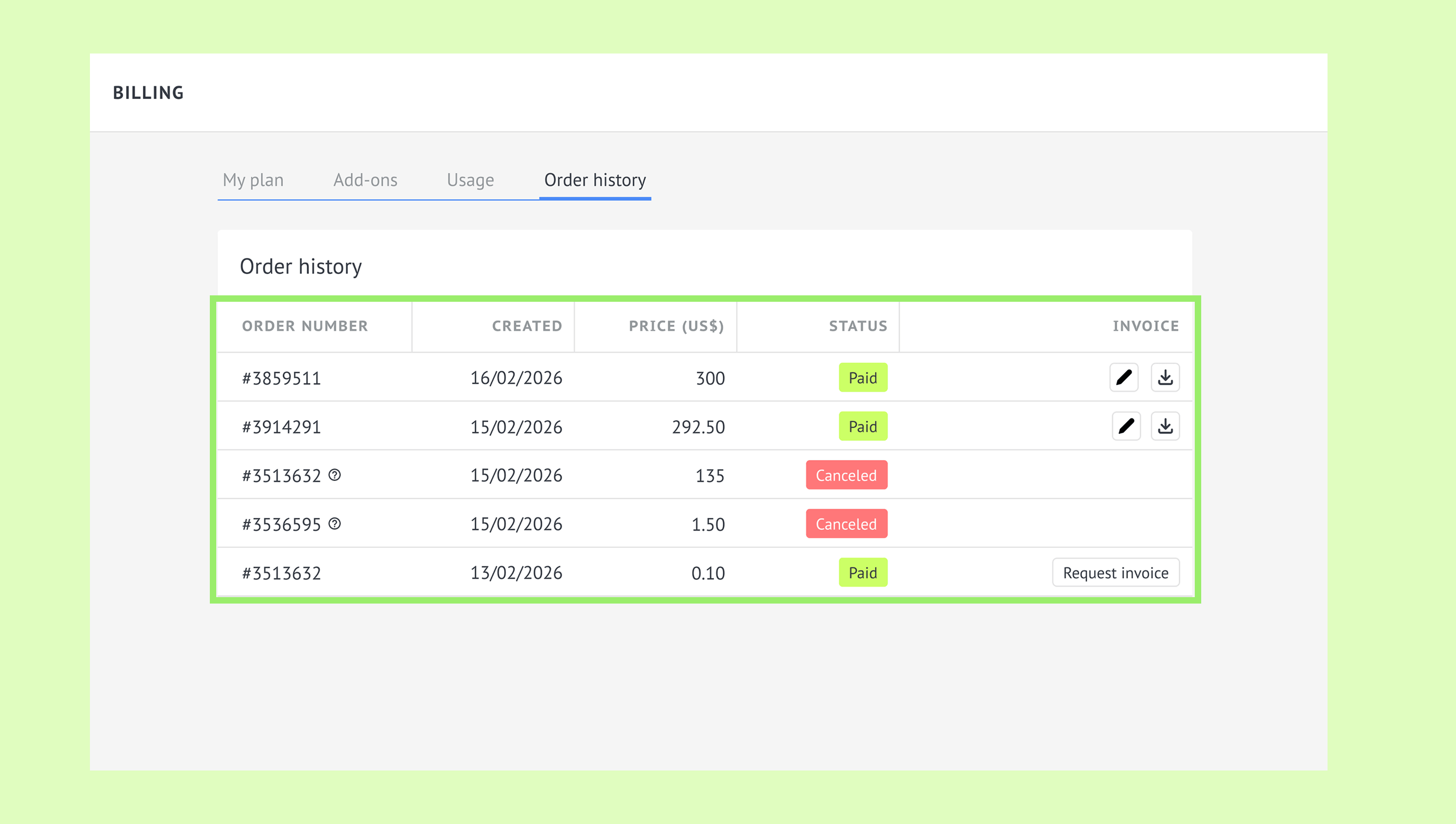
Order history includes:
Order number
Date created
Price
Status (Paid, Pending, or Cancelled)
Invoices for paid orders
Download an invoice
Once an order is paid, you can download its invoice at any time.
Go to Settings → Billing → Order history.
Click the Download icon.
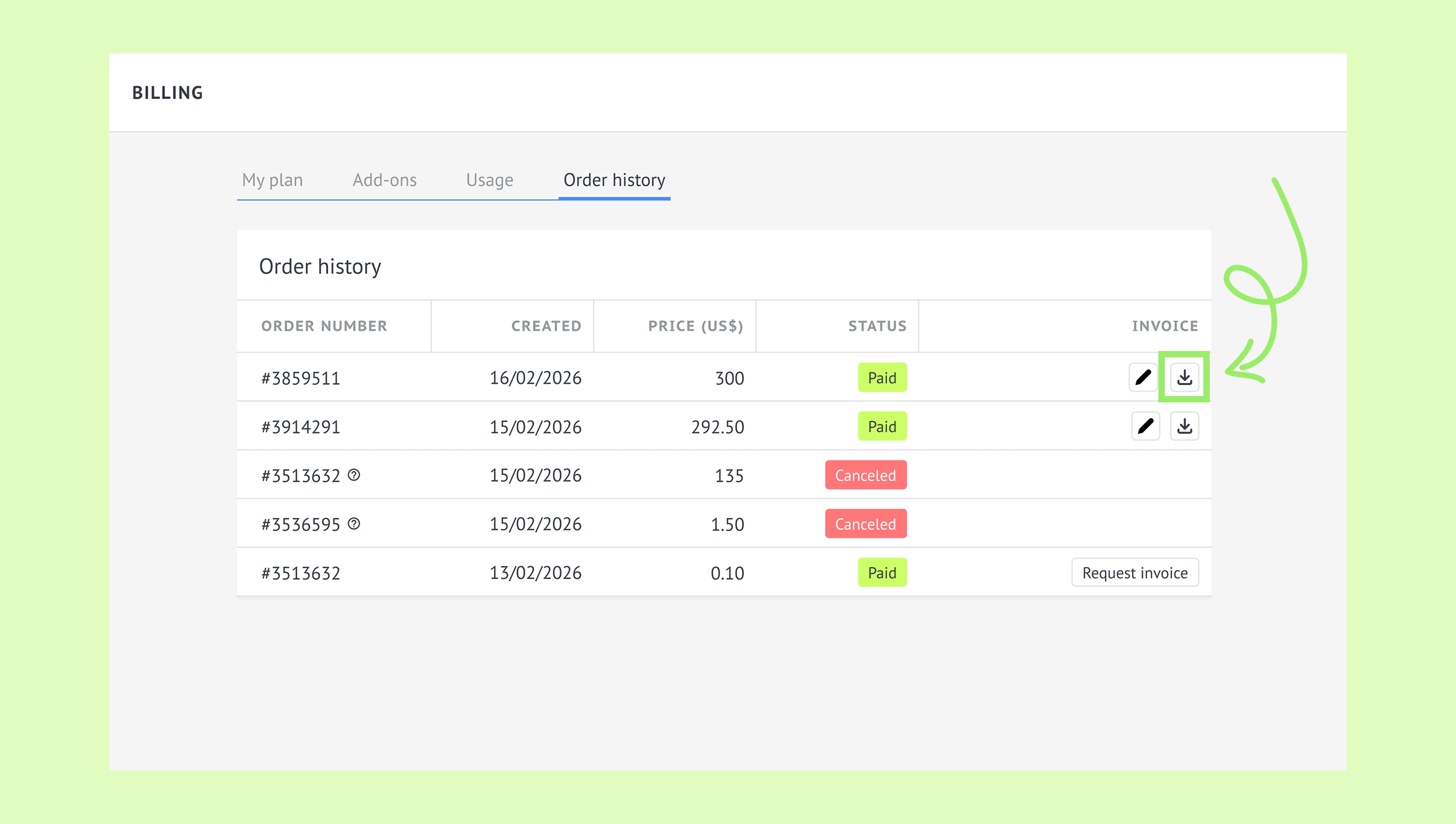
Save the invoice on your computer.
The invoice will download as a PDF file, ready to save, print, or share.
Request an invoice
If an invoice was not created automatically, you can request one from Kommo.
To request an invoice:
Go to Settings → Billing → Order history and click Request invoice.
.png)
Fill in the form.
Note: The fields in the form may vary depending on the country you select because tax requirements differ between countries.
Click Send request.
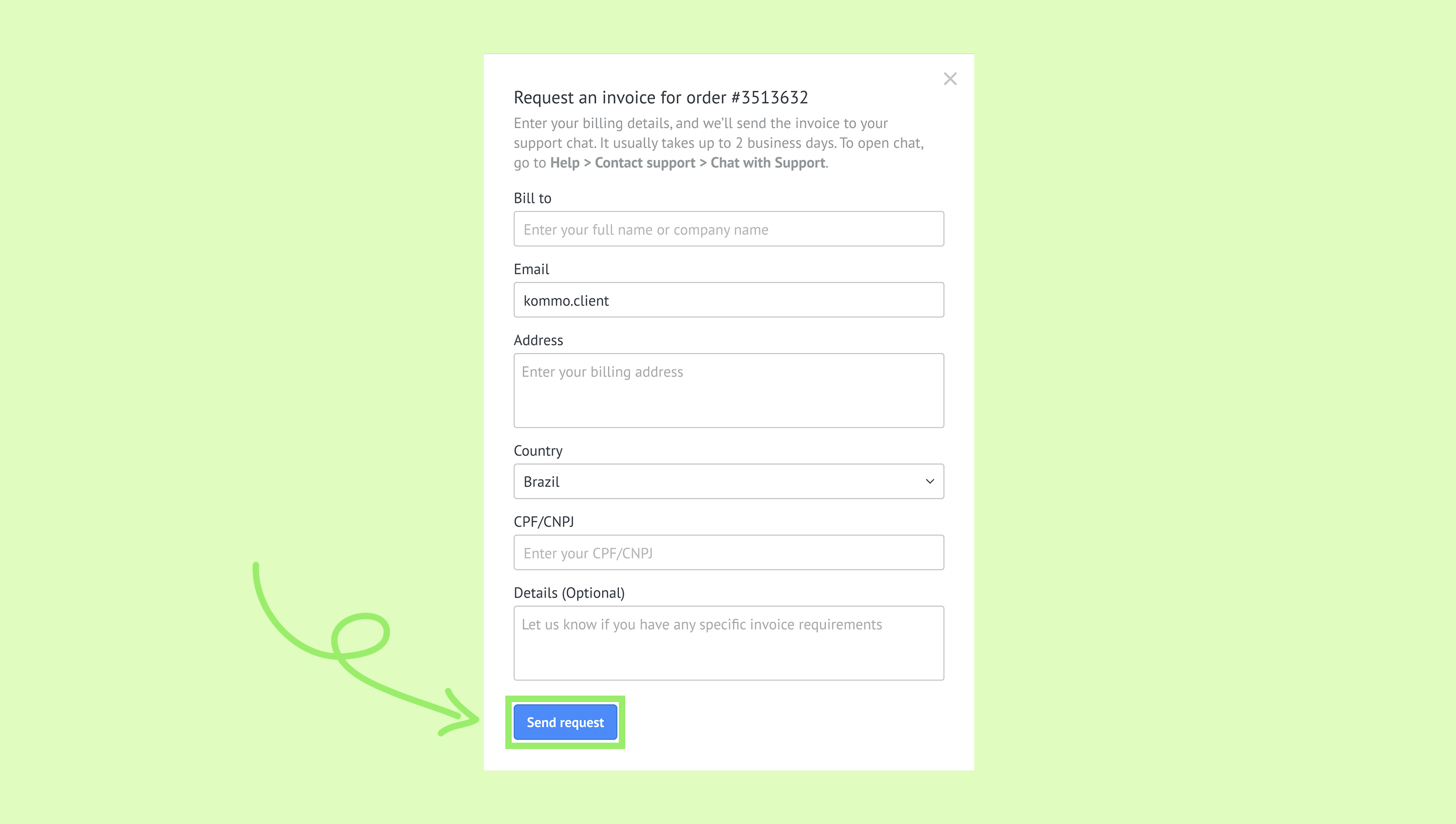
Once Kommo receives your request, our accounting department will prepare the invoice. Processing may take some time.
When the invoice is ready, you’ll receive it through the Support chat in your Kommo workspace. You’ll also be able to download it from Order history at any time.
Request an invoice update
If an invoice contains incorrect information, you can request an updated version.
To request an invoice update:
Go to Settings → Billing → Order history.
Click the pencil icon next to the order for which you need an updated invoice.
.png)
Fill in the form and click Send request.
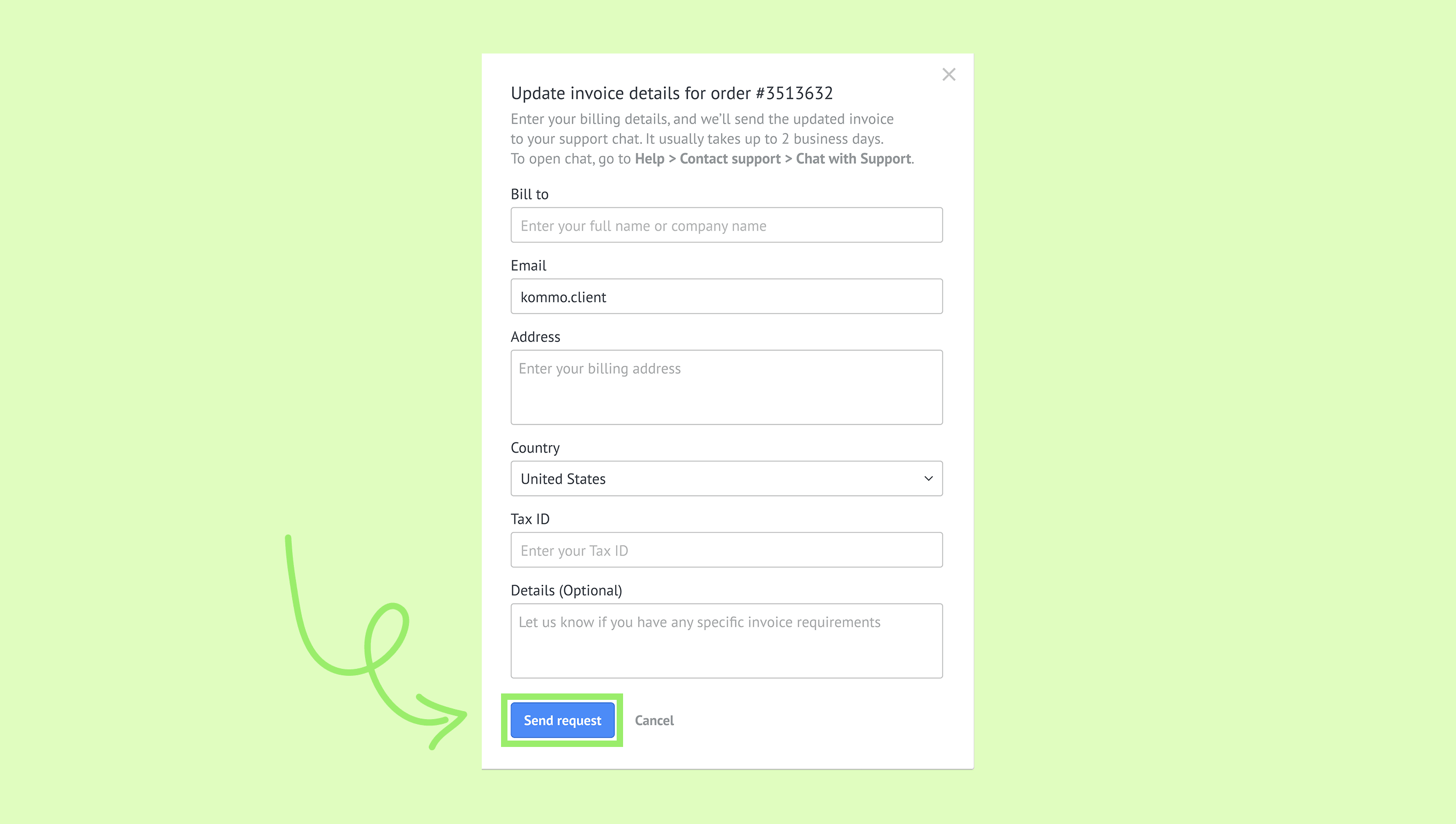
When the updated invoice is ready, you’ll receive it through the Support chat in your Kommo workspace.
What Kommo invoices include
Kommo invoices include:
Invoice number and date
Company details
Order details
Total amount
This makes invoices suitable for accounting, reimbursement, or internal reporting.
Verify your order history
To confirm everything is correct:
Check that all paid orders appear in Order history
Verify dates and amounts
If something looks incorrect or an invoice is missing, contact Kommo support for help via chat in your workspace or WhatsApp.