İhtiyacınız olanlar:
Herhangi bir Kommo planı (Temel, Gelişmiş, Pro, Kurumsal veya 14 günlük deneme).
Bilgi kaynaklarını eklemek ve yönetmek için yönetici veya sahip erişimi.
Aklınızda bulundurun:
Bilgi kaynakları, yapay zeka yanıt önerileri ve Kommo AI ajanı gibi özellikler için gereklidir.
Desteklenen diller arasında İngilizce, Endonezce, Portekizce, Rusça, İspanyolca ve Türkçe bulunmaktadır.
Bu özellikte yalnızca metin desteklenmektedir .
Yanıtlar yalnızca bilgi kaynaklarınızda ilgili bilgi bulunduğunda oluşturulur.
Bu makalede, yapay zeka bilgi kaynaklarını nasıl etkili bir şekilde kuracağınızı ve yönetileceğini öğreneceksiniz.
AI bilgi kaynakları nelerdir?
Yapay zeka bilgi kaynakları, Kommo'nun temel yapay zeka özellikleri boyunca yanıtlar oluşturmak için kullandığı bilgilerdir. Ürünleriniz, hizmetleriniz, politikalarınız ve SSS'lerinizle ilgili detayları saklarlar, böylece yanıtlar işinizle doğru ve uyumlu kalır.
Bunlar aşağıdaki gibi özellikleri güçlendiriyor:
Yapay zeka yanıt önerileri — doğrudan sohbetlerde yanıtlar oluşturur, daha hızlı yanıt vermenize yardımcı olur ve tonunuzu tutarlı tutar
Kommo AI ajanı — yaygın sorulara otomatik yanıt verir, müşterileri doğru kaynaklara yönlendirir ve 7/24 destek sağlar
Bilgi kaynaklarınızı kurarak, tüm yapay zeka tarafından oluşturulan yanıtların iş bilgilerinize dayanmasını ve konuşmalar arasında tutarlı kalmasını sağlarsınız.
Bir yapay zeka bilgi kaynağı nasıl eklenir?
Yapay zeka yanıt önerileri için
Bilgi kaynağı eklemek için:
AI Bilgi kaynakları bölümünde + Yeni bilgi kaynağı ekle tuşuna tıklayın.
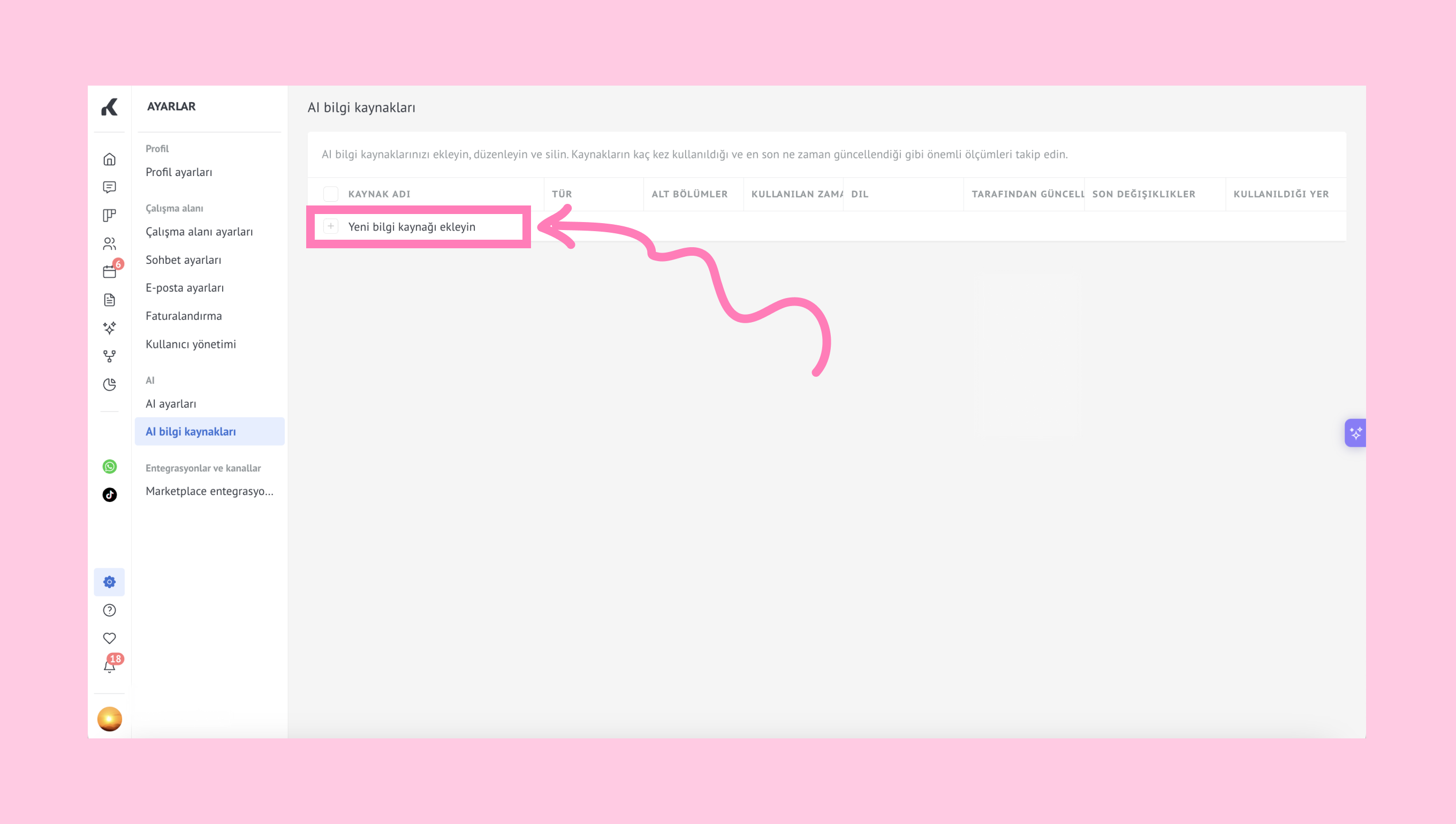
Bilgi eklemenin üç yolu olan bir modal pencere açılır:
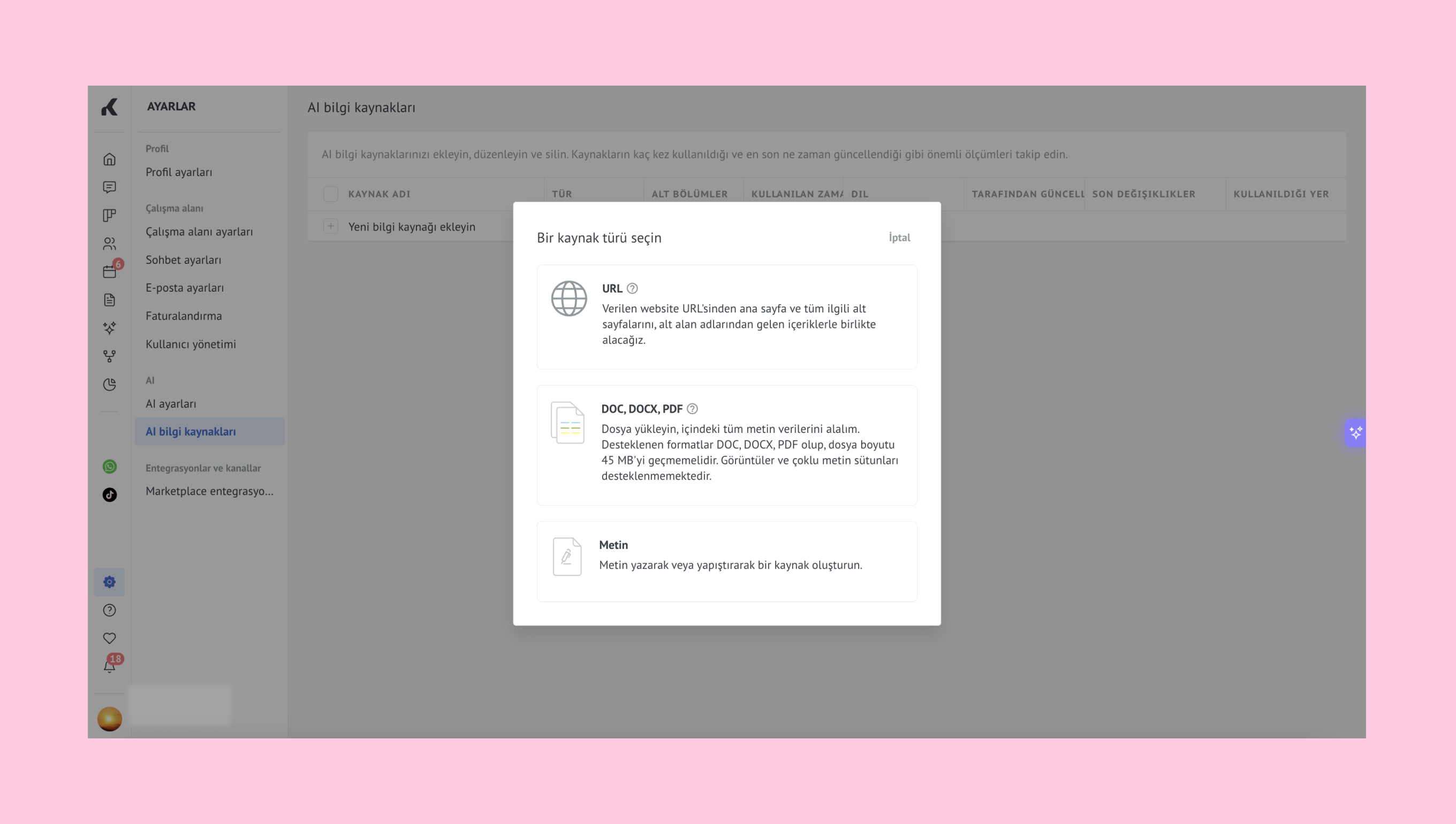
A) URL ekleyin:
Kaynak türü olarak URL'yi seçin.
Kullanmak istediğiniz bilgilerin (örneğin web siteniz veya yardım merkeziniz) olduğu bağlantıyı yapıştırın.
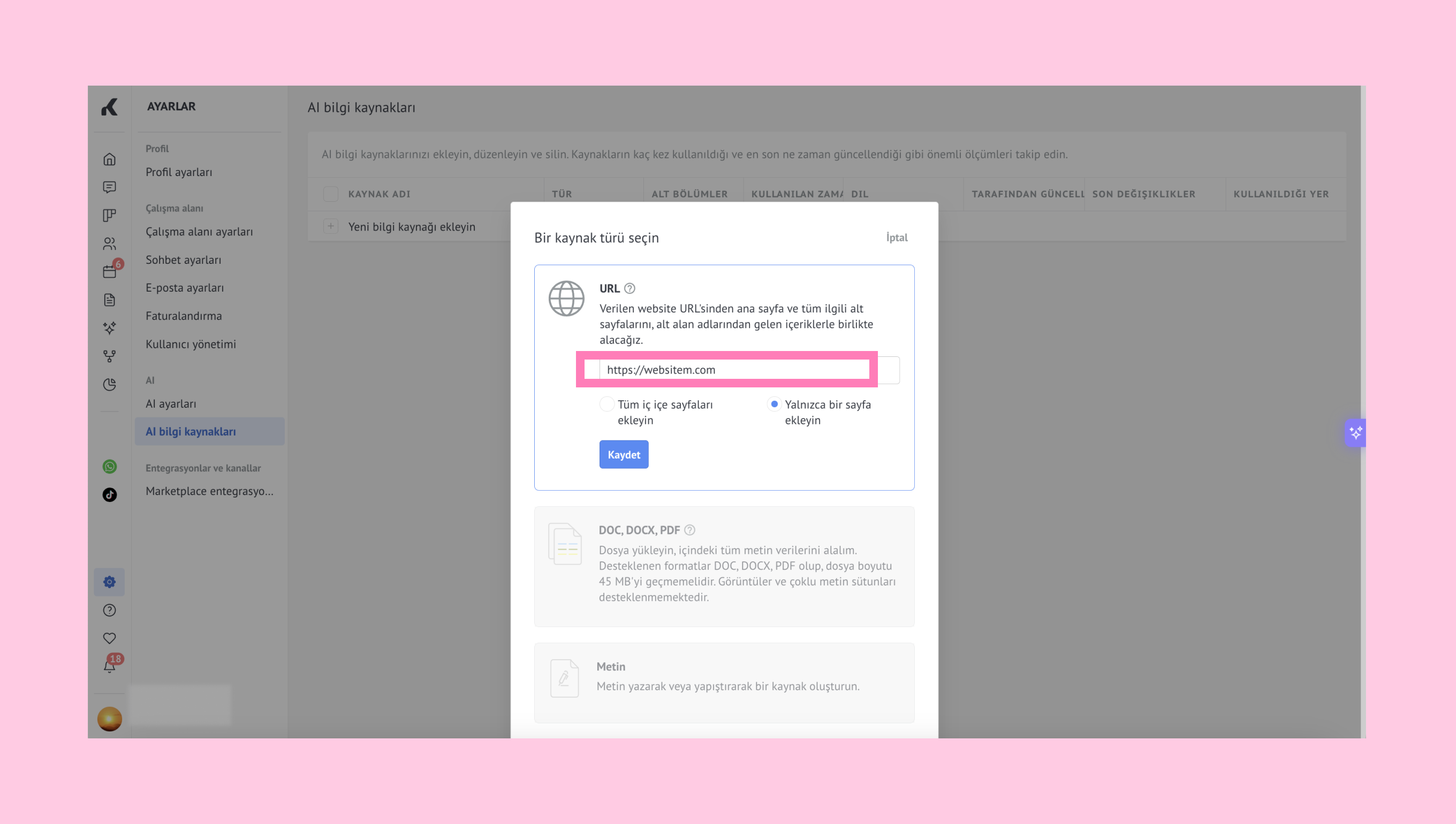
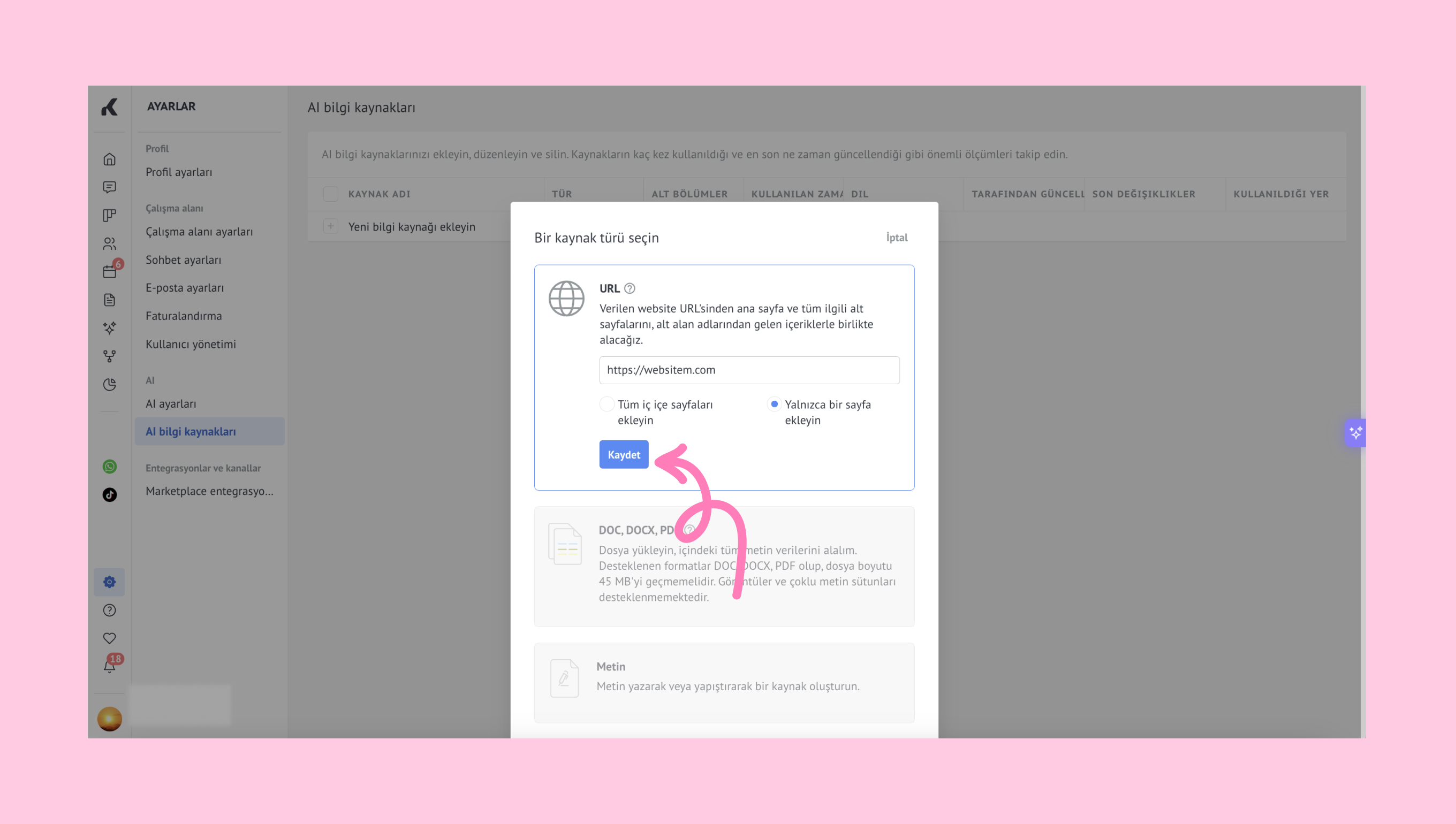
Tek bir sayfa mı yoksa tüm iç içe sayfalar mı ekleyeceğinizi seçin, ardından Kaydet'e tıklayın.
Önemli: Tek bir URL, erişilebilirliğe bağlı olarak 1500 sayfaya kadar olabilir. Bazı sayfalar, örneğin giriş gerektirenler, CAPTCHA doğrulaması veya dinamik içerik gerektirenler ayrıştırmaya açık olmayabilir.
B) Dosya yükleme
Kaynak türü olarak DOC, DOCX veya PDF'yi seçin.
Dosya dilini seçin.
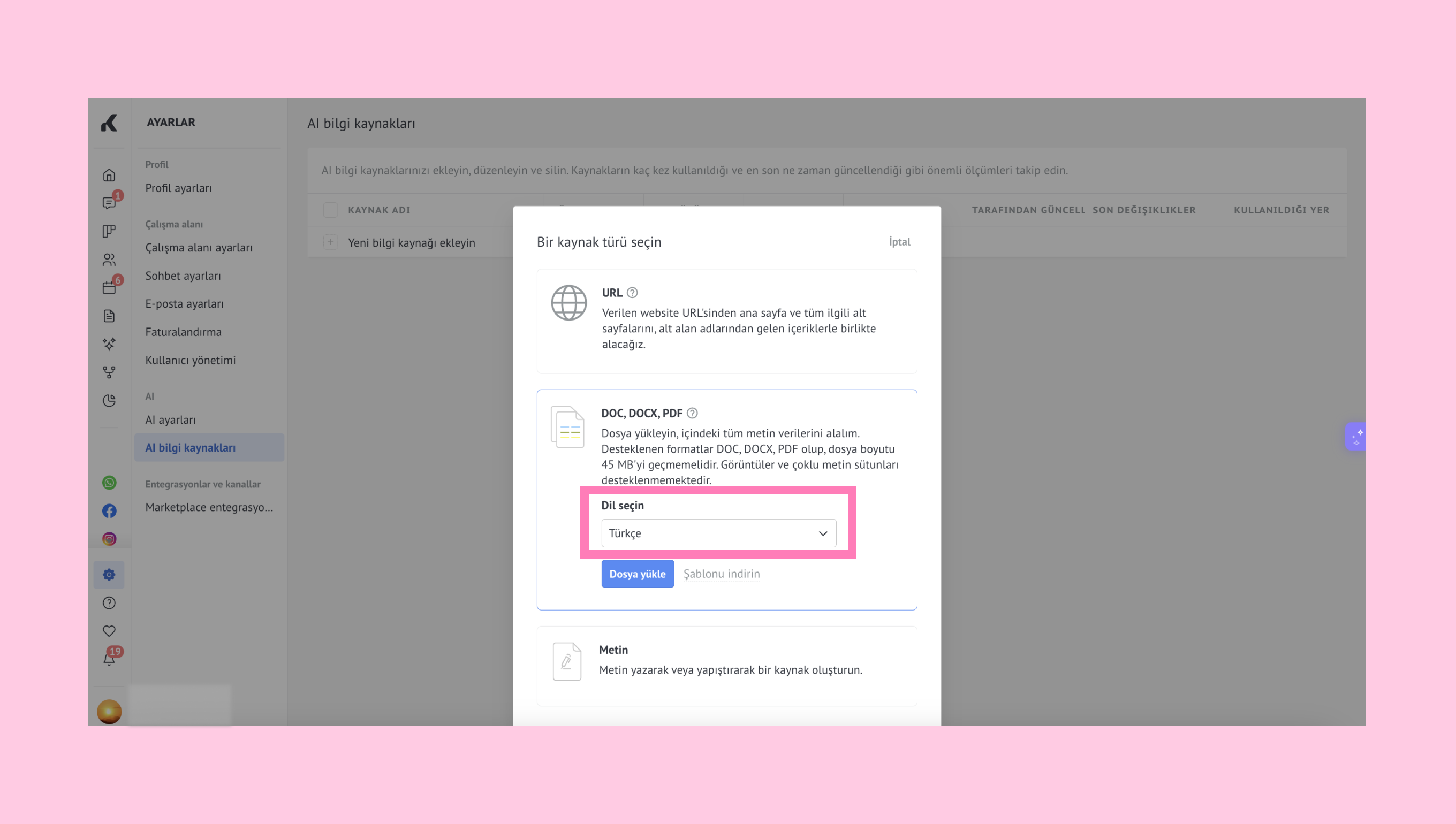
Desteklenen diller arasında İngilizce, Endonezce, Portekizce, Rusça, İspanyolca ve Türkçe bulunmaktadır.
Dosyayı Yükle'ye tıklayın ve dosyanızı seçin.
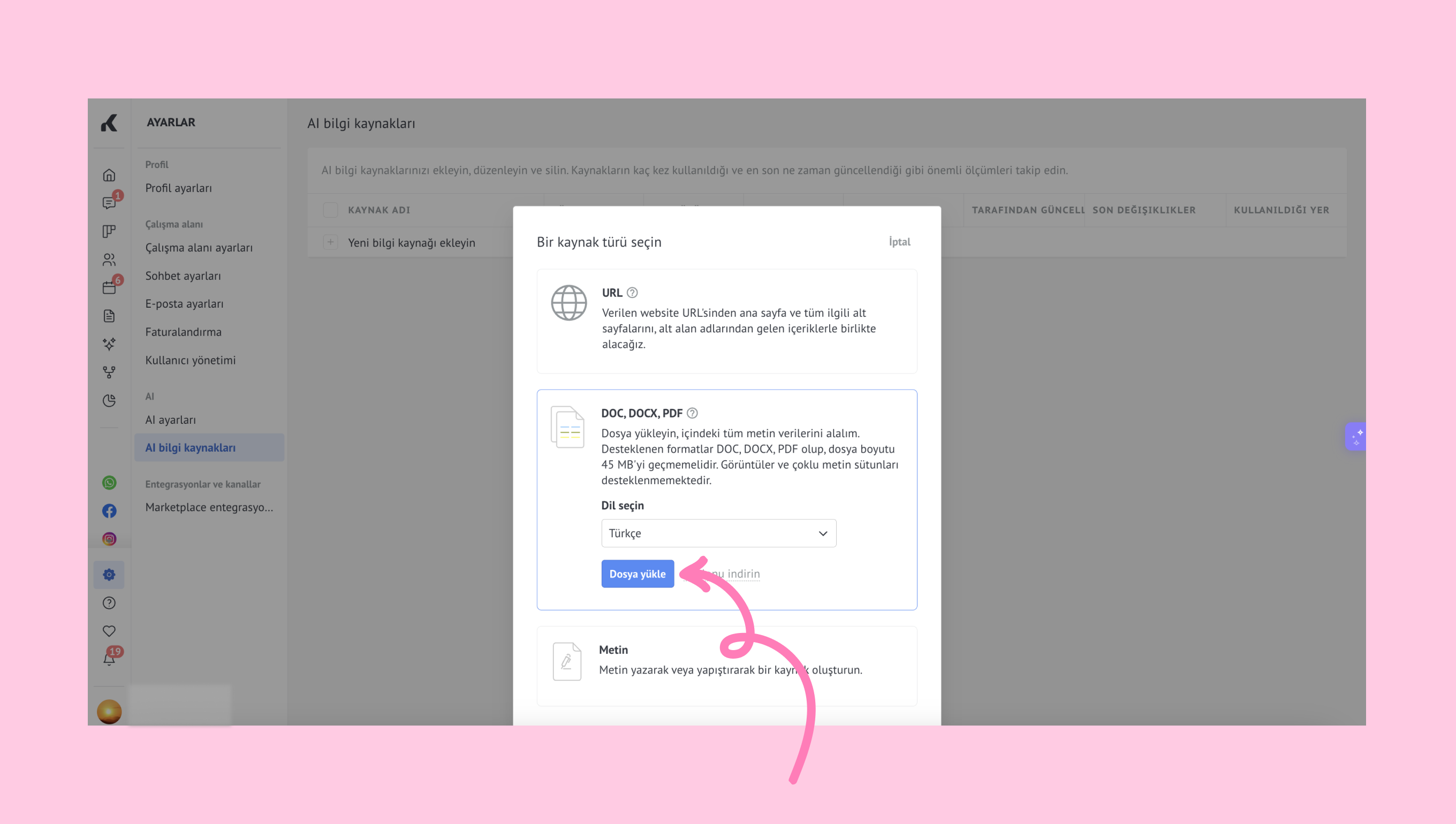
Not: Yalnızca PDF, DOC ve DOCX dosyaları desteklenmekte olup, maksimum boyutları 45 MB'dir.
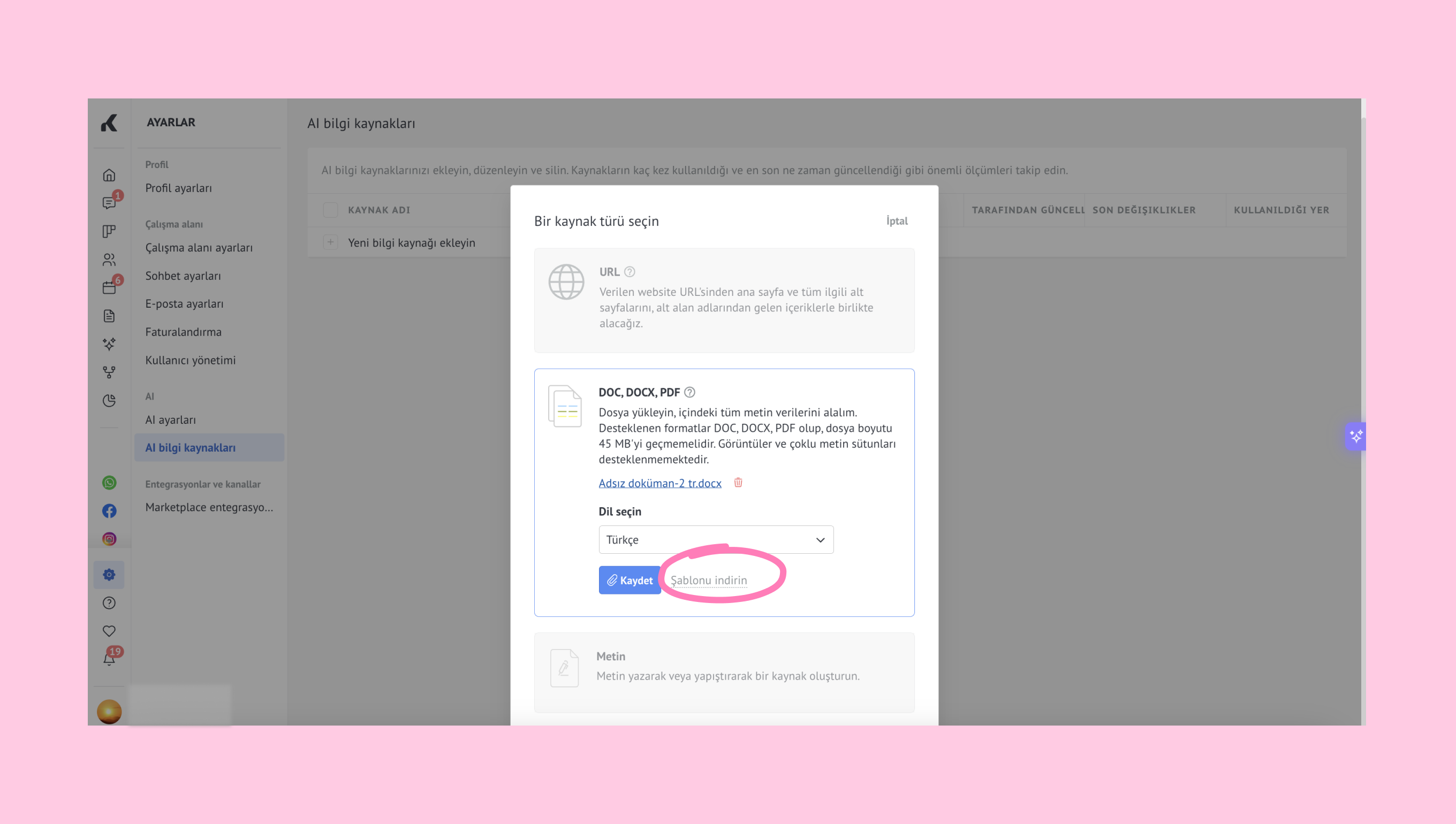
Hazır içeriğiniz yoksa, yerleşik şablonu kullanabilirsiniz. İndir şablonuna tıklayın, numune bilginizi kendi bilginizle değiştirin veya olduğu gibi kullanarak yanıtların nasıl üretildiğini görebilirsiniz.
Dosyanız yüklendikten sonra kaydet'e tıklayın.
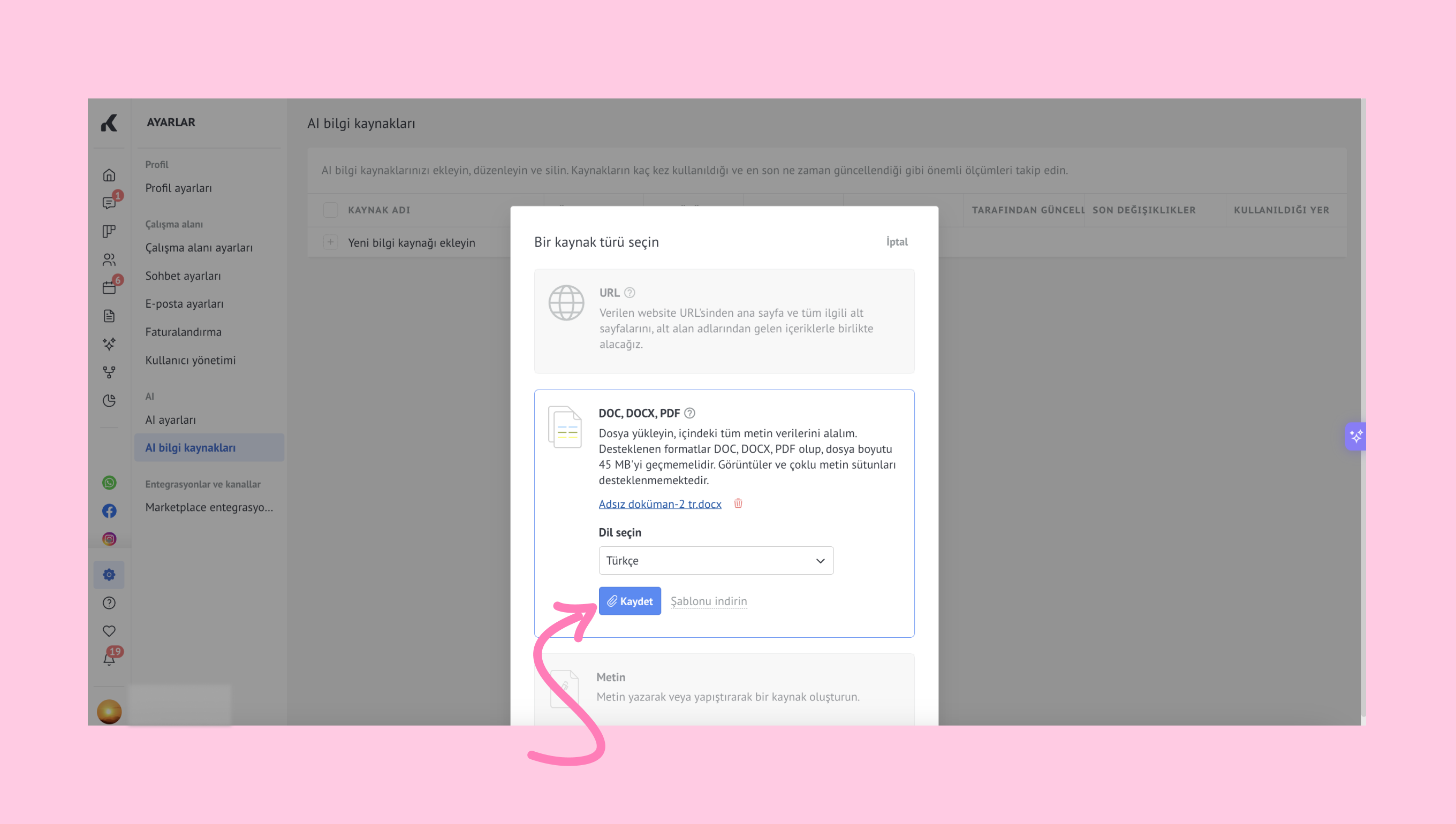
Önemli: Yükleme ve işleme süresi dosya boyutuna bağlıdır ve daha büyük dosyalar için birkaç saate kadar sürebilir.
Kaynağı yeniden adlandırabilir veya varsayılan adı koruyarak daha sonra düzenlemenize ve bulmanıza yardımcı olur.
C) Metni manuel olarak ekleyin
Kaynak türü olarak Metin'i seçin.
Kaynağınızı belirtin ve dili seçin.
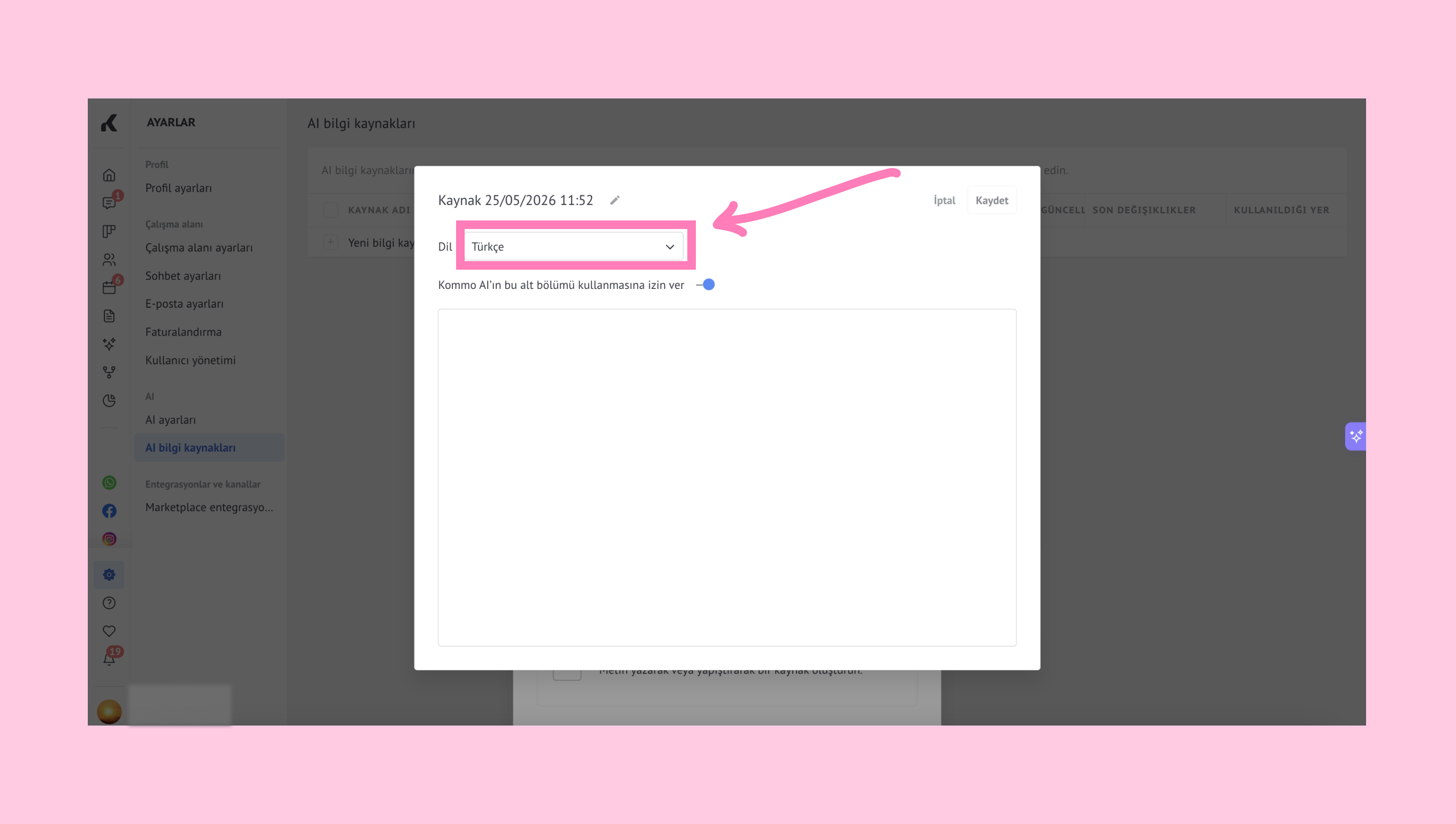
Desteklenen diller İngilizce, Endonezce, Portekizce, Rusça, İspanyolca ve Türkçe'dir.
İçeriğinizi girin ve kaydet'e tıklayın.
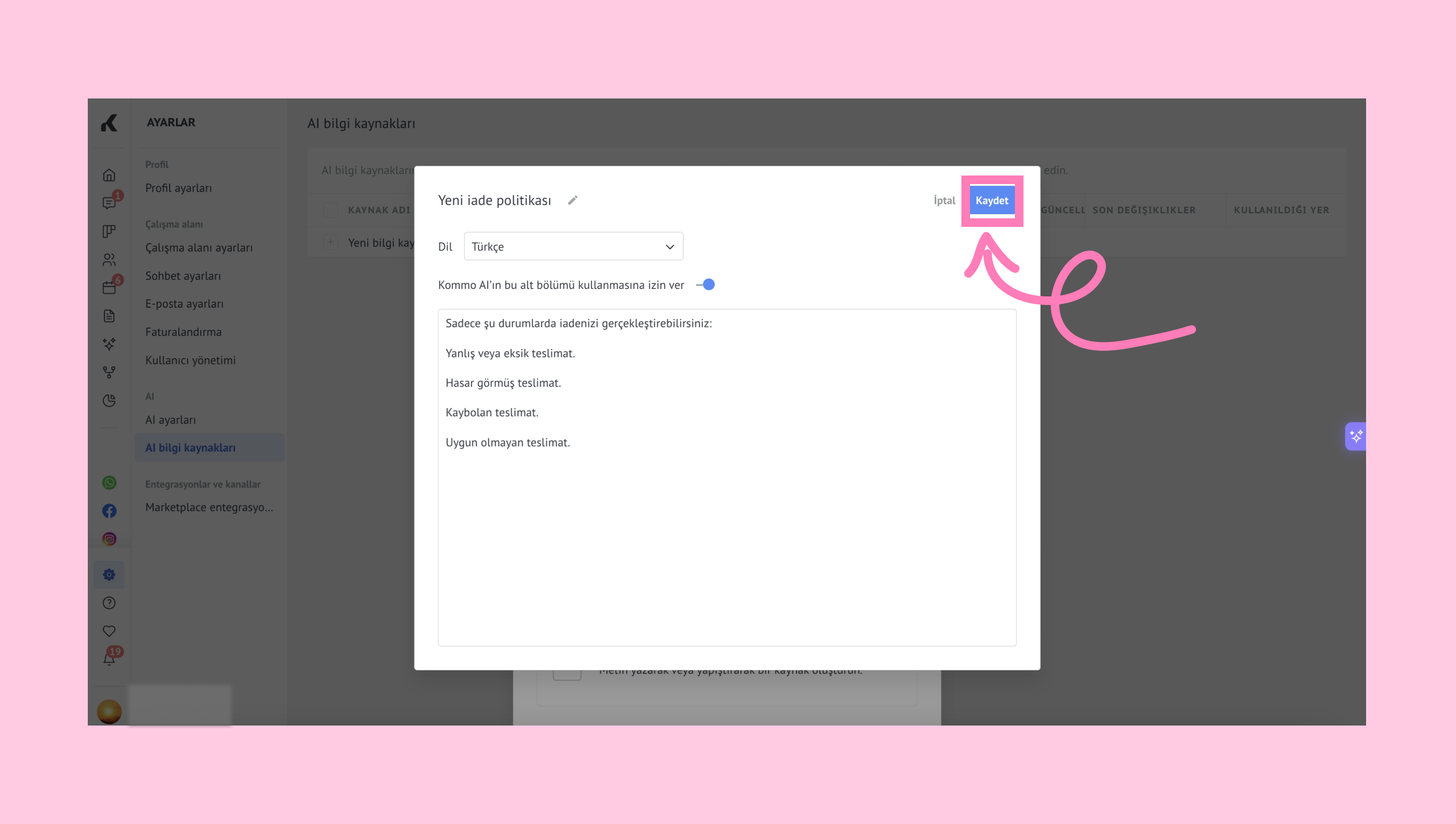
Önemli: Metin eklemeden kaynağı kaydedemezsiniz.
AI bilgi kaynaklarını yönetin
Eklendikten sonra, tüm kaynaklarınız AI Bilgi kaynakları bölümünde görünecektir.
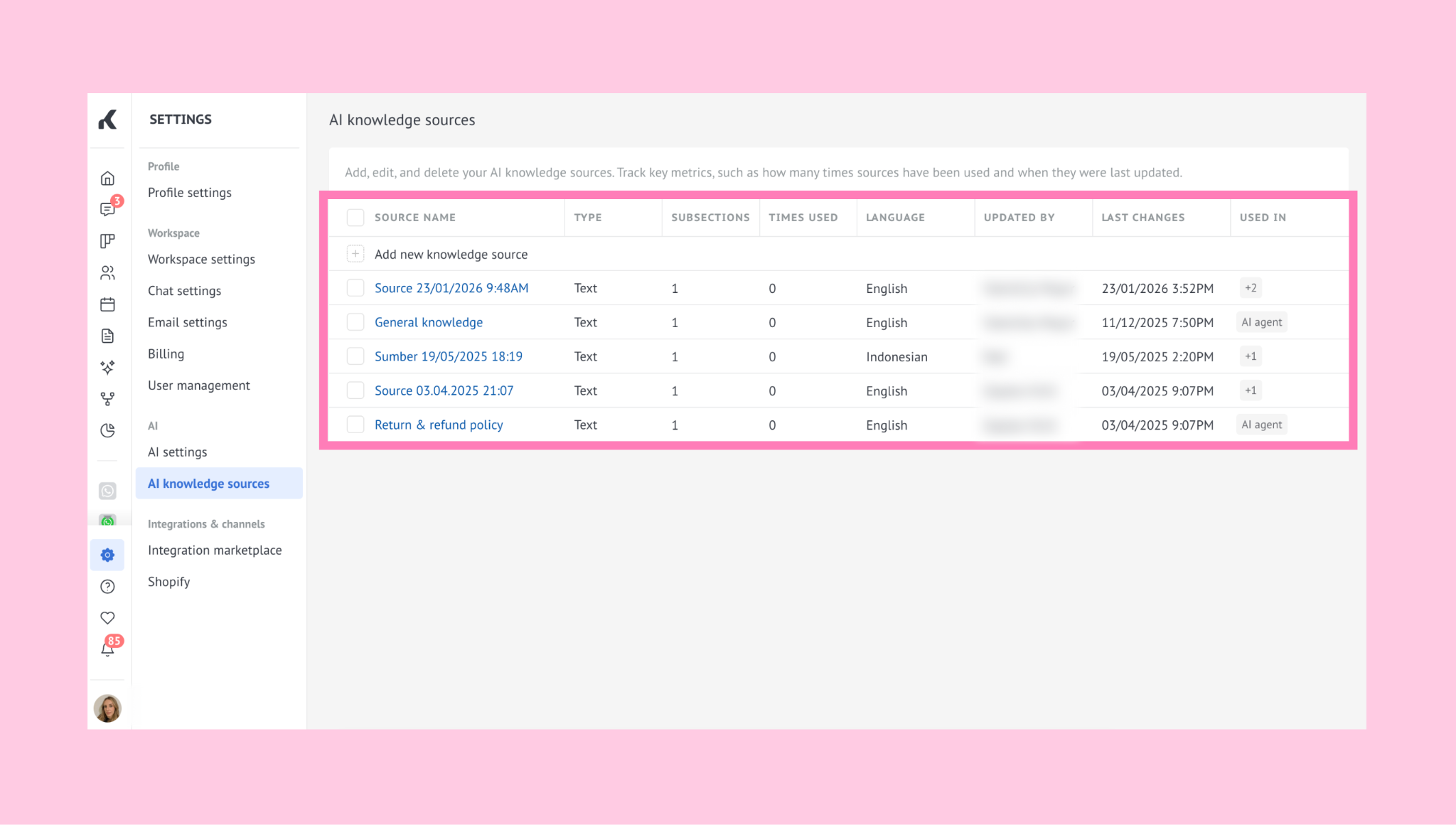
Kalem simgesine tıklayarak istediğiniz zaman herhangi bir kaynağı düzenleyebilirsiniz.
.png)
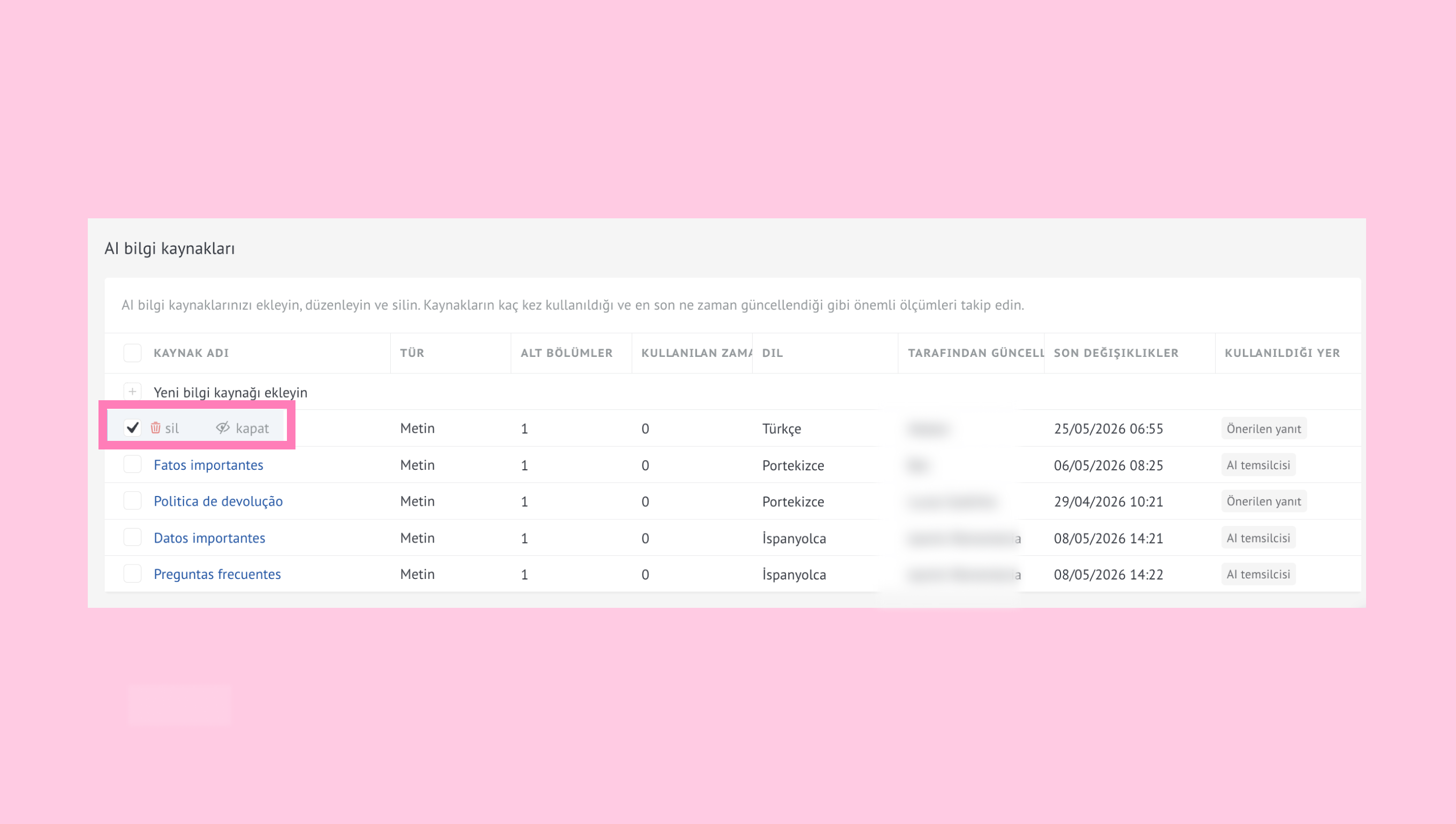
Kommo AI, yanıtlar oluştururken sadece aktif kaynakları kullanır, bu yüzden güncel olmayan veya istemcilerle paylaşılmaması gereken bilgileri devre dışı bırakabilir veya silebilirsiniz.
Bir kaynağı devre dışı bırakmak veya silmek için onu seçin ve kapatma veya sil butonuna tıklayın.
AI yanıt önerileri etkinleştirildiğinde ve en az bir bilgi kaynağı eklediğinizde, özellik kullanıma hazır olur.
Kommo AI, gelen mesajları analiz eder ve bilgi kaynaklarınıza göre yanıtlar oluşturur.
Önemli: İlgili bir bilgi bulunmazsa, Kommo yapay zekası yanıt üretmez. 25.000 karakterden büyük mesajlar da işlenemiyor.
Kommo AI ajanı için
Bilgi kaynağı eklemek için şu adımları izleyin:
Kaynaklar sekmesine gidin → Yapay Zeka Ajanı.
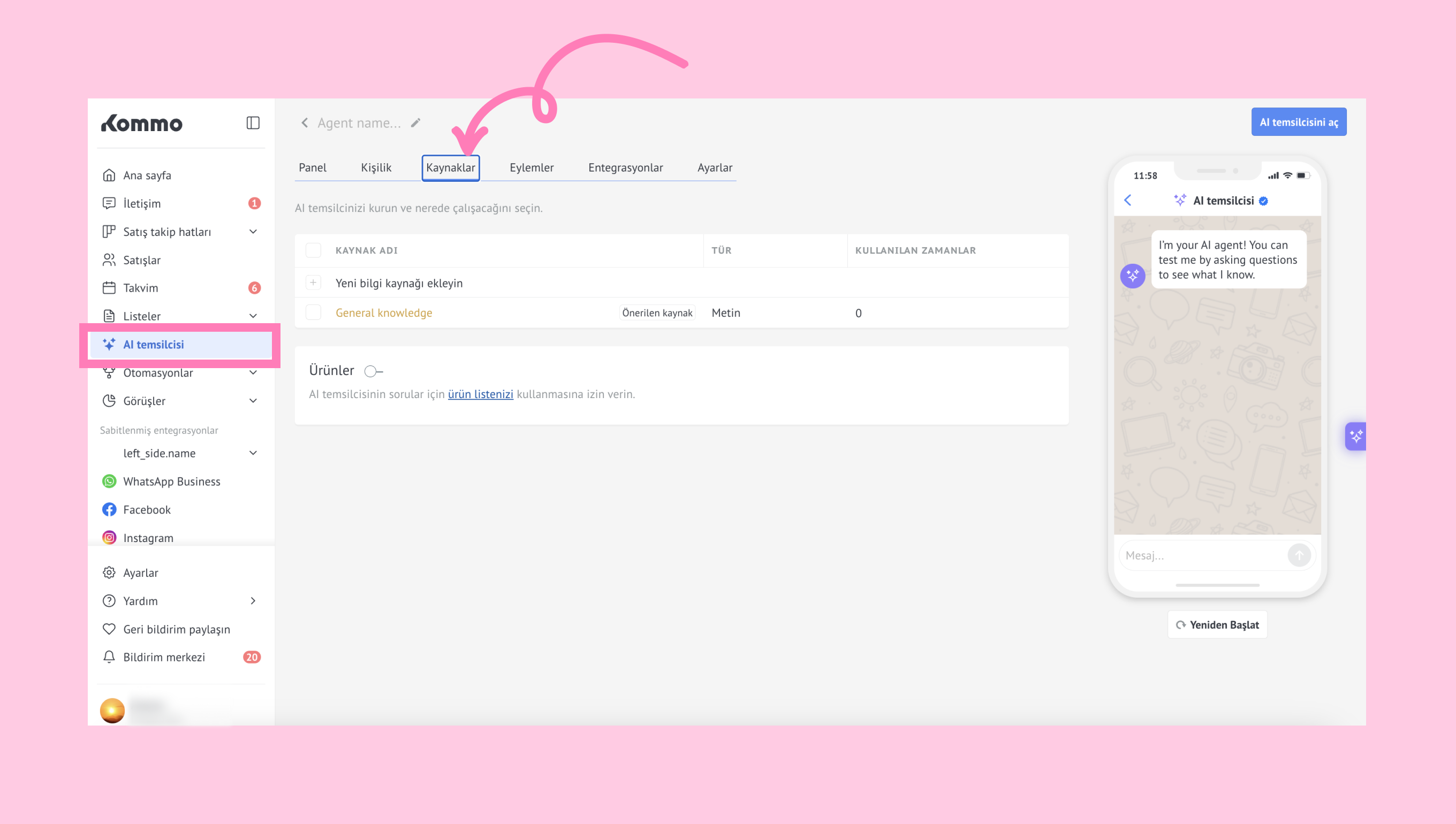
Tıklayın + Yeni bilgi kaynağı ekle.
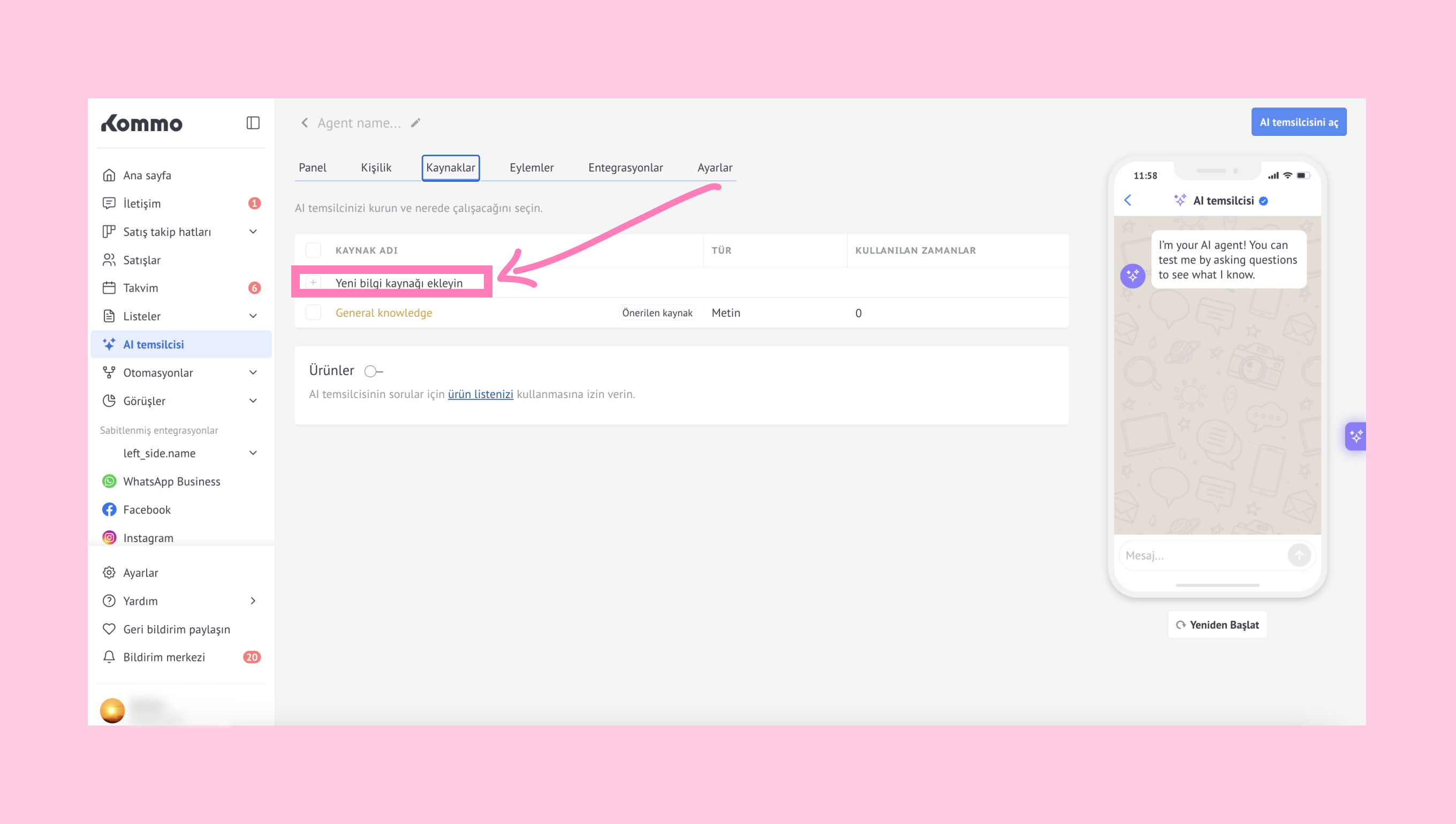
Bir modal pencere açılacak. Eklemek istediğiniz kaynak türünü seçin:
URL
DOC, DOCX, PDF
Metin
Mevcut bilgi kaynağı — hesabınızda zaten var olan bir bilgi kaynağını yeniden kullanın.
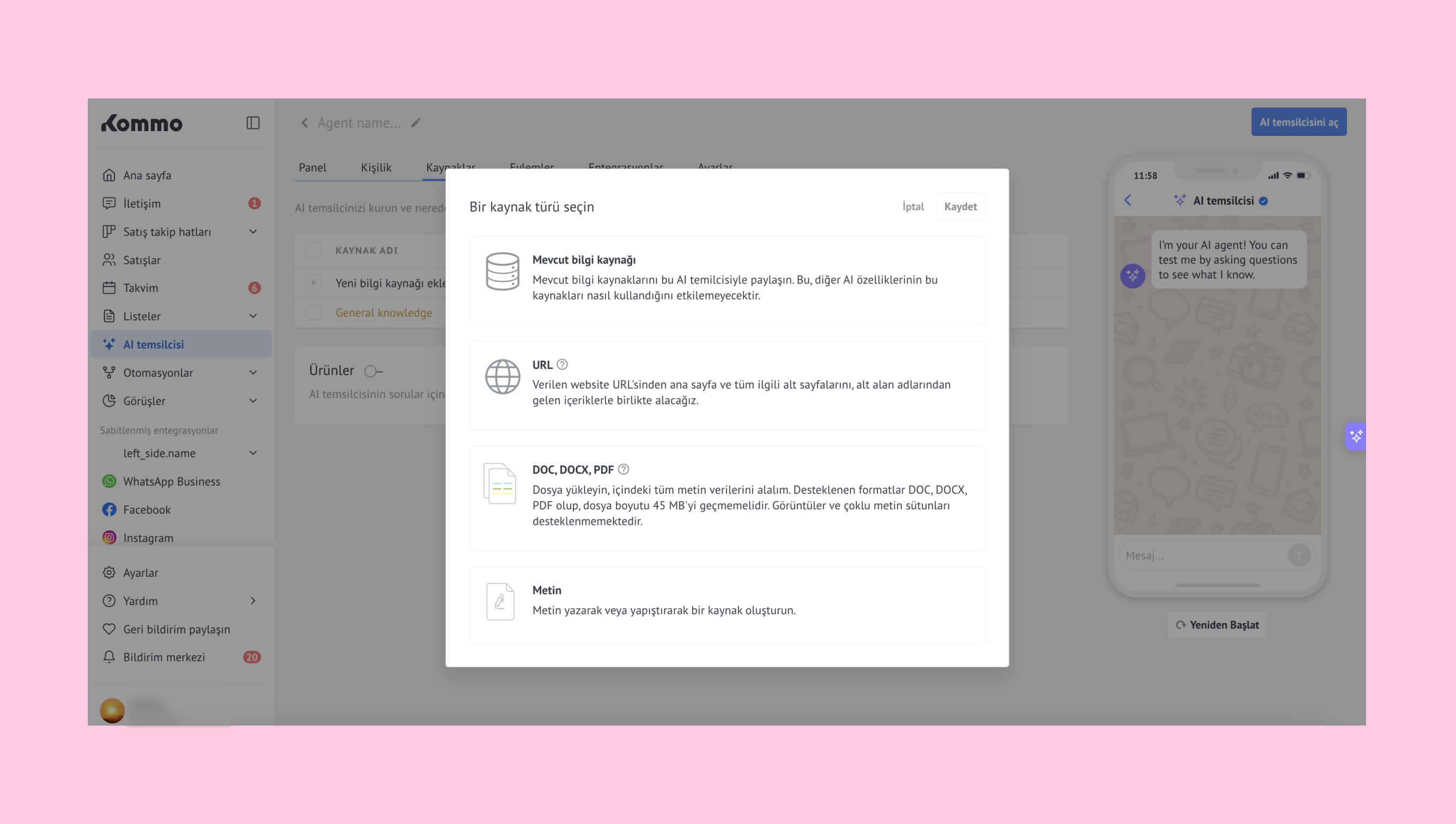
URL, dosya veya metin bilgi kaynağı eklemek için yukarıdaki bölümlerde açıklanan aynı adımları takip edin.
Mevcut bir bilgi kaynağını bağla
Kaynak türü olarak Mevcut bilgi kaynağı'nı seçin.
Hesabınızda zaten mevcut olan yapay zeka bilgi kaynaklarının bir listesini göreceksiniz. Yapay zeka ajanının kullanmasını istediğiniz kaynakları seçin.
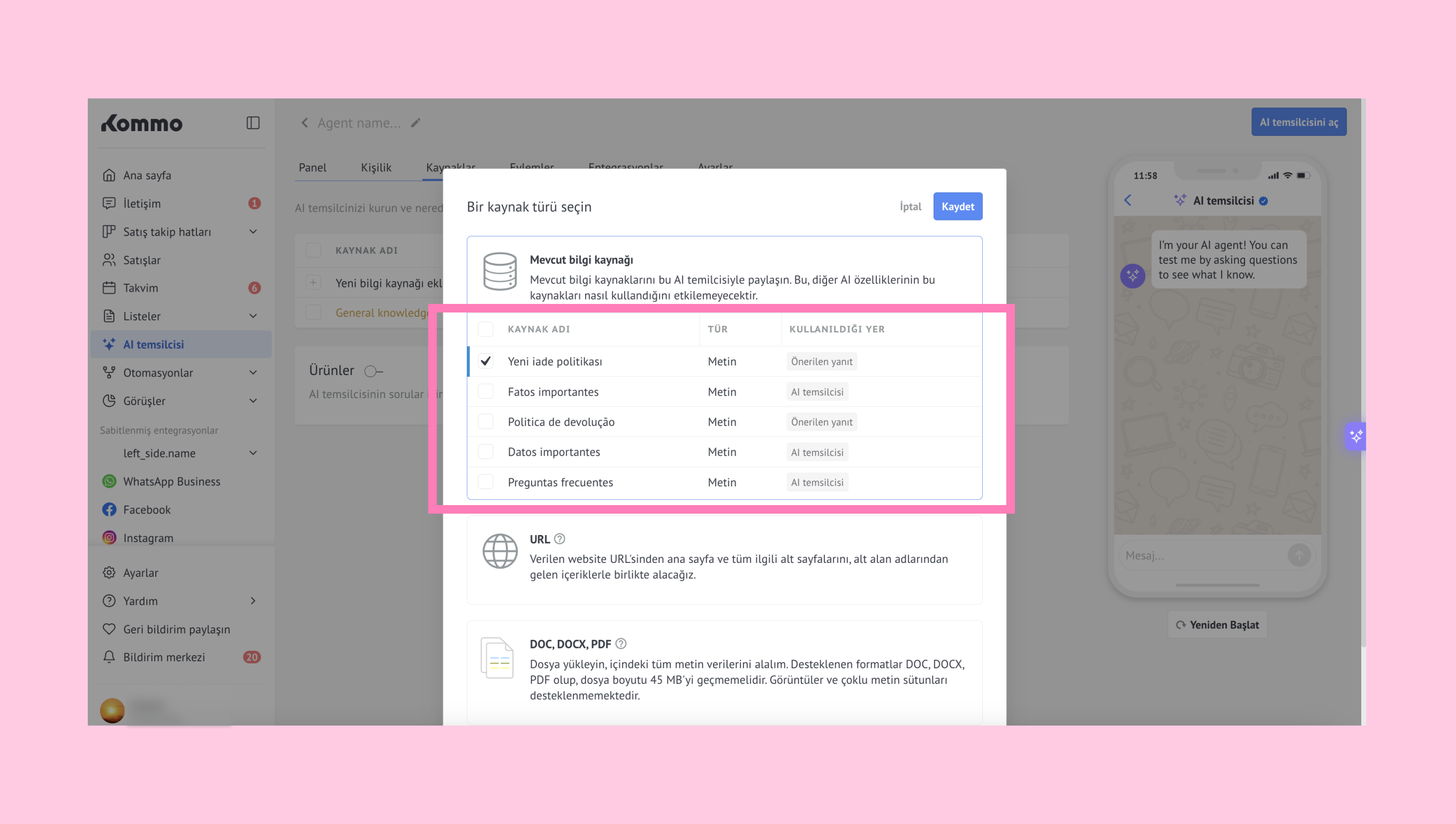
Not: Mevcut bir bilgi kaynağını yapay zeka ajanına eklemek diğer yapay zeka özelliklerini etkilemez.
Kaynakları ekledikten sonra kaydet'e tıklayın.
Yapay zeka ajanı kurulumu hakkında daha fazla bilgi edinmek için yapay zeka ajanı kurulumu makalemize göz atabilirsiniz.
Yapay Zeka ajanı kaynaklarını yönetin
Bir kaynak ekledikten sonra, Kaynaklar sekmesinde görünecek.
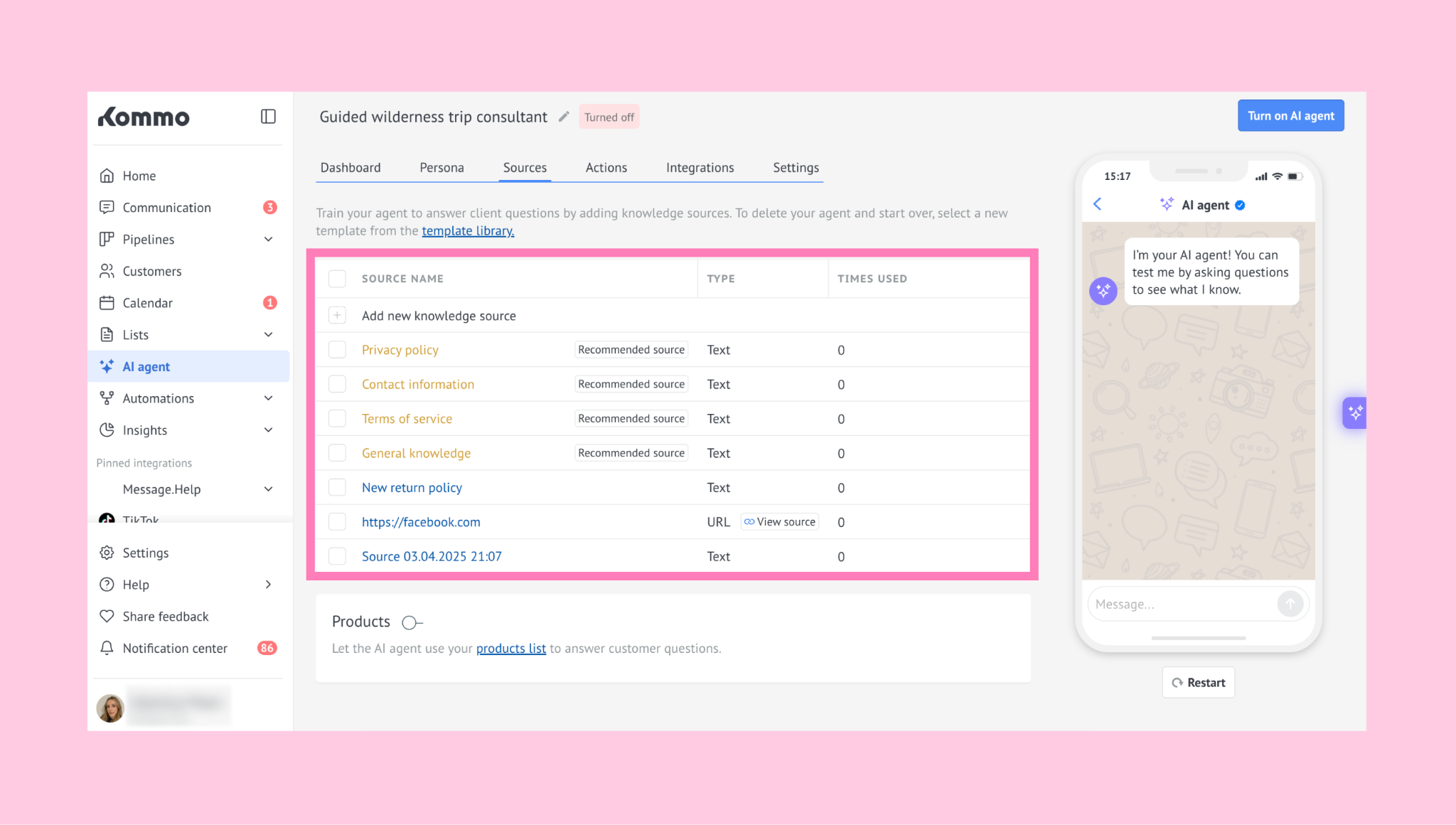
Düzenlemek için kaynak adına tıklayın.
Bir kaynağı yönetmek için onu seçin. Şunları yapabilirsiniz:
Sil
Kapat
Bağlantısını kaldırın (sadece Mevcut bilgi kaynağı üzerinden eklenen kaynaklar için)
Not: Bağlantıyı çözmek, orijinal bilgi kaynağını hesabınızda tutar, ancak yapay zeka ajanından kaldırılır.
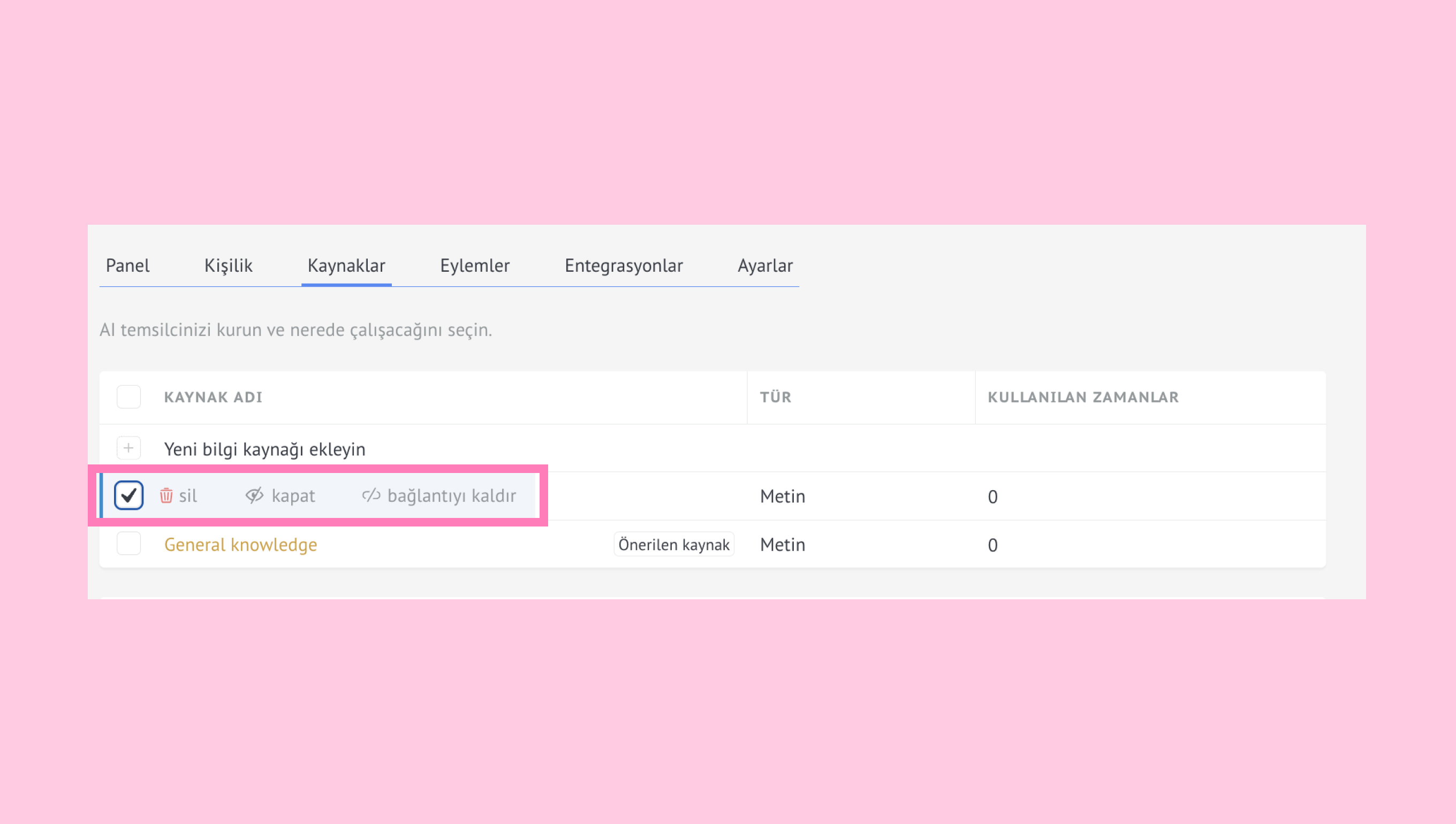
Not: Yalnızca bu sekmede etkinleştirilmiş kaynaklar AI ajanı müşterilere yanıt verdiğinde kullanılır.