What you’ll need:
Any Kommo plan (Base, Advanced, Pro, Enterprise, or 14-day trial).
Admin access in Kommo.
In Kommo, the pipeline is your lead management space, offering a clear view of all active leads and their progress.
This guide explains how to create, rename, reorder, archive, and delete pipelines.
Create your first pipeline
When you create a Kommo account, a default pipeline is automatically set up. To open it:
Go to Pipelines → Click Pipeline.
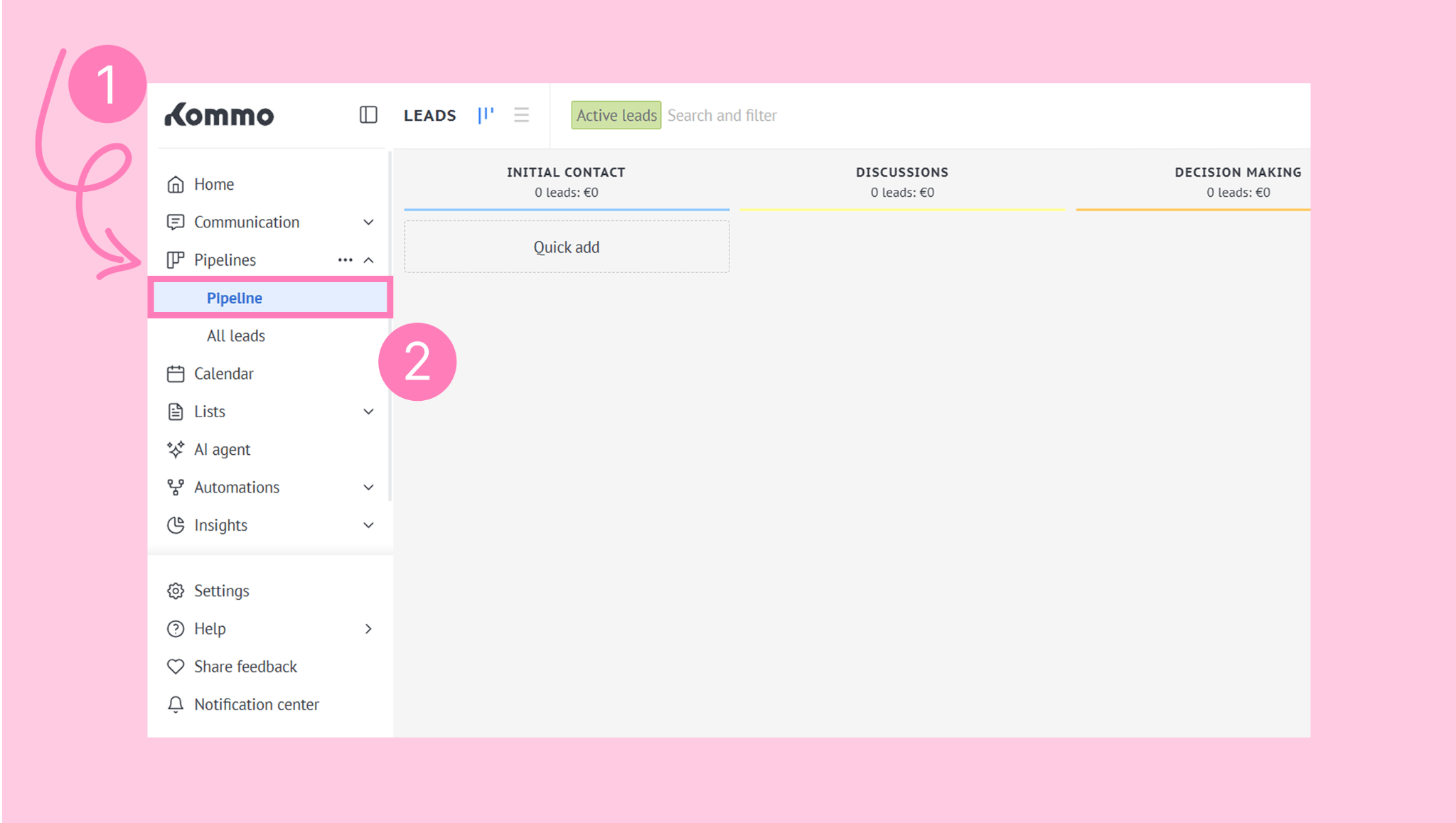
You can start working in the default pipeline or create a new one.
Create a new pipeline
Go to Pipelines and click Add pipeline.
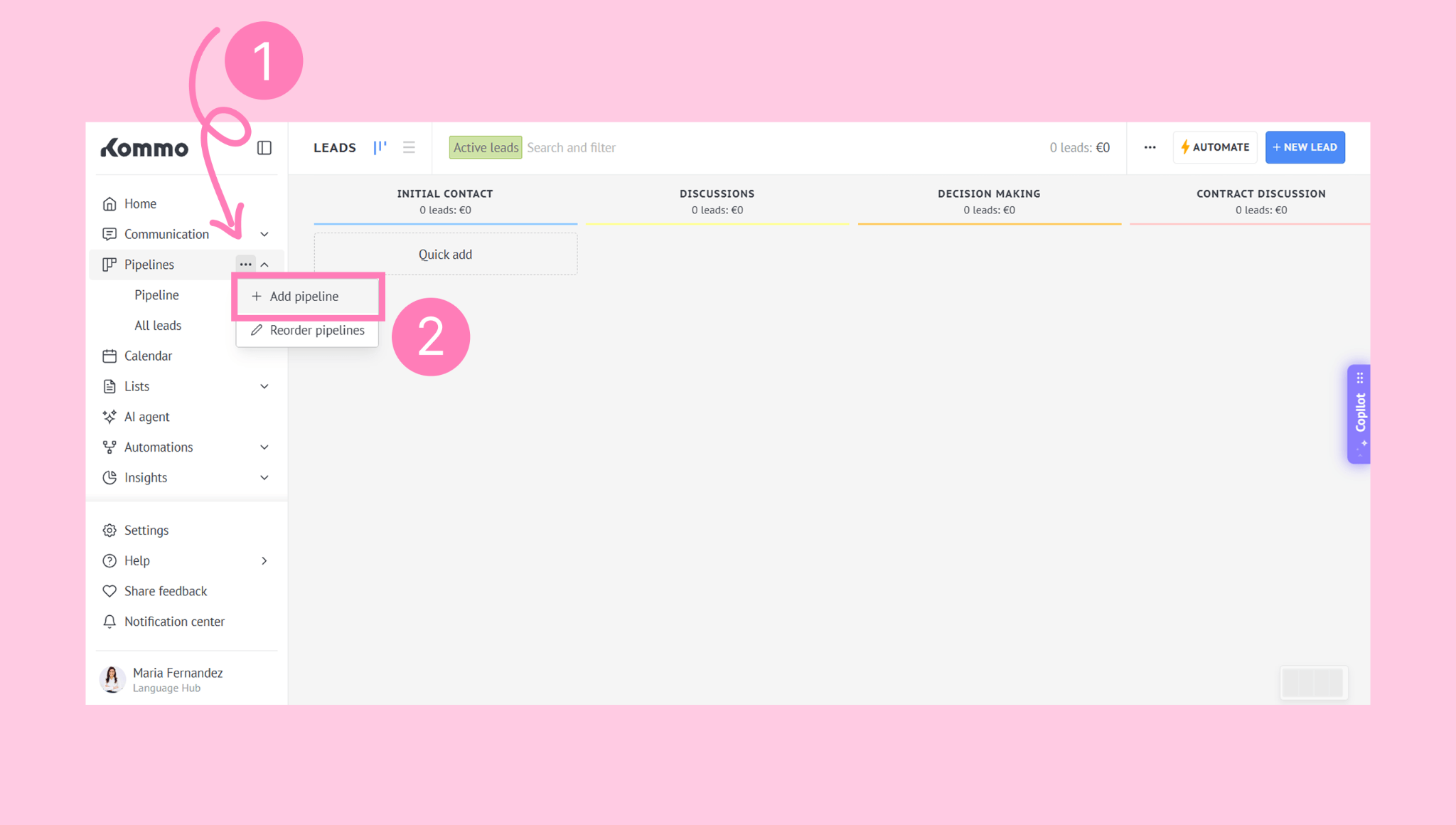
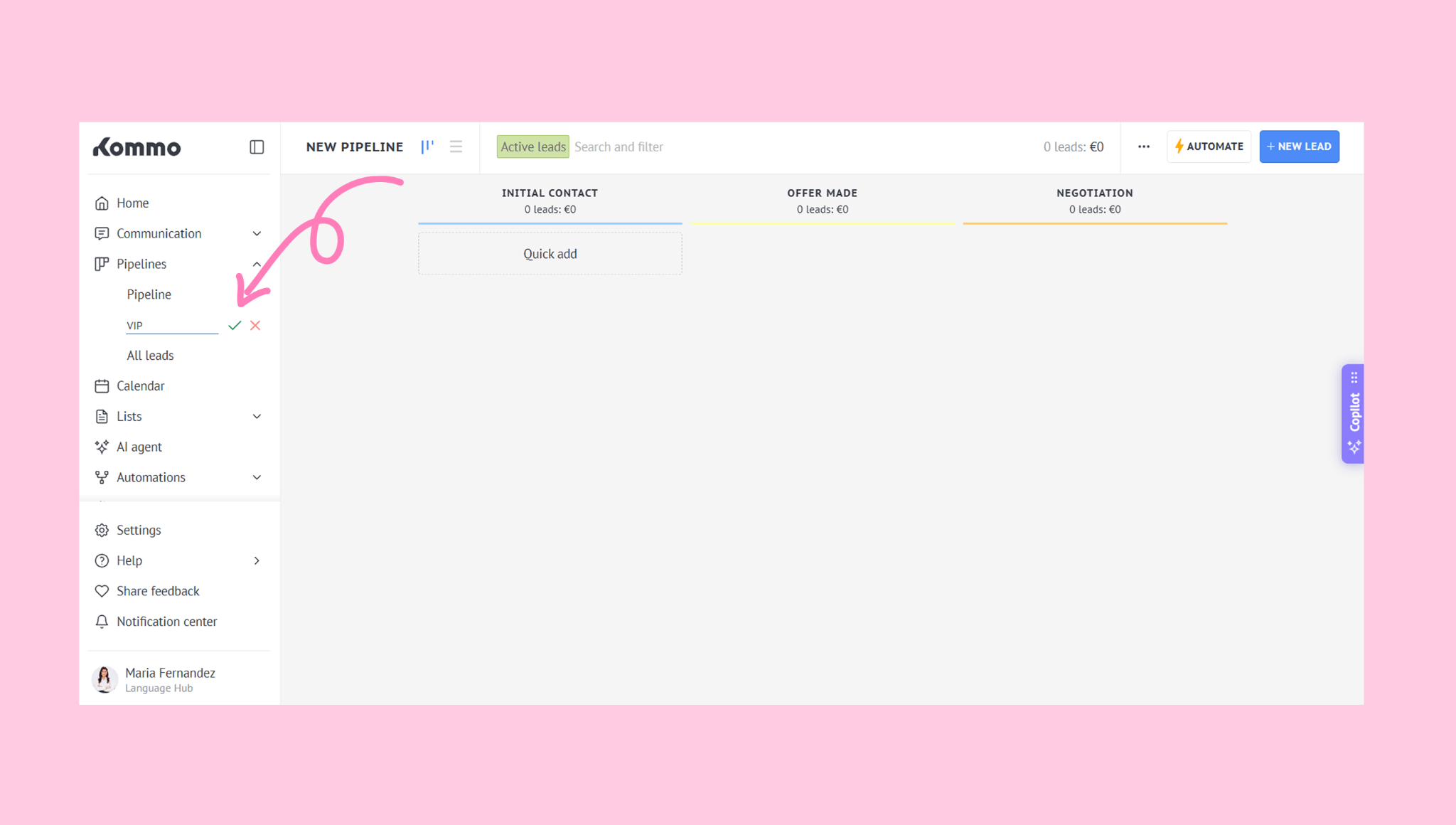
Enter a name for the pipeline. Click the green checkmark to confirm.
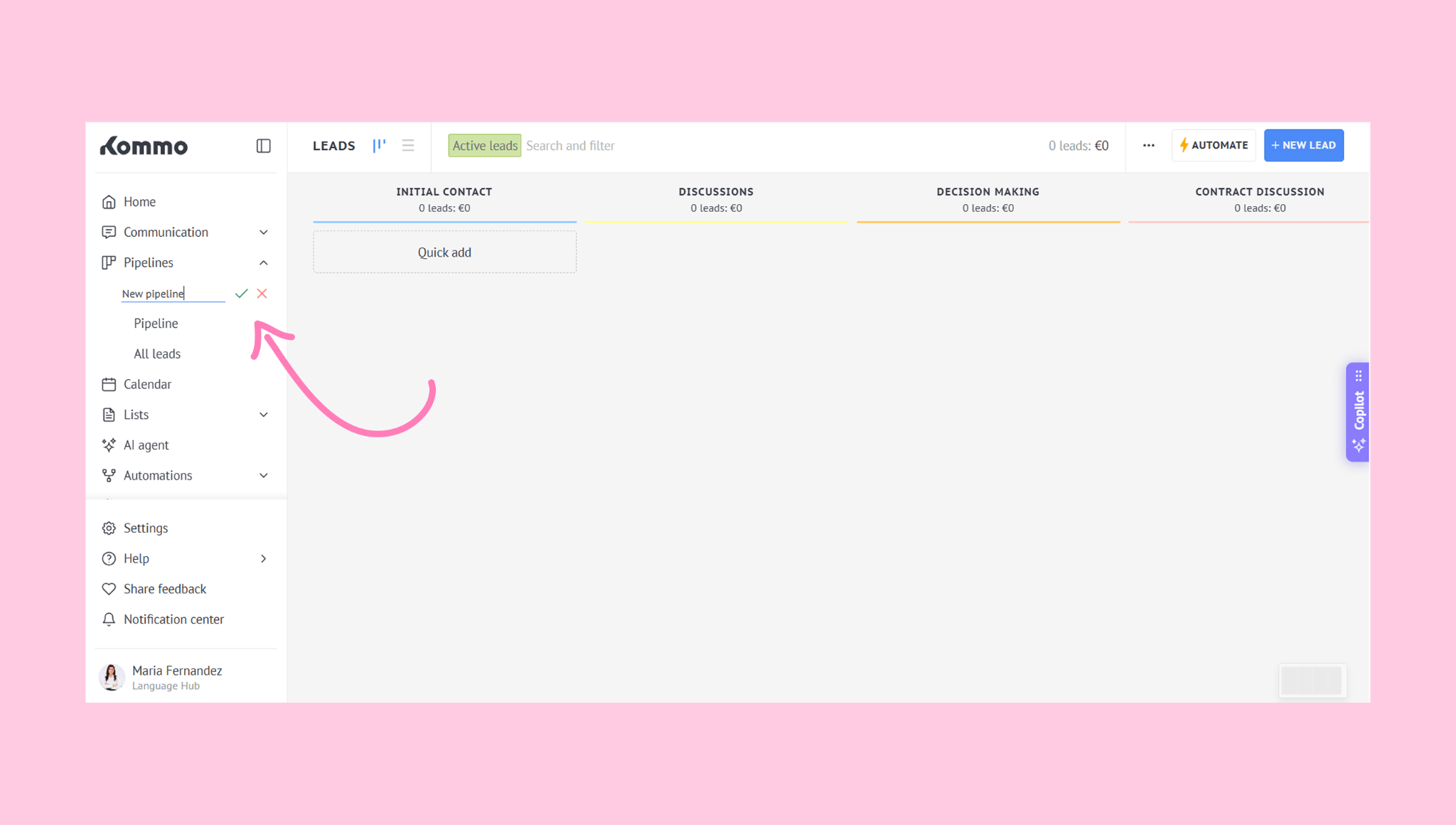
A new pipeline will then be created and ready to use.
Tip: You can create separate pipelines for different products, teams, sales strategies, or channels – such as WhatsApp, Facebook, or Instagram.
Rename a pipeline
Click three dots (⋯) next to the pipeline’s name and select Rename.
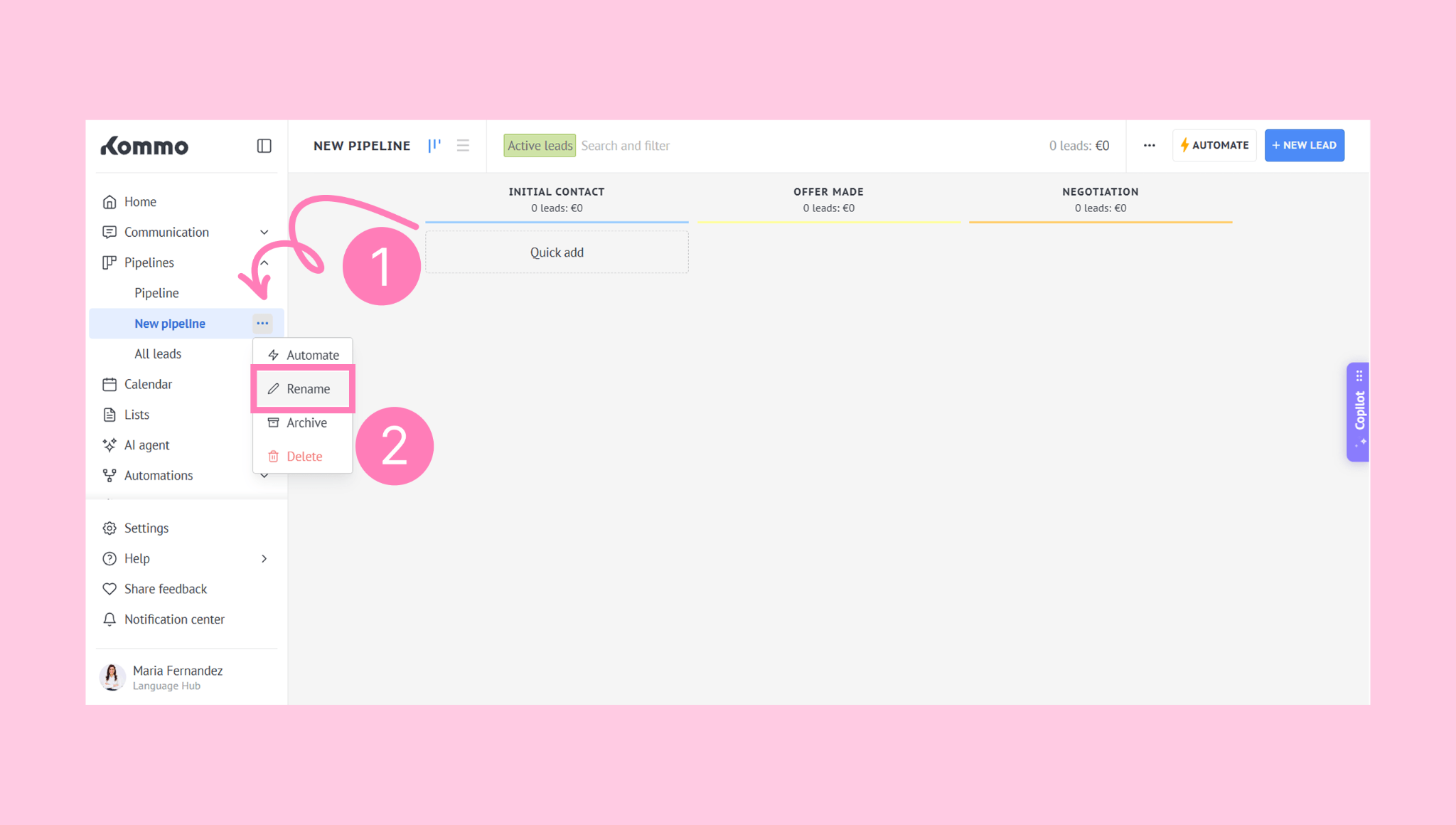
Enter the new name. Click the green checkmark to confirm.
Reorder existing pipelines
To change the order of your pipelines:
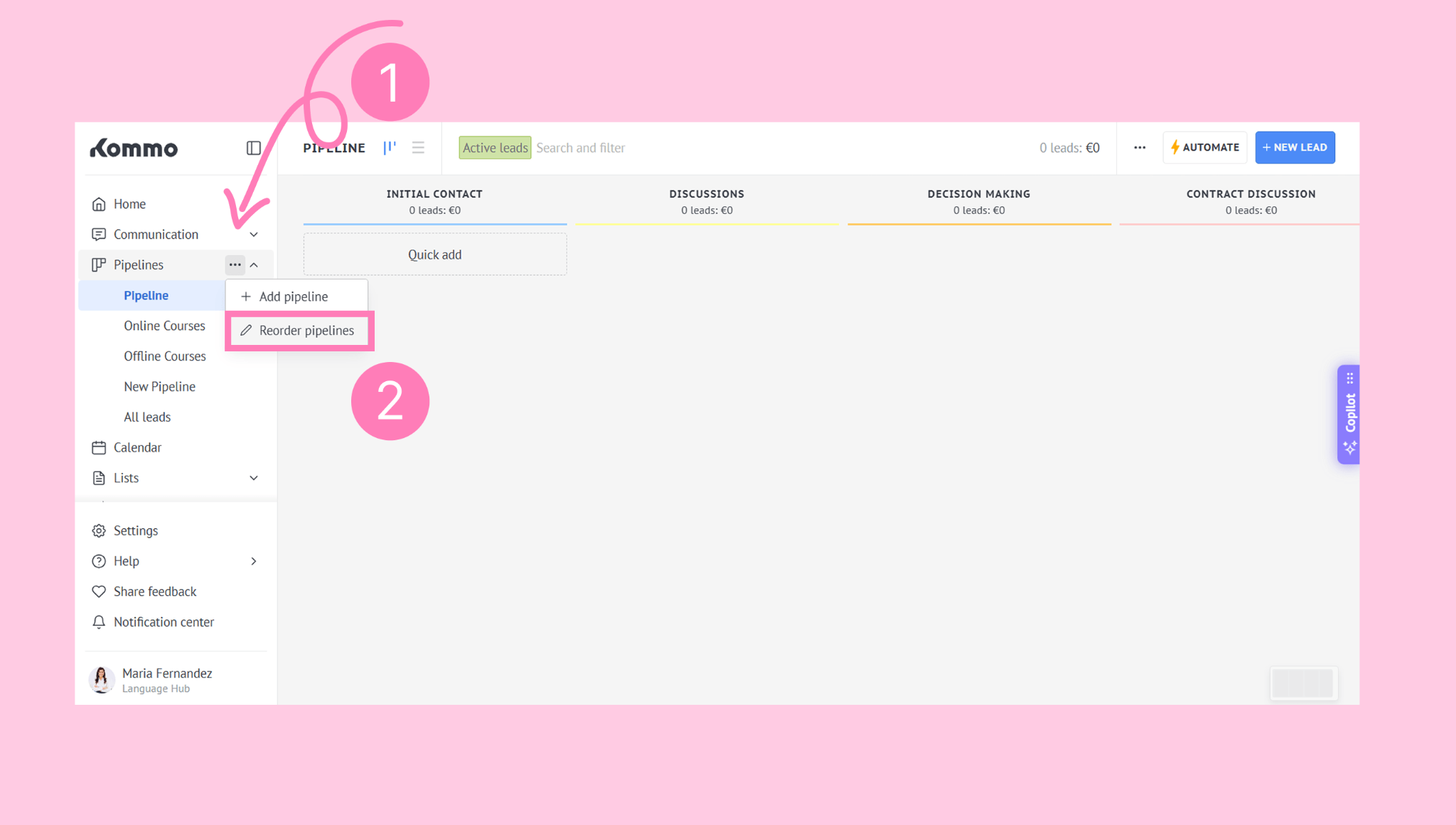
Go to Pipelines. Click three dots (⋯), and select Reorder from the menu.
Drag and drop the pipelines into the desired order.
Click Save to confirm your changes.
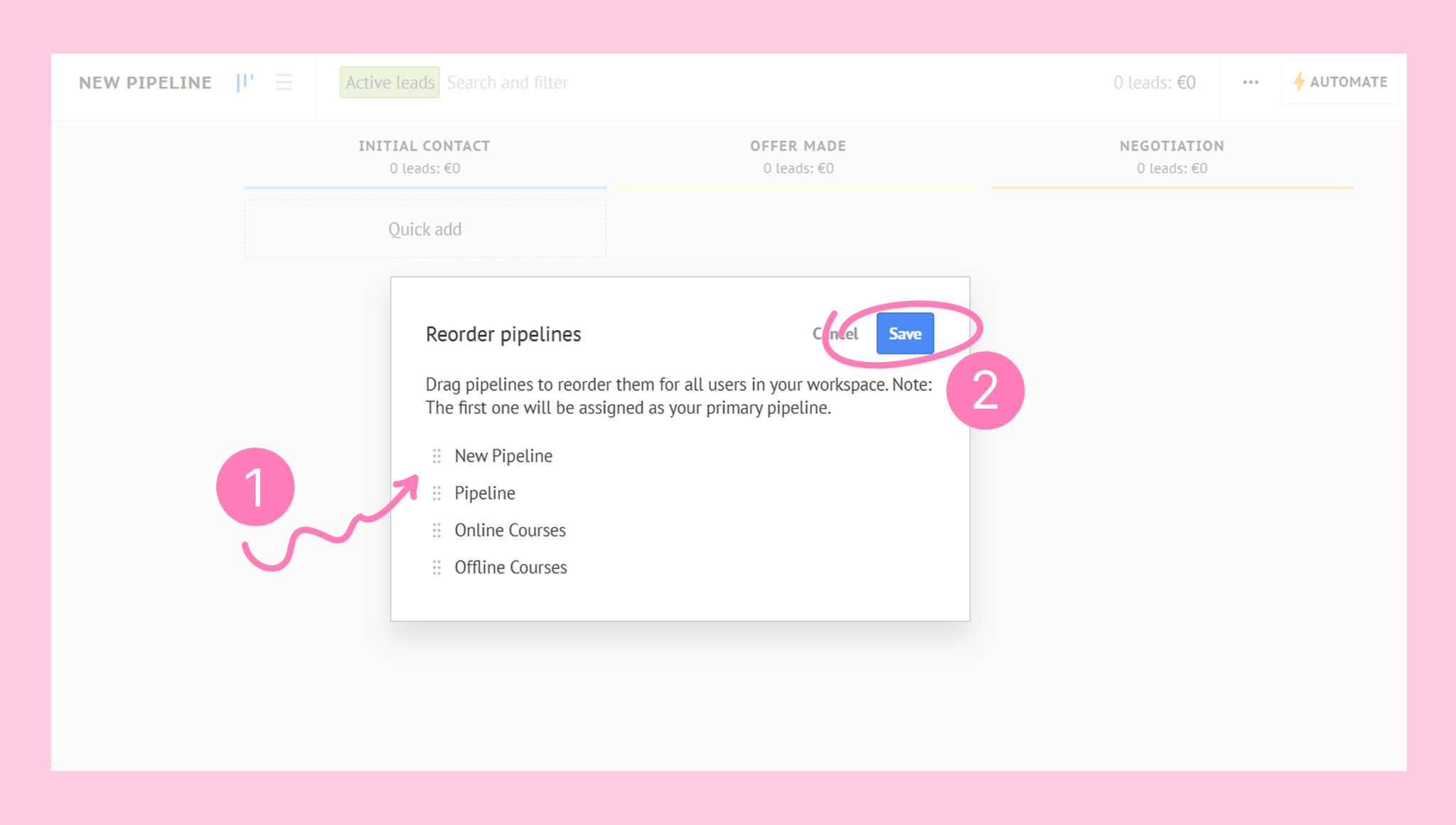
Note: The pipeline set as the first pipeline cannot be archived or deleted. This guarantees that at least one active pipeline remains, keeping your leads safe even if all others are removed.
Archive a pipeline
You can archive a pipeline that you no longer actively use. Archiving ensures that all related data remains in Kommo. When a pipeline is archived:
All deals in it become inactive, and their stages cannot be changed.
You can still access lead information, view history, and receive messages from leads.
The key difference between archiving and deleting a pipeline is that an archived pipeline can be restored at any time, and all its deals will become active again.
To archive a pipeline:
Go to Pipelines. Find and click the name of the pipeline you want to archive. Click the three dots (⋯) next to the pipeline name. Next, select Archive from the menu.
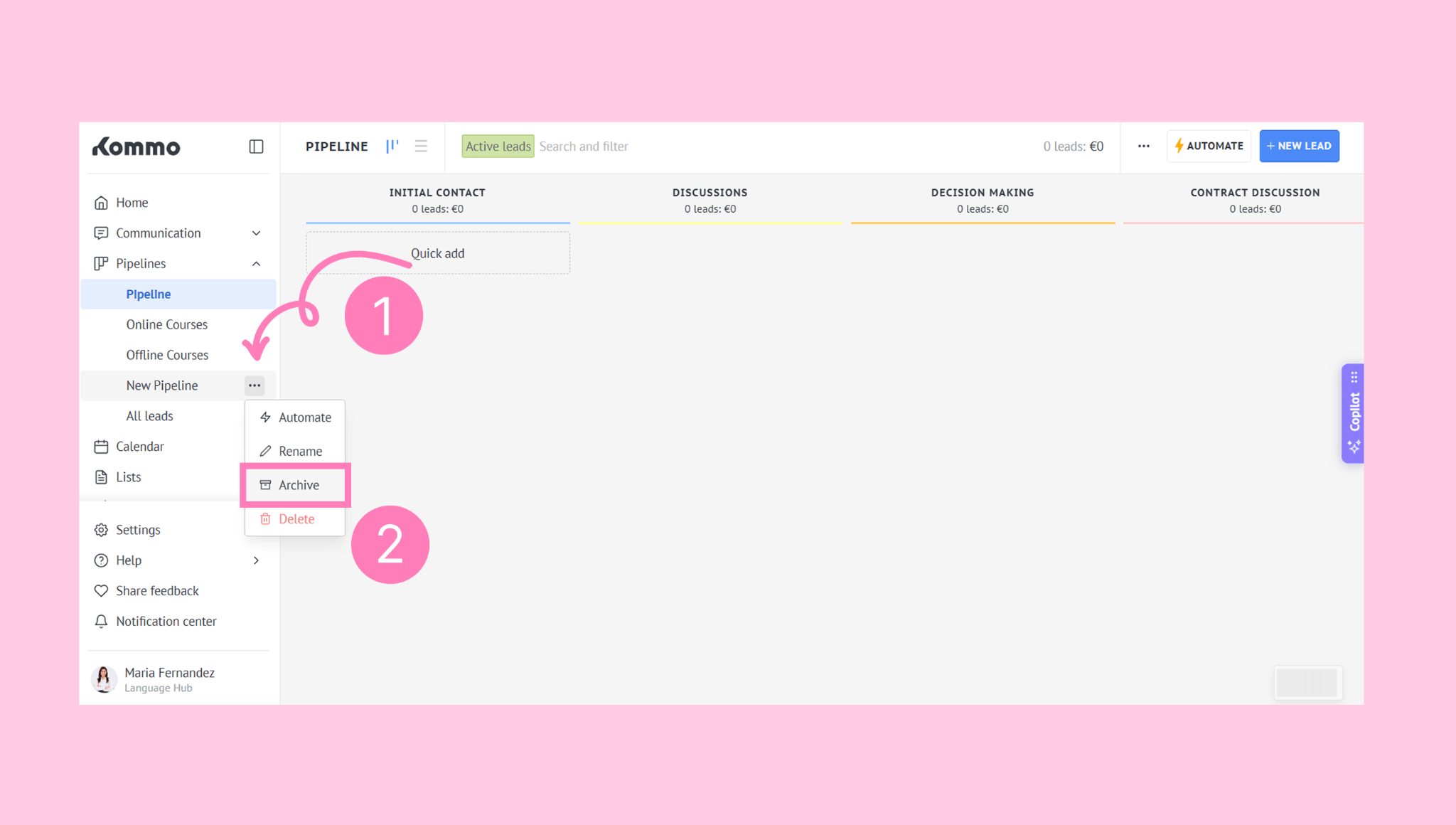
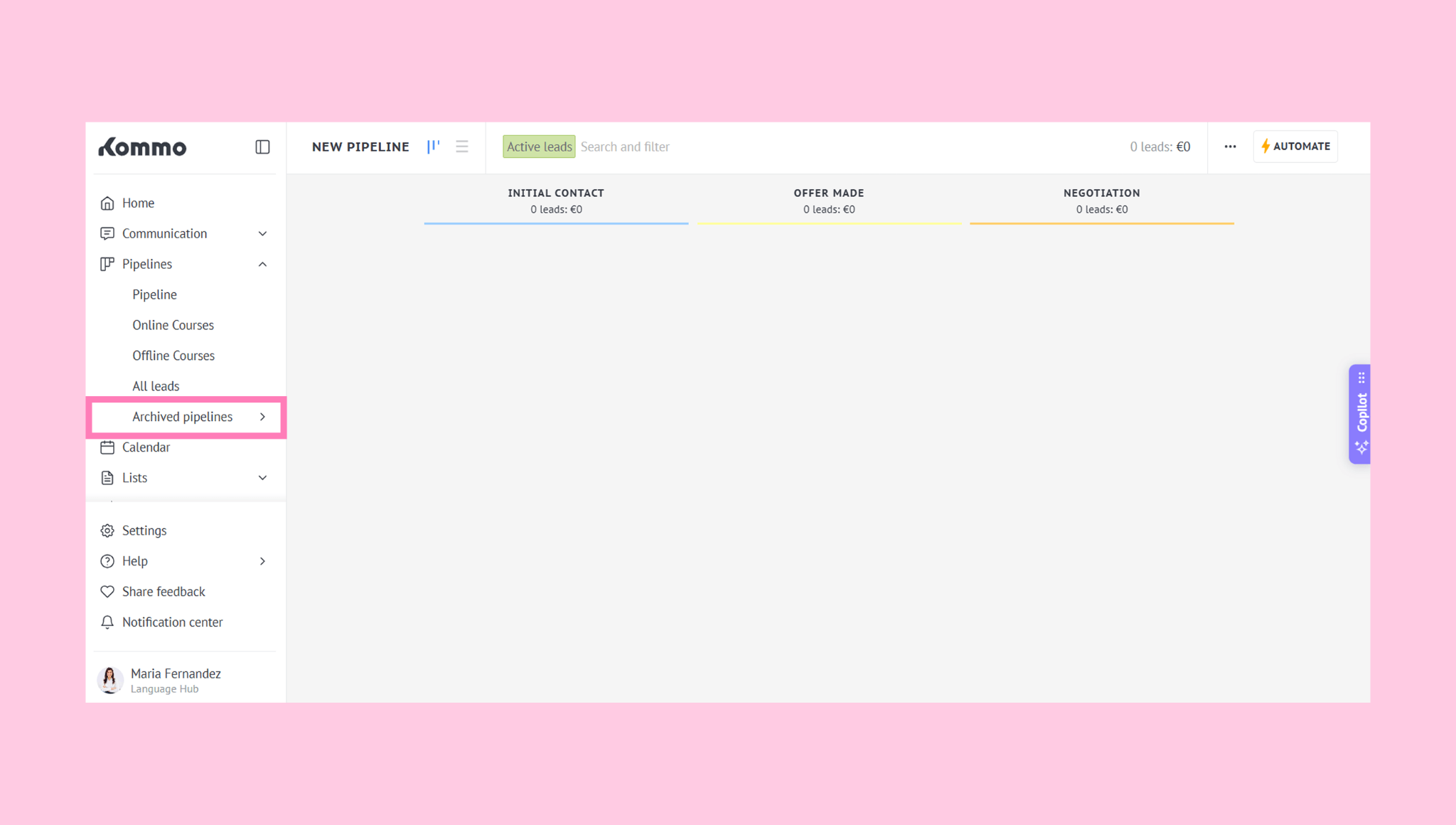
After archiving a pipeline, it will appear under Archived pipelines in the left-hand menu.
Restore a pipeline
Go to Pipelines → Archived Pipelines.
Find the pipeline you want to restore. Use the search bar if needed.
Hover over the pipeline name, click the three dots (⋯), and select Unarchive.
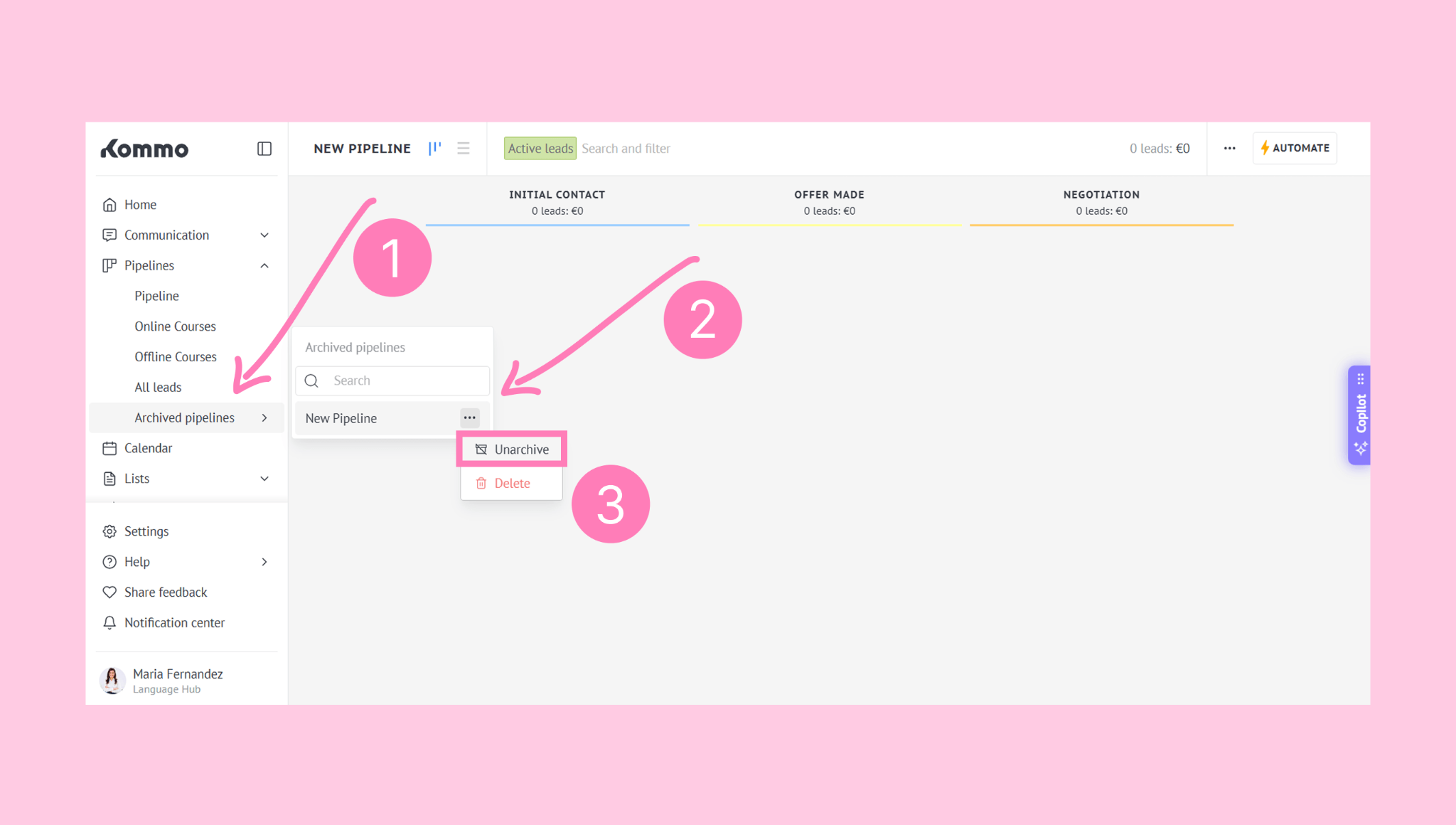
The restored pipeline will reappear in your Pipelines list.
Note: If there are no archived pipelines left, the Archived Pipelines menu item will automatically be hidden.
Delete a pipeline
Deleting a pipeline removes it permanently. Unlike archiving, this action cannot be undone, and all data in the pipeline will be lost.
To delete a pipeline:
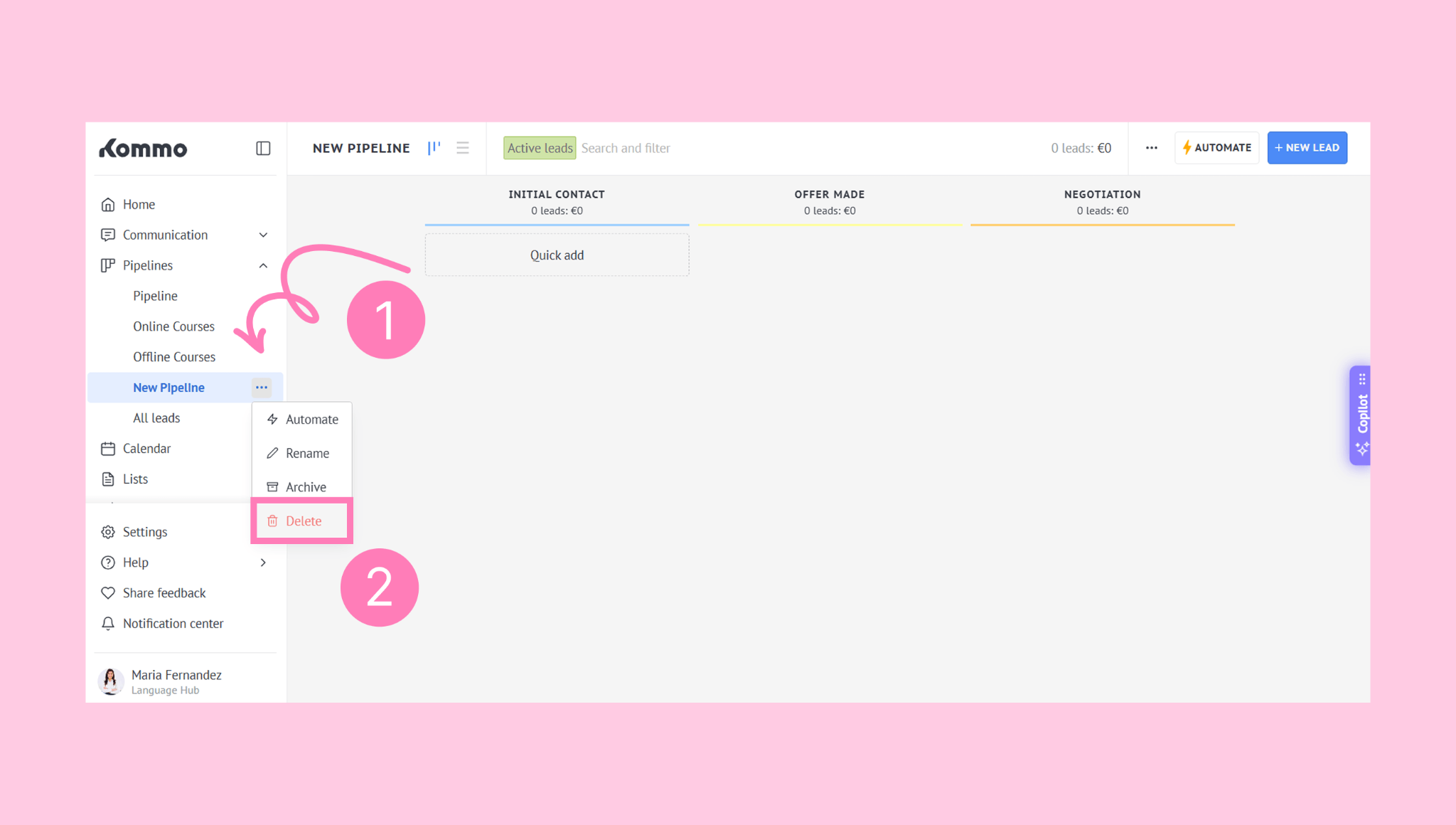
Go to Pipelines and select the pipeline you want to delete.
Click the three dots (⋯) next to the pipeline name.
Choose Delete from the menu.
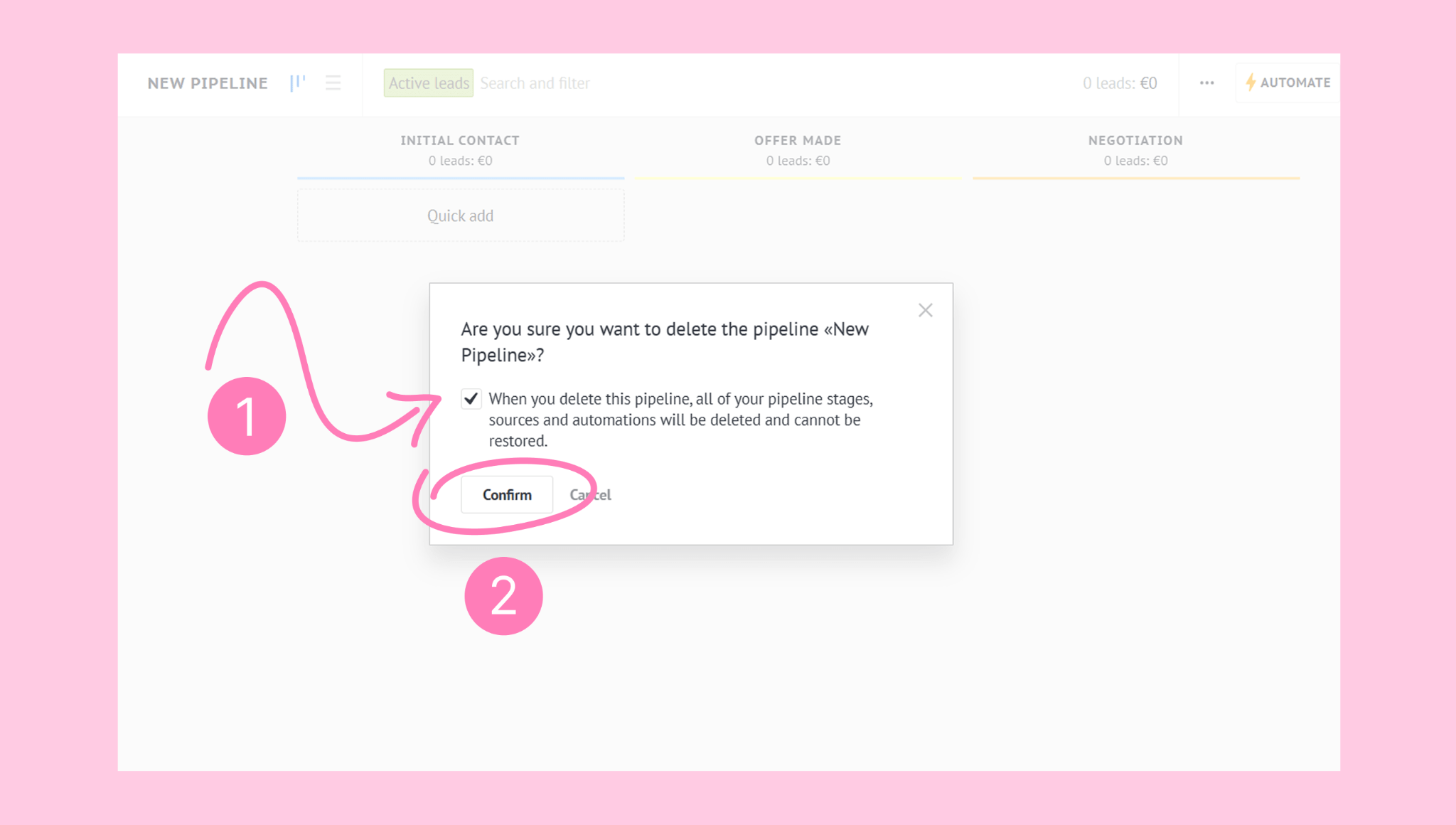
Check the confirmation box and click Confirm.
Note: Only empty pipelines can be deleted. If the pipeline contains active leads, you must transfer them to another pipeline first.
Learn how to edit pipeline stages to ensure they perfectly match your workflow in our Add or rename stages article.