What you’ll need:
Admin role in Kommo.
Availability depends on your plan:
Manual segments — available on Advanced, Pro, Enterprise, Trial, or Pro Trial plans.
Automated segments — available on Pro, Enterprise, Trial, or Pro Trial plans.
Learn more about Kommo plans here.
Keep in mind:
Segments aren’t available on the Base plan. If Pro Trial is available and activated, segments are available for the duration of the trial.
Segments already created in the account will continue working as manual segments and can’t be converted to automated segments.
Automated segments have the following limits:
Segments — Up to 10 for each user in the account, with a maximum of 250 per account.
This limit is shared across all users (e.g., if an account has 2 users, it can have up to 20 automated segments. One user can create all 20, but no more segments can be created once the account reaches this limit).Conditions — Up to 50 per segment and 10 per group.
Actions — Up to 10 when a lead enters the segment and 10 when a lead leaves the segment.
Note: During the trial, the user-based limit doesn’t apply. You can have up to 250 automated segments per account, regardless of the number of users. After the trial, the standard limit based on the number of users applies.
TikTok Ads Manager needs to be connected before it can be selected as an action.
In this article, you’ll learn how to use manual and automated segments for broadcasts and ad campaigns, and how to manage common segment issues.
If you’re new to segments, learn more about how they work in our overview article.
To create a segment before using it, see our guide.
Use a segment
Once you’ve created a segment, you can use both manual and automated segments in the following ways:
A) For broadcasting
Go to Segments.
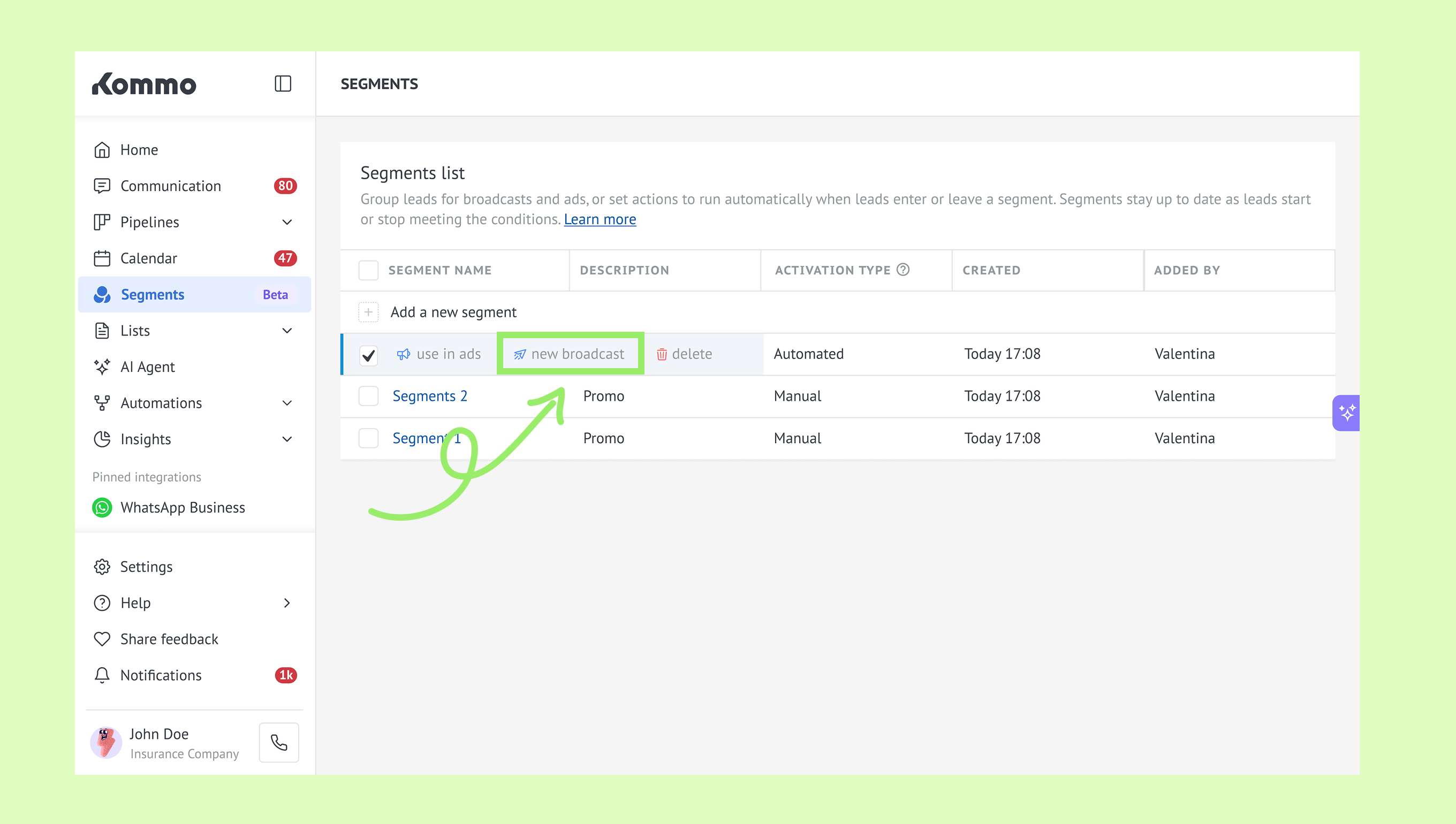
Select the checkbox next to the segment name — a menu will appear. Click New broadcast.
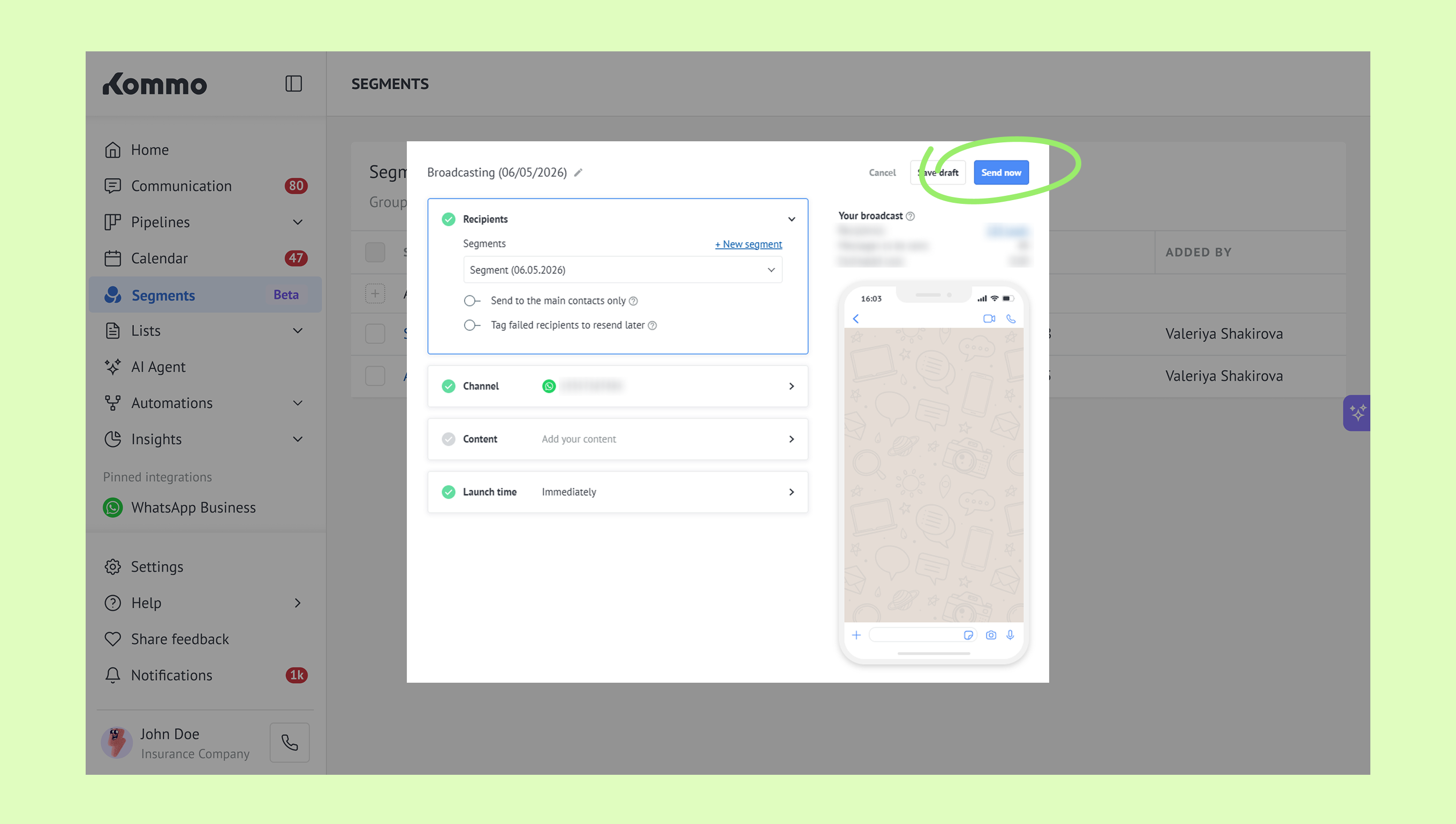
In the broadcast window, select the segment and channel, add your message, and set the launch time.
Learn more about customizing broadcasts in this article.
Click Send now or Save draft.
Learn more about broadcasts in this article.
B) For ad campaigns
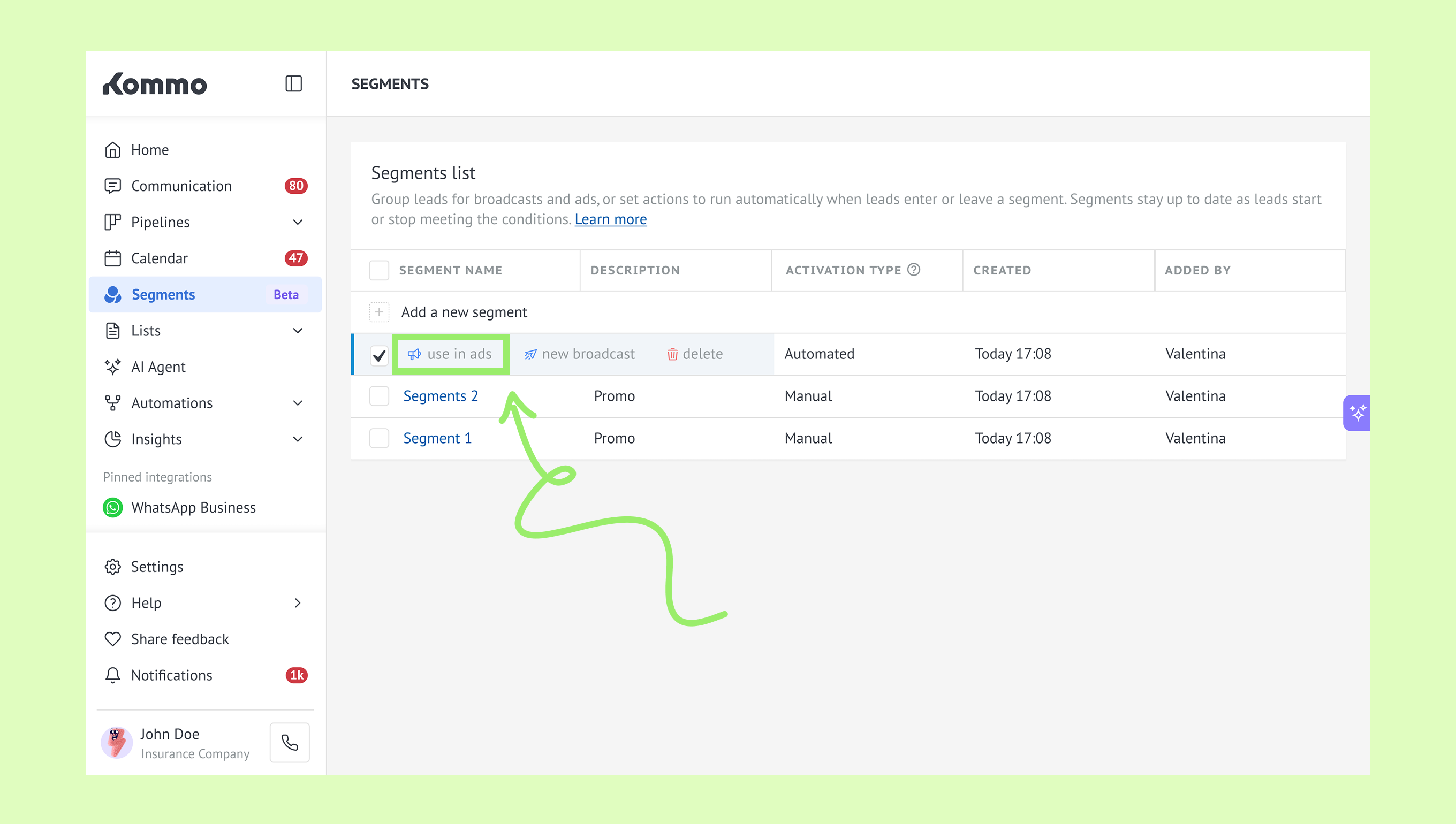
Go to Segments. Select the checkbox next to the segment name — a menu will appear.
Click Use in ads.
In the Use segment in ads window:
Click Authorize for Google Ads or Connect for Facebook Ads if you’re not signed in.
Complete the login process.
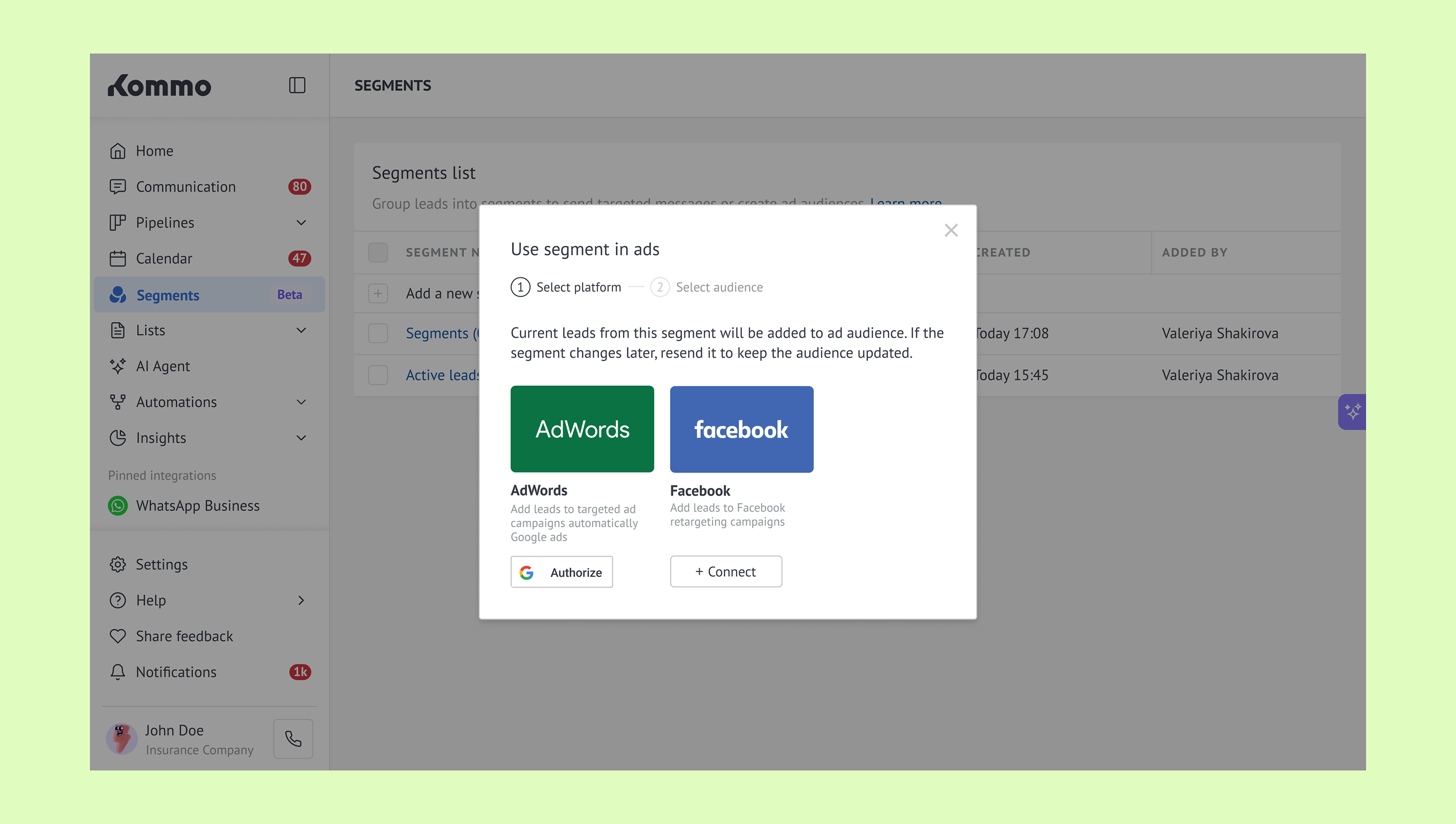
Click Select under the platform you want to use a segment for.
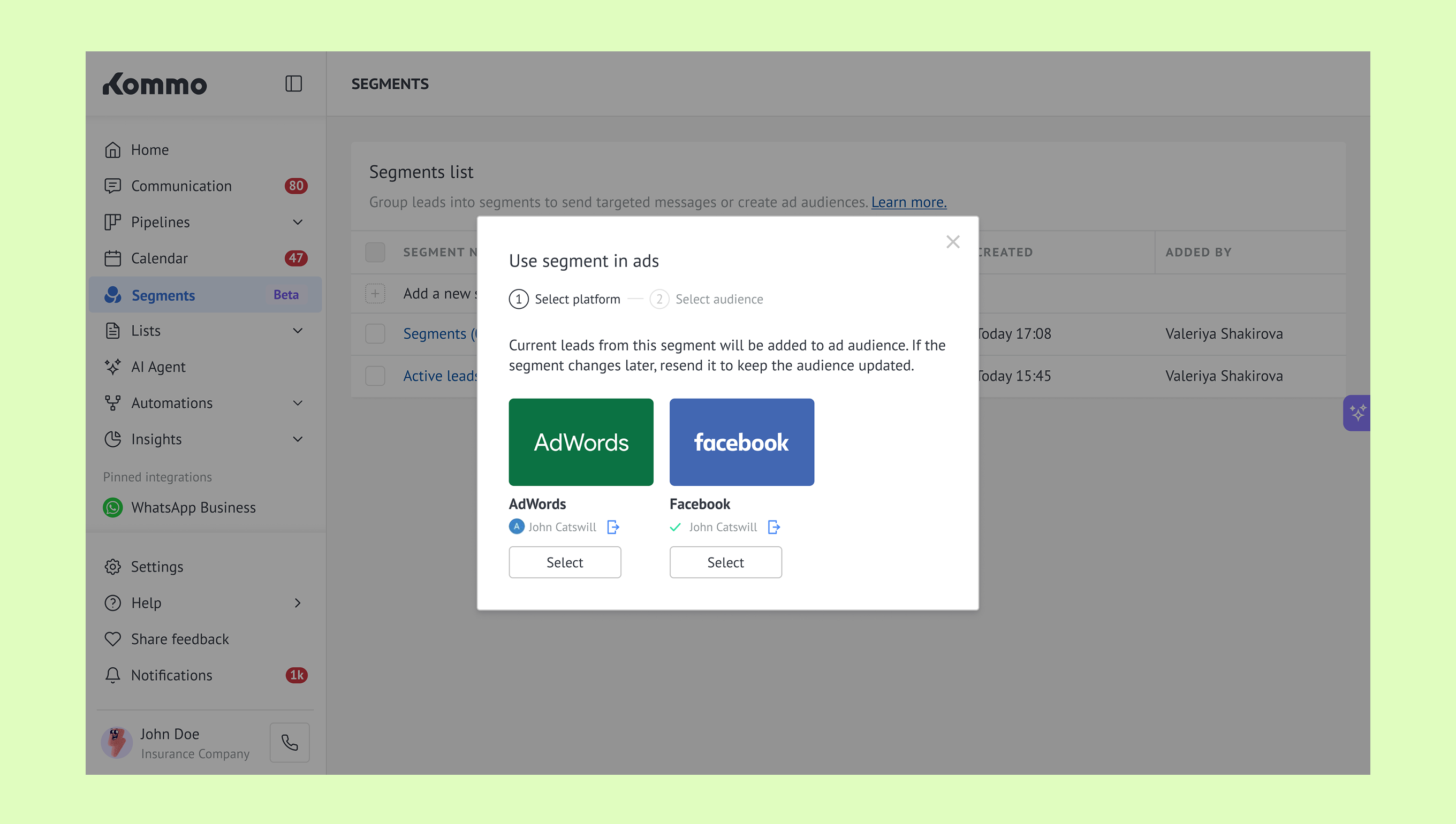
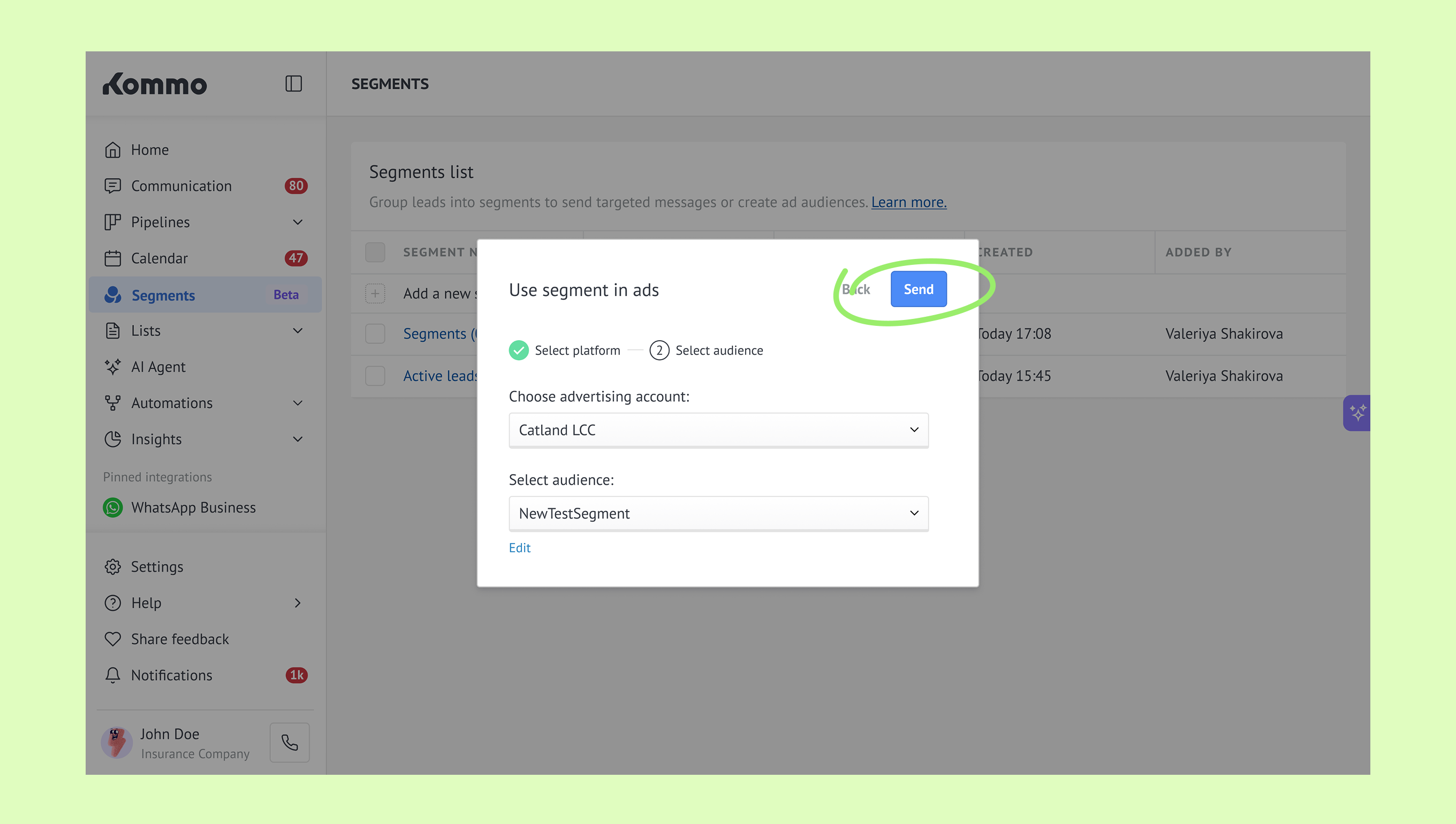
In the opened modal, follow the steps:
Google Ads
Click Choose advertising account and select an account.
Click Select audience and choose an audience.
Click Send.
Learn how to connect Google Ads to Kommo in this article.
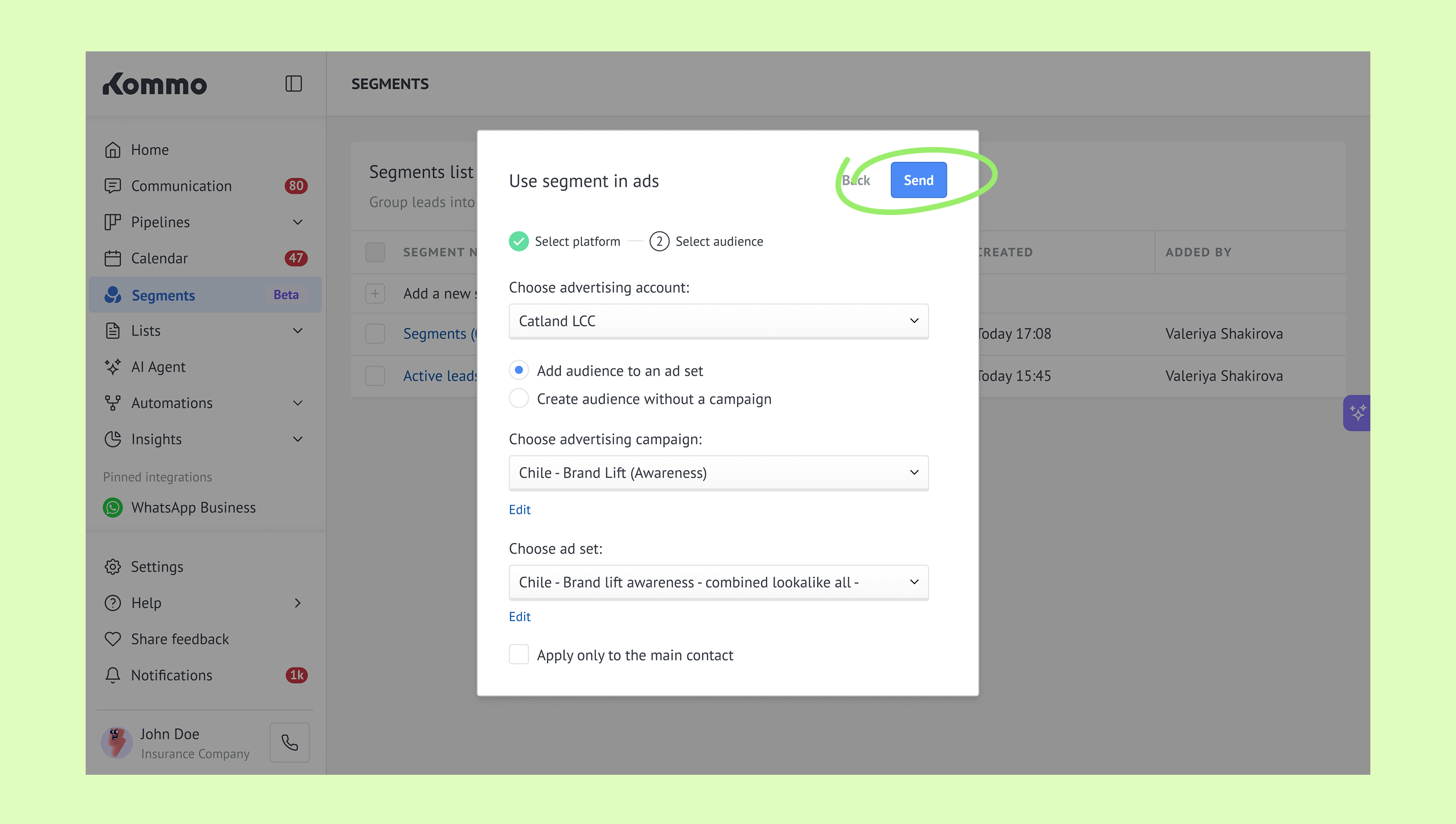
Facebook Ads
Click Choose advertising account and select an account.
Choose one of the following:
Add audience to an ad set — use the segment in an existing campaign
Create audience without a campaign — create a new audience without linking it to a campaign
Click Choose advertising campaign and select a campaign.
Click Choose ad set and select an ad set.
Enable Apply only to the main contact if needed.
Click Send.
Learn how to connect Facebook Ads to Kommo in this article.
Note: Segments do not sync automatically with ad platforms. If a Segment changes after being sent to Google Ads or Facebook Ads, you’ll need to send it again to update the audience.
Manage segment issues
Here are some common segment issues and how to fix them:
Lead count isn’t updating
The lead count doesn’t update automatically after you change the segment conditions.
How to fix it: Click Count leads again to refresh it. An outdated count doesn’t affect leads entering or leaving the segment or its actions.
Automated segment stops working
If a field used in the segment conditions is deleted, the segment is marked with an exclamation mark and stops working.
You can’t recount leads, run its actions, or use it for broadcasts or ad audiences until the issue is fixed.
How to fix it: Open the segment and update or remove the affected condition. Lead counting and actions will resume once the issue is fixed.
Actions tab isn’t available
You can’t open the Actions tab or count leads if any condition fields are empty.
How to fix it: Check the segment conditions and complete any empty fields.