What you’ll need:
Pro, Enterprise, or active 14-day trial account.
Administrator access in Kommo.
Keep in mind:
You can assign different seat types to team members based on their actual role and required Kommo access.
Pro and Enterprise accounts automatically include 10 free calendar profiles (trial accounts can also test up to 10 calendar profiles).
Switching user seat types does not require deleting the user profile.
If your team members only need scheduling tools, you can assign them a calendar profile instead of a full user seat. This gives them a clean workspace to manage their bookings without full Kommo access.
For more information about bookings, read our overview article.
With a calendar profile, scheduling staff—like specialists, stylists, or doctors—can view assigned leads and internal notes, sync with Google Calendar, and use internal Team chat. However, these profiles restrict access to direct customer messaging, lead or contact editing, full contact details, and booking settings.
In comparison, a full user seat gives team members who manage broader sales processes, leads, and system settings full access to Kommo.
Learn how to connect Google Calendar to Kommo or manage Team chat in our articles.
In this guide, you will learn how to manage bookings in Kommo:
Assign a calendar profile to a new user
Add more calendar profiles
Assign a calendar profile to a team member
Go to Calendar → Team tab.
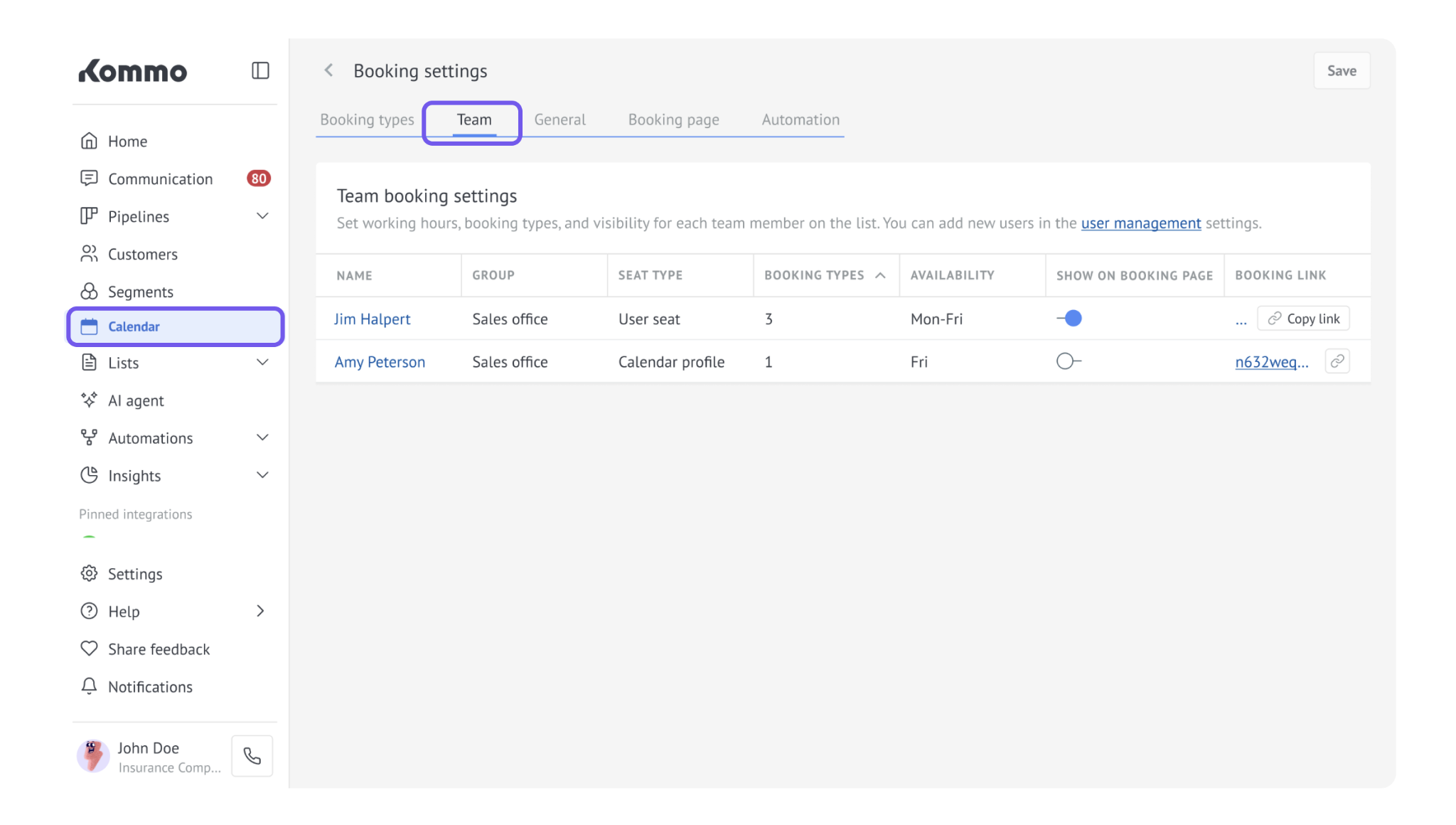
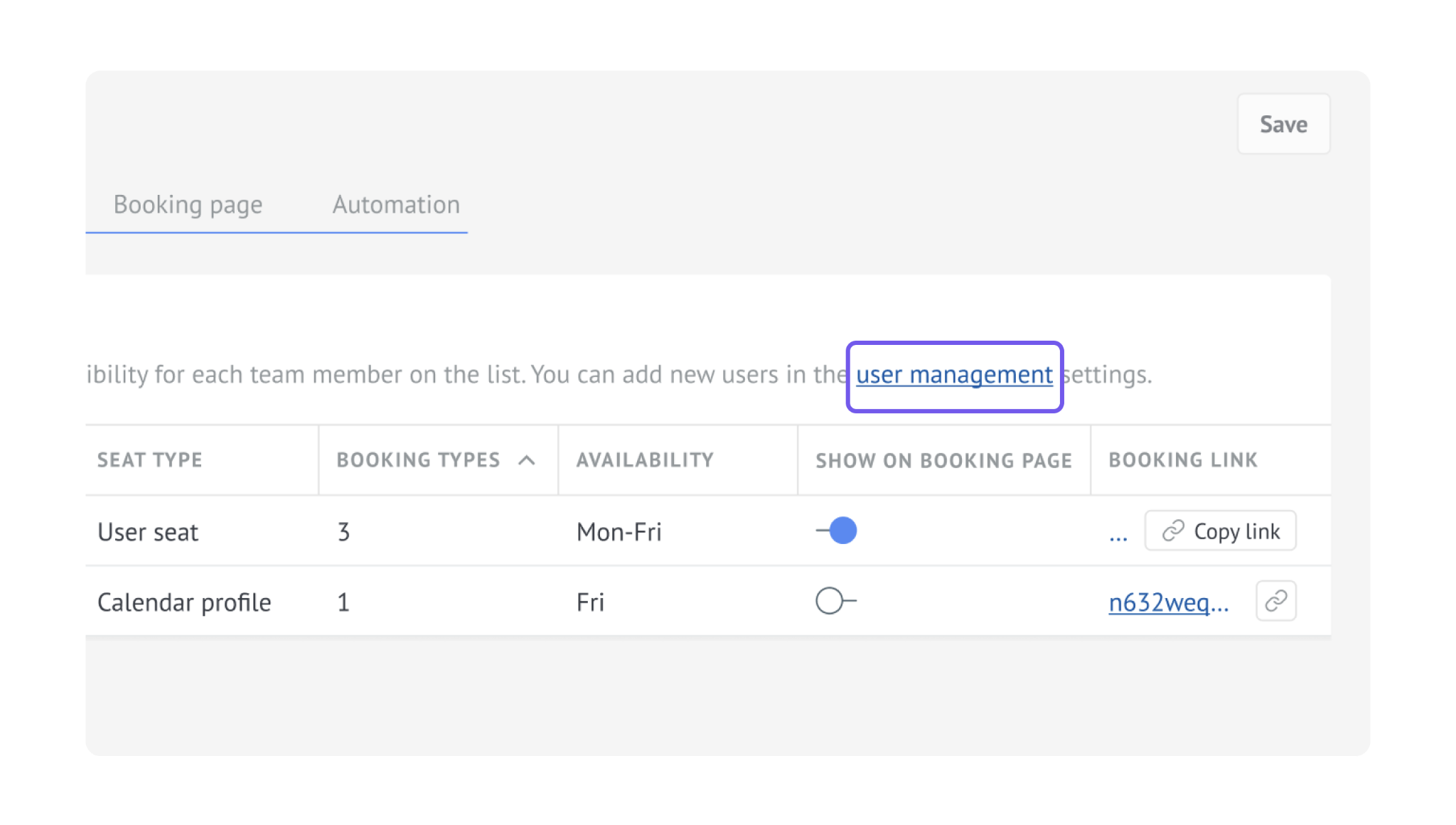
In the Team booking settings section, click the user management link.
Note: You can open the same page by going to Settings → User management.
Learn how to manage users in Kommo in our article.
Click + Add user.
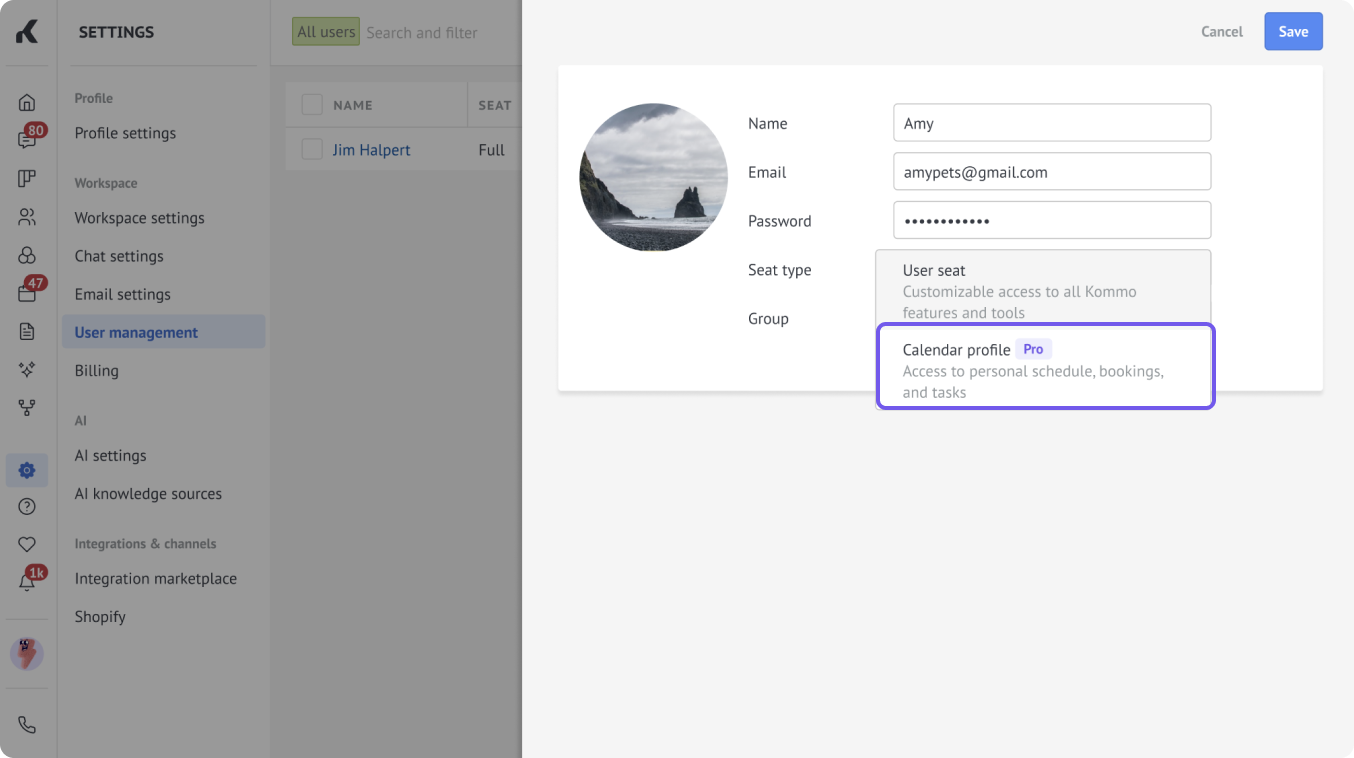
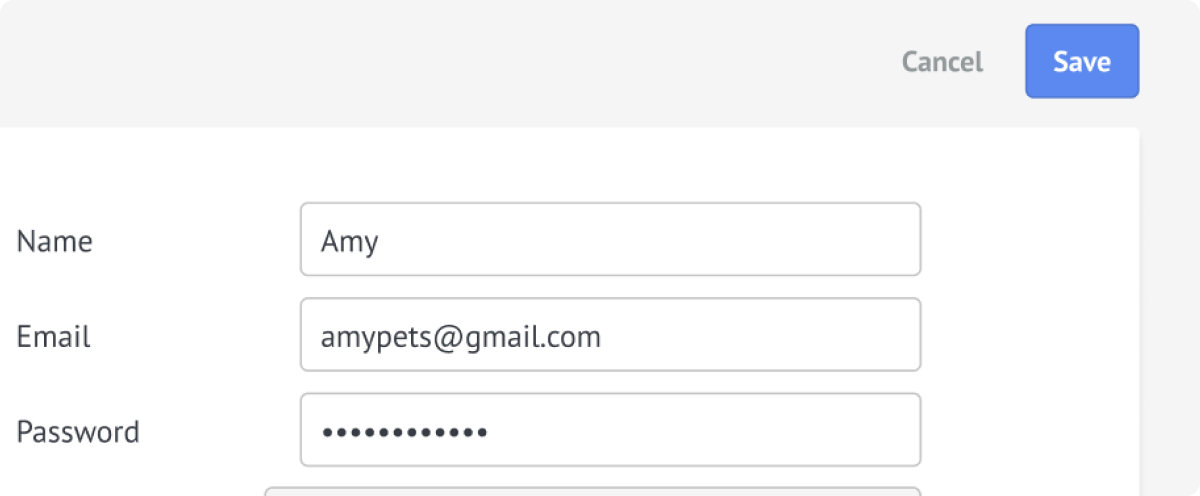
Enter the user's name, email address, password, and assign the group.
In the Seat type dropdown, choose Calendar profile:
Click Save.
Tip: To assign a full seat to a user, follow our guide.
Request additional profiles
Your Pro Kommo plan includes 10 calendar profiles by default, but as your team grows, you may need additional capacity. To request more, follow the steps below:
Add a new user with a Calendar profile.
If you reach the Calendar profile limit, a modal window will appear.
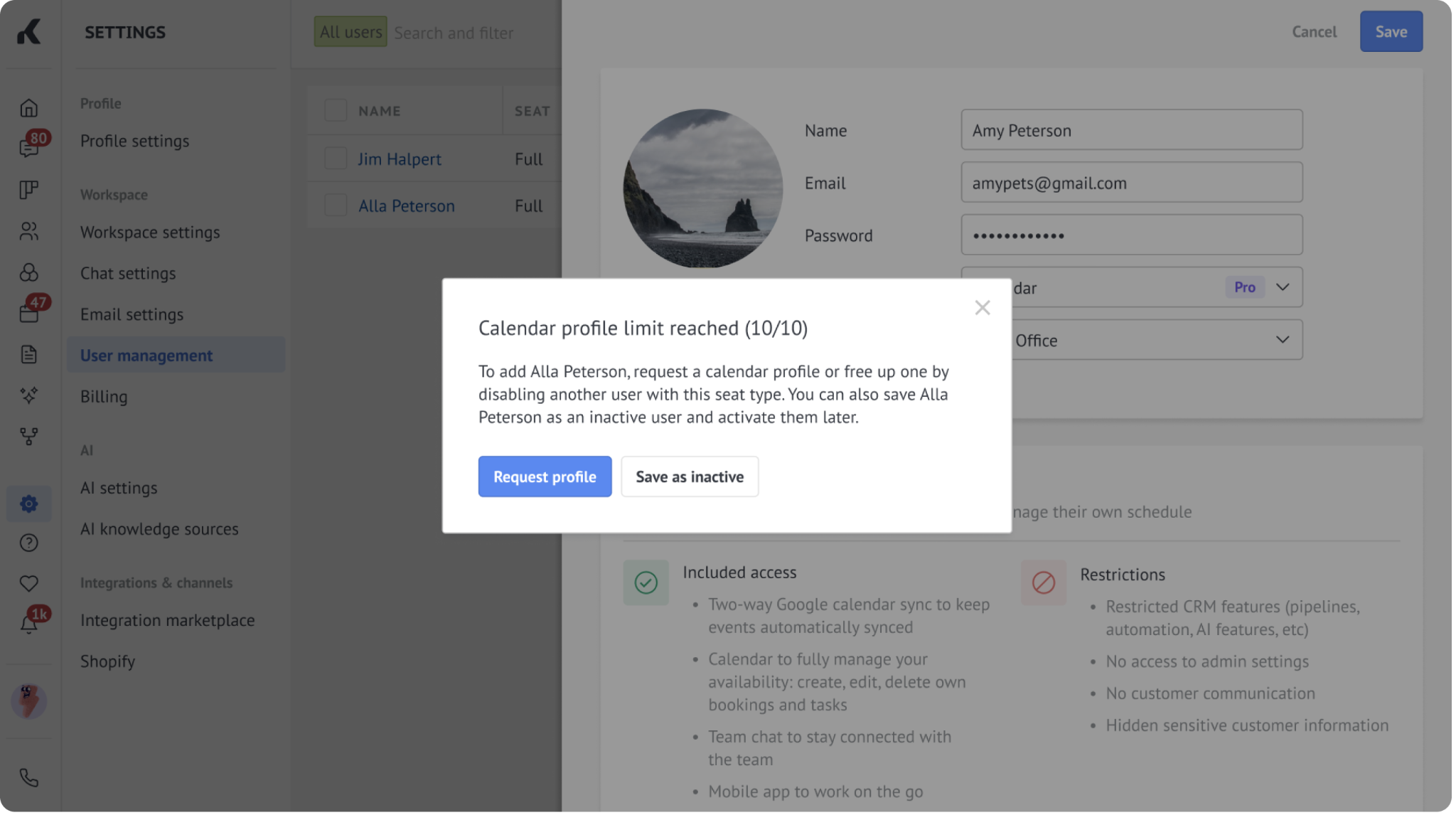
Request additional calendar profiles by clicking Request profile.
Note: You can deactivate the user by clicking Save as inactive.
Enter the number of additional calendar profiles you need and press Request.
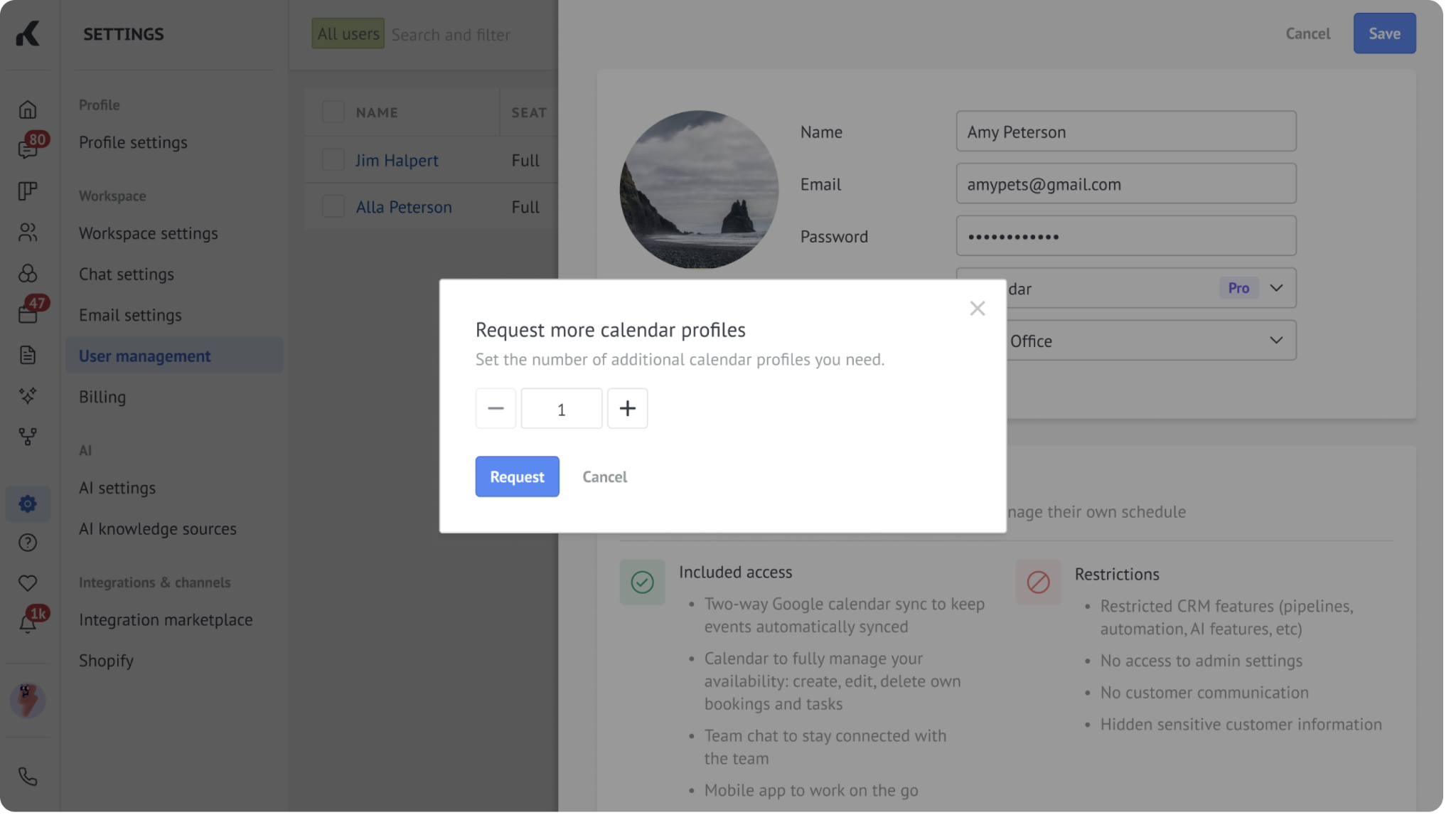
Request button redirects you to Kommo Support, and our team will add calendar profiles to your account manually.