What you’ll need:
An active Advanced, Pro, or Enterprise plan.
Permissions to access the report data.
Admin permissions to set up goals.
The Goal report helps you set performance targets for your team and track how well users are meeting them. It gives you a clear view of goals versus actual results for both the whole team and individual users.
Use cases
Set measurable sales goals — define revenue or performance targets for individual users to keep your team aligned.
Track progress in real time — monitor how close users or teams are to achieving their goals throughout the reporting period.
Compare targets with results — evaluate actual performance against planned goals to identify top performers and areas that need improvement.
Identify performance gaps — use visual progress indicators to quickly spot users or pipelines that are falling behind their targets.
Support performance management — use goal metrics to monitor sales performance and make informed decisions about planning, coaching, and resource allocation.
How to view the Goal report
To access the Goal report, go to Insights → Goal report.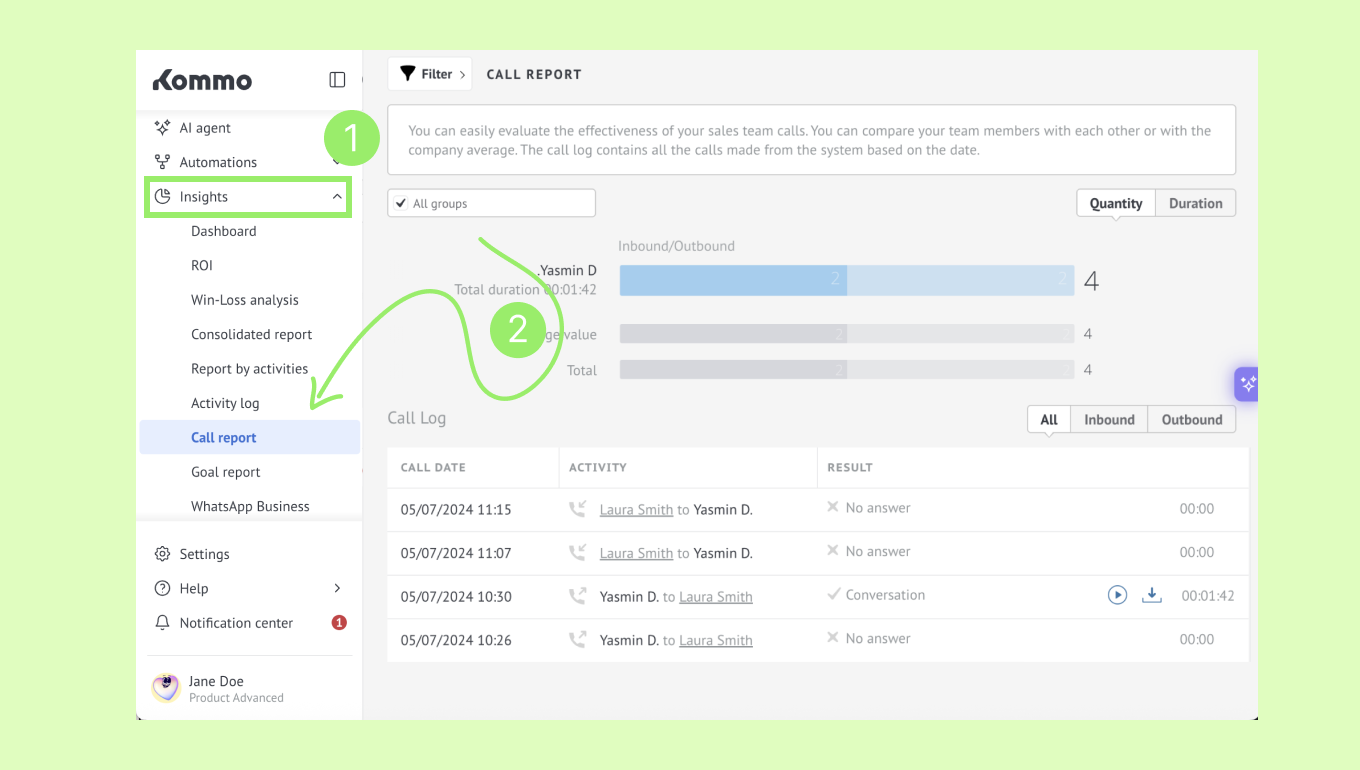
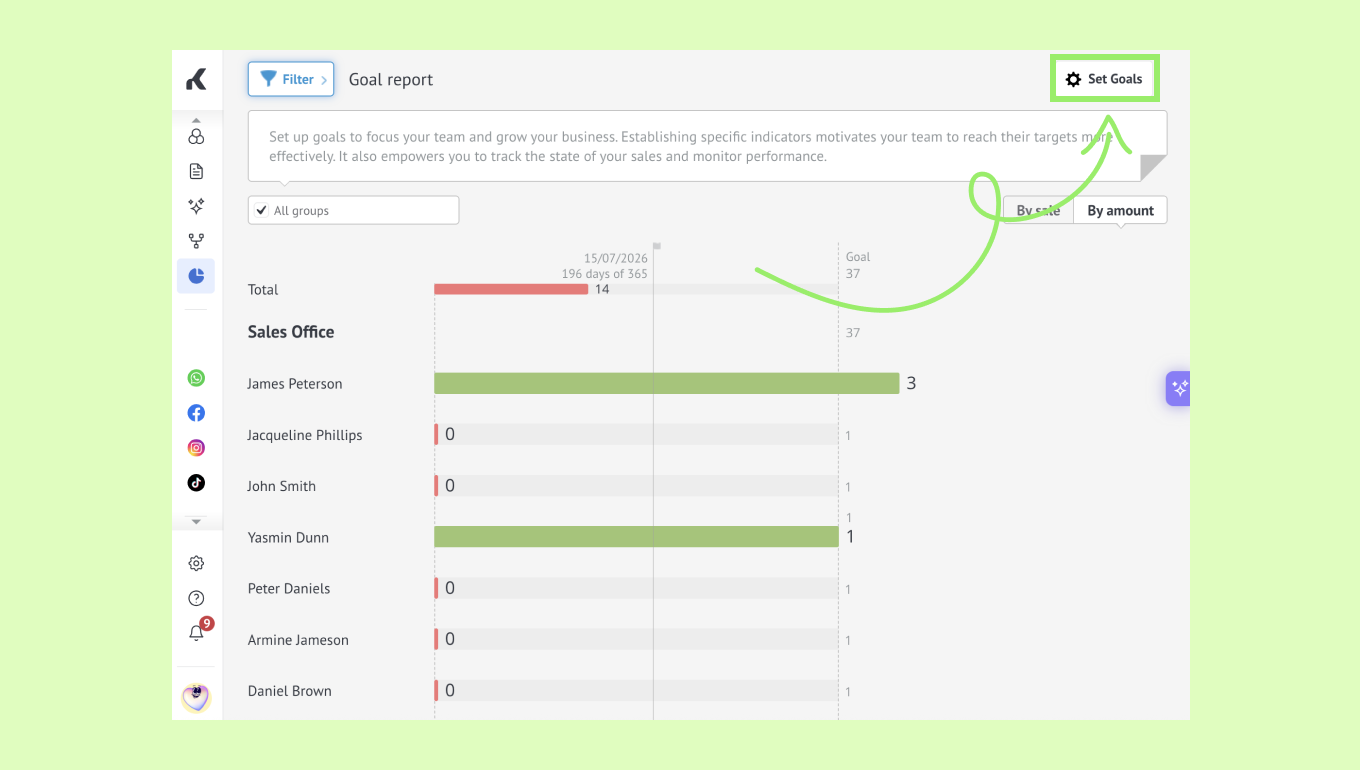
The report shows team goals and user goals side by side, so you can quickly compare targets with achieved results. You can also switch the view to check results by sale or by amount.
How the Goal report works
Progress bars and color indicators show how close each user or team is to reaching their goal. This helps you quickly identify which goals are on track and which need attention.
After you save and activate the goals, they appear in the Goal report.
Important: If you deactivate goals, all previously configured goals will be permanently deleted.
How to set goals
Click Set goals in the top right corner.
Choose the period in which the goals should be met.
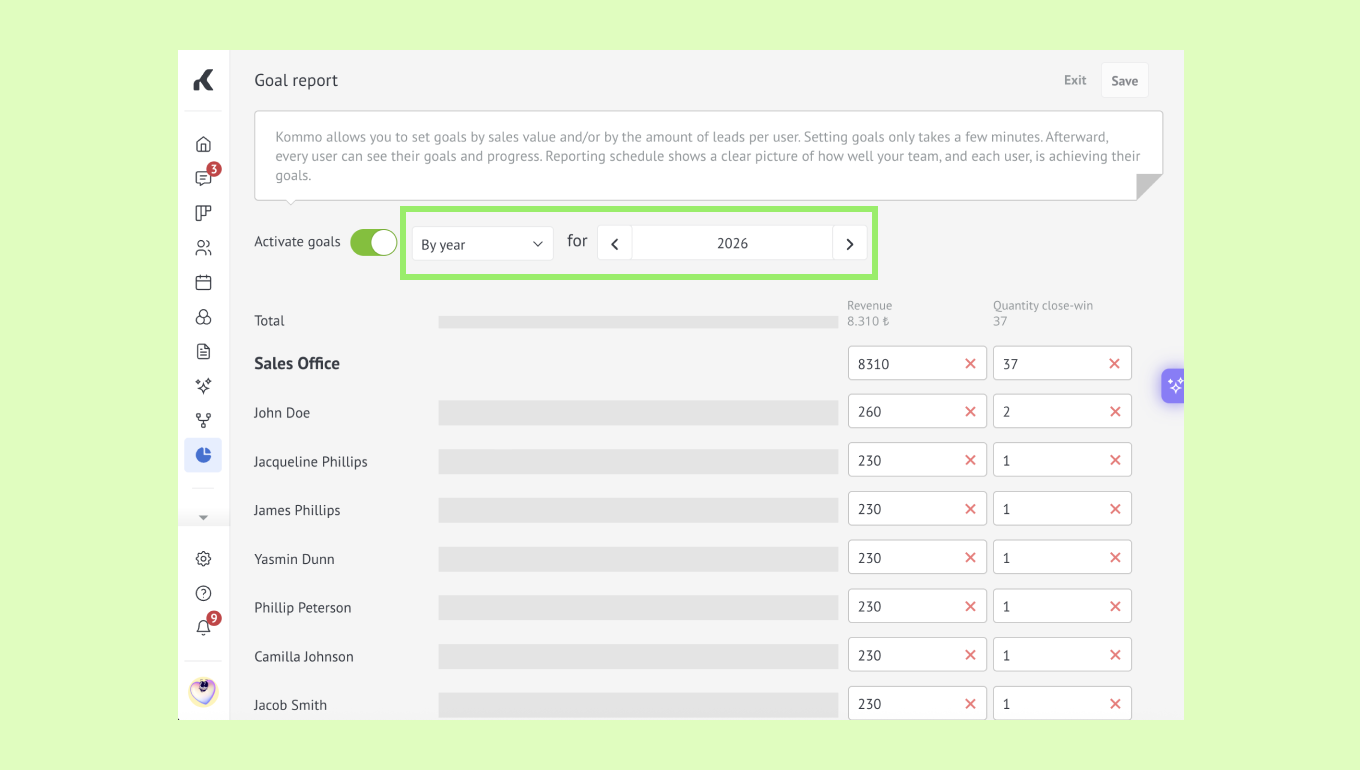
Note: You can set the period by year, quarter, or month.
Set goals. You can do it in two ways:
Enter a total goal in the top field. Kommo will distribute it proportionally between users.
Enter values manually for each user. In this case, the top field will show the sum of all entered values.
Activate the goals and click Save.
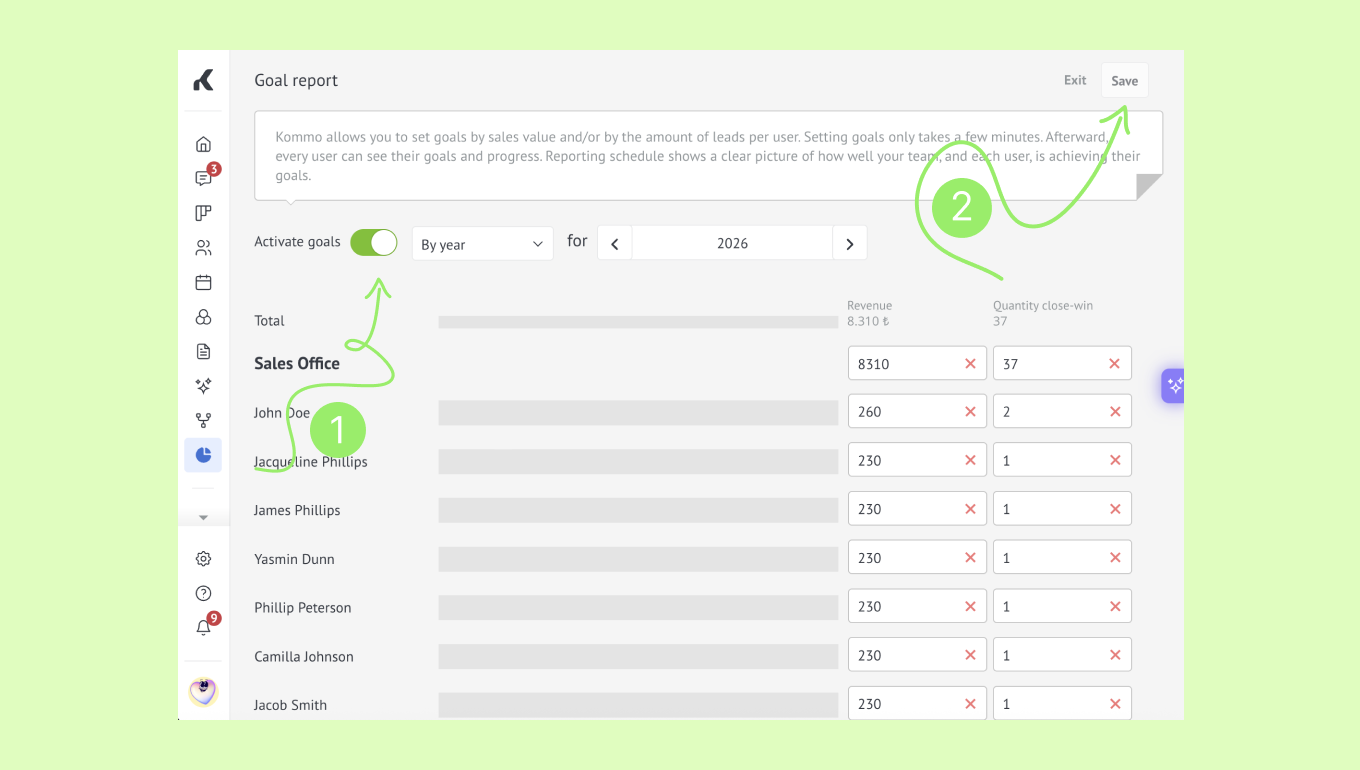
Note: If you leave a user’s goal blank, that user will appear as Goal not set in the report.