What you’ll need:
Any Kommo plan (Base, Advanced, Pro, Enterprise, or a 14-day trial).
Keep in mind:
Kommo AI works best when your messages match your interface language. It supports English, Indonesian, Portuguese, Russian, Spanish, and Turkish. Results may vary for other languages.
Only text is supported in this feature.
AI responses are generated based on available data, so results may vary depending on your content.
Kommo AI usage limits apply and may temporarily restrict access to certain features.
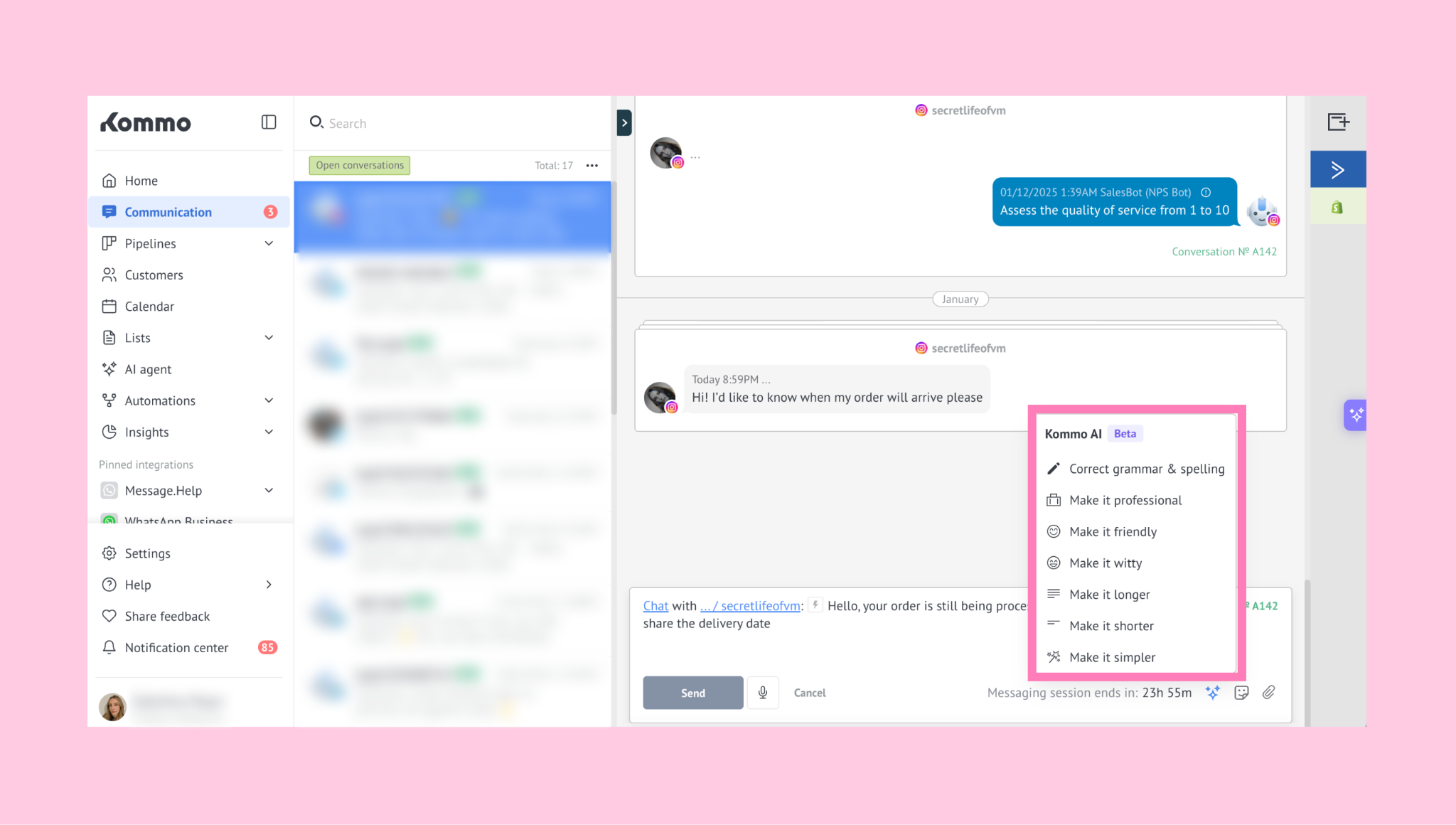
In this guide, you’ll learn how to use the AI rewriter to rewrite your messages directly in the chatbox.
How to set up AI rewriter
AI rewriter uses pre-written prompts to adjust your message. These prompts guide the AI to rewrite text based on a specific goal, such as tone, length, or clarity.
To use the AI rewriter, Kommo AI just needs to be enabled in your account. It’s ready to use right away and appears directly in the chatbox.
How to use AI rewriter
To use AI rewriter:
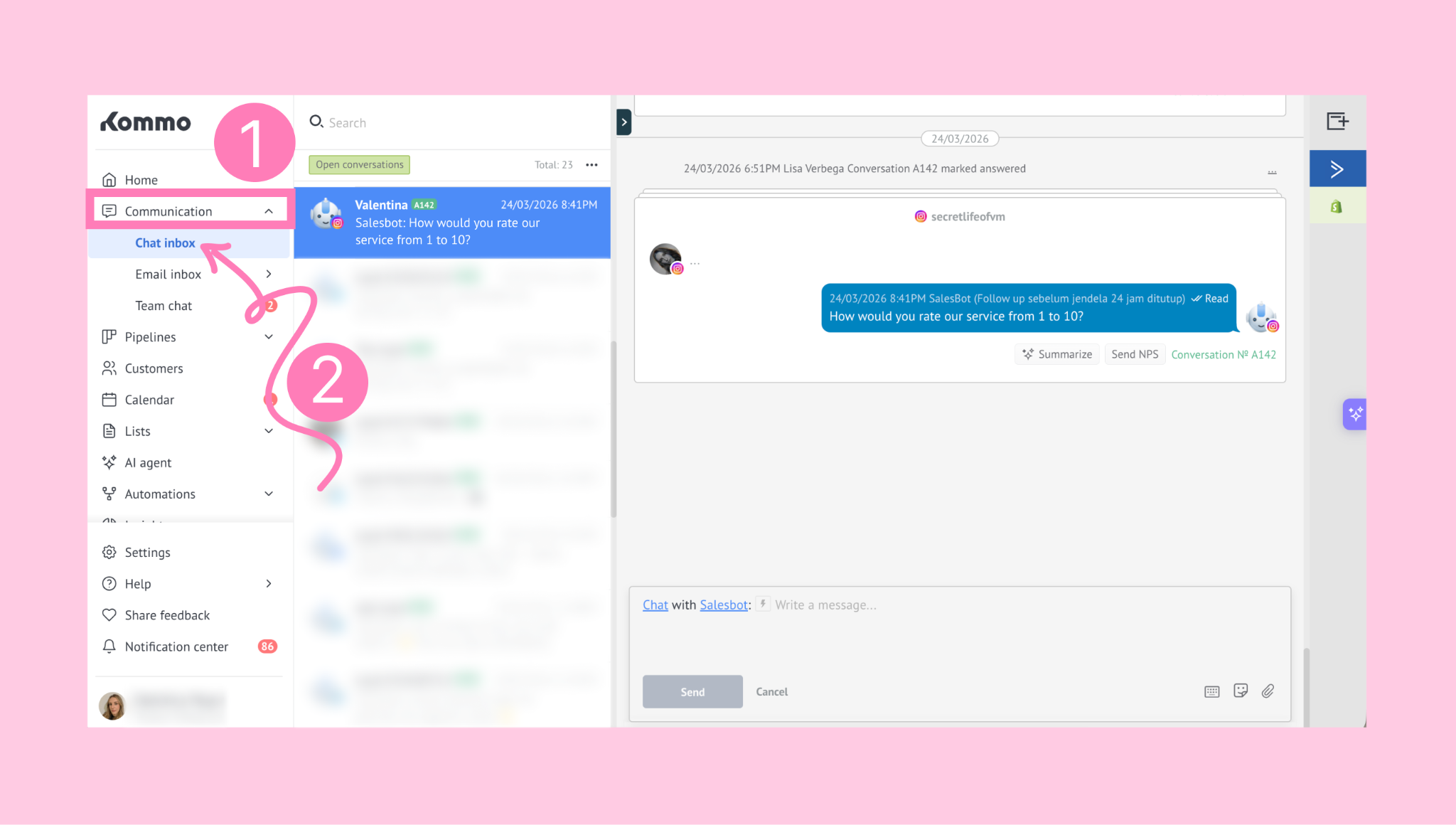
Go to Communications → Chat inbox, and open any chat.
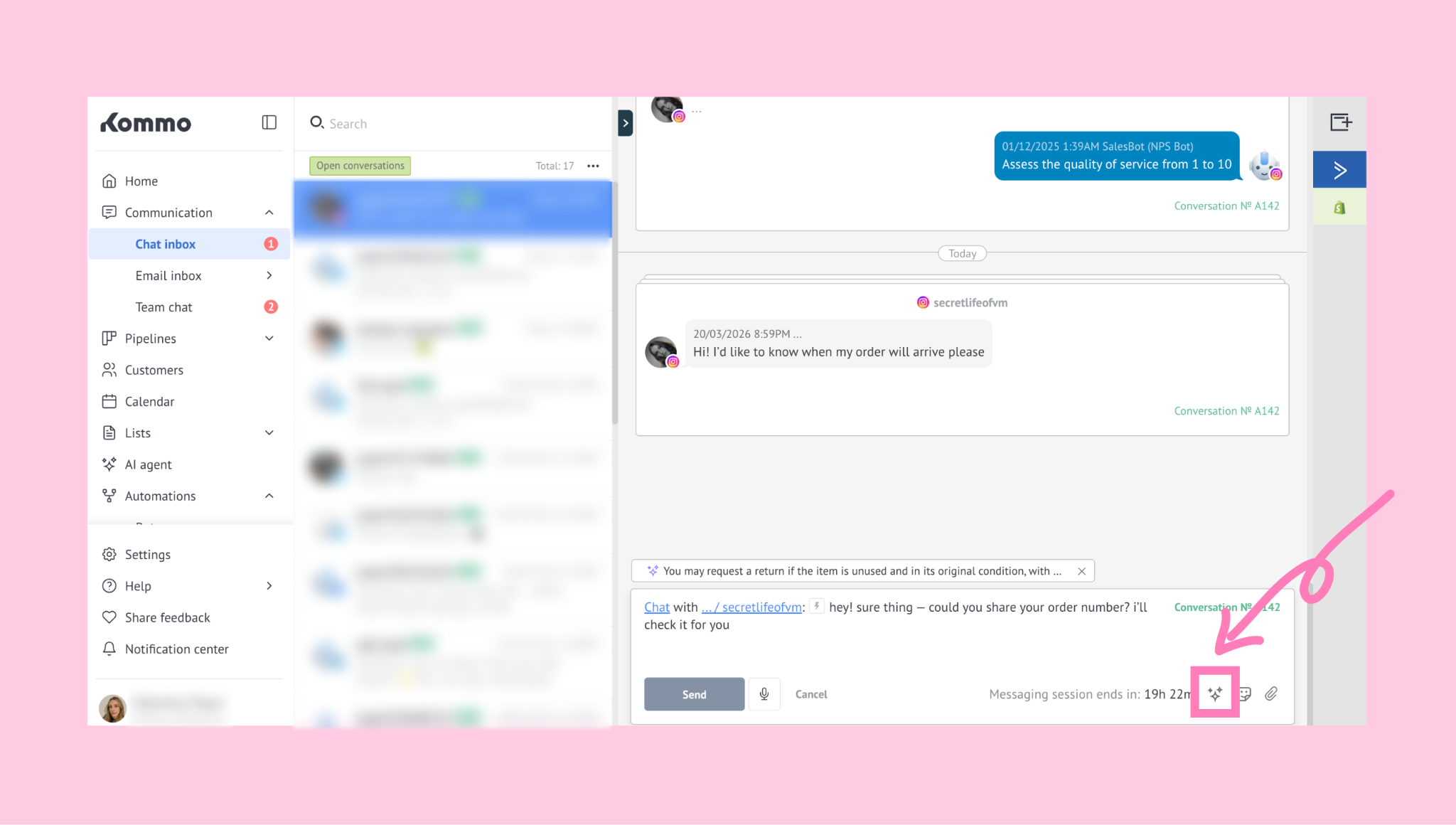
In the chatbox, type your message and click the Kommo AI button.
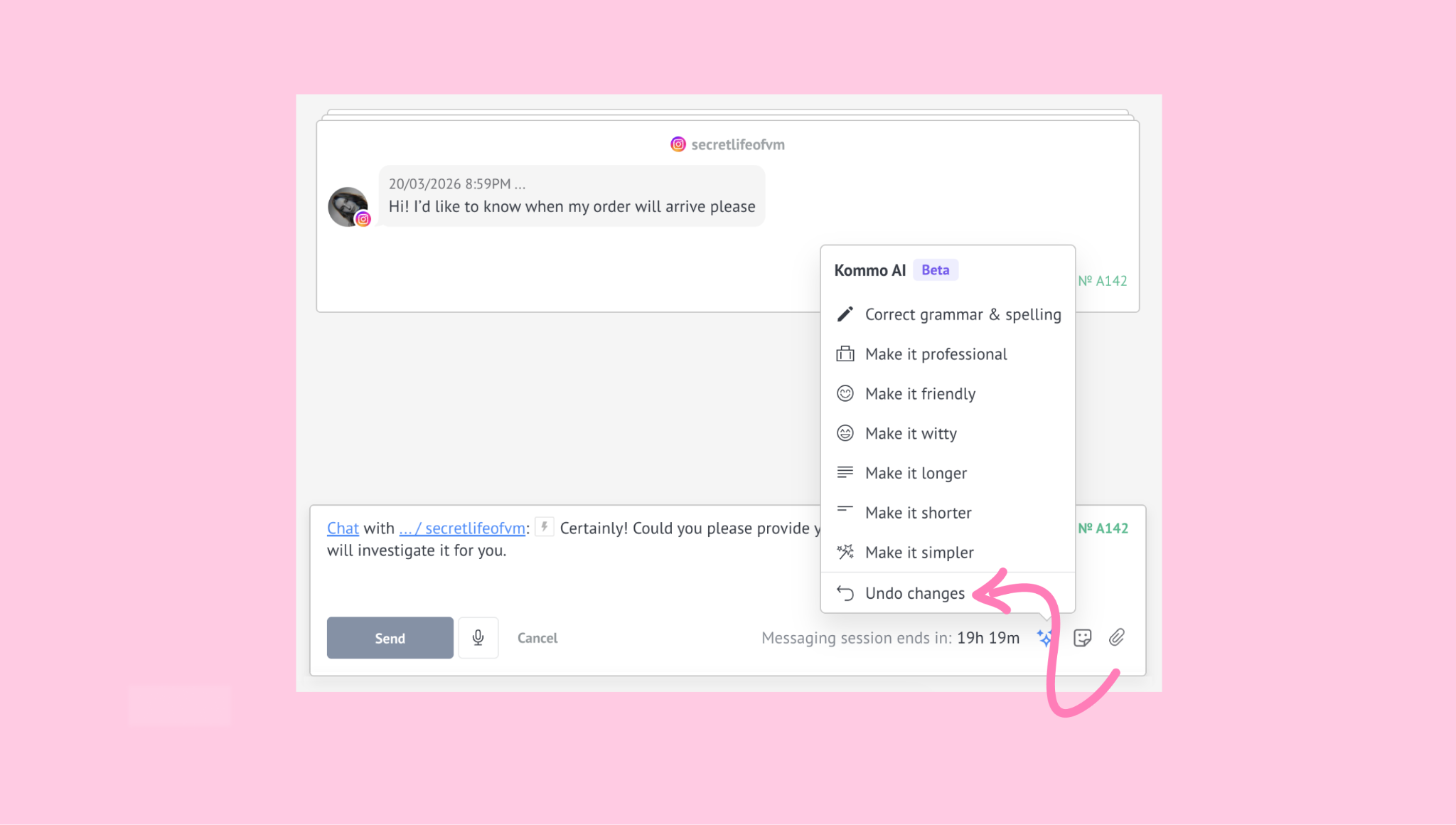
You’ll see a list of rewriting options. These are:
Correct grammar & spelling — fixes writing mistakes
Make it professional — makes the message sound more formal and polished
Make it friendly — makes the tone warmer and more approachable
Make it witty — adds a light, more playful tone
Make it longer — expands the message with more detail
Make it shorter — reduces the text while keeping the main point
Make it simpler — rewrites the message in clearer, easier language
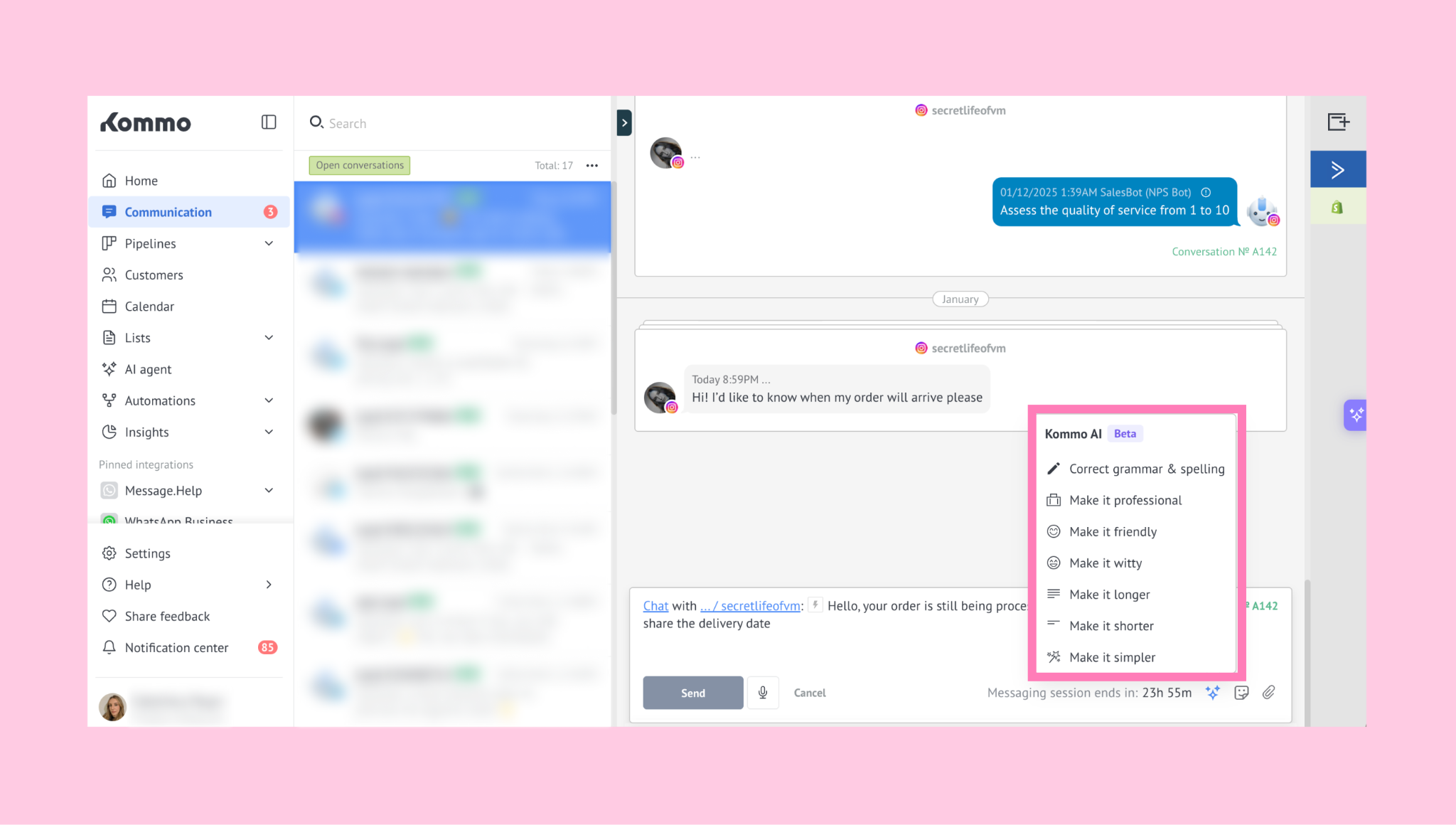
Choose the option you need (for example, Make it professional).
Once selected, Kommo AI rewrites the message directly in the chatbox.
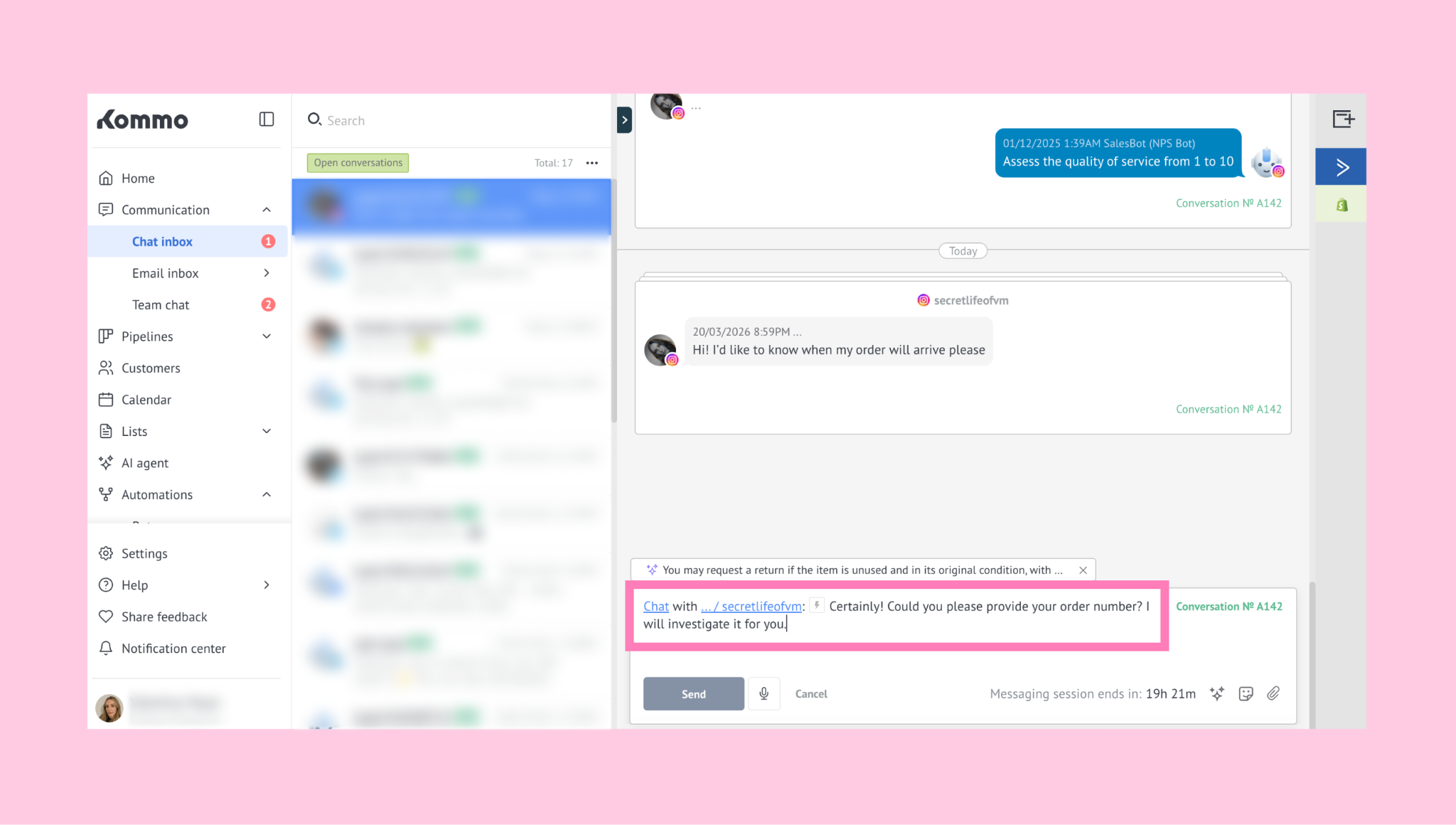
Important: You can’t edit the message while it’s being rewritten.
If needed, you can return to the original version by clicking the Kommo AI button and selecting Undo changes.
Example:
You’re scheduling a quick call with a client who asked for more details. You write the following message in the chat:
‘send me your company details and i’ll check pricing’
This message gets the point across, but it may sound too direct or impersonal depending on the conversation.
If you click Make it professional, Kommo AI may rewrite it like this:
‘Could you please share your company details? I’ll be happy to check the pricing for you.’