İhtiyacınız olanlar:
Herhangi bir Kommo planı (Base, Advanced, Pro, Enterprise veya 14 günlük deneme).
Aklınızda bulundurun:
Kommo yapay zekası en iyi şekilde mesajlarınız arayüz dilinizle eşleştiğinde çalışır. İngilizce, Endonezce, Portekizce, Rusça, İspanyolca ve Türkçeyi desteklemektedir. Sonuçlar diğer diller için değişiklik gösterebilir.
Bu özellikte yalnızca metin desteklenmektedir .
Yapay zeka yanıtları mevcut verilere göre üretilir, bu yüzden sonuçlar içeriğinize göre değişebilir.
Kommo AI kullanım sınırları uygulanır ve belirli özelliklere ulaşıldığında geçici olarak erişimi kısıtlayabilir.
Bu makalede, Kommo'da yapay zeka önerilerinin nasıl çalıştığını ve yazırken mesajlarınızı daha net ve etkili hale getirmek için bunları nasıl kullanacağınızı öğreneceksiniz.
AI önerileri nasıl kurulur
AI önerileri, yazdığınız mesajı analiz eder ve ton, açıklık, uzunluk ve yazı doğruluğuna dayalı hızlı iyileştirmeler önerir. Bu öneriler sohbet kutusunda otomatik olarak görünür ve mesajınızı göndermeden önce daha iyi hale getirmenize yardımcı olur.
Yapay zeka önerileri aracı, Kommo AI hesabınızda etkinleştirildiğinde kullanılabilir. Sohbet kutusunda otomatik olarak çalışıyor — kurulum gerekmez.
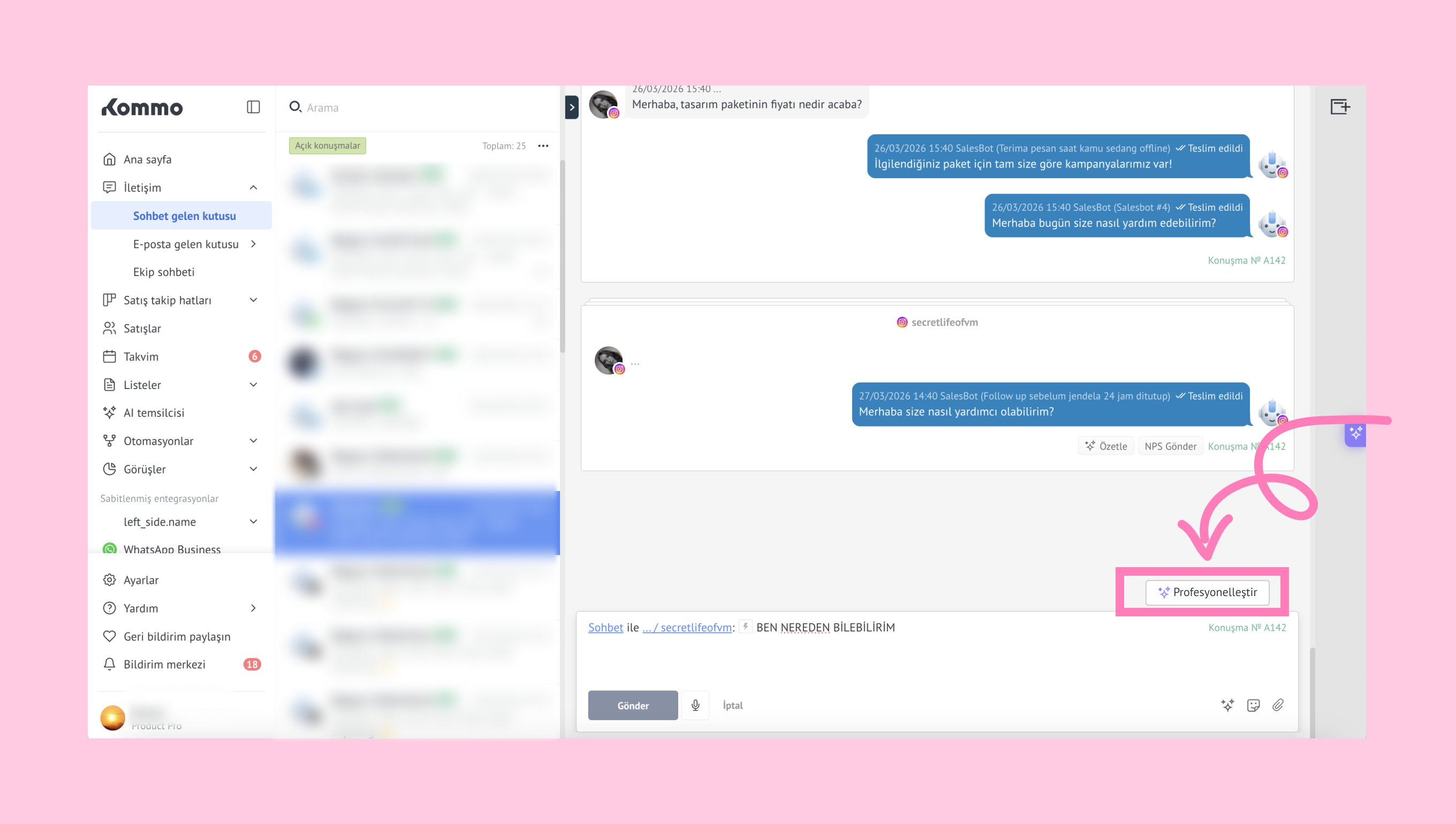
Mesajlarınızdaki yaygın sorunlar için tespit eder ve değişiklikler önerir:
Yazım hataları veya yazım hatalarından kaynaklanan kazara uygunsuz ifadeleri önlemeye yardımcı olur.
Mesajlarınızı açık ve doğru tutmak için dilbilgisi ve yazım hatalarını tespit edip düzeltir.
Mesajınızı analiz eder ve çok resmi veya olumsuz gelirse daha samimi olmasını önerir.
Ana fikri net tutarak uzun mesajları kısaltmayı önerir.
AI önerileri nasıl kullanılır
Yapay zeka önerilerini denemeye başlamak için:
İletişim → Sohbet gelen kutusuna gidin ve bir sohbet açın.
.png)
Mesajınızı sohbet kutusuna yazın.
Yazarken, öneriler otomatik olarak ortaya çıkar. Bunlar şunları içerebilir:
Hakaret kontrolü — yazım hatalarından kaynaklanan uygunsuz ifadeleri önlemeye yardımcı olur
Dilbilgisi ve yazım — yazım hatalarını düzeltir
Dahili ton asistanı — mesajınızı daha samimi yapar
Uzunluk ayarlaması — ana fikri koruyarak uzun mesajları kısaltır.
Not: Mesajınız belirli bir uzunluğa (yaklaşık 3000 karakter) ulaşırsa, Kısalt ' butonu otomatik olarak görünür. Tıklamak, metninizi kısaltırken ana mesajını korur.
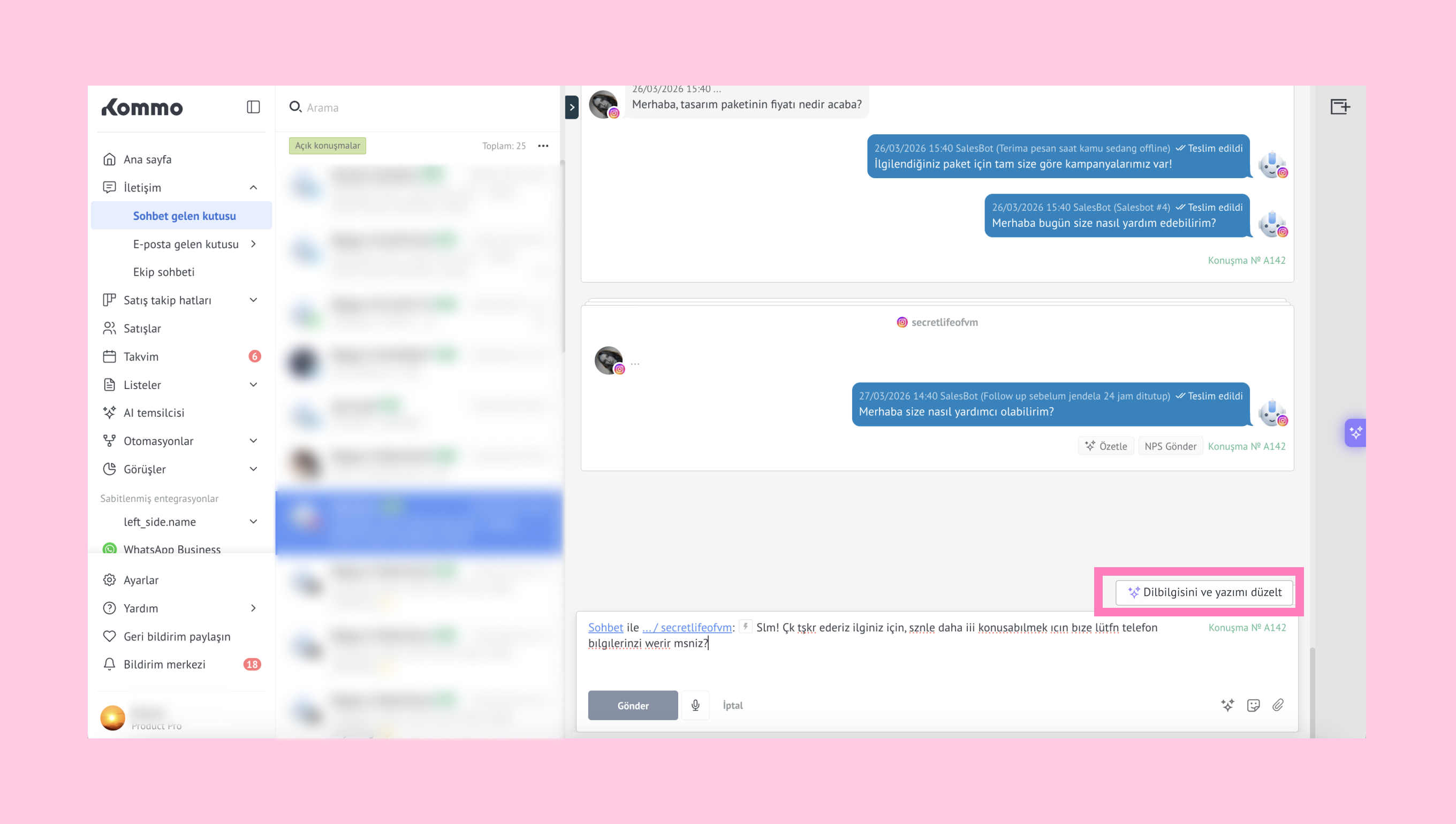
Önemli: 1800 karakterden küçük mesajlar için dilbilgisi, ton ve küfürler önerileri mevcuttur.
Bir öneri uygulamak için üzerine tıklayın.
Güncellenmiş metin, orijinal mesajınızın yerini alacaktır.
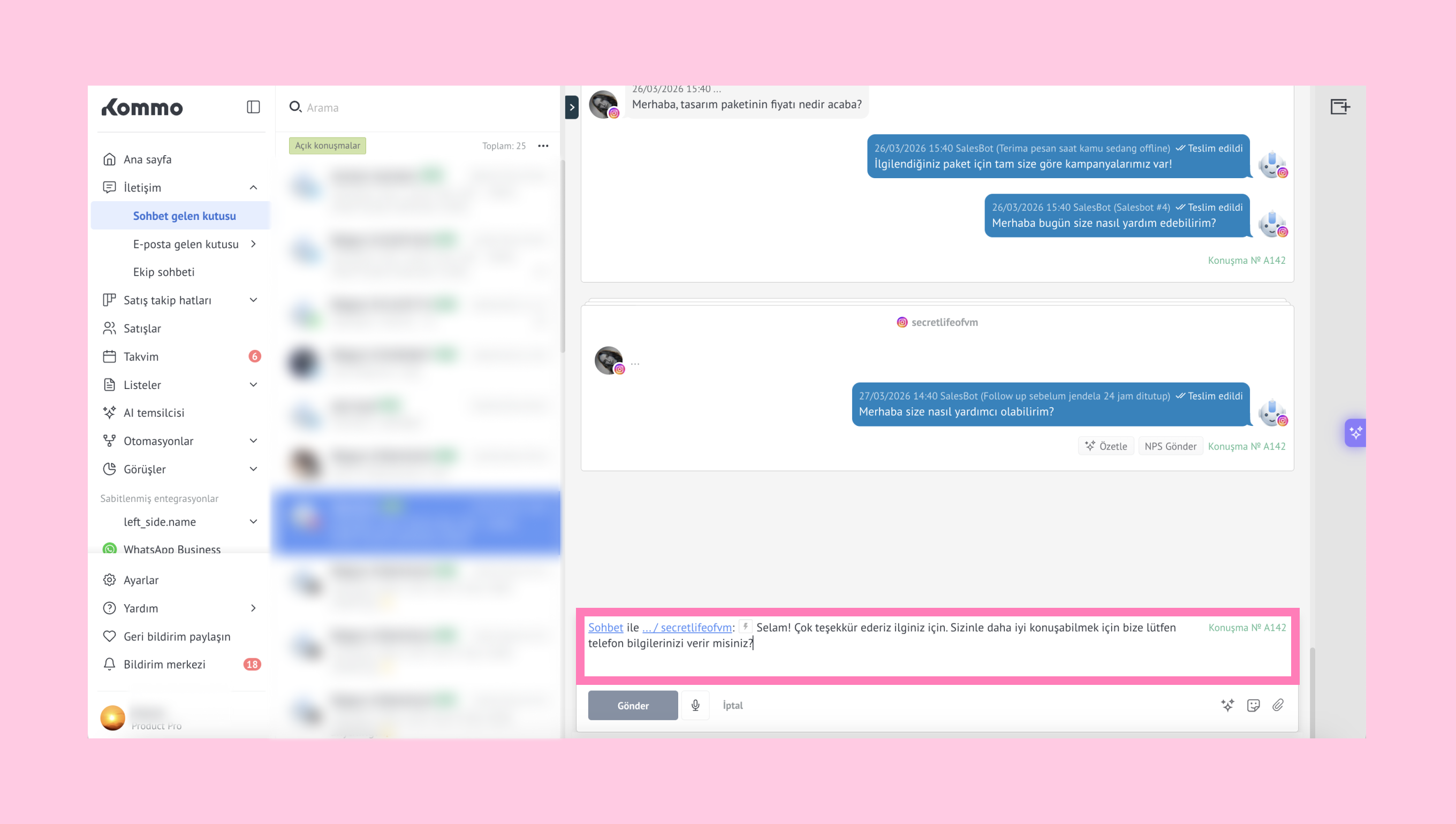
Değişikliği istediğiniz zaman Değişiklikleri Geri Geri Al seçeneğine tıklayarak geri alabilirsiniz.
Örnek:
Bir anlaşmayı kapatmaya çalışıyorsunuz ve sınırlı süreli indirim sunmak istiyorsunuz.
Aşağıdaki mesajı yazarsınız:
'Merhaba, bugün siparişinizi onaylarsanız %10 indirim teklif edebiliriz. Konumunuza bağlı olarak ücretsiz teslimat da dahil edebiliriz.'
Bir öneri ortaya çıkıyor: Dostane yap
Tıkladıktan sonra mesaj şöyle olur:
'Merhaba! 😊 Bugün onaylarsanız size %10 indirim sunmaktan memnuniyet duyarız. Konumunuza bağlı olarak ücretsiz teslimat da dahil edebiliriz!'