What you’ll need:
Admin access in Kommo.
Admin access to the Meta Business Portfolio that owns your WhatsApp Business Account if you need to remove the number from Meta.
Access to the WhatsApp Business app if your number was connected through the app.
Access to the Facebook account originally used to connect the integration.
Keep in mind:
The steps depend on how you originally connected your WhatsApp number.
Removing and reconnecting a number can temporarily stop WhatsApp messaging until the connection is restored.
Changes made in Meta may take a few minutes to appear in Kommo.
If Meta cannot verify or provide access to your WhatsApp Business connection, you may be unable to send or receive WhatsApp messages in Kommo. To restore access, you may need to remove the existing connection and connect your number again.
Important: Reconnect your number only when a WhatsApp error or Kommo support instructs you to do so. Removing a connection temporarily stops WhatsApp messaging in Kommo until you connect the number again.
This article explains why you may need to reconnect your WhatsApp number and how to remove the old connection and connect your number again.
Note: Before continuing, find the Meta error code displayed in Kommo and follow the instructions in Troubleshoot WhatsApp message errors. Some WhatsApp Business errors can be resolved without reconnecting your number.
Why you may need to reconnect your WhatsApp number
You may need to reconnect your WhatsApp number if Kommo can no longer connect to your WhatsApp Business Account through Meta.
This can happen when:
The Meta authorization used to connect WhatsApp to Kommo has expired or is no longer valid.
Kommo no longer has permission to access your WhatsApp account.
Your WhatsApp number was removed, disconnected, or is no longer active in the WhatsApp Business Platform.
Your WhatsApp Business Account was changed, moved, or connected to another provider.
Reconnecting creates a new connection between Kommo and Meta so you can continue sending and receiving WhatsApp messages.
Choose the correct reconnection method
Follow the steps for the way you originally connected your WhatsApp number:
If you connected the number directly in Kommo and do not use it in the WhatsApp Business app, go to If you connected your number directly in Kommo.
If you connected the number from the WhatsApp Business app and still use it there, go to If you connected your number through the WhatsApp Business app.
If you are unsure, check whether you currently use the same number in the WhatsApp Business app. If you do, follow the WhatsApp Business app instructions. If you do not, follow the instructions for a number connected directly in Kommo.
Reconnect your WhatsApp number
The steps depend on how you originally connected your number.
If you connected your number directly in Kommo
If you connected the number directly in Kommo, first delete it from the WhatsApp Business integration settings in Kommo, and then delete it from WhatsApp Manager in Meta.
First, remove the number from Kommo:
Open WhatsApp Business integration settings.
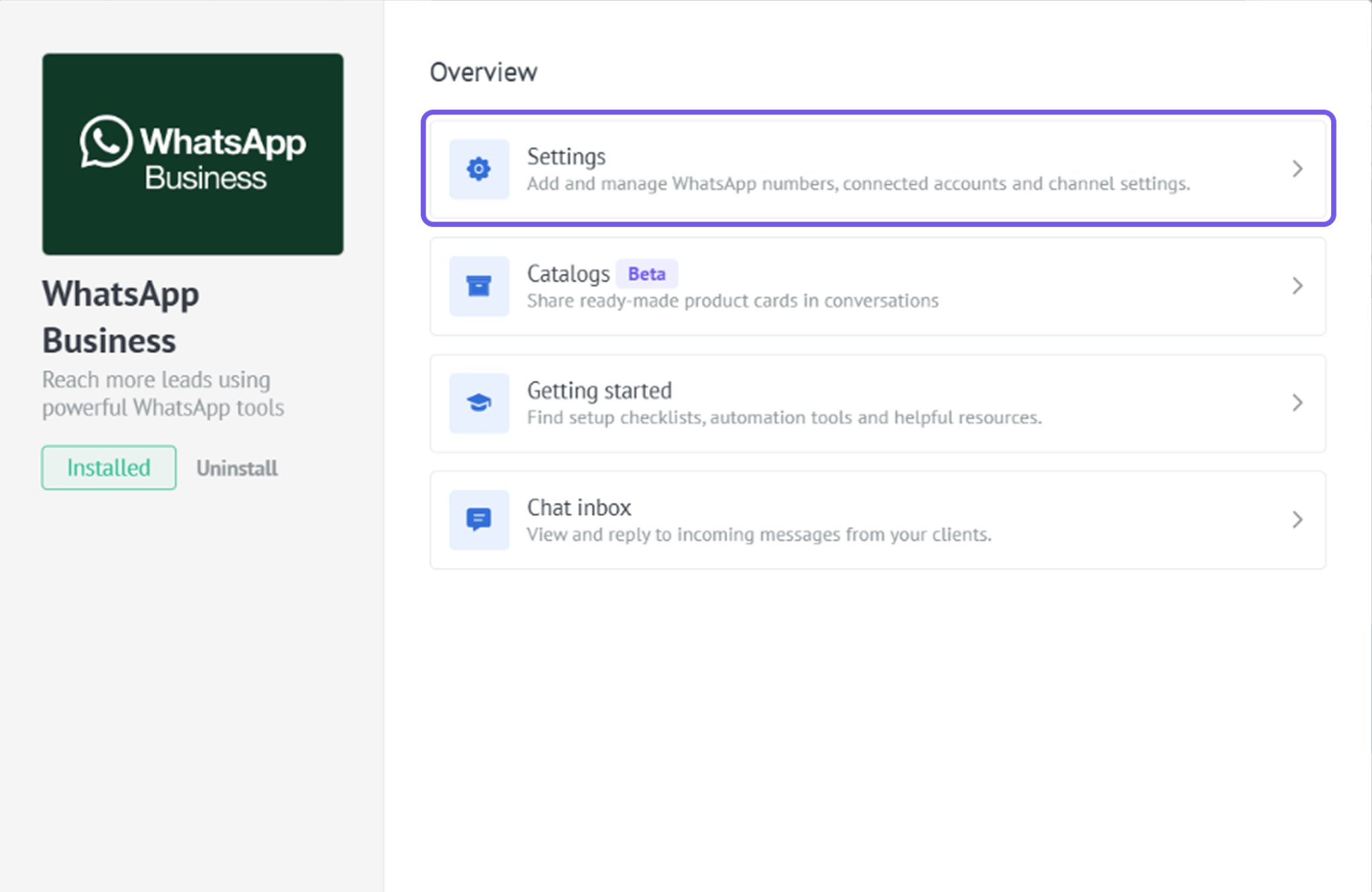
Find the affected number under Accounts.
Click the trash bin icon next to the number.
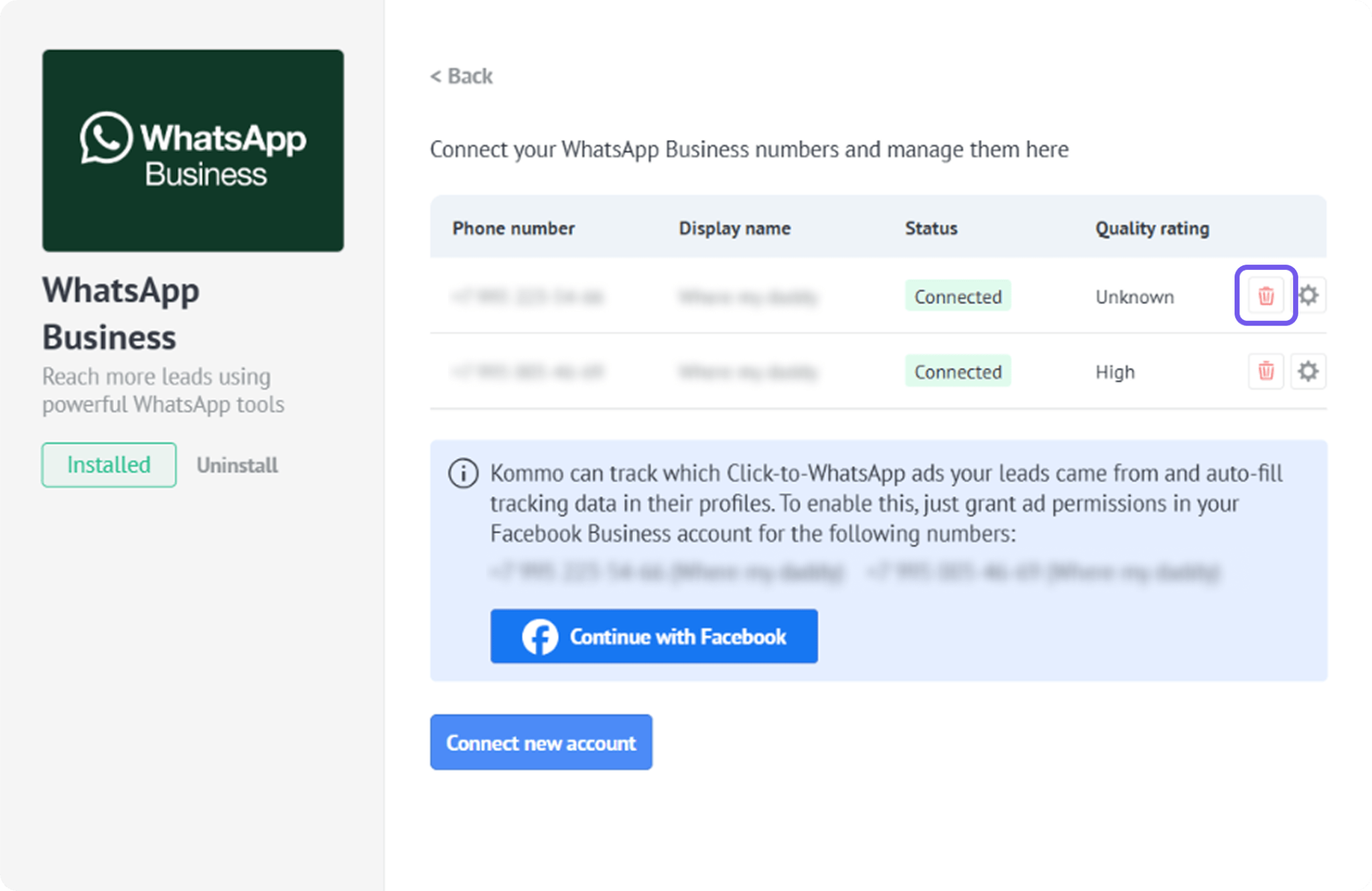
Confirm the removal.
Then remove the number from Meta:
Select the Business Portfolio where your WhatsApp Business Account is located.
Open the WhatsApp Business Account, then WhatsApp Manager.
Go to Account tools → Phone numbers.
Find the affected number.
Click the trash icon.
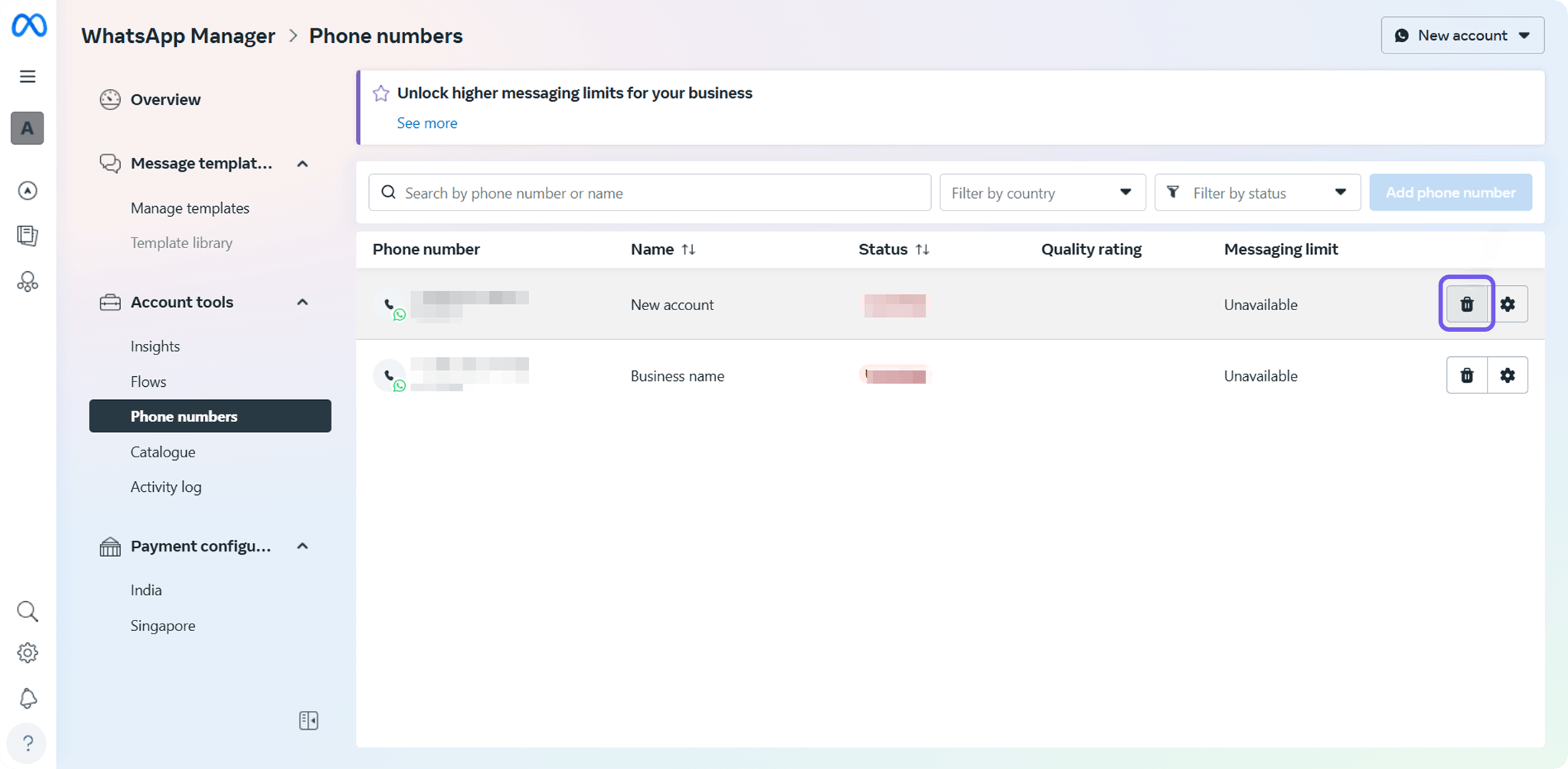
Follow Meta’s instructions to confirm the removal.
Note: Only a Business Portfolio admin can remove a business phone number. Meta does not allow you to remove a number if it was used to send paid messages within the previous 30 days. For details, see Meta’s business phone number documentation.
After removing the required connections, continue to Reconnect your number in Kommo.
If you connected your number through the WhatsApp Business app
If you connected the number through the WhatsApp Business app, you cannot delete it from the WhatsApp Business integration settings in Kommo. The trash icon will be inactive. Instead, disconnect Kommo from the WhatsApp Business app on your phone:
Open the WhatsApp Business app on the phone connected to the number.
Go to Settings → Account → Business Platform.
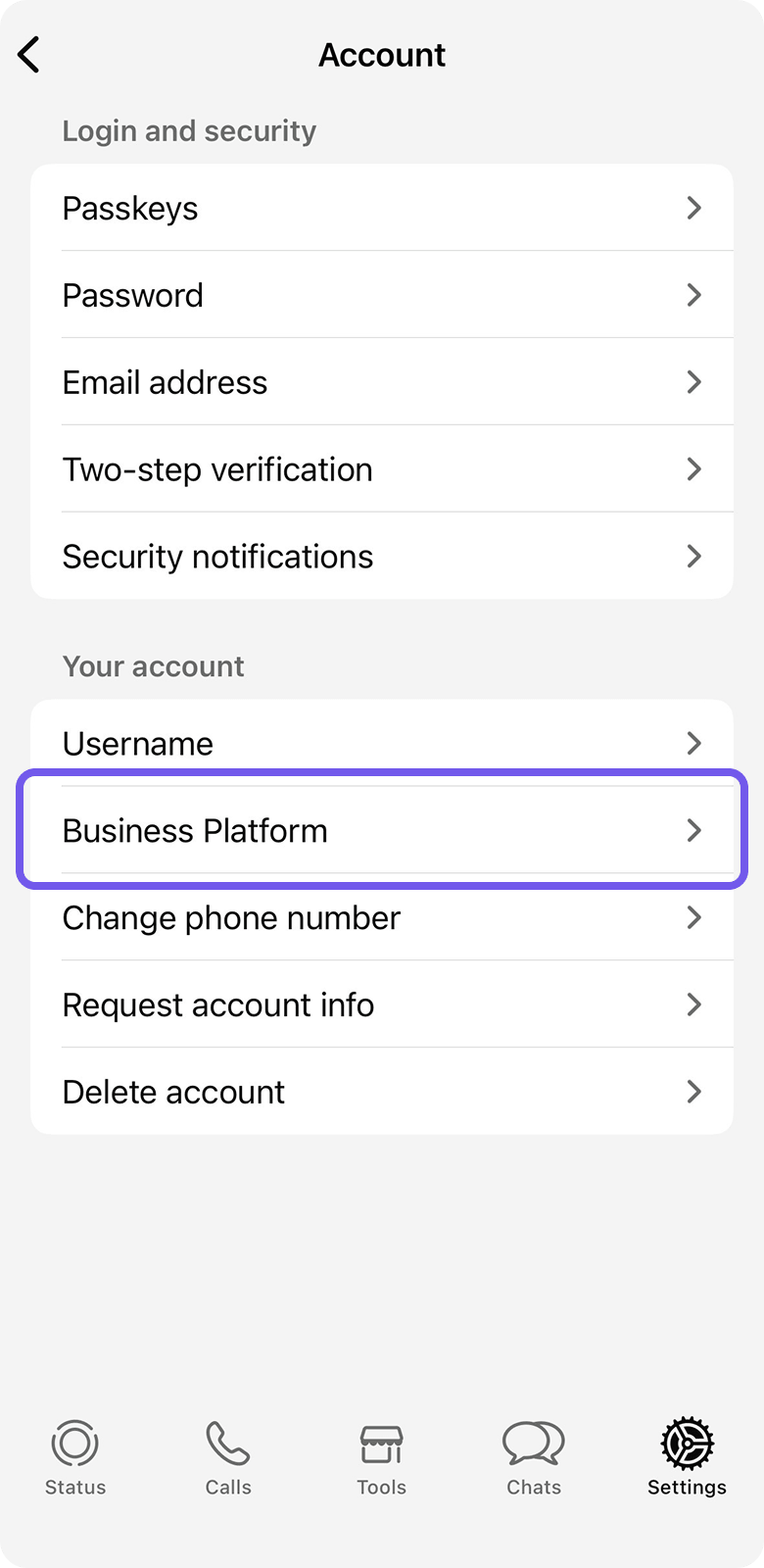
Find Kommo in the list of connected platforms.
Tap Disconnect.
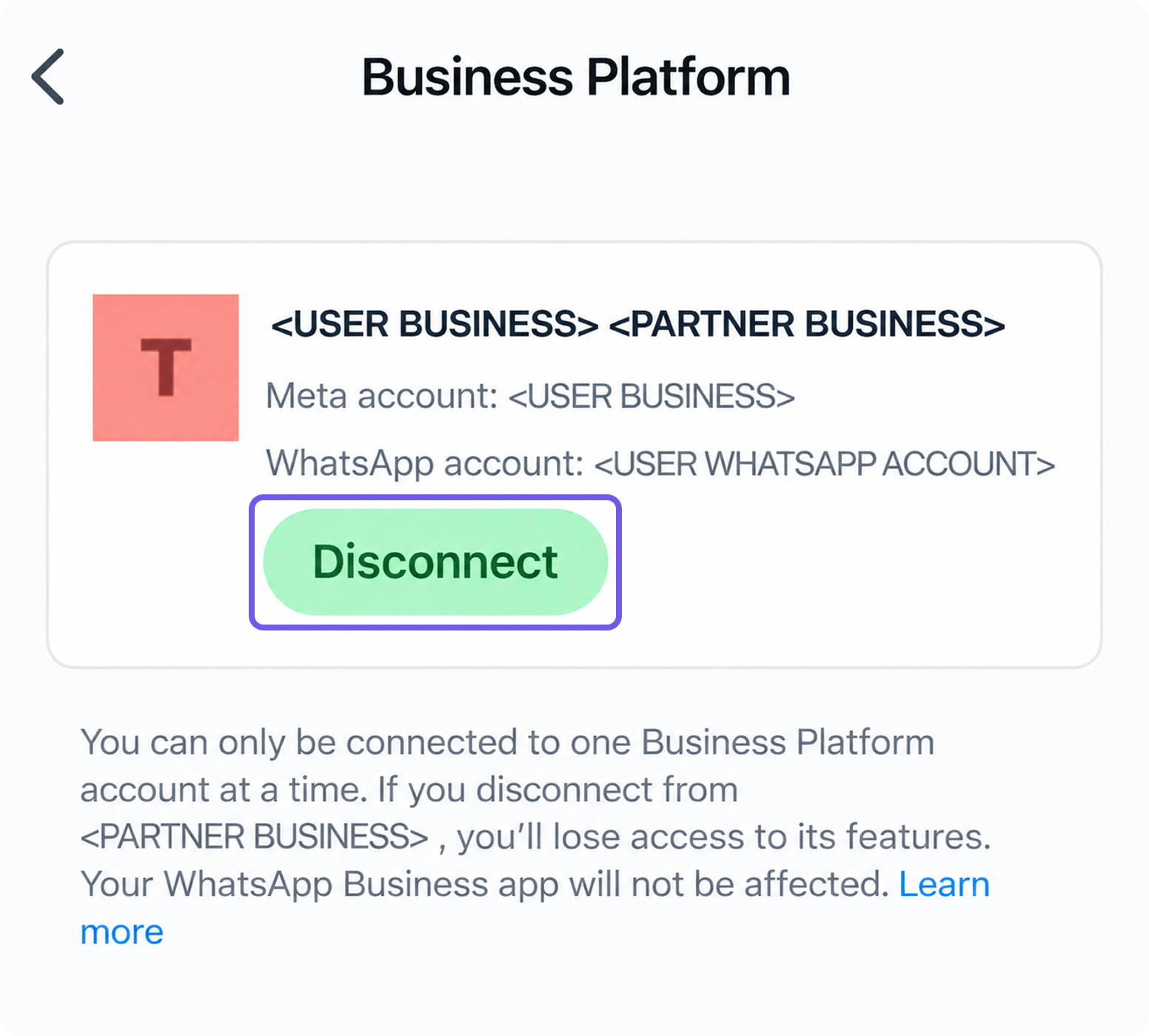
After disconnecting Kommo, continue to Reconnect your number in Kommo.
Reconnect your number in Kommo
After removing the old connection, connect your number again:
After reconnecting:
Send an approved WhatsApp template to a test lead.
Check that the message is delivered successfully.
Ask the test contact to reply and confirm that the incoming message appears in Kommo.
If the same error appears immediately after reconnecting, wait a few minutes and try again. Changes made in Meta may need time to synchronize.
If the issue continues
If reconnecting your WhatsApp number does not resolve the issue:
Check the Meta error message shown in Kommo.
Follow the troubleshooting steps in Troubleshoot WhatsApp Business message errors.
If the issue remains unresolved, contact Kommo support and provide:
The Meta error code.
A screenshot of the error message.
Information about how your WhatsApp number was connected.
Confirmation that you removed and reconnected the number.
The result of the test message you sent after reconnecting.