What you’ll need:
Any Kommo plan (Base, Advanced, Pro, Enterprise, or 14-day trial)
Keep in mind:
File size must not exceed 2 MB and should contain no more than 10,000 rows
The spreadsheet must not include empty rows
Only single-sheet (one-page) spreadsheets can be imported
The spreadsheet must include names for the records
Each Kommo plan includes a limited number of leads, contacts, and companies. You can view the exact limits here
In Kommo, your client database consists of leads, contacts, and companies. You can add records manually one by one, or save time by importing them in bulk from a file or a spreadsheet. You can also export your records at any time — for example, to analyze your data or use it in other tools.
This article walks you through the import and export process step by step.
Import leads, contacts and companies
Supported formats:
You can import records in two ways:
Single spreadsheet — if one spreadsheet contains information about leads, contacts, and companies, Kommo can create and link all records during a single import.
Multiple spreadsheets — if your leads, contacts, and companies are stored in separate spreadsheets, import each file separately and link the records later if needed. Learn how in this article.
Important: Before importing, check that the column names in your file or Google Sheet match the field names in Kommo exactly, including capitalization.
Import from a file
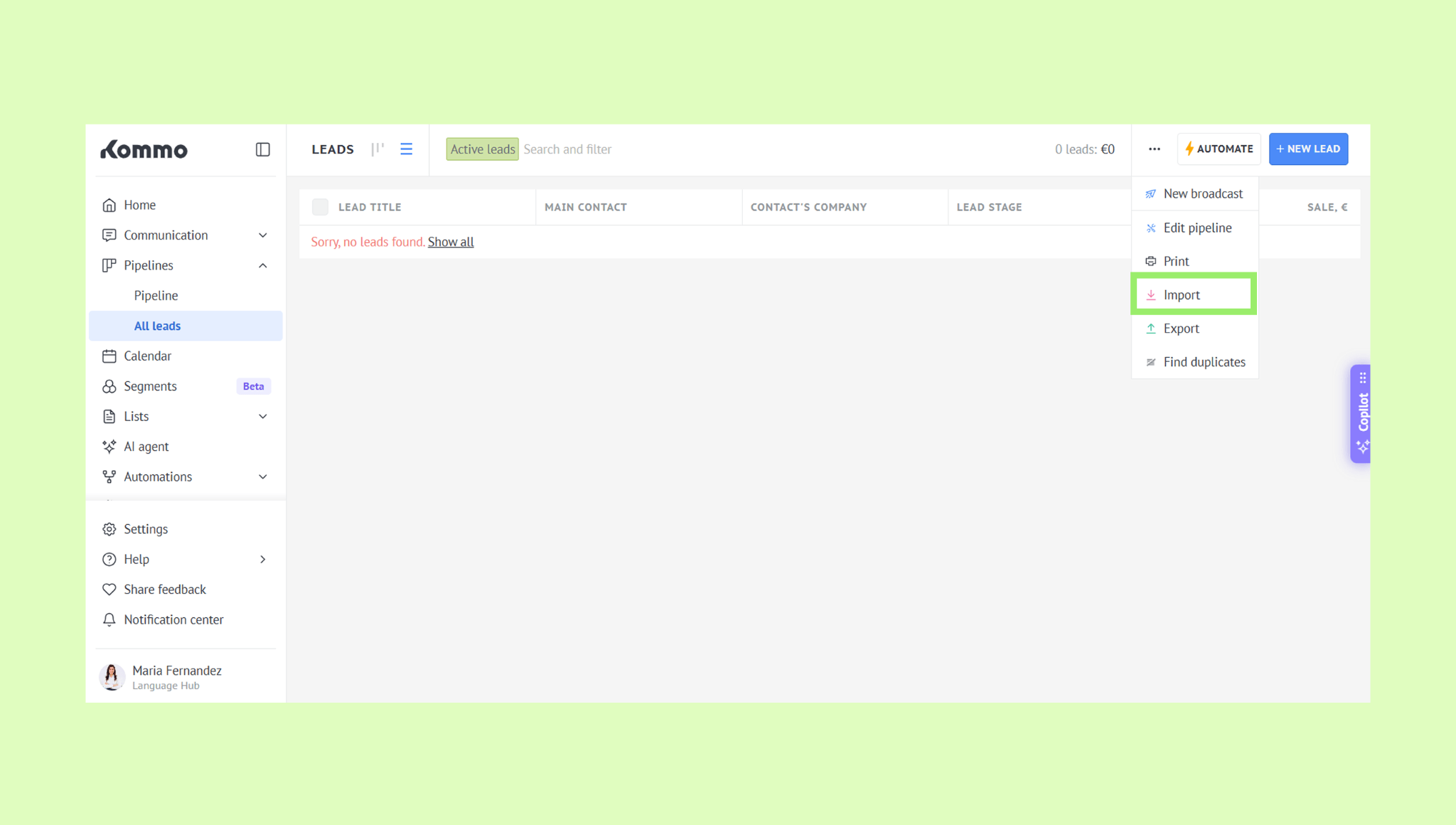
Go to Pipelines → All leads, click …, and select Import.
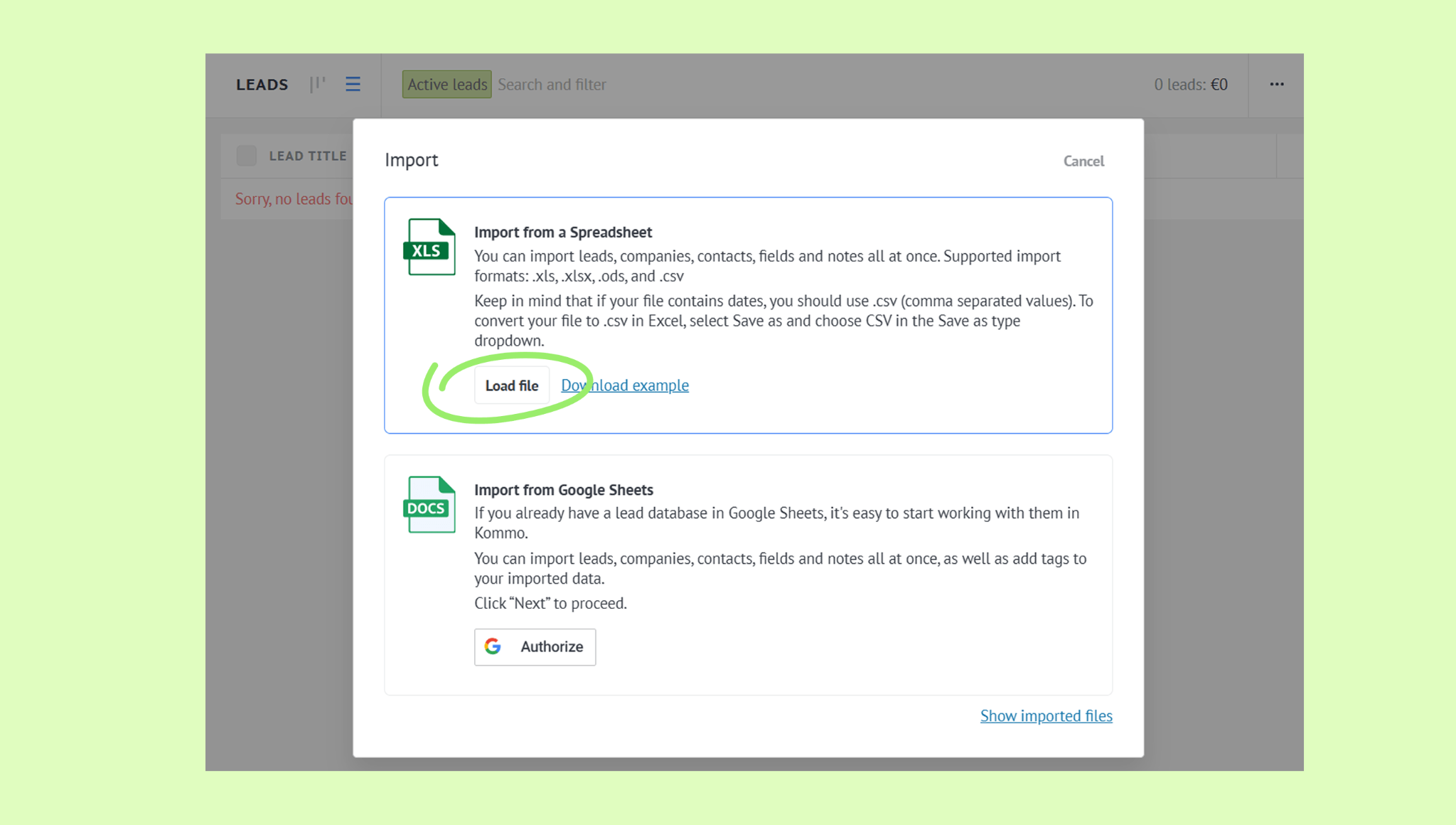
Click Load file and select a file from your computer.
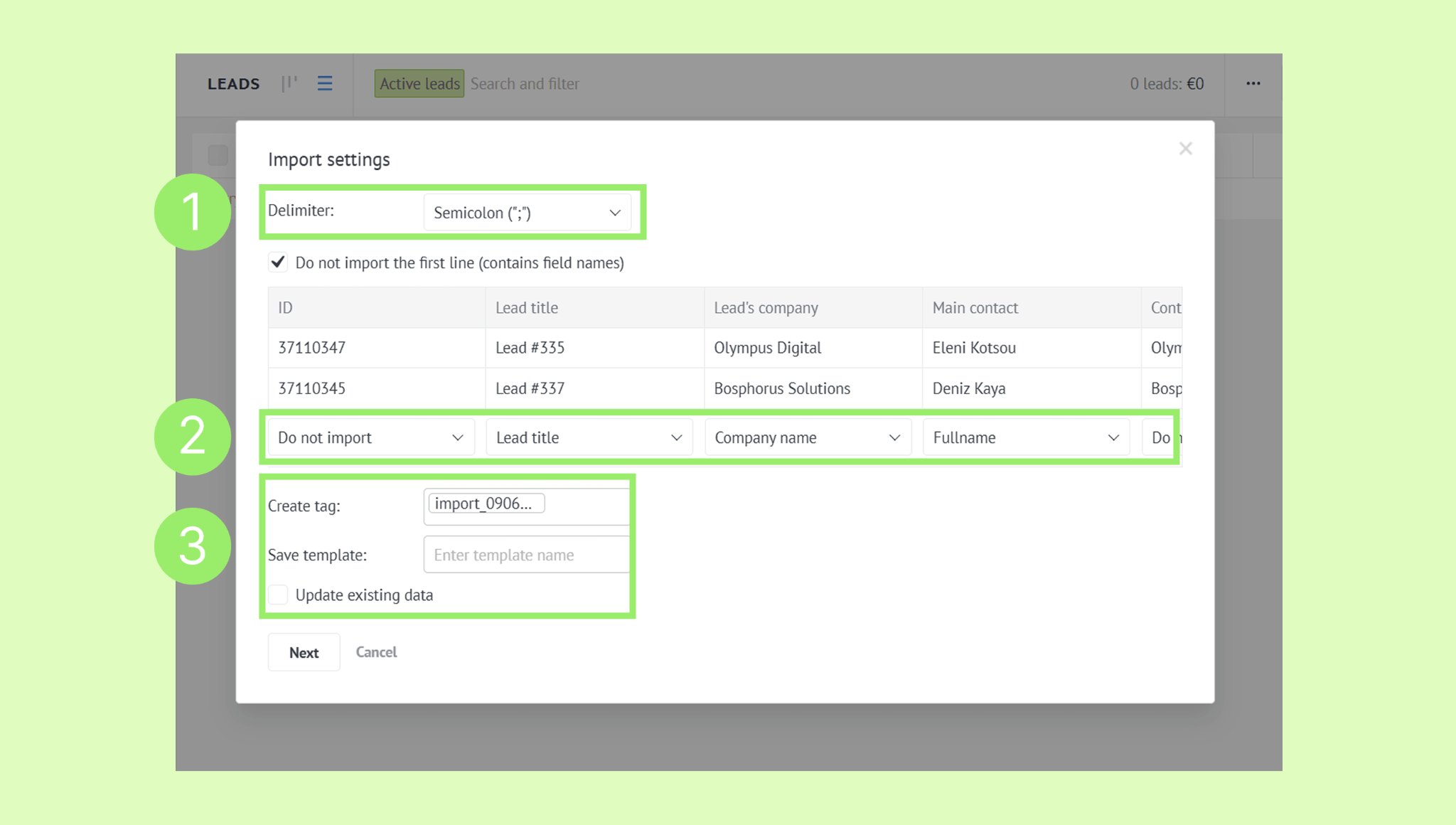
Choose the delimiter.
Match the fields to import.
Optionally, add a tag to make it easier to find the imported records later.
Optionally, save the field order as a template if you want to reuse it in the future — enter a name in the Save template field.
Optionally, check Update existing data to update records that already exist in Kommo.
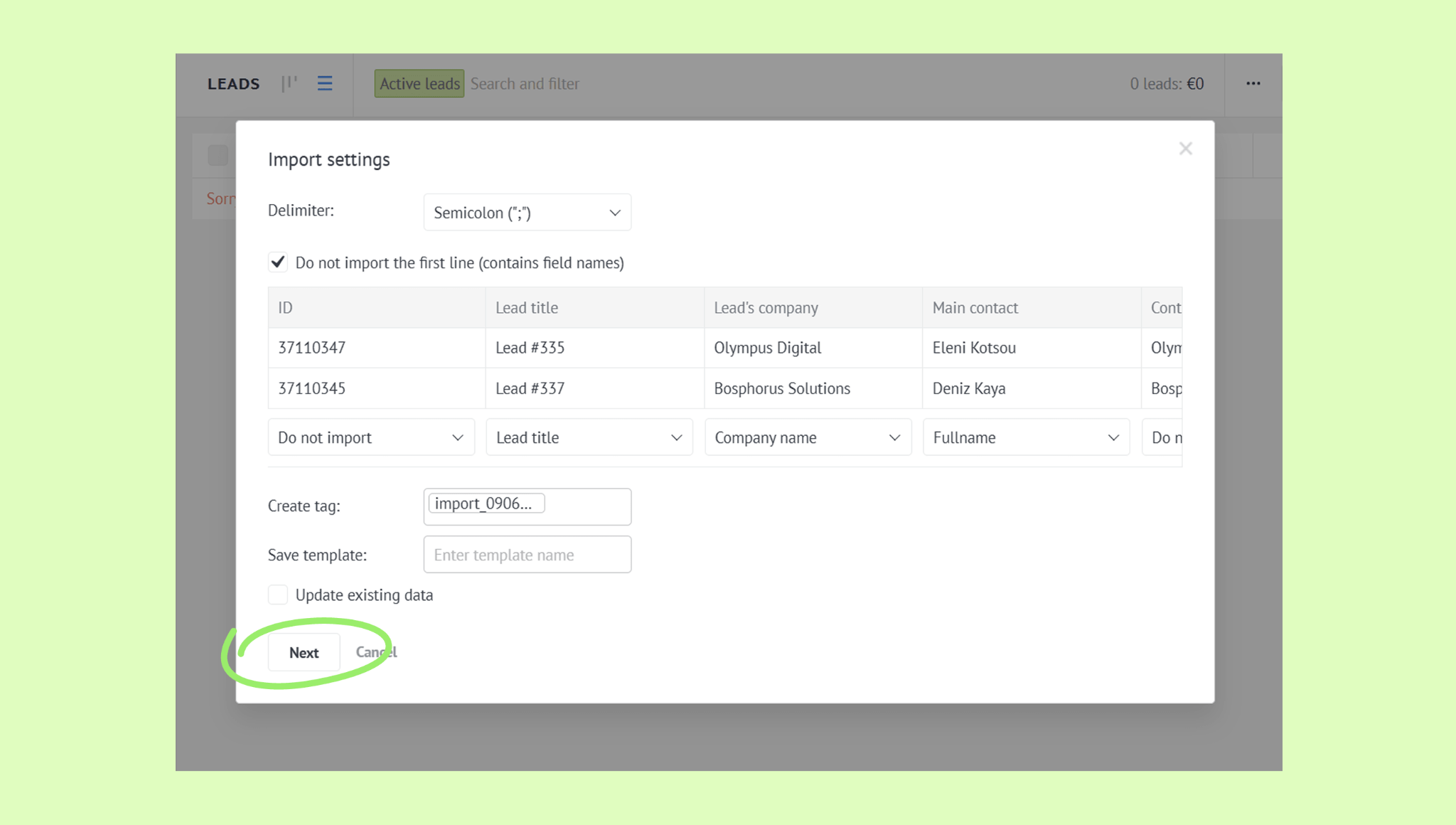
Click Next, then Continue with CRM to complete the import.
Import from a Google Sheet
Go to Pipelines → All leads, click …, and select Import.
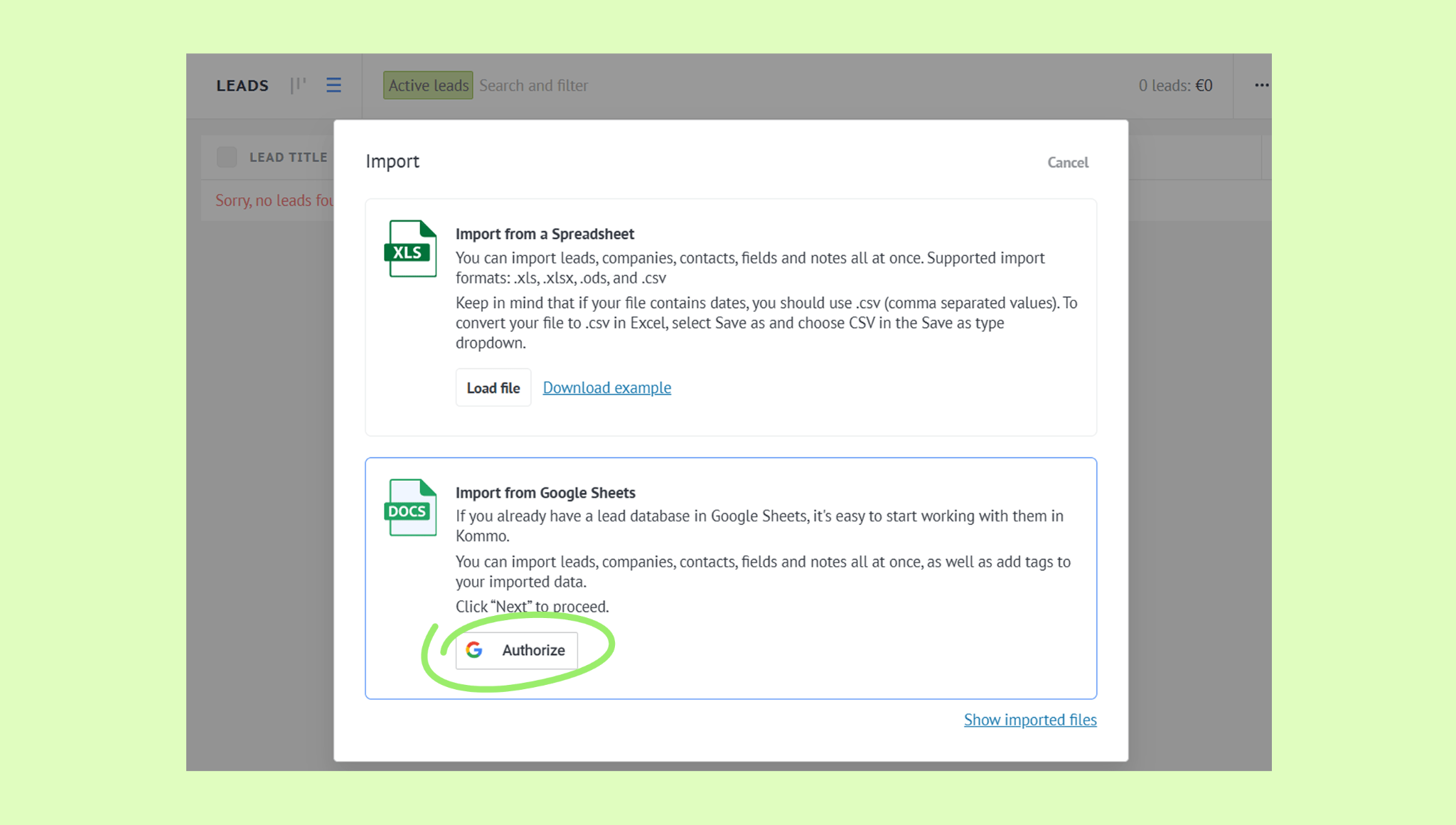
Click Authorize and log in with your Google account.
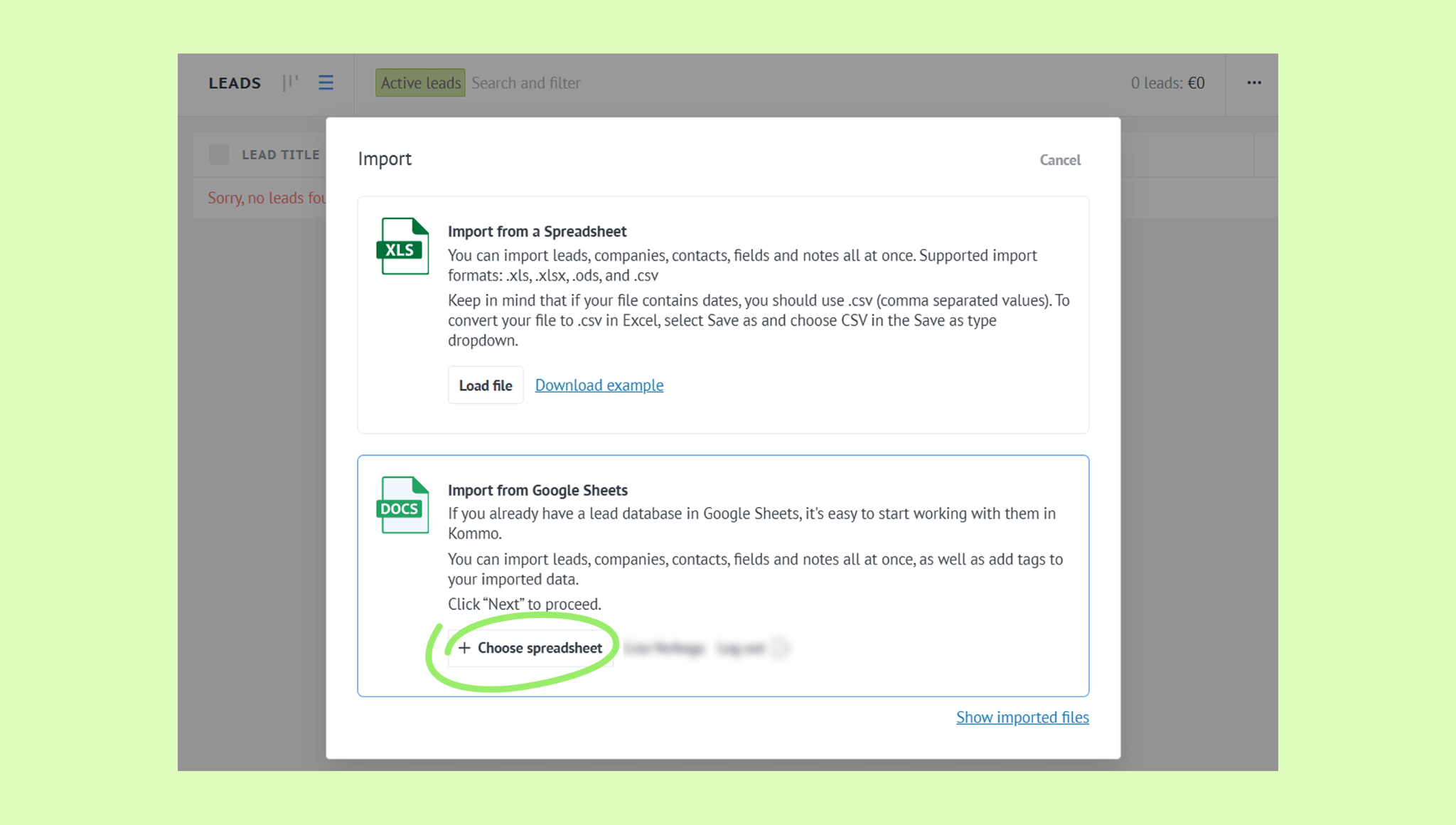
After returning to Kommo, click + Choose spreadsheet.
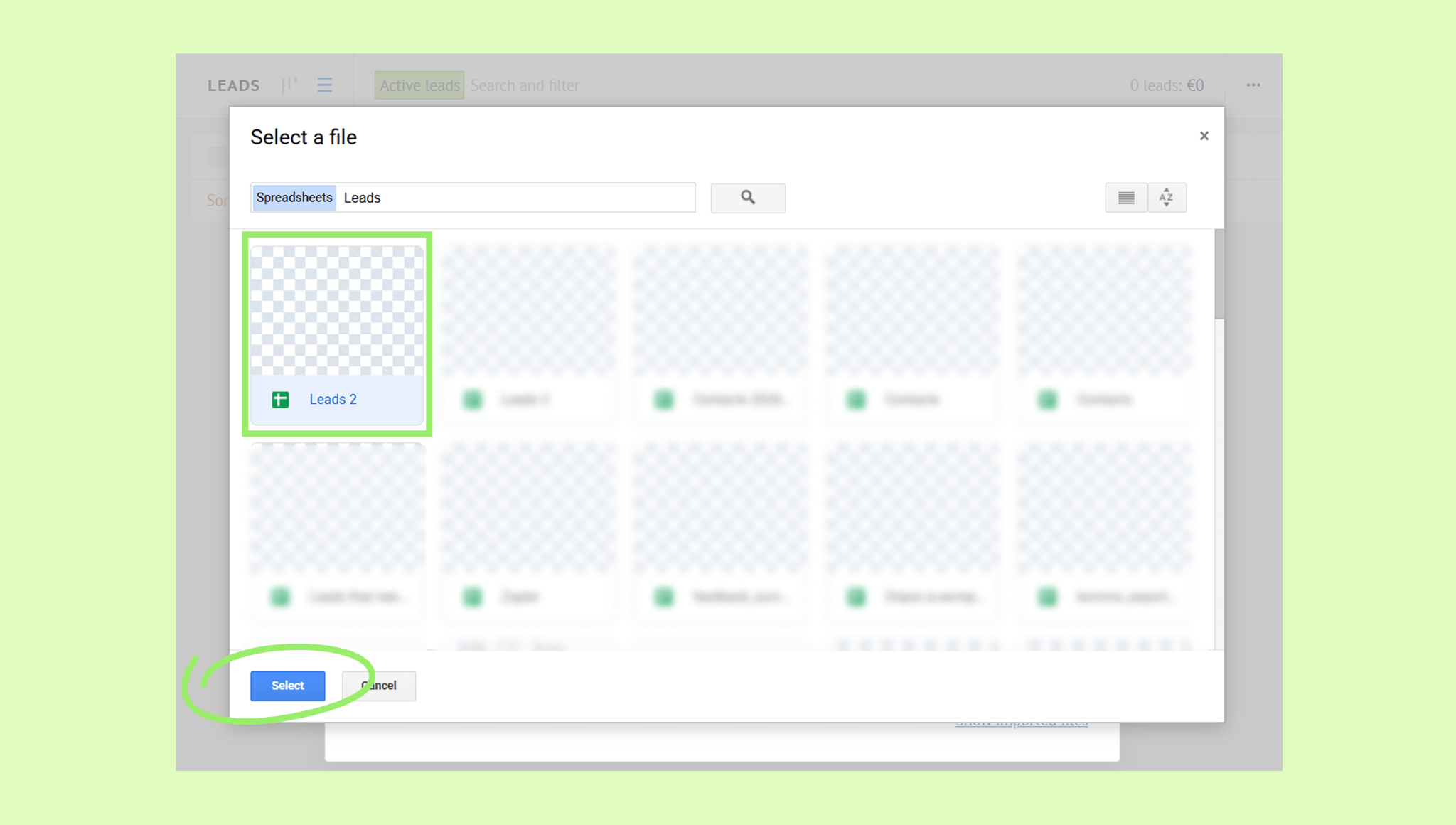
Search for your spreadsheet, click it, and click Select.
Match the fields to import.
Optionally, add a tag to make it easier to find the imported records later.
Optionally, check Update existing data to update records that already exist in Kommo.
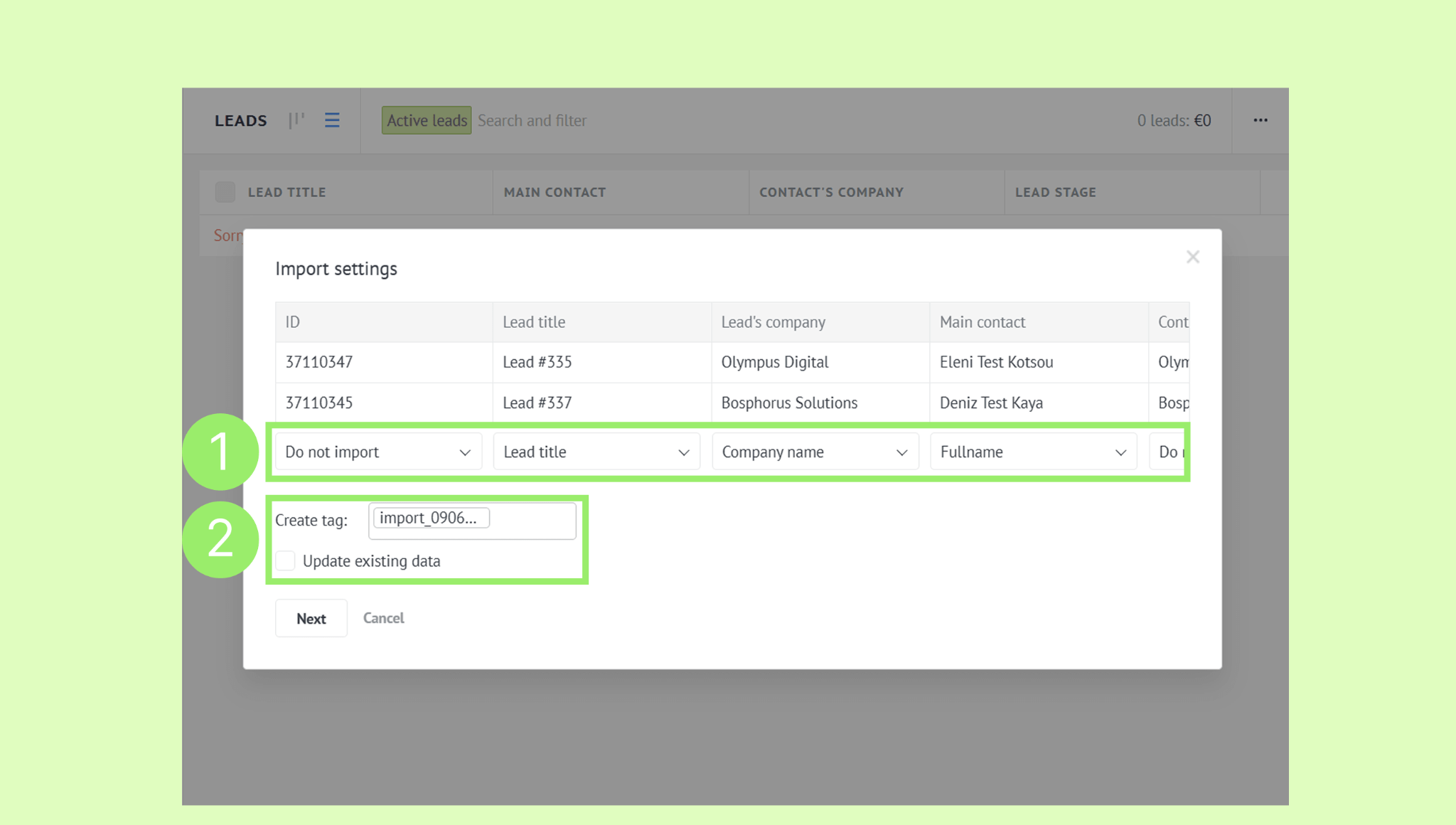
Click Next, then Continue with CRM to complete the import.
If your spreadsheet includes contact and company details, Kommo will automatically create and link those records to the imported leads.
To import contacts and companies separately, go to Lists → Contacts or Companies and follow the same steps.
To learn how to add custom fields, check out this article.
Export leads, contacts and companies
You can export your data from Kommo in the following formats:
Export to a file
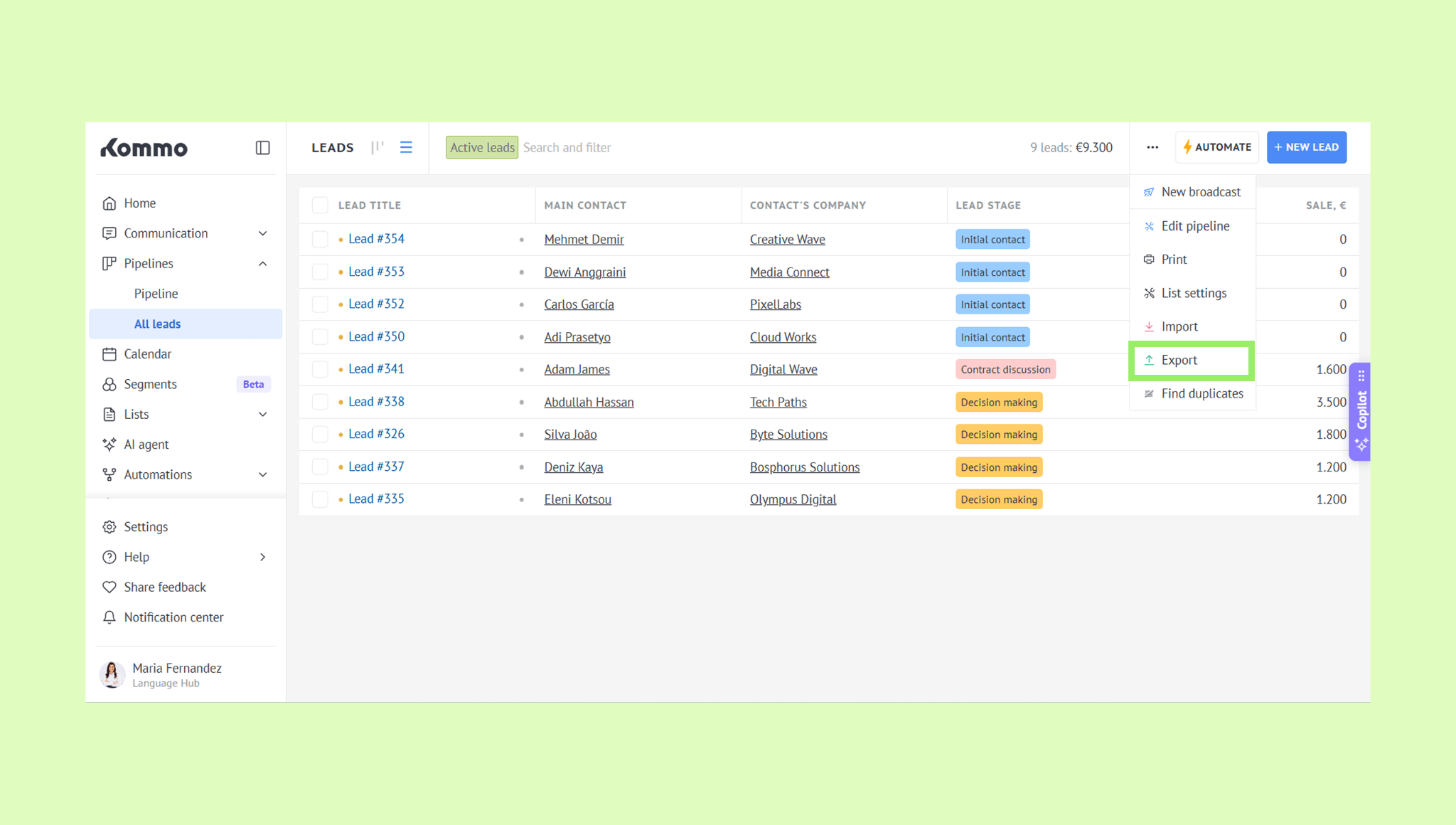
Go to Pipelines → All leads, click …, and select Export.
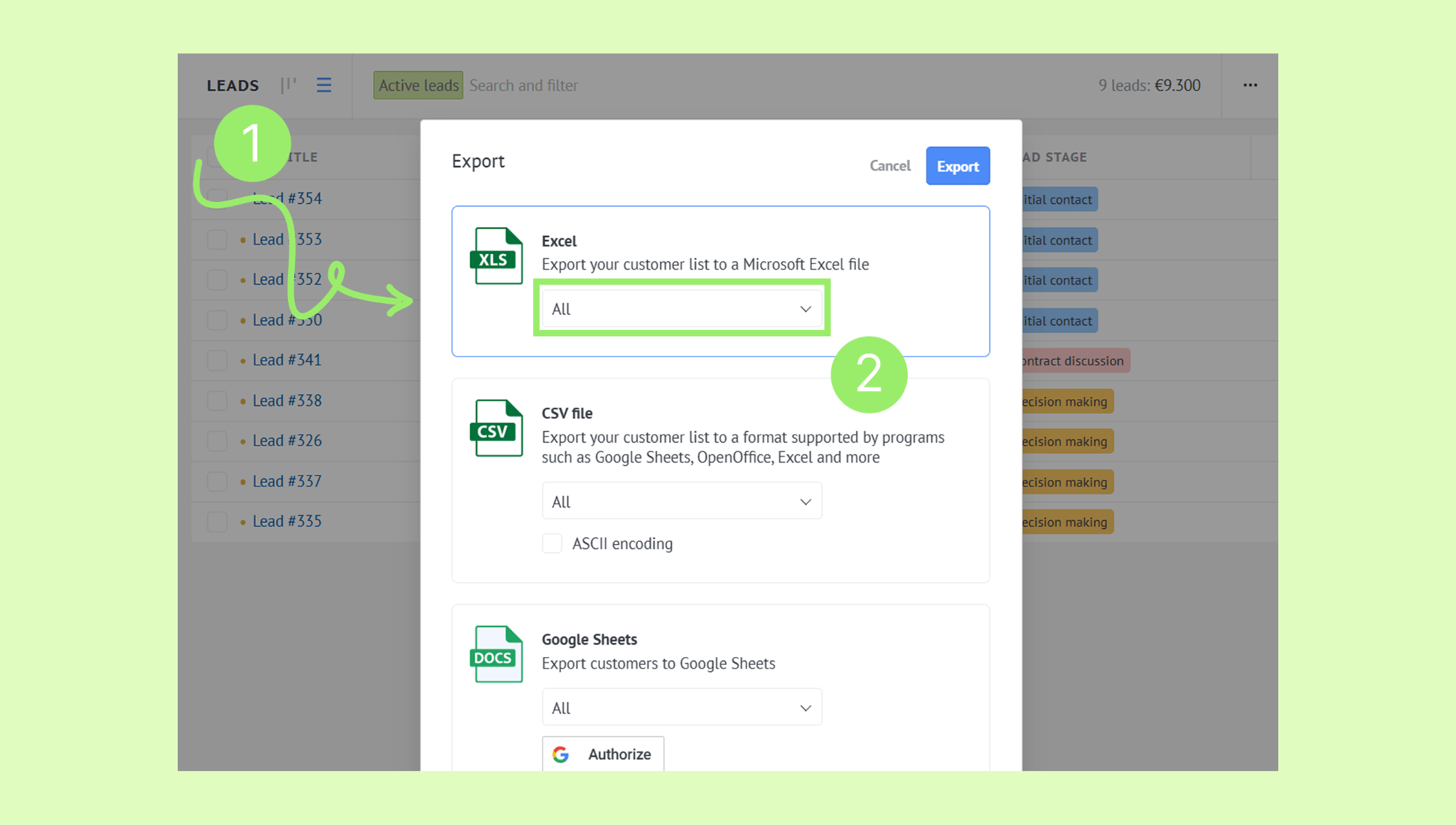
Choose a file format and select which records to export — all records or only those on the current page.
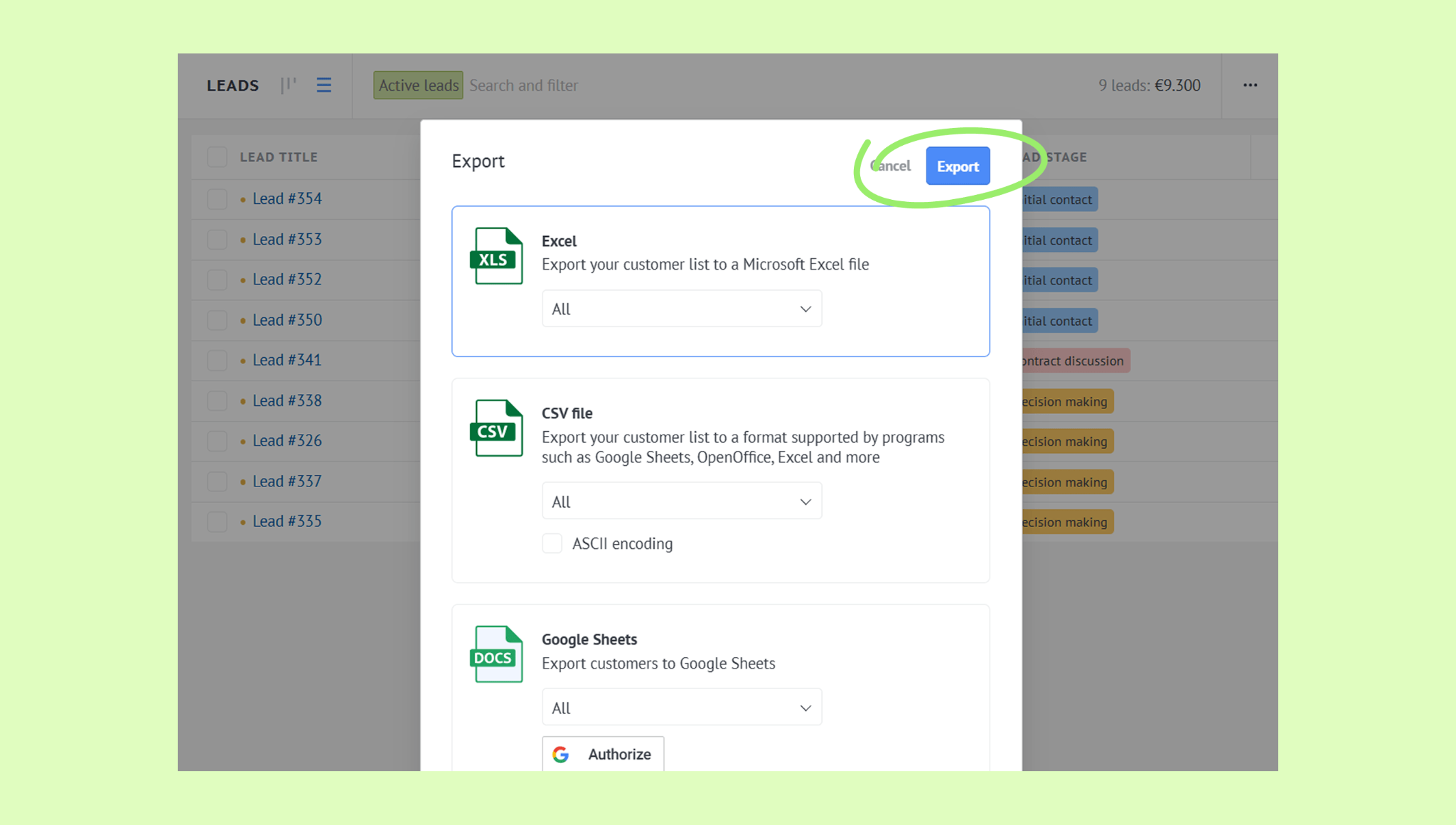
Click Export and download the file.
Export to a Google Sheet
Go to Pipelines → All leads, click …, and select Export.
Select Google Sheet as the format and choose which records to export – all records or only those on the current page.
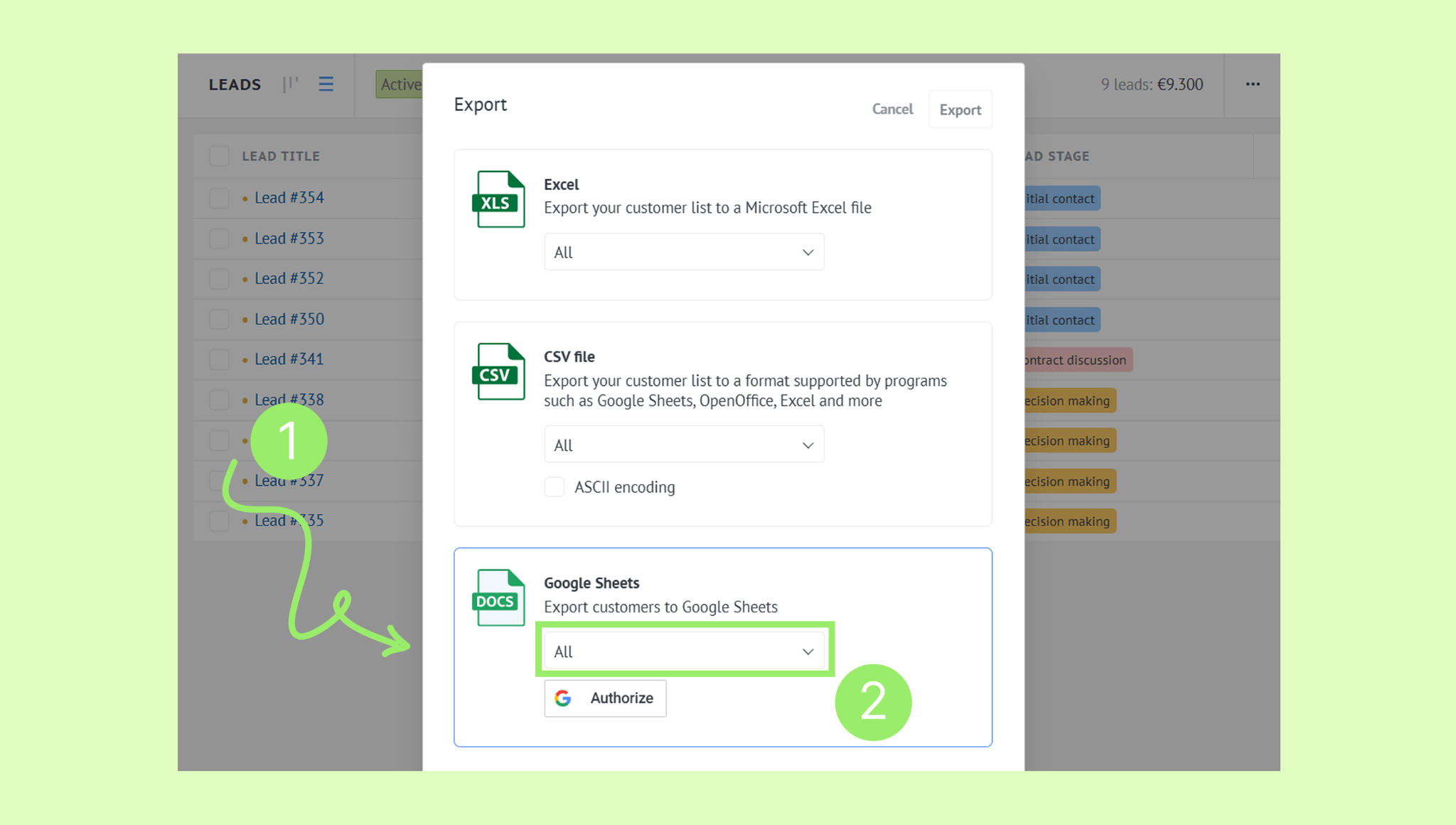
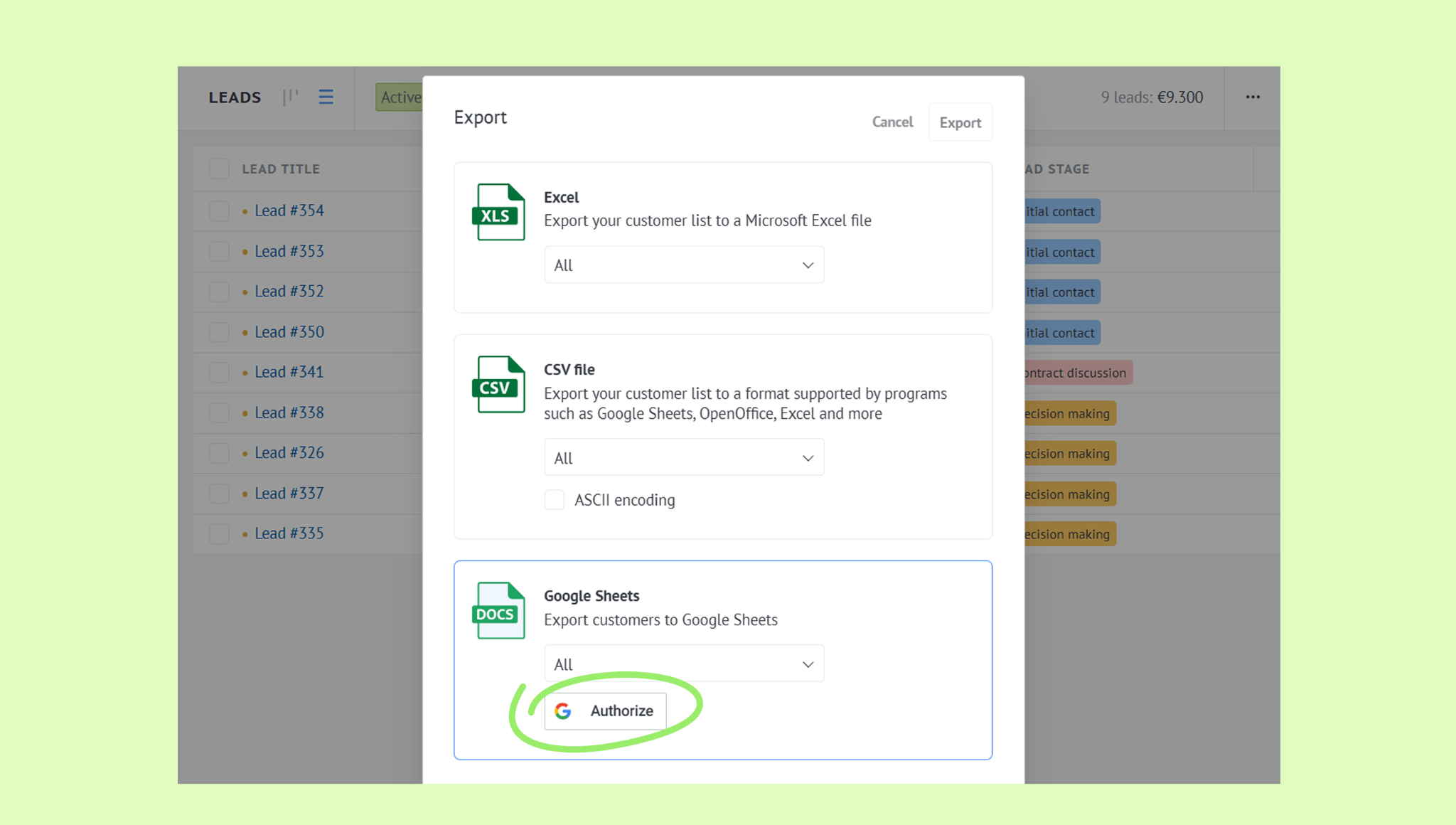
Click Authorize and log in with your Google account.
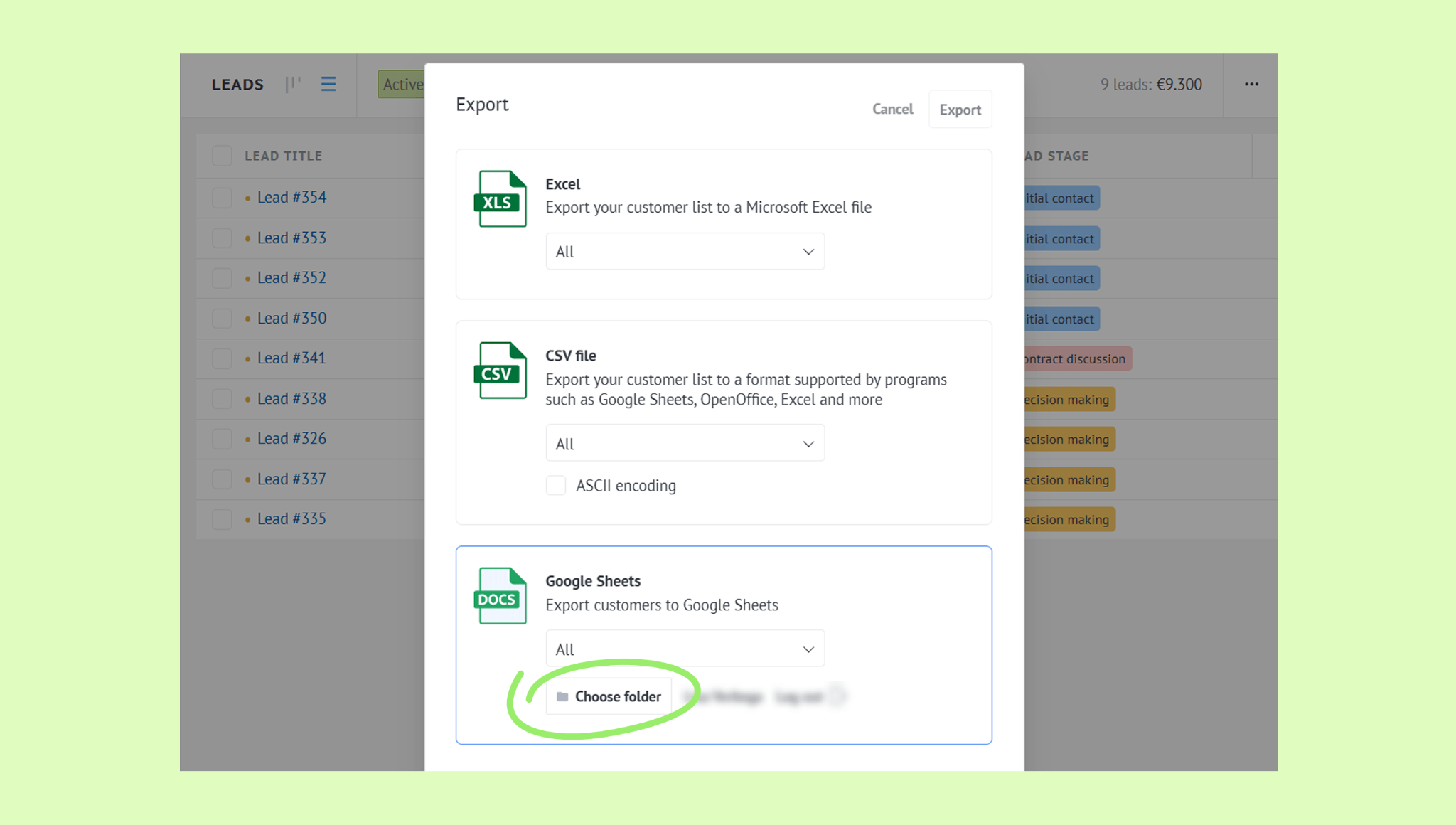
Once logged in, click Choose folder.
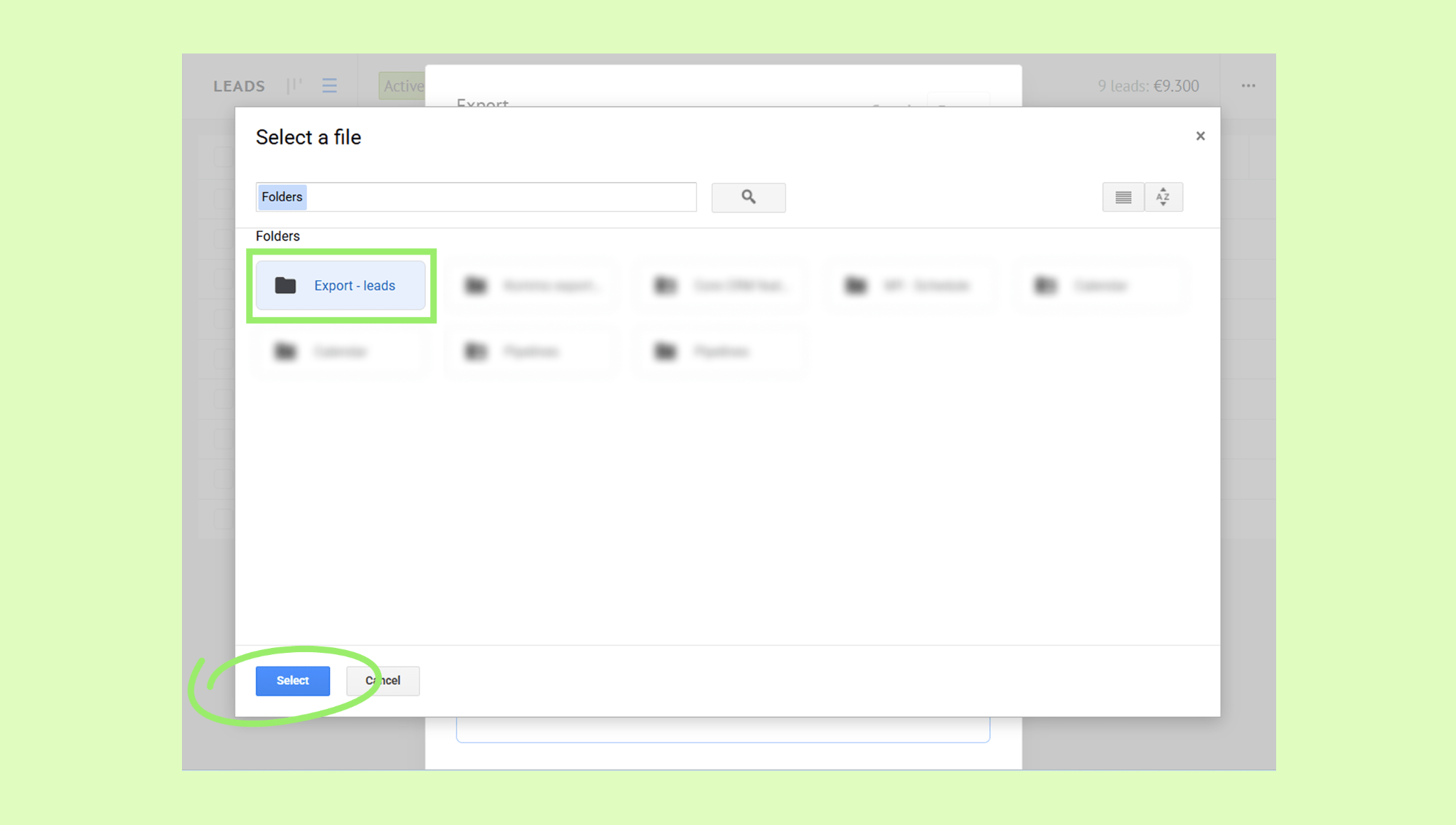
Search for and select a destination folder, then click Select.
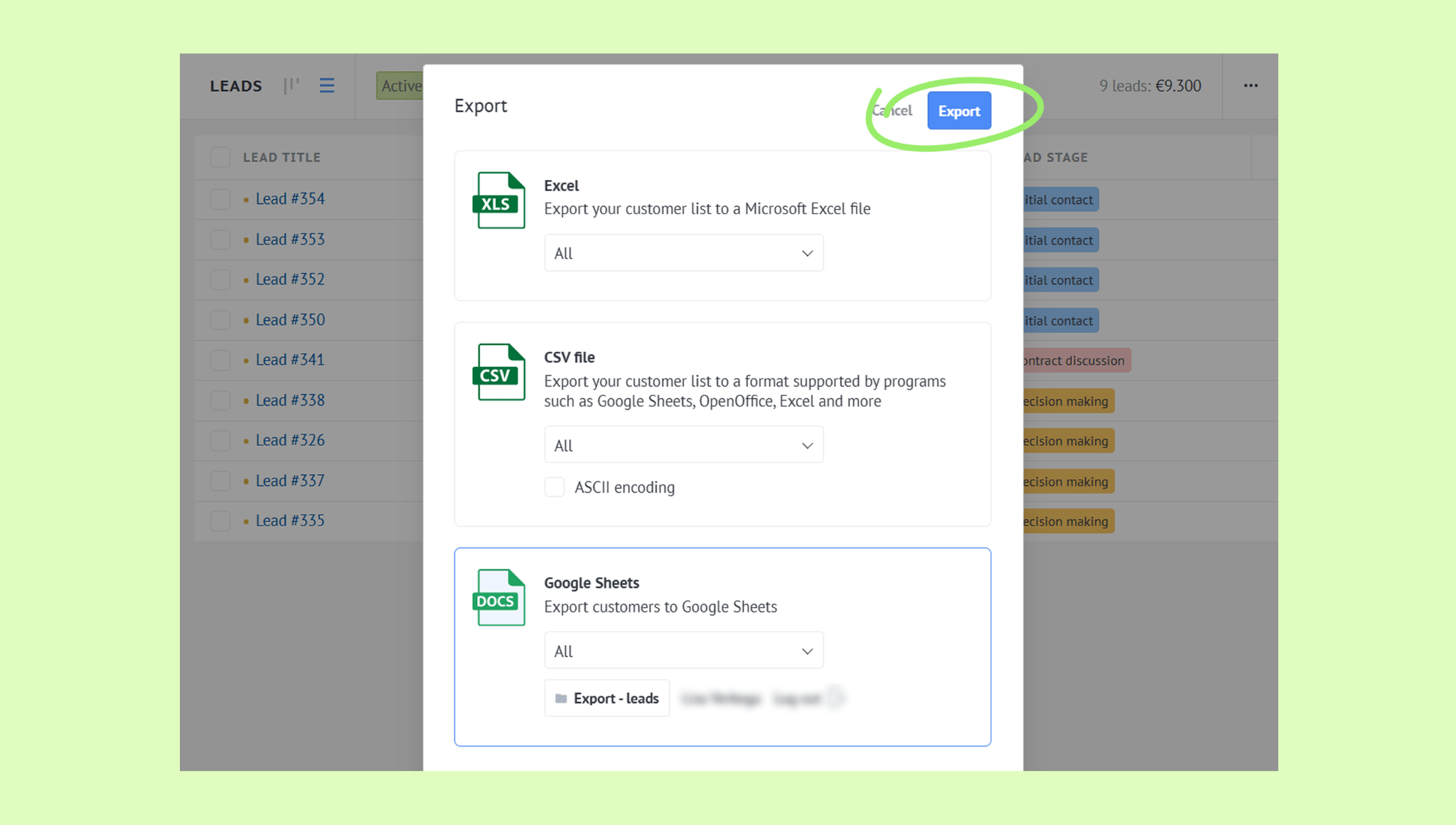
Confirm the selected folder in the export window and click Export.
When the export is done, a confirmation message will appear with a link to the exported sheet.
You can also export contacts and companies — go to Lists → Contacts or Companies and follow the same steps.