What you’ll need:
A connected WhatsApp Business integration in Kommo.
An Admin role in Kommo.
Keep in mind:
The statuses, reasons, and events shown in WhatsApp Health come from Meta.
Kommo provides recommendations based on the information received from Meta. After you follow them, Meta decides whether to change the status or remove a restriction.
An Available WABA can still have phone-number or template issues. Check the activity log regularly.
Messaging limits apply at the Meta business portfolio level and are shared by all WhatsApp phone numbers in that portfolio. Learn more about WhatsApp messaging limits and pricing.
WhatsApp Health lets you check the condition of your WhatsApp Business Account (WABA), review your messaging limit, and find issues that may affect your phone numbers or templates.
This article shows you where to find this information and what to do when an issue needs your attention. For an explanation of the statuses and other details you’ll see, read WhatsApp Health in Kommo overview.
Open WhatsApp Health
WhatsApp Health is available from the WhatsApp Business integration settings.
To open it:
Go to the WhatsApp Business integration.
Open the WhatsApp Health page.
Check your WABA status
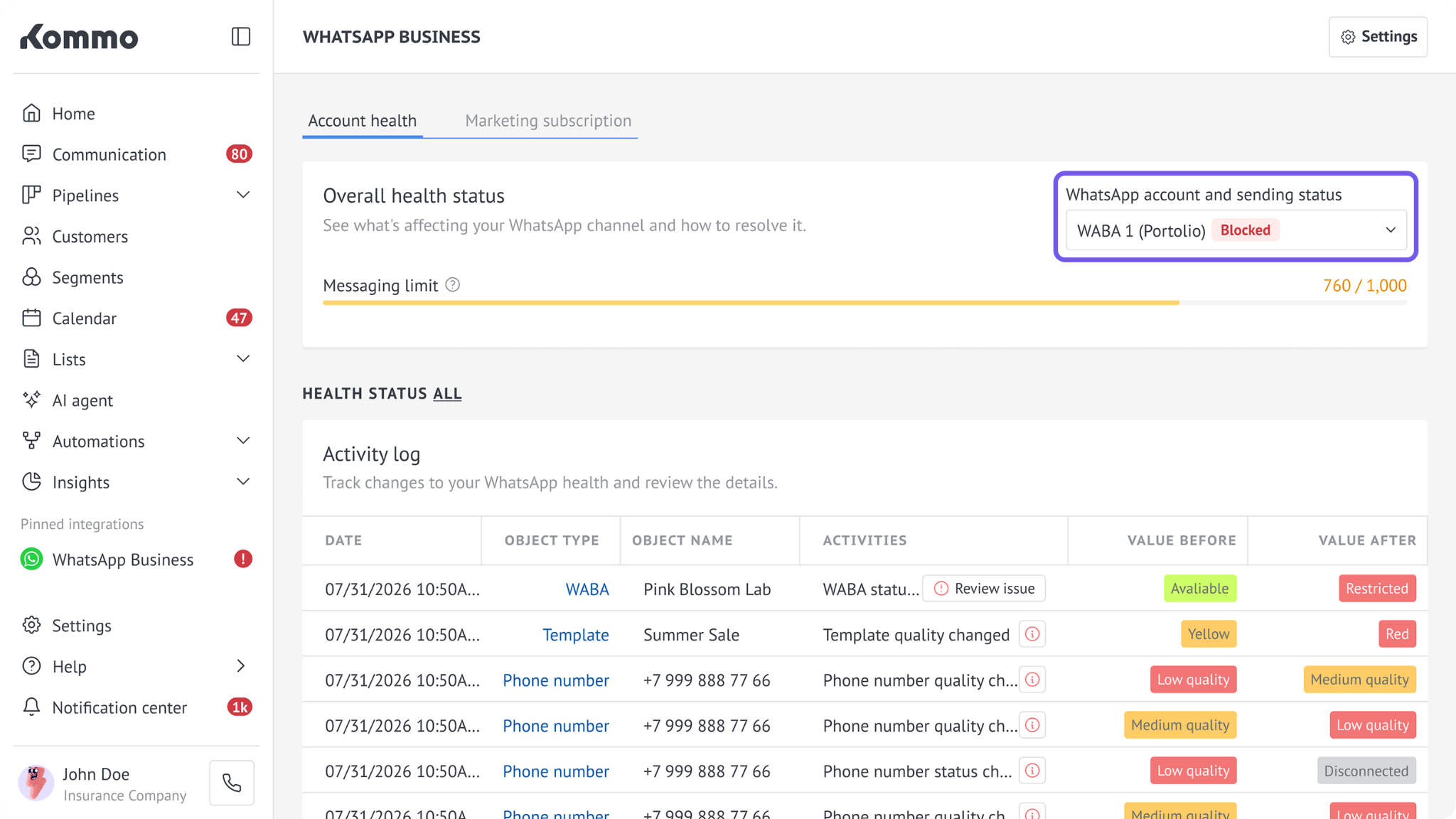
WhatsApp account and sending status shows the status of your entire WABA, including its connected phone numbers.
If you have access to multiple WABAs, you can check each one separately.
To check a WABA:
Open the Account health tab.
In the WhatsApp account and sending status dropdown list, select the WABA you want to check.
Check the status label next to the selected WABA.
Hover over the status label to see the details:
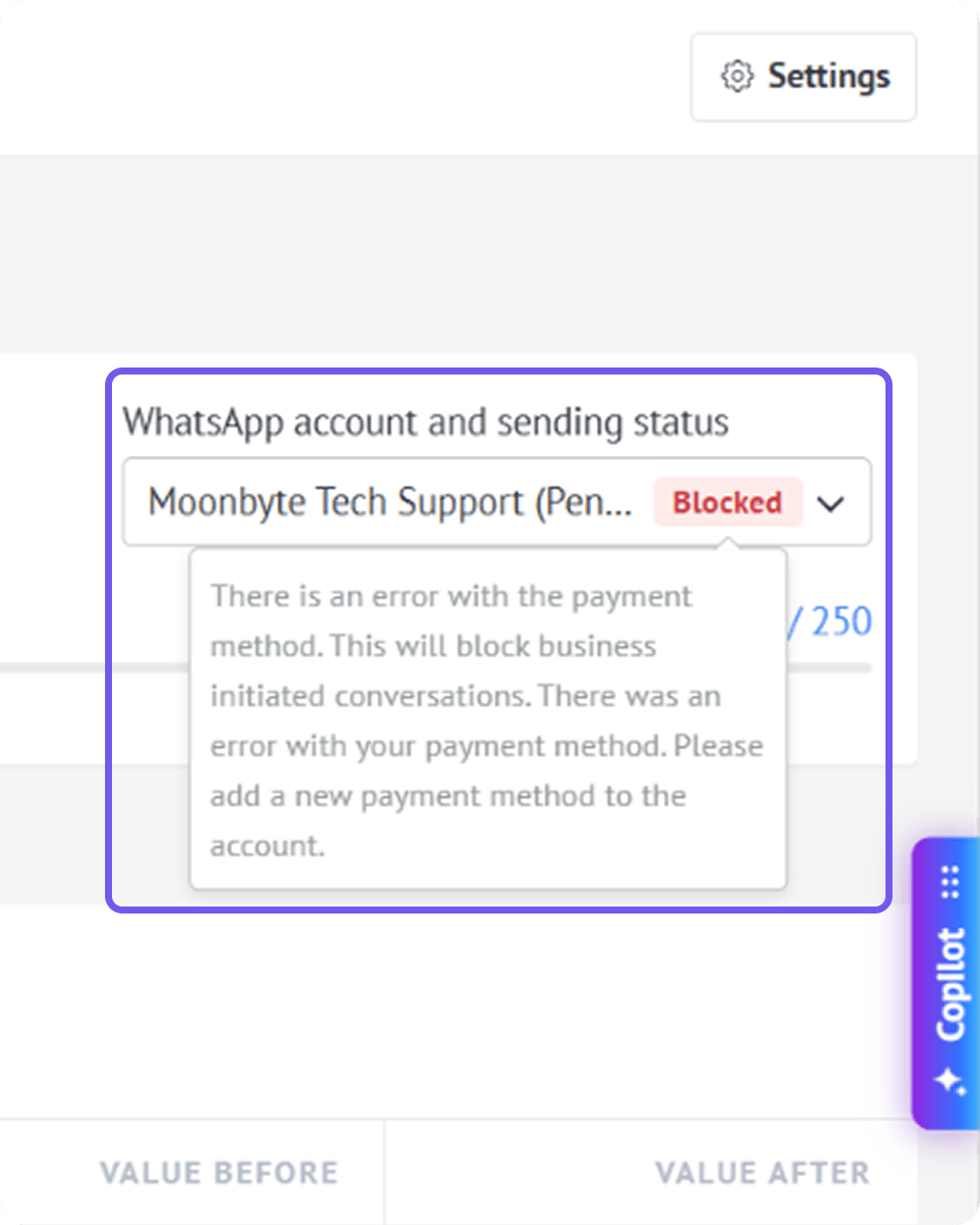
The WABA can have one of the following statuses:
Available — Your WABA and its phone numbers are working normally, and you can send messages.
Limited — You can still send messages, but some messaging features or message types may not be available.
Blocked — Depending on the issue, you may be unable to send marketing messages or any messages at all.
To check another WABA:
Select it from the WhatsApp account and sending status drop-down list. The information on the page will update for the selected account.
Check the messaging limit
The messaging limit section helps you see how much of your WABA’s available messaging capacity has been used.
To check it:
Open the WhatsApp Health page.
Find the Messaging limit section.
Check how many messages have been used and the total number available.
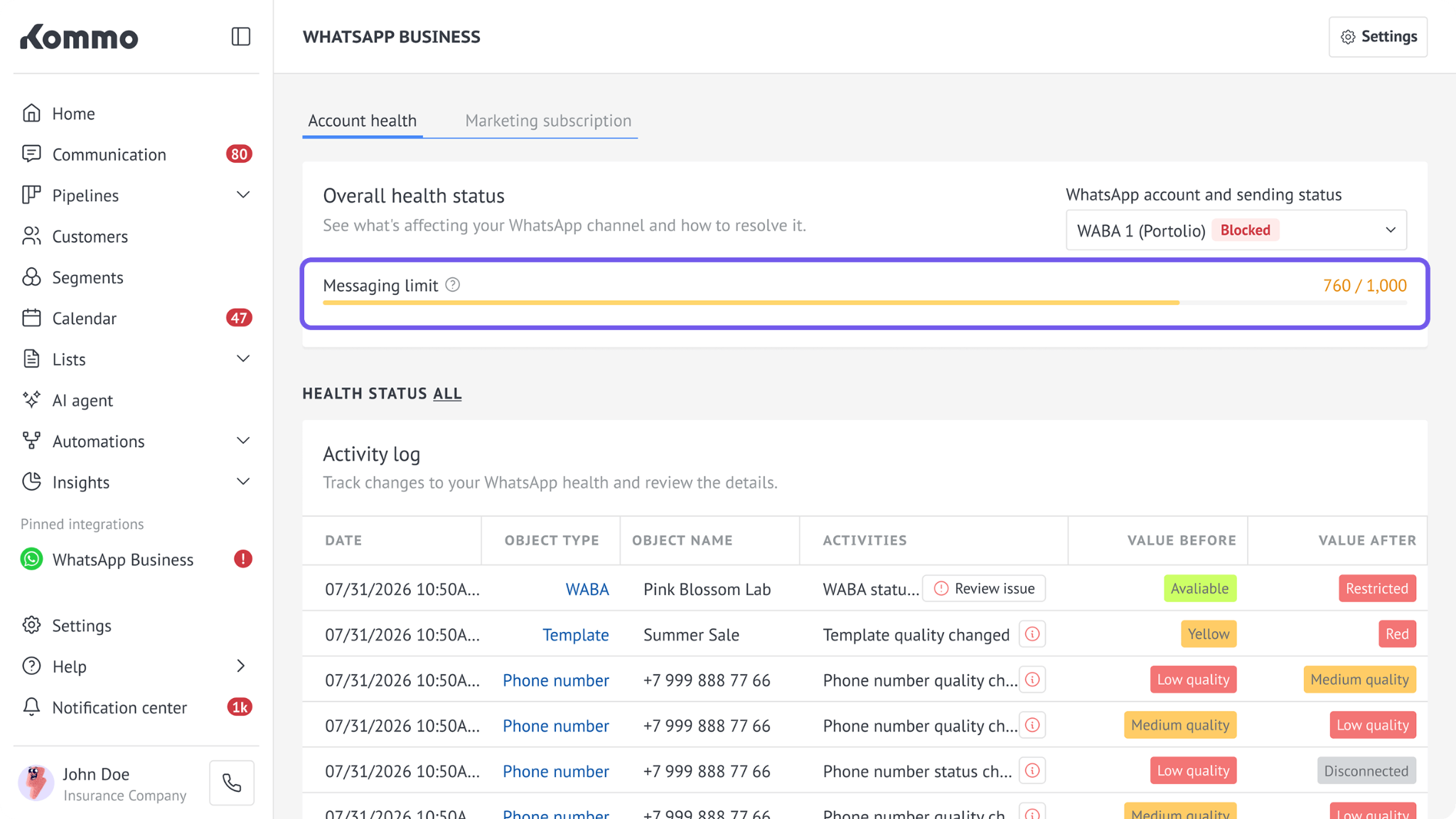
The indicator changes color as you approach the limit:
Blue — Up to 74% of the limit has been used.
Yellow — Between 75% and 99% has been used.
Red — 100% of the available limit has been used.
Review and resolve issues
The activity log shows changes and issues affecting your WABA, phone numbers, and templates. It also provides more details and possible steps you can take.
To review an issue:
Open the WhatsApp Health page.
Find the issue in the Activity log table.
Click Review issue next to it.
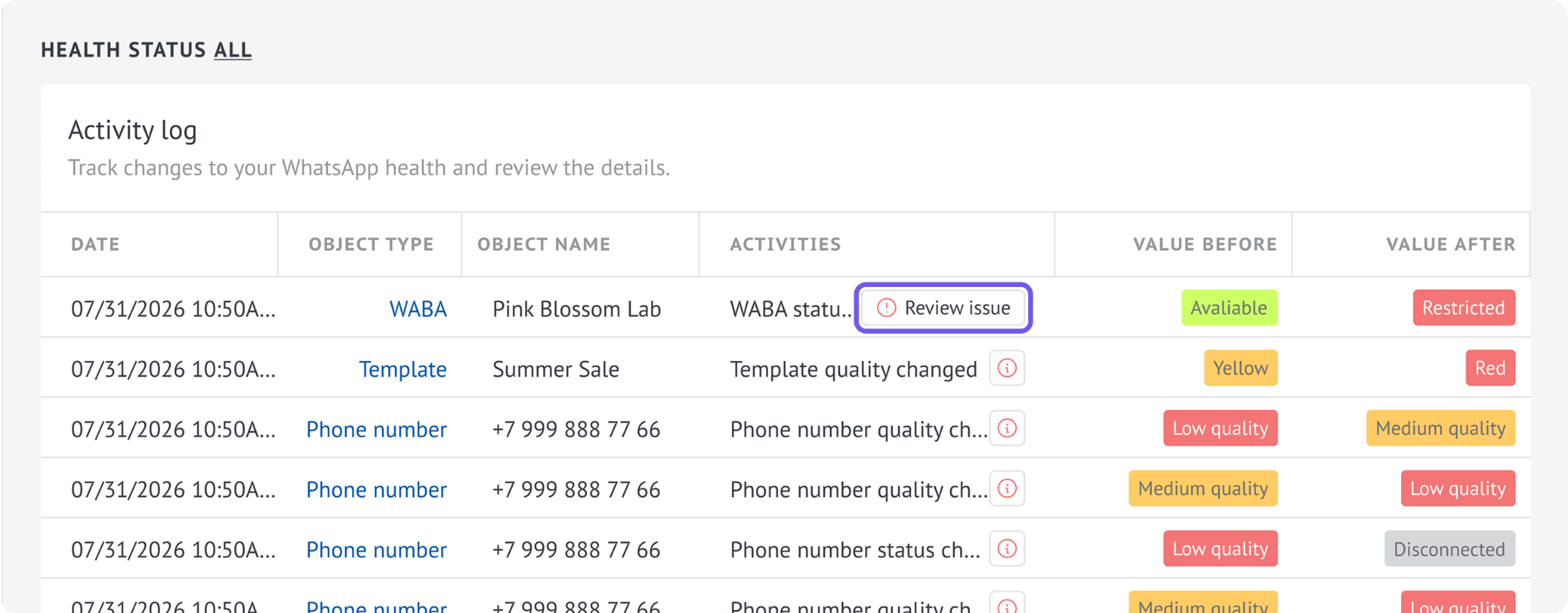
Review the reason provided by Meta and Kommo’s recommendations.
If the information answers your question, close the window.
If you need more help, contact Kommo support by clicking Contact support.
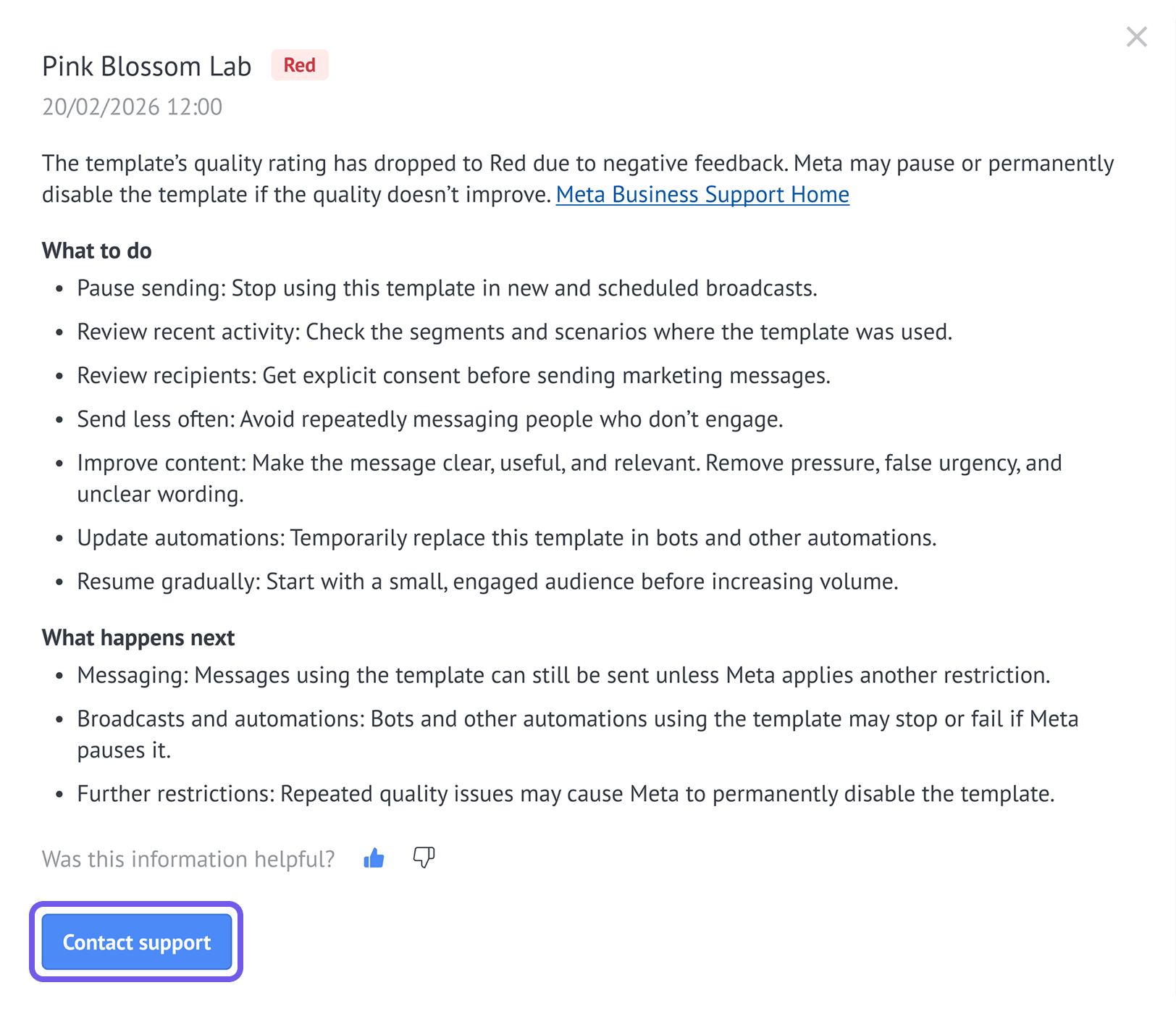
Follow the recommendations and continue monitoring the activity log for status changes.
Filter the activity log
Filters can help you find the changes that affected your health status more quickly.
To filter the activity log:
Next to Health Status, click All.
Select one of the following options:
All — Shows all events.
Healthy — Shows positive health statuses and changes.
Needs attention — Shows events that require your attention.
Critical — Shows critical events.
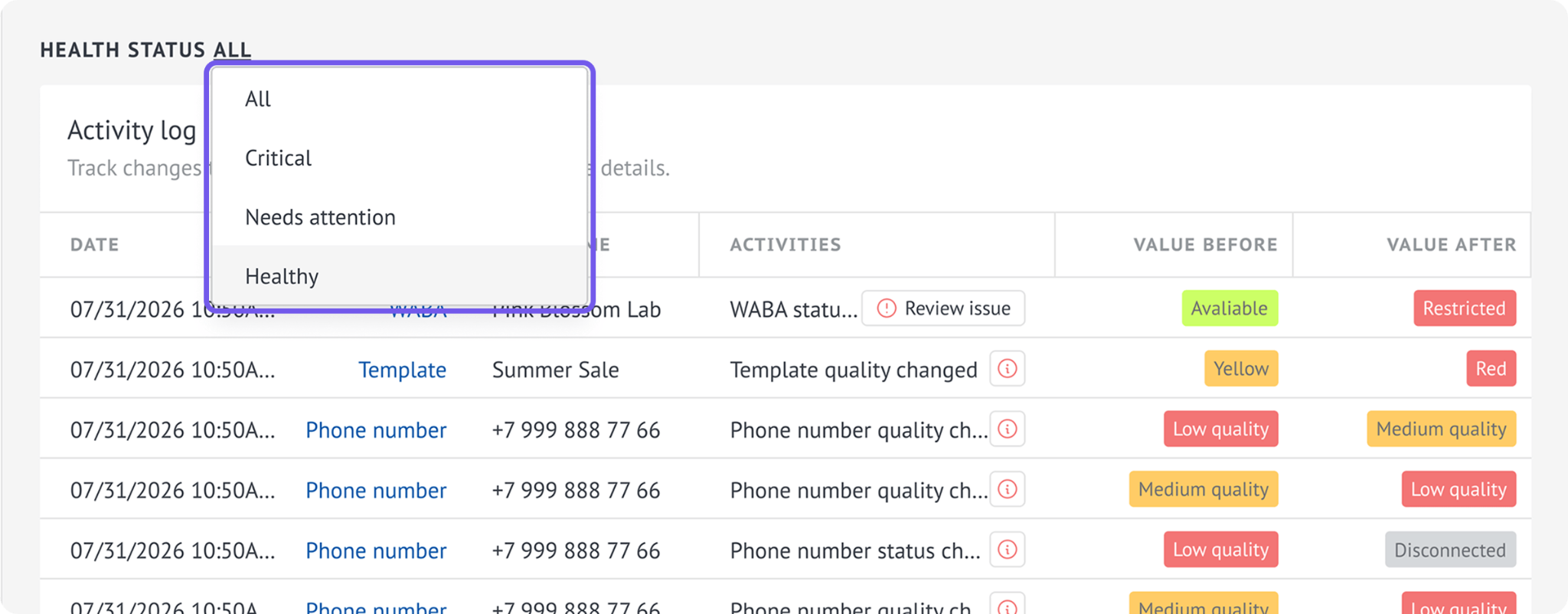
The activity log can include events related to:
Phone-number quality.
Template quality.
Disconnected phone numbers.
Paused or disabled templates.
WABA restrictions.
Template category changes.