What you’ll need:
A connected WhatsApp Business integration in Kommo.
An Admin role in Kommo.
Keep in mind:
The statuses, reasons, and events shown in WhatsApp Health come from Meta.
Kommo provides recommendations based on the information received from Meta. After you follow them, Meta decides whether to change a status or remove a restriction.
An available WABA can still have issues with individual phone numbers or templates. Check the activity log regularly.
Messaging limits apply at the Meta business portfolio level and are shared by all WhatsApp phone numbers in that portfolio. Learn more about WhatsApp messaging limits and pricing.
WhatsApp Health brings Meta’s status updates for your WhatsApp Business Account (WABA), connected phone numbers, and message templates into Kommo. You can see how everything is doing in one place, without switching to Meta’s tools. If Meta reports an issue, Kommo shows what happened and suggests what to do next.
This article explains what WhatsApp Health shows and how it can help you. For step-by-step instructions, see Check your WhatsApp Business Account health in Kommo.
Use cases
Here are a few ways WhatsApp Health can help you:
Check whether your WABA needs attention – See if its sending status is Available, Limited, or Blocked, and find out what to do next.
Keep your phone numbers healthy – Follow changes to their connection and quality, and see what steps to take if a number disconnects.
Keep your templates available – Check their status and quality so you can act if Meta pauses or disables one.
Plan broadcasts around your messaging limit – See your current limit and how much you’ve used before sending more messages.
See when an issue is resolved – Check for an update when Meta removes a restriction or a phone number or template becomes available again.
What can affect your WhatsApp Business Account quality rating
Meta looks at how clients react to your WhatsApp messages. For example, clients may block or report your business, mute notifications, or archive a chat. Meta may also consider the reason a client gives for blocking you. This feedback can affect the status of your WABA, phone numbers, or templates.
WhatsApp Health shows issues reported by Meta, so you can notice changes sooner and see what steps Kommo recommends. To help keep your quality rating high, send messages clients expect and find useful, without contacting them too often.
Learn more in Meta’s message quality documentation.
What you can see in WhatsApp Health
WhatsApp Health gives you a clear overview of the most important parts of your WhatsApp setup:
Section | What it shows |
|---|---|
The current status of your WhatsApp Business Account. | |
How many unique customers you can contact and how much of your limit you have used. | |
Positive and negative changes to your WhatsApp Health statuses. |
WABA and sending status
WABA and sending status gives you a quick picture of your WhatsApp setup. Kommo checks the statuses Meta provides for your business portfolio, WABA, and connected phone numbers, then shows the most serious one as the overall status.
For example, if your WABA is Available but one phone number is Blocked, the overall status is Blocked. You can open the details to find the number that needs attention. If you have multiple WABAs, you can check each one separately.
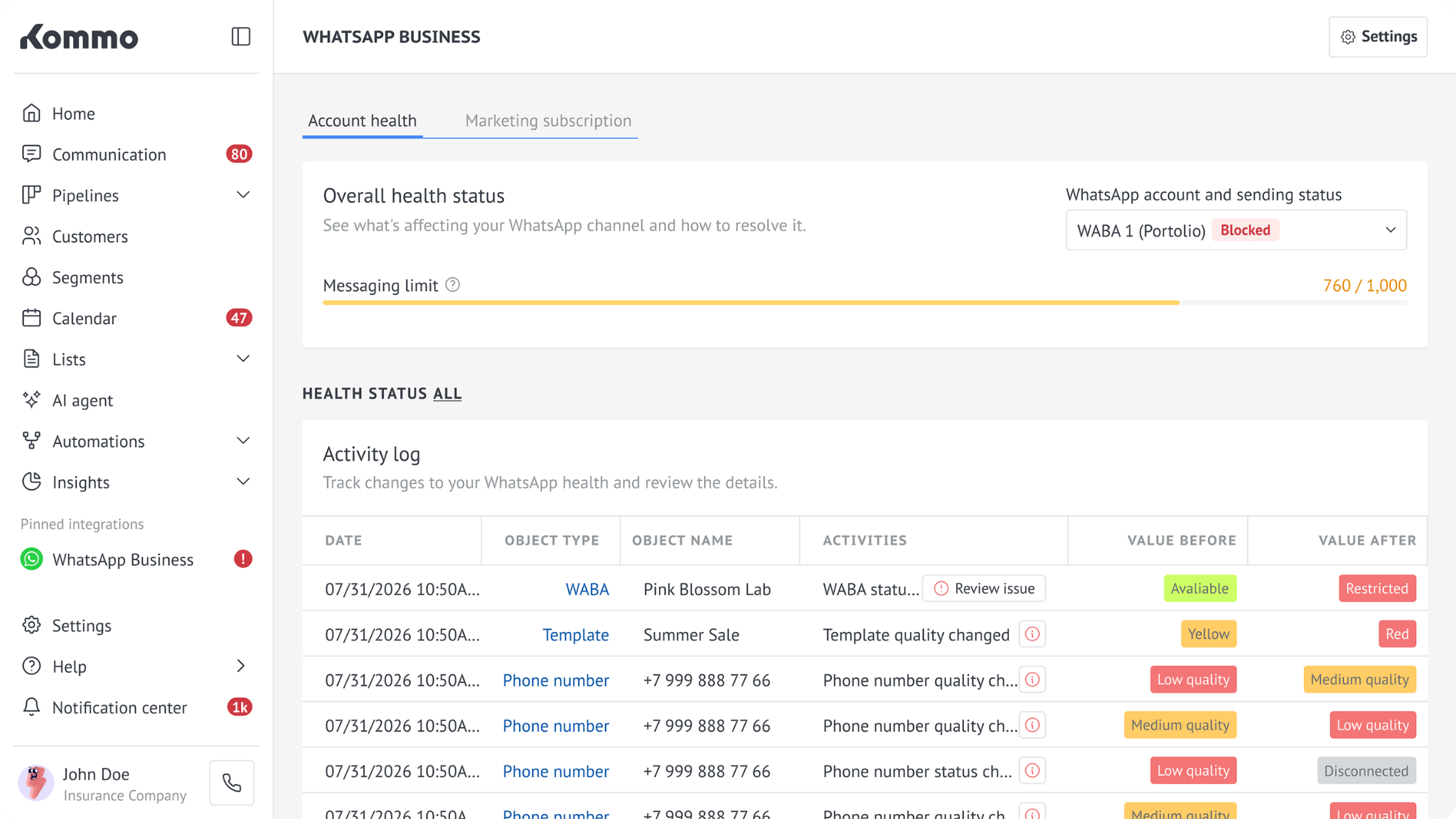
The WABA and sending status can be:
Available — Your WhatsApp setup is working normally.
Limited — You can still send messages, but some messaging features may be unavailable.
Blocked — Depending on the restriction, you may be unable to send marketing messages or any messages.
To learn how to check it, see Check your WABA status.
Messaging limit
Your messaging limit is the number of different clients your business can contact outside the 24-hour customer service window during any 24-hour period. All WhatsApp numbers in the same Meta business portfolio share this limit.
WhatsApp Health shows your current limit and how much you’ve used. You can check it before planning messages or broadcasts.
For instructions, see Check the messaging limit.
You can also read more about WhatsApp messaging limits and pricing.
Activity log
The activity log shows changes to your WABA, phone numbers, and templates based on information from Meta. You can see both issues that need attention and positive changes when things improve.
For example, the log may show that a phone number disconnected, a quality rating changed, or Meta paused a template. It can also show that a number or template is available again.
If you see an issue, open it to find out why it happened and what Kommo recommends. After taking action, check the log to see whether the status has changed. Meta decides when to remove a restriction.
For guidance, see Review and resolve issues.
If you run into issues sending WhatsApp messages, see Troubleshoot WhatsApp message errors.