What you’ll need
Access to the lead, contact, company, or customer cards you want to organize.
Administrator rights to manage all tags, control who can create tags, delete tags permanently, or change lead tag colors.
Keep in mind
Unlinking a tag from every card does not delete it from Kommo.
You cannot rename an existing tag. Instead, replace it with a new tag.
Colors can be assigned only to lead tags.
Tags are flexible labels that help you group and find leads, contacts, companies, and customers. You can also use tags to define conditions for automations.
This guide explains how to add tags, filter cards by tags, and manage existing tags.
Add tags to a card
Open the lead, contact, company, or customer card.
Click #ADD TAGS next to the card name.
.png)
Select an existing tag or enter a name to create one.
Select the tag you want to add.
Kommo attaches the tag and saves the change automatically.
If you are not an administrator, you can create new tags only when an administrator has allowed users to do so.
Add tags to multiple cards
You can add or remove tags from several leads, contacts, or companies at once.
Open the relevant list:
For leads, go to Pipelines → All leads.
For contacts or companies, go to Lists → Contacts or Lists → Companies.
Select the cards you want to update.
Click EDIT TAGS in the bulk actions toolbar.
.png)
Select an existing tag or enter a name to create one.
Remove any tags that should no longer be linked to the selected cards.
Click Save.
For more bulk actions, see Manage leads, contacts and companies.
Add tags automatically
To add or remove tags automatically, create a Salesbot and include the Manage tags step in its flow.
Go to Pipelines, open the required pipeline, and click Automate.
Under the stage where you want the automation to run, click + Add trigger.
Select Salesbot, then create a new one.
In the Salesbot builder, add a new step and select Action.
Select Manage tags. Choose whether to add or delete tags, select the entity the action should apply to, and choose or create the required tags.
Connect the step to the rest of the Salesbot flow and save the bot.
Configure when the Salesbot should run and save the pipeline automation.
When the Salesbot reaches the Manage tags step, it automatically updates the tags for the selected entity.
For more details about Salesbot actions, see Salesbot overview.
Find cards by tags
Open Pipelines → All leads, a specific pipeline, Lists, or Customers.
Click the Search and filter bar.
In the Tags section, select at least one tag.
.png)
If you select multiple tags, choose a condition:
And — show cards that have all the selected tags.
Or — show cards that have at least one selected tag.
Click Apply.
The number next to each tag shows how many cards in the current section are linked to it.
You cannot filter for cards that do not have any tags.
In Pipelines, the tags shown in the filter depend on the selected pipeline. Open All leads to find tags across every pipeline.
For more filtering options, see Filter and search leads, contacts and companies.
Manage tags as an administrator
Tag management is available only to administrators.
Open Pipelines, Lists, or Customers.
Click the Search and filter bar.
Find the Tags section and click Manage.
.png)
In tag management, you can:
View and search all tags in the current section.
See how many cards are linked to each tag.
Create tags.
Delete tags permanently.
Allow or restrict users without administrator rights from creating tags.
Unlink tags from cards
Unlinking removes a tag from selected cards but keeps the tag available in Kommo.
To unlink a tag from one card, open the card and remove the tag from the tag area.
To unlink a tag from multiple cards:
Filter the cards by the tag you want to remove.
Select the relevant cards.
Click EDIT TAGS.
Remove the tag.
.png)
Click Save.
When a tag is no longer linked to any cards, it disappears from the regular tag filter. It remains in tag management until an administrator deletes it.
Delete tags permanently
Deleting a tag permanently removes it from tag management and every card linked to it.
Open tag management in the relevant section.
Find the tag you want to delete.
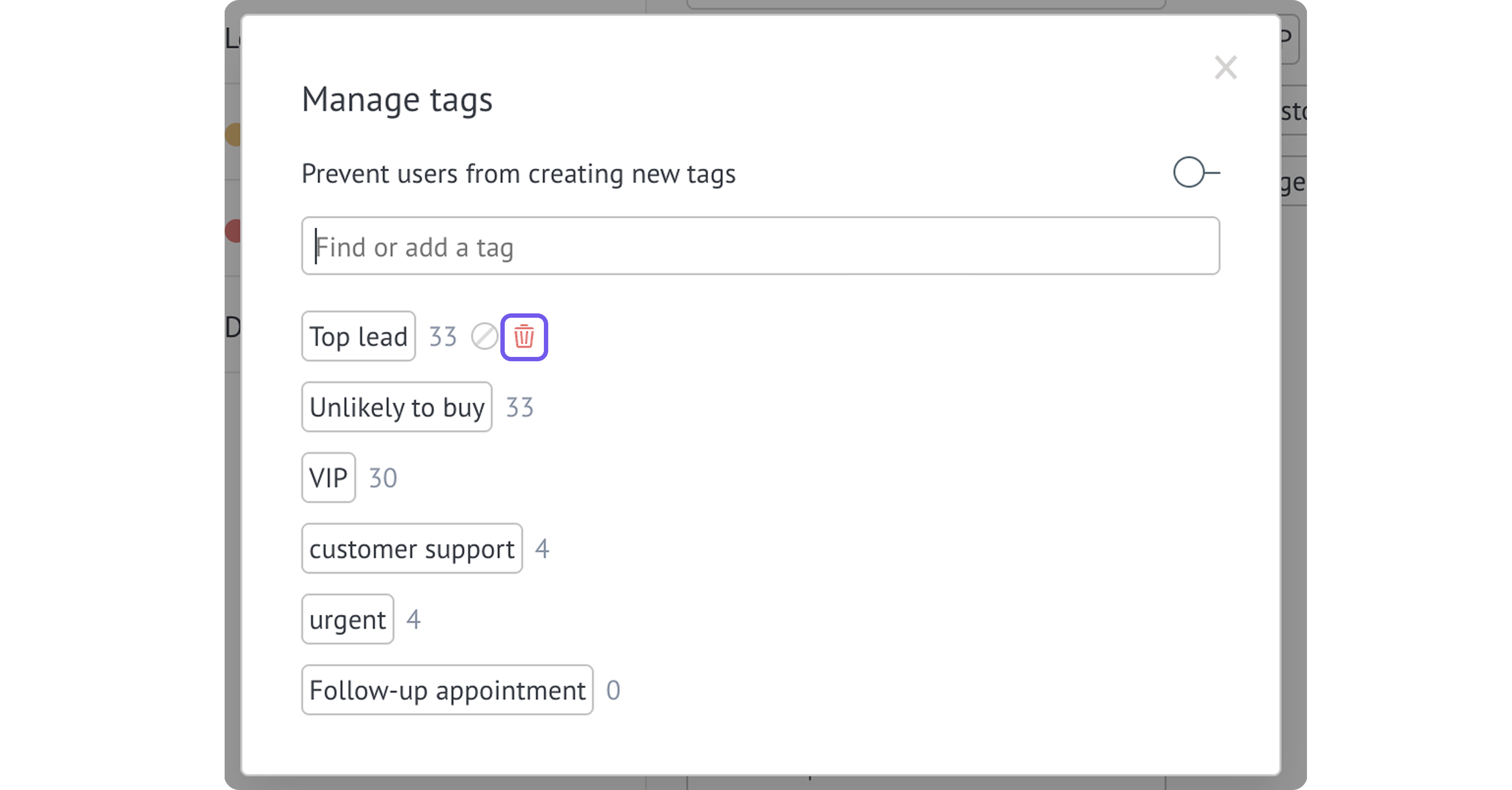
Delete the tag from tag management.
Important: A tag cannot be deleted if all the leads or contacts linked to it are currently in the Trash.
Replace an existing tag
Kommo does not support renaming tags. To change a tag name, replace the existing tag:
Filter cards by the tag you want to replace.
When working with leads, include all relevant pipeline stages in the filter.
Select all matching cards.
Click EDIT TAGS.
Remove the existing tag.
Create or select the replacement tag.
Click Save.
If the old tag is no longer needed, ask an administrator to delete it from tag management.
Add colors to lead tags
Administrators can assign colors to lead tags or change their existing colors.
Go to Pipelines.
Click the Search and filter bar.
In the Tags section, click Manage.
.png)
Find the tag.
Set or change its color.
Colored tags appear in:
Pipeline Kanban view.
Lead list view.
Lead cards.
How tag changes work
When you assign a tag, it appears on the card and becomes available in the relevant filters.
Lead tags appear in the filter for the pipeline where they are used. Open All leads to view tags across pipelines.
When you unlink a tag from all cards, it disappears from the filter but remains in tag management.
When an administrator deletes a tag permanently, Kommo removes it from every linked card.
Tag colors appear only for leads, including in Kanban view, list view, and lead cards.