What you’ll need:
Any Kommo plan (Base, Advanced, Pro, Enterprise, or 14-day trial).
Administrator (Admin) access in Kommo to add triggers and set up automations.
Keep in mind:
To use the AI agent or Salesbot, you need to connect at least one channel to your Kommo account.
Only one account per channel (Facebook, Instagram, WhatsApp, etc.) can be connected to Kommo.
In Kommo, you can automate pipeline actions to remove repetitive manual work and save time.
How it works
Automations are connected to pipeline stages.
You can connect channels to use integrations.
Choose a stage and set a trigger.
Define the conditions and the action it should perform.
When a lead enters the stage, the trigger runs automatically.
With automations, you can send messages via Salesbot, start an AI agent, add or complete tasks, change a lead’s stage, reassign a lead's user, send emails, and more.
Connect a channel
Kommo integrates with channels like WhatsApp, Facebook, Instagram, and more. Connect them to automatically turn incoming messages into new leads in your pipeline.
To connect a channel:
Go to Pipelines → Pipeline name → Automate.
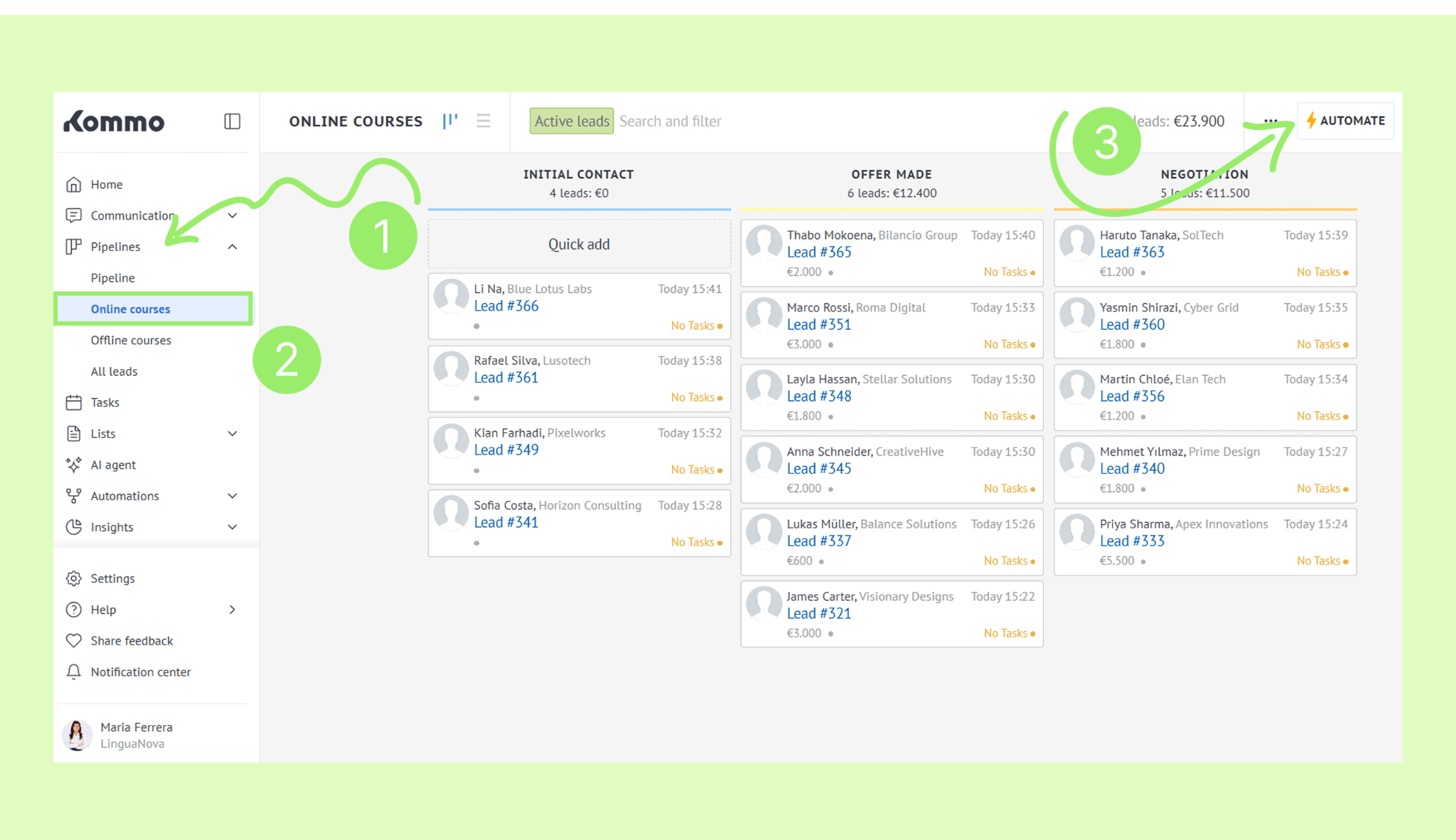
Click Add source.
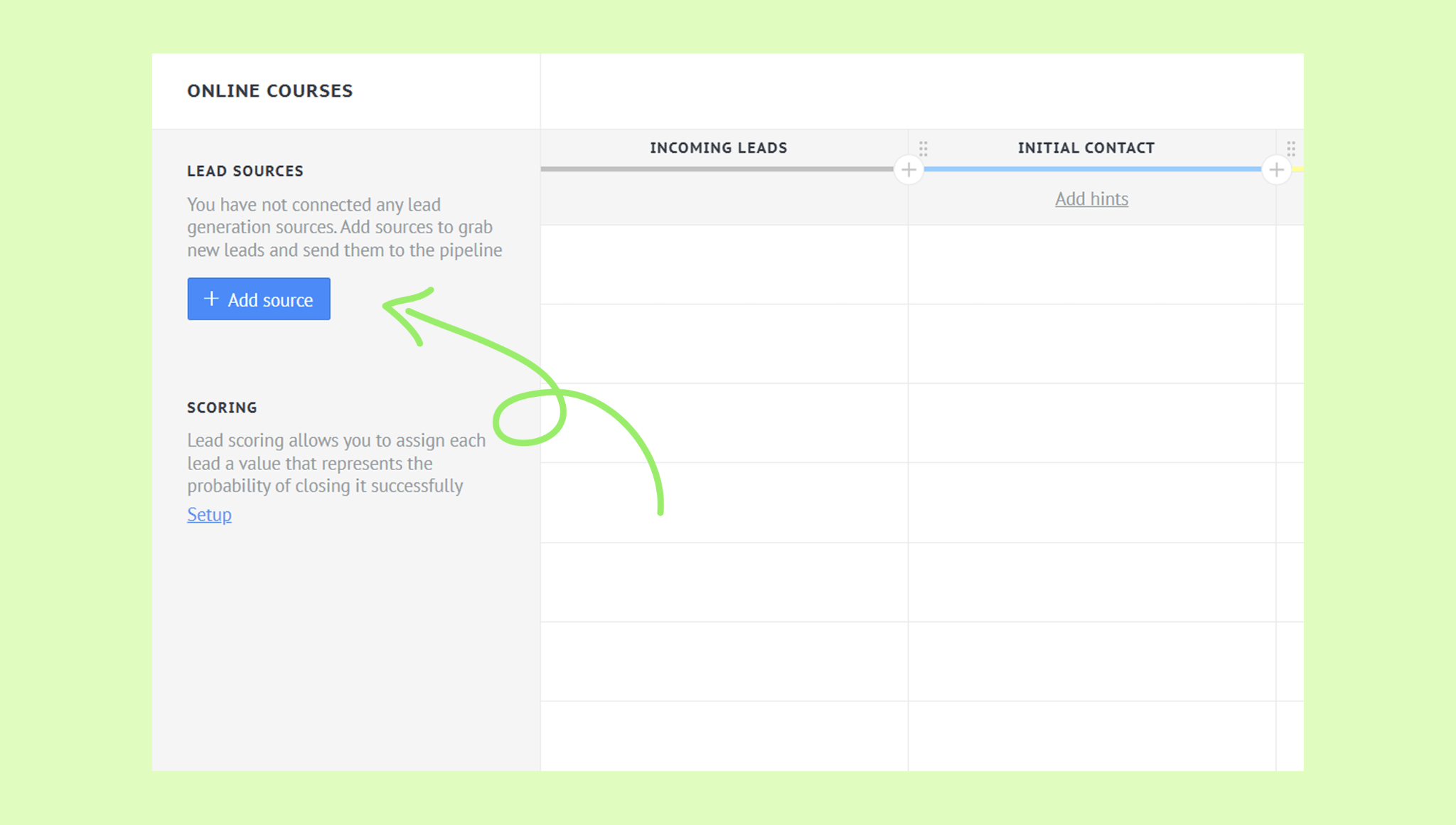
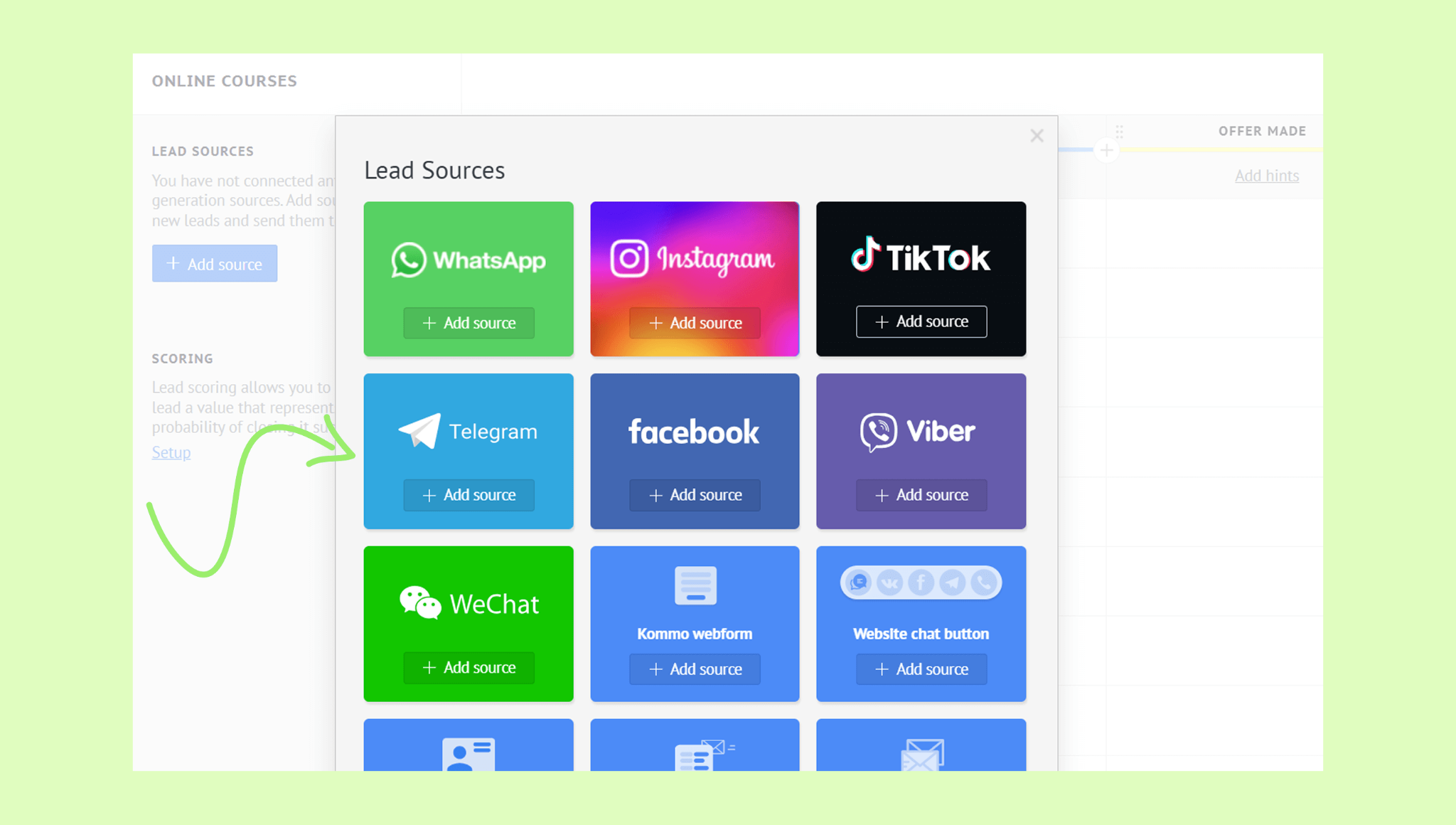
Select the channel you want and click +Add source.
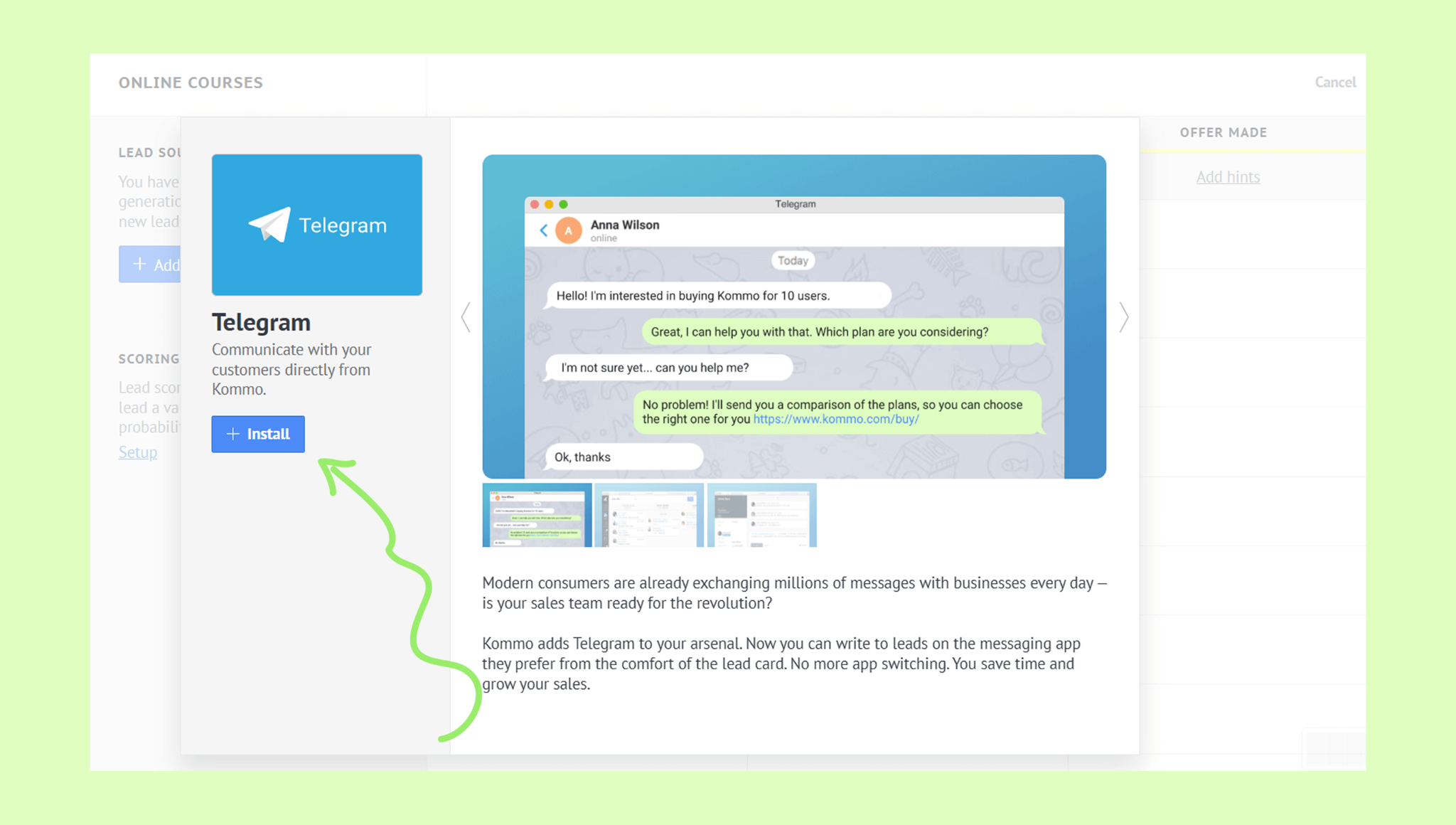
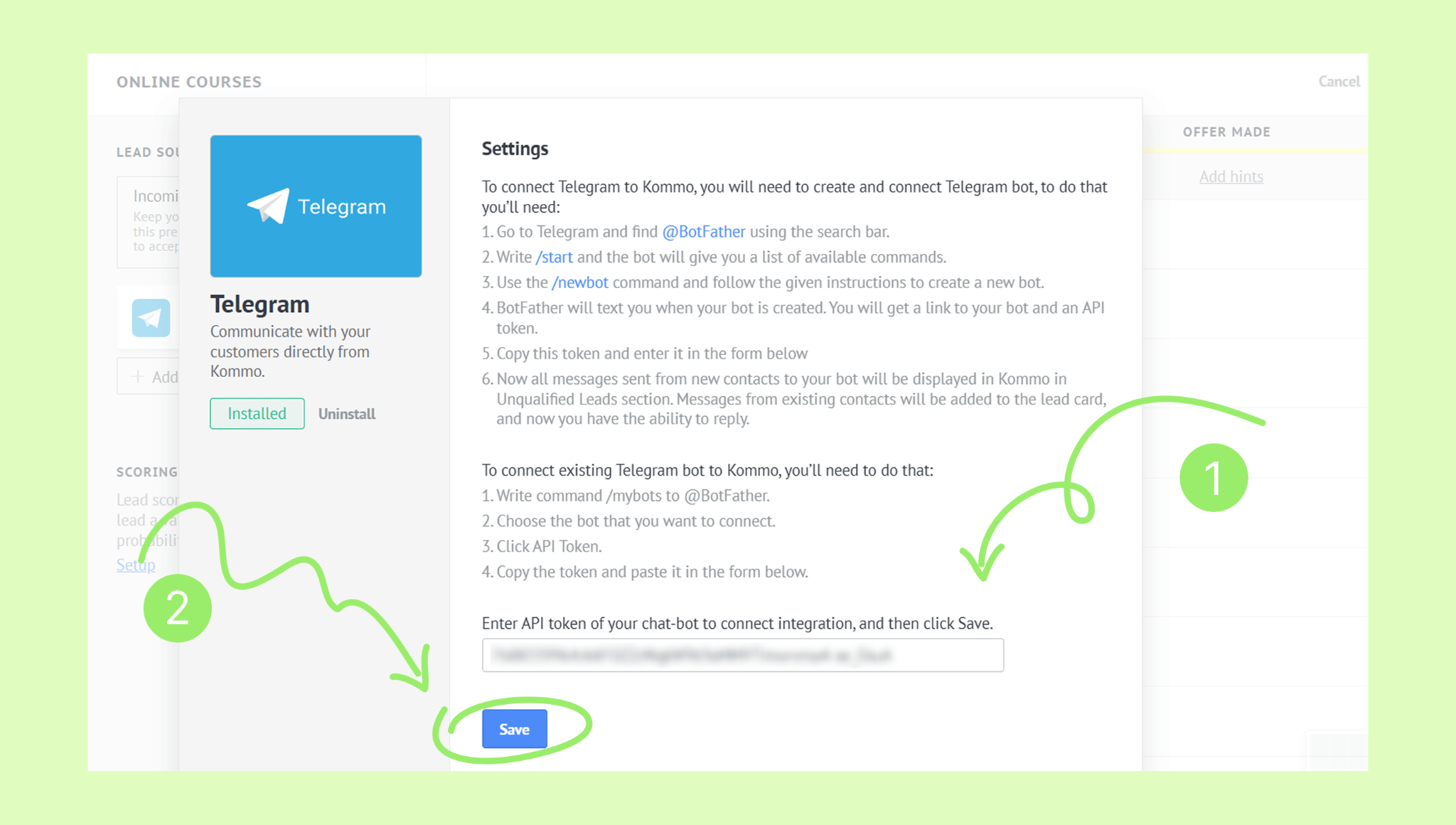
In the opened modal, click Install.
Enter your credentials (login/password or token) and click Save.
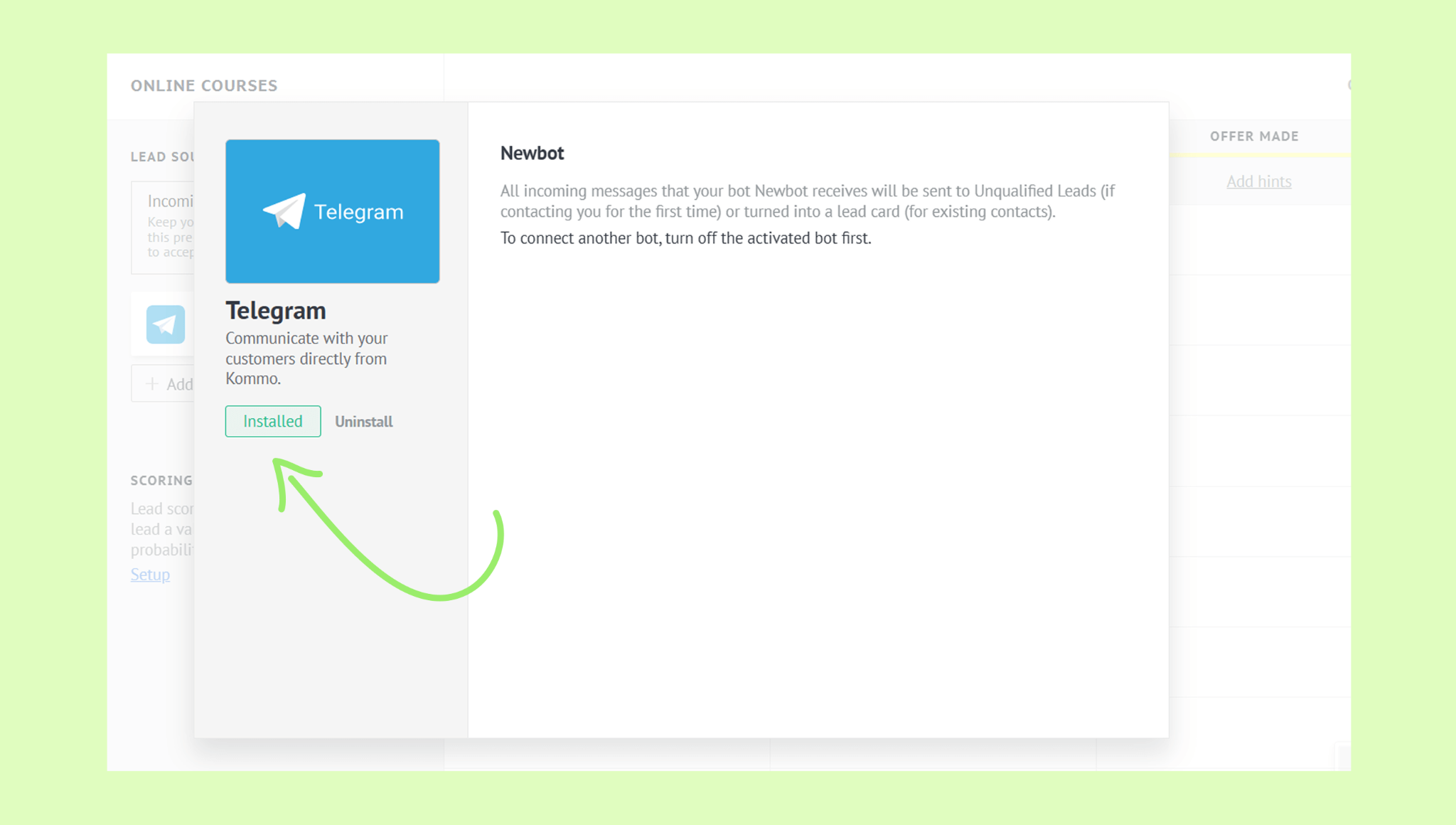
The channel will be marked as Installed.
Turn on/off the Incoming leads stage
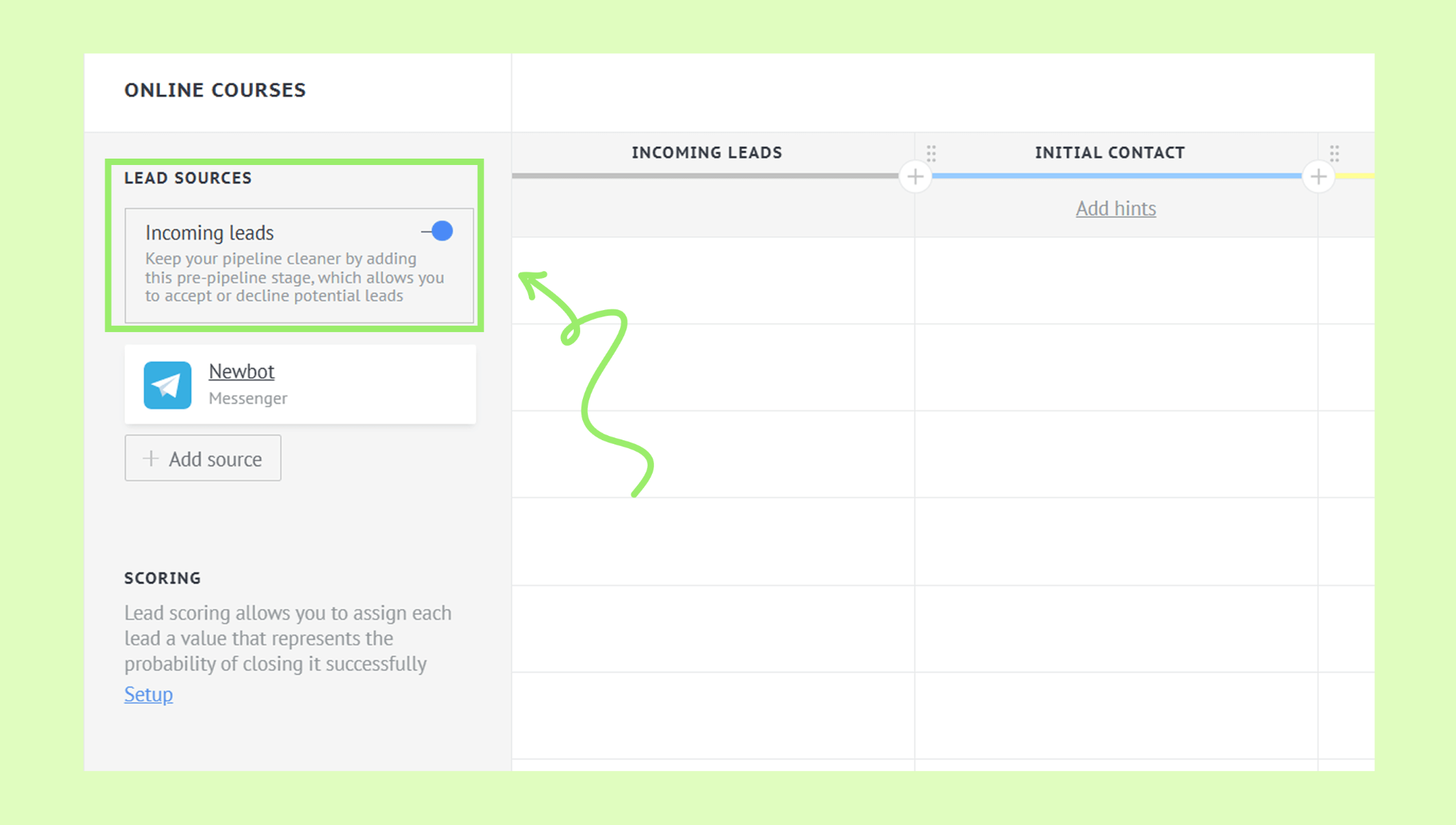
Incoming leads is the stage where all new inquiries from your connected channels are automatically displayed.
Once you connect a channel, this stage is enabled by default. If needed, you can turn it off using the toggle switch.
To learn more about the Incoming Leads stage, see our Add or rename stages article.
Add a trigger
Each action has its own trigger settings. To learn how to set up a trigger for a pipeline stage, see our Set up digital pipeline triggers article.
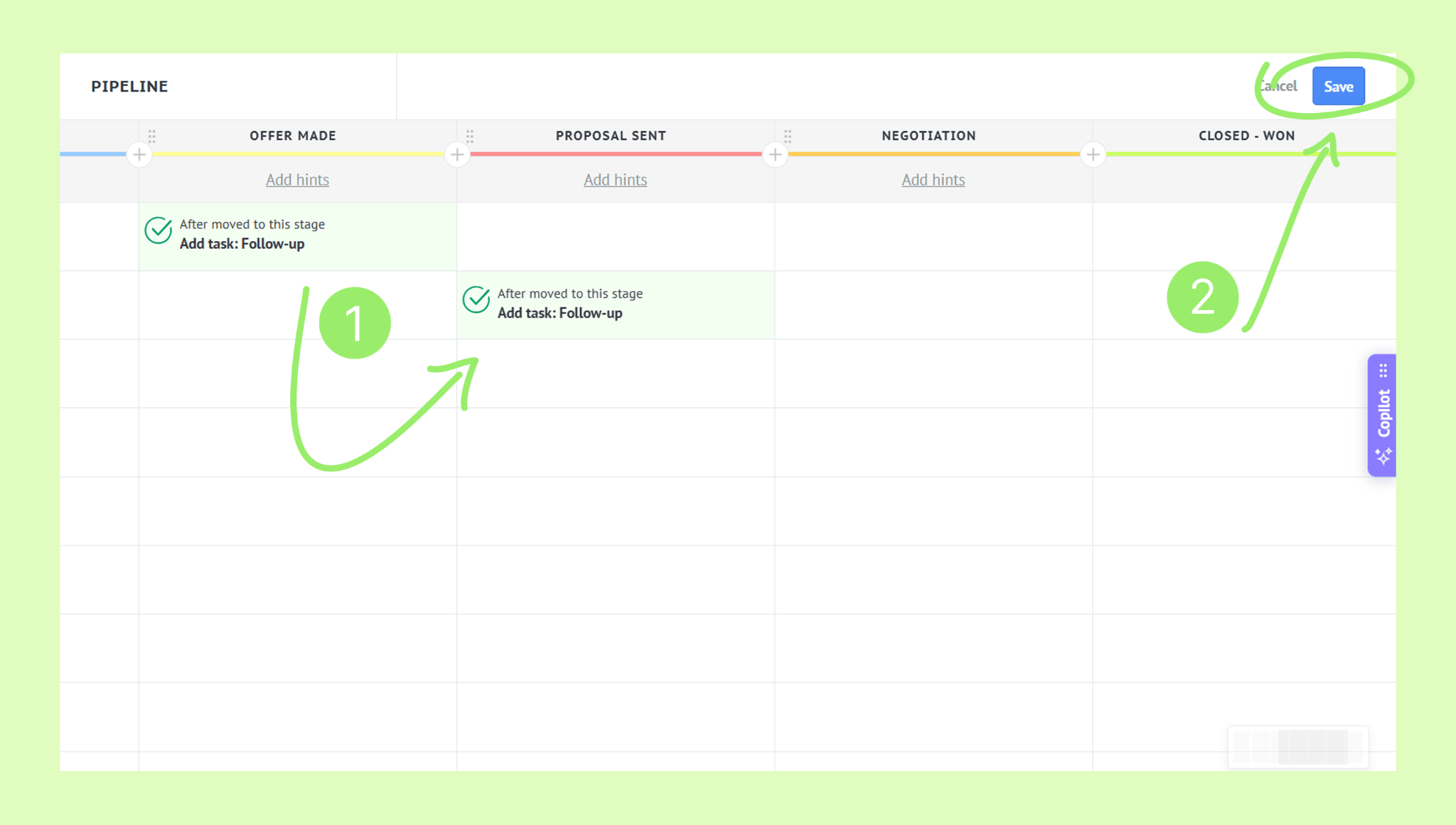
Move a trigger
You can move a trigger to another pipeline stage.
To do so:
Go to Pipelines → Pipeline name → Automate.
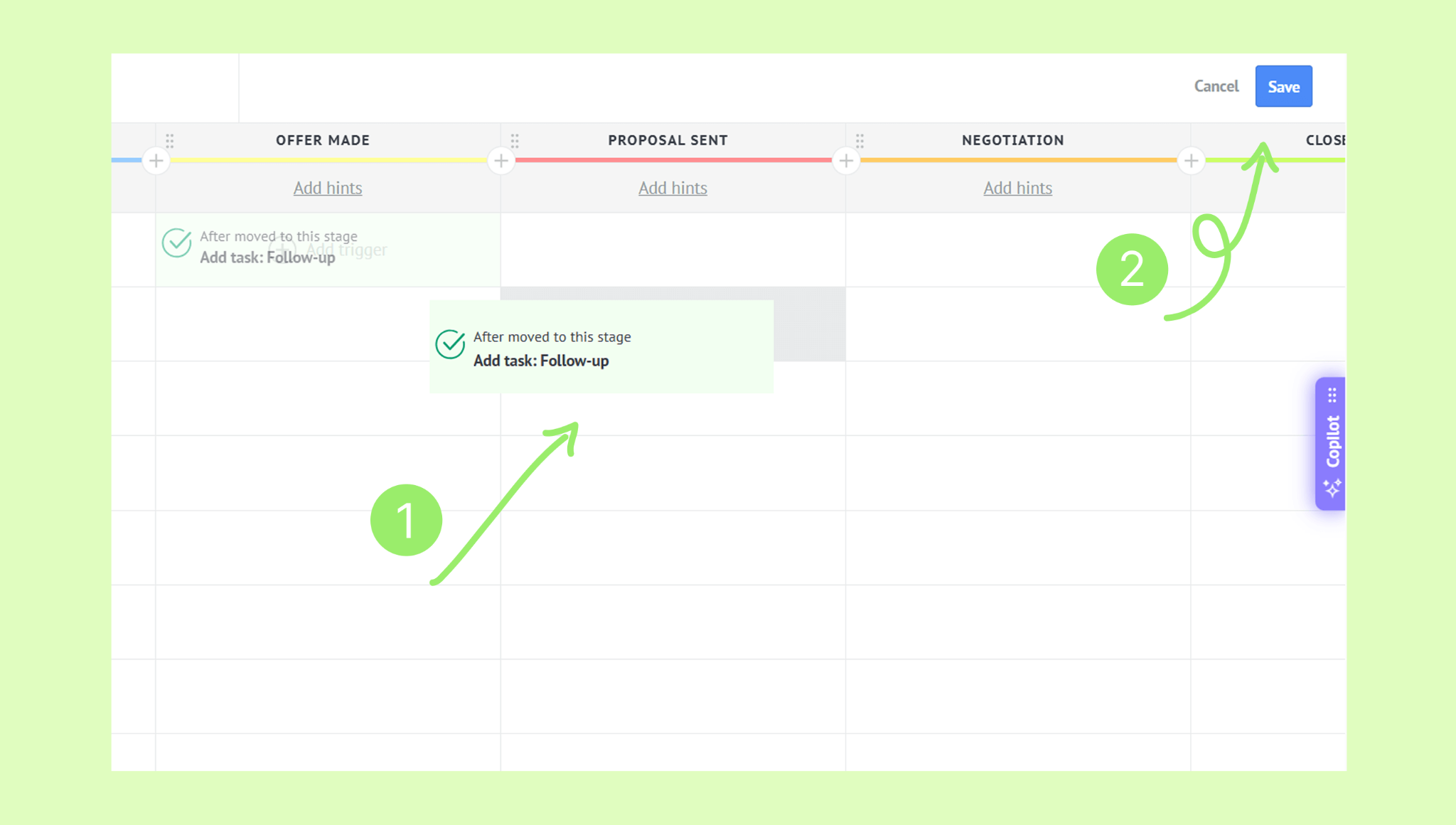
Drag and drop the trigger. → Click Save.
Duplicate a trigger
You can duplicate a trigger and add it to another stage.
To do so:
Go to Pipelines → Pipeline name → Automate.
Hover over the trigger you want to copy. → Click the duplicate icon.
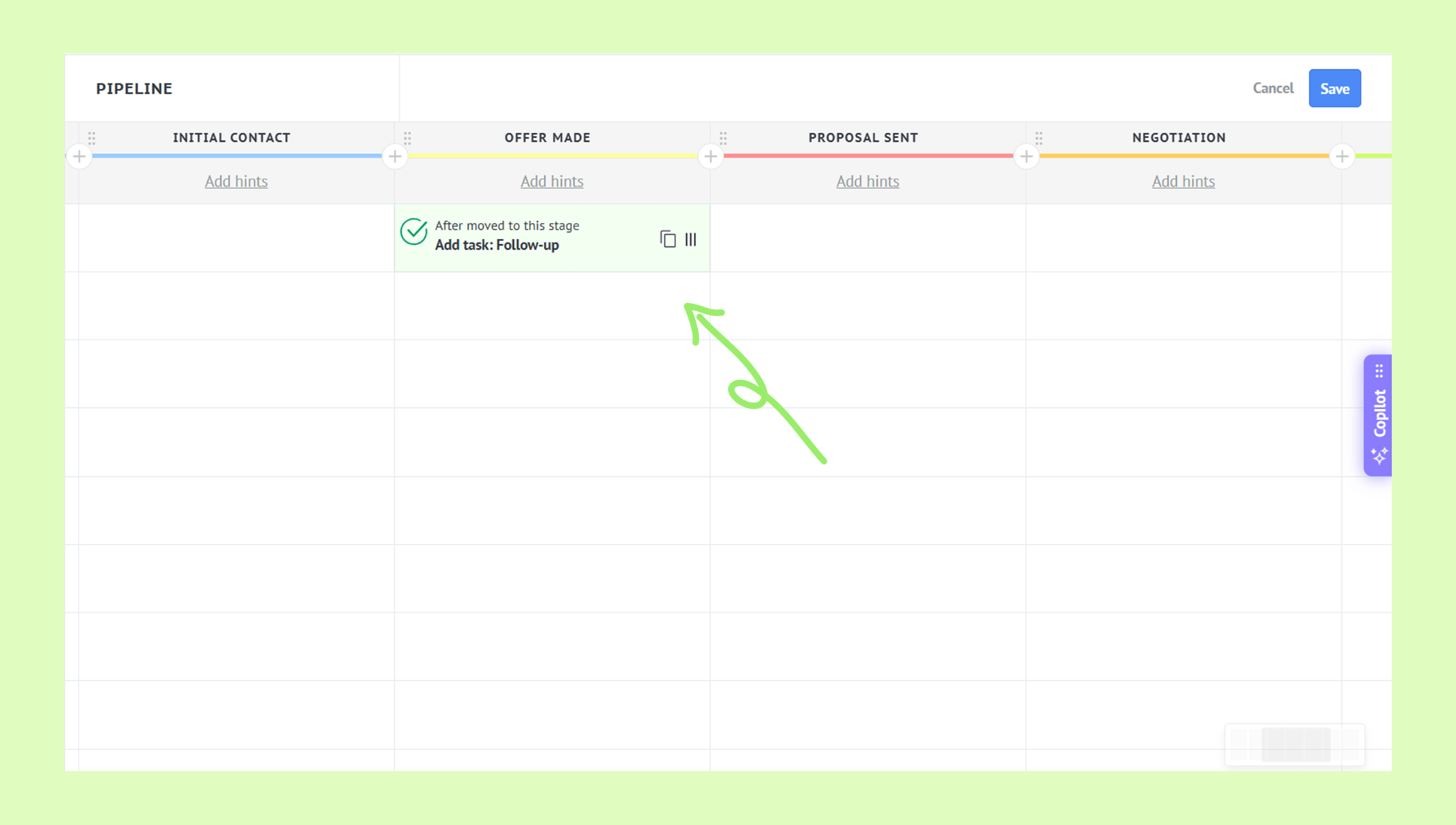
Drag the duplicated trigger to the desired stage. → Click Save.
Add hints
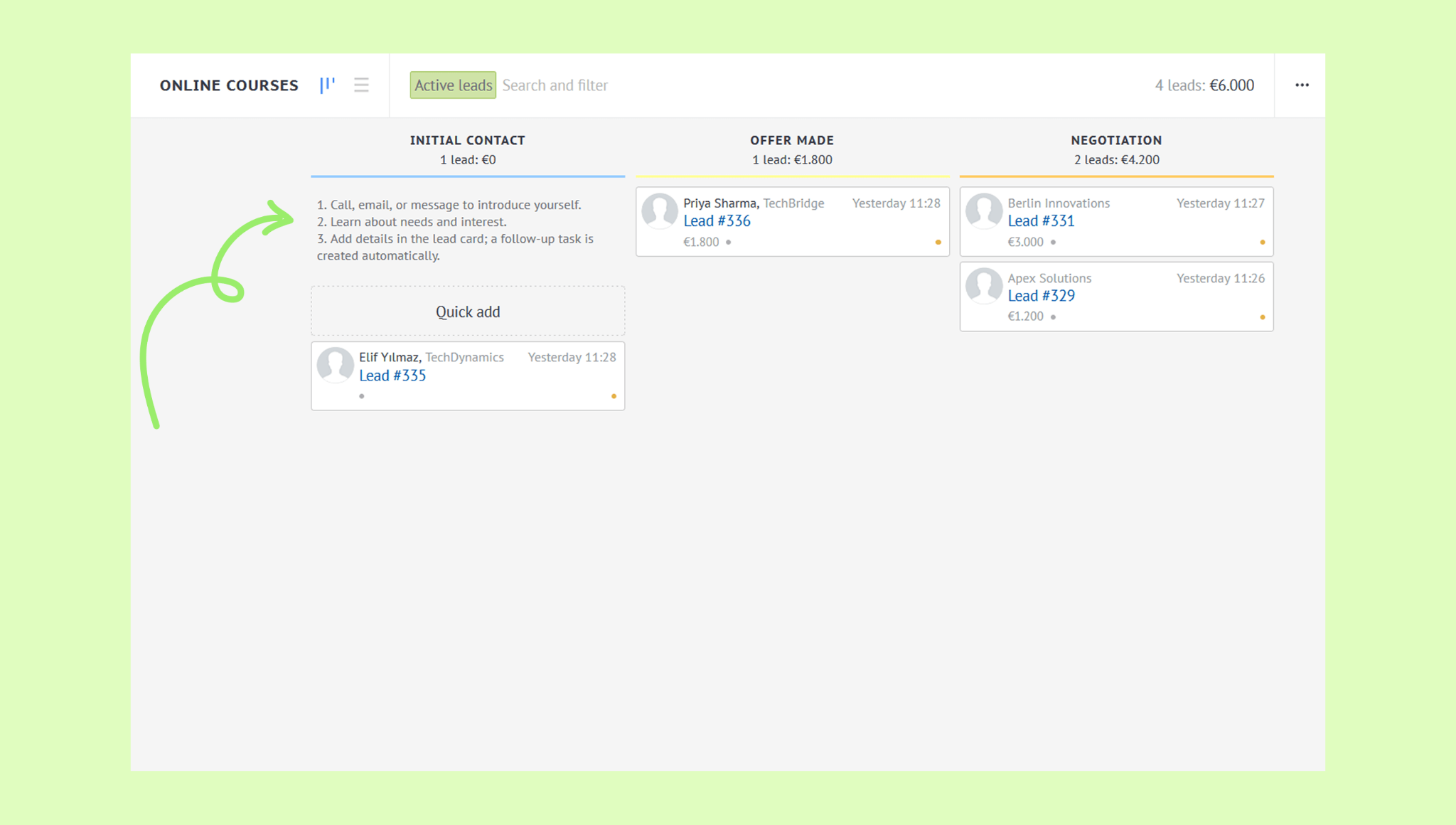
Hints help users understand what to do at each pipeline stage. With hints, you can clarify which actions happen automatically and which need to be completed manually.
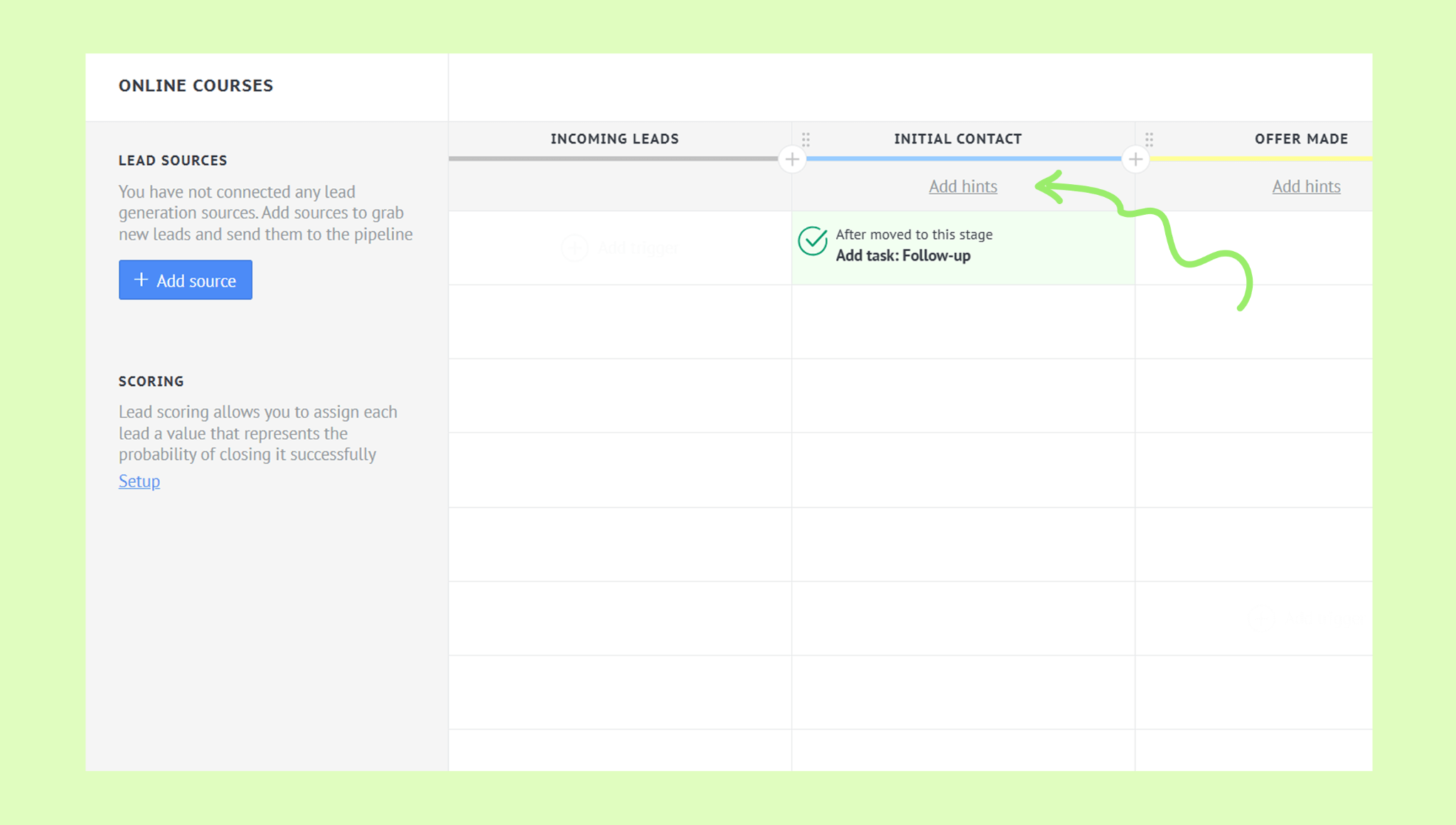
How to add hints:
Go to Pipelines → Pipeline name → Automate.
Click Add hints.
Pick the level: Beginner, Intermediate, or Expert.
Users are assigned statuses based on their activity: beginner - new users, intermediate - over 30 sessions, and expert - over 60 sessions.
Type your hint. → Click Save.
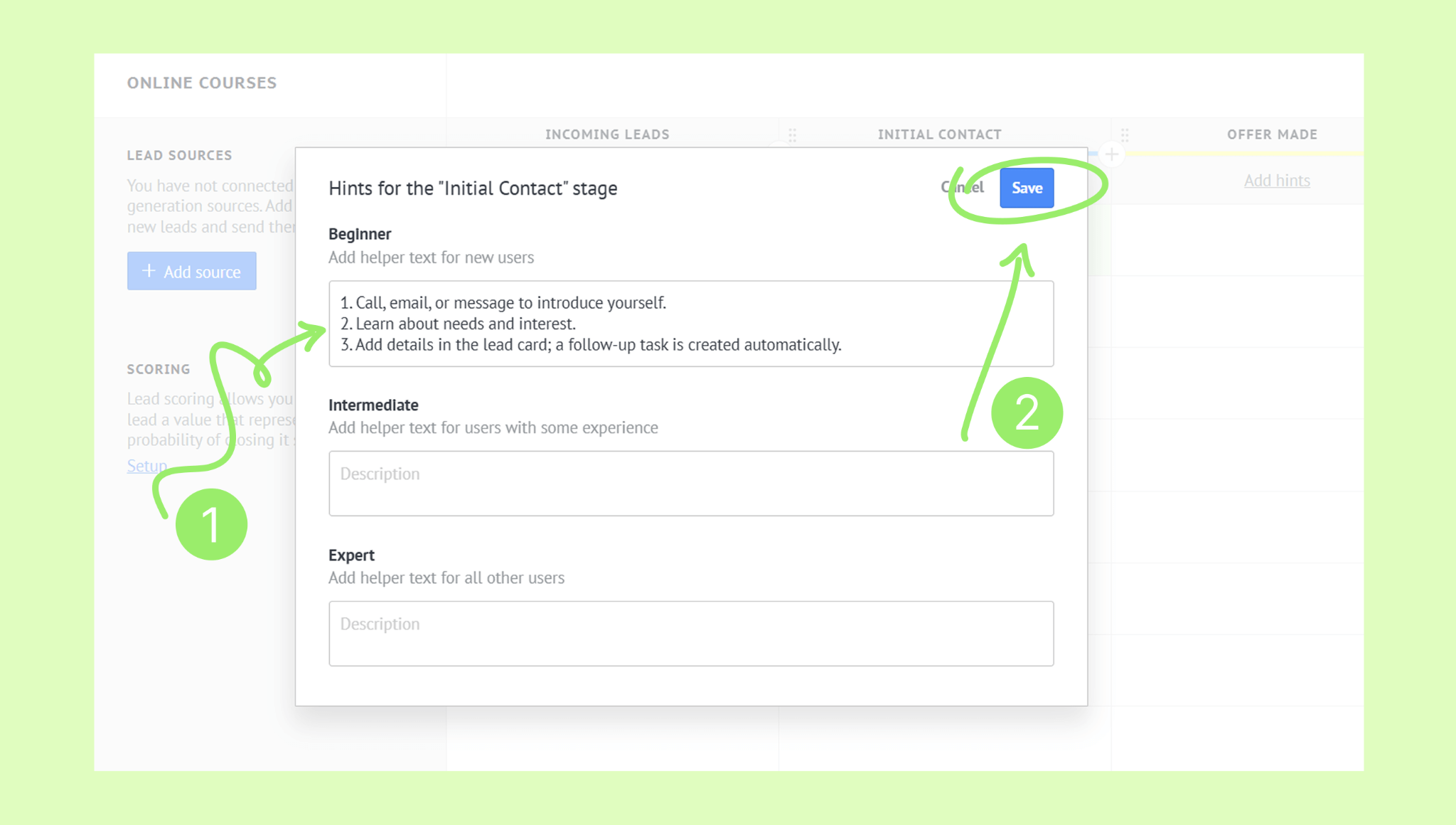
The hint will appear in the pipeline under the stage name based on the user’s level, so beginners won’t see hints for intermediate or expert users, and vice versa.
Set lead scoring
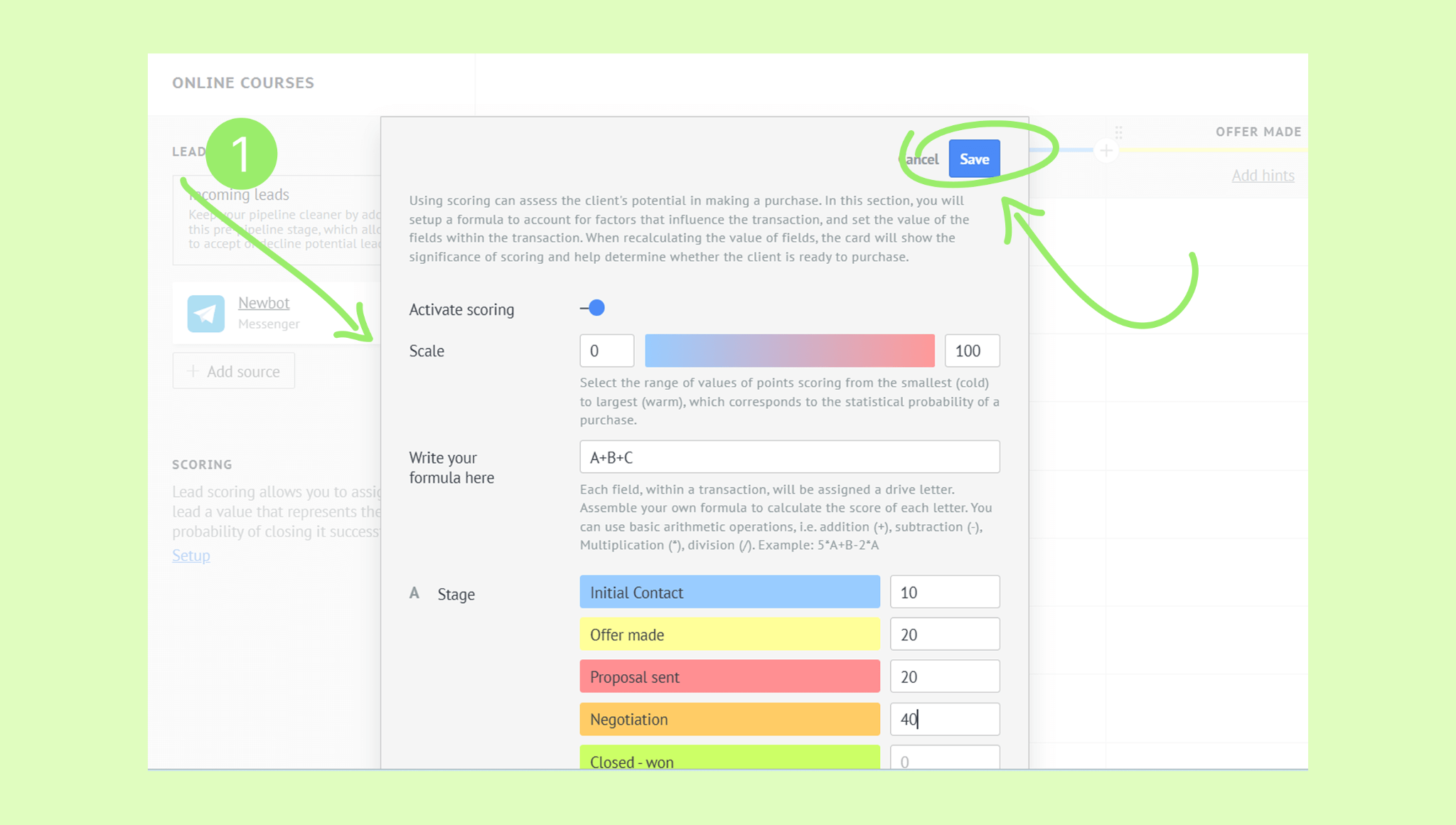
Lead scoring lets you rank leads by how likely they are to buy your products or services. It helps you focus on the most promising leads, which is especially useful if you have hundreds of them, allowing you to prioritize which ones to work on first.
You can create your own scoring formula by giving points for things like a lead’s pipeline stage, UTM content, UTM medium, or a field in the lead’s card.
Tip: You can add custom fields to a lead’s card that influence their likelihood to buy – for example, a loyalty card number – so leads with a loyalty card can receive a higher score. Learn how to add custom fields in this article.
To set lead scoring:
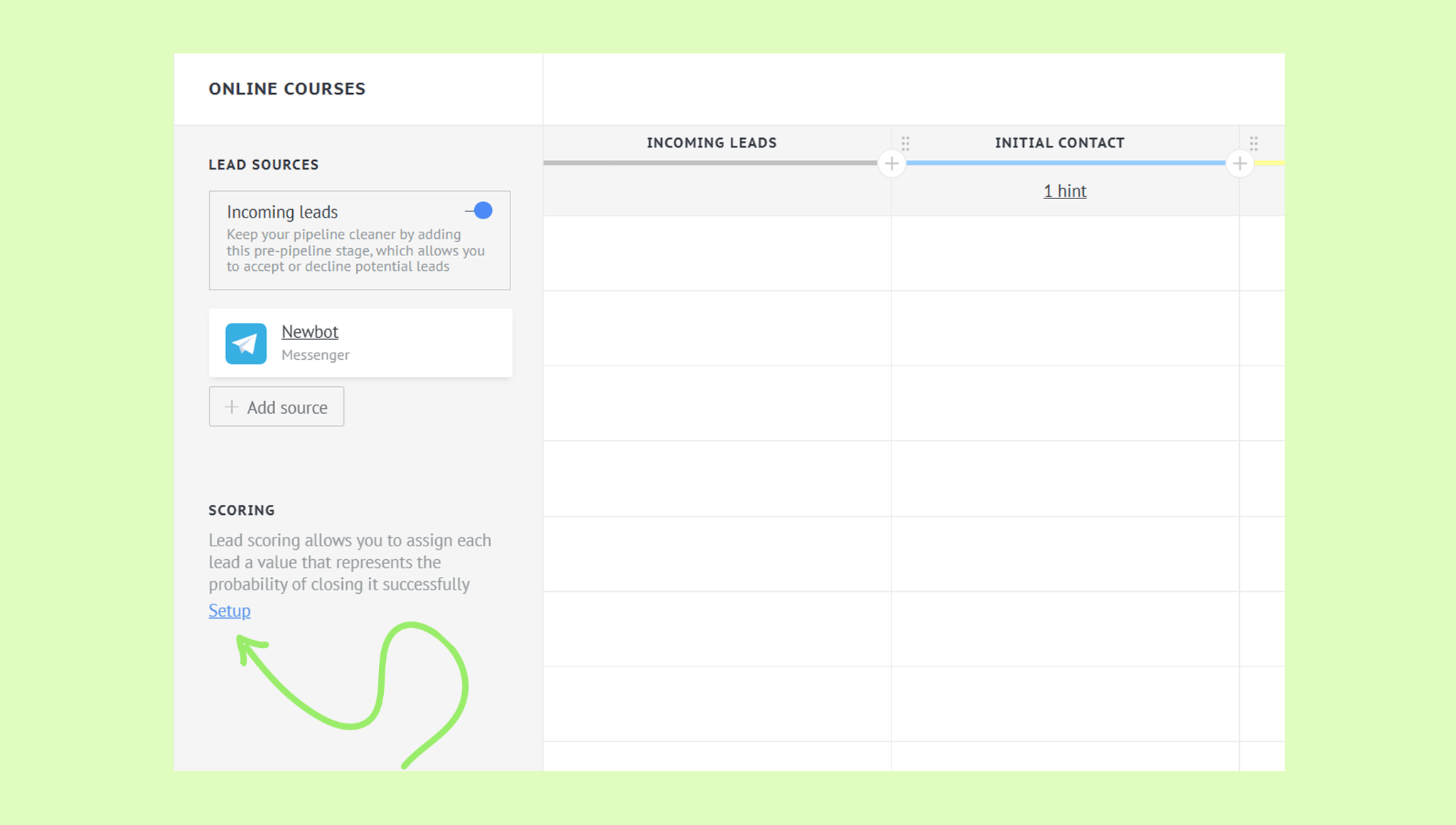
Go to Pipelines → Pipeline name → Automate.
Click Setup.
Add your formula and parameters. → Click Save.
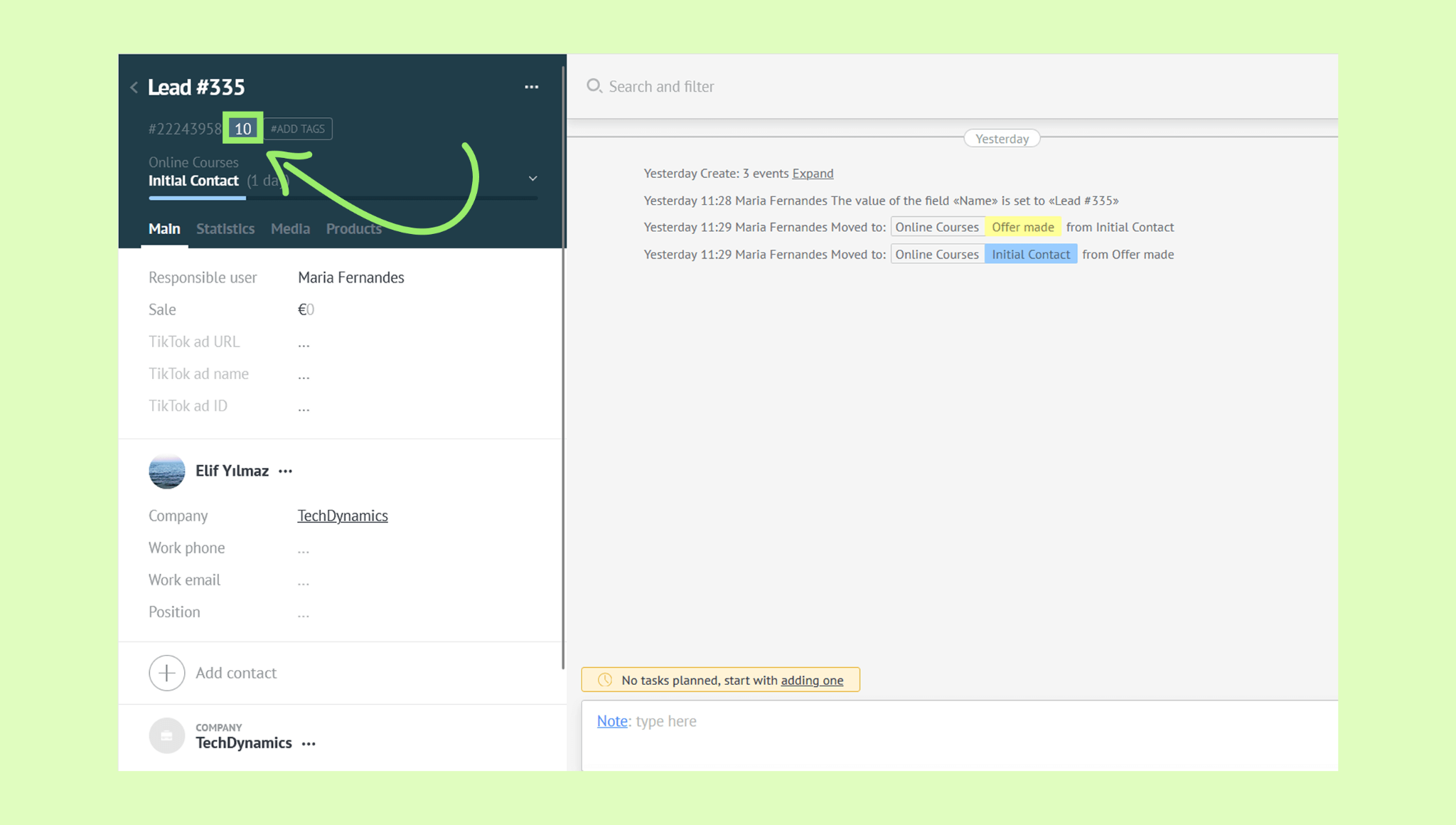
The score will appear on the lead card.
Add a pipeline stage
You can add a new stage right from the automate page. To do so:
Go to Pipelines → Pipeline name → Automate.
Click the + icon.
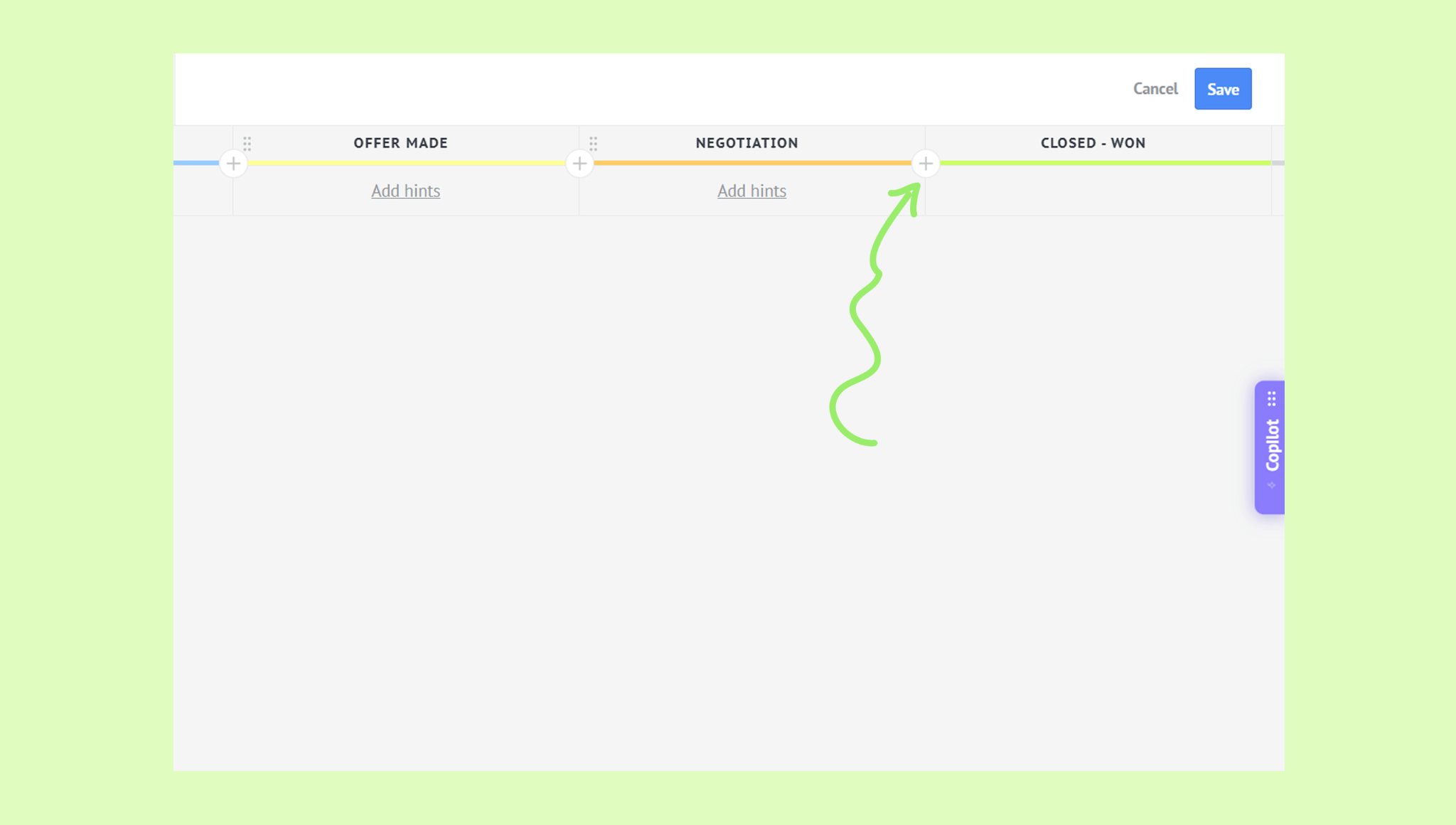
Enter the name of the stage. → Pick the color. → Click Save.
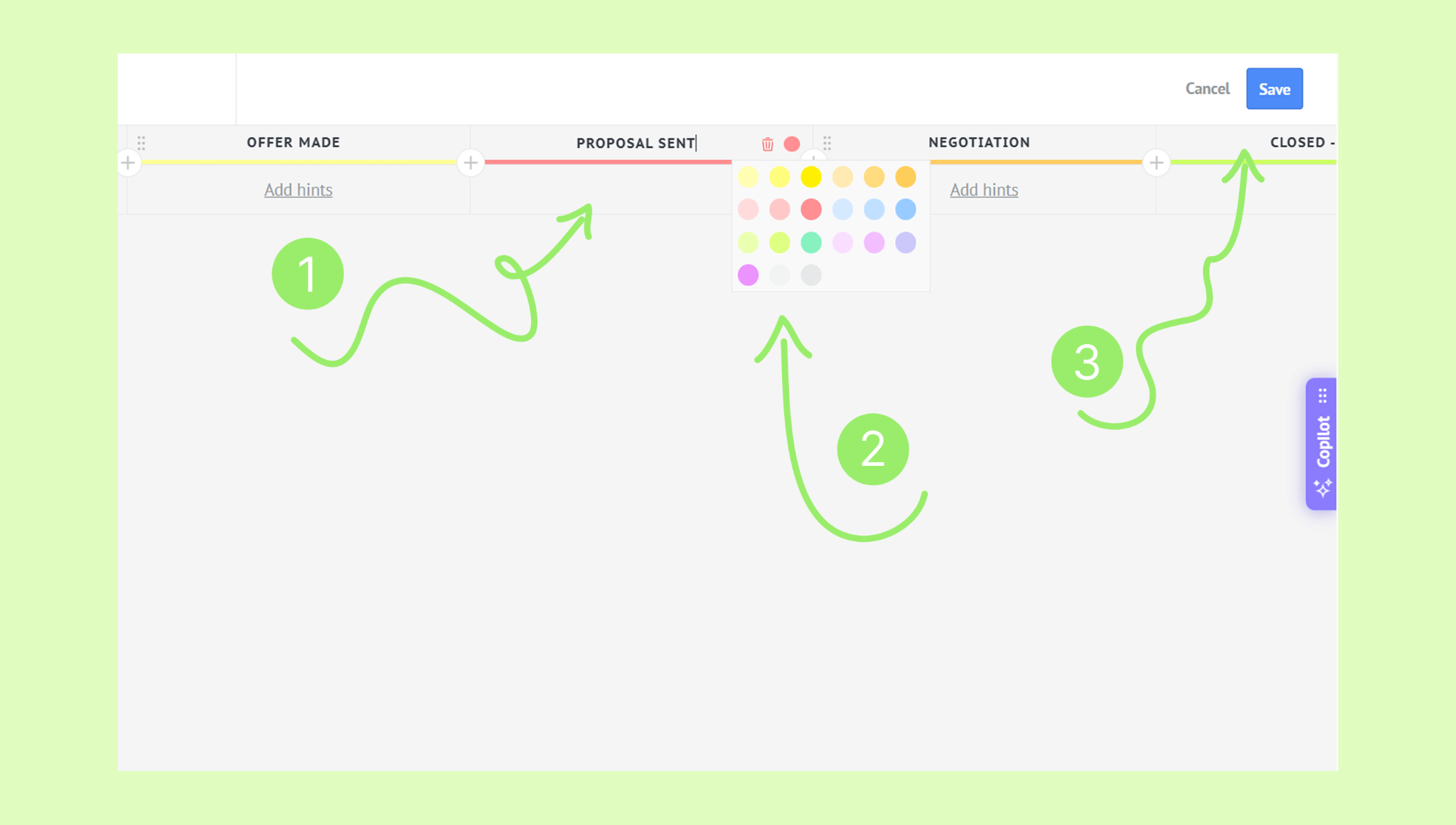
Tip: You can also rename existing stages. For that, click the stage name → type the new name → press Enter.
Delete a pipeline stage
Go to Pipelines → Pipeline name → Automate.
Click the stage name.
Click the trash bin icon.
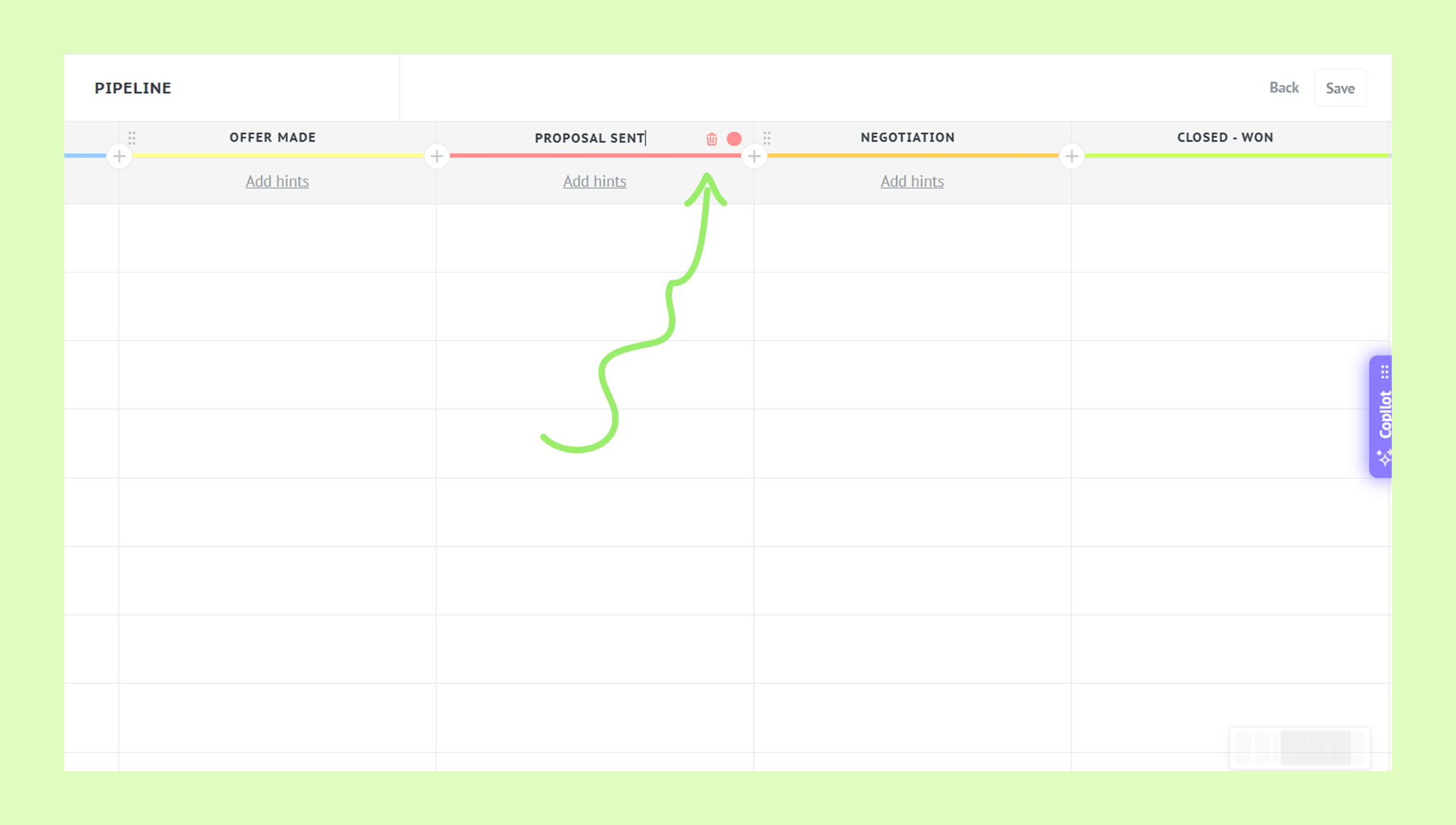
Confirm with Yes, and click Save.