What you’ll need:
Admin role in Kommo.
At least one saved Segment with valid conditions. If you need to create one first, see Segments overview.
An eligible Kommo plan:
Manual segments — available on Advanced, Pro, Enterprise, Trial, or Pro Trial plans.
Automated segments — available on Pro, Enterprise, Trial, or Pro Trial plans.
Learn more about Kommo plans here.
Keep in mind:
Both Manual and Automated segments are dynamic: leads automatically enter or leave based on whether they match the set conditions.
Launching a broadcast using an Automated segment does not create a recurring broadcast or automatically message future leads who enter the segment later.
Updating conditions on a shared Automated segment can trigger immediate entry/exit actions for existing leads, in addition to changing future broadcast audiences.
Once a segment is created as Manual or Automated, its activation type cannot be converted.
Use this article after you already have at least one Segment in Kommo and want to keep your broadcast audience accurate over time. It focuses on day-to-day audience management, not on creating a Segment from scratch. For setup and core Segments behavior, see Segments overview.
When to review a segment
Review your segment before each broadcast or campaign—especially if your audience depends on recent lead activity, tag changes, pipeline movement, or new imports.
It is especially useful to review a segment when:
You imported new leads since the last broadcast.
Your team changed lead tags, stages, sources, or responsible users.
The campaign is time-sensitive and should only reach leads at a specific stage.
The segment contains automated entry/exit actions that could trigger unexpected workflows if conditions change.
A previous broadcast had too many failed, low-quality, or irrelevant recipients.
You plan to reuse a segment that was created for a different campaign.
Check the audience before sending
Open the segment from the Segments section.
Review the activation type (Manual vs. Automated) to understand if automations are linked to this audience.
If it is an automated segment, check the Actions tab before changing conditions.
Note: Adding or removing conditions can cause leads to enter or leave, immediately triggering configured entry/exit actions (such as Salesbots or ad audience updates).
Review the conditions that define the audience.
Check whether the segment still matches the campaign goal.
Look for conditions that may be too broad, too narrow, outdated, or tied to old tags.
Click Count leads to update the displayed lead count after any condition edits.
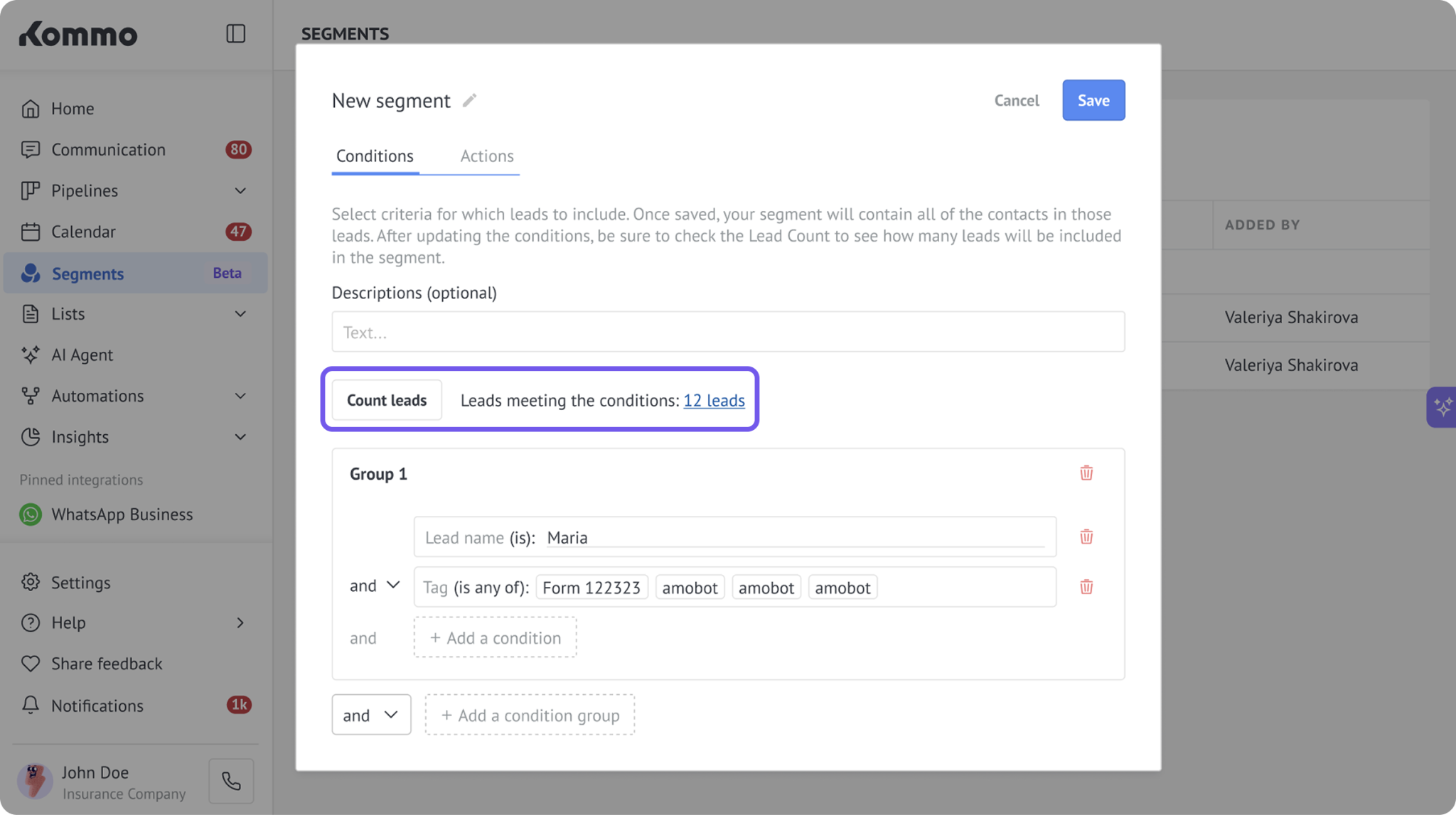
If the change is only for one campaign, create a separate campaign-specific segment instead of changing a segment your team already uses regularly.
Note: Use clear segment names that show the audience and purpose, such as Warm leads — webinar follow-up or Customers — renewal reminder. This helps teammates avoid choosing the wrong audience in a broadcast.
Decide whether to reuse or create a new segment
Before changing an existing segment, decide whether the update should affect future campaigns.
Situation | Recommended action |
|---|---|
The audience is used for recurring campaigns | Reuse the existing segment and update it only when the recurring audience definition changes. |
The campaign needs a one-time audience | Create a separate segment so you do not change a reusable audience by mistake. |
The audience is similar but needs extra exclusions | Create a copy or a new segment with a more specific name. |
The segment name or description is unclear | Rename it or add notes before using it again. |
You want to alter the broadcast list, but the segment has active automated actions attached | Create a new segment to prevent triggering entry/exit actions for existing leads. |
Use segment descriptions for team context
Descriptions help your team understand why a segment exists and when it should be used. Add notes that explain the audience logic, campaign purpose, or any exclusions that matter.
A useful description can include:
The campaign or workflow the segment supports.
The main audience rule, such as stage, tag, source, or lead status.
Whether the segment is reusable or campaign-specific.
The activation type and whether any entry/exit actions are currently active.
Any exclusions your team should know about.
The date or reason for the latest major update.
Prepare the segment for a broadcast
Before launching a broadcast, confirm that the segment matches both the campaign goal and the selected communication channel. For a broader explanation of how broadcasts work, see Broadcasting overview. For step-by-step setup, see Set up and customize broadcasts in Kommo.
Select one segment from the list.
Note: Selecting multiple segments enables bulk deletion, not multi-segment broadcasting.
Click New broadcast to open the setup window.
Confirm that the selected segment contains leads eligible for the chosen message and communication channel.
Choose whether the campaign should reach all linked contacts or only the main contact.
Set up a failed-recipient tag if you plan to follow up with undelivered leads.
Save as a draft if another team member needs to review the audience before sending.
Note: The number of selected leads can differ from the final number of delivered messages. Some leads may not have the required contact details, may not be reachable through the selected channel, or may share duplicate contact information with another lead.
Refine a segment after a broadcast
After a broadcast completes, analyze results via Insights → Activity log and broadcast statistics to refine future selection rules:
Open the completed broadcast statistics and analyze Failed, Delivered, Read, and Replied recipient groups.
Inspect individual lead cards behind failed or unengaged groups to spot patterns (e.g., invalid phone numbers, outdated tags, inactive stages).
Refine segment rules: Update existing conditions only if those patterns should permanently apply to future automated workflows or recurring sends.
Create follow-up audiences: Create a new segment targeting leads who replied, didn't receive the message, or remained unengaged.
Learn how to analyze your broadcasting statistics in our article.
Examples of usage-focused segments
Goal | Segment idea | How to use it |
|---|---|---|
Follow up after an event | Leads tagged with the event name and not yet moved to a sales stage | Send a reminder, offer, or next-step message after the event. |
Re-engage inactive leads | Leads with no recent conversation or activity | Send a check-in message or limited-time offer. |
Promote a service to qualified leads | Leads in qualified stages with a relevant source or tag | Send a targeted campaign only to leads likely to be interested. |
Follow up on failed delivery | Leads tagged after a failed broadcast | Check contact details, try another channel, or send a manual follow-up. |
Best practices
Keep reusable segments broad enough for recurring campaigns, but specific enough to avoid irrelevant recipients.
Always check the Actions tab on automated segments before saving condition edits.
Click Count leads after modifying criteria to confirm target numbers.
Create campaign-specific segments when a broadcast needs temporary or unusual filters.
Use naming conventions so your team can quickly understand which segment to choose.
Review segment conditions before high-volume or time-sensitive broadcasts.
Use broadcast results to clean up audience rules instead of creating many similar segments without a clear purpose.
Avoid changing a shared segment right before launch unless everyone using it understands the update.
Create a new segment for one-time or experimental campaigns rather than modifying established team segments.
Troubleshoot audience issues
If a segment includes unexpected leads or a broadcast reaches fewer contacts than expected, see Troubleshoot segments for checks and fixes.