Connect your Zoom account to Kommo, match users to meeting hosts, and prepare the meeting-link field so your team can create invitations from lead cards.
What you’ll need
An active Kommo account with permission to install integrations.
A Zoom account with permission to authorize Kommo.
Users added to the connected Zoom account if several team members will host meetings.
A paid Zoom license and cloud recording enabled for each host whose meetings you want to record.
Keep in mind
Only one Zoom account can be connected to Kommo. That account can contain multiple Zoom users, who can be matched to their Kommo profiles.
Matching users determines which Zoom host creates the meeting. A default host is used when no matching user is found.
To make recordings available through the integration, record meetings to Zoom’s cloud.
Connecting Zoom lets your team create meeting links from lead cards and access recordings alongside customer conversations. During setup, you’ll authorize the connection, match your users, and create a field for automated meeting links.
Connect your Zoom account
Install the integration
In Kommo, go to Settings → Integration marketplace.
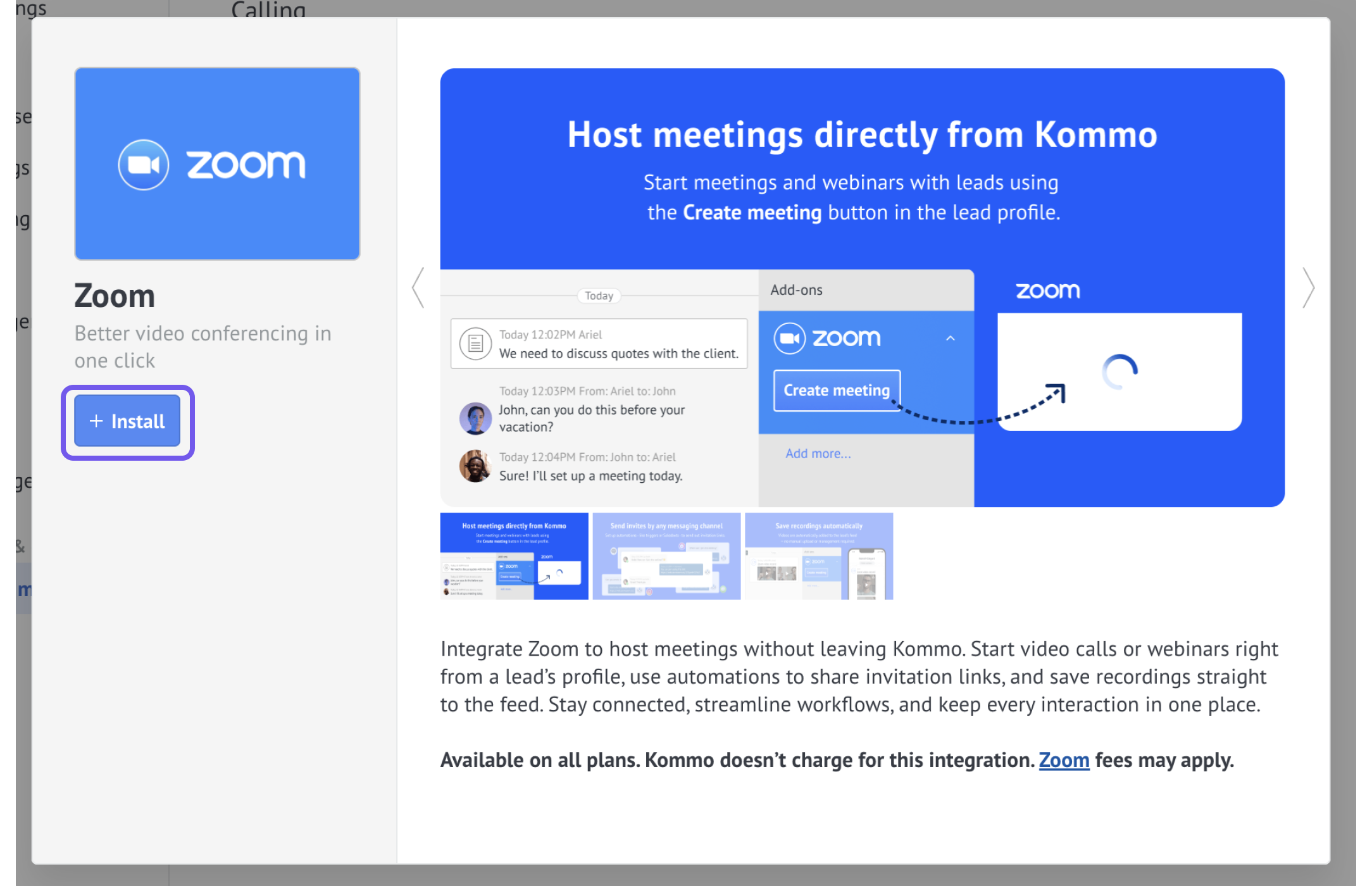
Search for Zoom and open the integration.
Click Install.
Sign in to the Zoom account you want to connect.
Review the requested permissions and authorize Kommo’s access.
After authorization, return to the Zoom integration settings in Kommo. Your connected profile appears under Zoom profile.
Match users and choose a default host
Under Zoom integration settings, find the Zoom sign-in email you want to match.
Select the corresponding person in the Kommo user field.
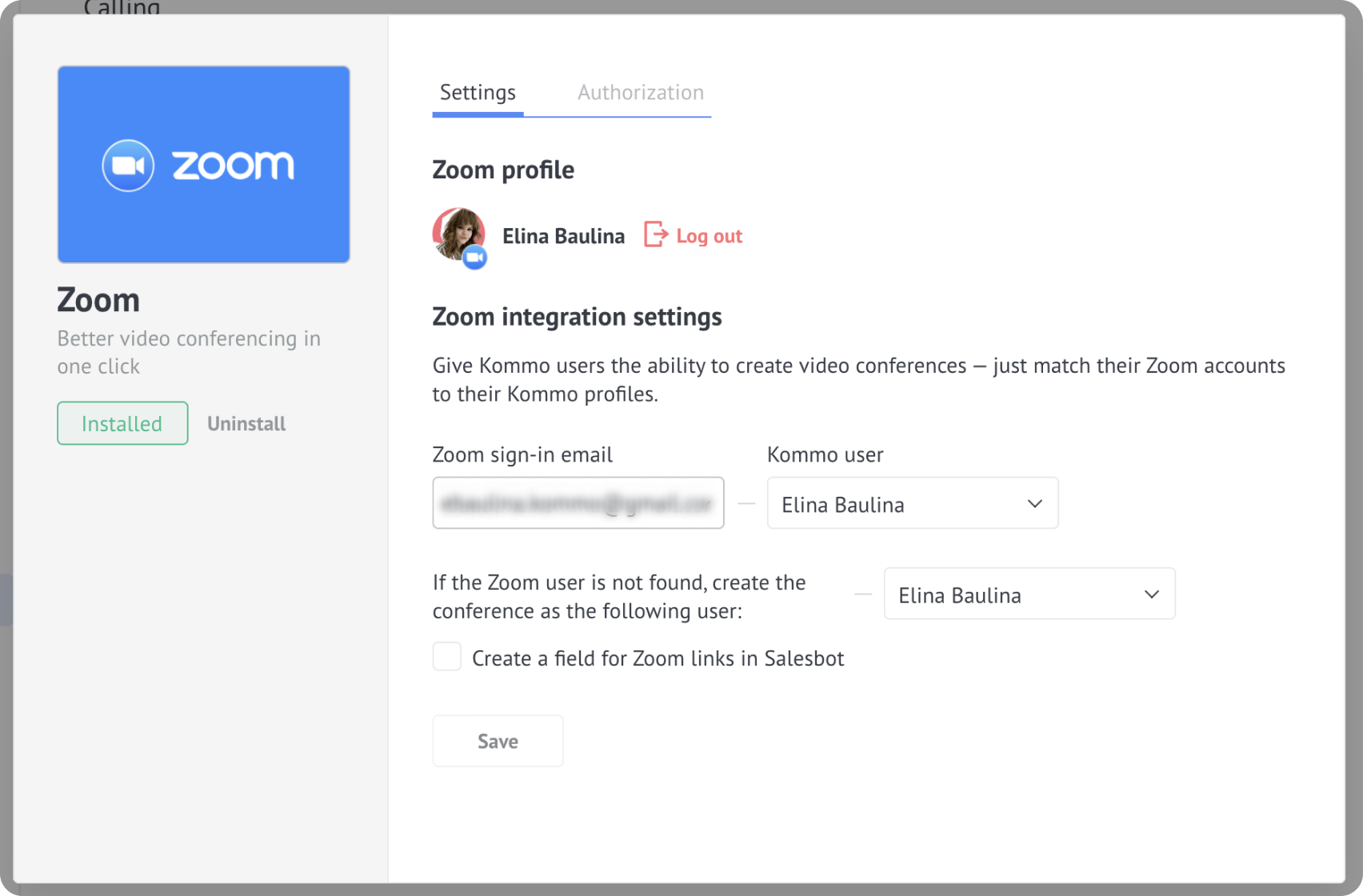
Repeat for the other users who will host meetings.
Select a default host under If the Zoom user is not found, create the conference as the following user.
Note: Kommo creates meetings under this host when the Kommo user has no matching Zoom user. These meetings are subject to the selected host’s Zoom limits.
Select Create a field for Zoom links in Salesbot.
This creates a lead field that the Zoom automation can use to store meeting links. Salesbot can then include the field’s value in customer messages.Note: The field option prepares your account for automation. To generate and send links automatically, you also need to configure a Zoom trigger and Salesbot.
Click Save.
Prepare cloud recording
If you want recordings to appear through the lead card:
Check that the meeting host has a paid Zoom license that supports cloud recording.
Enable cloud recording for that host in Zoom.
To record meetings automatically, enable automatic recording and choose recording to the cloud.
Zoom administrators can restrict recording settings. If a setting is unavailable or locked, ask your Zoom admin to check it.
For recording requirements, see Zoom’s cloud-recording guide.
Verify the connection
Open a test lead card in Kommo.
Find the Zoom widget on the right.
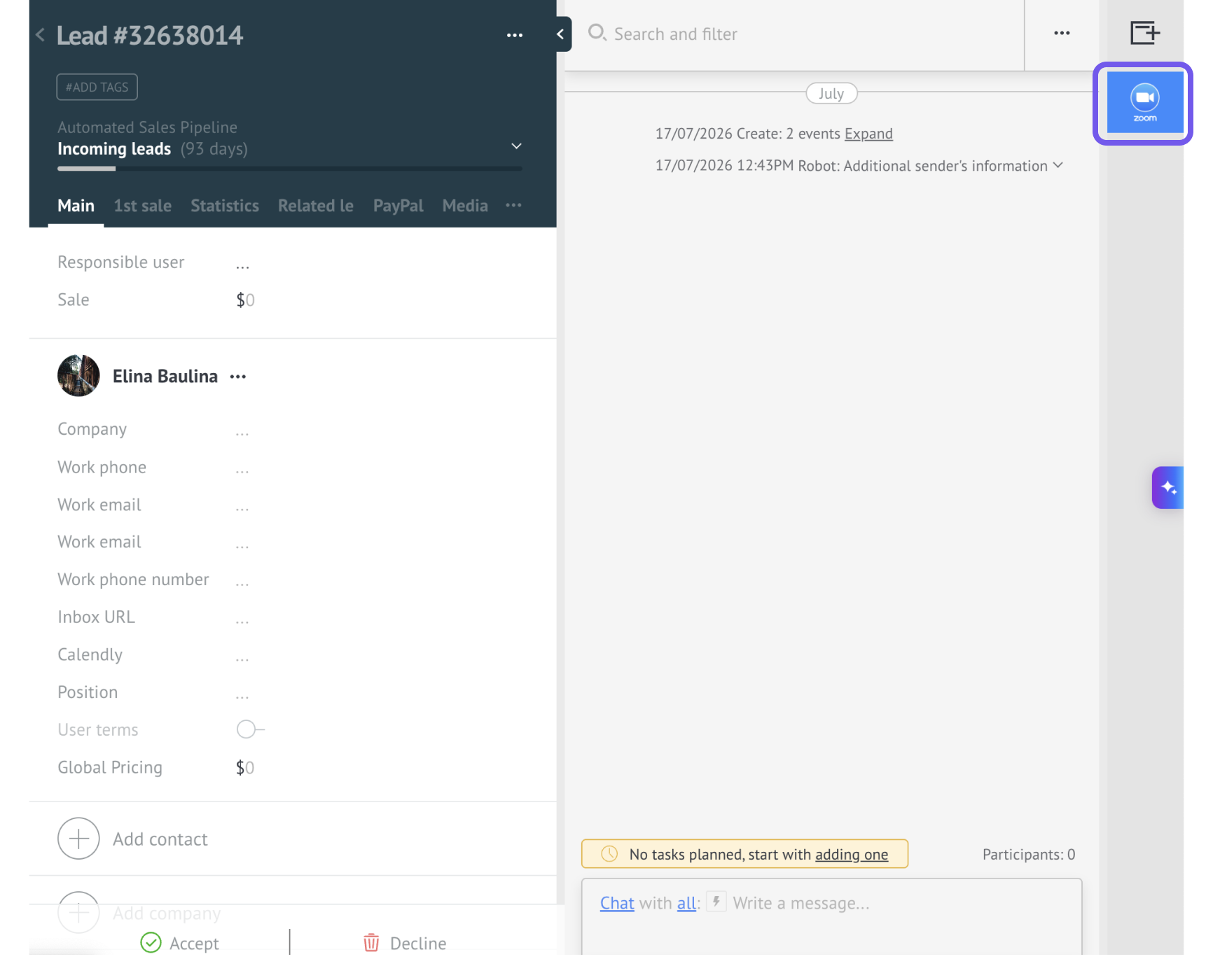
Click New meeting.
Check that a meeting link appears.
Open the meeting and confirm that the expected Zoom user is the host.
If you enabled cloud recording, run and record a short test meeting. After the meeting ends and Zoom finishes processing the recording, check the lead card for access to it.
Your setup is ready when you can create a link and start the meeting with the intended host.
If you cannot complete setup, check that Kommo is authorized in Zoom and that your users are matched correctly. For further help, contact Kommo support.