Create and share Zoom meeting links from Kommo lead cards, automate invitations with pipeline triggers and Salesbot, and review available cloud recordings.
What you’ll need
Zoom connected to Kommo, with users matched and a default host selected.
Access to the lead card where you want to create a meeting.
A connected messaging channel or email account to send invitations from Kommo.
Access to pipeline automation and Salesbot for automatic invitations.
A paid Zoom license with cloud recording enabled to access recordings.
Keep in mind
The integration creates instant Zoom meetings. Creating a link does not book a time in a calendar.
Meetings created separately in Zoom are not automatically added to Kommo lead cards.
Another Zoom trigger writing to the same lead field replaces the existing link.
Meeting duration, participant limits, and recording availability depend on the host’s Zoom plan and settings.
Use Zoom in Kommo to create a meeting for a lead, share the invitation, and review the conversation afterward. You can create links manually or automate invitations at a selected pipeline stage.
Create and share a Zoom meeting
Open the relevant lead card.
Find the Zoom widget on the right.
Click New meeting.
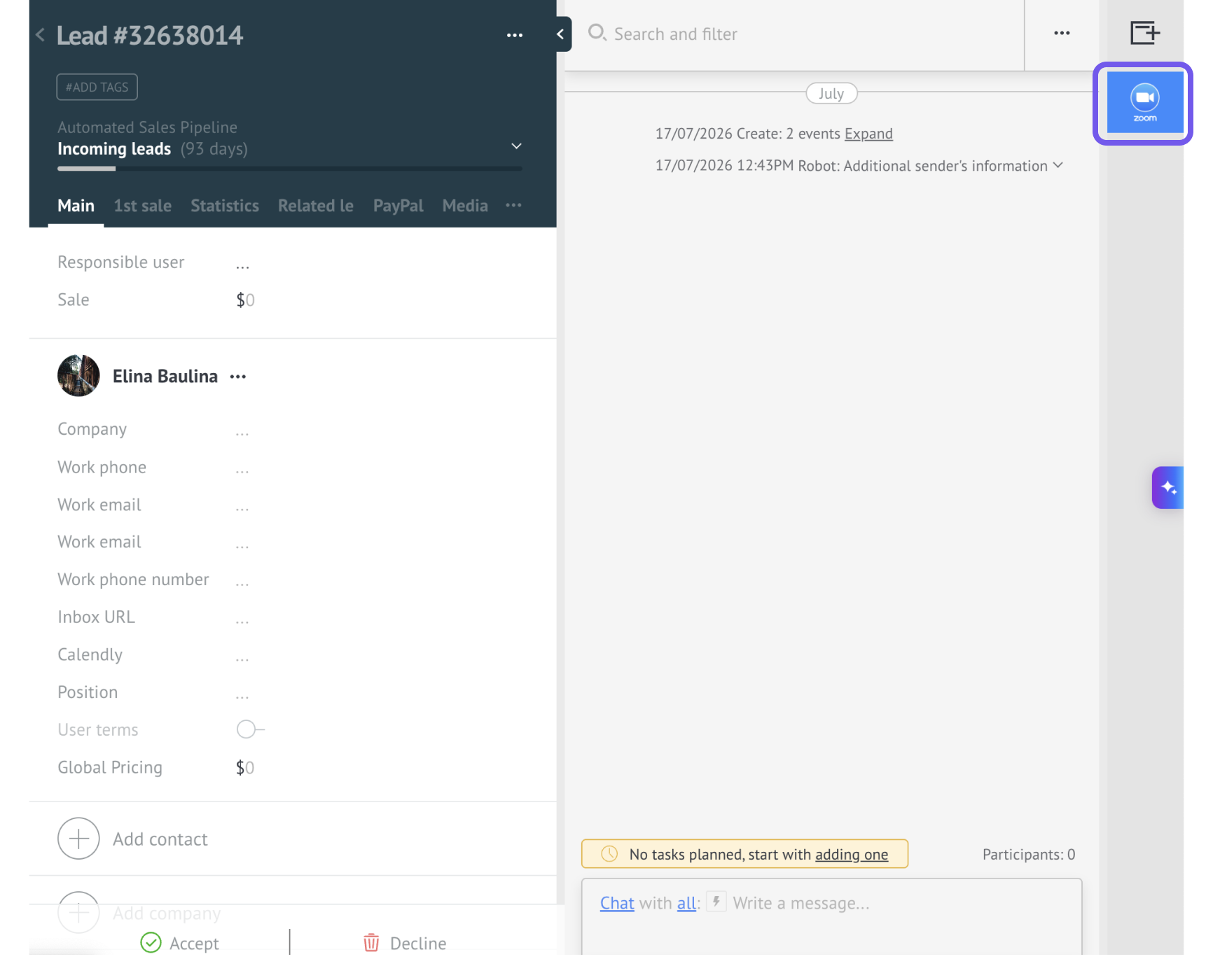
Copy the generated meeting link.
Paste it into the lead’s chat or an email and send it.
Open the meeting in Zoom when you’re ready to begin.
The meeting is created under the Zoom user matched in the integration settings. If no match is found, the configured default host is used.
Agree on the meeting time with your customer separately. Sending a meeting link does not confirm their availability.
Automate Zoom invitations
You can use two automations together: a Zoom trigger creates the meeting link, and Salesbot sends it to the customer.
Create meeting links with a Zoom trigger
Before you begin, check that Create a field for Zoom links in Salesbot was selected in the integration settings.
Open the pipeline where you want to create Zoom meetings.
Click Automate.
Add a trigger under the relevant stage.
In Widgets, select Zoom.
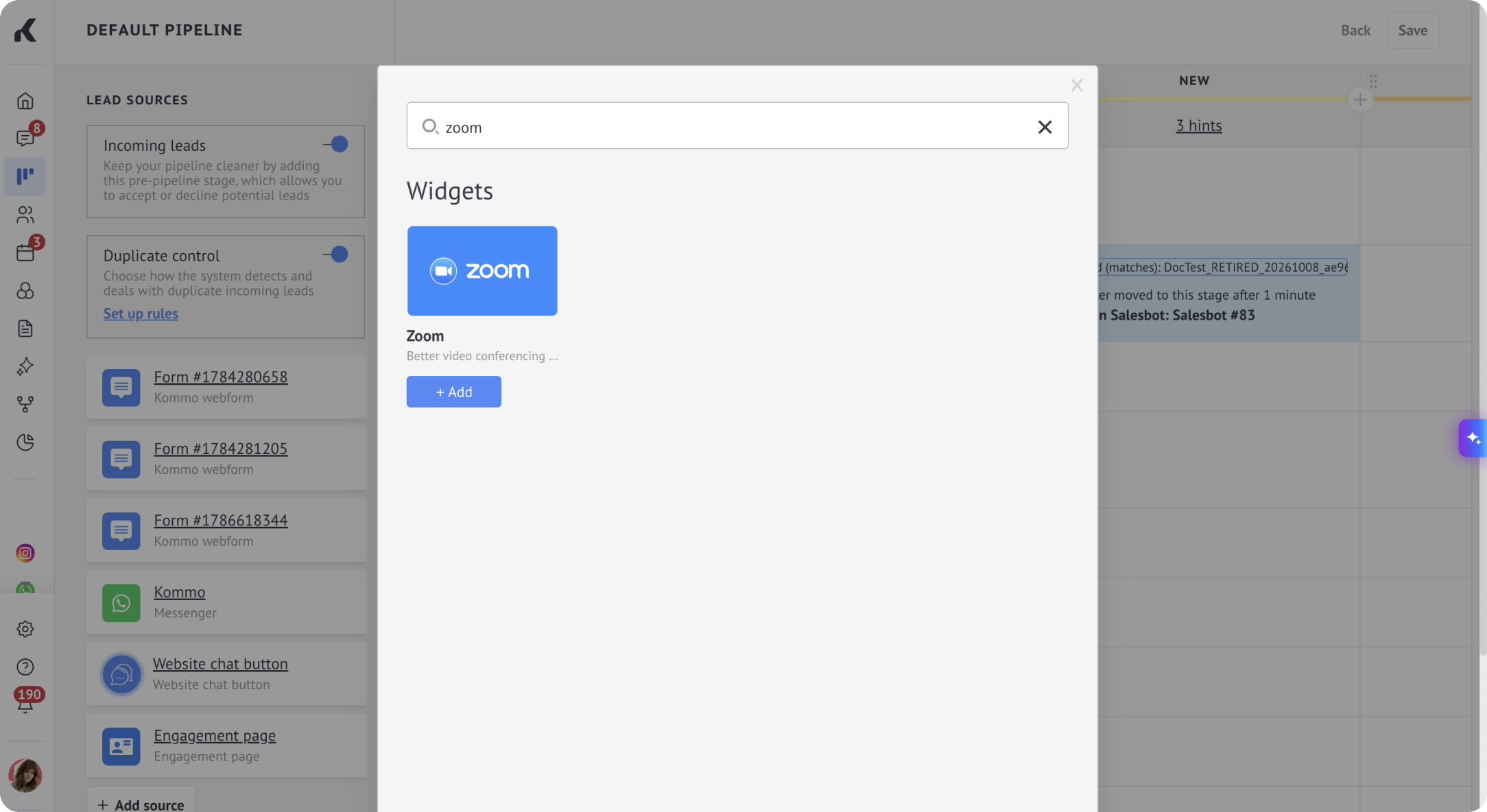
Choose when the trigger should run, such as when a lead moves to the stage.
Select the meeting host.
In Save meeting link in the field, select Zoom link.
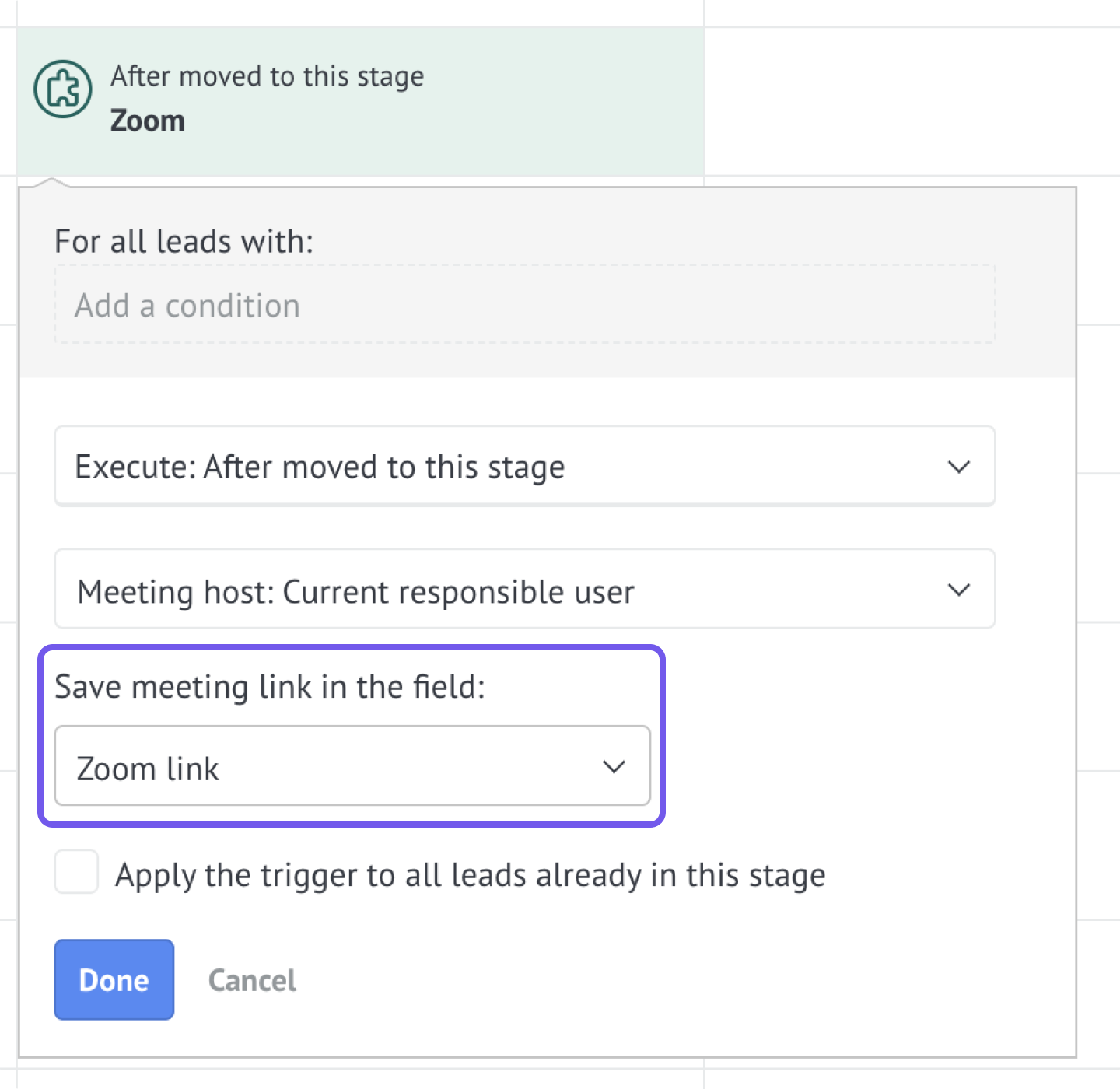
Save the trigger and your pipeline changes.
When a lead meets the trigger conditions, Kommo creates the meeting and saves its link in the selected field.
Send the link with Salesbot
Create or edit a Salesbot with a step that sends a message to the customer. Learn more about creating a Salesbot.
Write the invitation and insert the dynamic value of the lead’s Zoom link field.
Add a Salesbot trigger to the same pipeline stage.
Configure it to run after the Zoom trigger has had time to populate the field. For example, run Zoom when the lead enters the stage and Salesbot one minute later.
Save the bot and pipeline changes.
Use the dynamic field value for individual meeting invitations. A fixed link pasted into the bot’s message sends every recipient to the same meeting.
Test automatic invitations
Use a test lead with a messaging account you control.
Move it to the stage that runs the automations.
Confirm that the Zoom link field is populated.
Check that Salesbot sends a message containing the generated link.
Open the link and verify the meeting host.
If the message arrives without a link, check that both automations use the intended stage and that Salesbot sends its message after the field is populated.
Review Zoom meeting results
After an integration-created meeting ends, Kommo adds a meeting entry to the lead card.
If the meeting was recorded to Zoom’s cloud, its recording becomes available after Zoom processes it. The recording remains stored in Zoom.
Open or download a recording
Open the lead card used to create the meeting.
Find the Zoom meeting entry in the lead’s feed.
Open the available recording to review it or use the download option.
Note: Recordings may not appear immediately after a meeting ends. Zoom needs time to process them.
If a recording is missing, check that:
The meeting was created through the Kommo integration.
The host had an eligible paid Zoom license.
The meeting was recorded to Zoom’s cloud.
The recording has finished processing in Zoom.
On mobile, open the meeting entry in the lead card. The recording link opens in a browser or Zoom.
Create a link for a follow-up meeting
After the meeting ends, the integration clears the completed meeting’s link from the lead field. Create a new meeting when you need another call with the customer.
If you use several Zoom triggers, remember that a later trigger can replace the link stored in the same field. Check the current link before sending another invitation.
For help with unresolved meeting or recording issues, contact Kommo support.