What you’ll need:
Active Pro plan or a Pro features trial. Learn more about how to test Pro features in our article.
Admin permissions in Kommo.
Keep in mind:
Answers are based on all data in your account and aren’t limited by individual user permissions.
Analyst mode is not a free feature and uses AI credits. Learn more about how to purchase AI credits.
This guide explains how to access Analyst mode in Copilot, how it operates, and how to use it to explore your data — including custom lead fields, associated contacts and companies, lead progression through the pipeline and creation dates, and ROI reports.
How to activate Analyst mode
To activate Analyst mode, open Copilot in Kommo by clicking the sparkle icon on the right side of the screen.
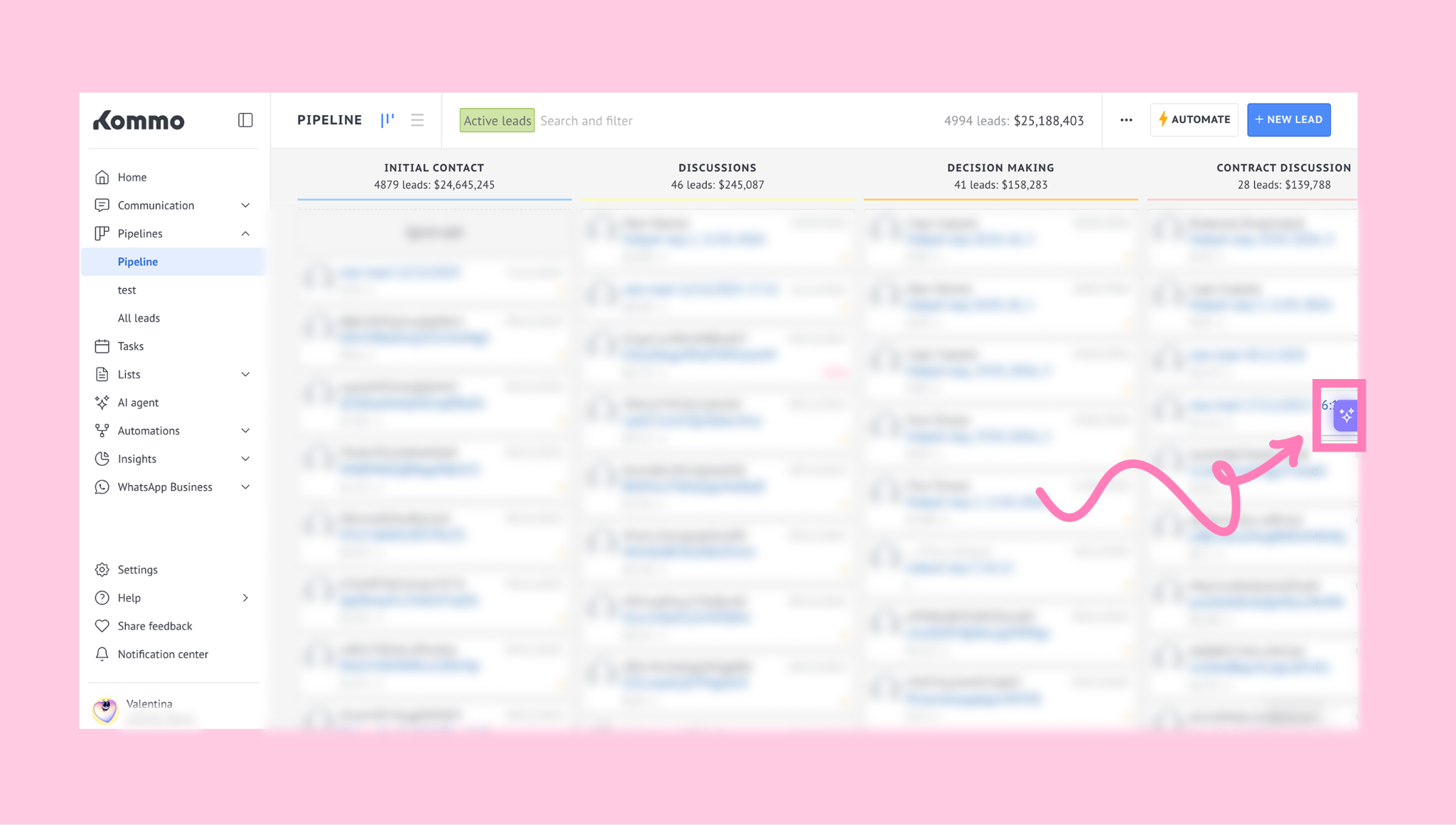
Analyst mode appears in the Copilot chat when it’s enabled for your user.
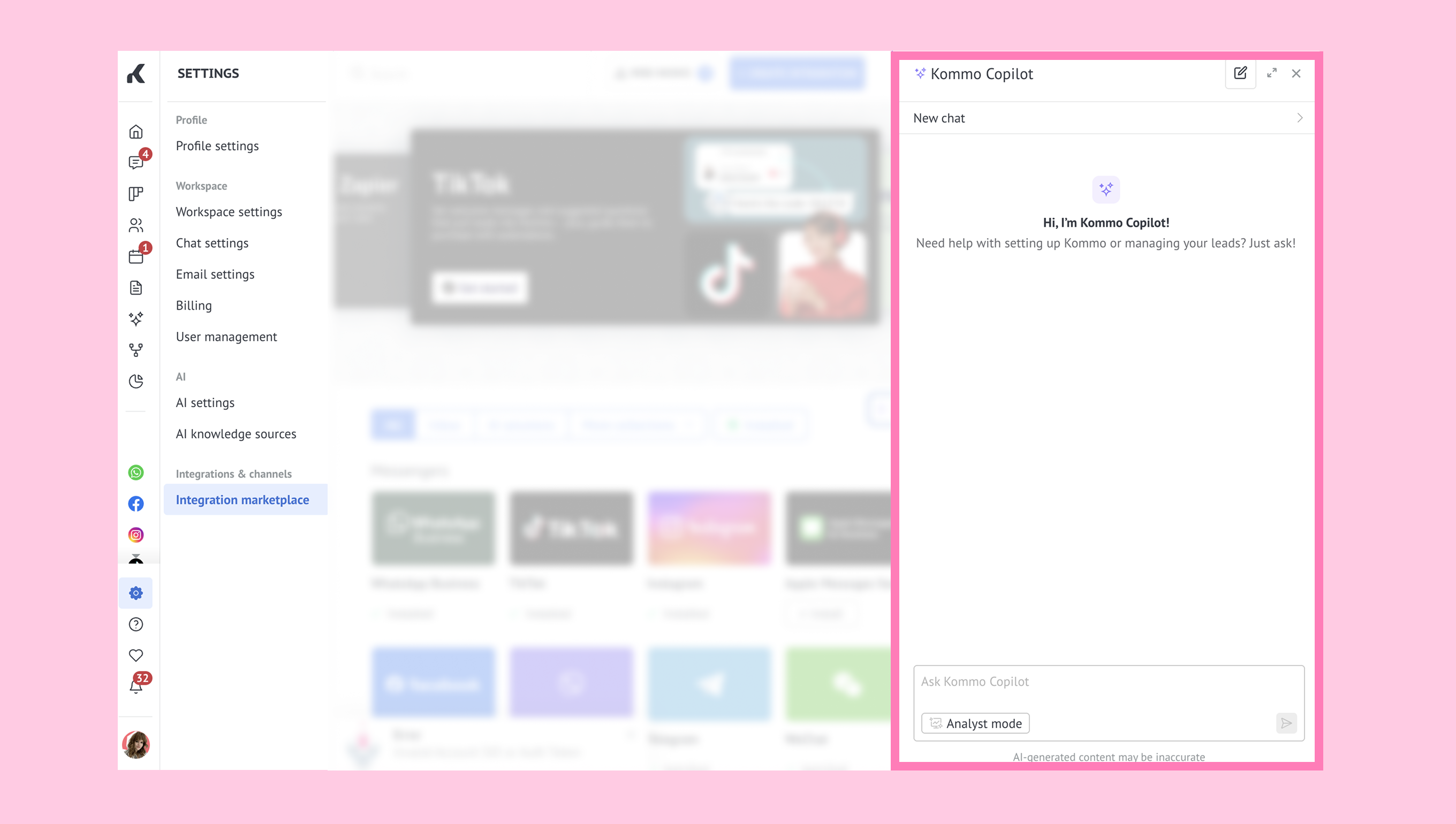
Click Analyst mode. You can then start asking analytics-related questions and reviewing insights directly in the chat.
How to use Analyst mode
To start using Analyst mode, follow the steps below:
Open Copilot.
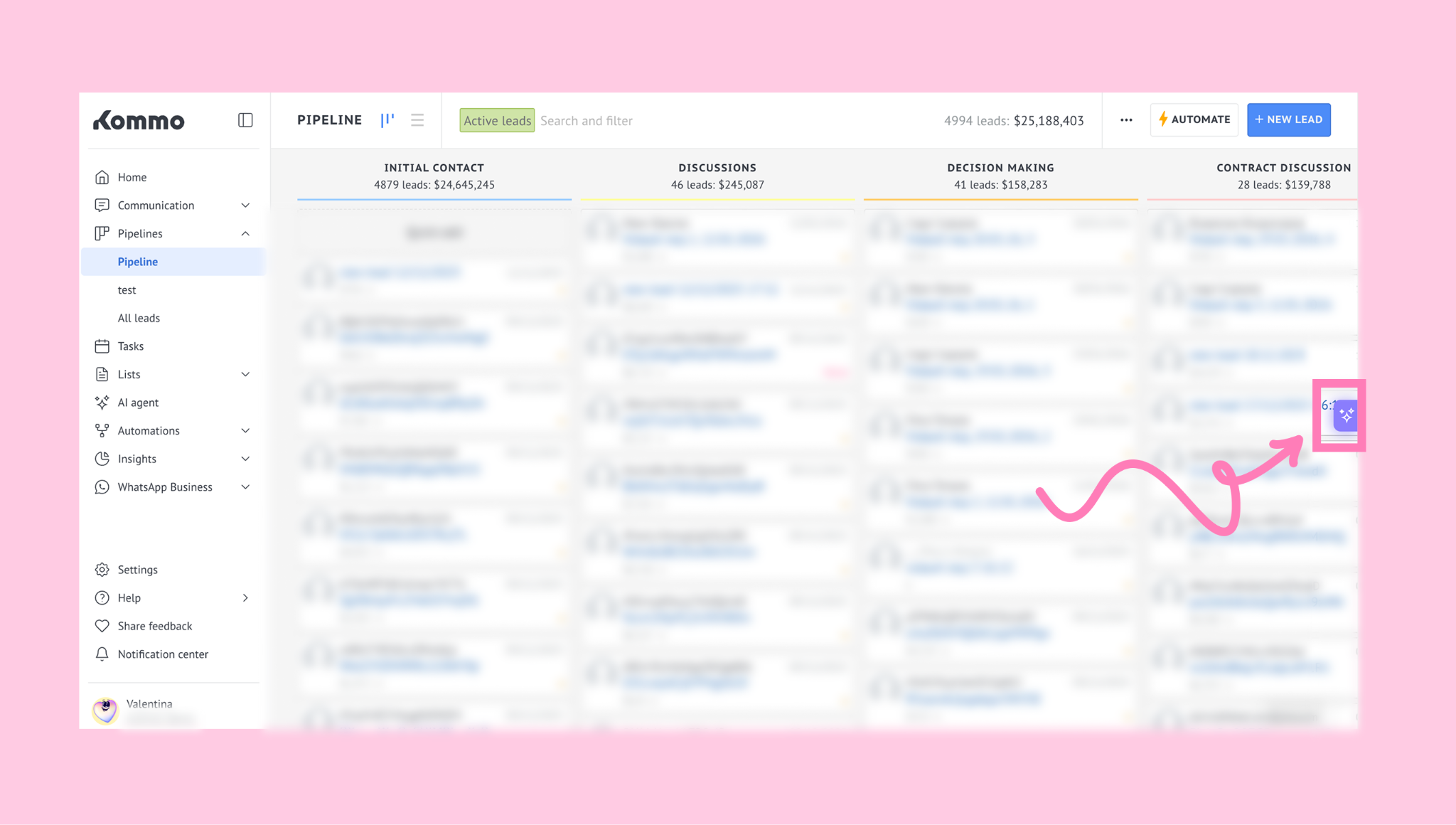
For more information about Copilot, see our Kommo Copilot guide.
Ask an analytical question in plain language or select a prompt:
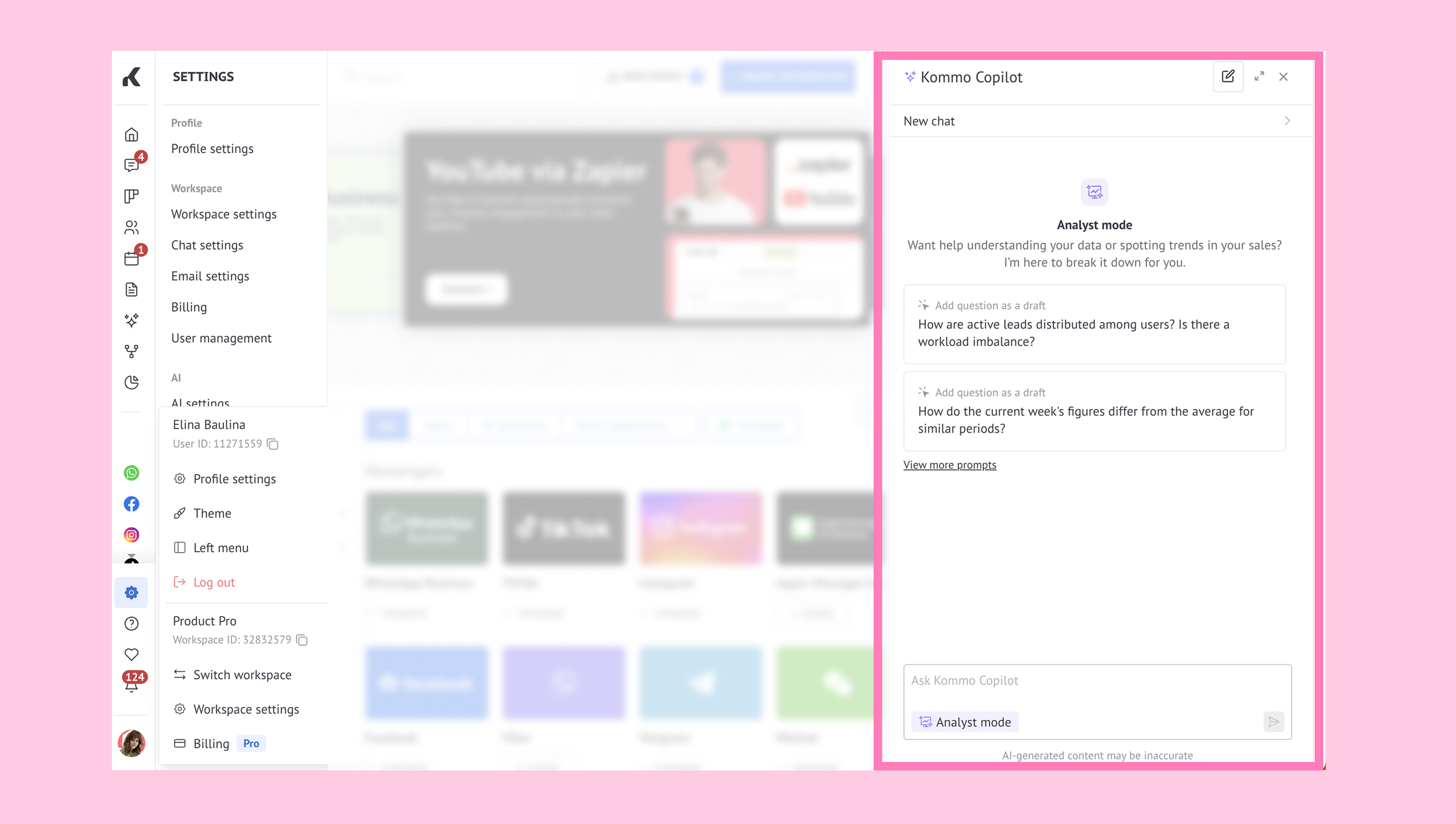
Question examples include:
How many leads were created this week compared with last week?
How many leads were won last month?
What’s the average lead value in the [pipeline name] pipeline?
Analyst mode will return an answer based on the information available in your account.
.png)
In some cases or when requested, the response includes tables or charts to help explain and compare results. You can copy, download, or use a link to share them:
You can continue the conversation by asking follow-up questions to refine the results or explore the data further.
For example, after viewing a chart, you might:
narrow the time range to a specific day or week
compare the same data across different periods
focus on a specific pipeline or source
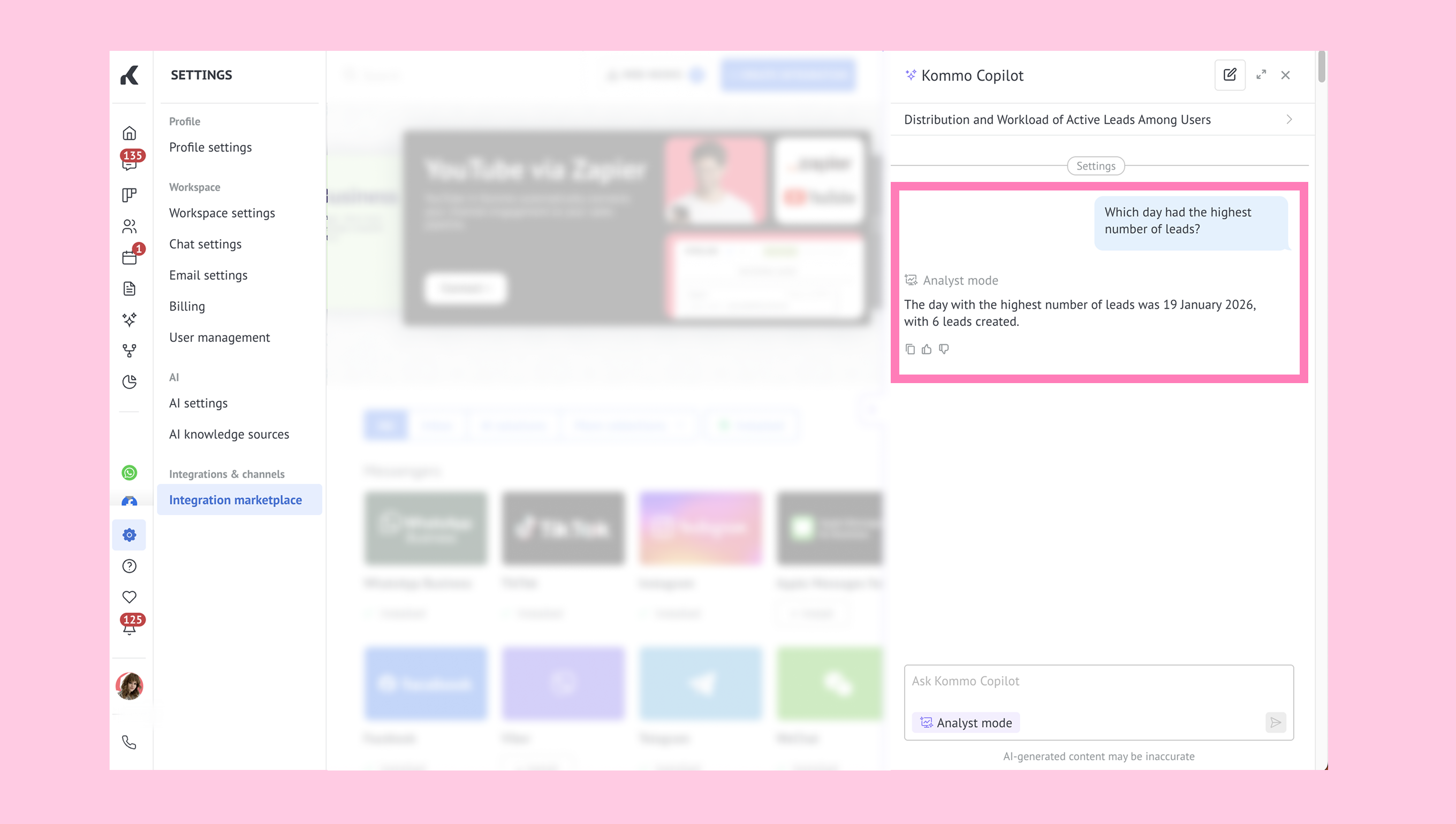
Analyst mode remembers the context of the conversation within one chat, so you don’t need to repeat yourself. It builds on previous answers, charts, and tables to refine the analysis and return more detailed insights.
If you want to start fresh and ask a new question, you can open a new chat using the pencil button.
.png)
Analyze ROI reports with Analyst mode
Analyst mode can use data from your ROI reports to help you understand which investments are performing well and which may need attention.
Important: The ROI page is available only to admins.
To analyze your ROI reports:
Go to Insights → ROI.
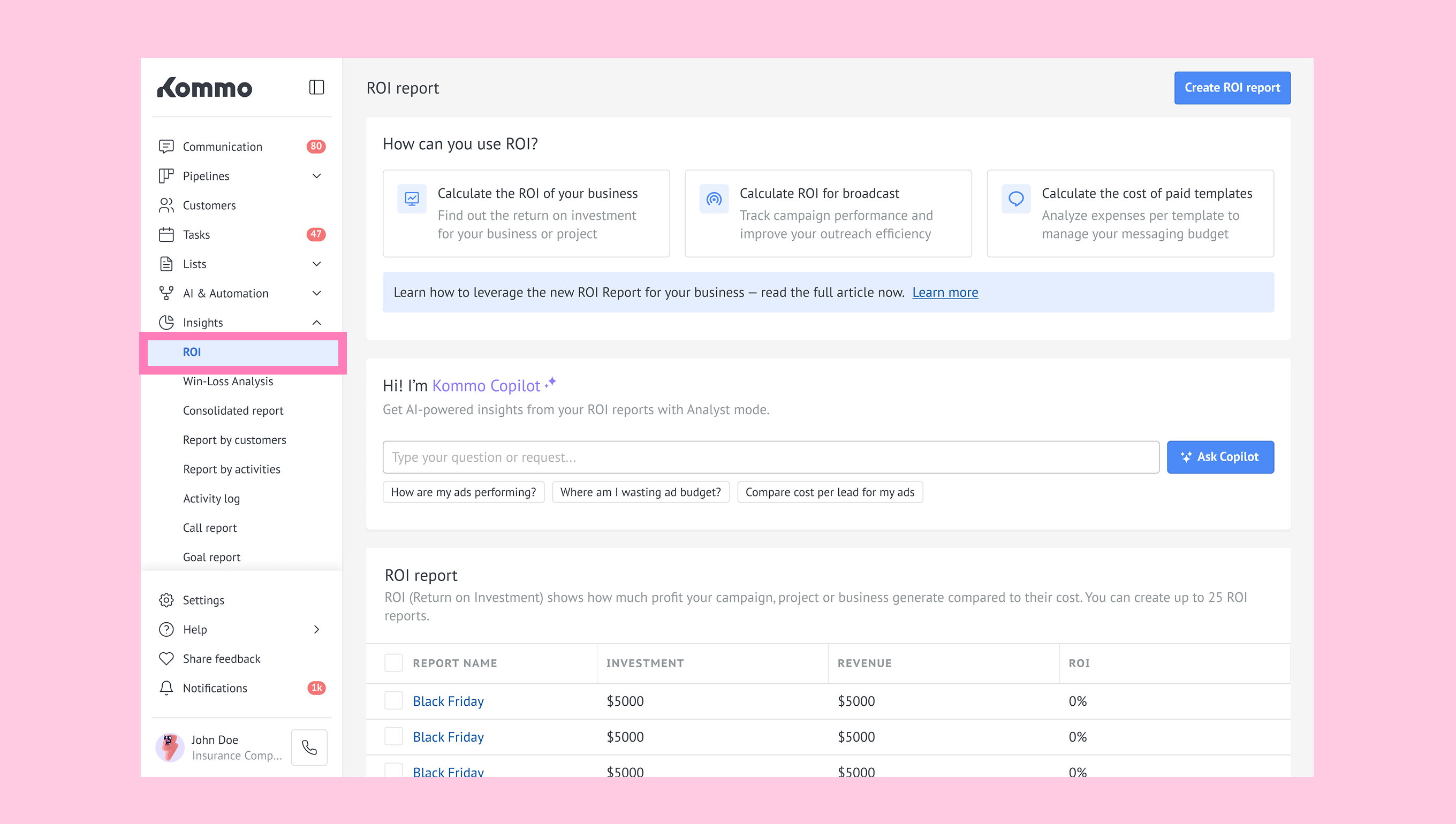
In the Kommo Copilot section, enter a question or select a suggested question.
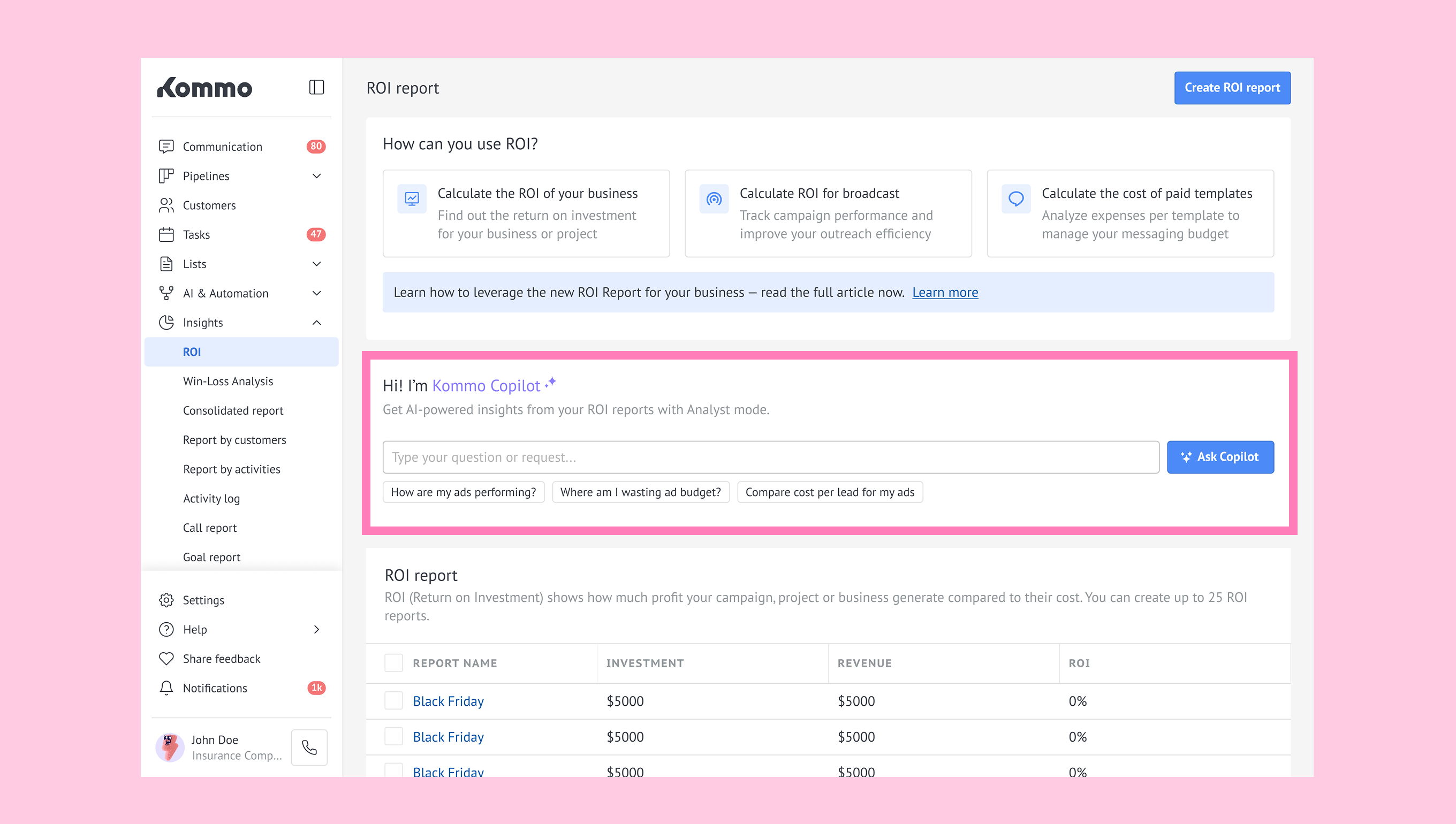
Click Ask Copilot.
The Copilot panel will open in Analyst mode and return an answer based on the available ROI reports.
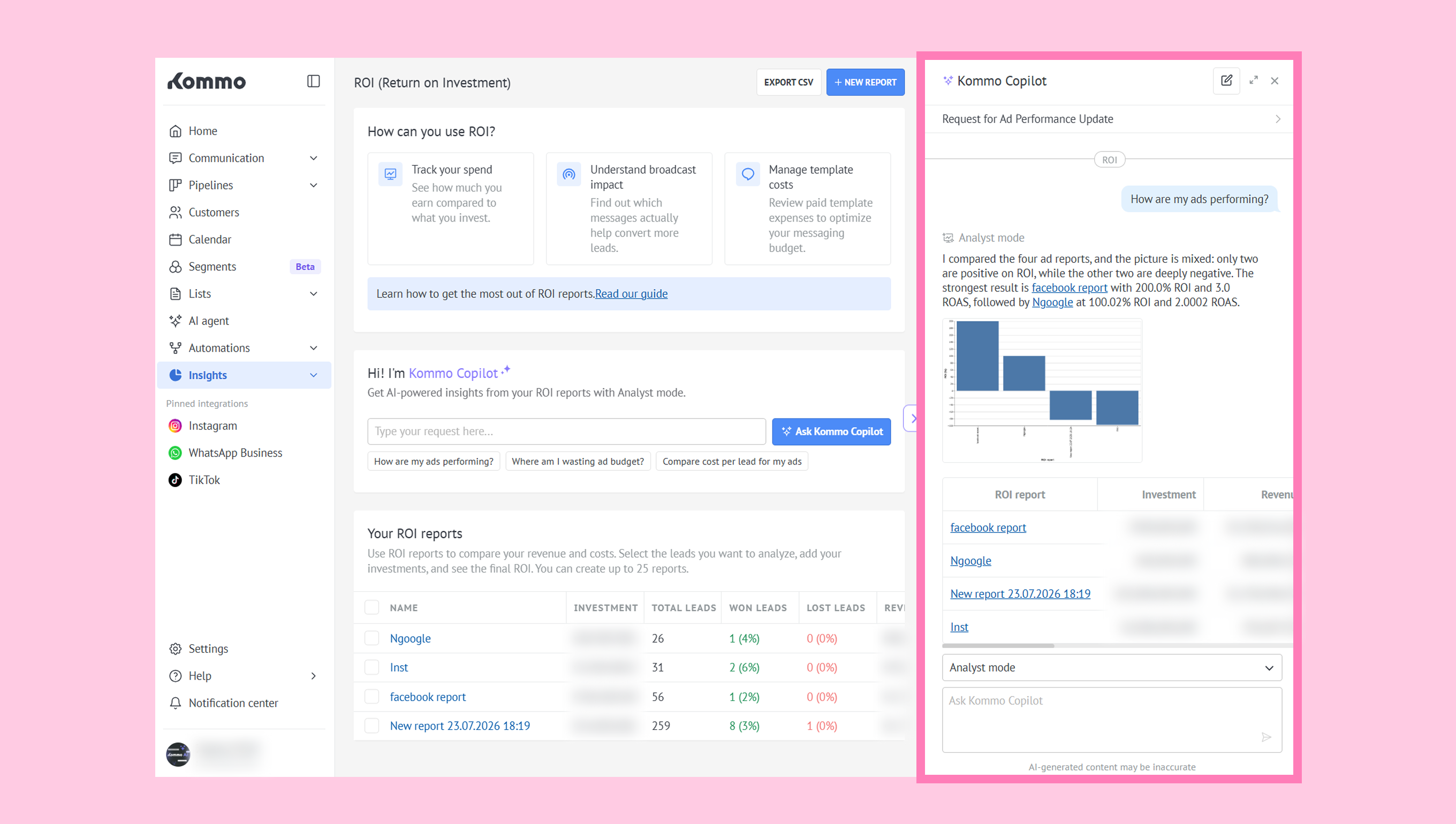 Question examples include:
How are my ads performing?
Where am I wasting ad budget?
Compare cost per lead for my ads.
Depending on your question and the available report data, the answer may include:
revenue and investment
ROI
leads (including won and lost leads)
potential revenue
cost per lead
Analyst mode can also explain why the results differ and recommend whether an investment should be increased or reconsidered. You can continue the conversation by asking follow-up questions.
Note: Analyst mode syncs data from ROI reports once a day. This means it analyzes data available as of the previous day. New or updated ROI reports become available to Analyst mode the following day.
If there are no ROI reports, Copilot will suggest creating one. If Analyst mode is unavailable, the Kommo Copilot block can still be used for general analytics questions.
Learn more about ROI reports and how they work in our article.