What you’ll need:
Advanced, Pro, or Enterprise Kommo plan.
At least one messenger connected to Kommo.
Admin permissions to set up the NPS bot.
Keep in mind:
Your average net promoter score as well as other NPS statistics are available on the Dashboard. To learn more about the Dashboard and its widgets, read our article.
The Net Promoter Score (NPS) bot is a chat tool that lets you collect client feedback directly within your messenger-based sales and marketing workflows. Once triggered, it asks clients to rate the quality of their service on a 1-to-10 scale. You can track these responses over time to evaluate overall client satisfaction, and automatically alert team members to low scores.
Use cases
Send an automated rating request right after resolving a support chat to measure overall service quality.
Automatically alert account managers when a client gives a score of 6 or lower so they can intervene and resolve issues quickly.
Use the bot’s auto-close feature to clear inactive support threads after receiving a rating or after 24 hours of inactivity.
Set up the NPS bot
Step 1: Enable NPS bot
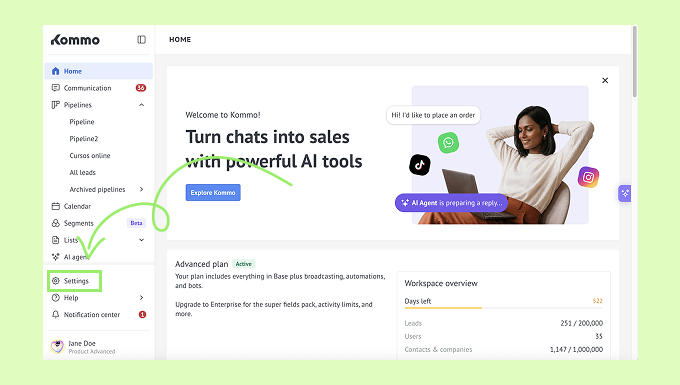
Go to Settings.
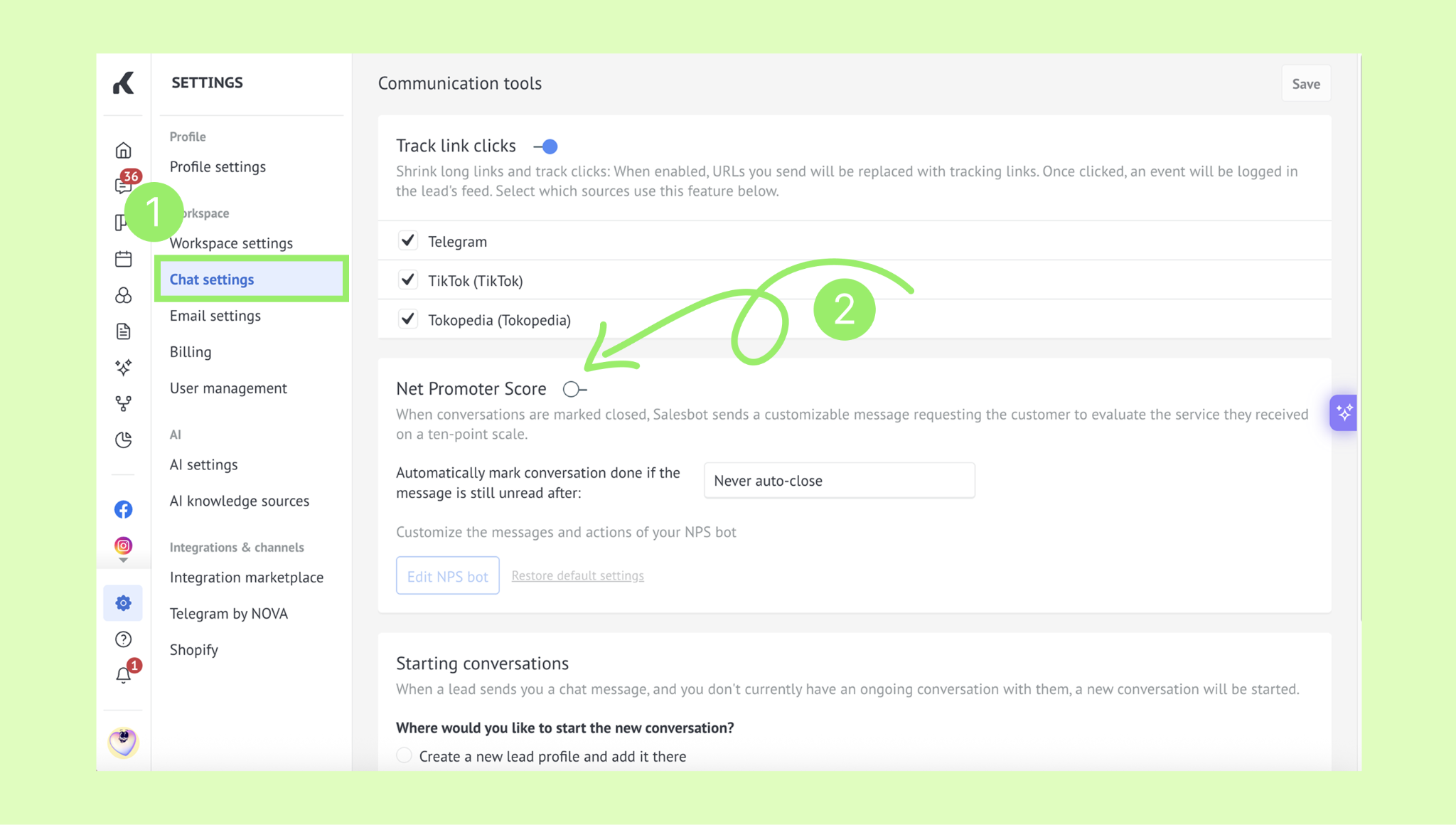
Select Chat settings and toggle the Net Promoter Score switcher.
Step 2: Configure NPS bot settings
By default, the NPS bot:
Marks conversations closed once the bot receives an answer or
Marks conversations closed if the bot does not receive an answer within 24 hours.
Never marks the conversation as done if it's unread.
Notifies the lead's responsible user if you get a score of 6 or below.
You can manage those settings:
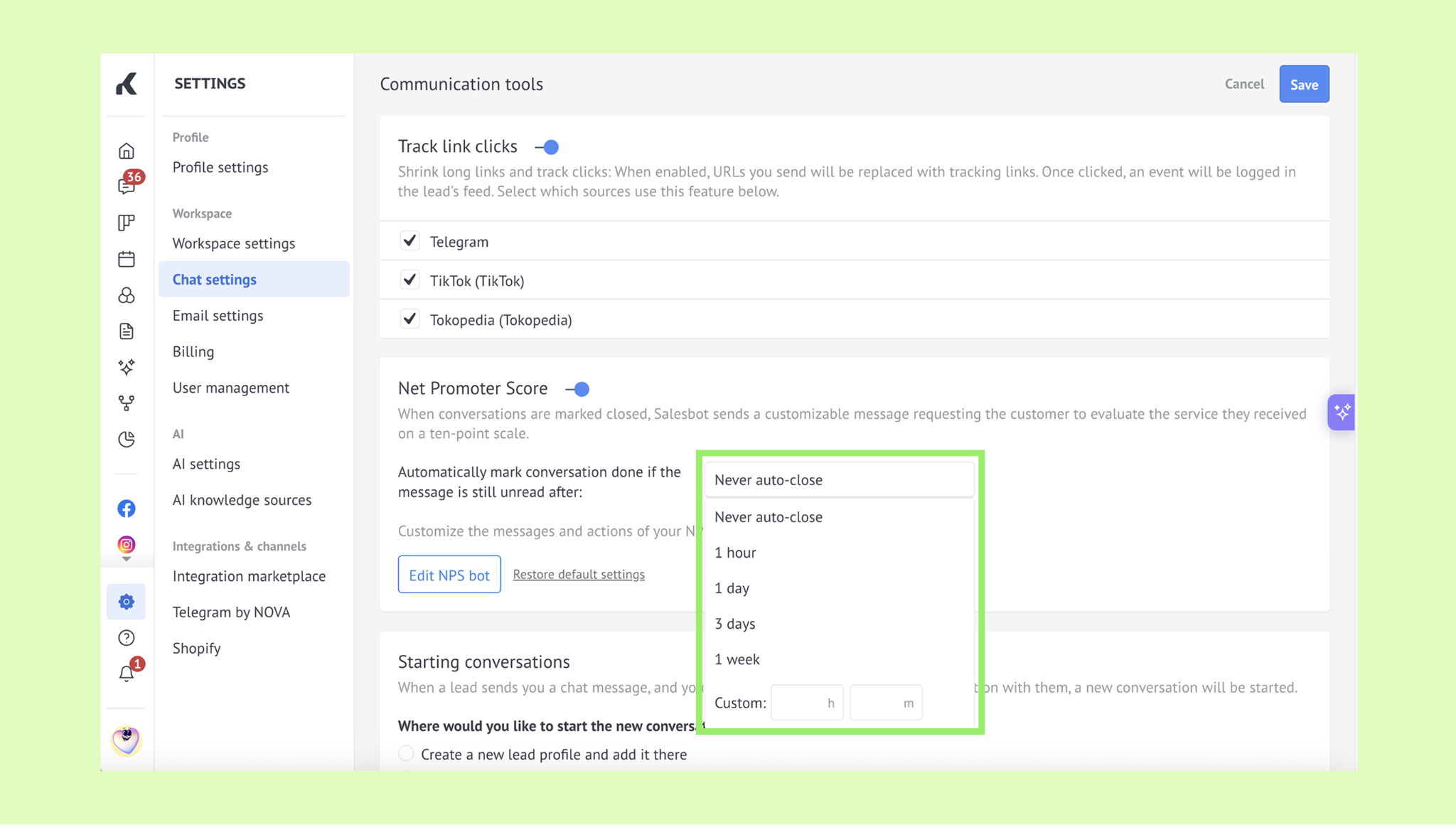
Select the dropdown in the Net Promoter Score section and set the time period after which an unanswered conversation will be automatically closed.
Click Edit NPS bot.
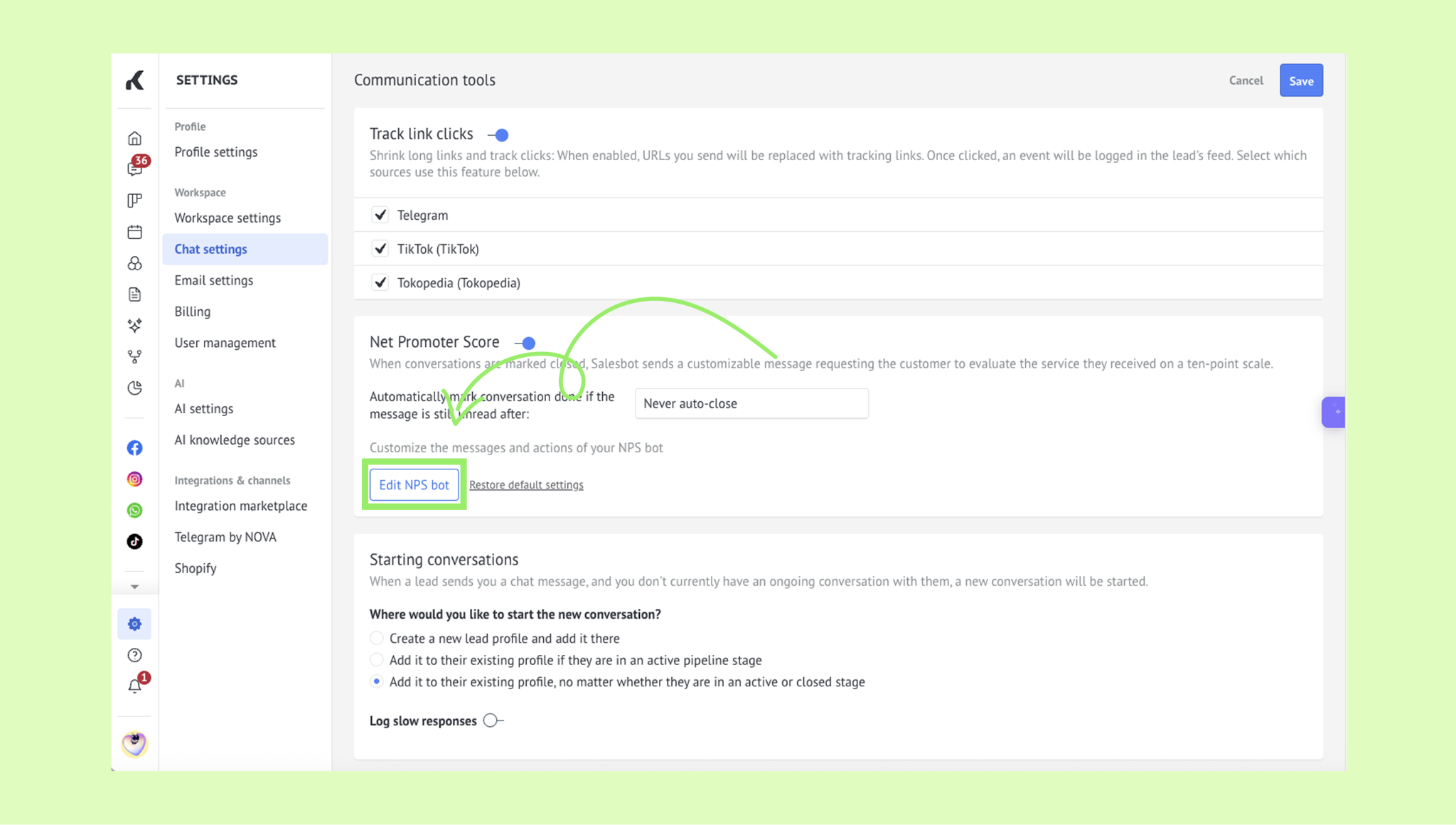
Customize the behaviour of the NPS bot (if needed):
Change the message the bot will send to the client.Set up the time when the bot will auto-close the conversation.
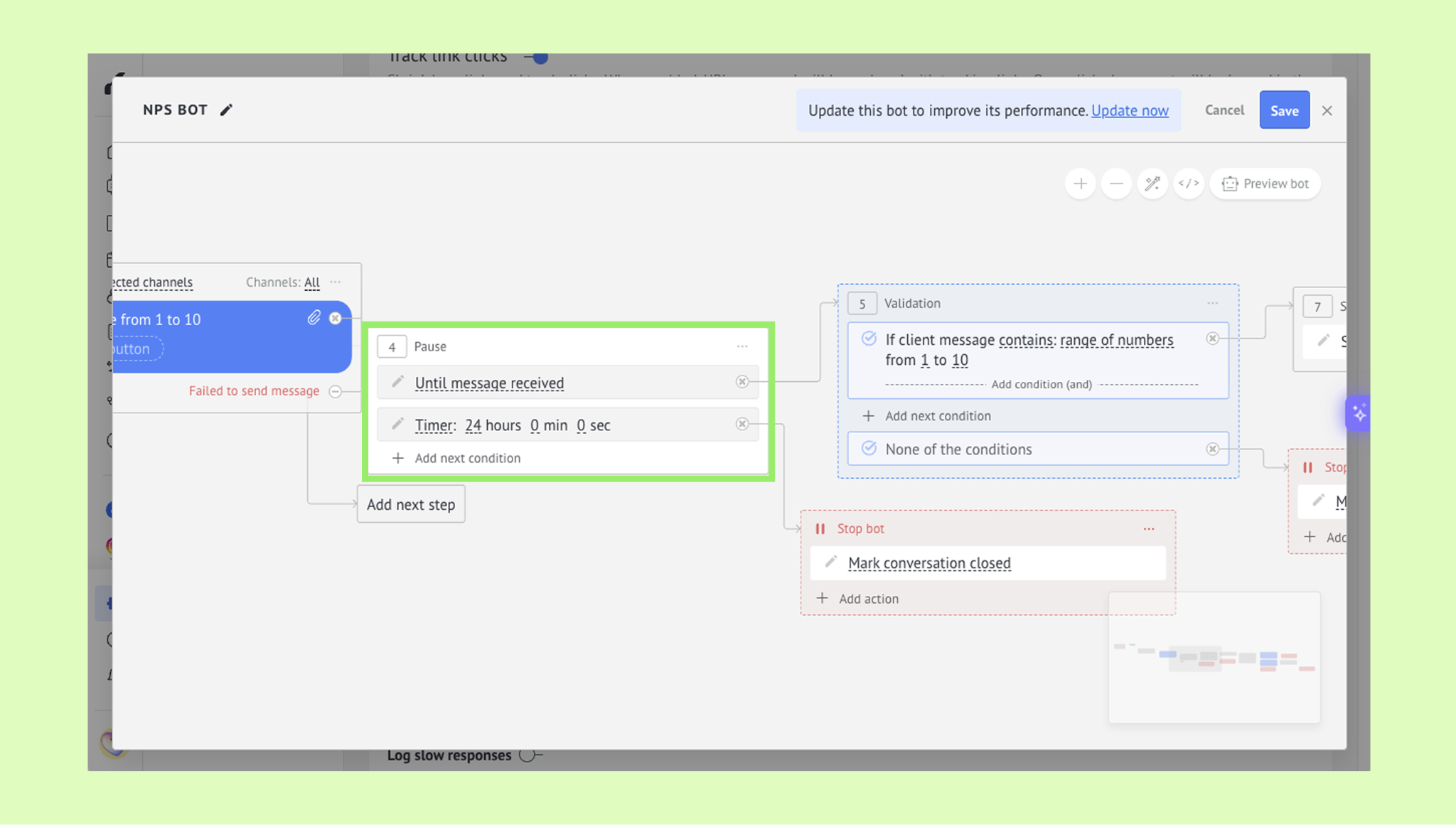
Set the score that triggers notification of the responsible user.
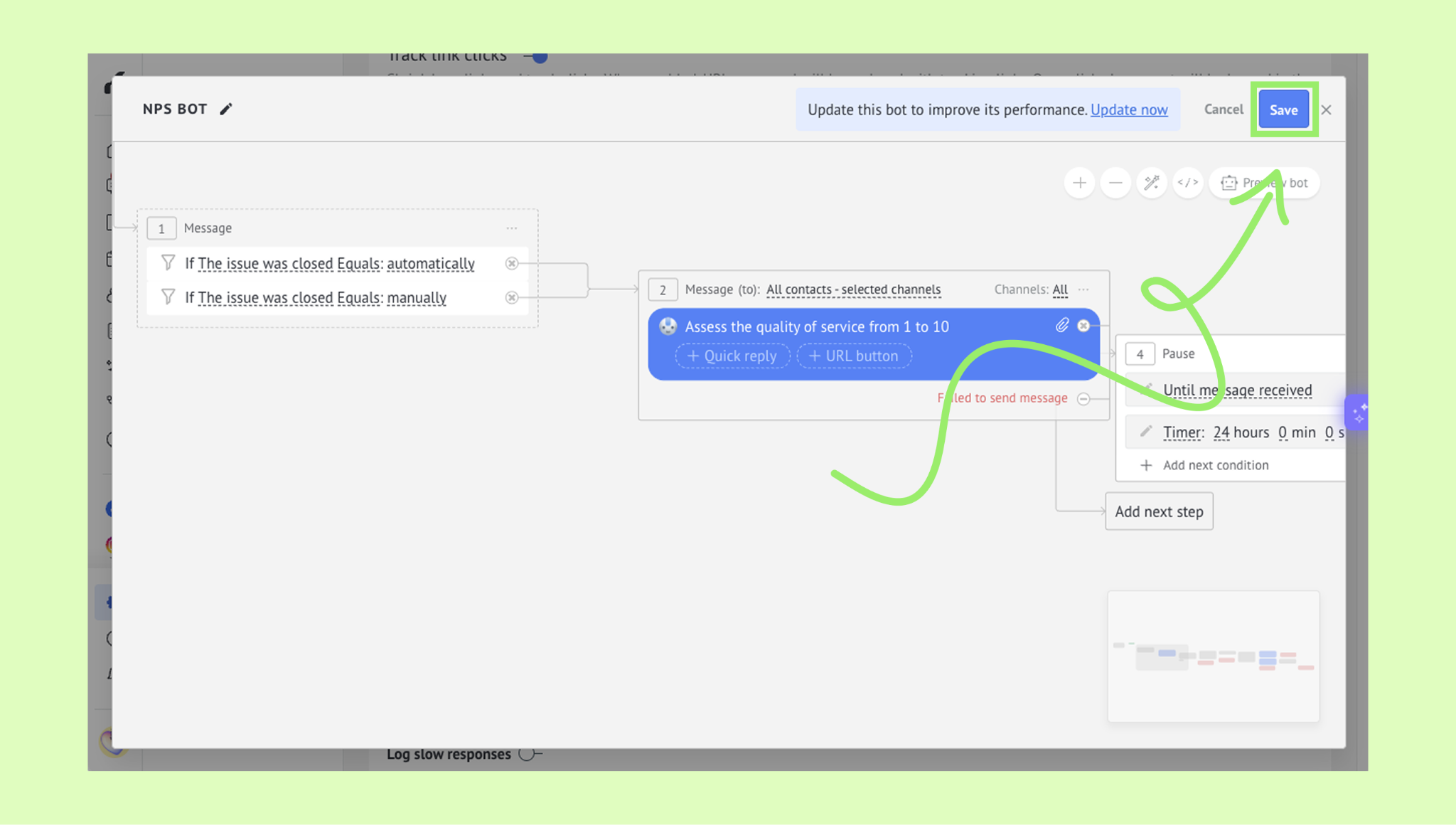
Click Save in the NPS bot window to save the bot settings.
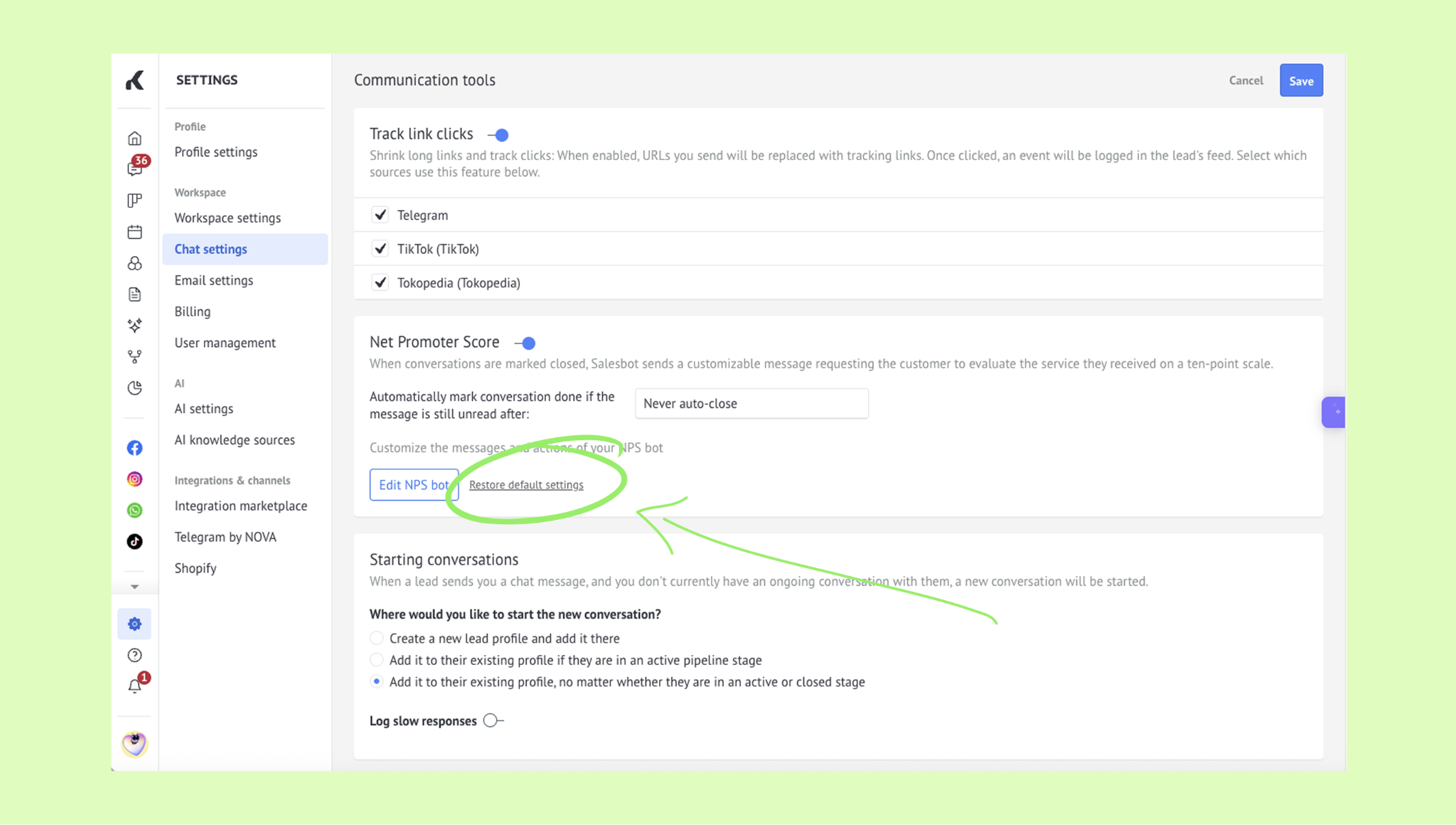
Tip: You can always roll back to the initial bot settings by clicking Restore default settings.
Step 3: Save settings
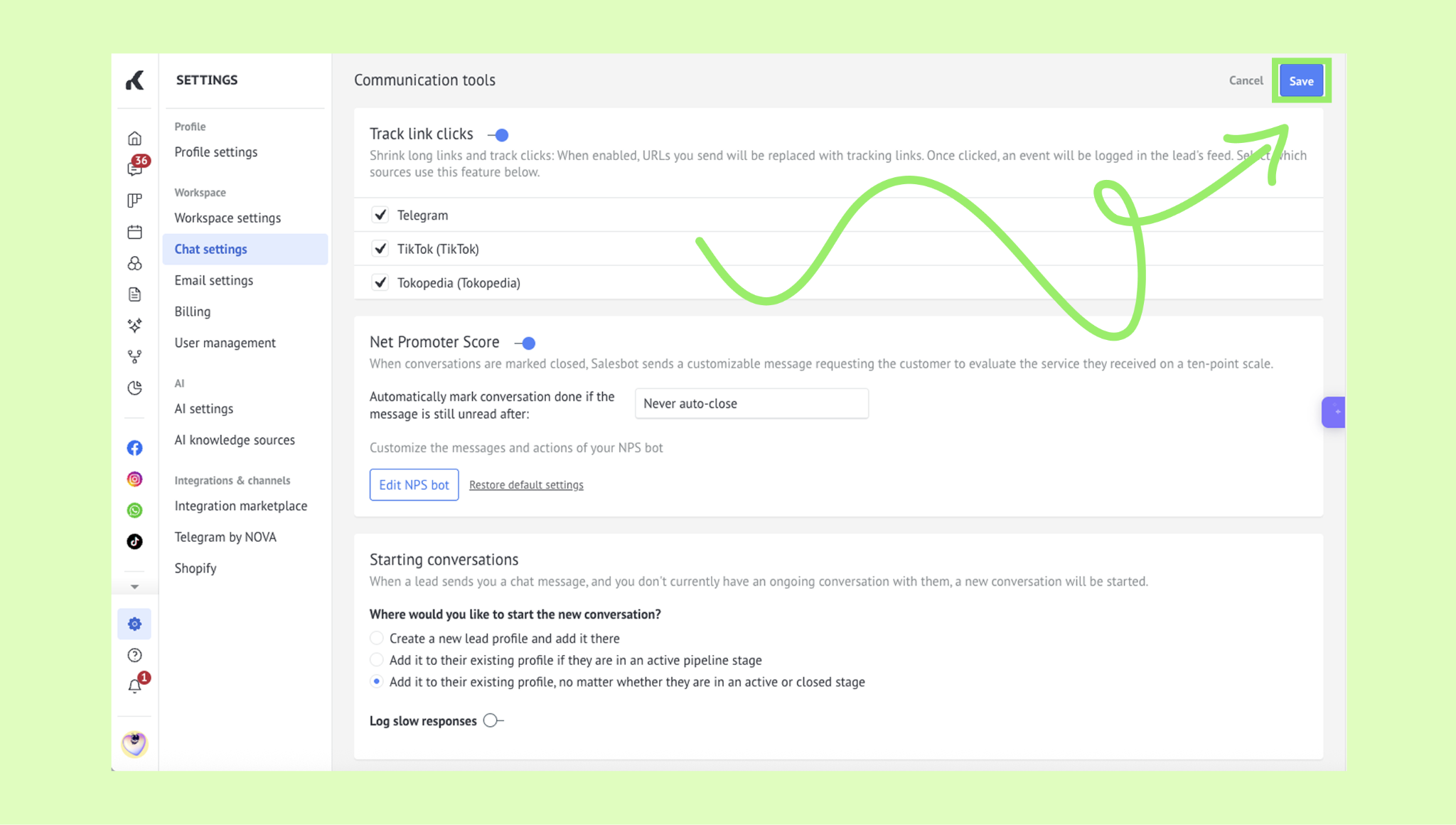
Click Save in the Communication tools section to save NPS settings.
Once you turn on the NPS bot, you will see a Send NPS button inside the chats.
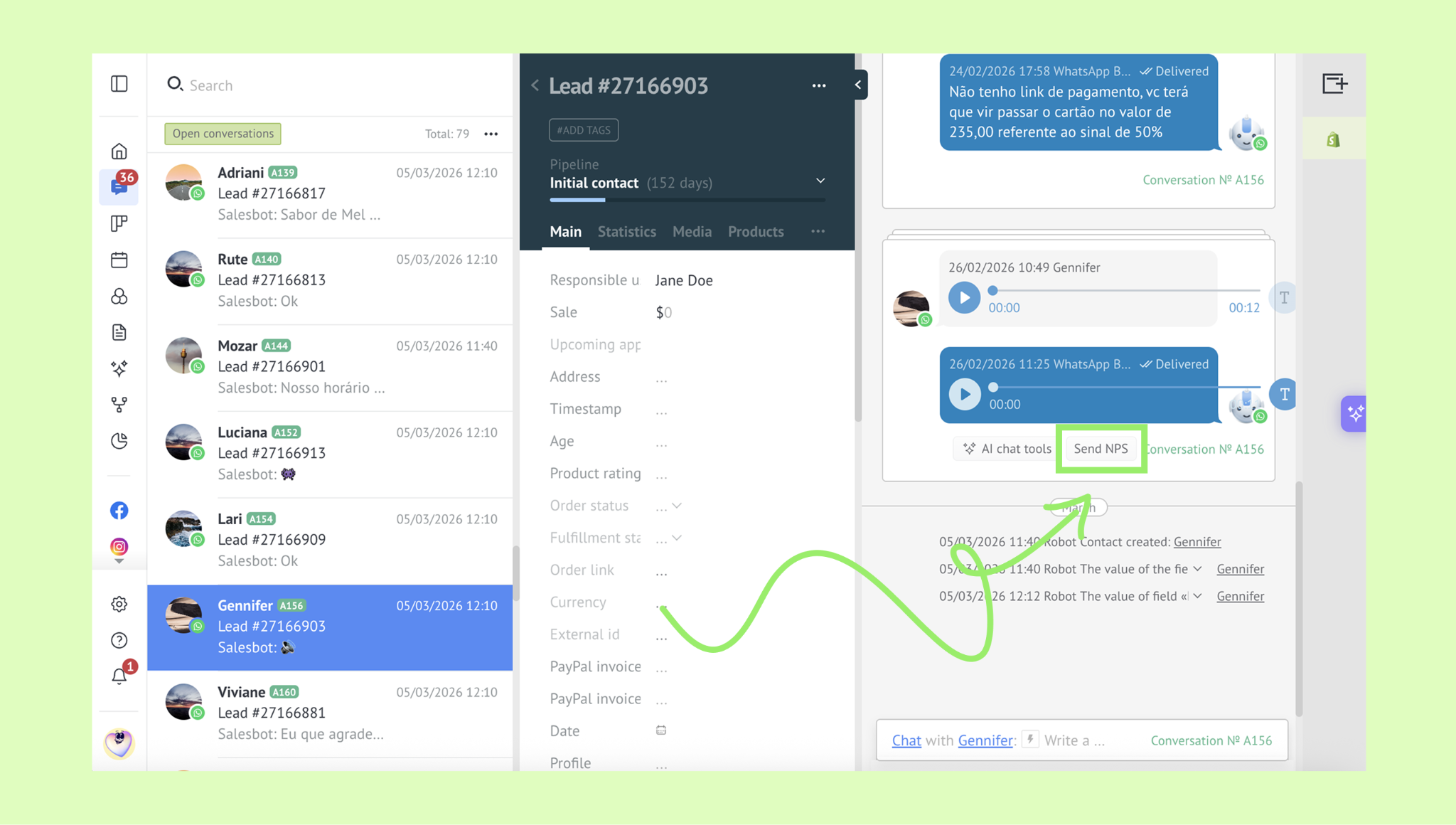
When launched, the NPS bot will ask your client to assess the quality of the service on a scale from 1 to 10.