Email Parsing - A great way to automate the process of creating leads based on emails you receive.
Note: The best way to use email parsing is when you receive a lot of emails where the body of the email is in the same or nearly the same format. For example, emails for a lead generator source/new lead subscription service.
Setting up Email Parsing
Go to the Setup section in your pipeline
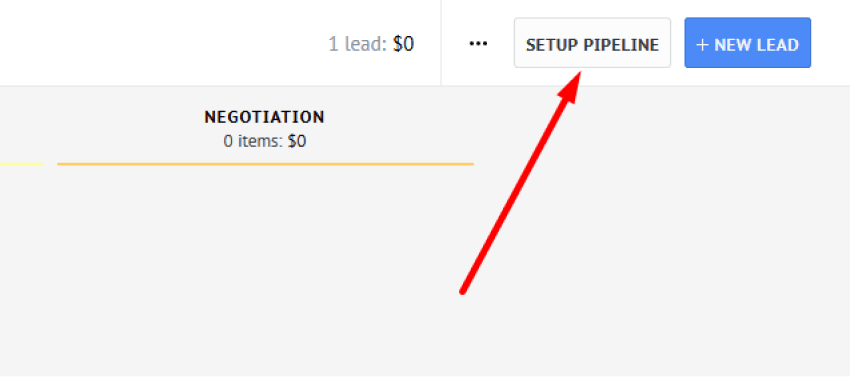
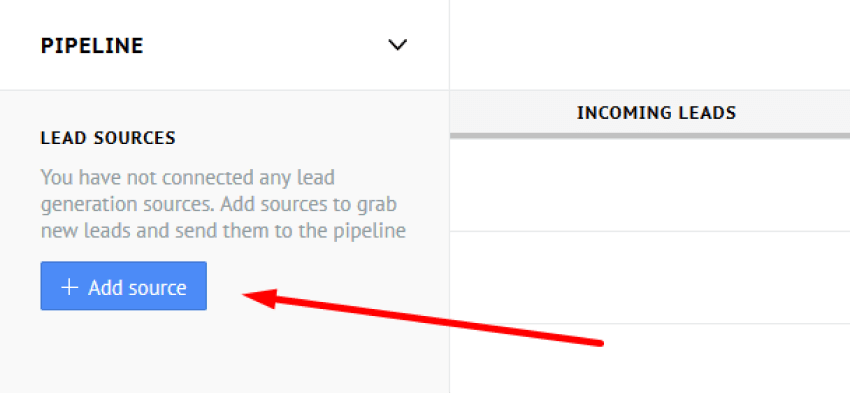
Then click on “Add source” at the left side of the interface
Select Email Parsing
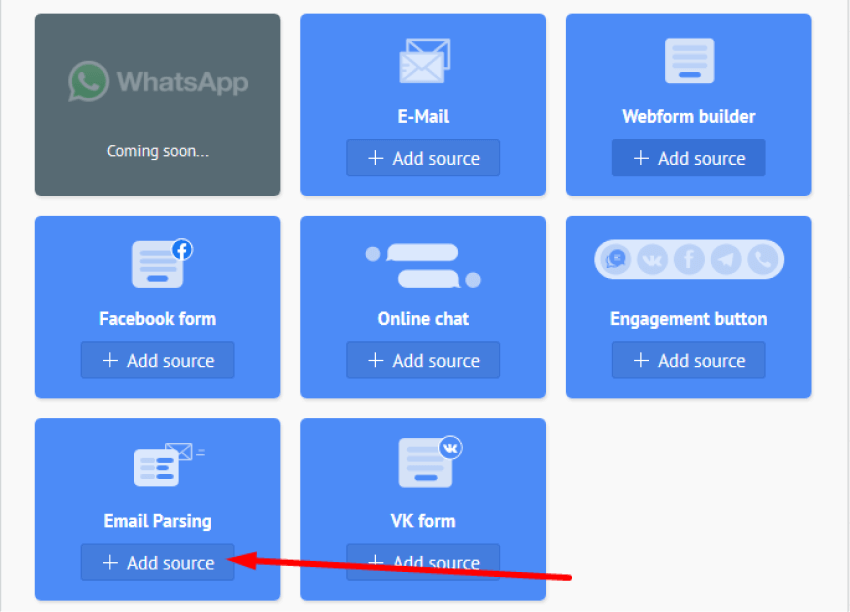
After that, a modal window will open and the actual set-up begins here.
There are 4 steps in installing Email parsing.
Setting up your email
Confirmation email
Choosing the template on which parsing will be based on
Choosing which text are going to be treated as crucial and should be written in required fields
Let’s go through each step.
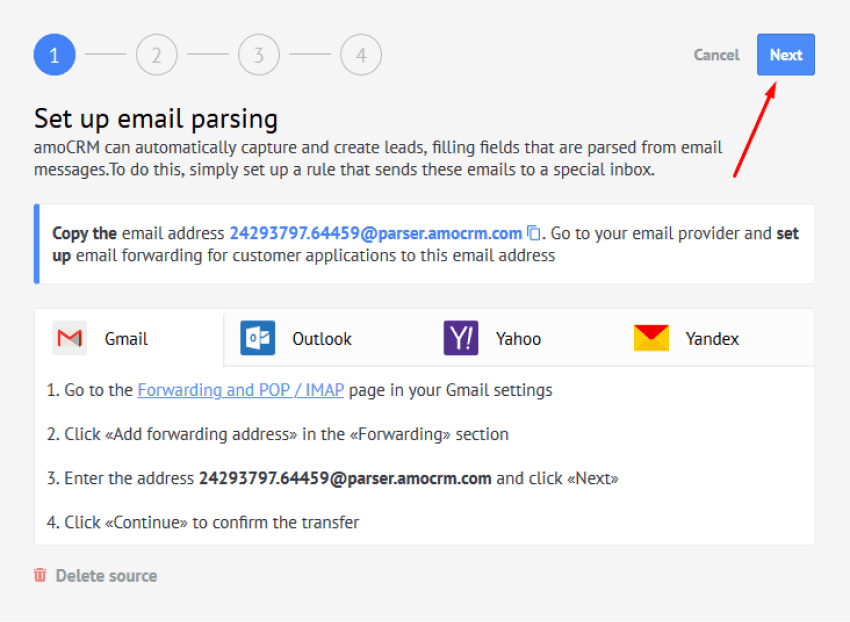
First, you’ll be greeted with a modal window where you need to choose an email provider to see the instructions, as an example we going to integrate Gmail
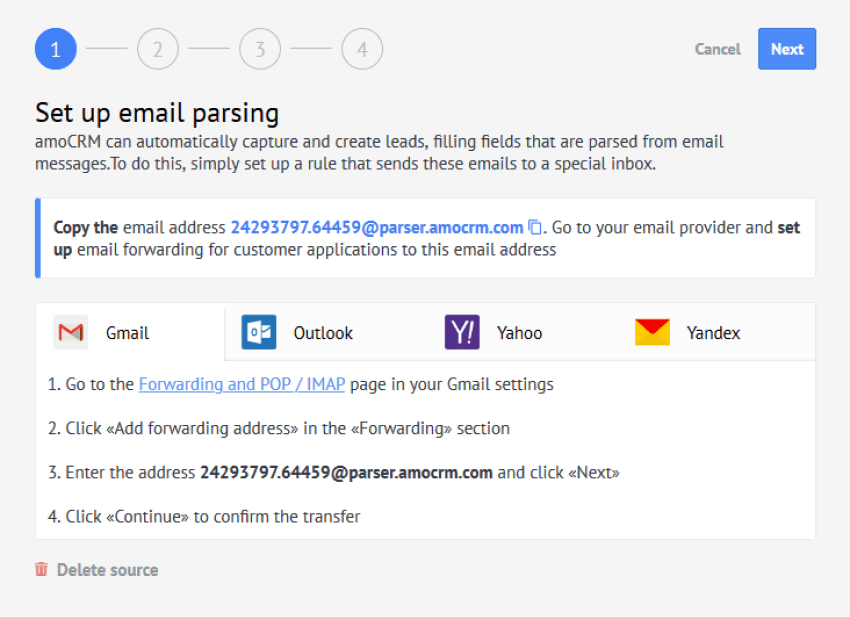
Note: You can integrate parsing with various email providers. We have instructions for Gmail, Outlook, Yahoo and Yandex, but don’t worry the procedures to integrate parsing are almost the same from provider to provider
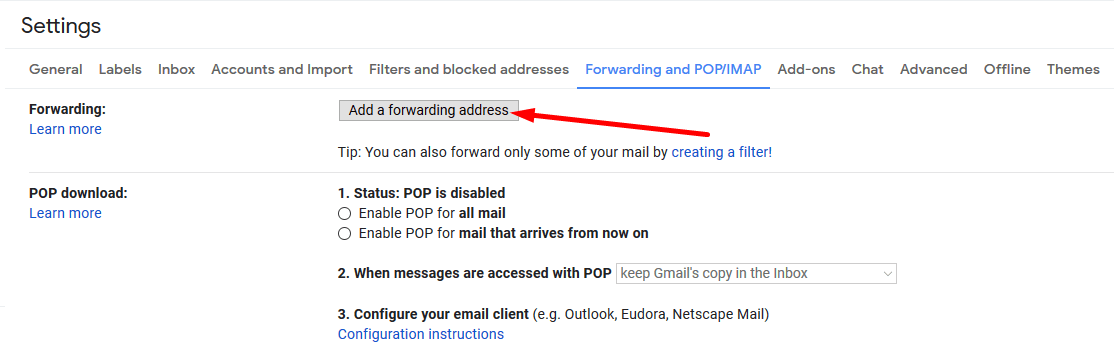
If you click on the link in the first step, you’ll see Gmail settings here. Click on Add forwarding address
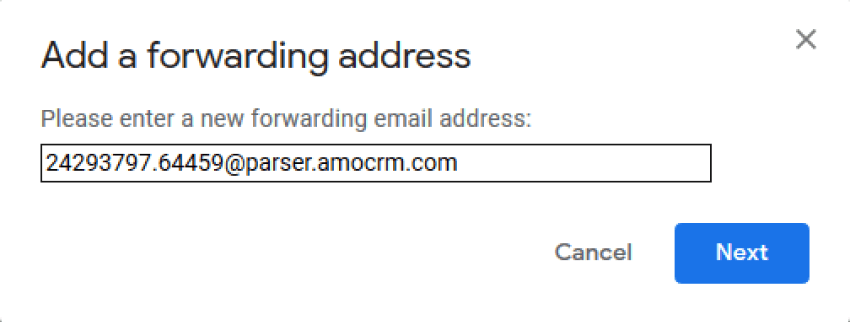
You will see a modal window pop-up and you will paste in the forwarding email address that Kommo generated for you (You can find it in the Setup email parsing back in the Kommo tab), after that click “Next”
Google will present you with a confirmation window stating the forwarding email address. You would click proceed and okay in Gmail, then click next in Kommo.
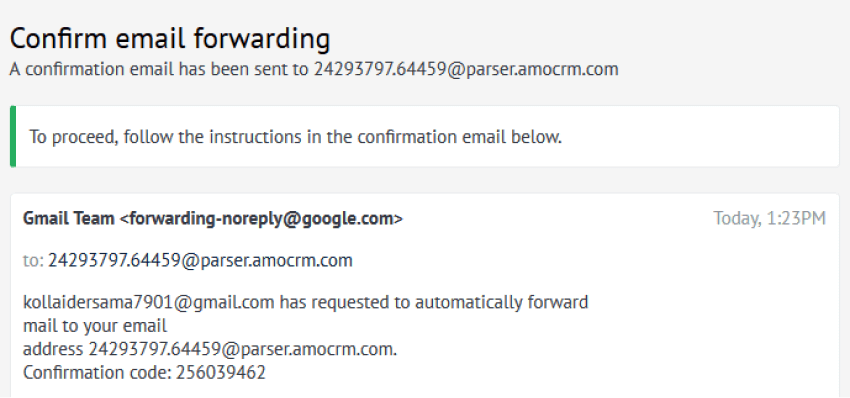
If everything is done correctly you’ll see step two with an email that Google sent, find confirmation code here, copy the address, and return to Google
In Google, you will paste the Confirmation code into the required field and click verify

Note: Don’t forget to set-up forwarding the best way that you want it in Forwarding settings and change the radio button from Disable forwarding to Forward a copy of incoming mail to

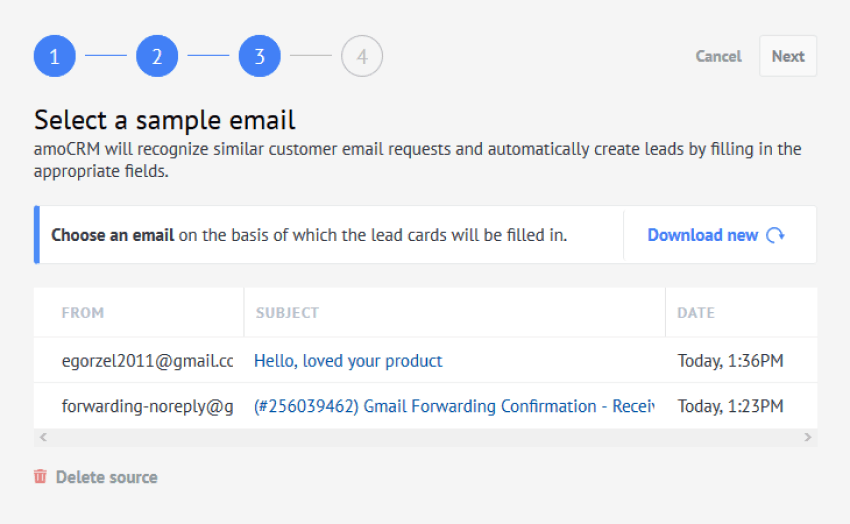
Return to Kommo and proceed to step 3; you’ll see your emails here that already been forwarded to parser email, chose one that you want to use as a template for future emails
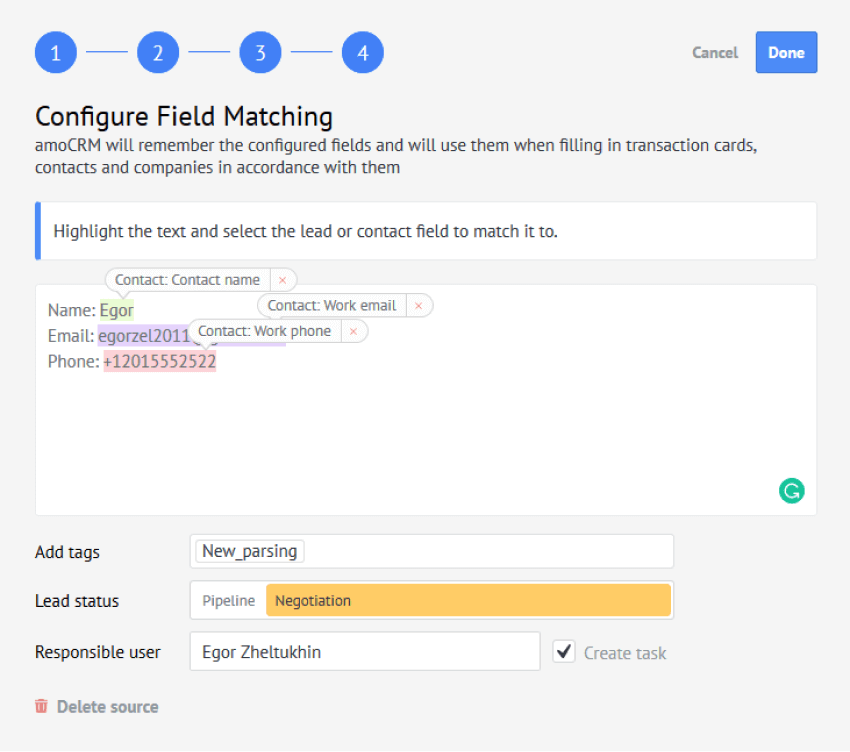
Here you’ll see an email from your client, just highlight info that you want to be passed to the fields and choose required fields. You can also add tags to the lead that will be created through parser and even set the stage where these leads are going to appear, or select Responsible user and set a task for them. After that click Done and parser will be another tool in your arsenal
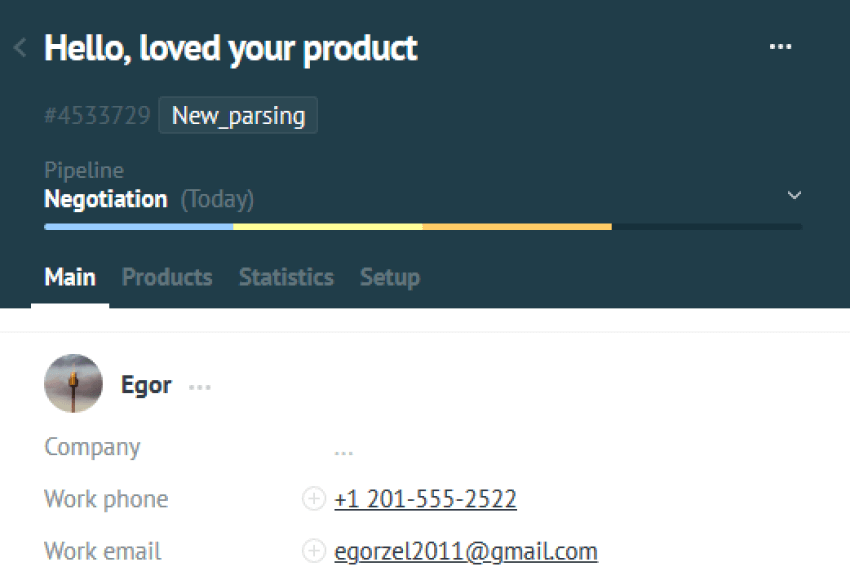
As you can see lead was created successfully with all the right information attached where it should be.
Need more help in setting up or troubleshooting? Contact us by sending an email to support@kommo.com or write to us on Facebook.
Not a user yet? Visit our tour page or contact us for a demo.