What you’ll need:
Pro plan, Enterprise plan, or trial access to Pro features.
Keep in mind:
Scoring settings are unique to your business and should reflect your sales stages and lead-closing logic.
Kommo calculates each lead’s score from the scale, component values, and formula you define.
Lead scoring in Kommo automatically ranks leads based on their purchase intent. By setting up an automated scoring formula, you assess a lead's likelihood to buy using key data points (such as pipeline stage, budget, or campaign sources). This ensures your sales team invests time in the leads most likely to close.
Use cases
Rank leads by score to decide who to contact first without manual sorting.
Update lead priority as pipeline stages and selected field values change.
Measure campaign interest by assigning extra points to leads that use promo codes or request demos.
Use scores to assign higher-value leads to more experienced sales reps or to balance the team's workload.
Set up lead scoring
Step 1: Prepare your business data
Before opening the settings, decide what the score should represent and how your team will interpret it.
Prepare the following:
Scoring scale — Choose the minimum and maximum values. For example, use a scale from 0 to 100.
Priority levels — Decide which scores represent low-, medium-, and high-priority leads.
Qualification criteria — Identify the pipeline stages, UTM values, and lead fields that indicate stronger sales readiness.
Point values — Decide how many points each matching value should contribute.
Formula — Decide how the selected criteria should be combined.
Give more points to criteria that indicate stronger intent. For example, a lead in the Contract sent stage should usually receive more points than a lead in the Initial contact stage.
Step 2: Activate lead scoring
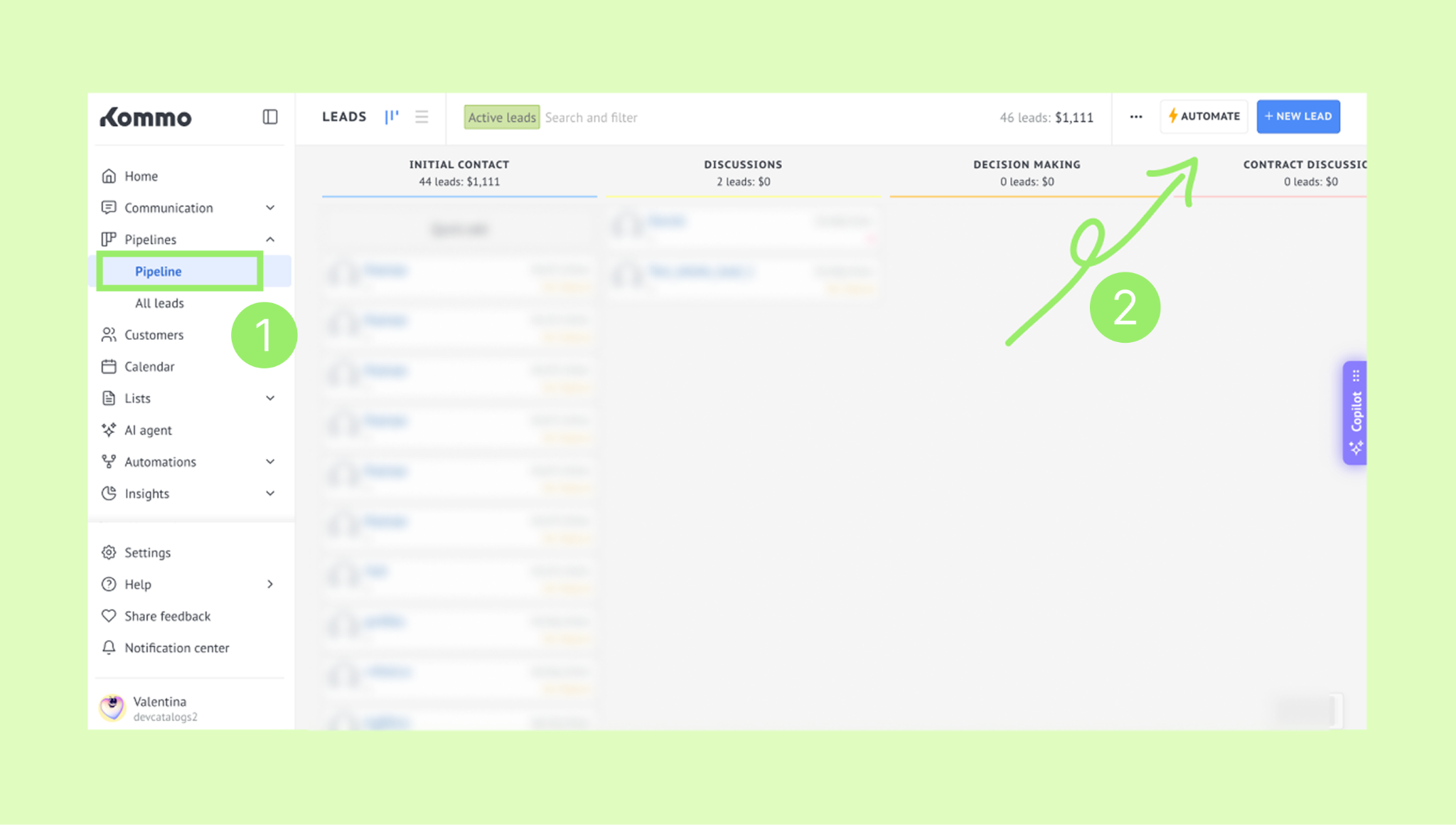
In your Kommo account, go to Pipelines and select a pipeline.
Click Automate in the top-right corner.
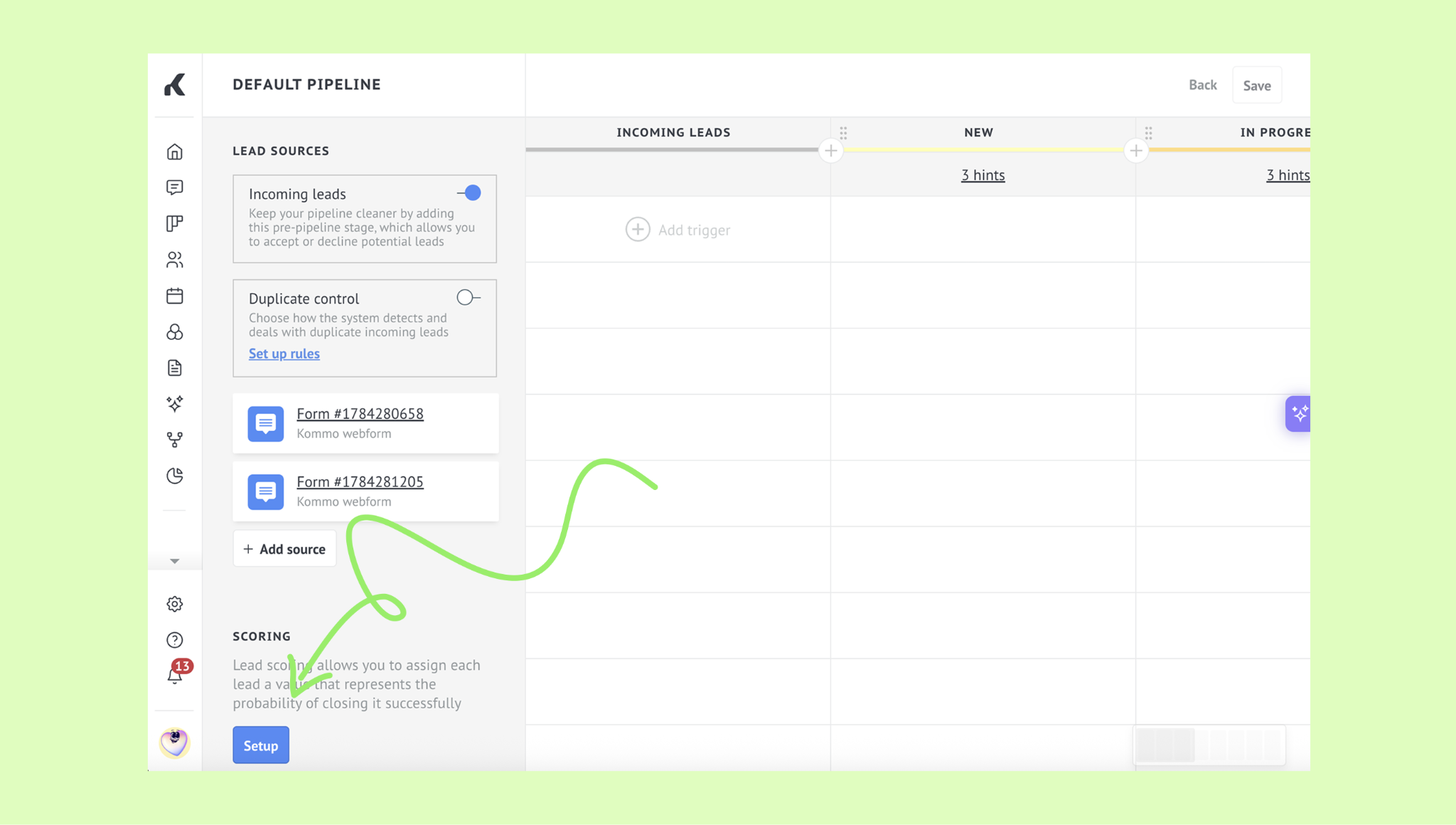
Go to the Scoring section and click Setup.
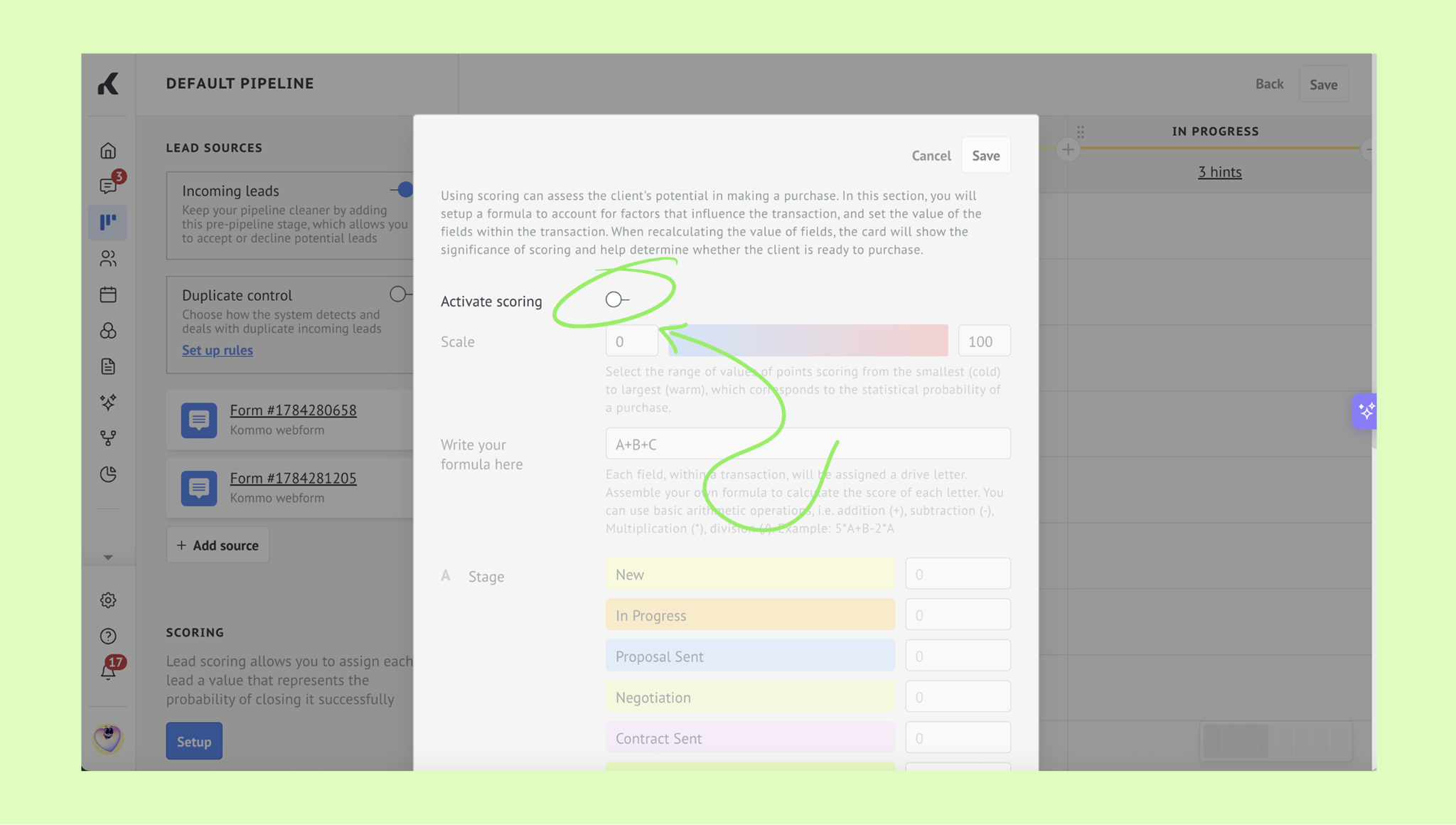
Toggle the Activate scoring switch at the top to enable the feature.
Step 3: Configure the scoring scale
In the Scale fields, enter the minimum and maximum values for your scoring model.
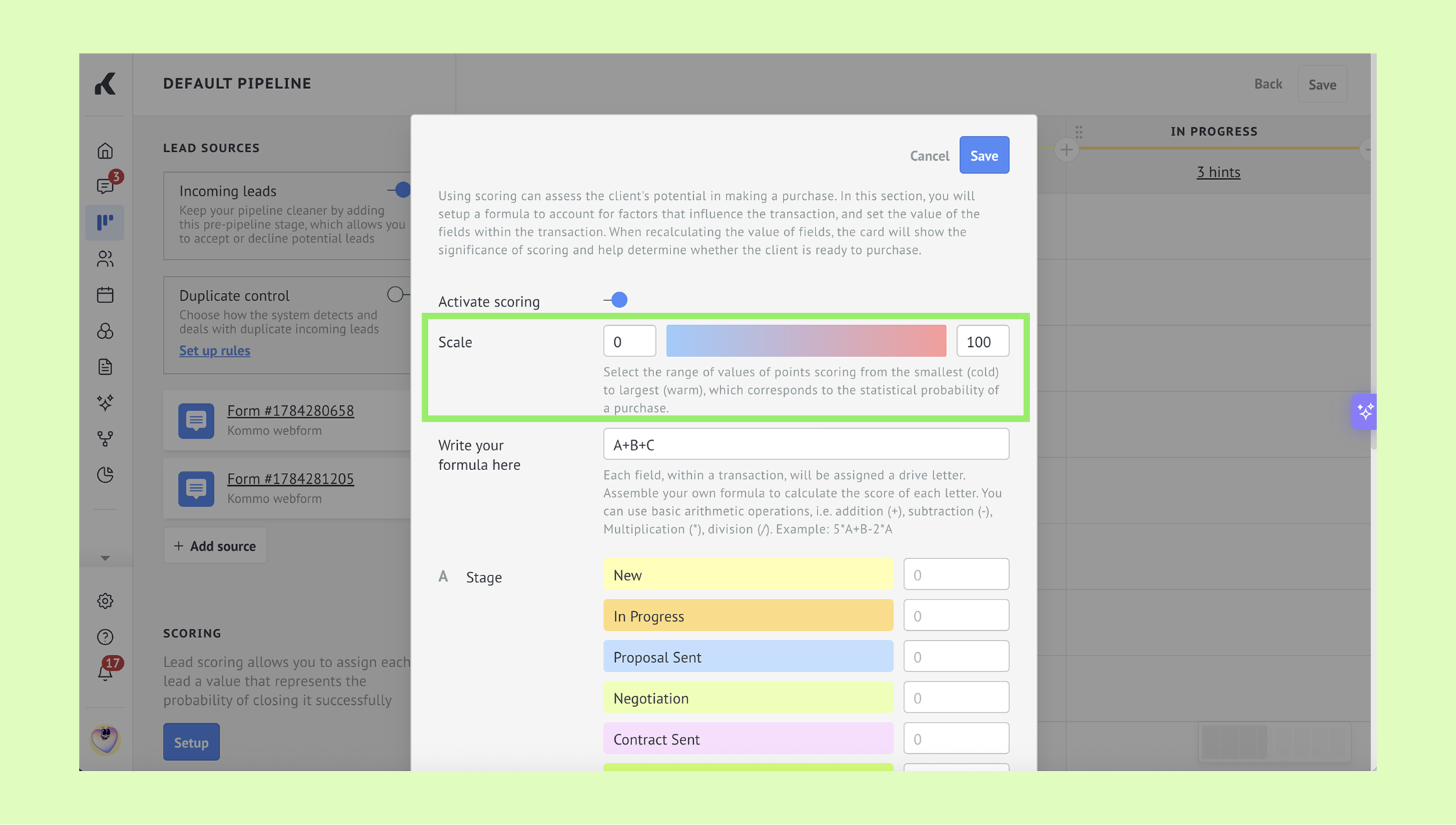
Tip: You can use a scale from 0 to 100. This makes scores easier to compare, but the result is not a percentage or a predicted probability of conversion.
Step 4: Add scoring criteria
You can calculate the score using the lead’s pipeline stage, UTM tags, or other fields in the lead card. You do not need to assign points to every possible value. Focus on the values that affect how your team prioritizes leads.
For each criterion:
Select the information you want to evaluate.
Choose the relevant values.
Assign points to each value.
For example:
For a Stage field, assign point values to each stage of your sales pipeline.
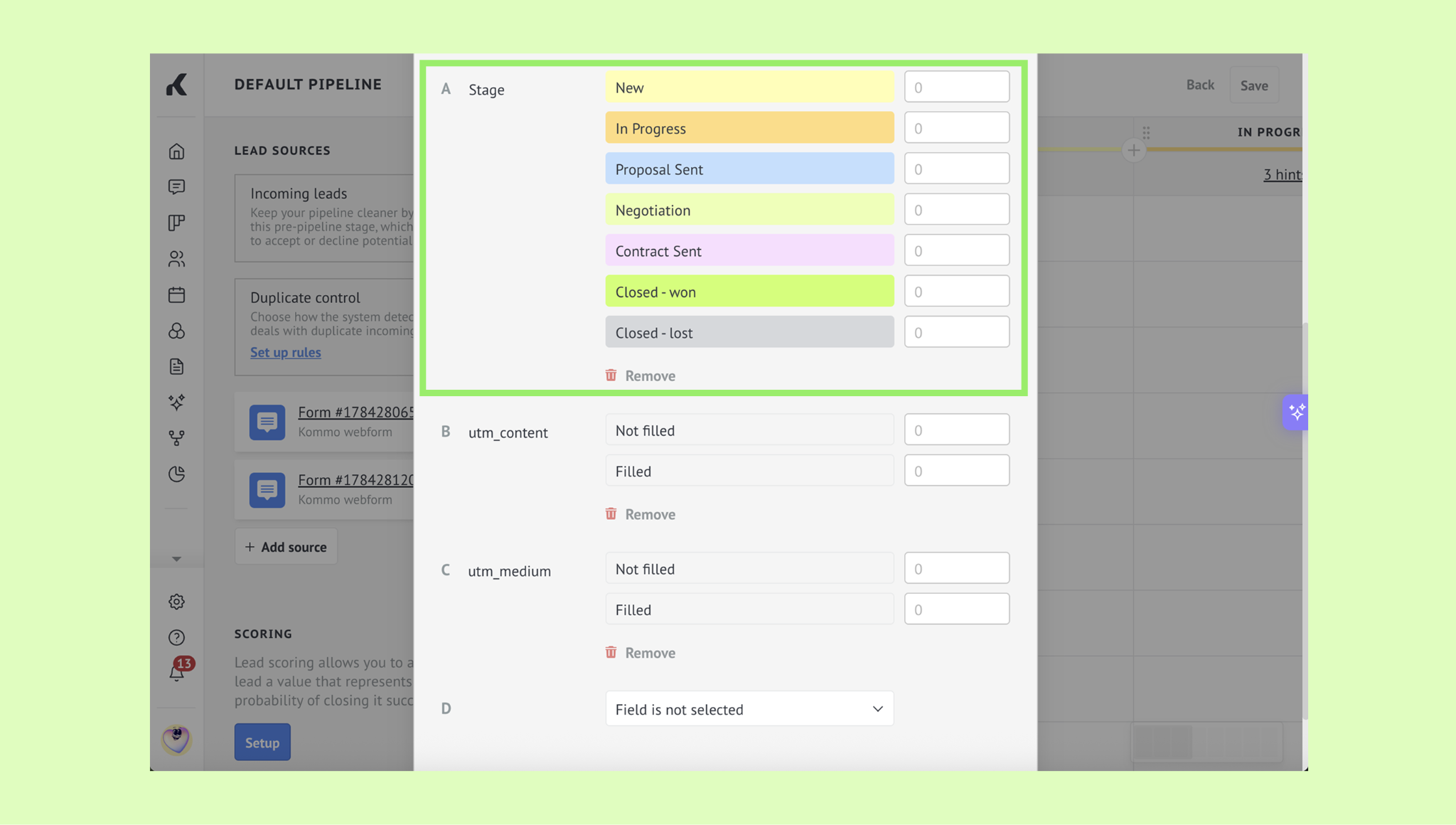
Tip: Stages closer to a successful close (e.g., Contract sent) should have higher values than initial stages (e.g., New).
Assign points to specific utm_medium and utm_content values, such as values associated with a targeted campaign.
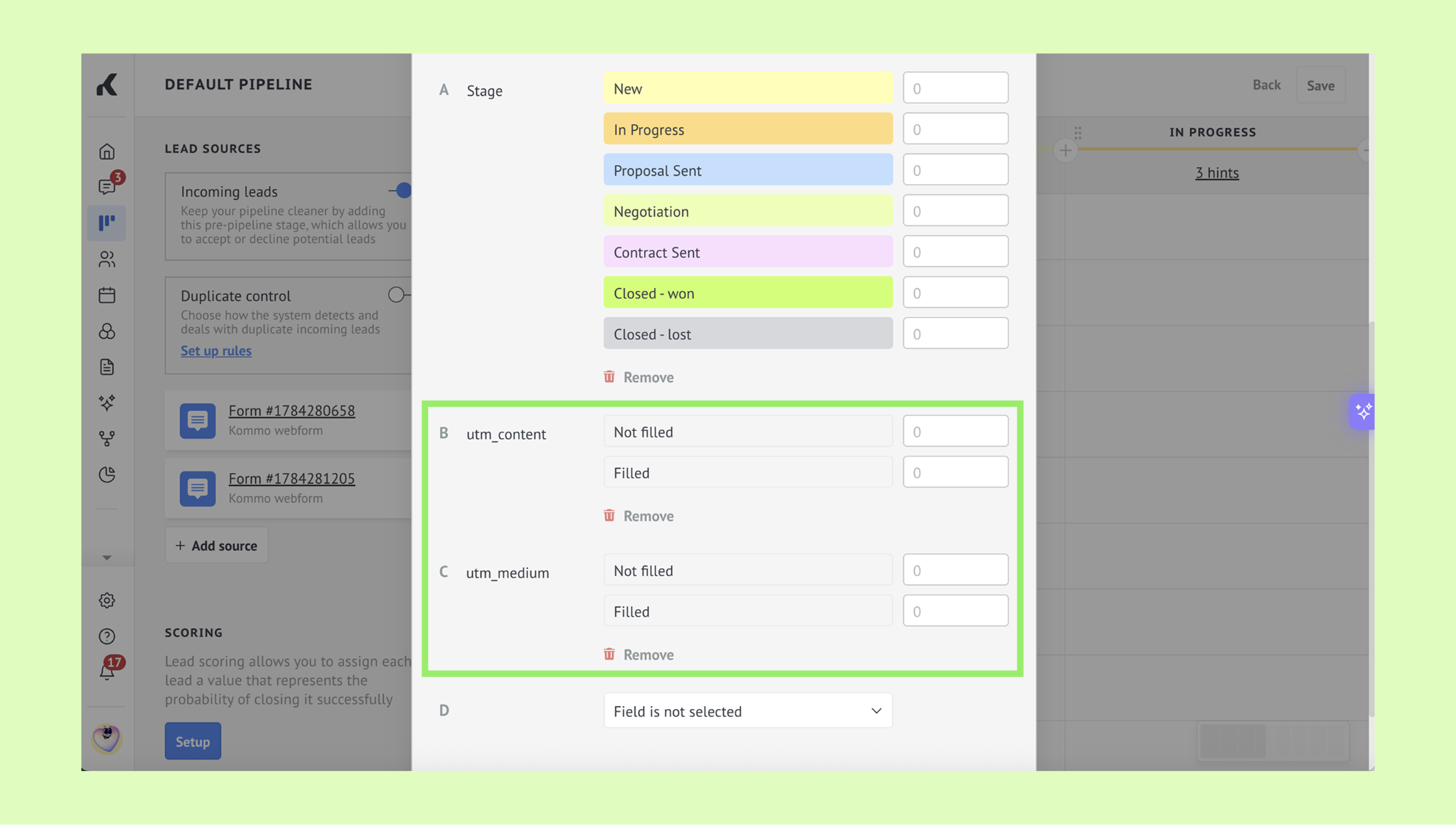
Tip: You can delete the field and associated drive letter by clicking the trash bin icon next to it.
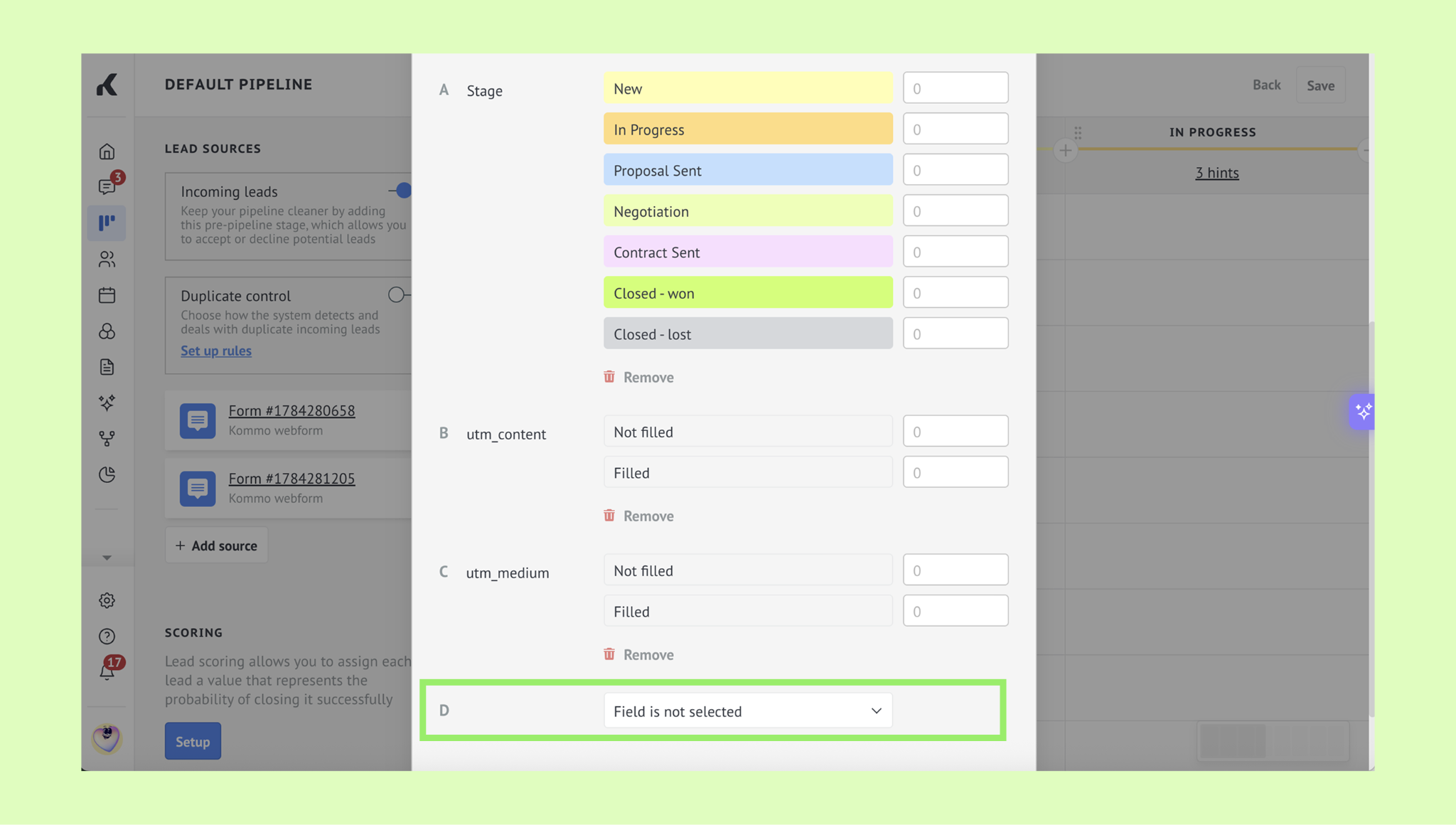
Add additional variables (if needed): Click the Field is not selected dropdown to add other lead fields to your scoring model. Use this if you need parameters beyond the default stages and UTM parameters (e.g., budget, lead source, or company size).
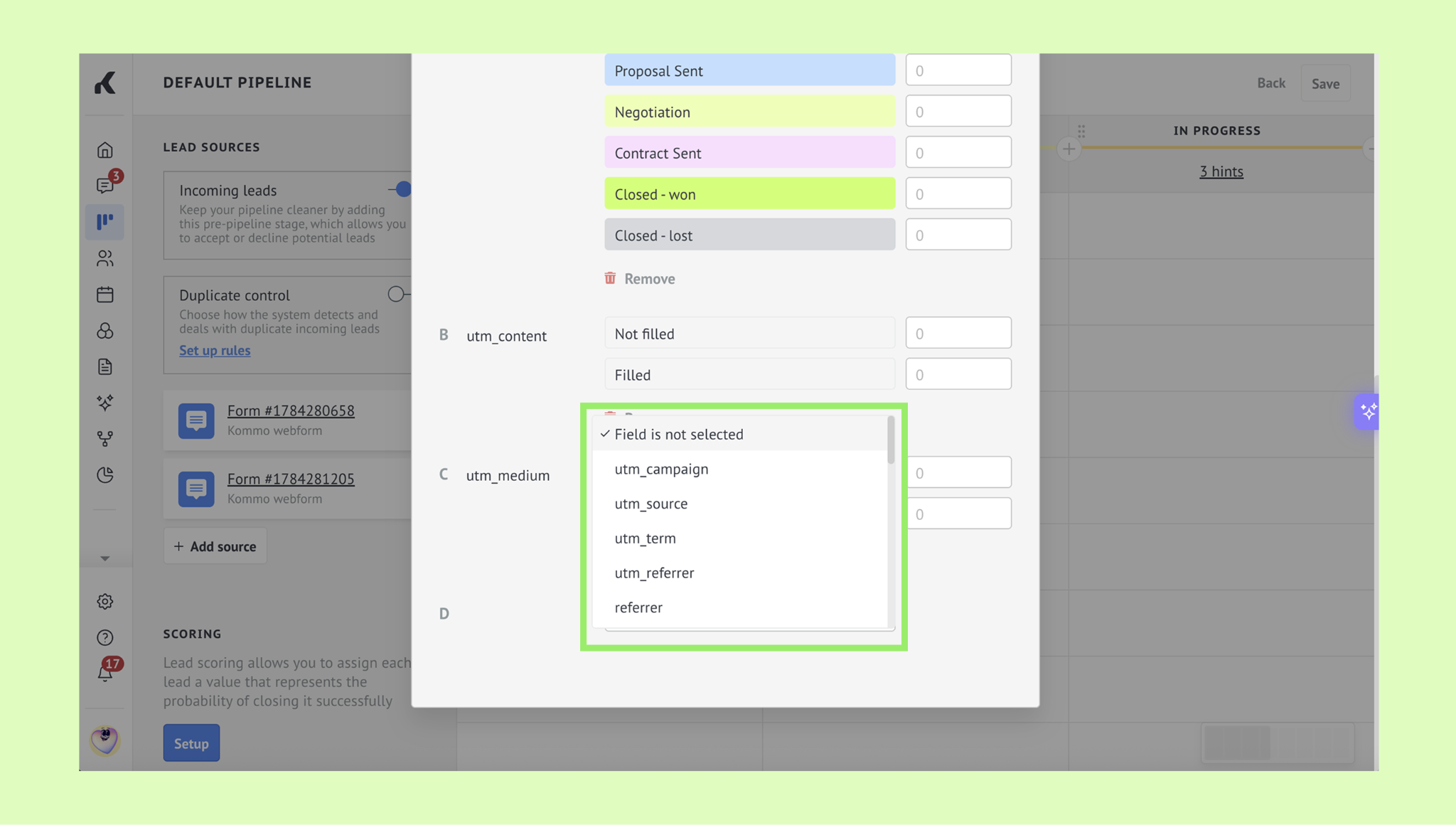
Tip: You can configure different additional variables: For example, if you select other tracking fields like utm_source, utm_campaign, or utm_term, assign higher points to high-converting channels (e.g., Google Search ads vs. generic social media referral links).
Step 5: Build the scoring formula
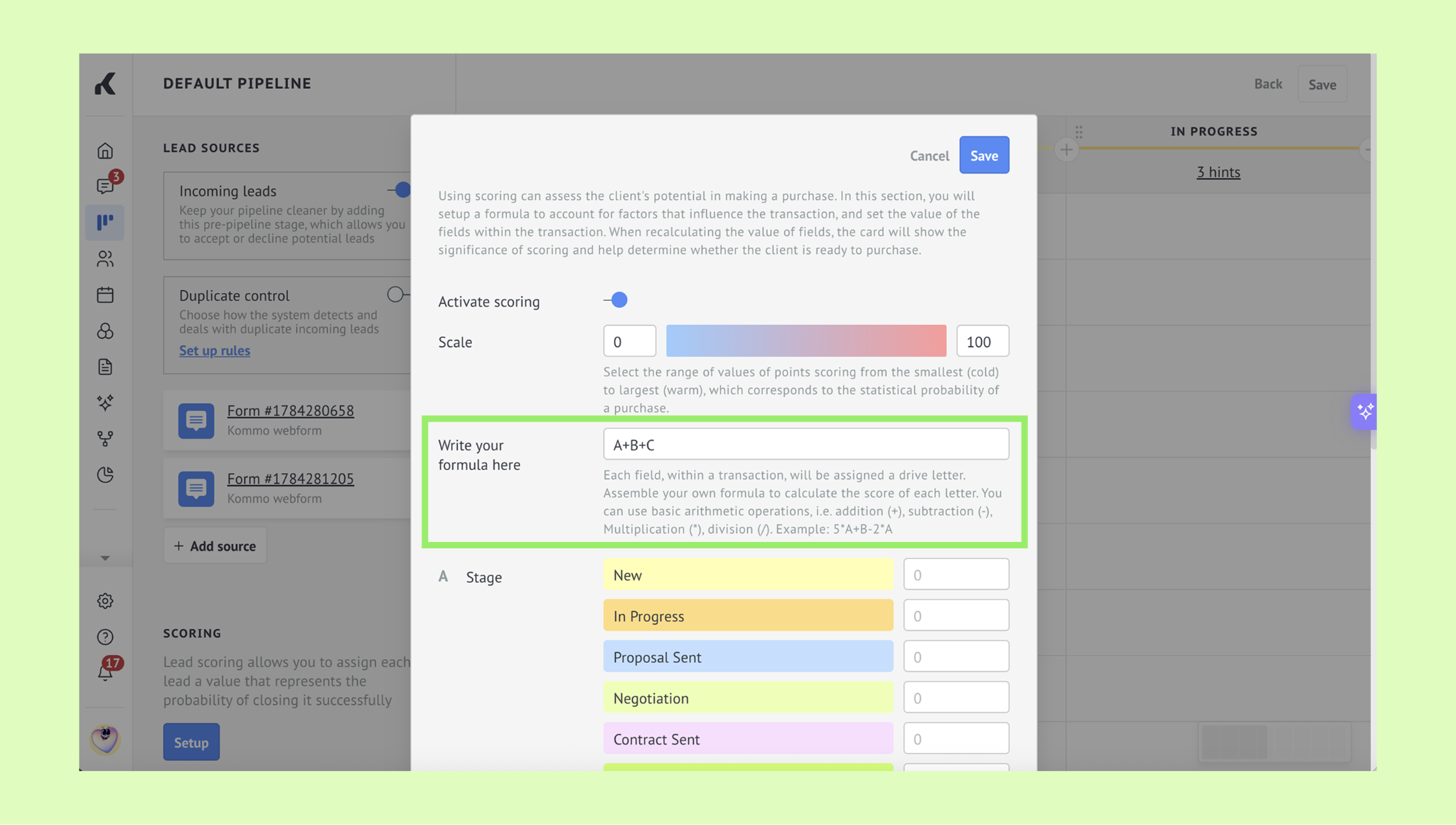
Use the formula field to combine the criteria you configured. Refer to each criterion using the variable identifier (A, B, C, etc.) displayed next to its field name on the setup screen.
Construct your formula in the Write your formula here box using basic arithmetic operators:
+ (addition)
- (subtraction)
* (multiplication)
/ (division)
For example, you can calculate total scores on a 0–100 scale by adding pipeline-stage points (Identifier A), utm_content points (Identifier B), and utm_medium points (Identifier C) together using the formula A + B + C.
Using the example above:
Initial contact (10 pts) + utm_content (5 pts) + utm_medium (10 pts): A lead receives 25 points.
Contract signing (85 pts) + utm_content (5 pts) + utm_medium (10 pts): A lead receives 100 points.
Step 6: Save settings
To save settings, click Save.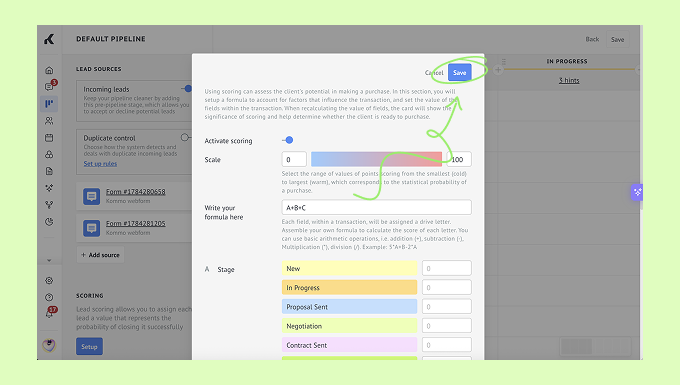
Step 7: Test your scoring model
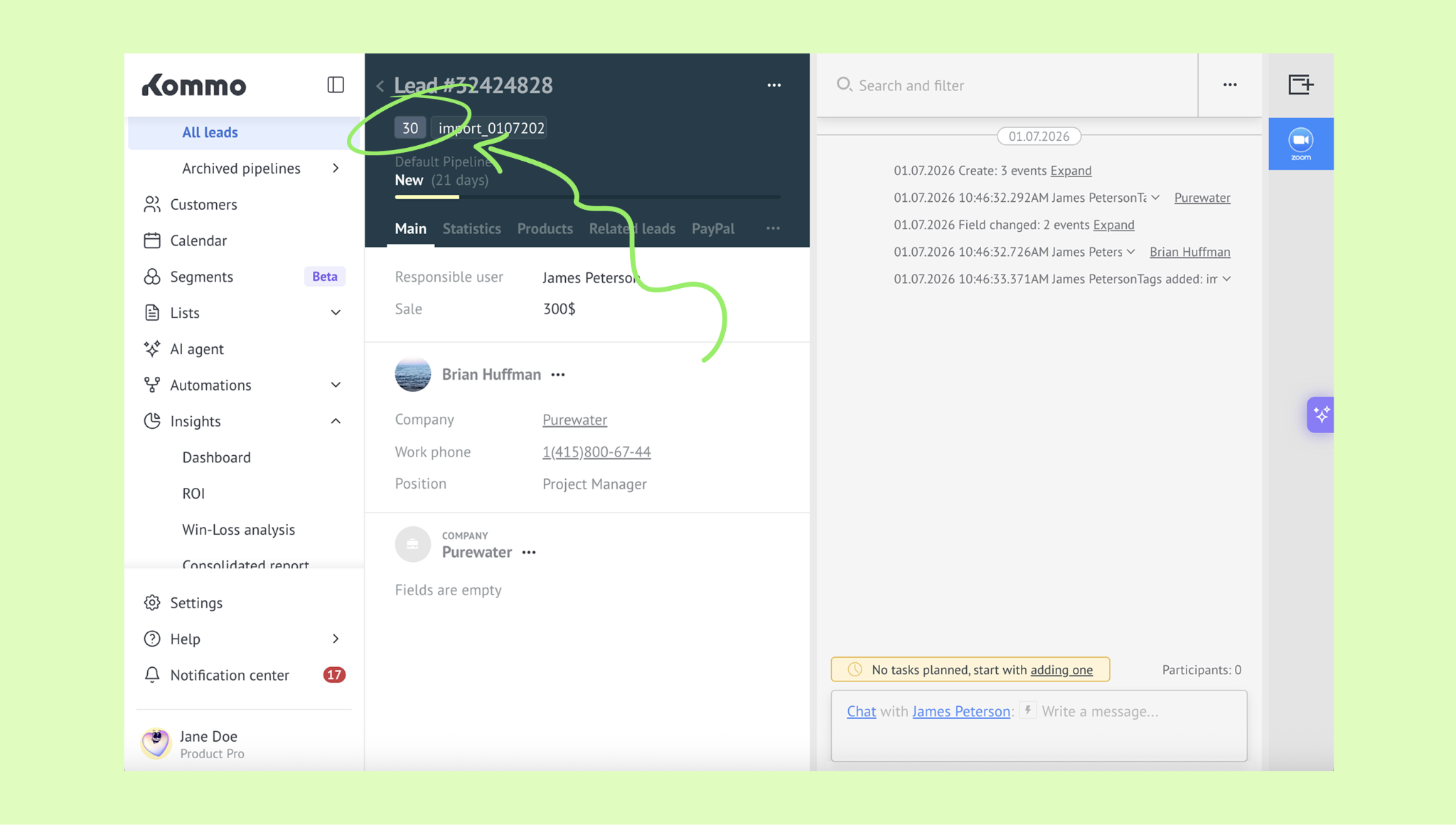
Once saved, Kommo automatically calculates a score for every lead in the selected pipeline based on the formula, the lead’s current stage, and selected field values. The score appears in the lead card next to the stage.
After saving the settings:
Open a test lead in the selected pipeline.
Move the lead to a stage included in your scoring model.
Add or update the UTM or lead-field values used in the formula.
Check the score displayed on the lead card.
Compare the displayed score with the result you expected from the configured values.
Repeat the test with different values. Confirm that low-, medium-, and high-priority examples produce scores that match your team’s expectations before using the model with active leads.
As the lead’s stage or field values change, Kommo recalculates the score. Use the latest value to identify the most promising leads and decide which to focus on first.