What you’ll need:
Any Kommo plan (Base, Advanced, Pro, Enterprise, or 14-day trial).
In Kommo, you can view and update company and contact details directly from the lead card, saving time – especially when you’re managing a large number of records.
Add a company from a lead card
Go to Pipelines → All leads → Click a lead to open the lead card.
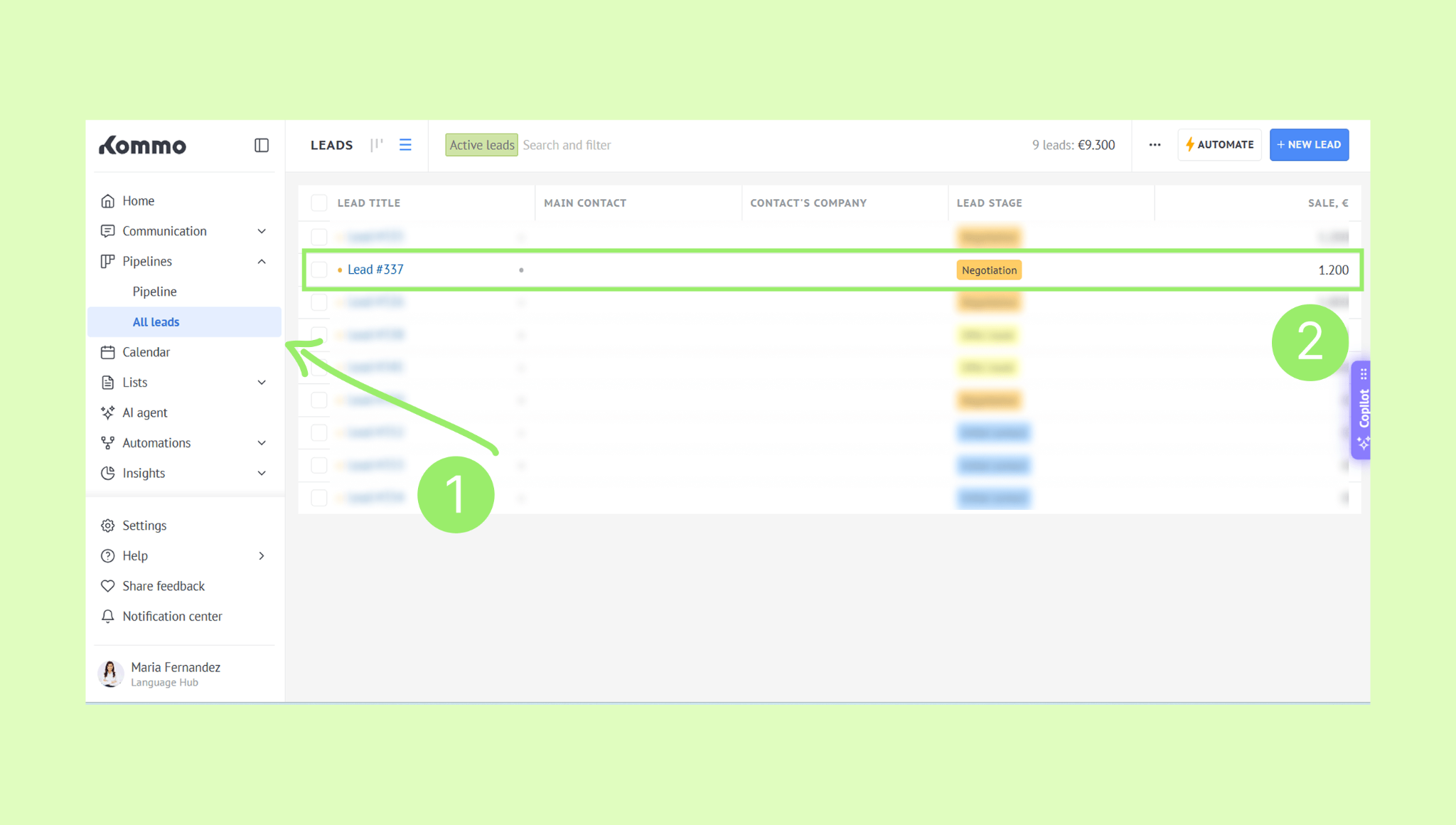
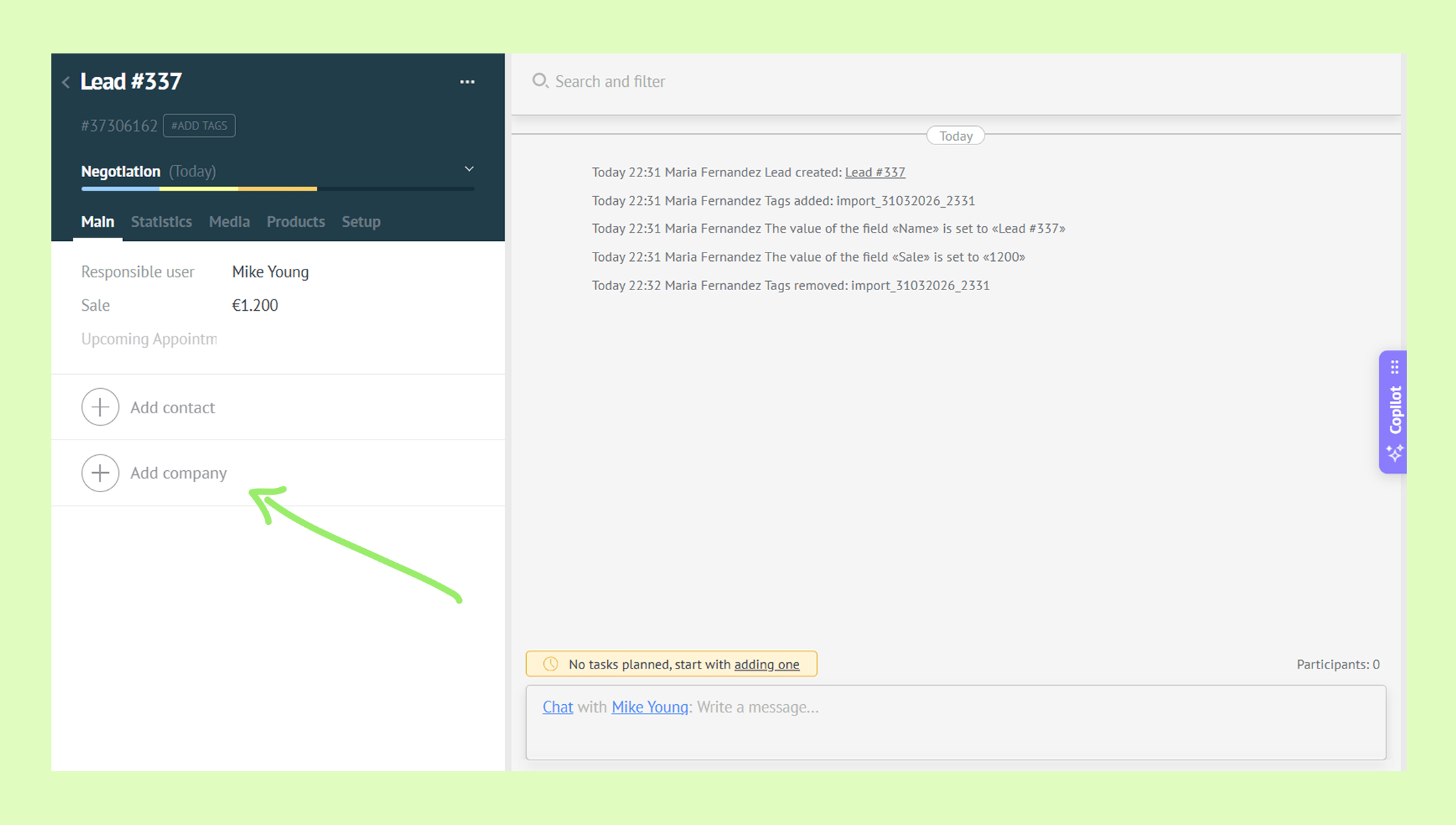
Click +Add company.
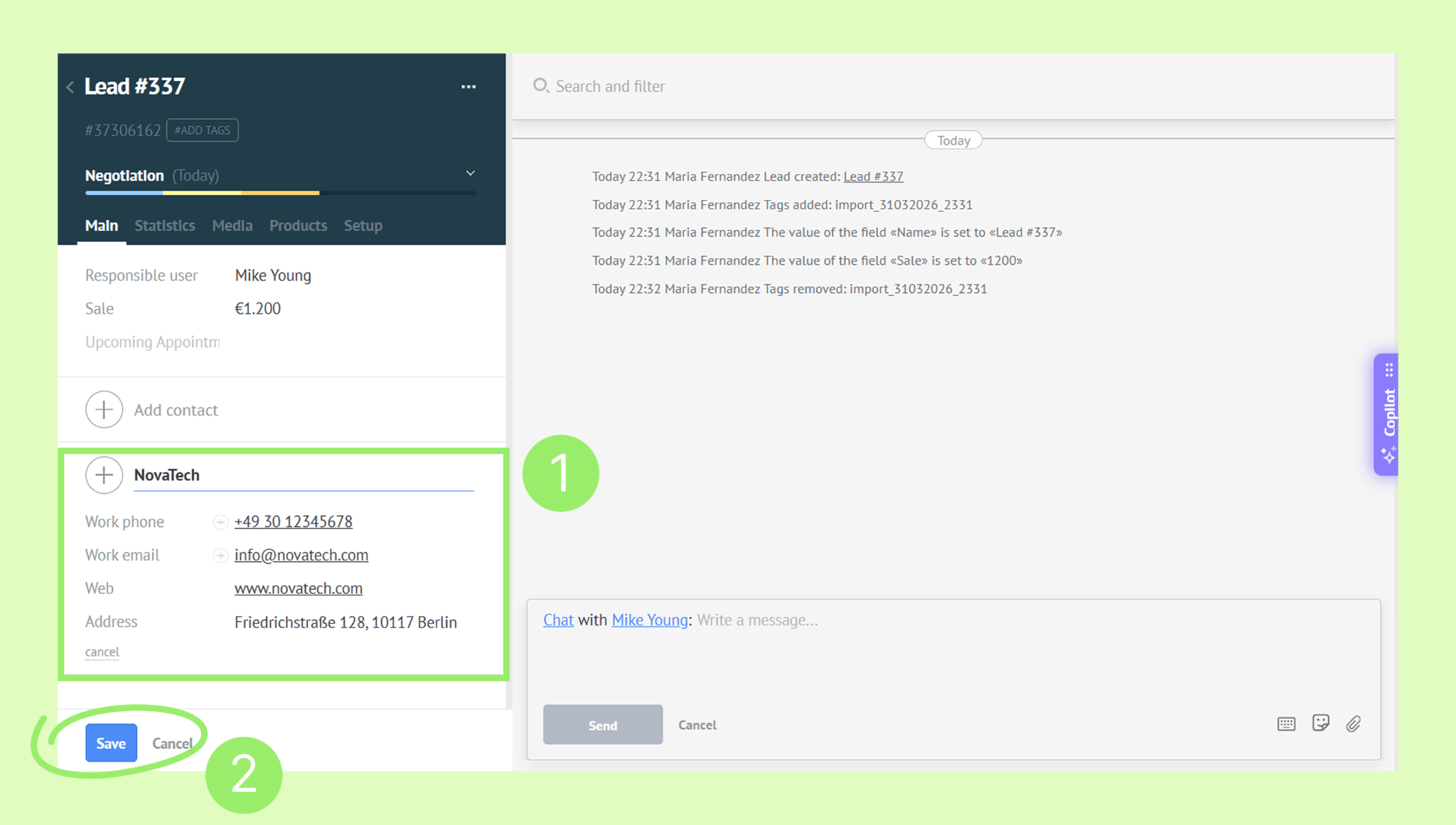
Enter the company details → Click Save.
Edit company details from a lead card
Go to Pipelines → All leads → Click a lead to open the lead card.
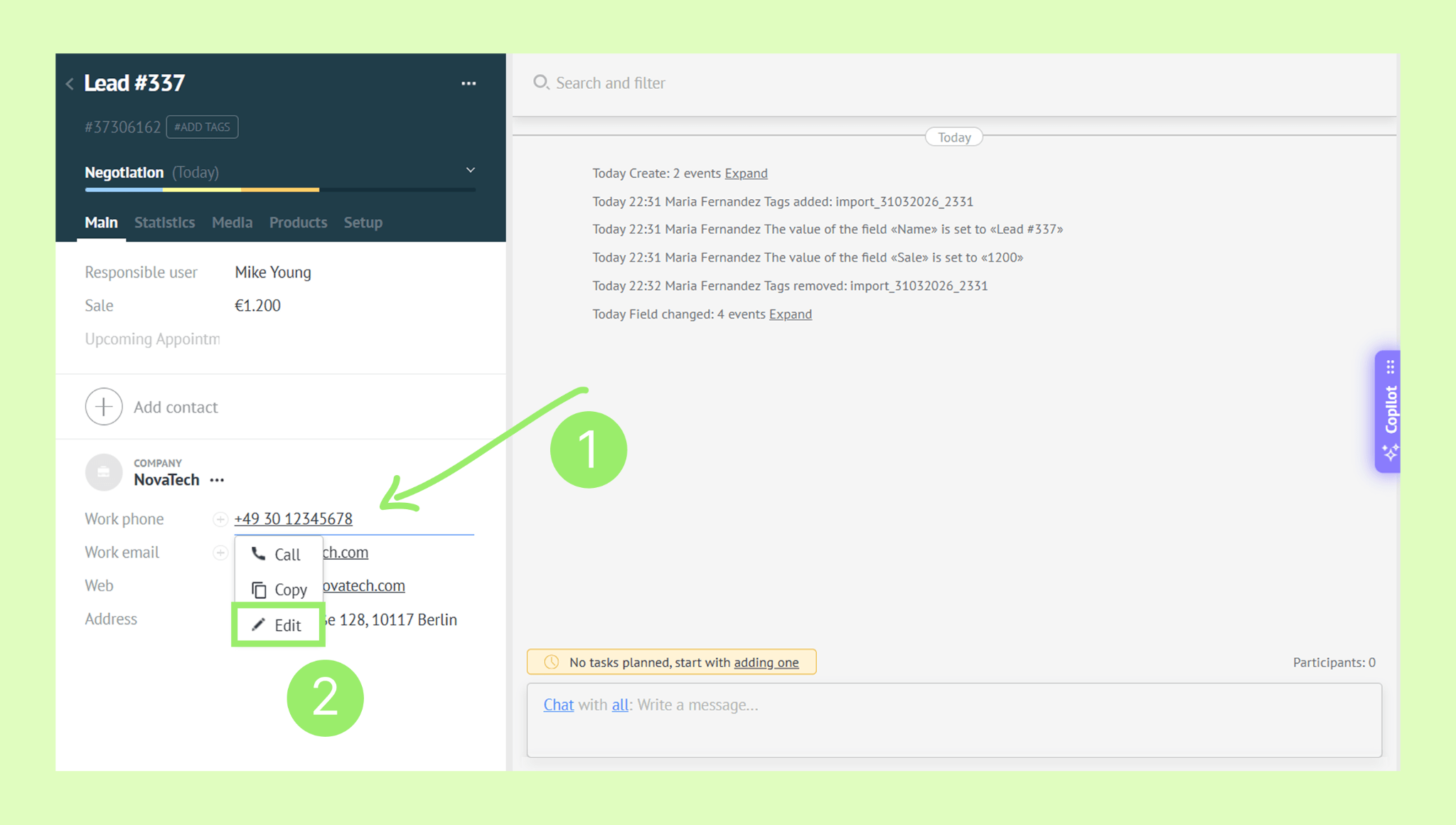
Click the field you want to update → Select Edit.
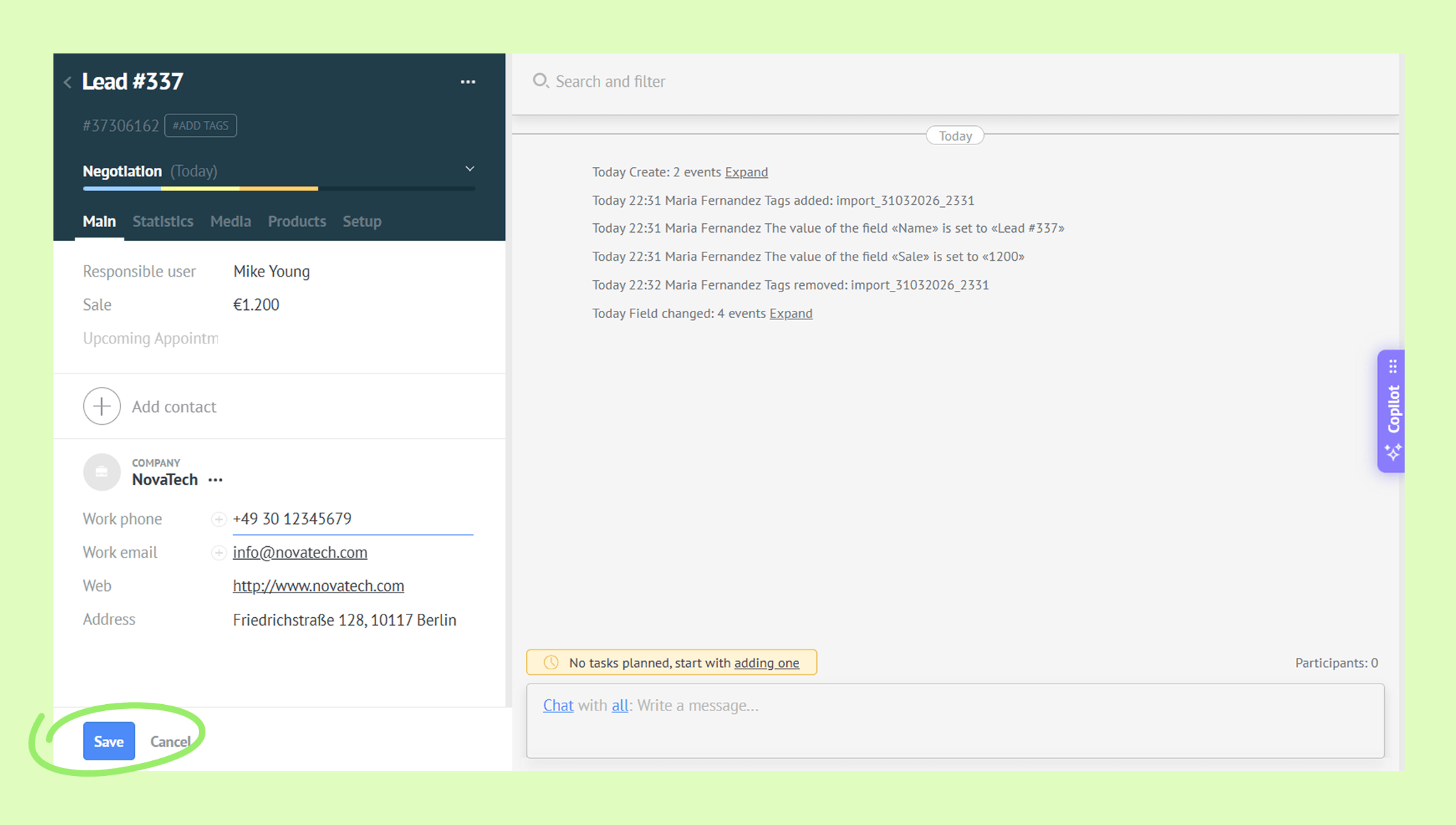
Make your changes → Click Save.
Unlink a company from a lead
Go to Pipelines → All leads → Click a lead to open the lead card.
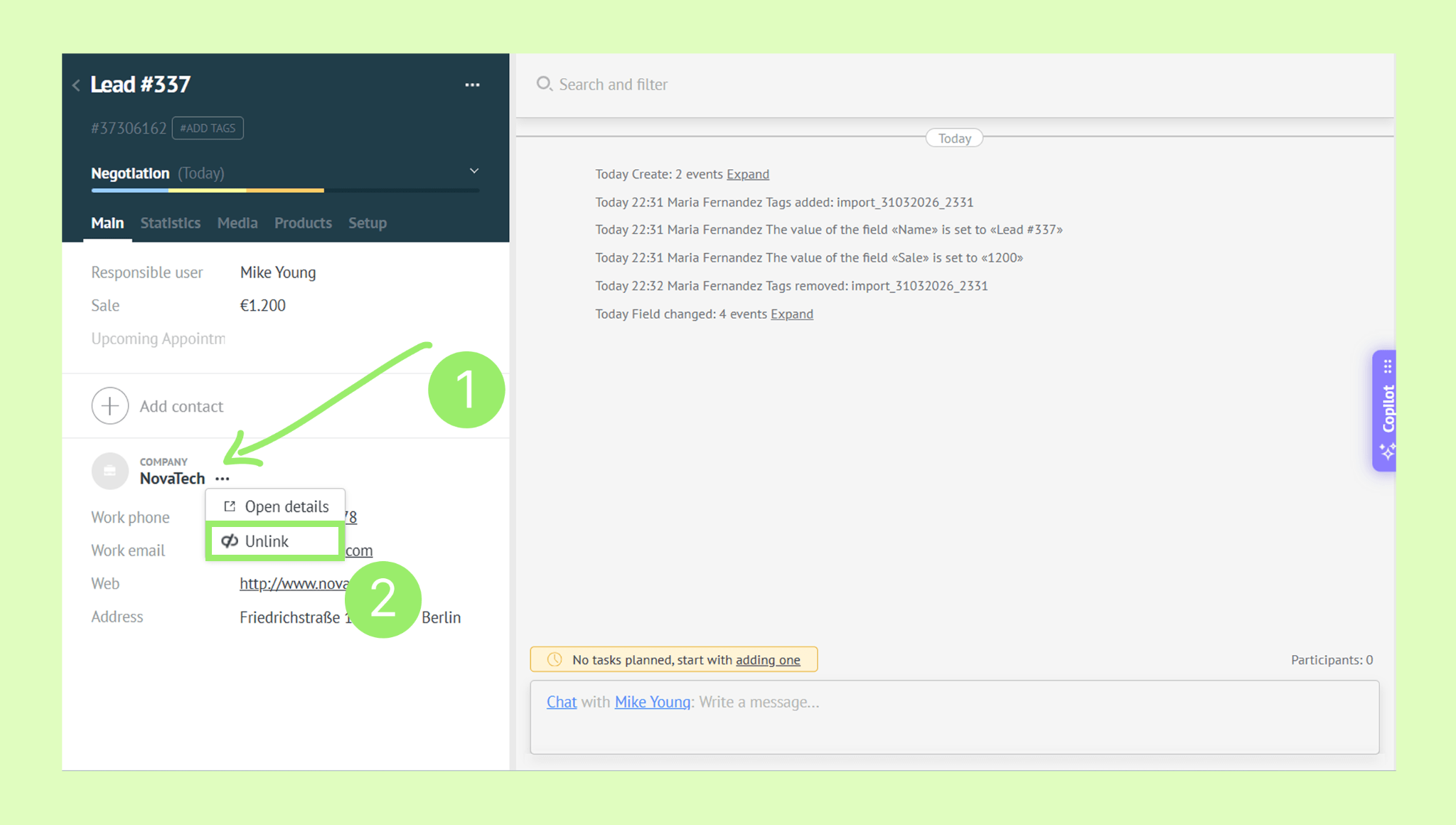
Click the three dots (… ) → Select Unlink, then confirm.
Delete a company
Go to Pipelines → All leads → Click a lead to open the lead card.
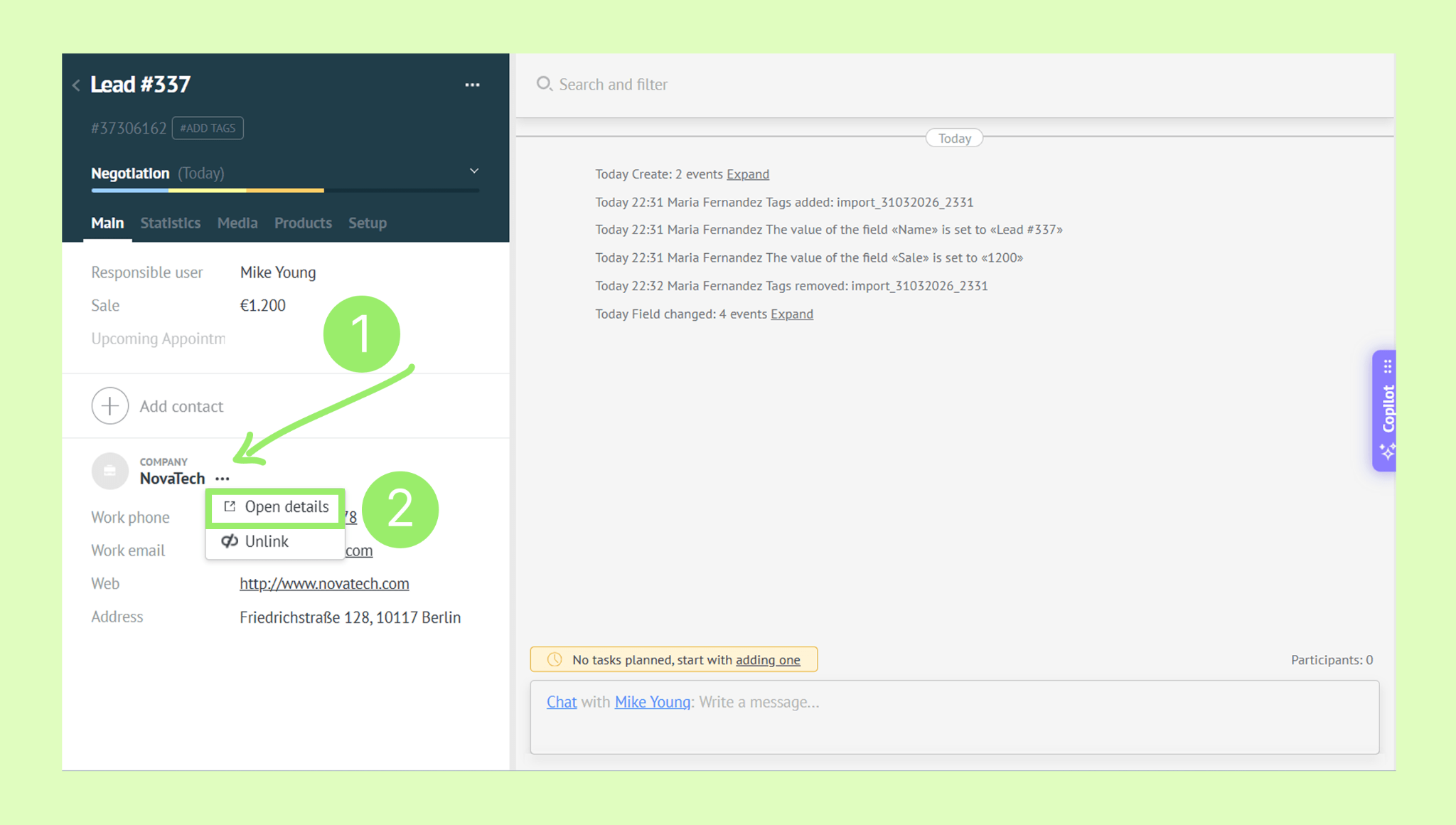
Click the three dots (… ) → Select Open details (this opens the company profile).
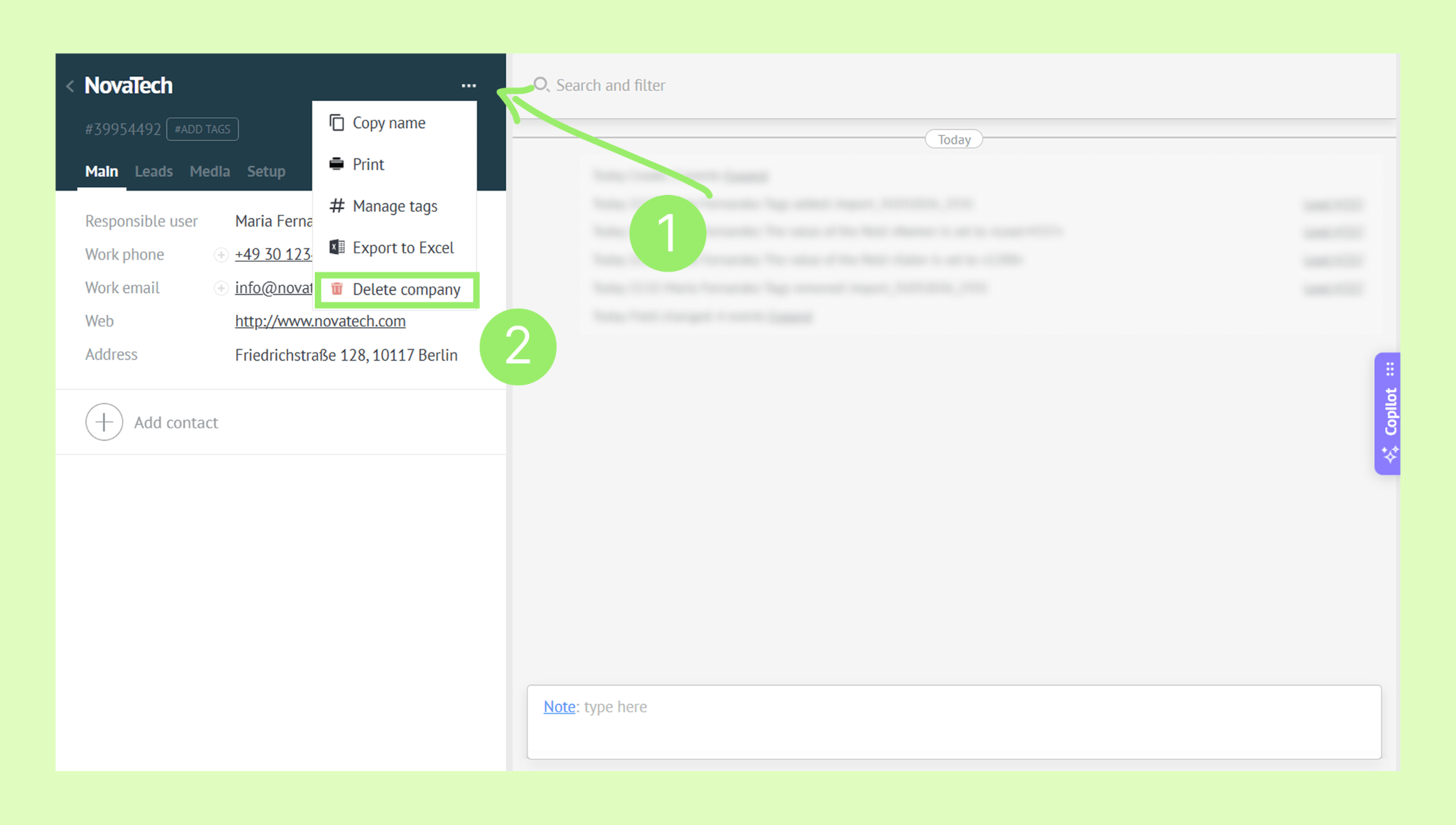
In the profile, click the three dots (… ) → Select Delete company, then confirm.
Note: You can manage contact details the same way as company details – just use the three dots (… ) menu next to the contact name.