What you’ll need:
Any Kommo plan (Base, Advanced, Pro, Enterprise, or 14-day trial).
Keep in mind:
Only Admins can connect shared email accounts, create email templates, and add signatures.
Kommo syncs only two folders from your email service: Inbox and Sent.
Kommo supports IMAP/SMTP email services like Gmail, Outlook, and Yahoo.
In Kommo, you can send, receive, and manage emails directly from your workspace. Connect your existing email address or use Kommo's built-in email service — no need to switch between platforms.
Use cases
Manage all emails in one place — connect one or multiple email accounts and handle all client emails directly from Kommo.
Build your client database — create contacts and leads from incoming emails manually, or enable automatic creation.
Track communication history — view a complete record of sent and received emails directly from a lead profile.
Work faster — create templates for messages you send regularly.
Automate emails — send emails automatically at a scheduled time or when a specific action occurs.
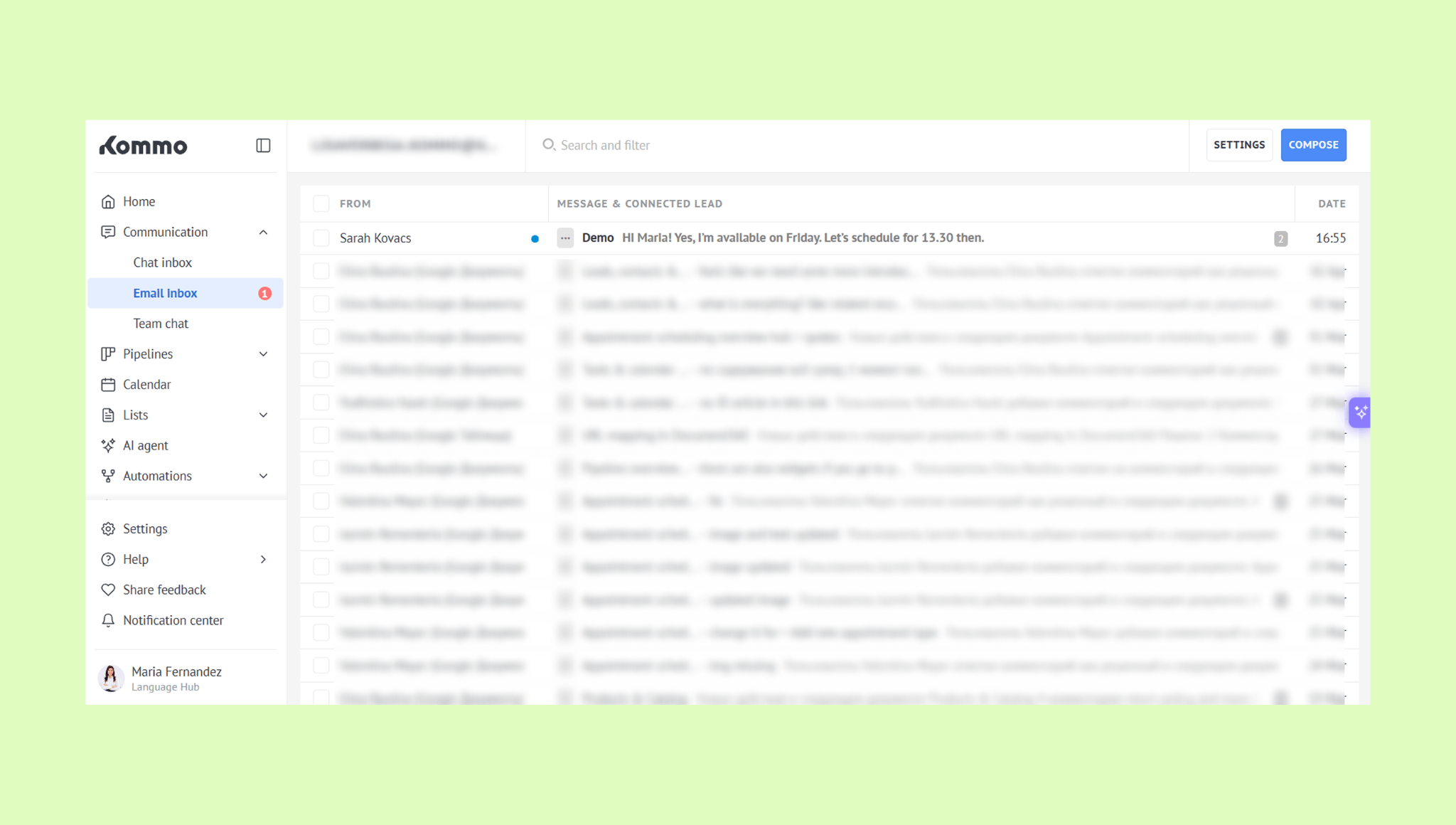
Mail inbox
Connect one or multiple email accounts and choose how your team works – shared inbox or individual emails.
All incoming emails appear in Kommo and are automatically linked to existing contacts and leads. If the sender is new, you can quickly create a contact or lead from the email, or enable automatic creation.
Emails are organized into threads for each contact or lead, so you can easily track conversations.
You can view, reply to, or delete emails from Kommo, as well as send attachments.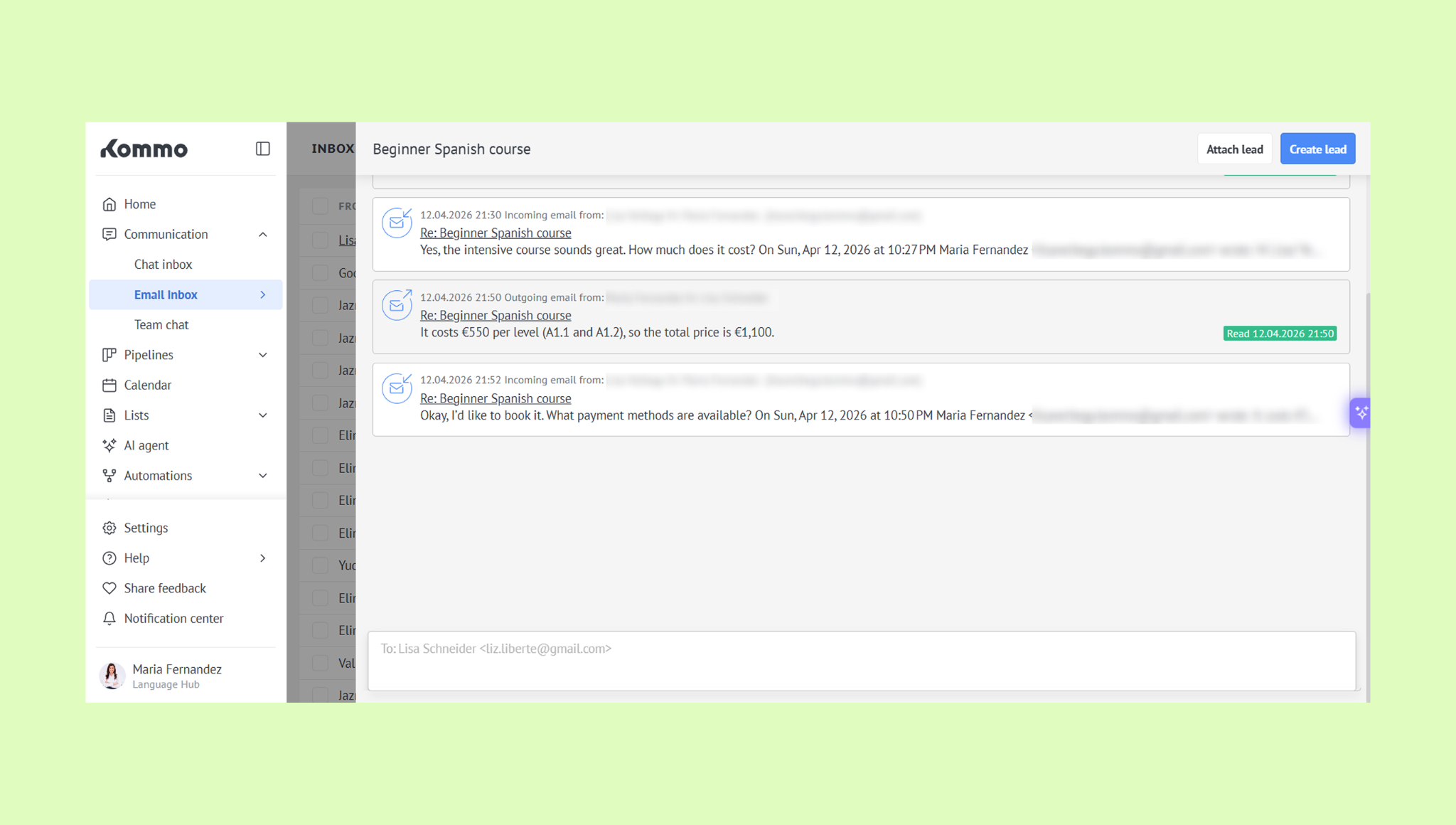
Learn more about email inbox settings in this article.
Mail templates
Create templates for messages you send regularly or in bulk— such as confirmations, special offers, or follow-ups. Add placeholders to automatically fill in client details from your Kommo database, so every email feels personal without typing them in manually each time.
Learn more about email template settings in this article.
Built-in smart email addresses
If you don’t want to connect your email account to Kommo but still need to save email conversations in the CRM, you can use smart email addresses.
Kommo automatically creates addresses ending in @mail.kommo.com. Add a smart address to the Cc or Bcc field when sending an email from Gmail, Yahoo, or another email provider. Kommo will save the message in the Mail inbox and link it to the related contact and lead.
You can also use dedicated smart addresses to automatically create new contacts or leads from emails.
Note: Smart email addresses cannot be used to send emails from Kommo and do not support email forwarding.
Smart addresses:
Are linked to your Kommo account
Require no separate login or password
Cannot be deleted
Change if your account domain changes
Learn how to use smart email addresses in this article.
Mail automations
You can automate email sending using digital pipeline triggers or Salesbot.
Set up a template and define when it should be sent — based on a specific action, condition, or time. For example, send a confirmation when a client requests support, an introduction email when a new user is assigned to a lead, or a special offer to all leads at a certain pipeline stage.
Learn more about Kommo digital pipeline triggers and Salesbot.