Make has a bunch of different triggers, actions and searches that make your sales process smoother and easier to handle. Let’s see how this all works!
Building scenarios on Make
Firstly, you have to start by creating a scenario. A scenario consists of a series of modules that indicate how data should be transferred and transformed between apps and services.
Note: Before creating a workflow, you have to connect your Kommo account with Make. To do it, make sure to read and follow the instructions on our Make - How to connect with Kommo article.
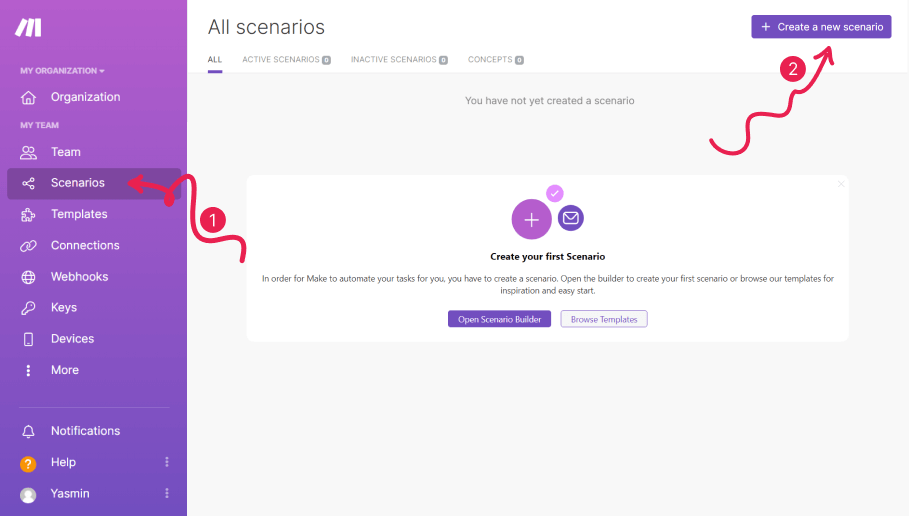
On your Make account, pass the mouse through the left-side menu and choose the Scenarios section. Then, press the ‘Create a new scenario’ button on the upper-right side of the window.
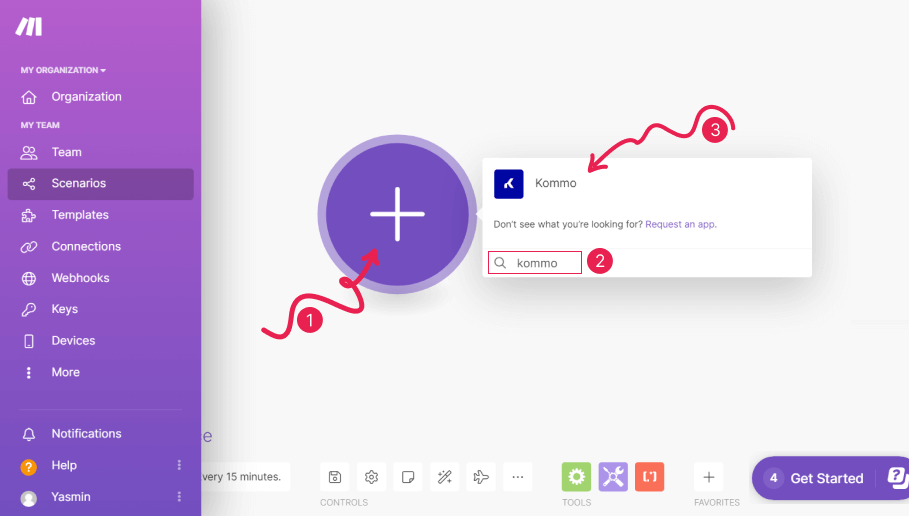
Hit the plus button in the middle of the screen, simply type in ‘Kommo’ in the search field, and select it.
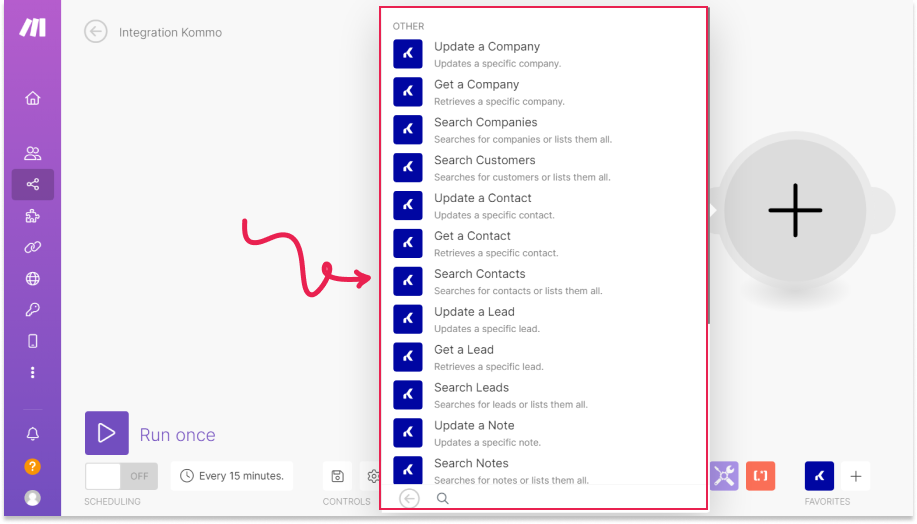
Choose one of the triggers/actions that will kick-start your new workflow.
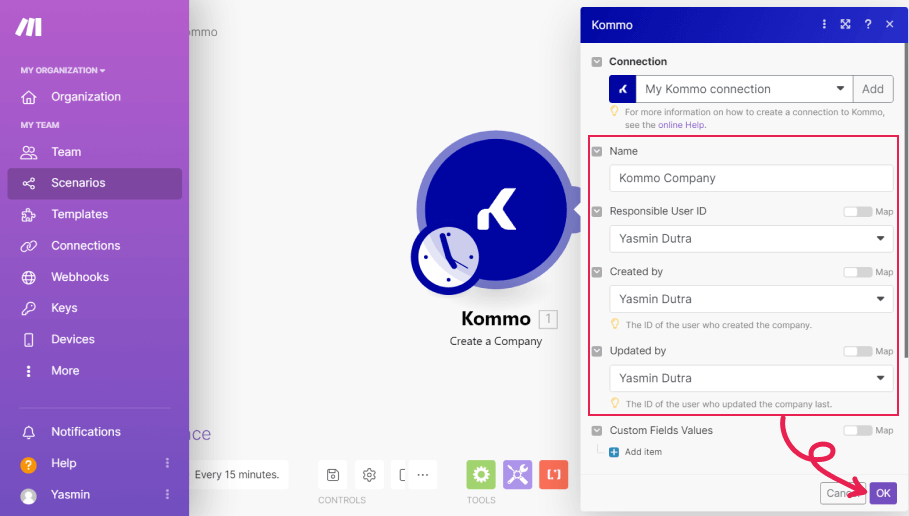
Next, you’ll have to fill in some information about the workflow. Each different action or trigger may ask specific questions. After editing your preferences, hit the OK button.
Note: if you haven’t connected with Kommo before, first you need to provide connection details at this stage. To learn how to connect, visit Make - How to connect article.
You can finish building your scenario by connecting another tool or even another Kommo account. For example, you can create a scenario with Kommo and Google Calendar to watch your task so every time a new task is created in Kommo, Make will automatically add a task to your Google Calendar as an event.
Tip: you can find more scenario examples here.
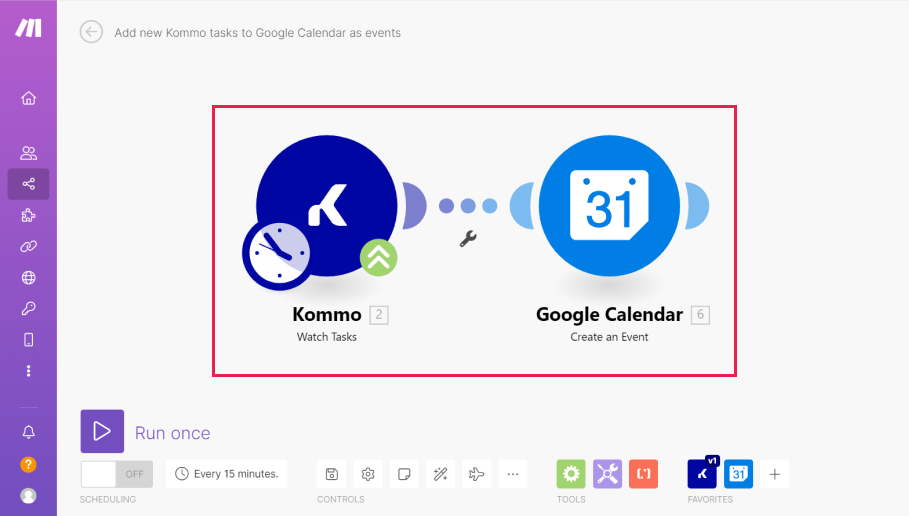
When you finish your workflow, don’t forget to run a test to see if everything is working as it should. Press the ‘Run once’ button at the left-bottom corner of the screen.
Once you check if your new scenario is working properly, activate it by switching the ‘On/Off’ button to ‘On’.
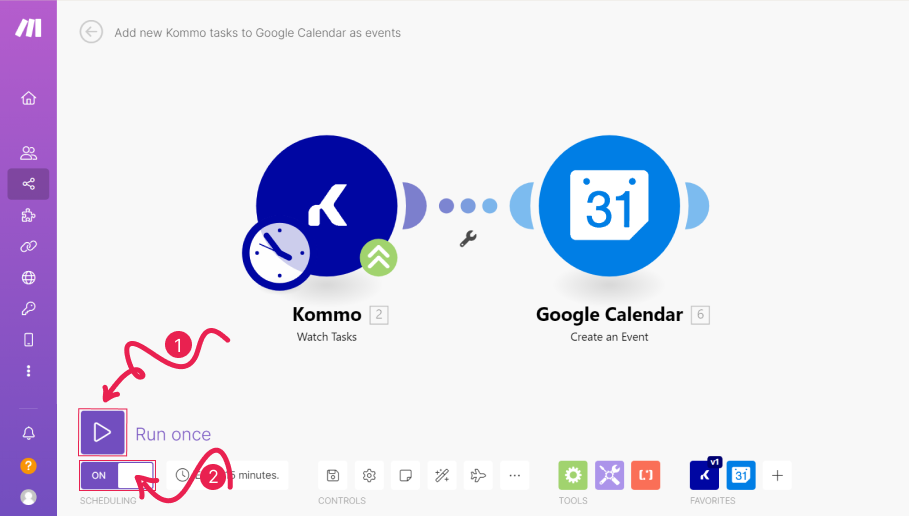
And that’s it! Your new scenario is now active!
Types of Make Modules
Module is a general name for the steps of your scenario. Make has five types of modules:
Actions
Triggers
Searches
Aggregators
Iterators
The last two are intended for advanced scenarios.
The scenario is made up of a number of modules that decide how the data is transferred or transformed between apps or services.
Actions – are the most common type of module.
A typical action module returns just a single bundle which is then passed on to the next module for processing.
Action modules can be placed at the beginning, middle or end of a scenario.
Scenarios can contain an unlimited number of action modules.
For example, you have chosen the ‘Create a lead’ action in Kommo. When you make a scenario with, let’s say, Twitter, it will navigate possible leads according to your chosen events and make them into lead cards in your pipeline. Super handy, isn’t it?
Trigger modules – launch the process when there has been a change in a given service. The change can be a creation of a new record, deletion of a record, update of a record, etc.
Every trigger can return zero, one or more bundles which are then passed on to the next module for processing.
Triggers can be placed only at the beginning of a scenario.
Each scenario can contain only one trigger.
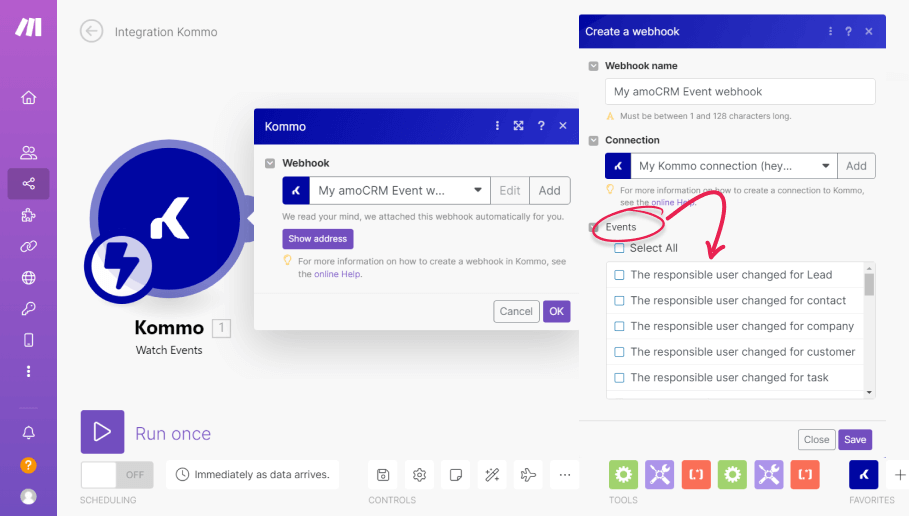
As an example, I can choose the Watch events trigger and mark the ‘The responsible user changed for the Lead’. Once the responsible user is changed for a Lead, your scenario will be launched.
Searches – retrieve the data matching the parameters you specify.
A typical search module returns zero, one or more bundles which are then passed on to the next module for processing.
Search modules can be placed at the beginning, middle or end of a scenario.
Scenarios can contain an unlimited number of search modules.
Aggregators – are modules that accumulate multiple bundles into one single bundle.
Every aggregator returns only one bundle which is then passed on to the next module for further processing.
Aggregators can be placed only in the middle of a scenario.
Scenarios can contain an unlimited number of aggregators.
Iterators – are modules that split arrays into multiple, separate bundles.
Every iterator returns one or more bundles which are then passed on to the next module for processing.
Iterators can be placed only in the middle of a scenario.
Scenarios can contain an unlimited number of iterators.
Kommo app modules on Make
On Make, Kommo app modules are grouped into 6 sections: Events (Triggers), Leads, Contact, Task, Note and Other. Now, we will discuss each of them according to their module types.
Triggers
The Kommo app on Make has two triggers:
Watch Events – This instant trigger monitors Kommo for selected events. You can choose the events you want to watch and changes in these events activate your scenario.
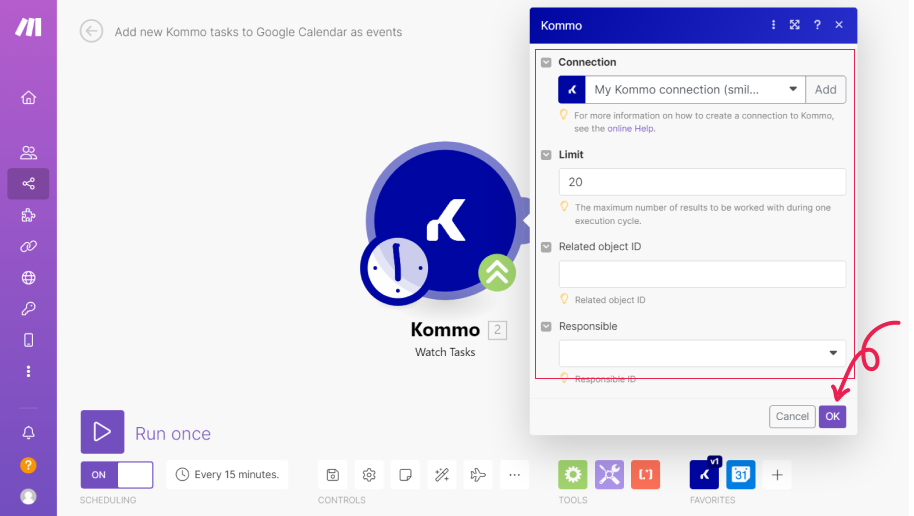
Watch Tasks – Obtains a list of tasks with the possibility of filtering and paging. Here you can configure the filter according to your needs and pull task information based on filter settings and time
Actions
There are a wide range of actions you can choose to run with Make and Kommo that will make your business workflows easier. You can choose from the following actions to build your scenario:
Create a Company
Create a Contact
Create a Lead
Create a Note
Create a Task
Link entities
Make an API Call
Unlink Entities
Update a Company
Update a Lead
Update a Contact
Update a Note
Update a Task
Watch Events
Searches
When it comes to Searches, Kommo app allows the following choices:
Search Customers
Search Companies
Search Contacts
Search Leads
Search Notes
Search Tasks
Search Products
Get a Contact
Get a Lead
Get a Product
Get a Task
Get a Company
Data
Shorten a Link
Tip: If you want to know more about modules, integrations and templates on the Kommo app in Make, have a look at our page on the Make website.
You don’t have an account on Make yet? Sign up for free and boost your sales in Kommo!
Need more help setting up or troubleshooting? Contact us by sending an email to support@kommo.com or write to us on Facebook.
Not a user yet? Visit our tour page or contact us for a demo.