Note: The Power-up is a legacy feature available only to accounts that enabled it in the past. Accounts where it was previously activated will continue to see and use it normally. In accounts where it was not enabled, the feature does not appear in the settings and cannot be added.
If you’re exploring automation options, you can check our AI agent guide.
What you’ll need:
An active Pro or Enterprise plan (Power-up is available on these plans only).
At least one created response template or Salesbot sequence.
Keep in mind:
Dataset files must be in .csv or .xlsx format.
The uploaded file must contain only one column for questions, with each question written on a separate line.
Each intention has its own dataset and action.
The Power-up is a Salesbot setting that works inside your messenger chats, improving how your chatbot handles customer conversations. It uses natural language processing (NLP) to analyze incoming messages and understand what the customer is asking.
When a message arrives, the Power-up compares it to the intentions you’ve configured. If it finds a match, it automatically triggers the corresponding action — such as sending a predefined reply or launching a Salesbot sequence — helping you respond faster and more accurately without manual input.
To learn more about how Salesbot works, check our article.
How to set up Power-up
To set up the Power-up, complete the following steps:
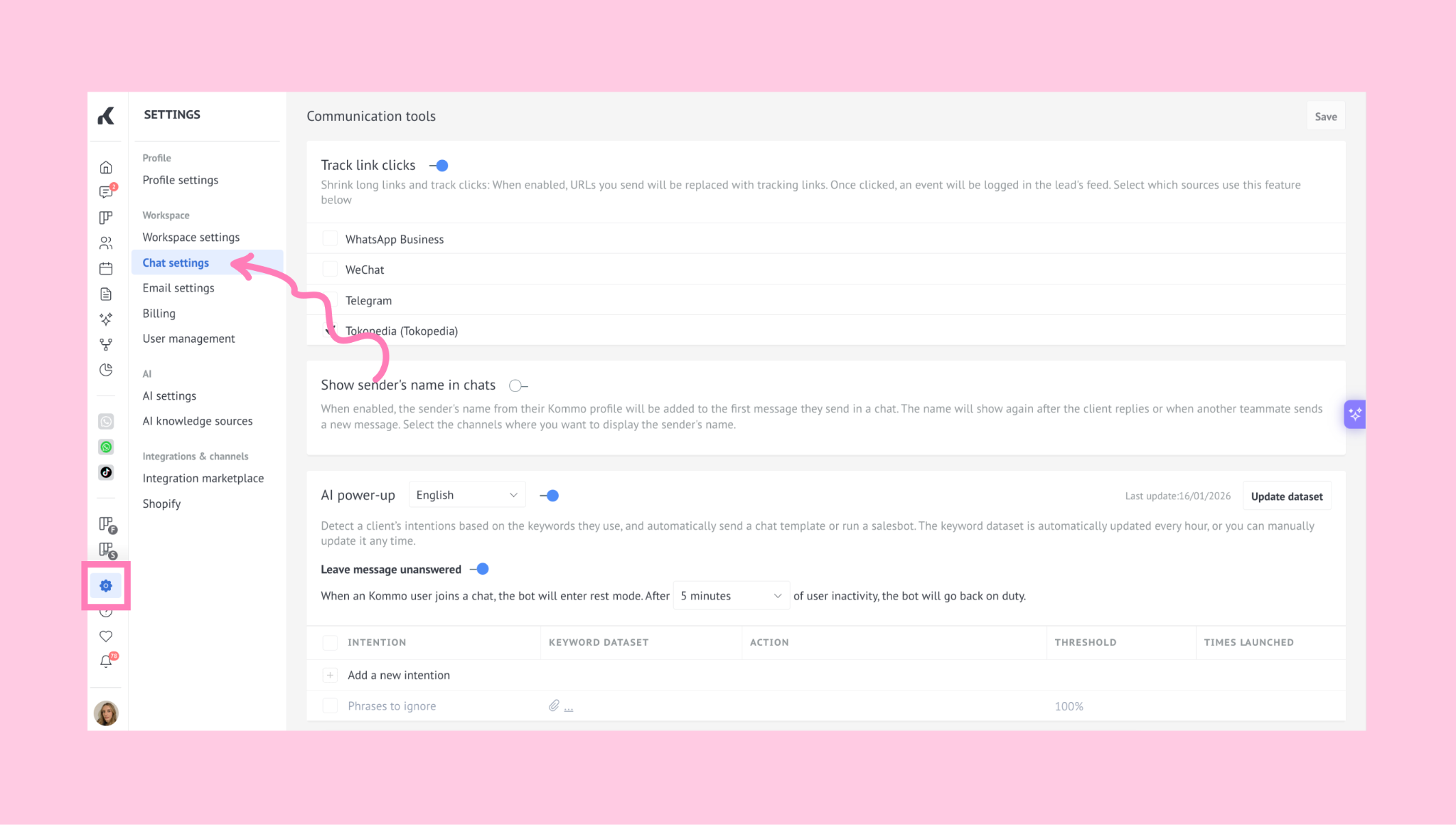
Go to Settings → Chat settings.
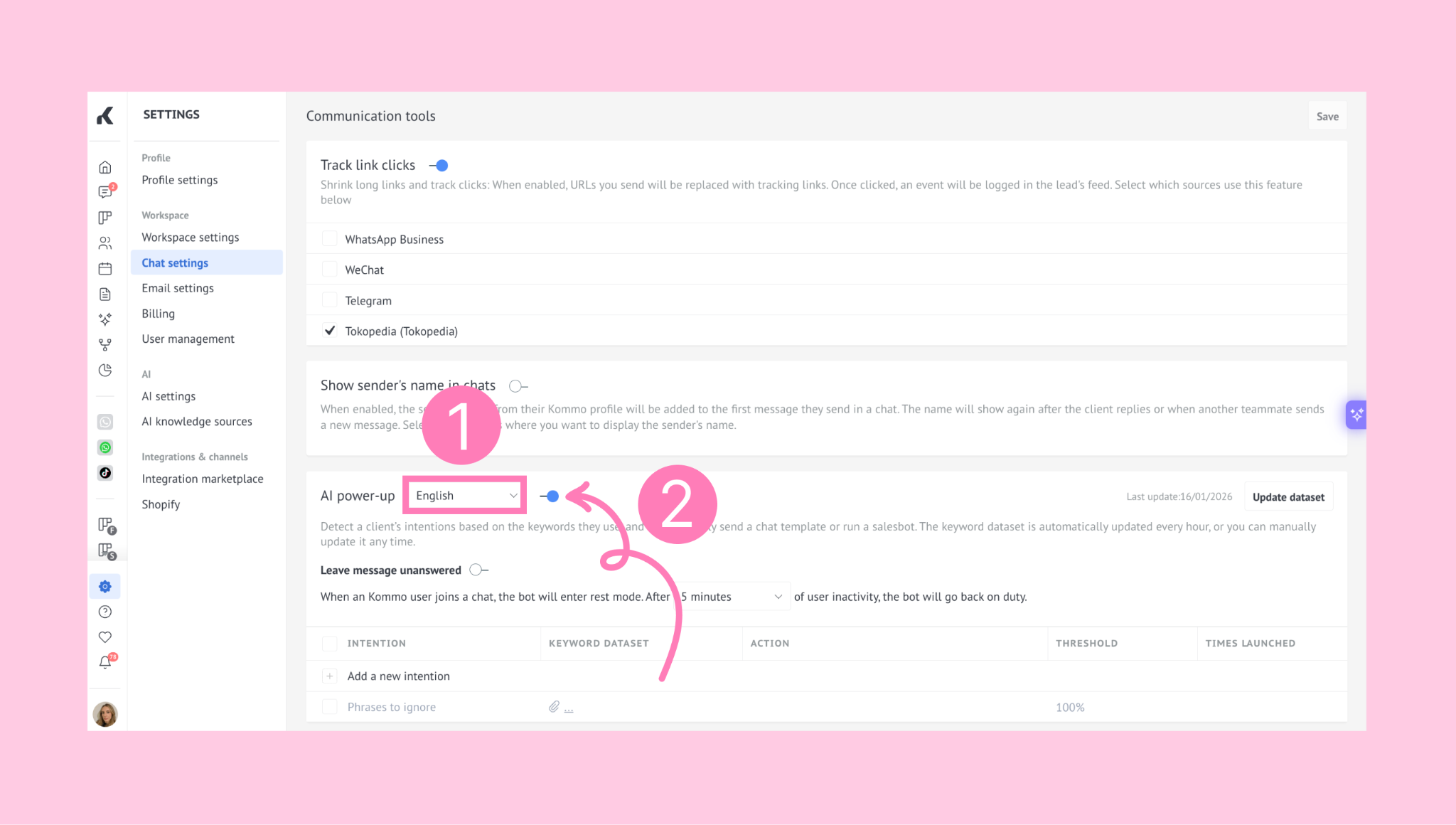
In the Power-up section, choose the language you want to use and turn on the toggle to enable the feature.
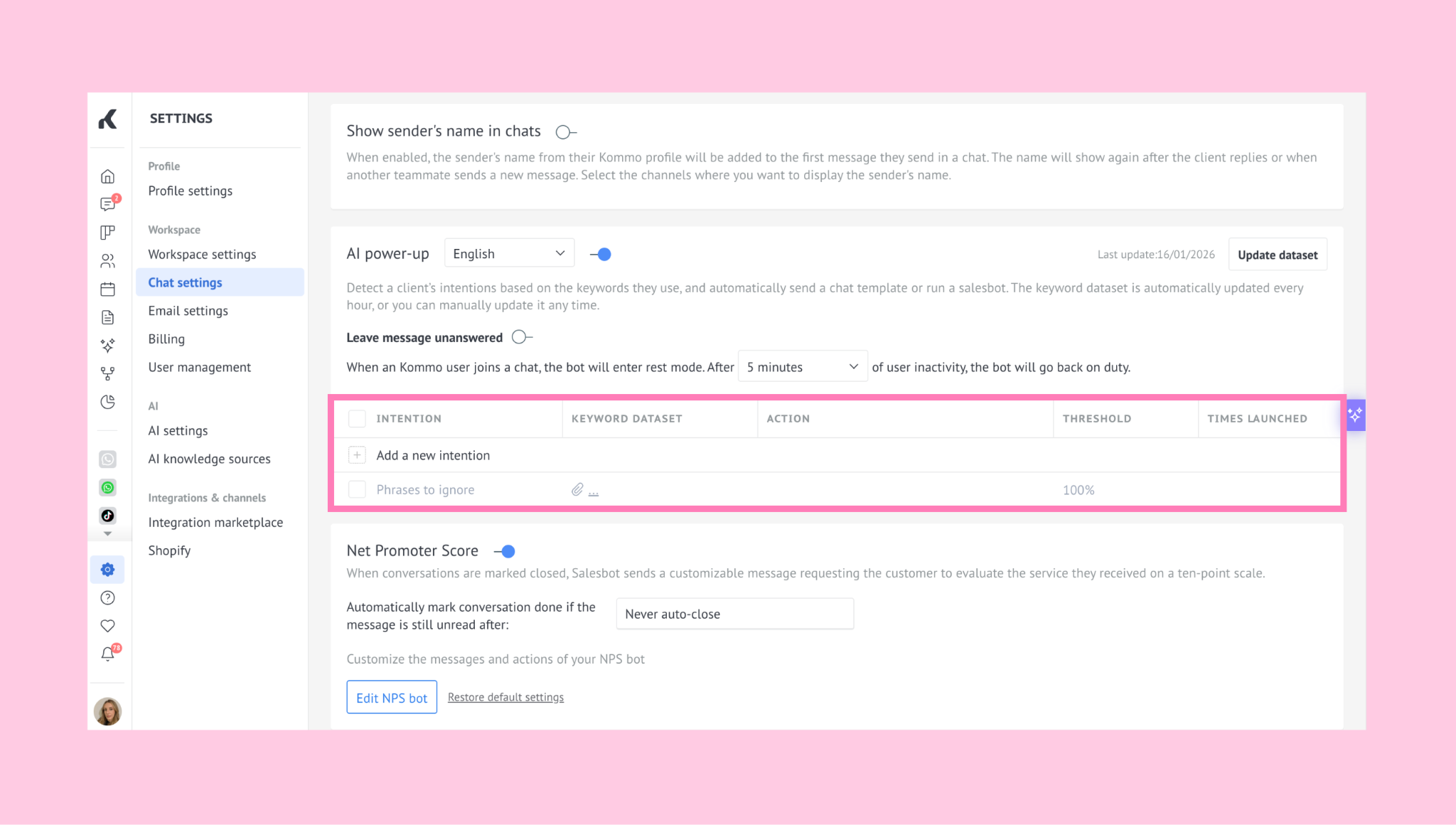
You will see a table with five columns. These columns define how the Power-up works:
The Intention column describes the topic or purpose behind a customer’s message.
For example: A customer who wants to buy a bicycle may ask in different ways, such as I want to buy a bicycle, How much is the bicycle? or Is this bike available?. Even though the wording is different, the goal is the same — buying a bicycle. All of these questions can belong to one intention, such as Buying a bicycle.
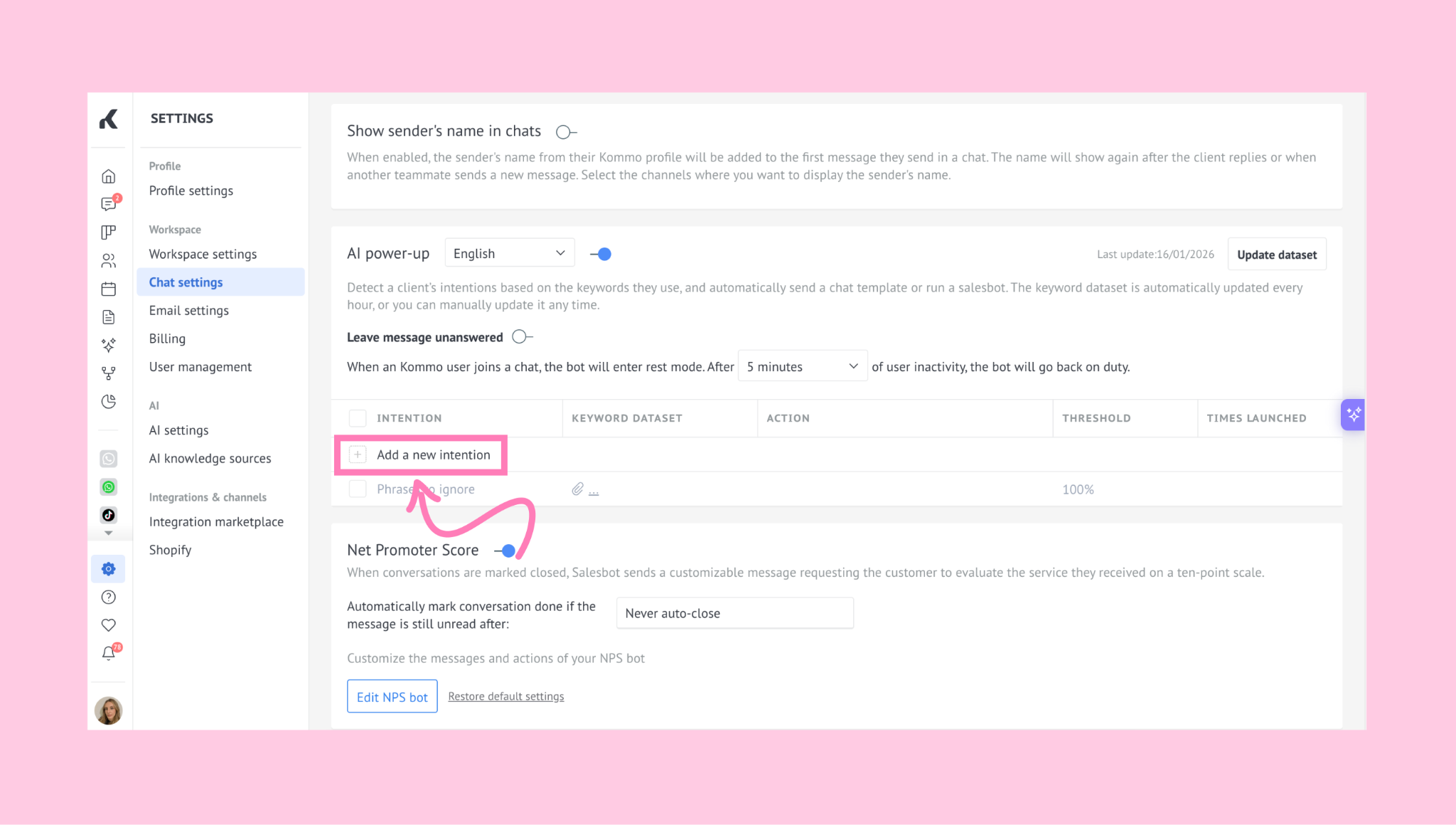
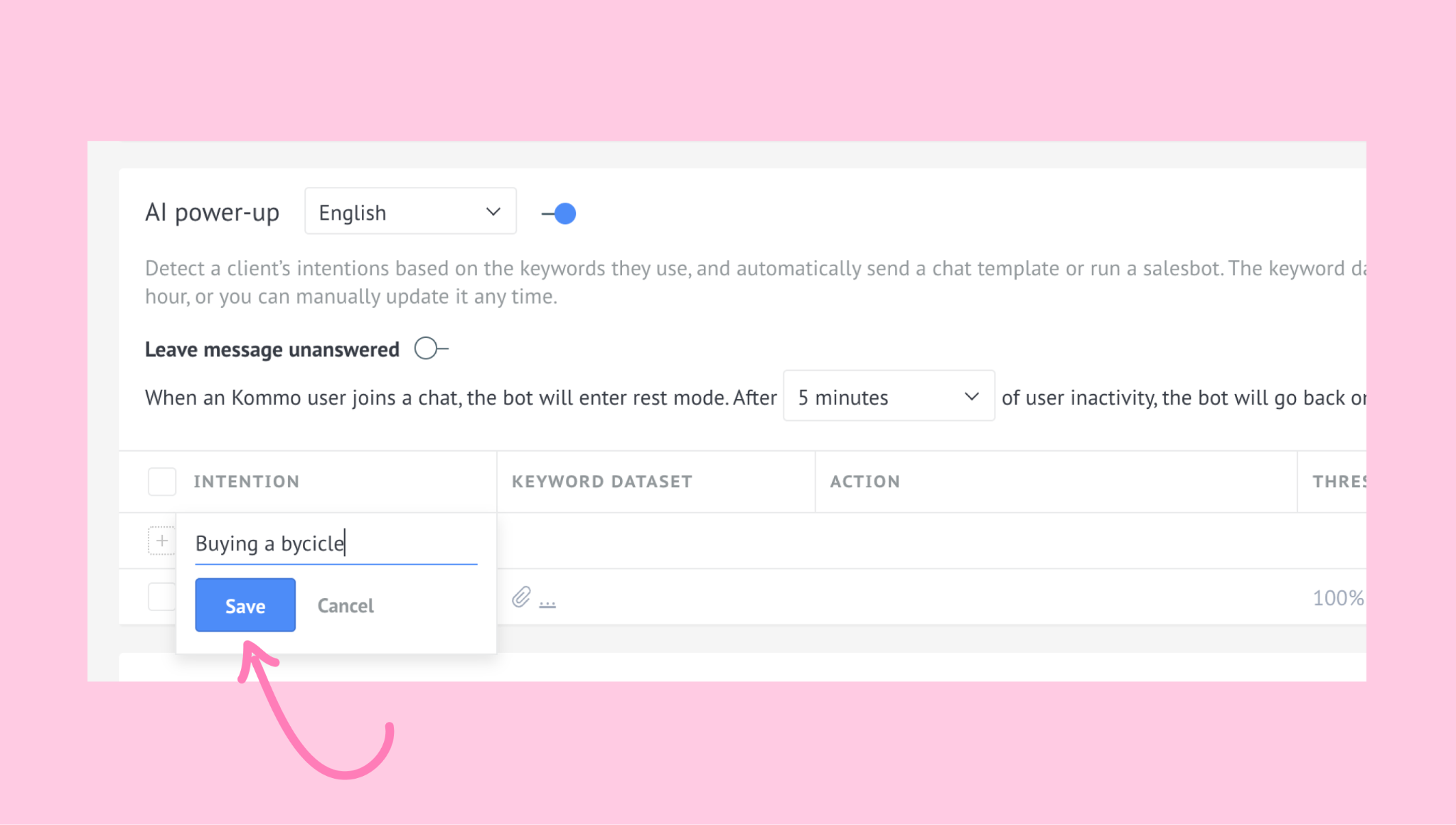
To create an intention, click Add a new intention.
Then, enter the intention’s name and click Save.
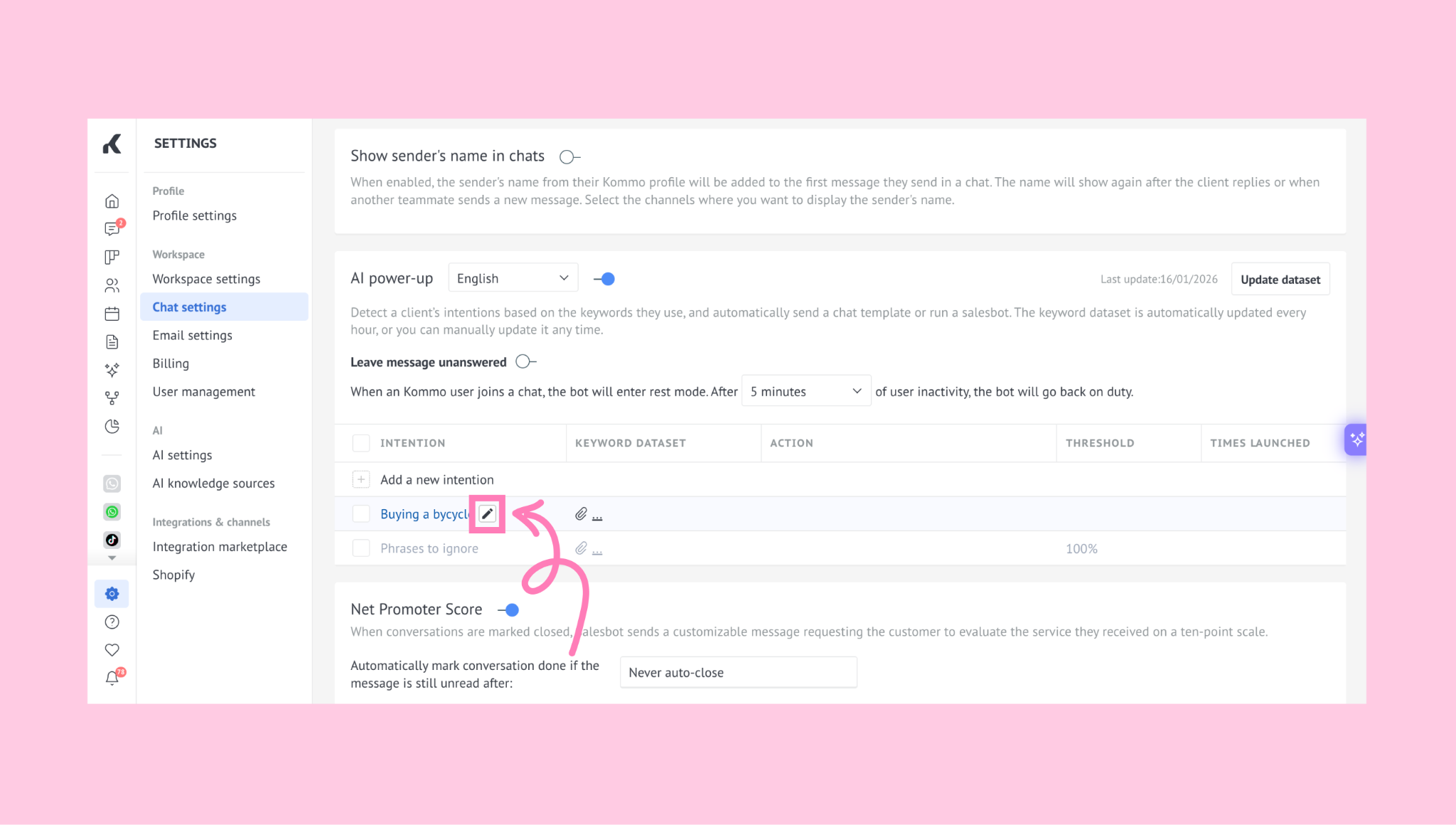
Note: You can rename the intention at any time by clicking the pencil icon.
If you want to add example questions immediately, click the name of the intention and select Add a new phrase to dataset.
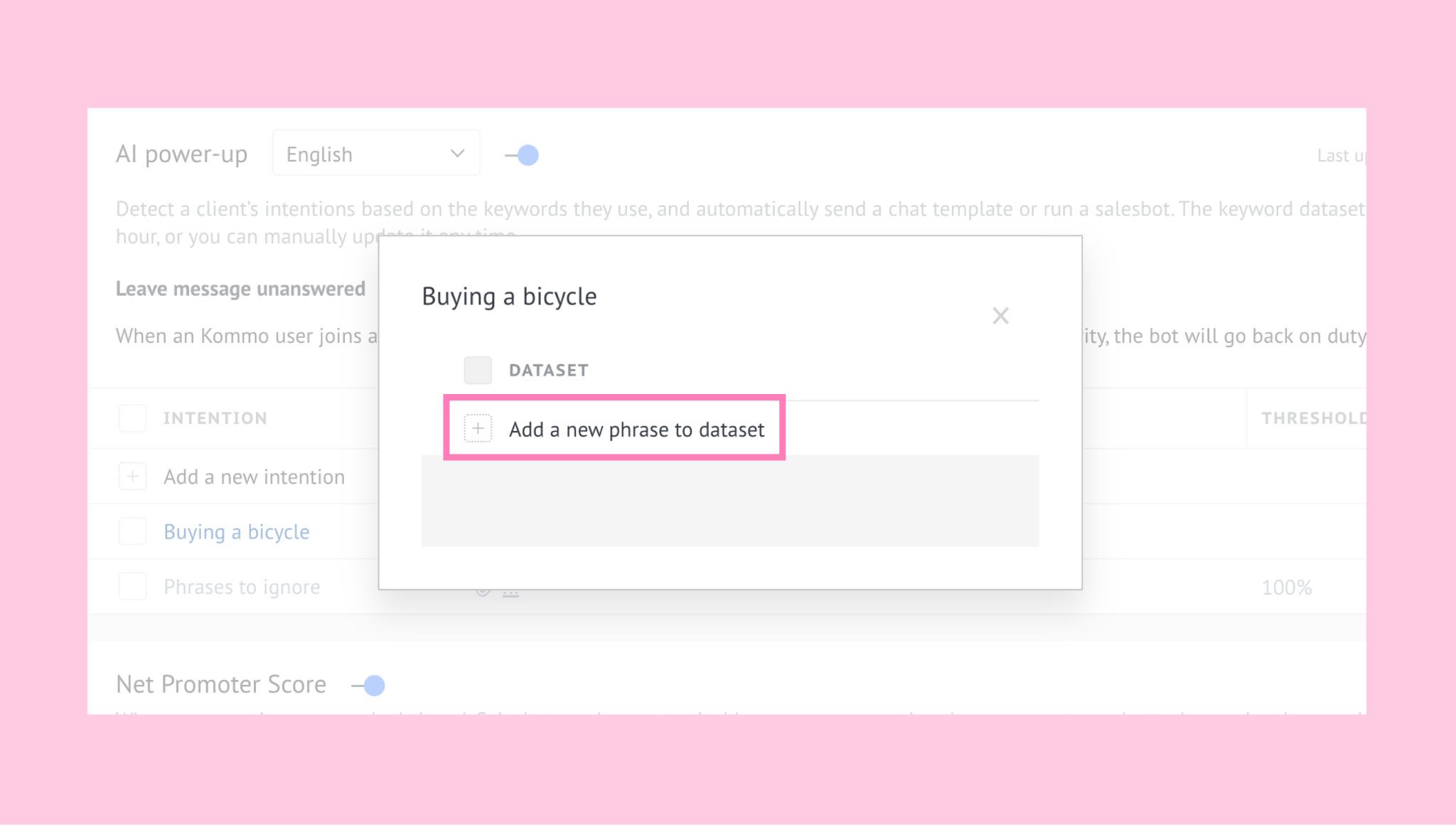
Enter your questions and click Save.
You can create as many intentions as needed. Each one has its own dataset and action settings.
The Dataset column allows you to upload a file with example questions that customers may ask. These questions help the system understand the intention behind each message.
For example: If your intention is Order status, the dataset file may include questions like Where is my order?, Has my package been shipped?, and Can I track my delivery?. When a customer sends a similar message, the system compares it to these examples to decide which intention it belongs to.
The more relevant questions you include, the more accurately the system can match incoming messages to the correct intention.
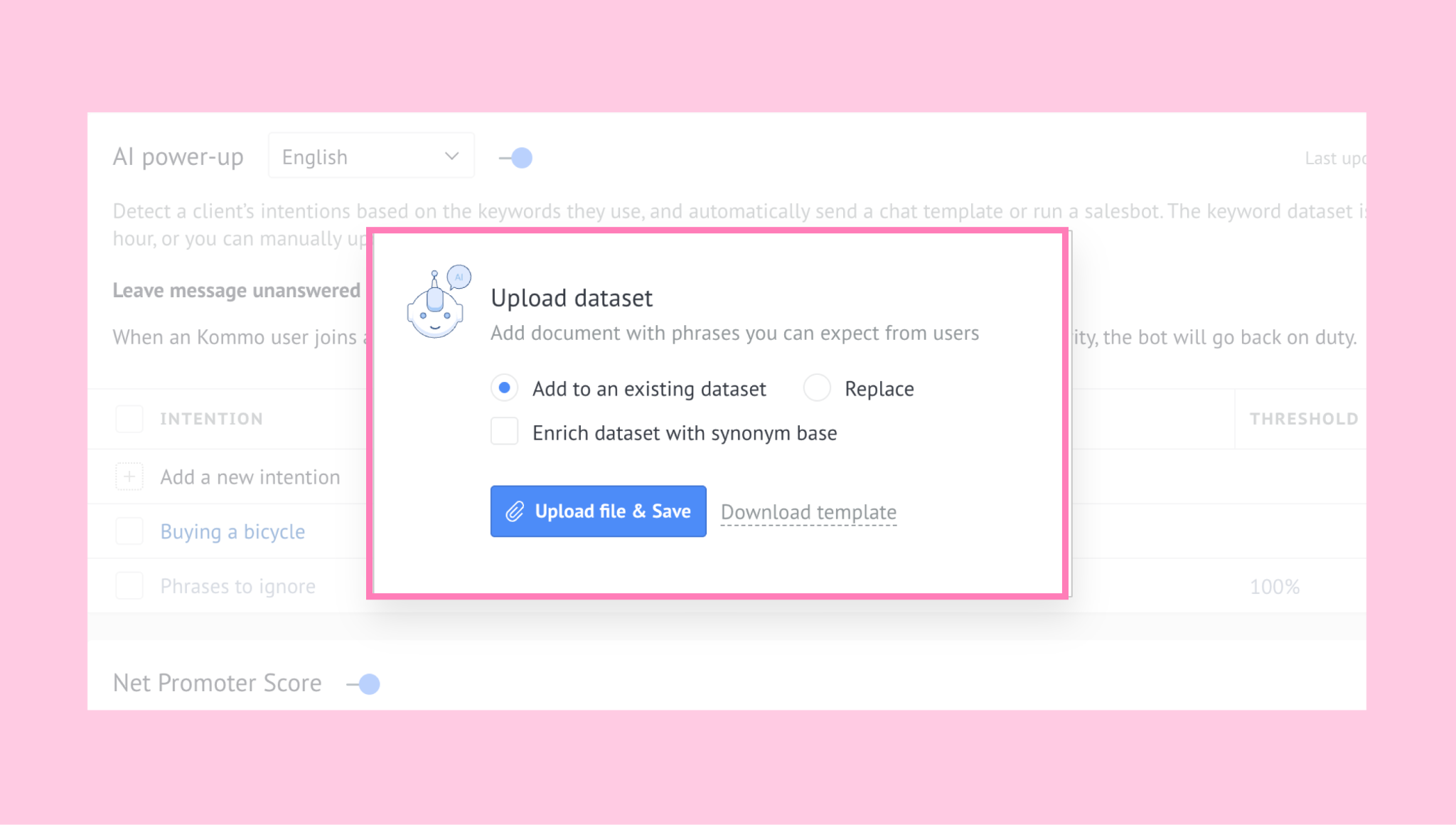
To upload a dataset file, click the … button next to the intention and select Upload.
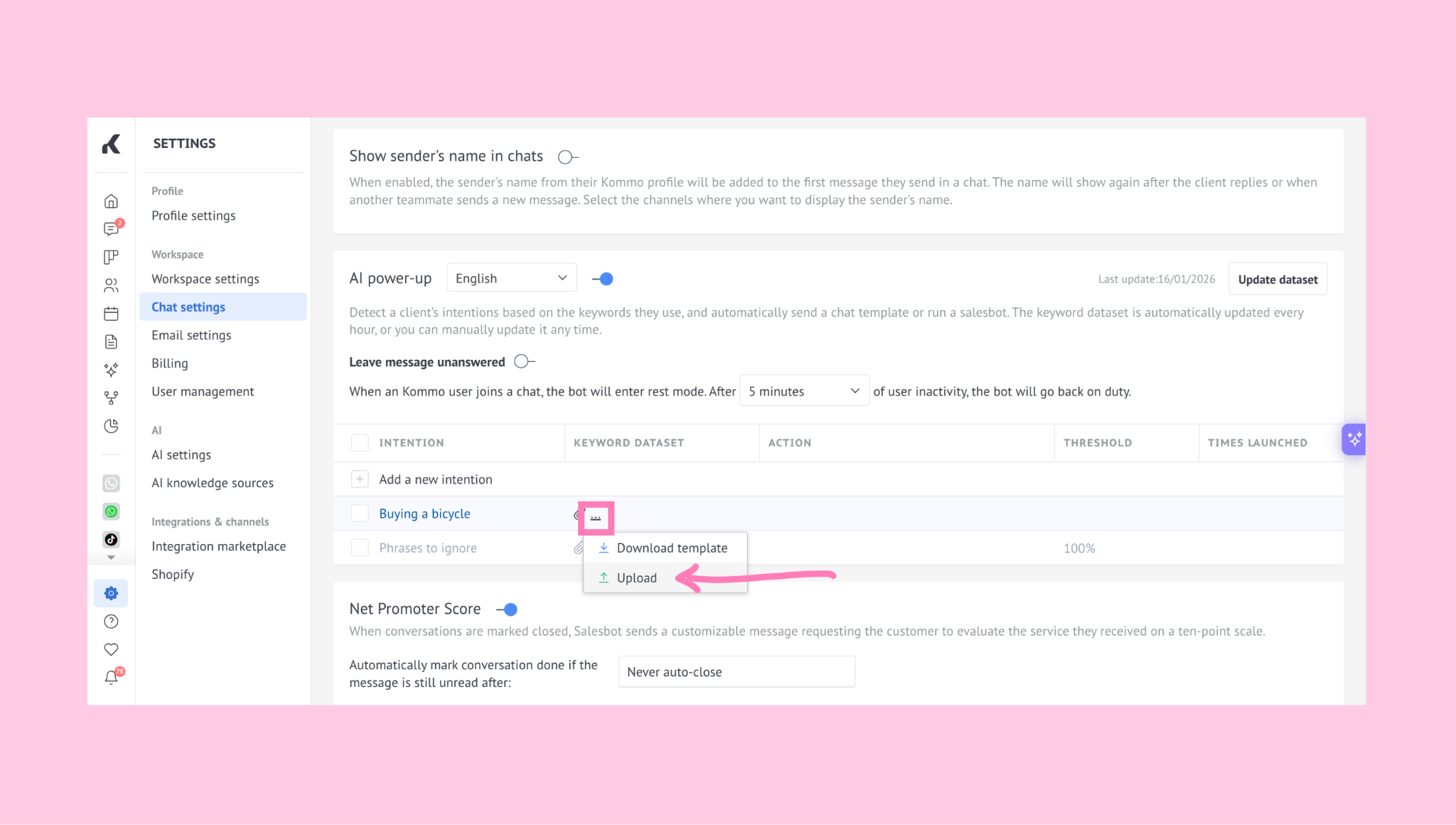
You will then be asked whether you want to add the new questions to the existing dataset or replace it completely.
When you upload a dataset, make sure the file meets the following requirements:
The file must be an Excel spreadsheet in .csv or .xlsx format.
All questions must be placed in a single column.
Each question must be written on a separate line.
Do not include any additional information in the file.
You can download a template to see the correct format.
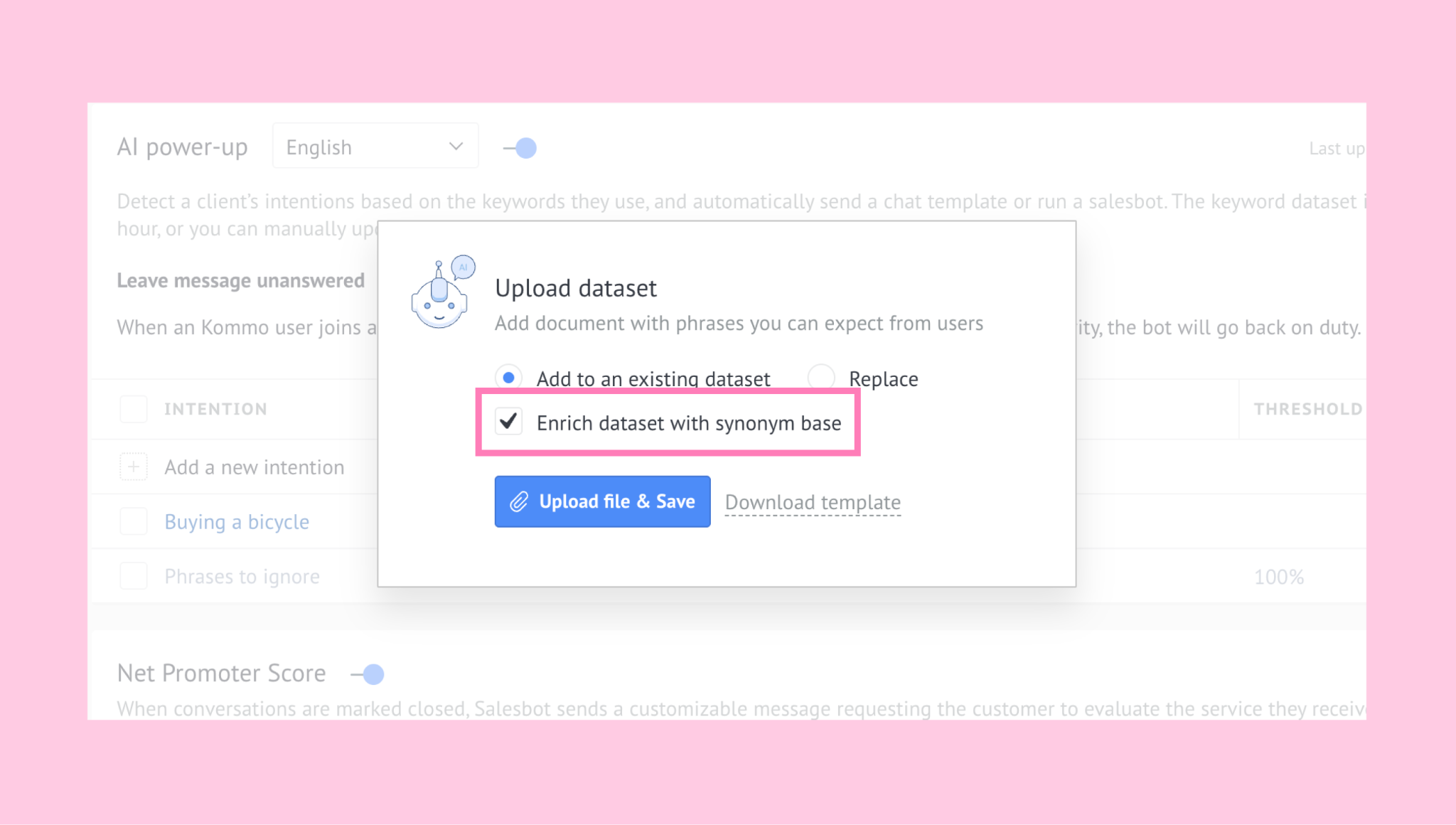
You can also enable Enrich dataset with synonym base. When this option is turned on, similar words and related phrases are automatically added to help recognize different variations of the same question.
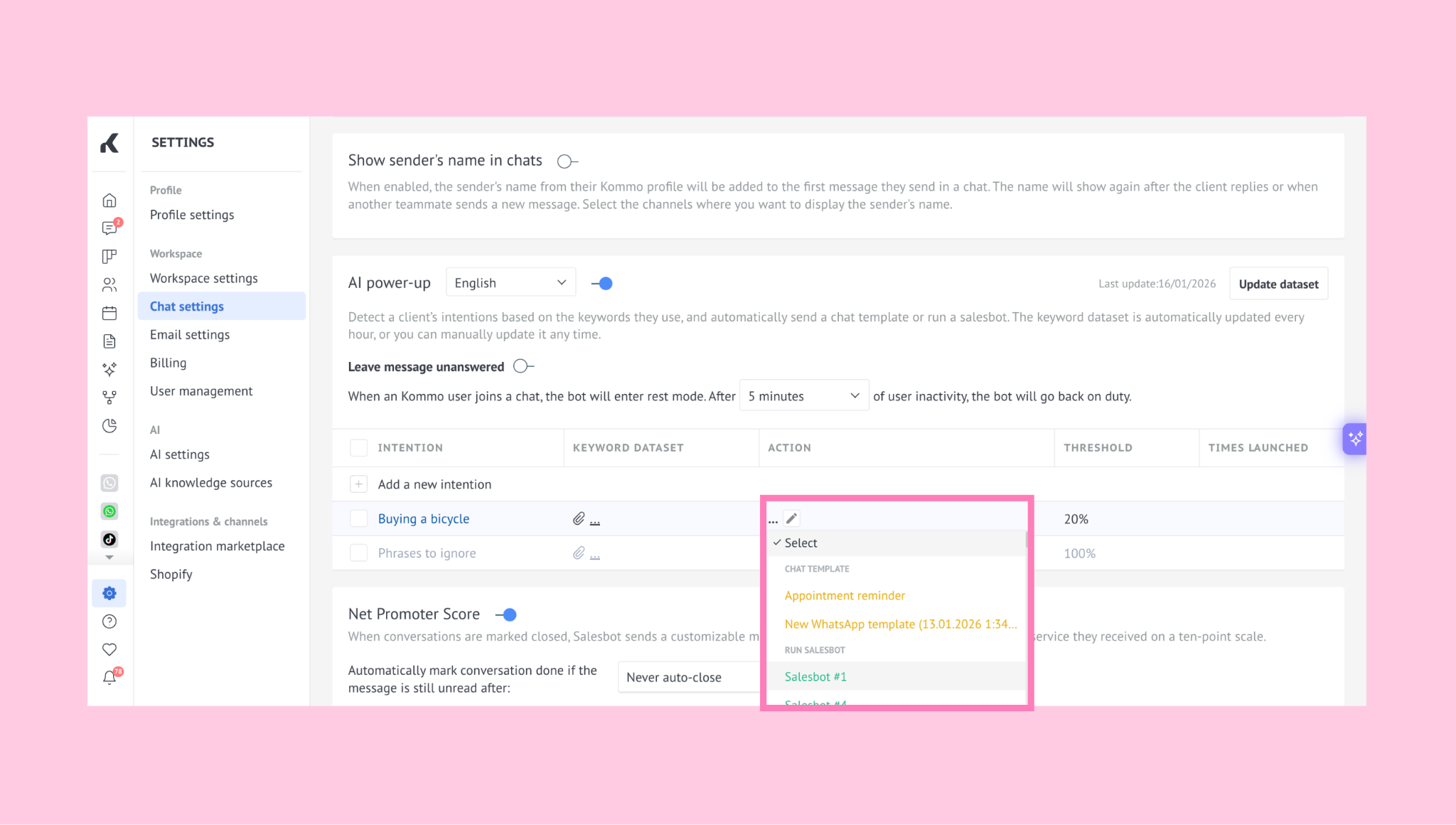
The Action column defines what happens when a customer’s message matches an intention. When a matching message is detected, the selected action runs automatically during the conversation.
You can choose one of the following as the action:
A pre-made Salesbot sequence, or
A pre-made response template
For example: If the intention is Business hours, you can set the action to send a response template that says, Our business hours are Monday to Friday, 9AM to 6PM. When a customer asks about opening times, this message will be sent automatically.
To set or change the action, click the pencil button in the Action column and select either a response template or a Salesbot sequence.
Learn how to set up Salesbot sequence in our guide, or see how to create response templates in our article.
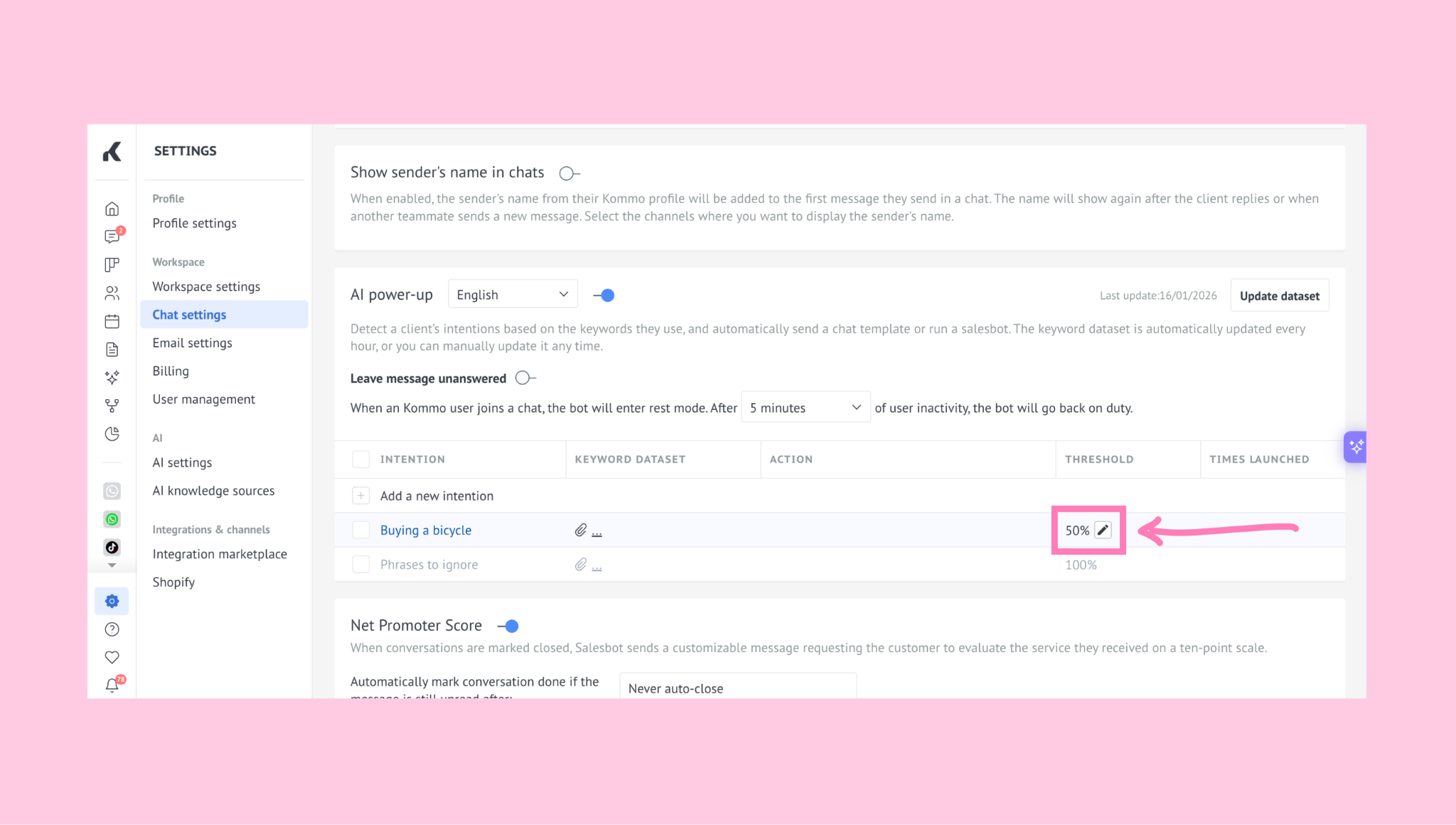
The Threshold column defines how similar a customer’s message must be to the questions in your dataset before the action is triggered.
The value is shown as a percentage. If the message reaches or exceeds the selected percentage of similarity, the action will run automatically.
For example: If your dataset includes the question What time do you open? and a customer writes When does your store open?, the action may still run if the threshold is set lower. A lower percentage allows more variation in wording, while a higher percentage requires the message to be very close to your example.
The percentage can be edited by clicking the pencil icon in the Threshold column, entering the desired value, and saving the changes.
The Times launched column shows how many times an intention has been recognized and its action has run.
Each time a customer message matches the intention and triggers the action, the number increases. This total count starts from the moment the intention is created.
For example: If the intention Returns and refunds shows the number 12 in the Times launched column, it means that refund-related questions were detected 12 times, and the automatic reply was sent each time.
Once you have completed the setup, the Power-up is ready to use.
The Power-up automatically replies in connected messenger chats when a message matches your configured intention and no sales rep is active.
If a representative joins, they can take over the conversation manually.
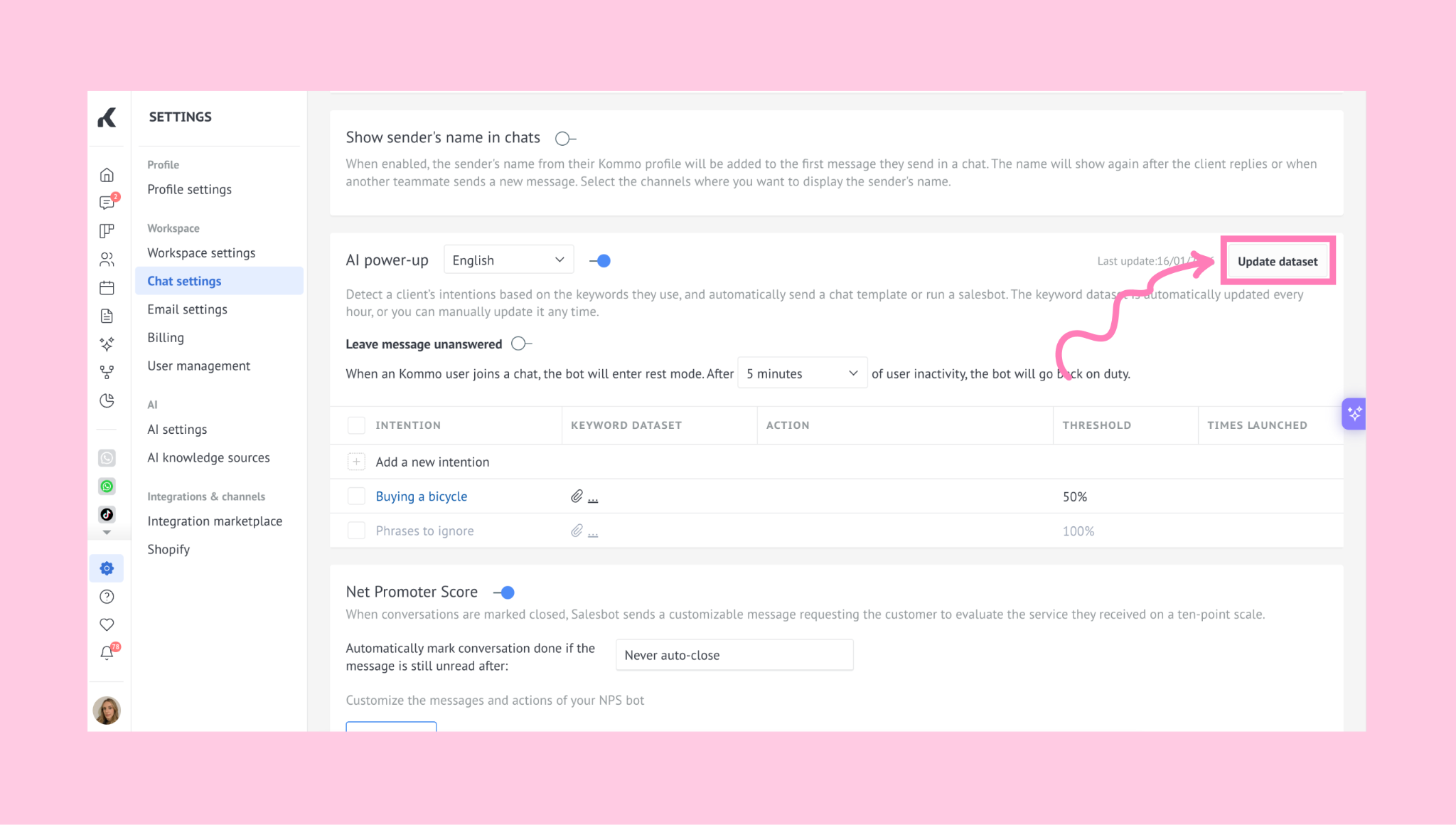
Important: Review your dataset regularly. If you add new phrases or make changes, go to Settings → Chat settings and in the Power-up section click Update dataset to synchronize the information.
Additional settings
In addition to the settings described above, you can configure extra options that control how the Power-up behaves during conversations:
Mark messages unread
Enable this option to keep chats marked as unread even after an automated reply, so a sales rep can review it later.
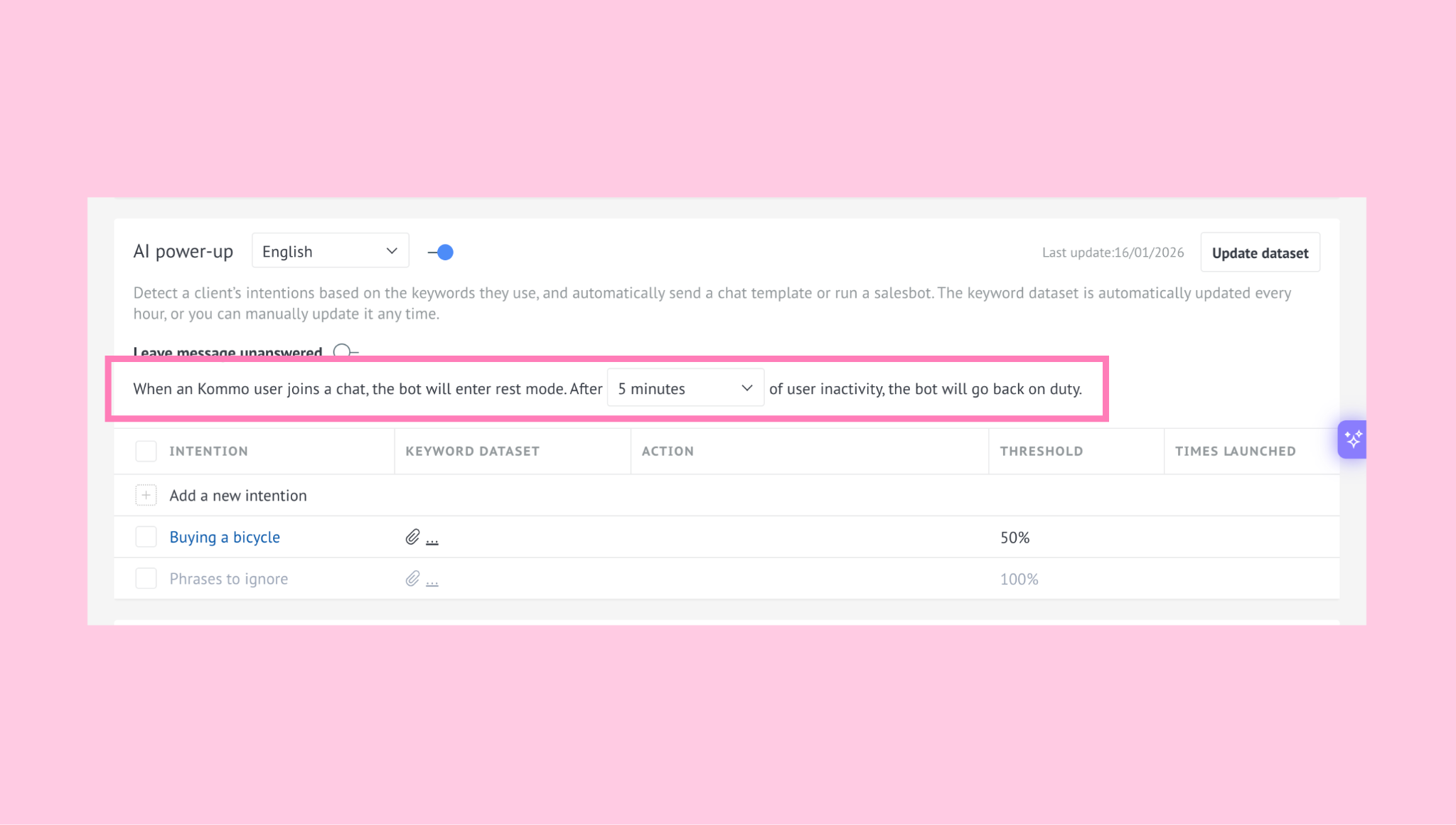
Rest mode
This feature defines how the chatbot behaves when a sales rep joins a conversation. When a sales rep joins, the chatbot pauses. If the rep becomes inactive for the selected time (5 minutes to 24 hours), the chatbot resumes automatically.
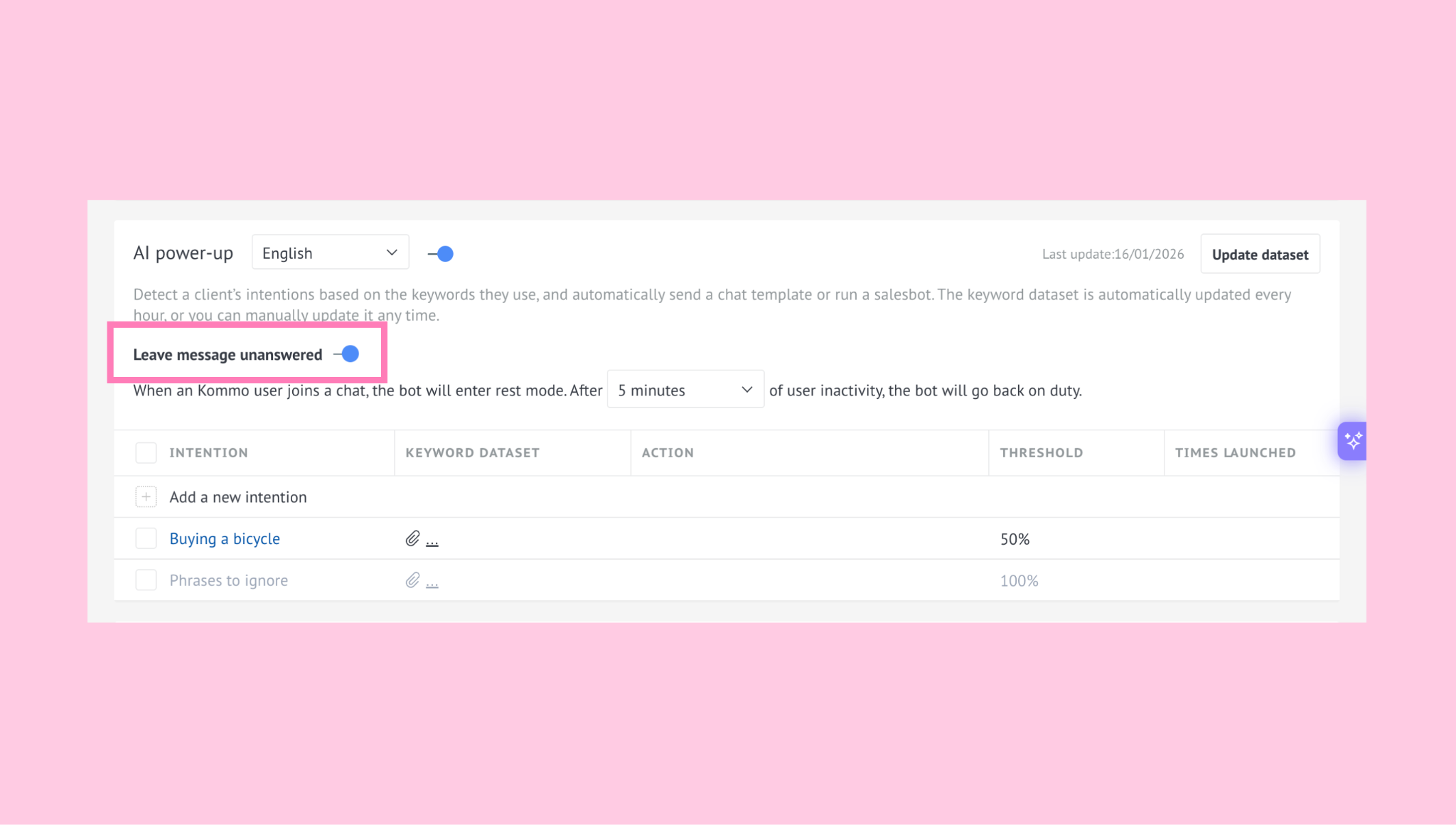
Leave message unanswered
This option detects the intention but does not send a reply, allowing a sales rep to respond manually.
Phrases to ignore
This option prevents specific phrases from triggering any action. To add phrases manually, click Phrases to ignore and enter them one by one.
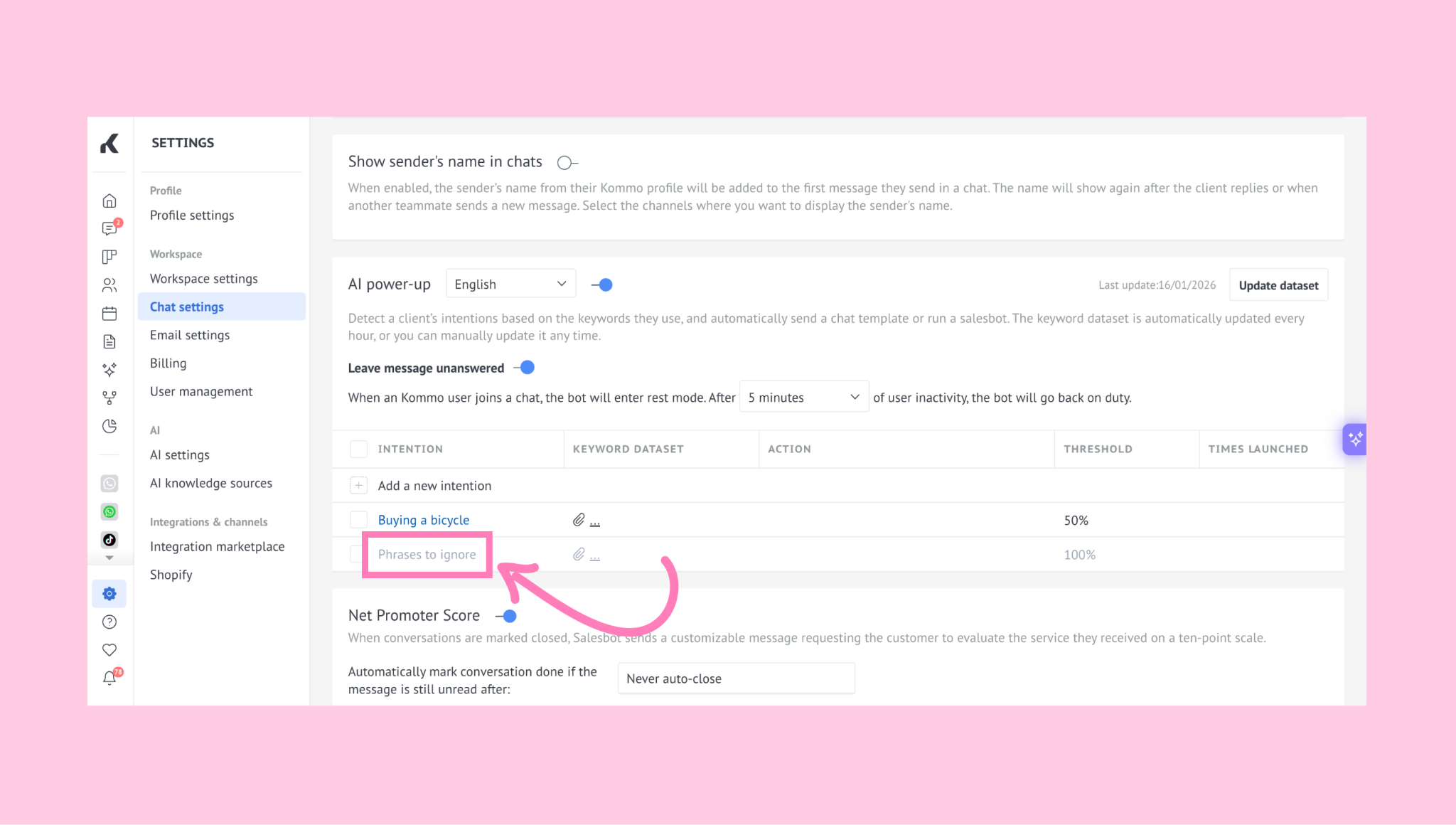
If you want to upload multiple phrases, click the … button and upload a file.