Starting June 1, this integration is available on the Pro plan only. If it was previously connected on your Base or Advanced plan, it will remain available unless you switch plans.
What you’ll need:
A valid Facebook Business account.
Admin or Owner role in Kommo to install integrations.
A Facebook ad account.
A custom audiences agreement ad campaign.
An ad group.
Keep in mind:
Only verified Facebook Business pages can be connected; personal pages are not supported, and you must have admin rights to the page.
Each Kommo account can only connect to one Facebook account. If you have multiple pipelines, you can link a different Facebook Business Page to each one, but the same page cannot be connected to multiple pipelines.
The Facebook Ads trigger in Kommo allows you to display targeted ads to leads at specific stages of your pipeline. Once set up, the trigger automatically adds new leads to a custom audience, showing them relevant ads while they remain in the selected pipeline stage. When leads move to a different stage or are no longer part of that stage, they will stop seeing the ads, ensuring that your advertising is always relevant and timely.
Learn how to create Facebook Ads here.
Note: To set up Facebook ads trigger you need a Facebook ad account with custom audiences agreement ad campaign and an ad group.
Setting up your Facebook Ads trigger
Before adding the trigger you’ll need to connect the Facebook integration in Kommo, learn how to do so in this article.
Once the connection is done, follow these steps to create a Facebook ads trigger:
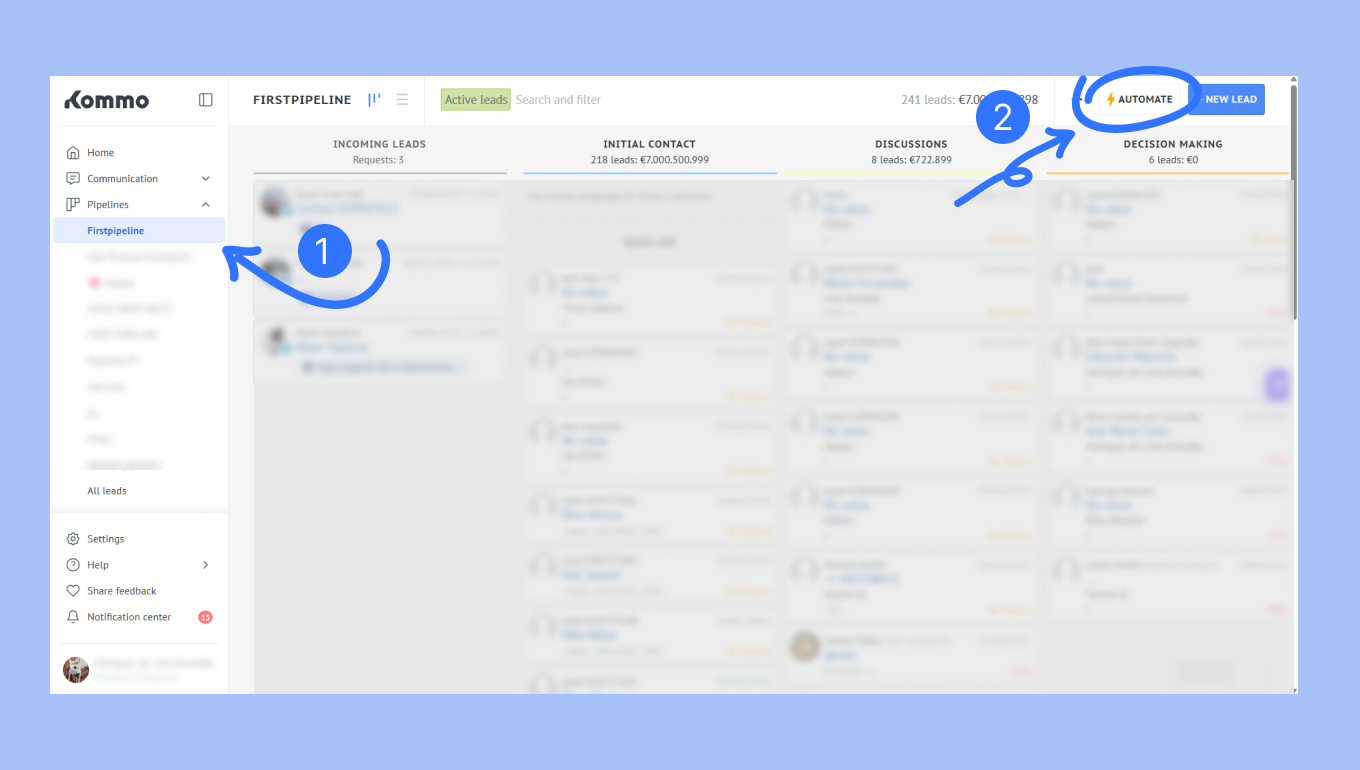
Go to Pipelines, select the pipeline you want for the trigger → click Automate.
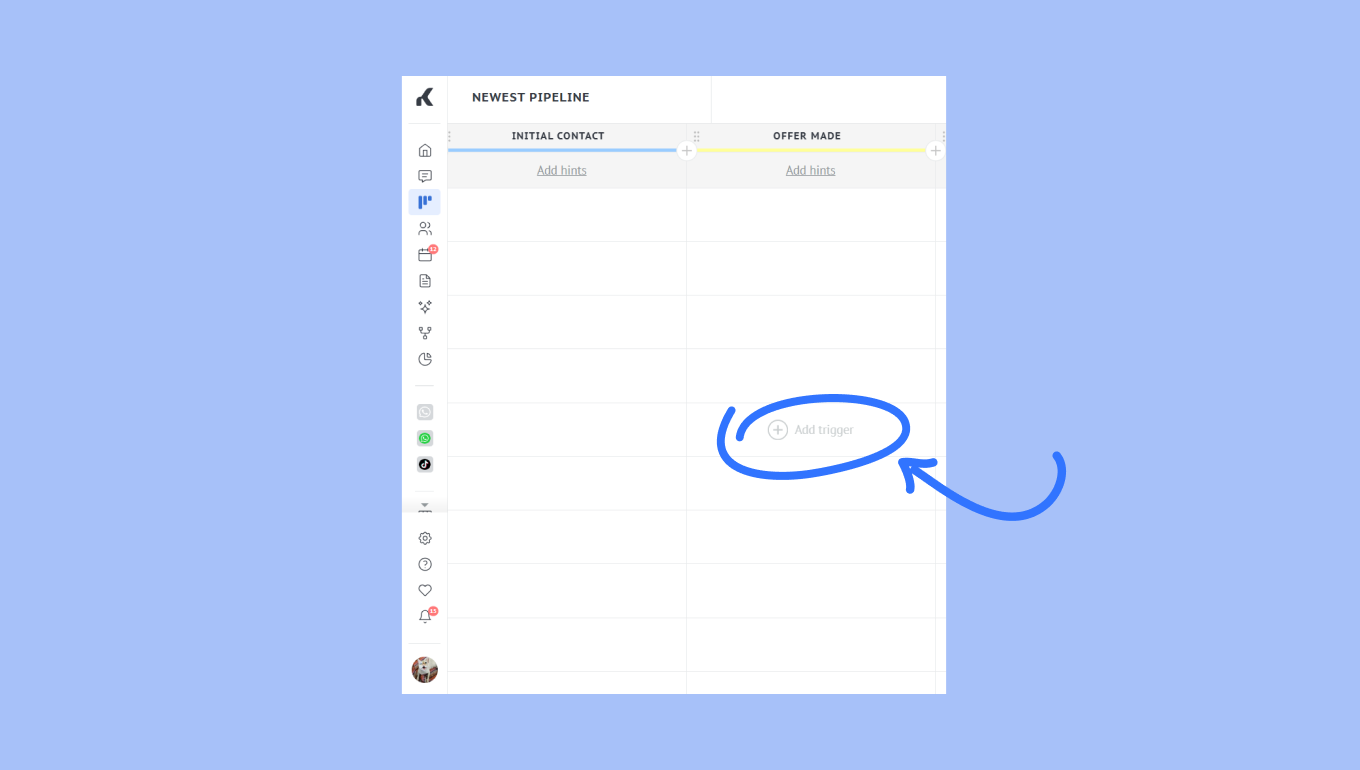
Hover over the pipeline stage you want to set your trigger on → click Add trigger.
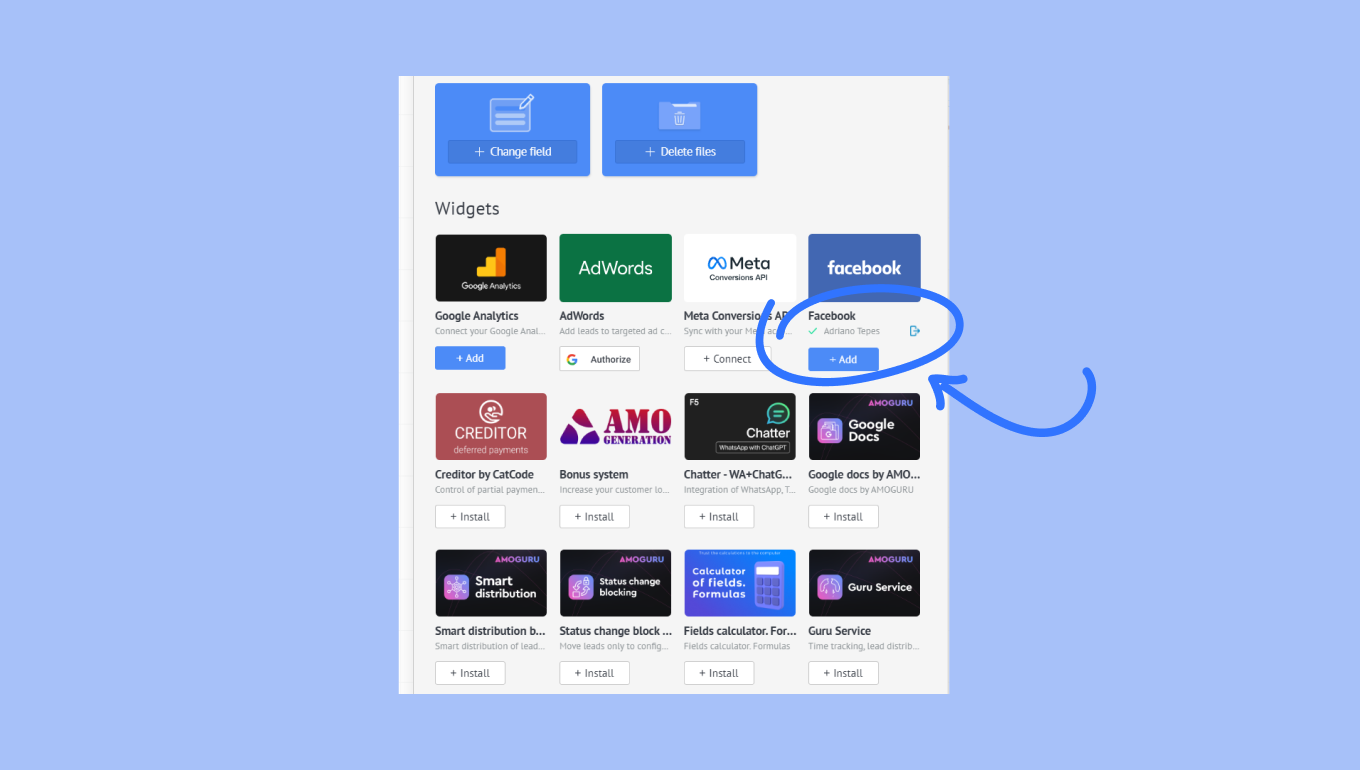
In Widgets → find Facebook → click Add.
From there, you can add your trigger settings:
Add conditions for leads
When to execute the trigger
Your ad account, ad campaign and ad group.
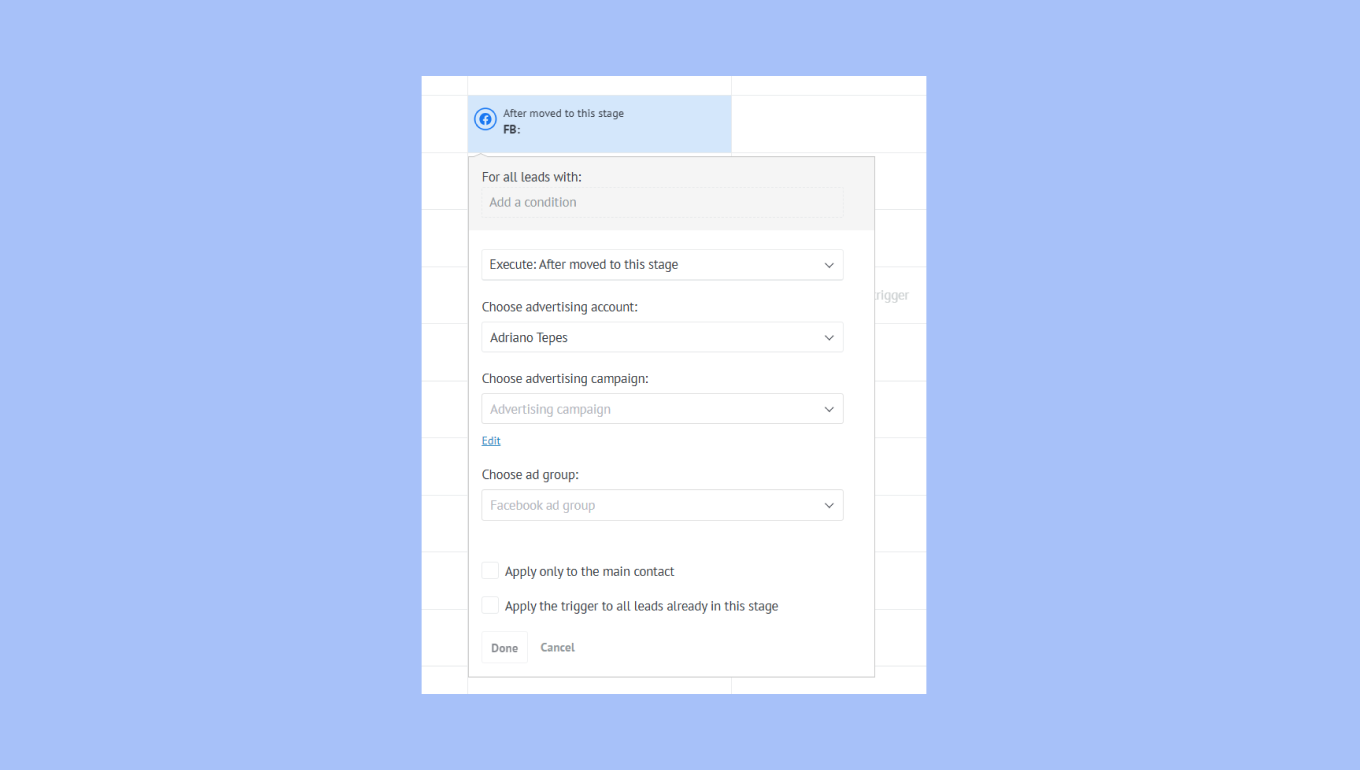
Optionally, you can select:
Apply only to the main contact — in this case, you run ads only for the primary contact of the lead.
Apply the trigger to all leads already in the stage — this trigger takes all leads in your pipeline and meets your conditions.
To complete the setup, go to Facebook, and edit the ad group used in the trigger → go to the audience section → select your new custom audience from Kommo, such as Kommo: test campaign 2026-02-03 19:02:04 (UTC).