
What you’ll need:
Any Kommo plan (Base, Advanced, Pro, Enterprise, or 14-day trial).
Admin access in Kommo.
Keep in mind:
Some default stages cannot be changed.
This guide shows how to add, rename, and edit pipeline stages to fit your workflow.
You can use a default pre-set pipeline, choose a template, or create a pipeline from scratch.
Pipeline templates
Pipeline templates are ready-made pipeline setups designed for different business types, such as online stores, consulting, or marketing. They include pre-configured stages based on common sales workflows, helping you get started faster.
You can use a template as is or customize it by adding, renaming, or removing stages to fit your process.
To apply a pipeline template:
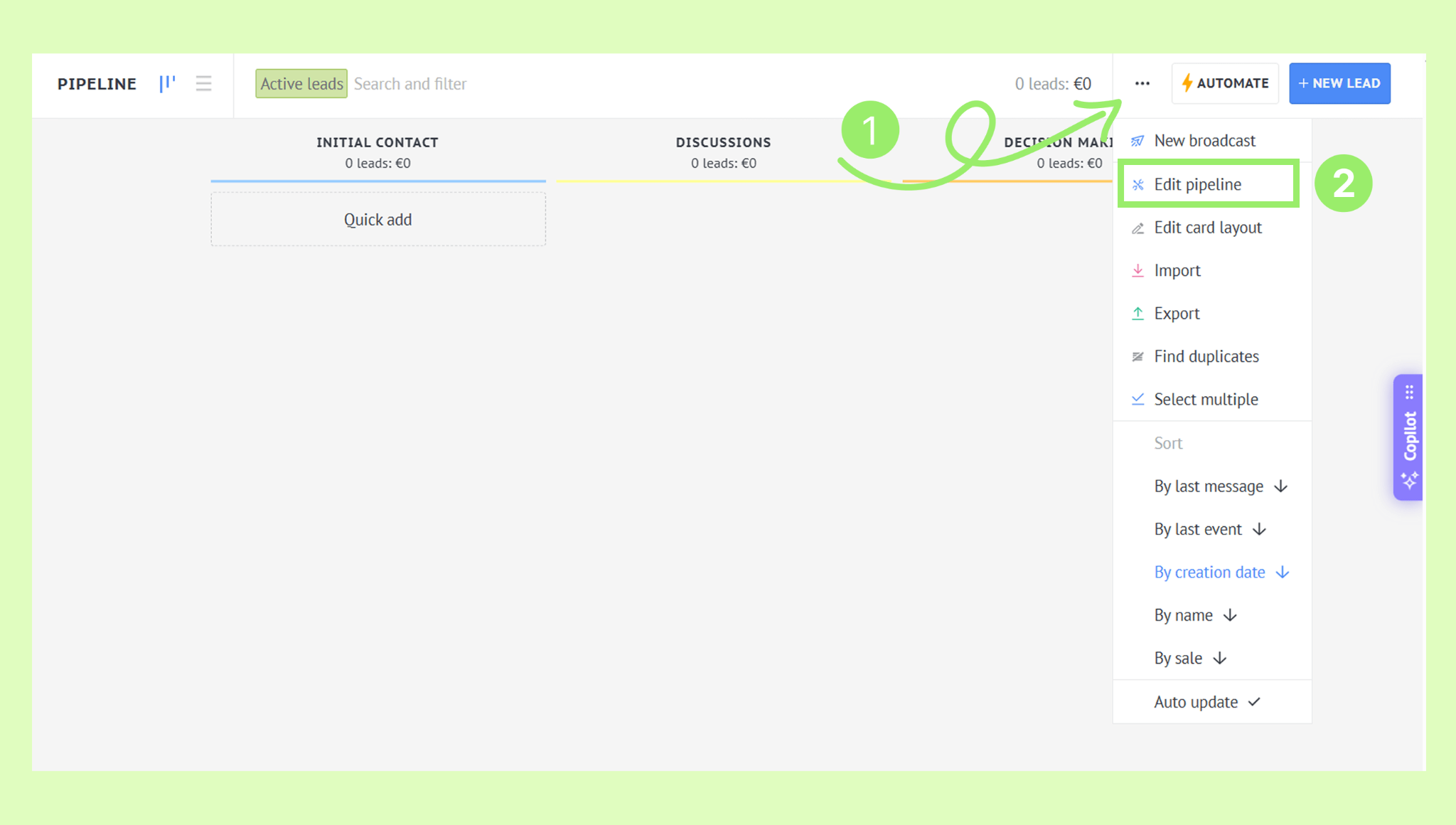
Click … in the top menu. Click Edit pipeline. The edit window will open.
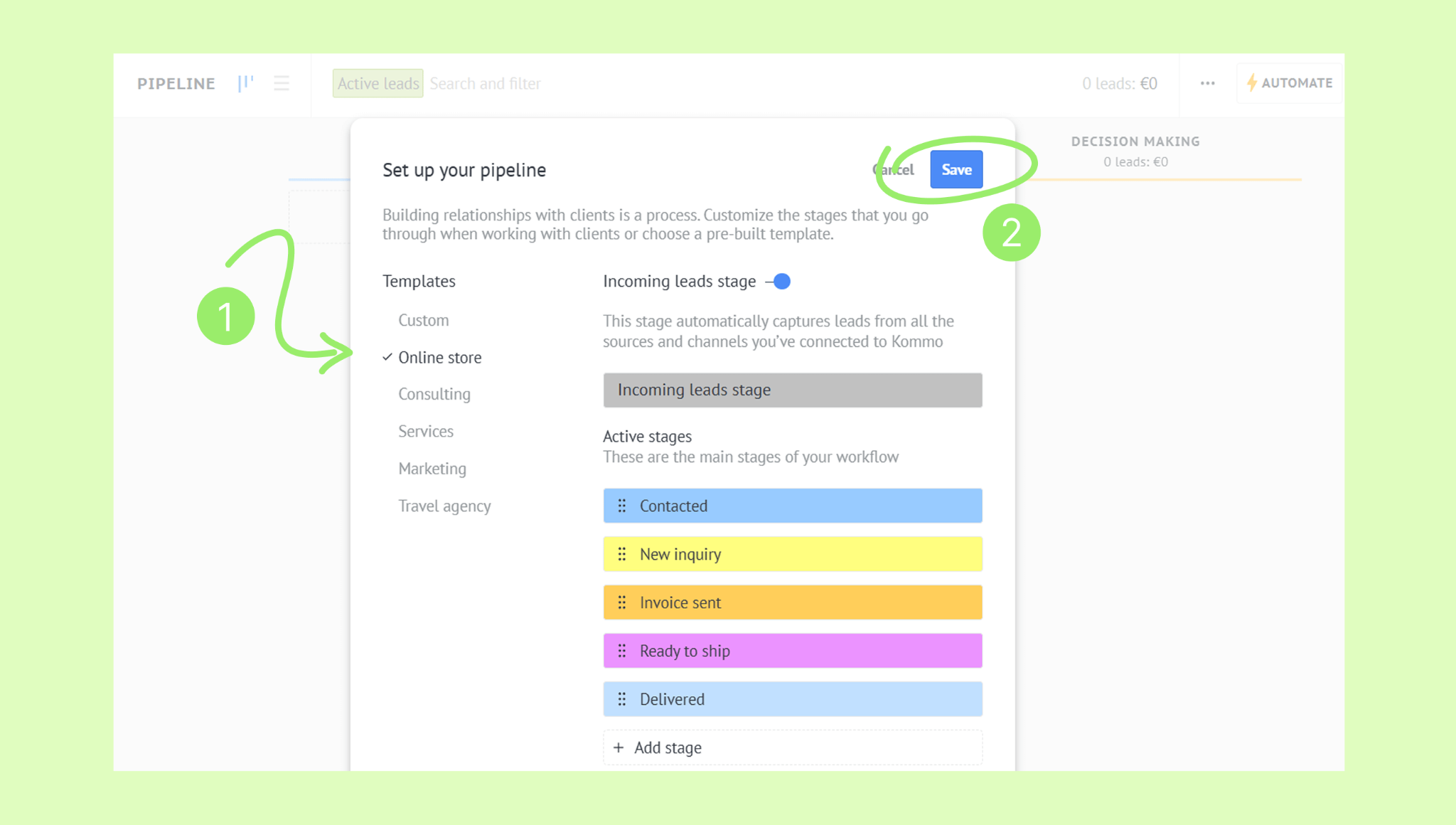
Choose one of the templates. → Click Save.
Default stages
Each pipeline includes default stages that can’t be deleted, including Incoming Leads and the final Closed-Won and Closed-Lost stages.
Incoming leads
The Incoming leads stage is the first stage of the pipeline, where all new leads from different channels – chat, email, or web forms – are automatically placed.
This stage is used to filter out spam or irrelevant inquiries. When there are no incoming leads, the stage is hidden and becomes visible only when a new inquiry is received.
This stage cannot be renamed or deleted.
The incoming leads stage is enabled by default, but you can turn it off. To do so:
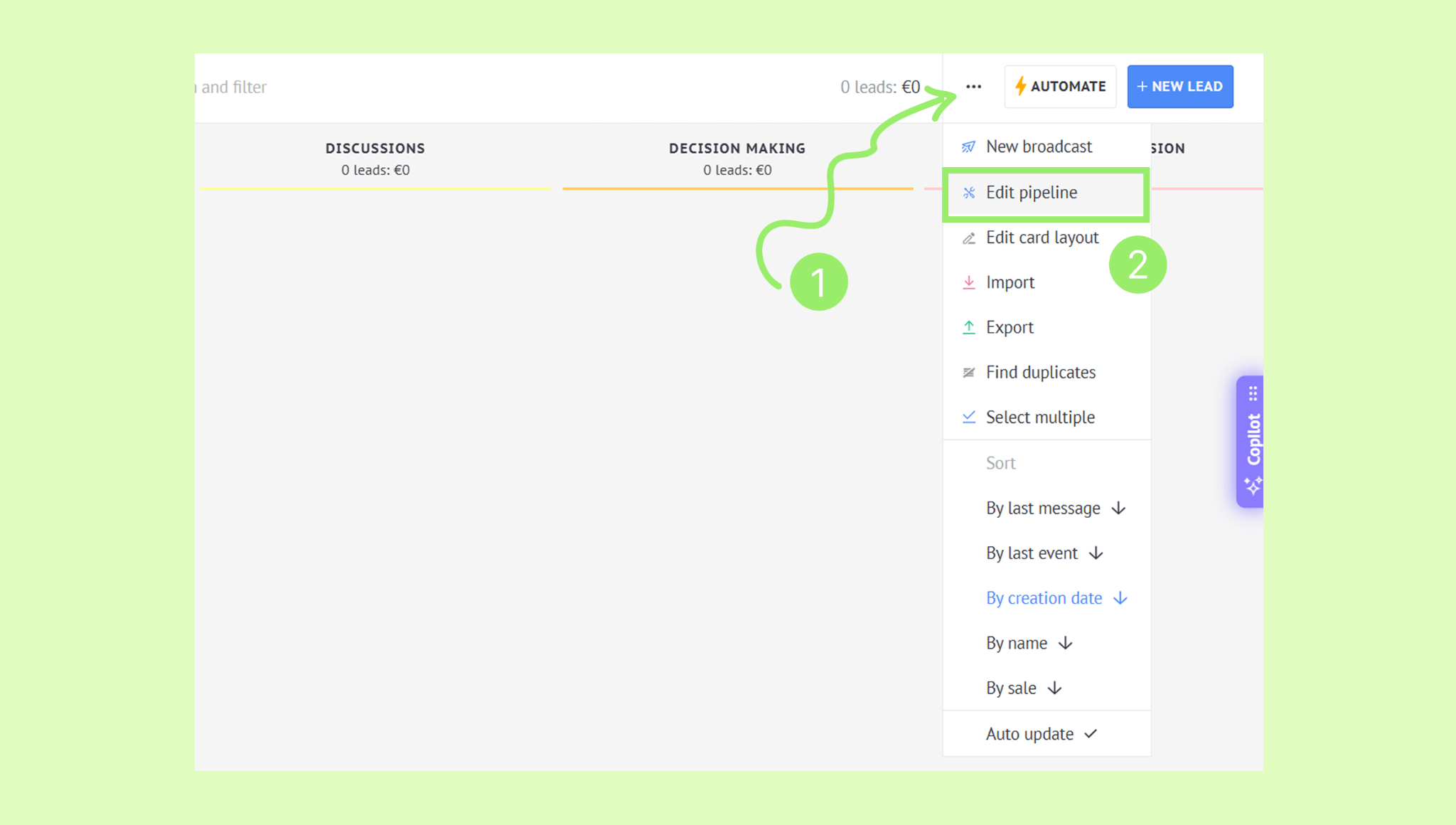
Go to … -> Edit Pipeline.
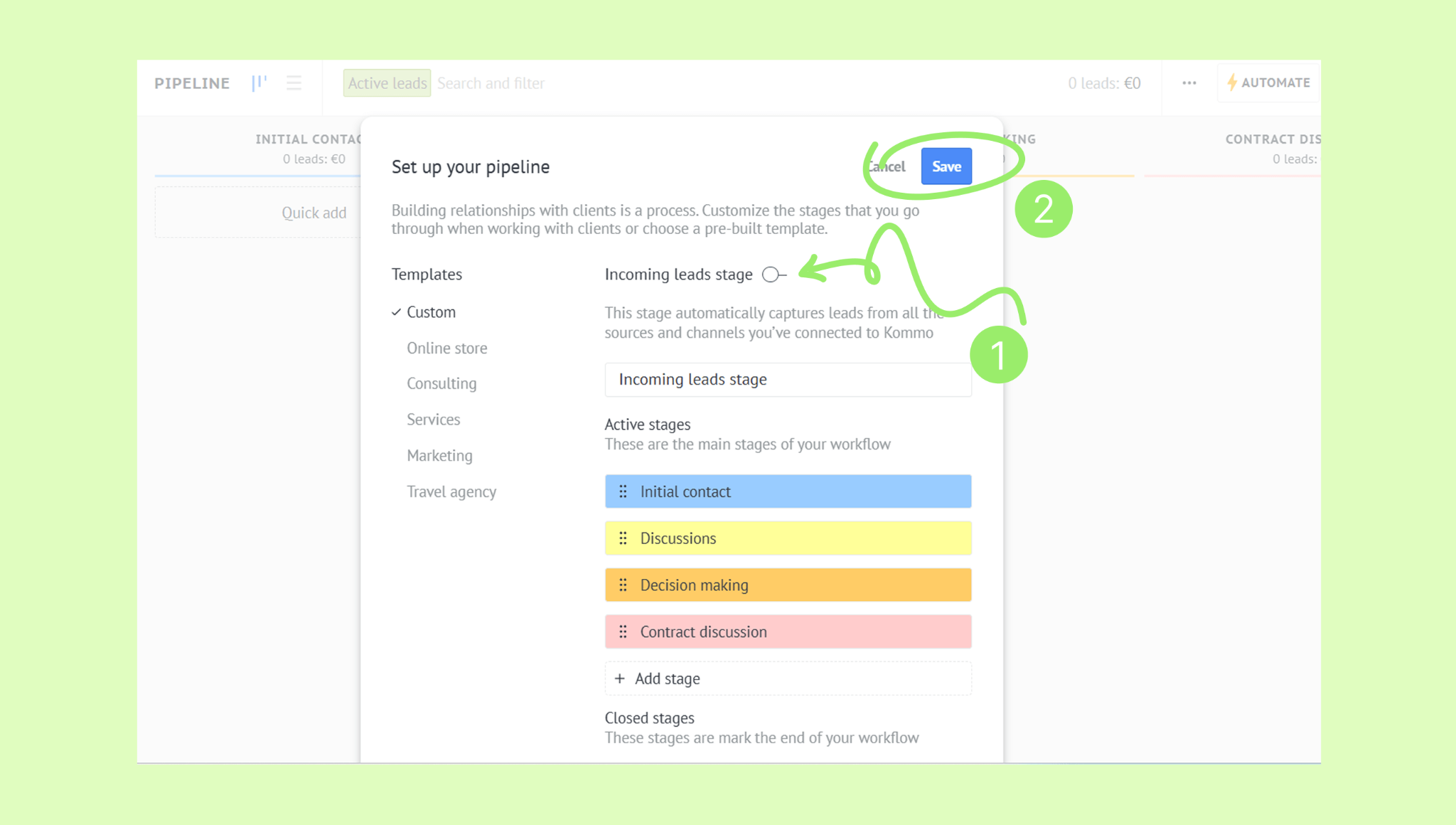
Toggle the Incoming leads stage switch off. → Click Save.
Note: To receive new leads in the Incoming leads stage, you need to connect channels to your pipeline. Learn more in the Connect your first channel article.
Closed - Won and Closed - Lost stages
The Closed-Won and Closed-Lost stages show the final outcome of your work with a lead.
These stages are used for reporting and analytics, allowing you to track performance. They are hidden in the pipeline view since only active leads are displayed, but you can access them by applying the Won leads or Lost leads filters.
Note: Closed-Won and Closed-Lost stages cannot be deleted or moved, but they can be renamed.
Working with pipeline stages
You can perform several actions with stages:
Add a new stage
Go to … → Edit Pipeline.
Click Add stage.
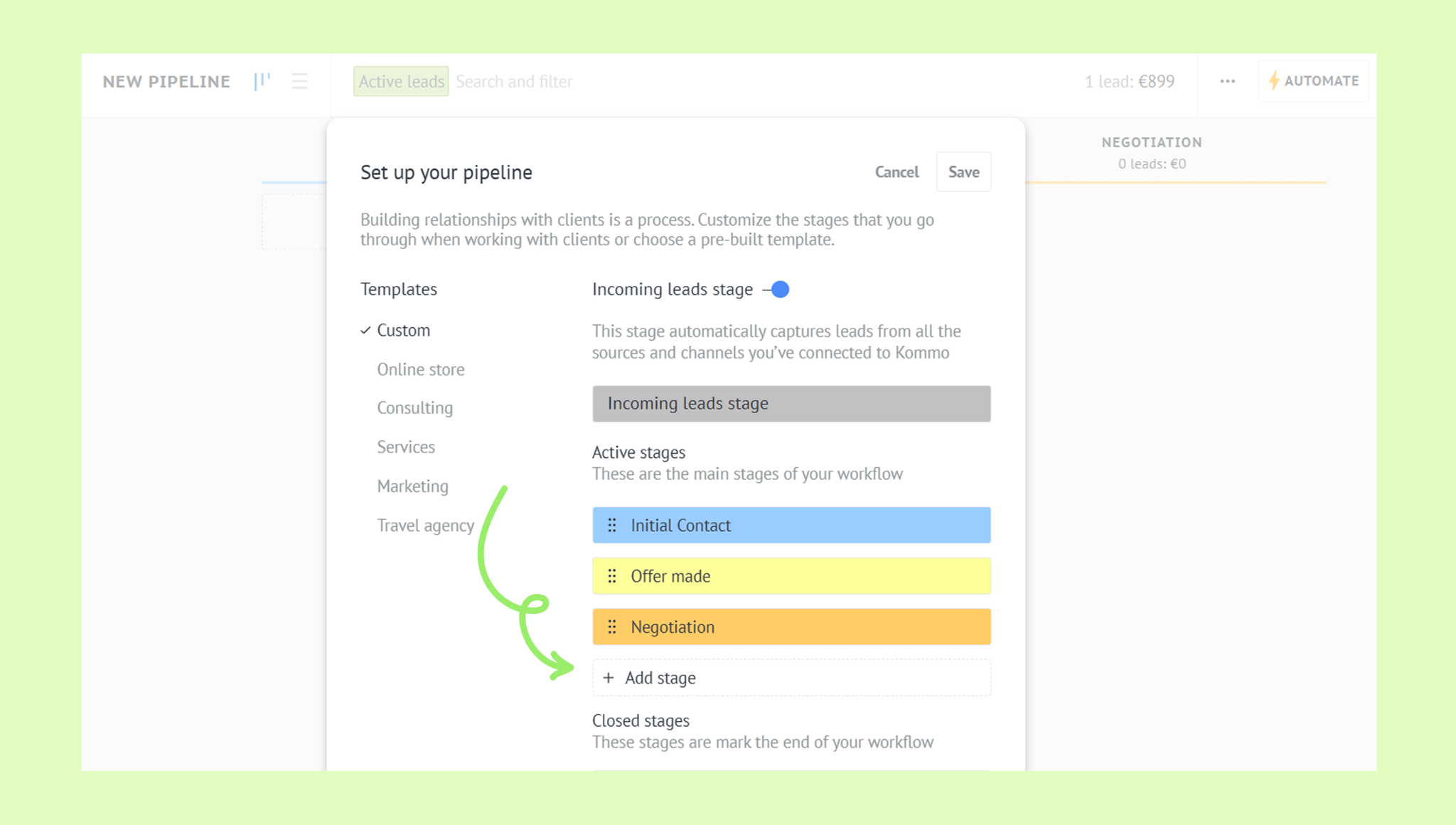
Enter a stage name. Click Save.
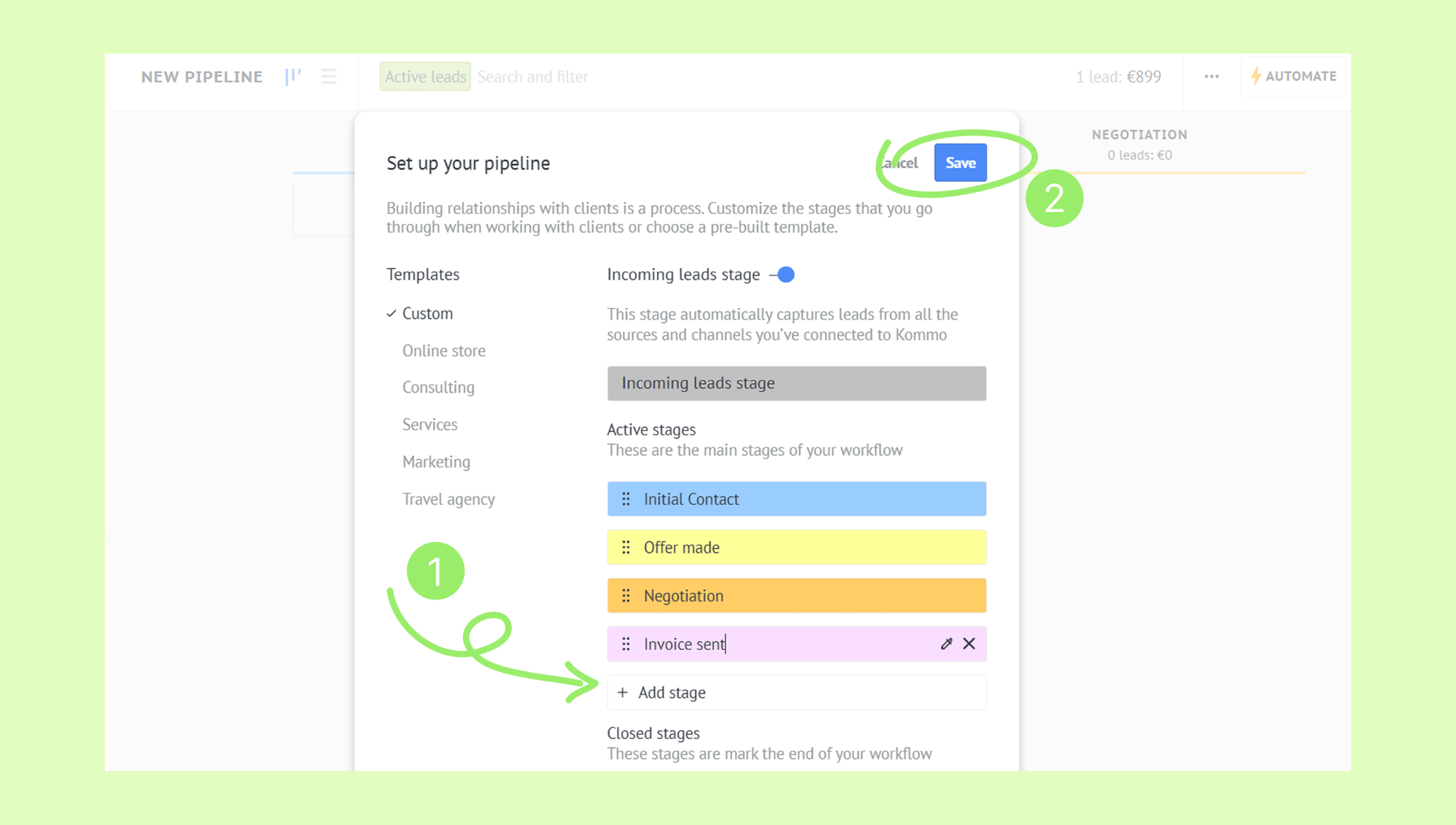
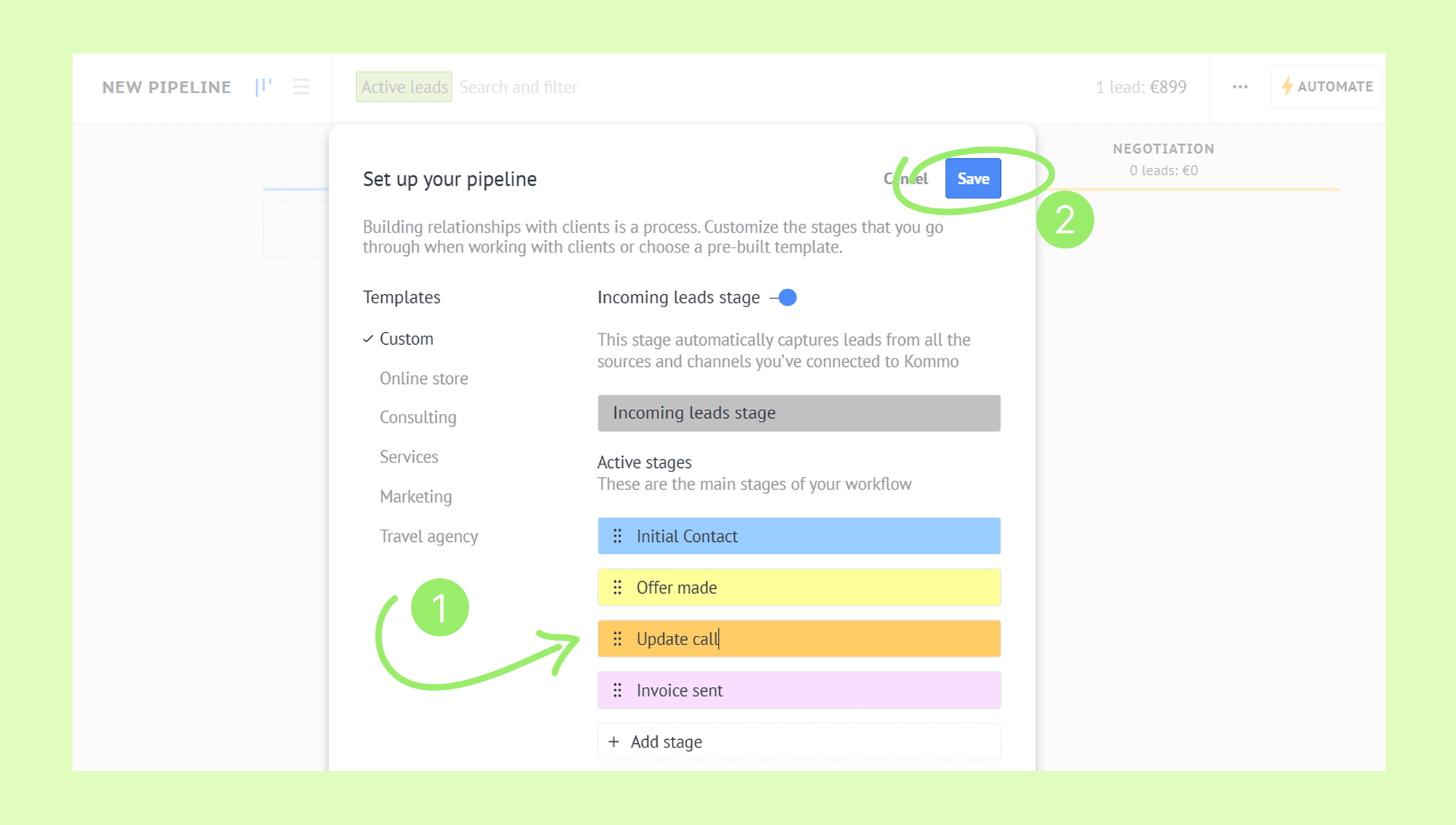
Rename an existing stage
Go to … → Edit Pipeline.
Click the stage name. Edit the name as needed. → Click Save.
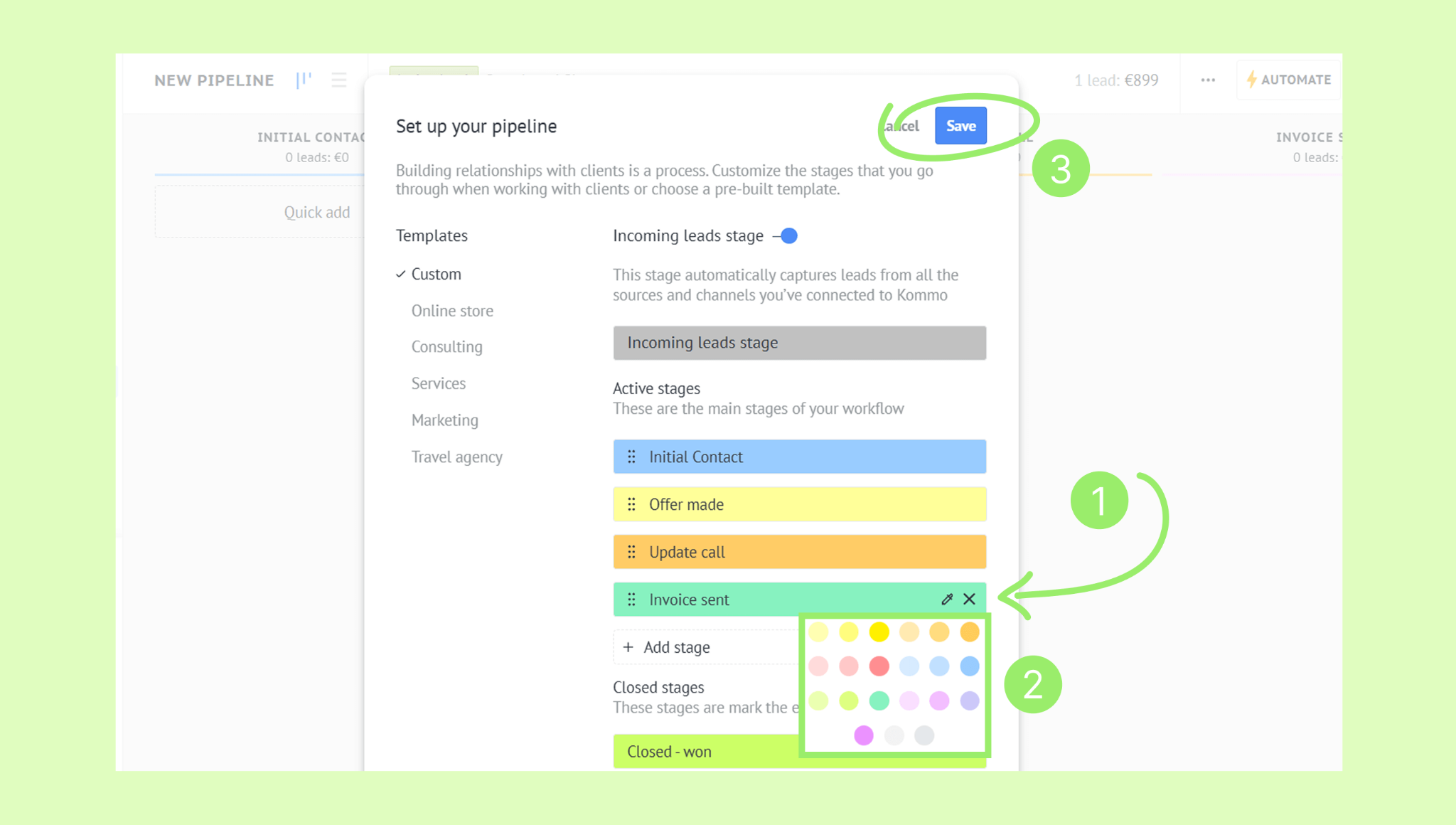
Change stage colors
Go to … → Edit Pipeline.
Hover over the stage.
Click the color picker icon and select a new color. → Click Save.
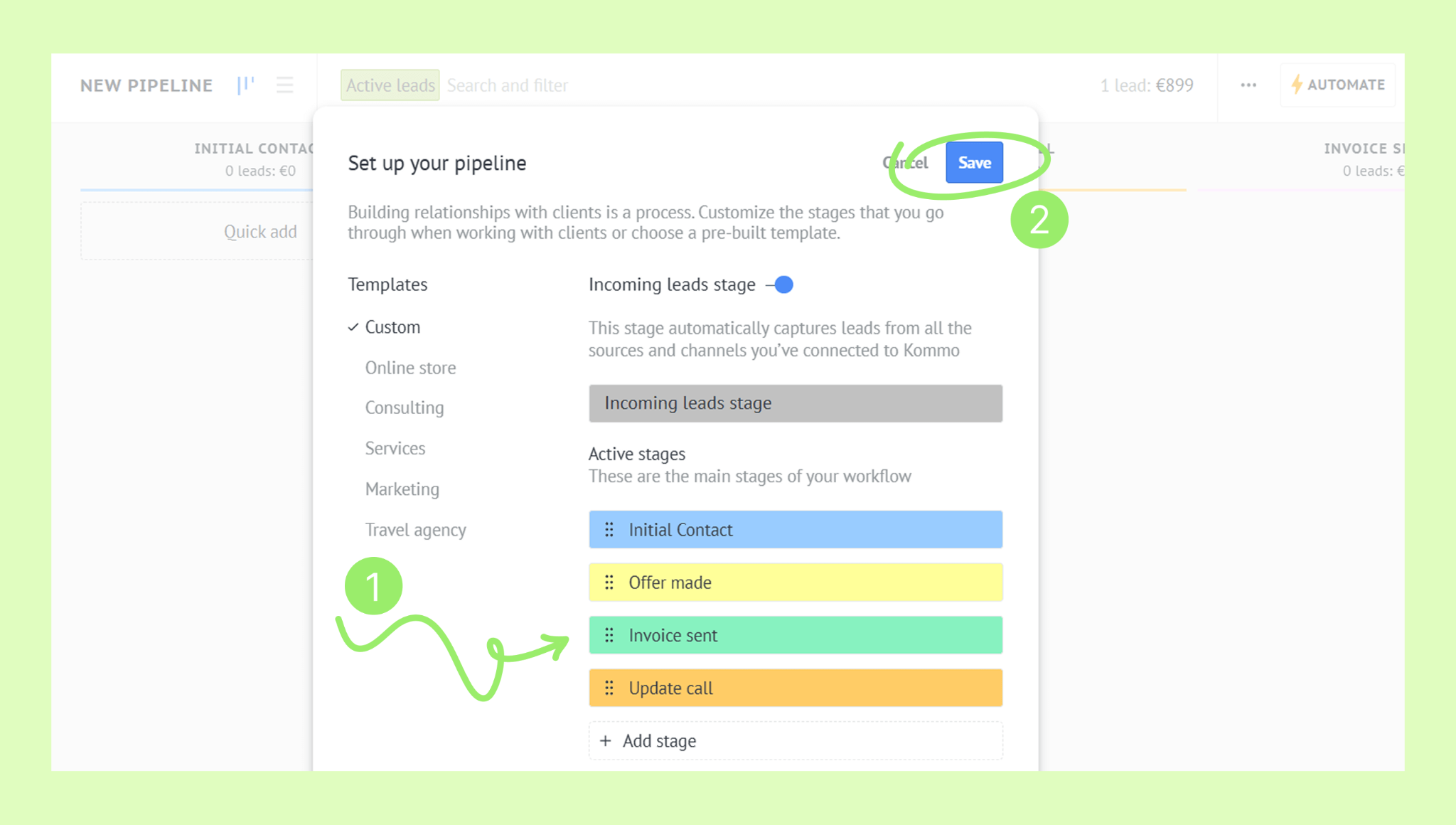
Change the order of stages
Go to … → Edit Pipeline.
Hover over the grip icon (six dots) on the left side of the stage.
When the hand icon appears, drag and drop the stage to its new position. Click Save.
Delete a stage
Go to … → Edit Pipeline
Hover over the stage you want to delete.
Click × and the stage will be removed. → Click Save.
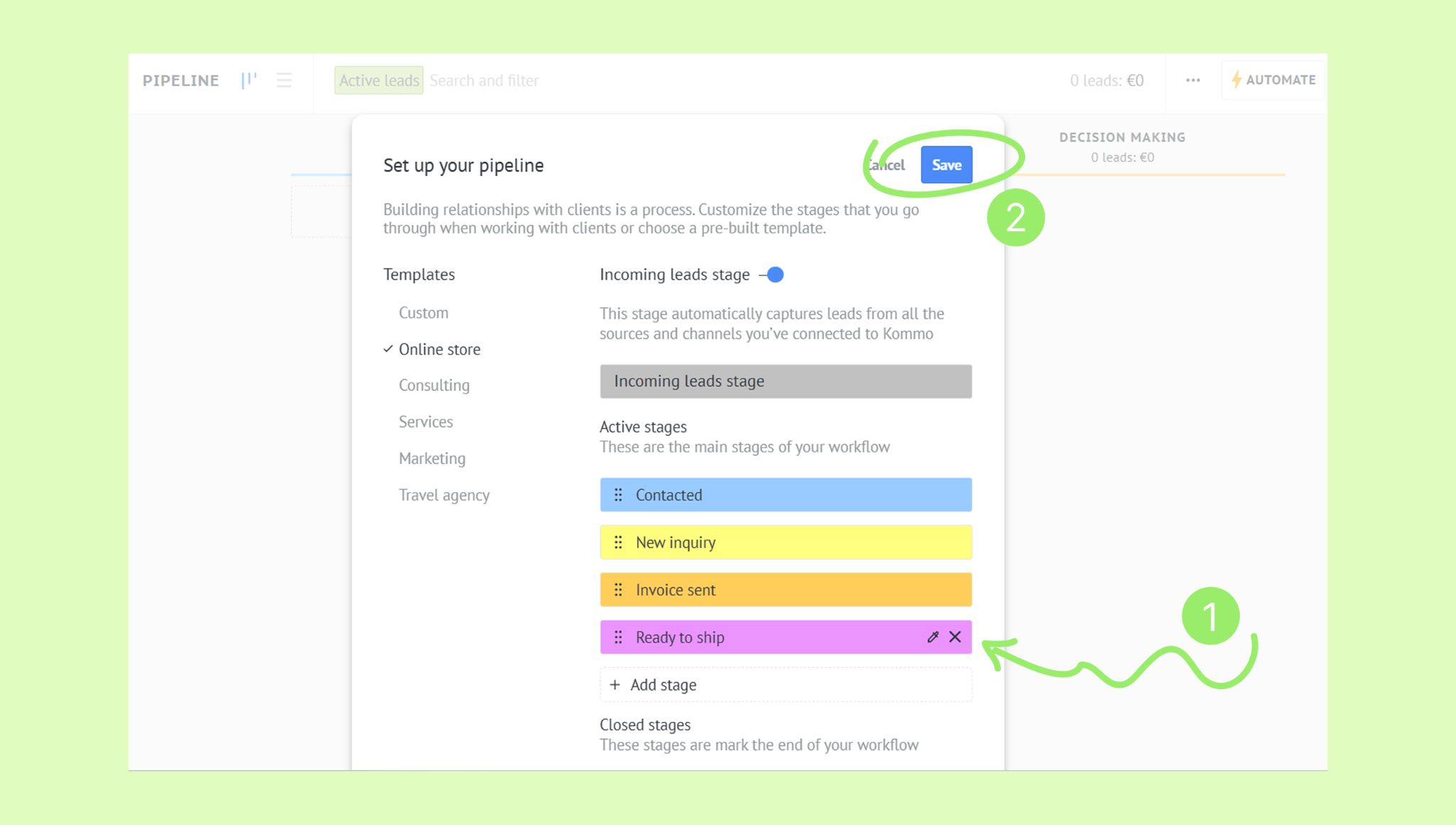
Note: You can only delete an empty stage. If a stage contains leads, you must first move them to another stage. Otherwise, they will be automatically transferred to the Initial contact stage.