What you’ll need:
Any Kommo plan (Base, Advanced, Pro, Enterprise, or 14-day trial)
In Kommo, your client database is built around leads, contacts, and companies. As your database grows, finding the right records quickly becomes important. Kommo's search and filter tools let you narrow down your records by any criteria — so you can find what you need in just a few clicks.
This article explains how to use search and filters in Kommo.
Filter leads, contacts and companies
Kommo has two types of filters:
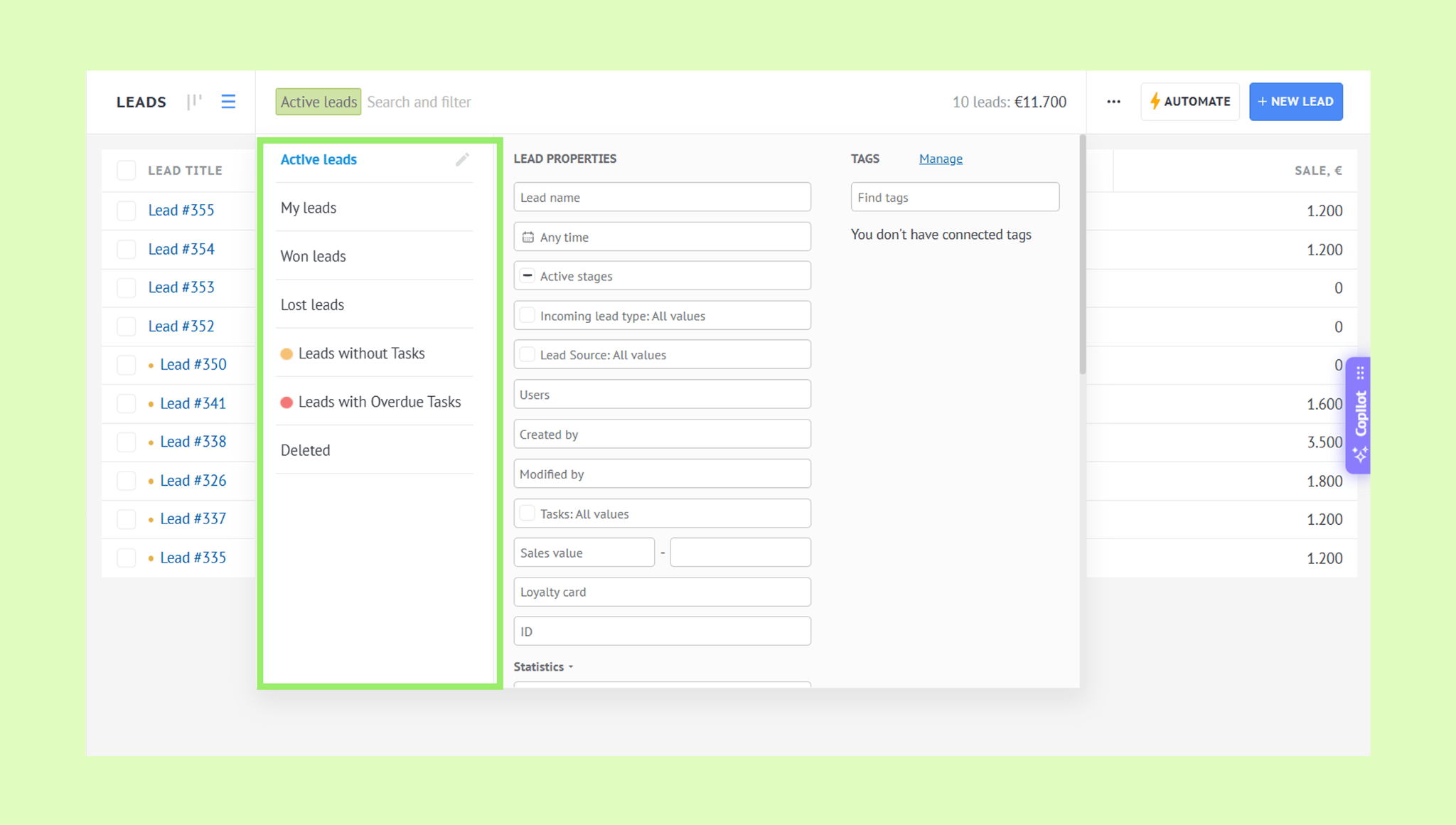
Preset filters — quick one-click filters for the most common searches, like leads with overdue tasks.
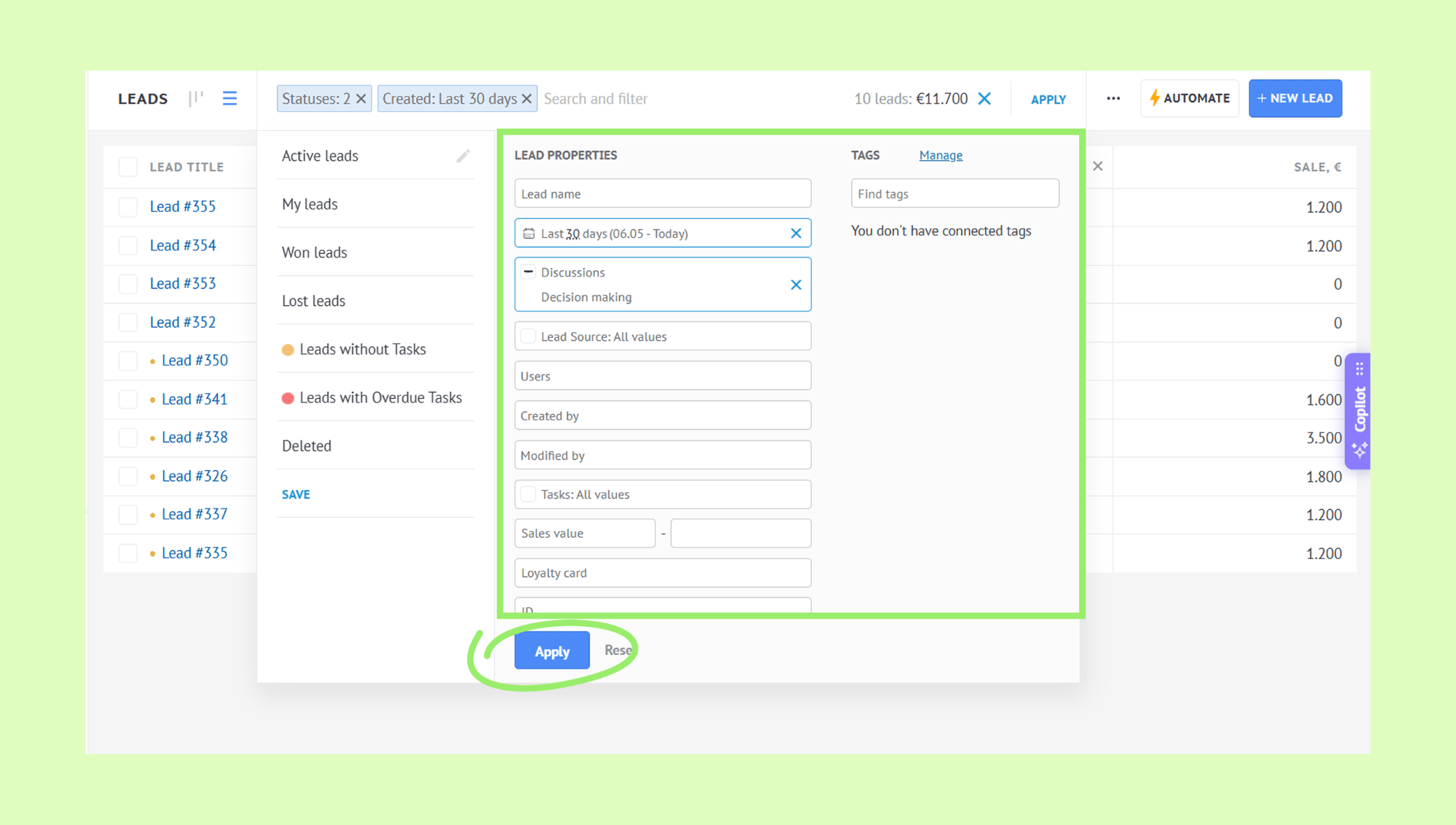
Custom filters — filters you set yourself. Choose one or more criteria — such as responsible user, pipeline stage, date of creation, and more — to narrow down exactly the records you need.
How to use filters:
Go to Pipelines → All leads.
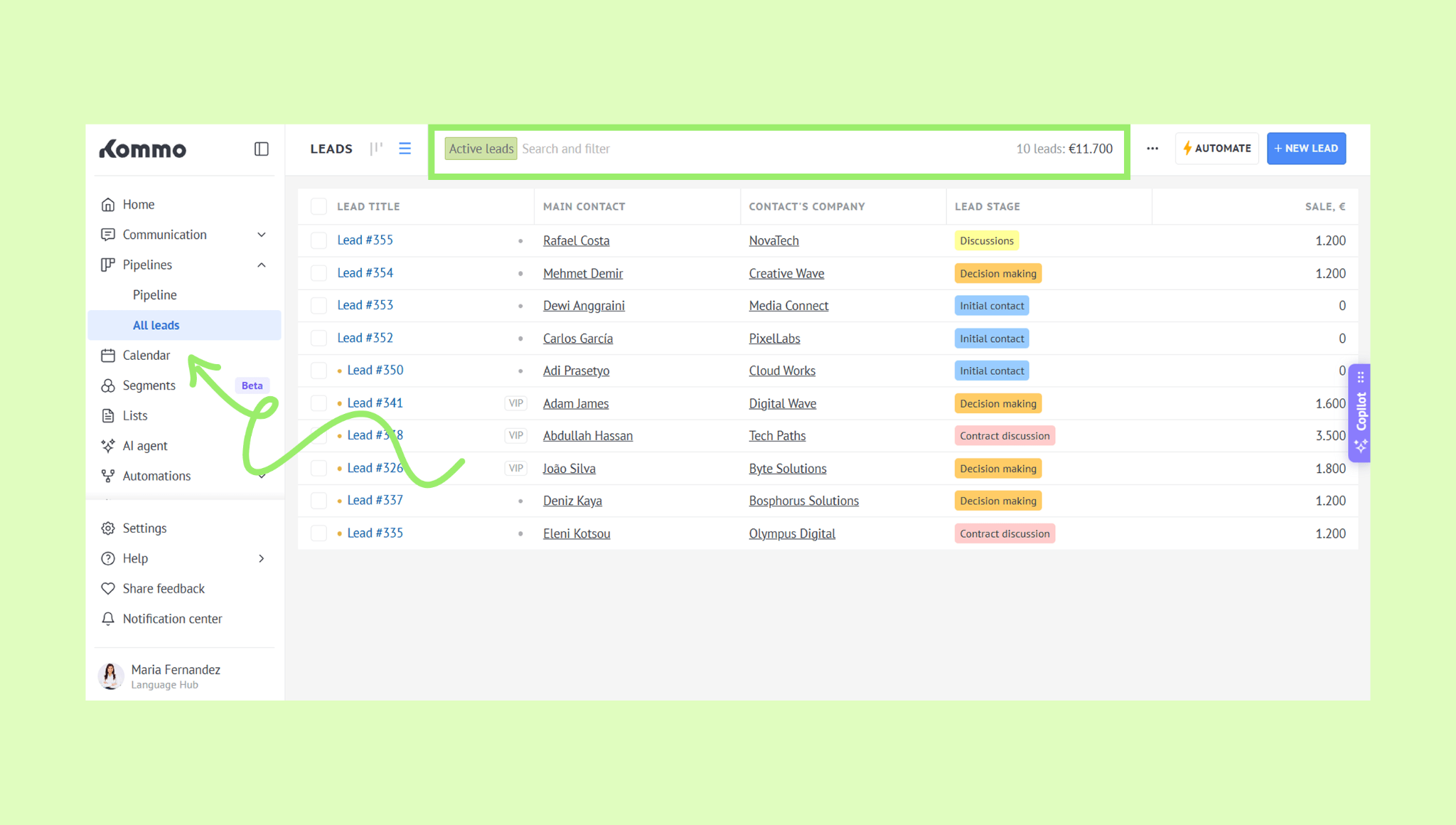
Click the Search and filter bar and select a filter:
Preset filters — click the filter and results appear automatically.
Custom filters — select one or more criteria and click Apply.
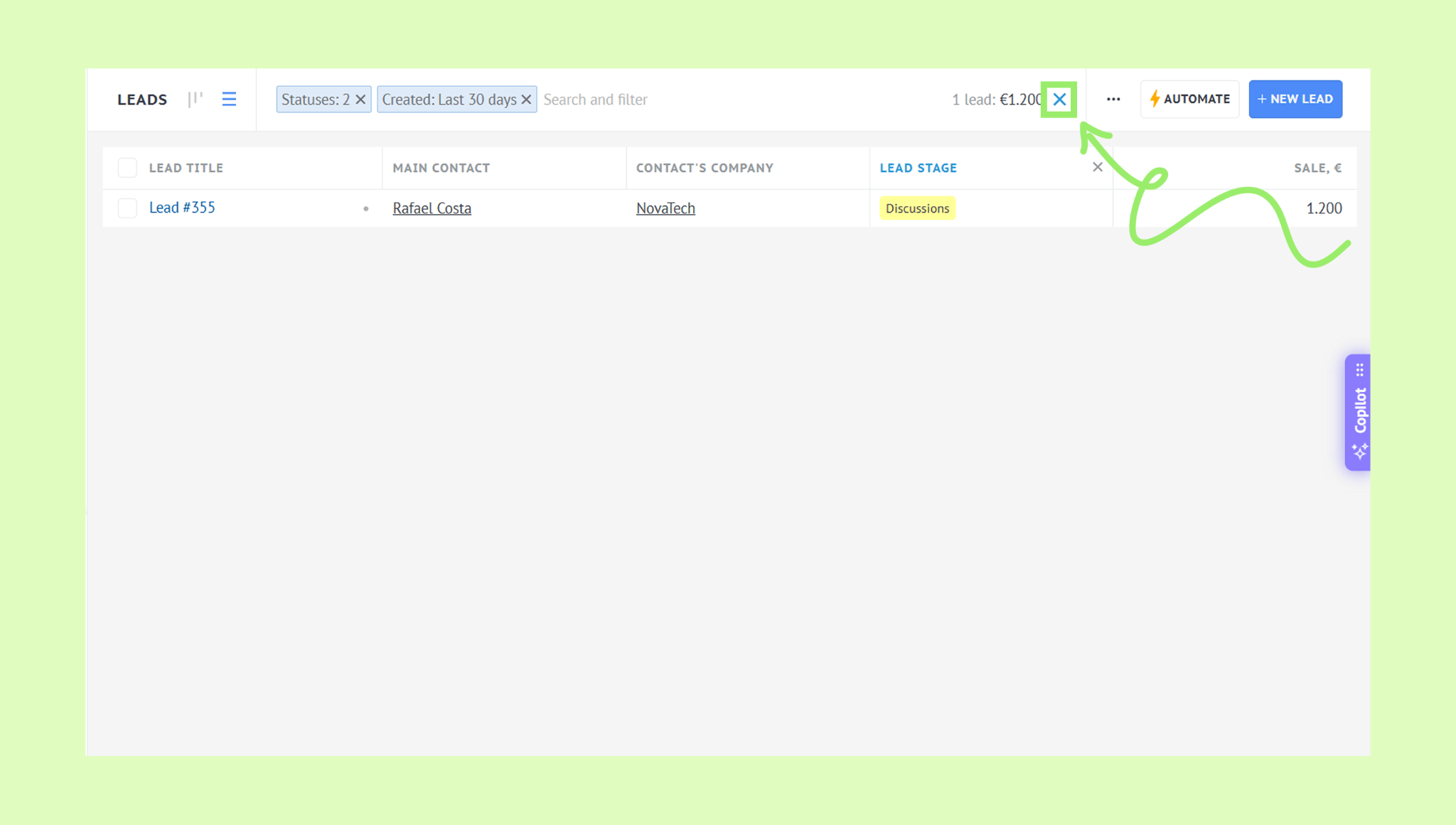
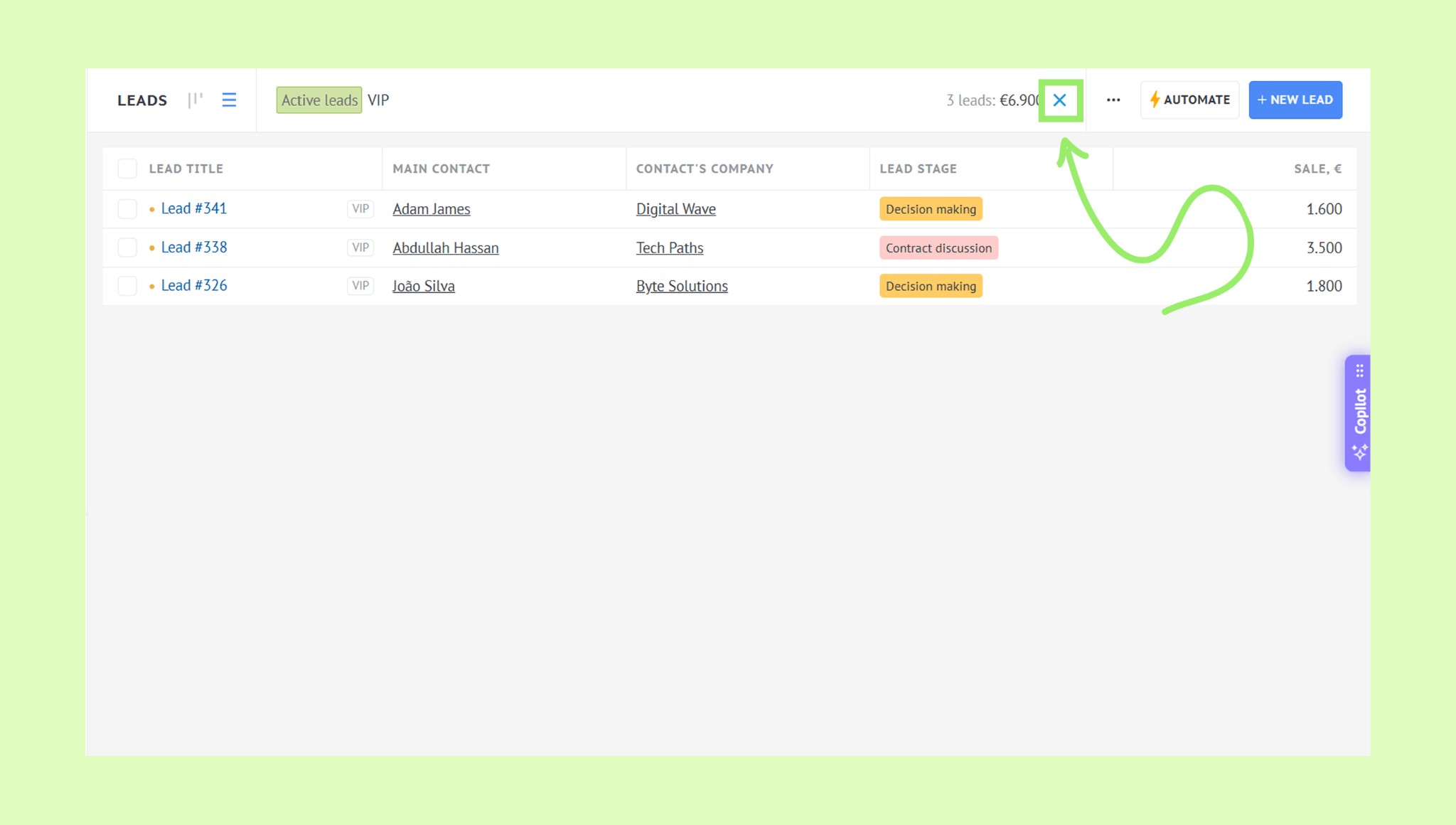
To reset the filters, click the × icon in the Search and filter bar.
You can also filter contacts and companies – go to Lists → Contacts or Companies, click the Search and filter bar, select your filters, and click × to reset when done.
Tip: To filter leads within a specific pipeline, go to Pipelines and open the pipeline you need, then follow the same steps.
Search leads, contacts and companies
The search in Kommo works across all record types — leads, contacts, and companies — at the same time.
Without pressing Enter – Kommo shows matching results across all record types as you type.
Pressing Enter – Kommo shows results from the current section only. For example, if you are in All leads, only leads will be searched.
How to use search:
Go to Pipelines → All leads.
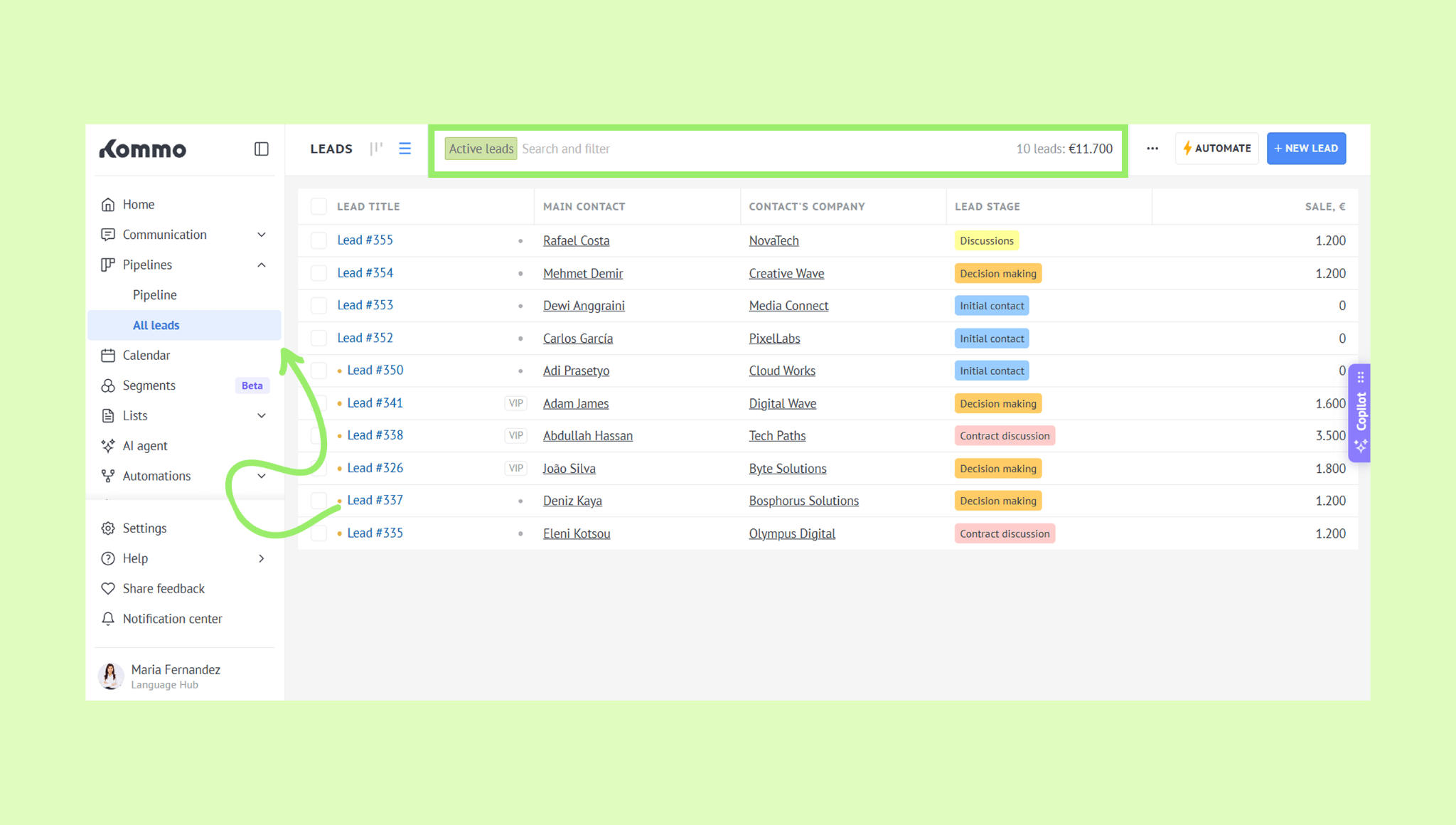
Click the Search and filter bar and type your search query.
Without pressing Enter – suggested results appear across all record types. Click the result you want to open.
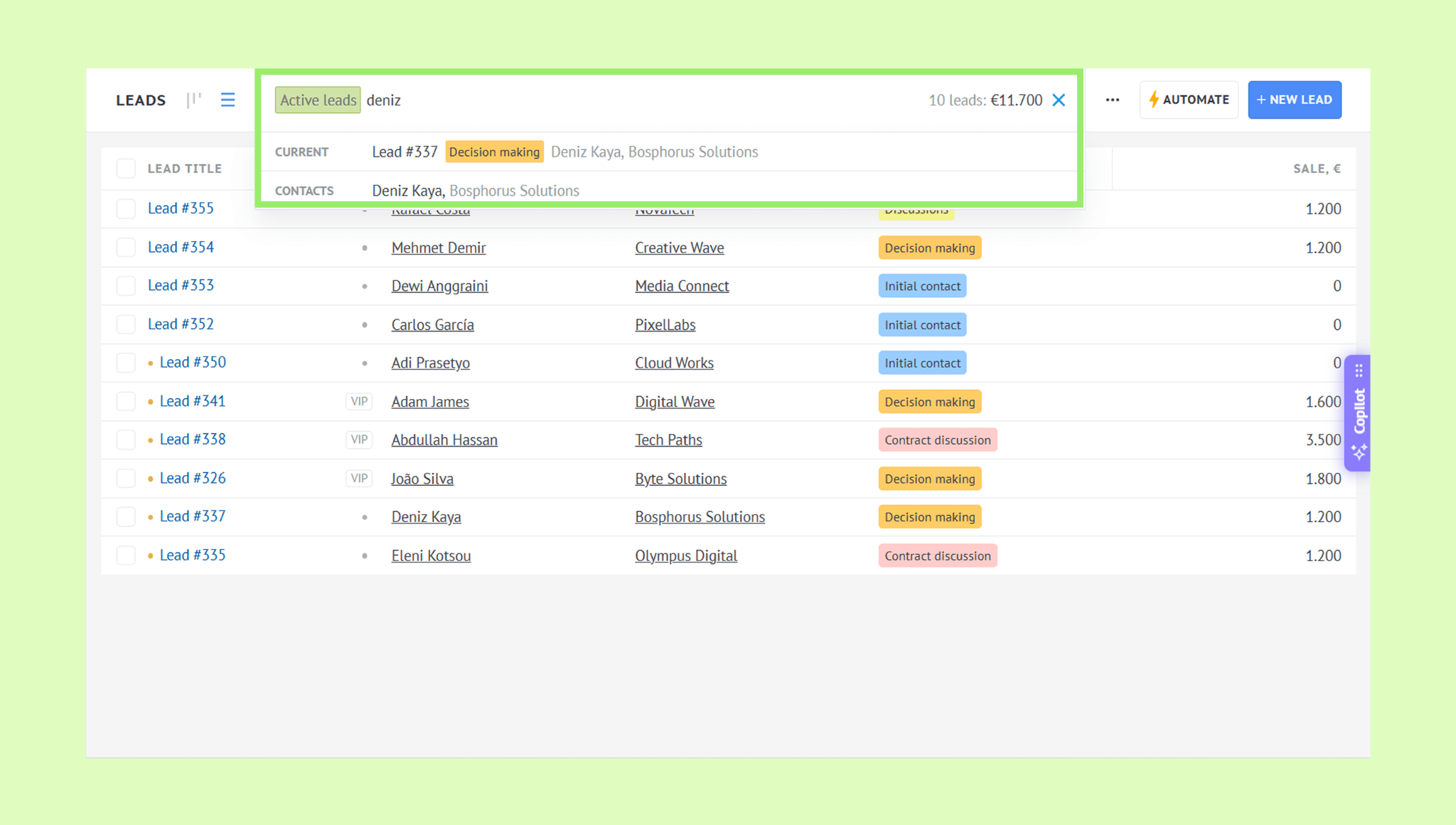
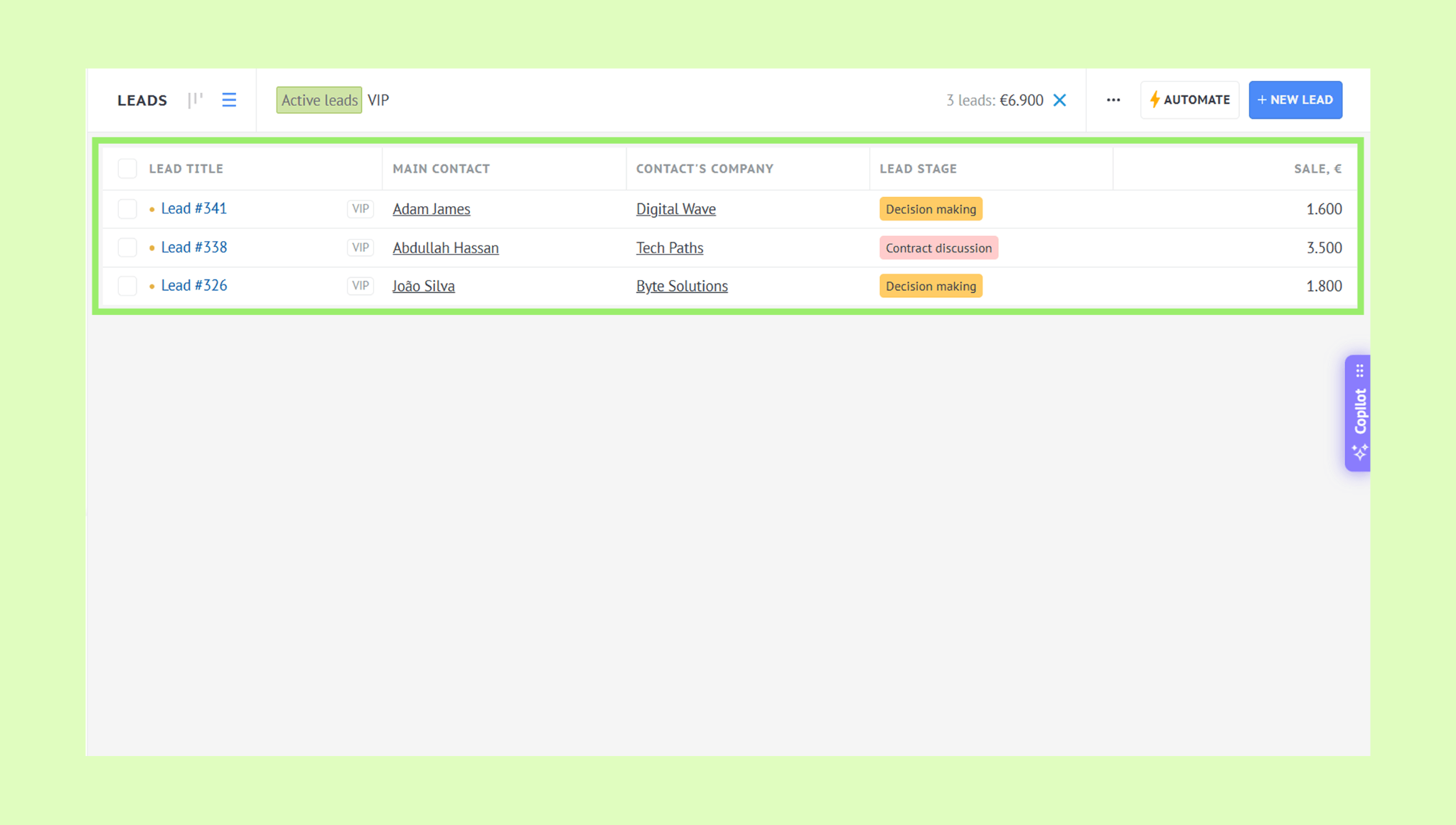
Pressing Enter – matching results from the current section are displayed in a list. Click the result you want to open.
To close the search, click the × icon in the Search and filter bar.
Use these shortcuts to navigate search results faster:
↑ / ↓ — navigate between results
Enter — open the selected result
Ctrl + Enter — open the result in a new window
Esc — close the search
Note: On Mac, replace Ctrl with Cmd.
You can also search contacts and companies – go to Lists → Contacts or Companies, click the Search and filter bar, and follow the same steps.