Limitations & restrictions:
Available on Facebook, Instagram, WhatsApp Business, Telegram, and any lead source that supports voice messages.
Max file size: 16 MB.
File conversion: Only WAV, MP3, OGG, M4A, AAC, FLAC, or OPUS formats can be converted to voice messages.
No text or buttons can be added to the step if using file conversion.
Salesbot allows you to send voice messages and audio files, making automated conversations more dynamic. You can record messages directly in the bot or attach existing audio files.
Use cases for voice messages
With Salesbot’s voice message tool, you can:
Personalize conversations with leads and customers.
Share updates in a natural, conversational format.
uickly send voice instructions or announcements.
Practical use cases:
Education businesses – Send pronunciation tips or listening exercises to improve language learning.
Online coaching – Deliver personalized guidance, workout instructions, or daily motivation.
Customer support – Provide troubleshooting instructions in a clear, spoken format.
For a full overview of Salesbot features, visit our Salesbot guide.
How to record or attach voice messages to a bot step
You can add voice messages to your Salesbot in a few ways:
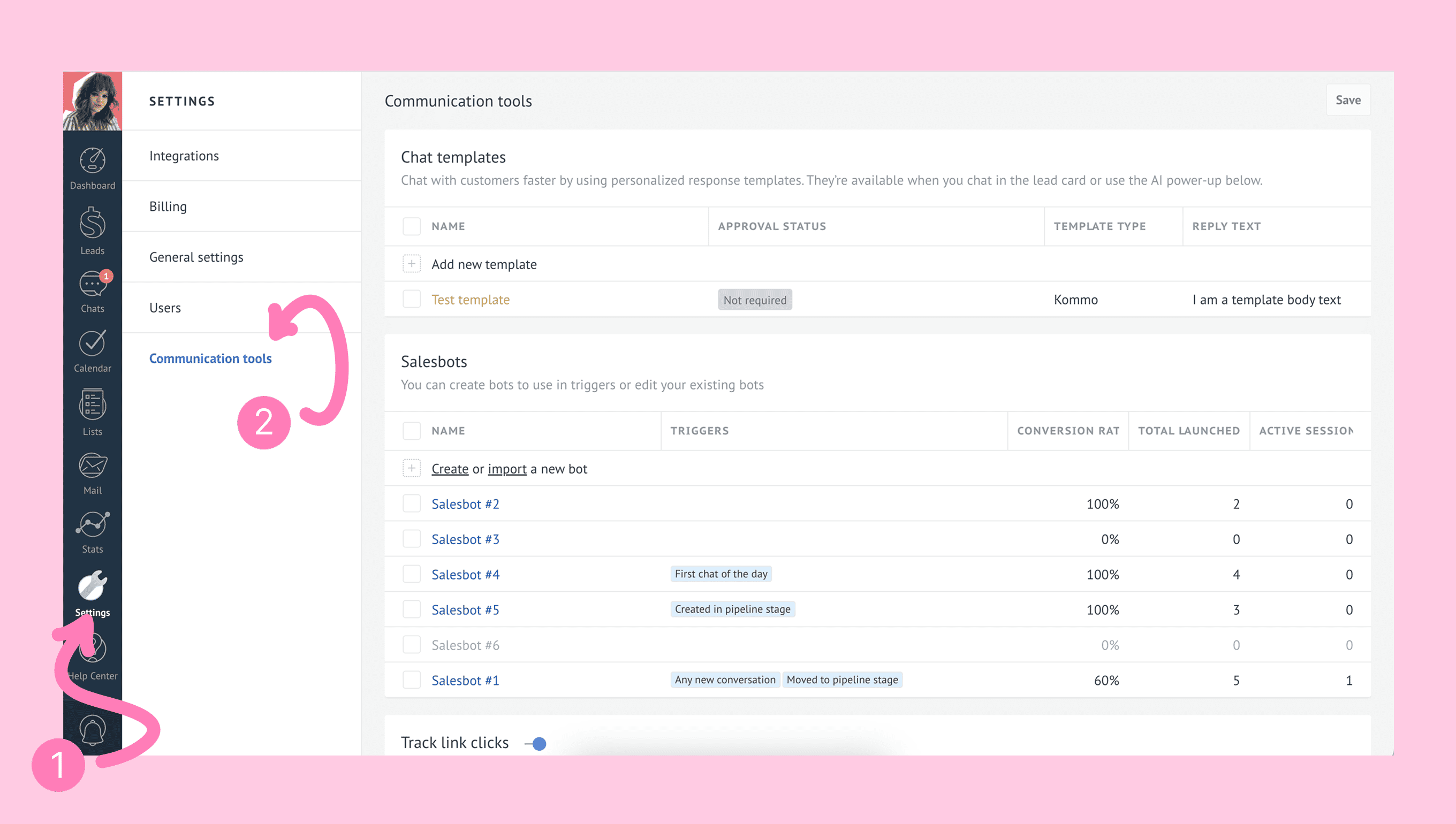
From Settings → Communication Tools → Salesbot
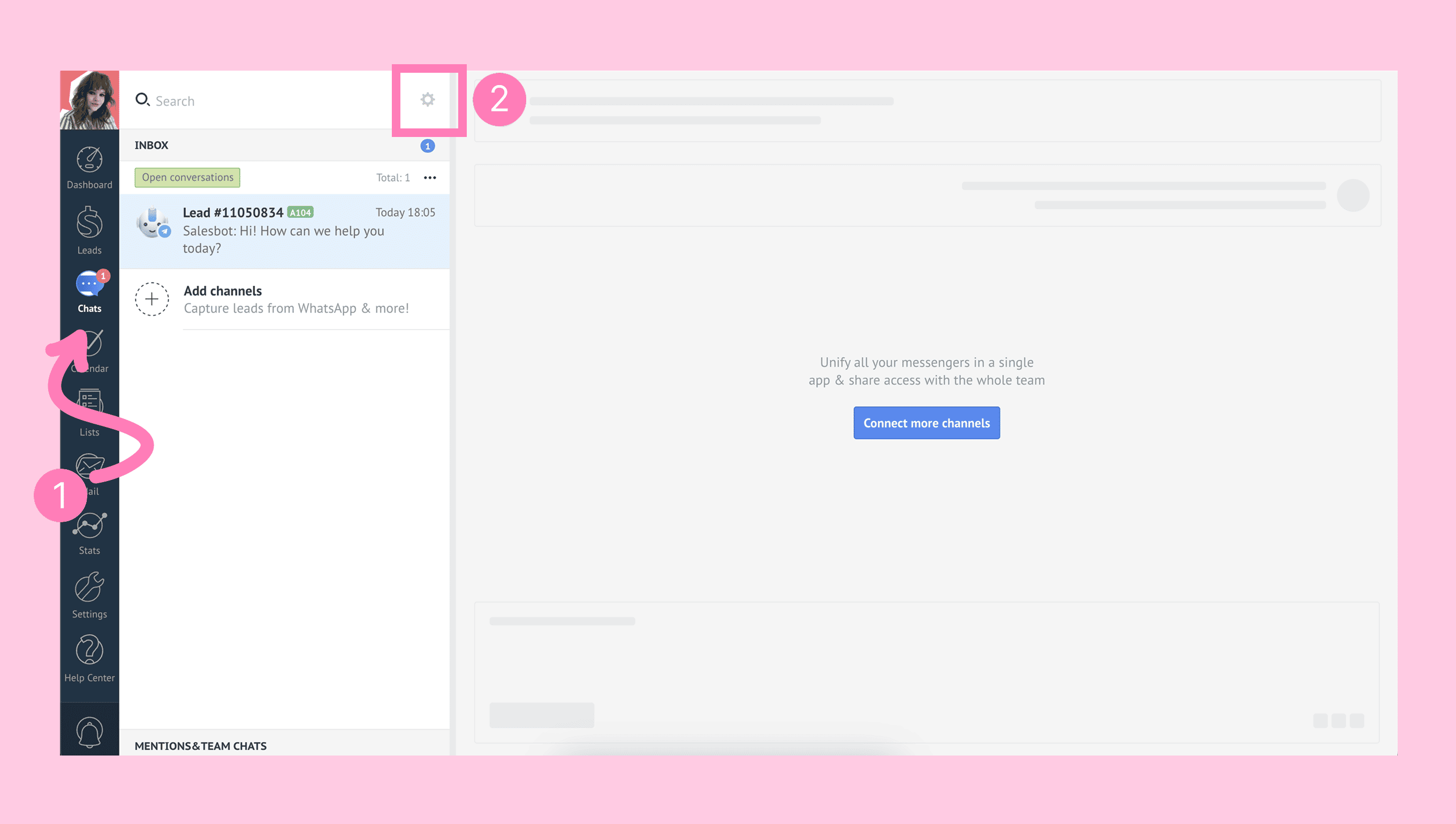
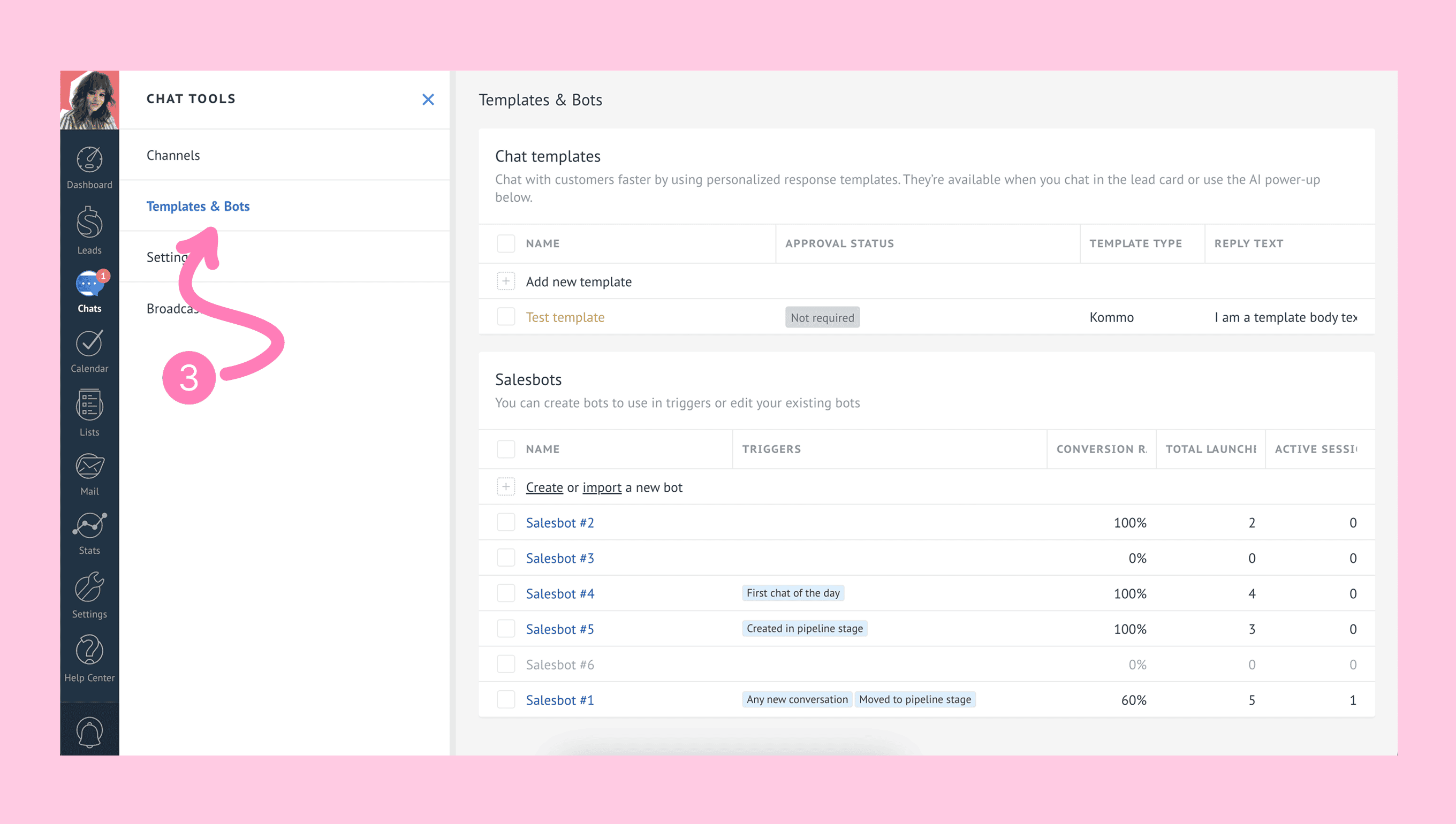
From Chats → Gear icon → Templates & Bots → Salesbot
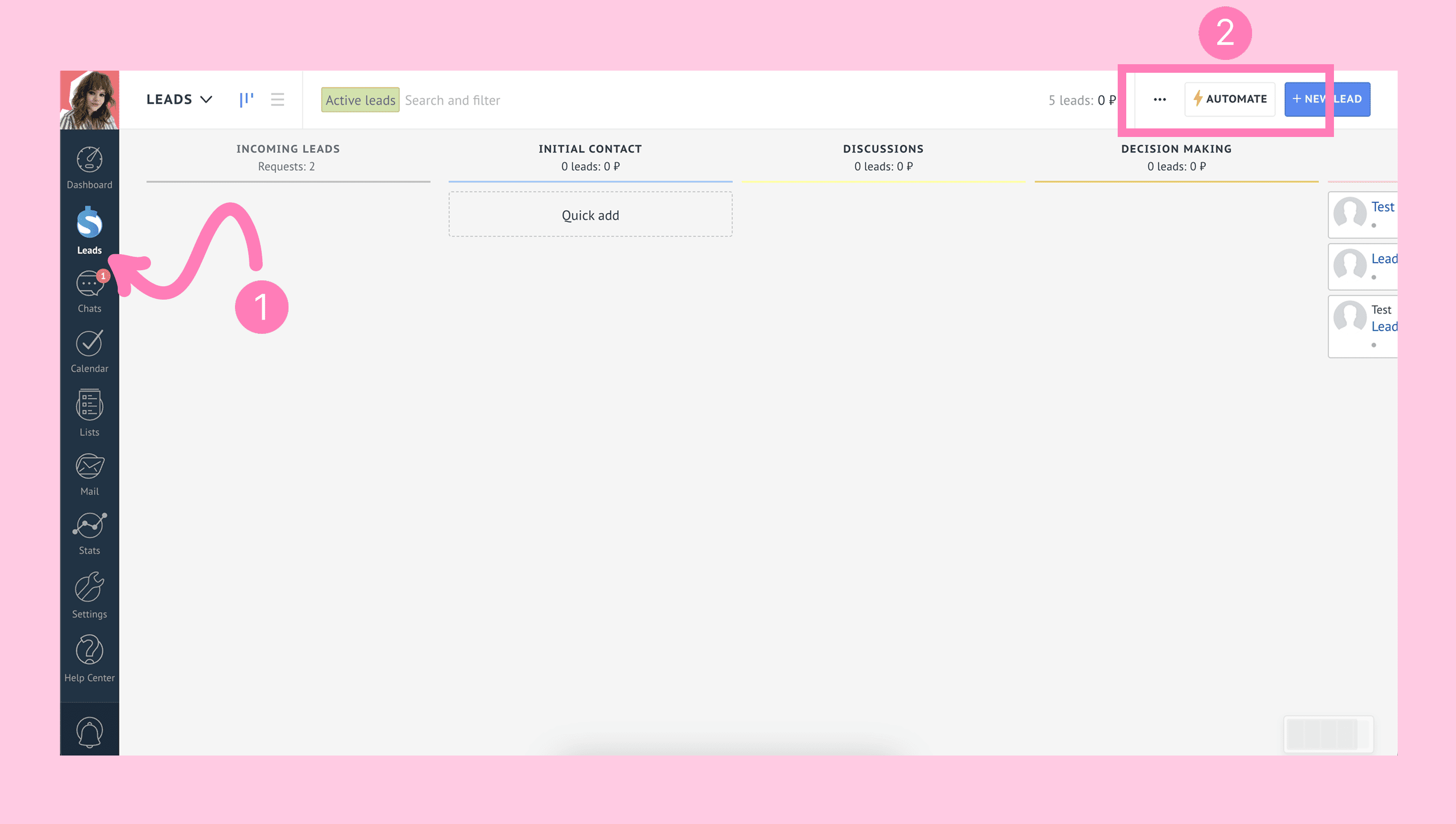
From Leads → Automate → +Add Trigger → Salesbot
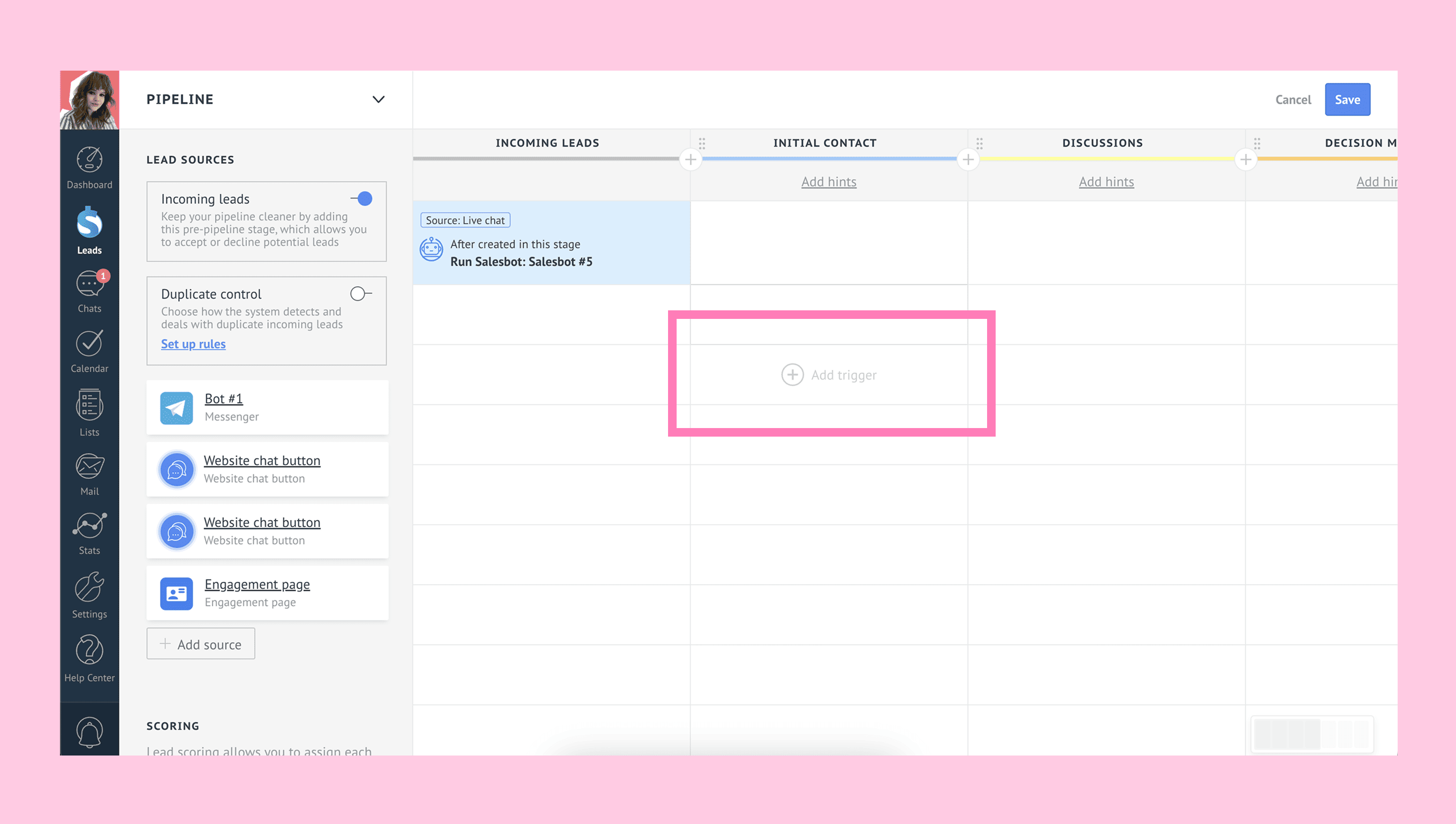
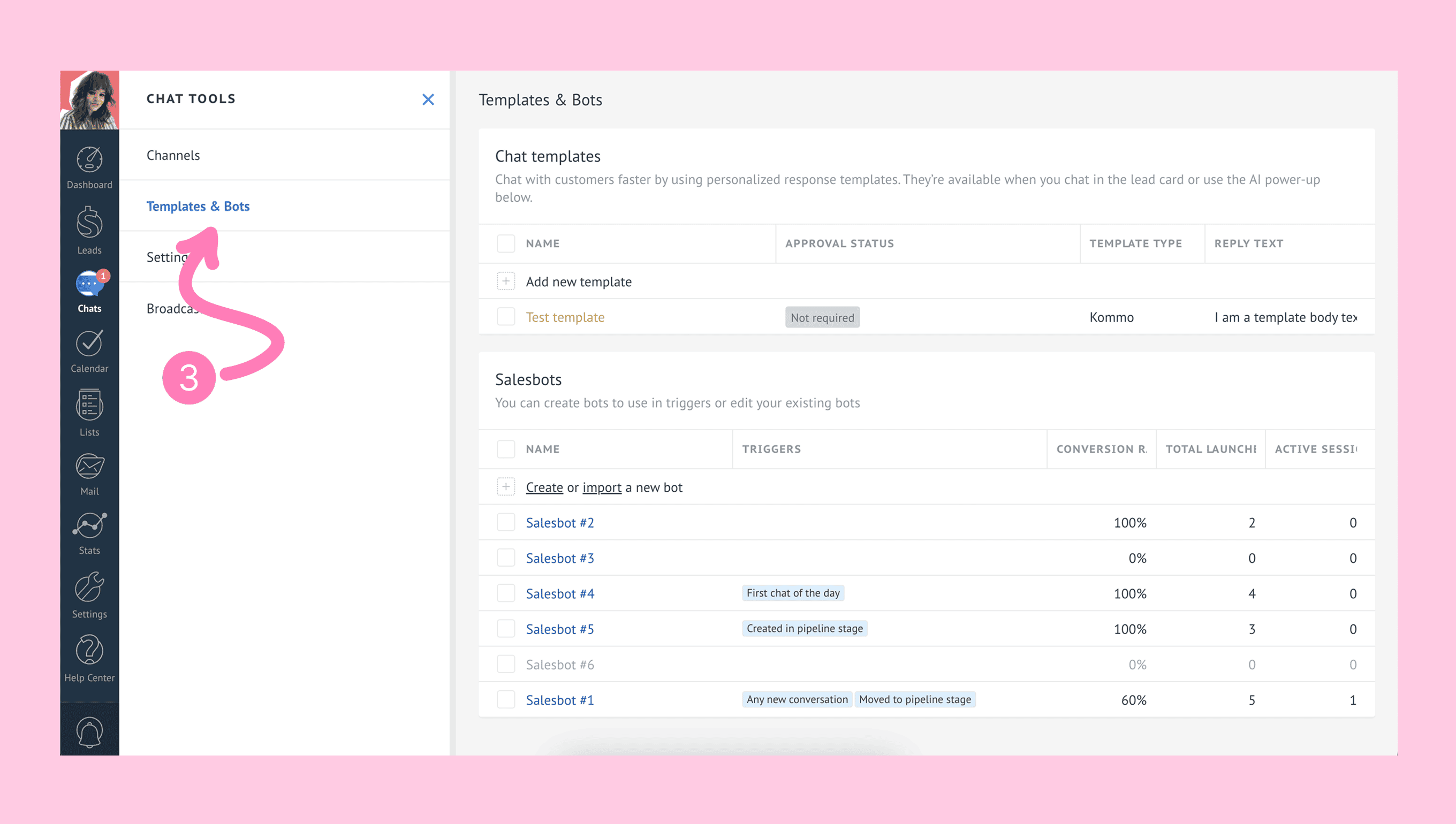
Create or edit a Salesbot
Once in the Salesbot section, follow these steps:
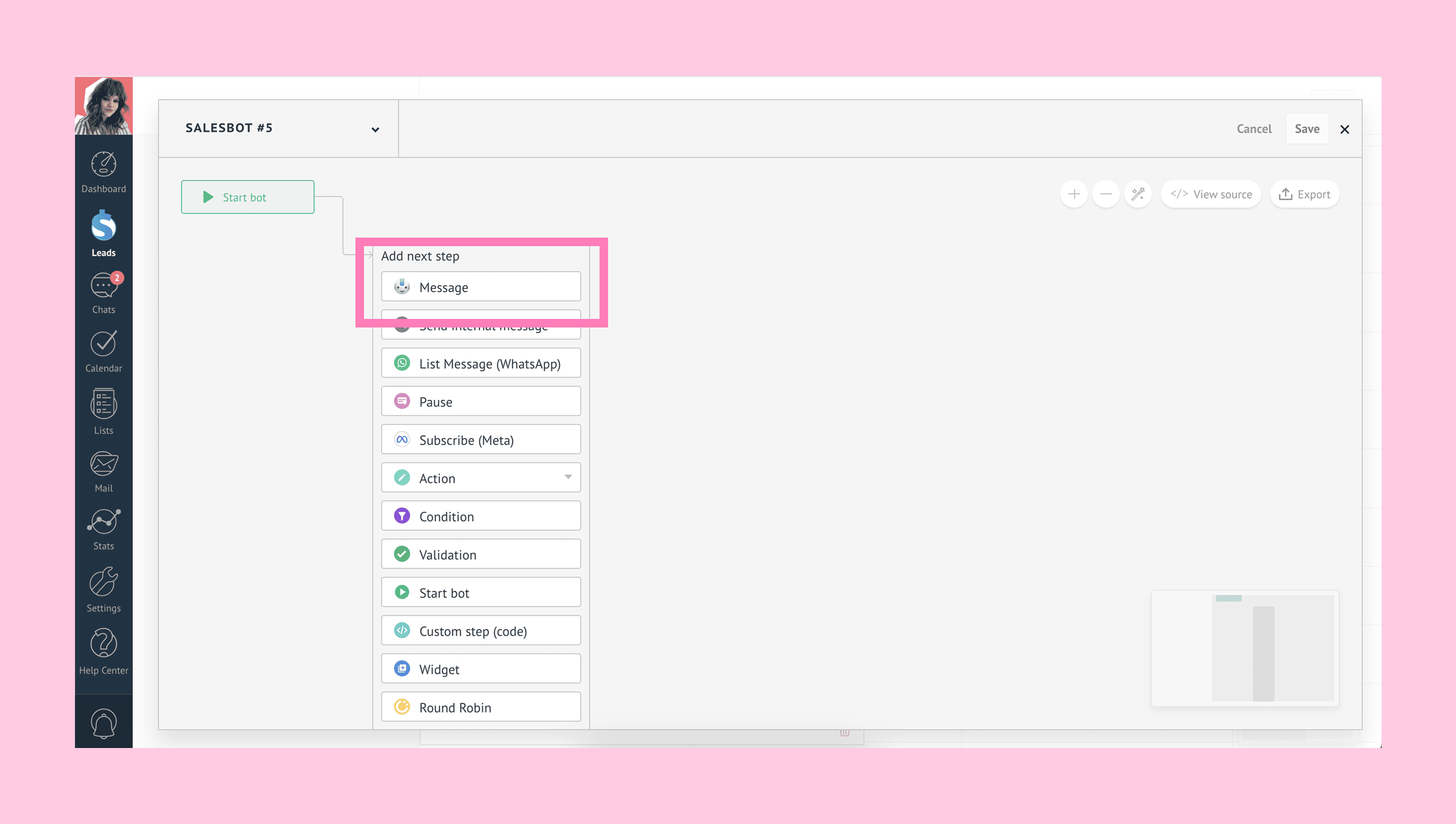
Click Create a new bot and choose New, select a Salesbot template, or open an existing bot.
In the Salesbot constructor, select the Message step.
Option 1: Record a voice message
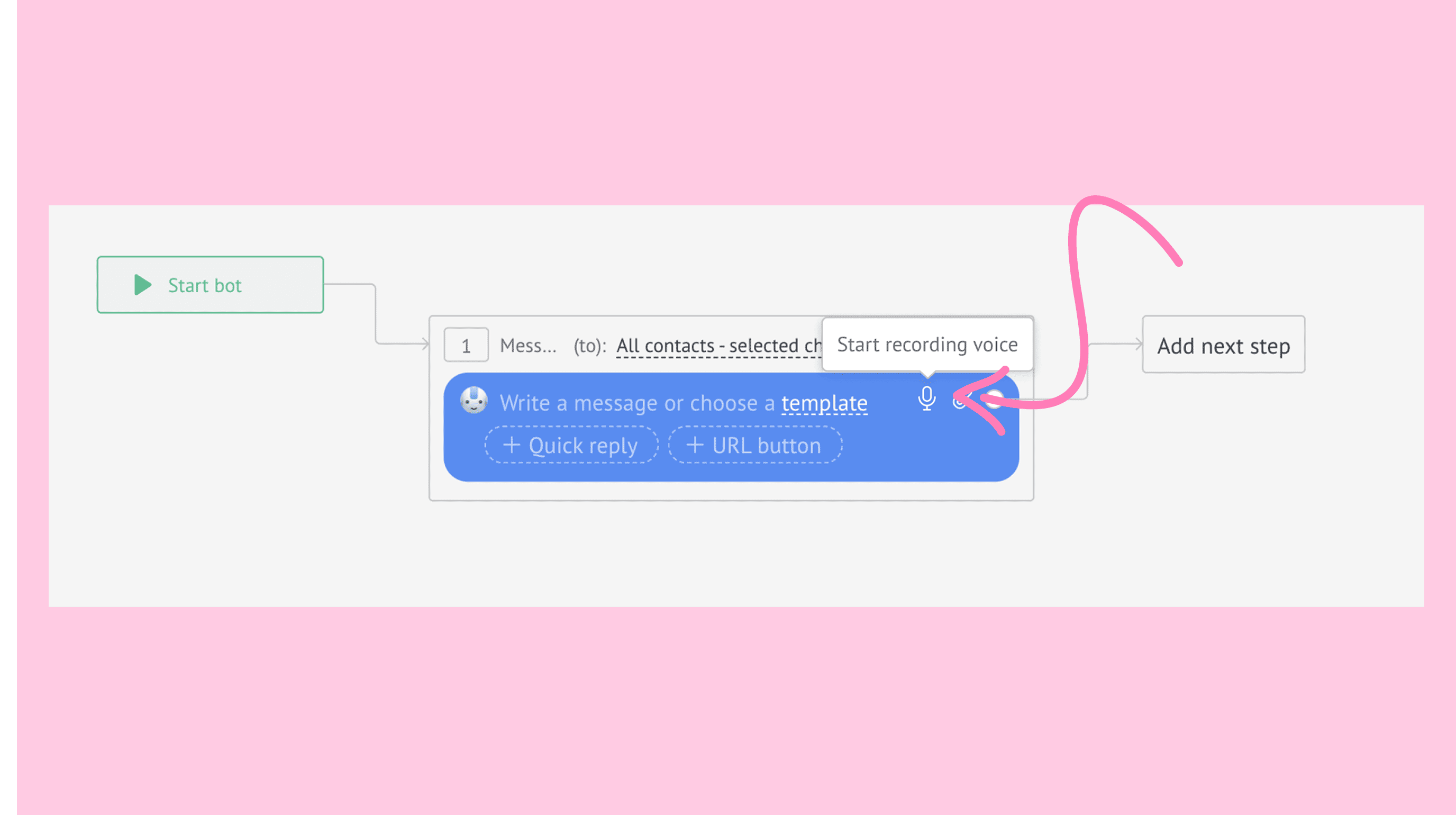
Click the microphone icon to start recording. Kommo will begin recording automatically.
Note: If microphone access is not granted, your browser will prompt you for permission.
Click the stop button when finished.
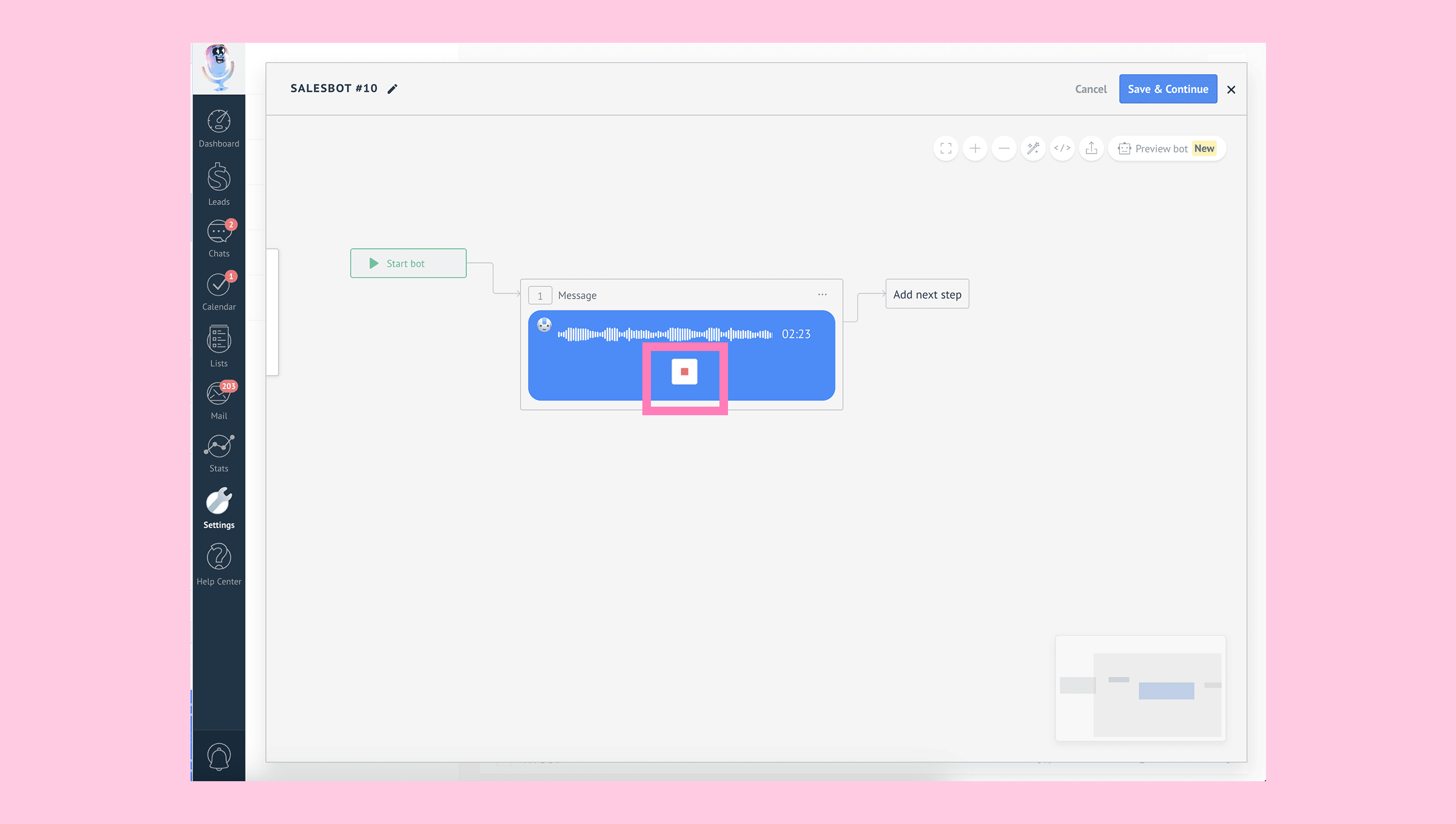
The recorded voice message will appear in the step.
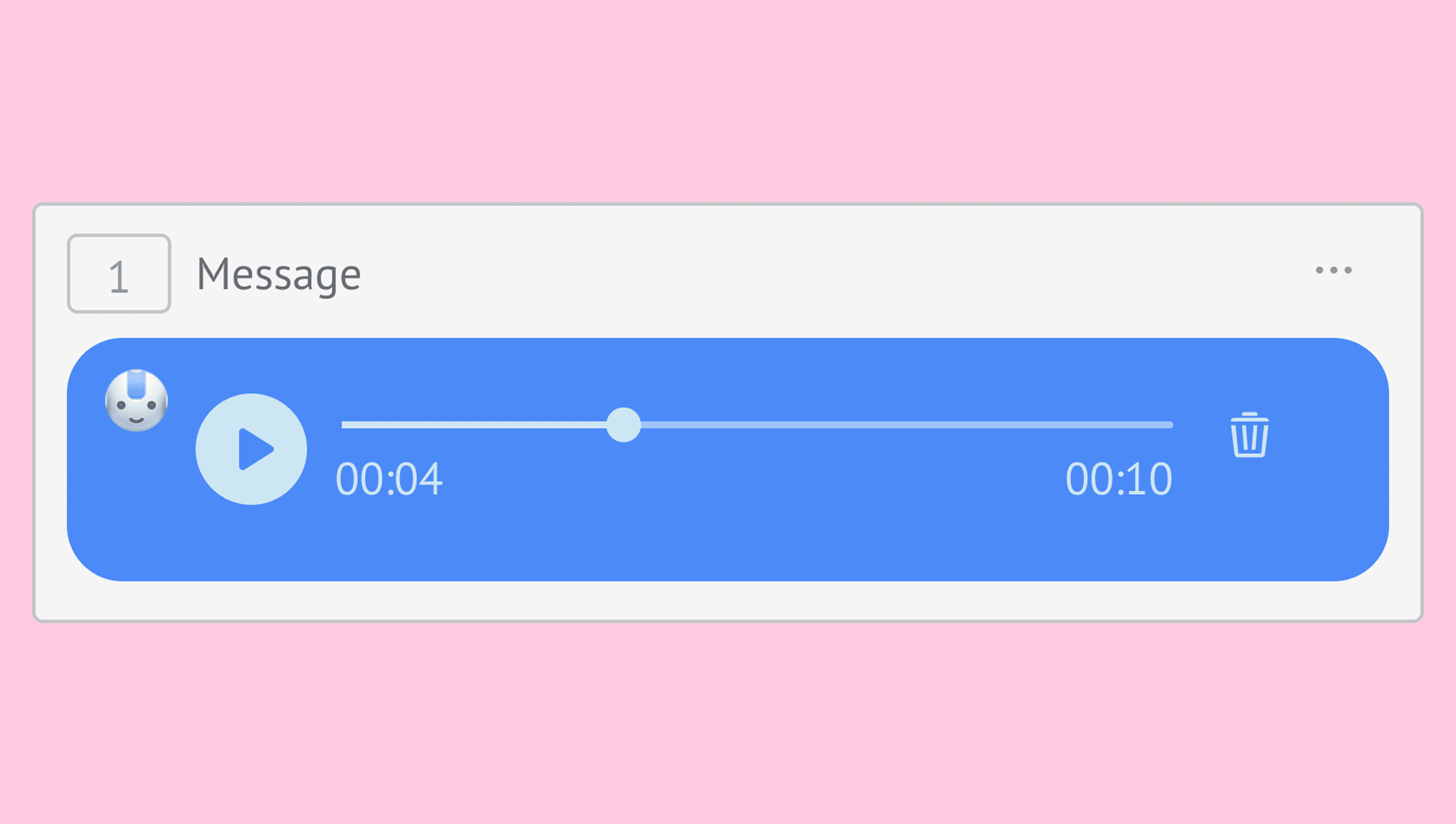
Once recorded, you can:
Play – Listen to the message.
Delete – Remove and re-record.
Note: Once a recording is stopped, it cannot be resumed.
Option 2: Attach an audio file
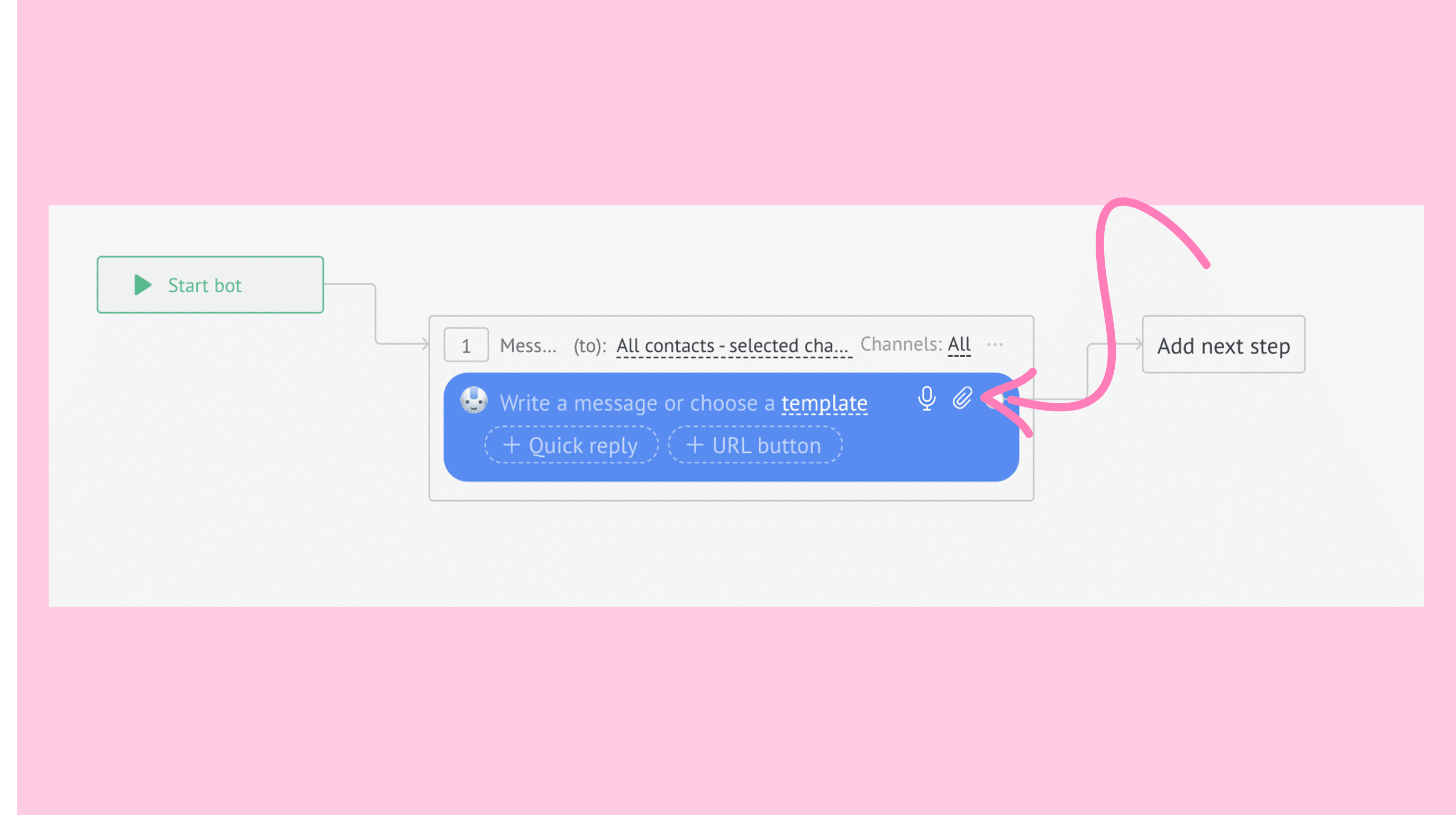
Click the paperclip icon and select an audio file from your device.
The file will appear in the step.
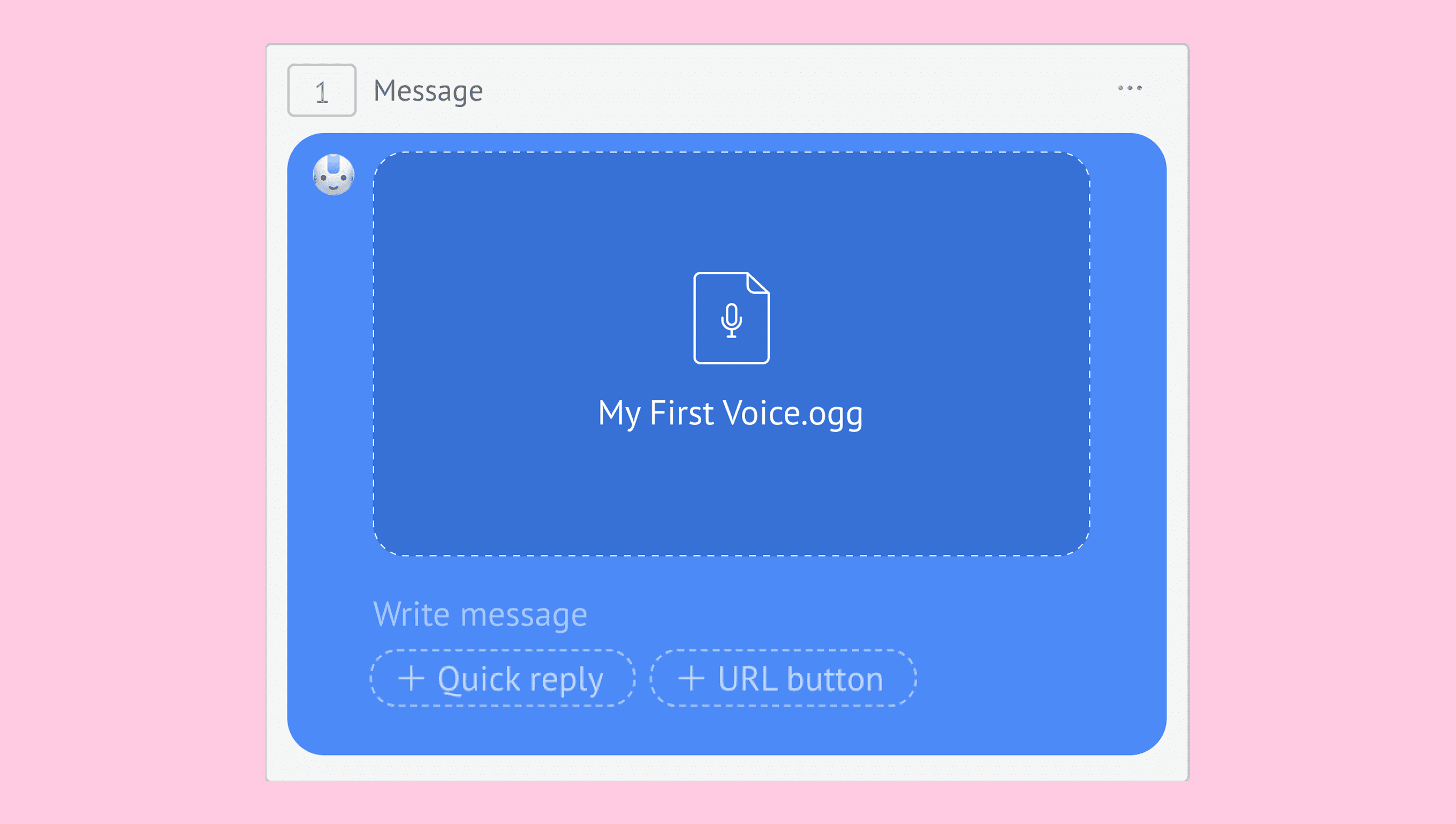
The following options will appear:
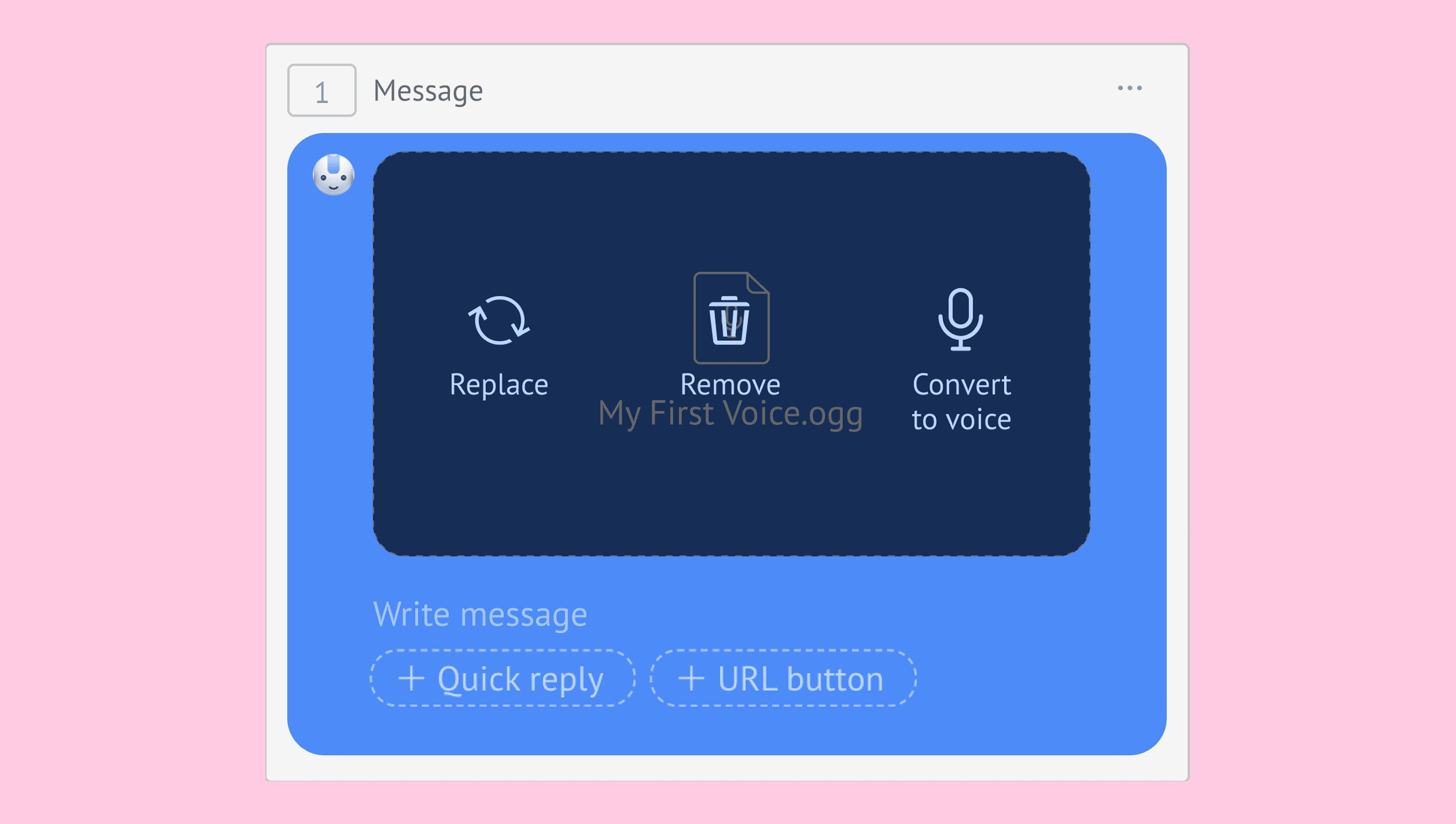
Replace – Upload a different file.
Remove – Delete the file.
Convert to voice – Turn the file into a playable voice message.
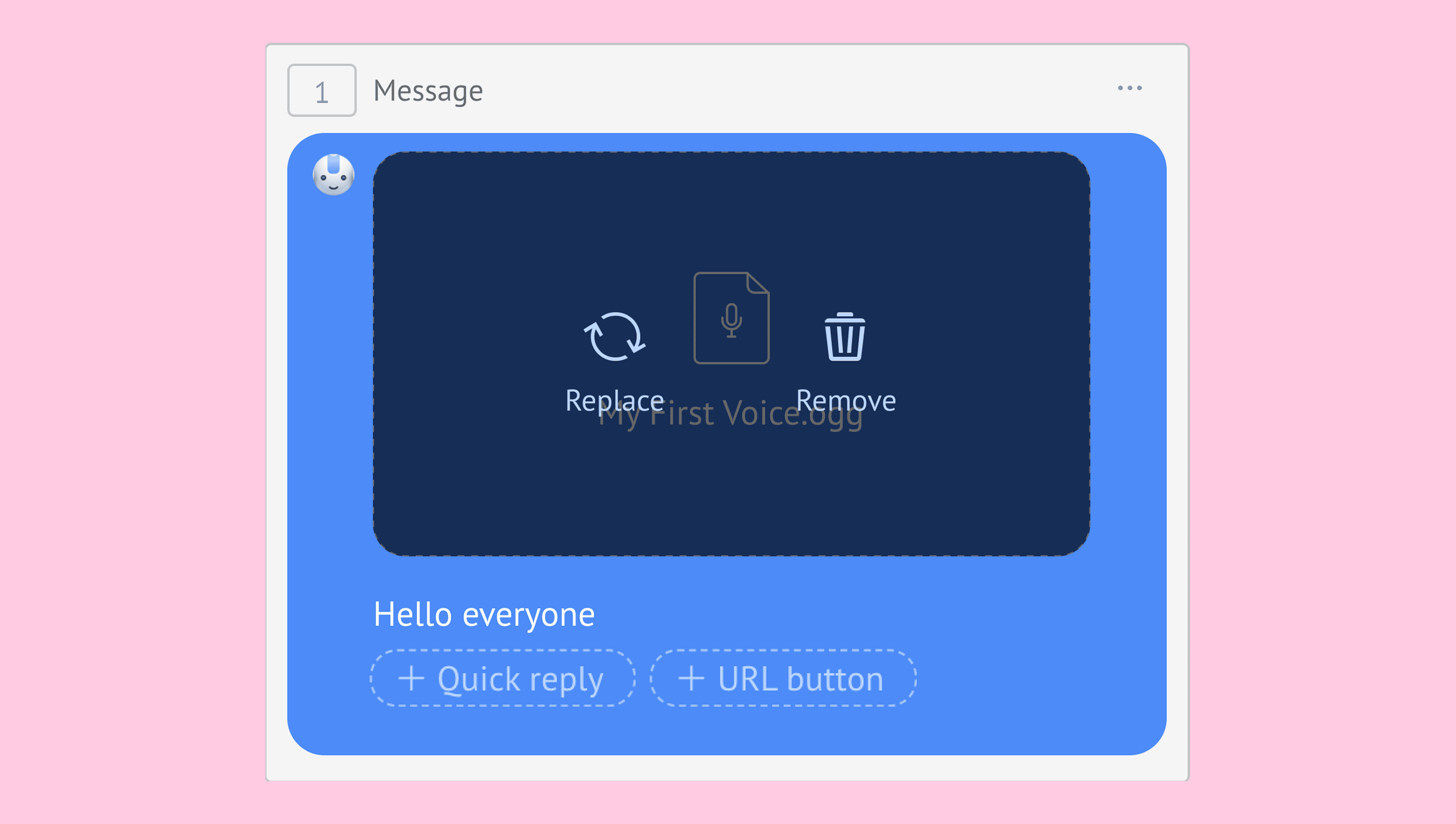
Note: If you add text or a button to the step, the file cannot be converted into a voice message. Instead, the audio will be sent as a file that clients can download to listen to. Additionally, only the Replace and Remove buttons will be available in the step.
For a full guide on setting up Salesbot, check out How to create a Salesbot.