What you’ll need:
A Kommo account on any plan: Base, Advanced, Pro, Enterprise, or a 14-day trial
Admin access in Kommo.
The user must have access to the email address linked to their Kommo profile.
Keep in mind:
An admin can request a password reset but cannot view or set the user’s new password.
Once an admin requests a password reset, the user must follow the link in the reset email to create a new password before they can log in again.
Password reset is not available for users who log in to Kommo with Facebook, Google, or Apple.
If you need to revoke access for a former employee or protect the workspace after suspected account compromise, consider disabling or removing the user instead. Learn how to manage users in Kommo.
If you’re an admin, you can send a password reset email from User management to help a team member regain access or change their password. Once you request the reset, they must use the email link to create a new password before they can log in again. You won’t see or set their password. This article explains how to send the email and what to do if it doesn’t arrive or the link has expired.
Send a password reset email
To send a password reset email to a user:
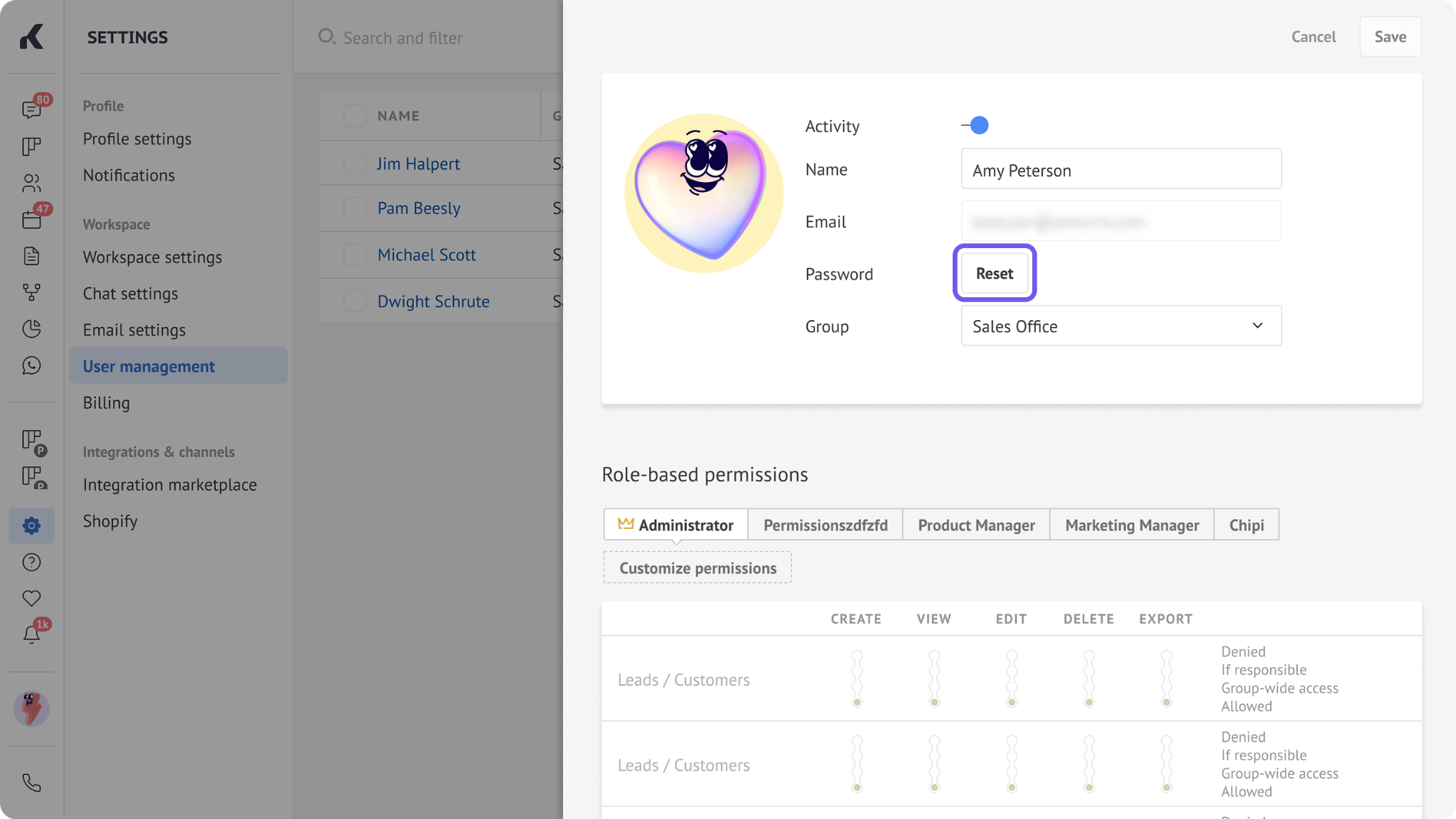
Go to Settings → User management.
Open the user’s profile.
Click Reset.
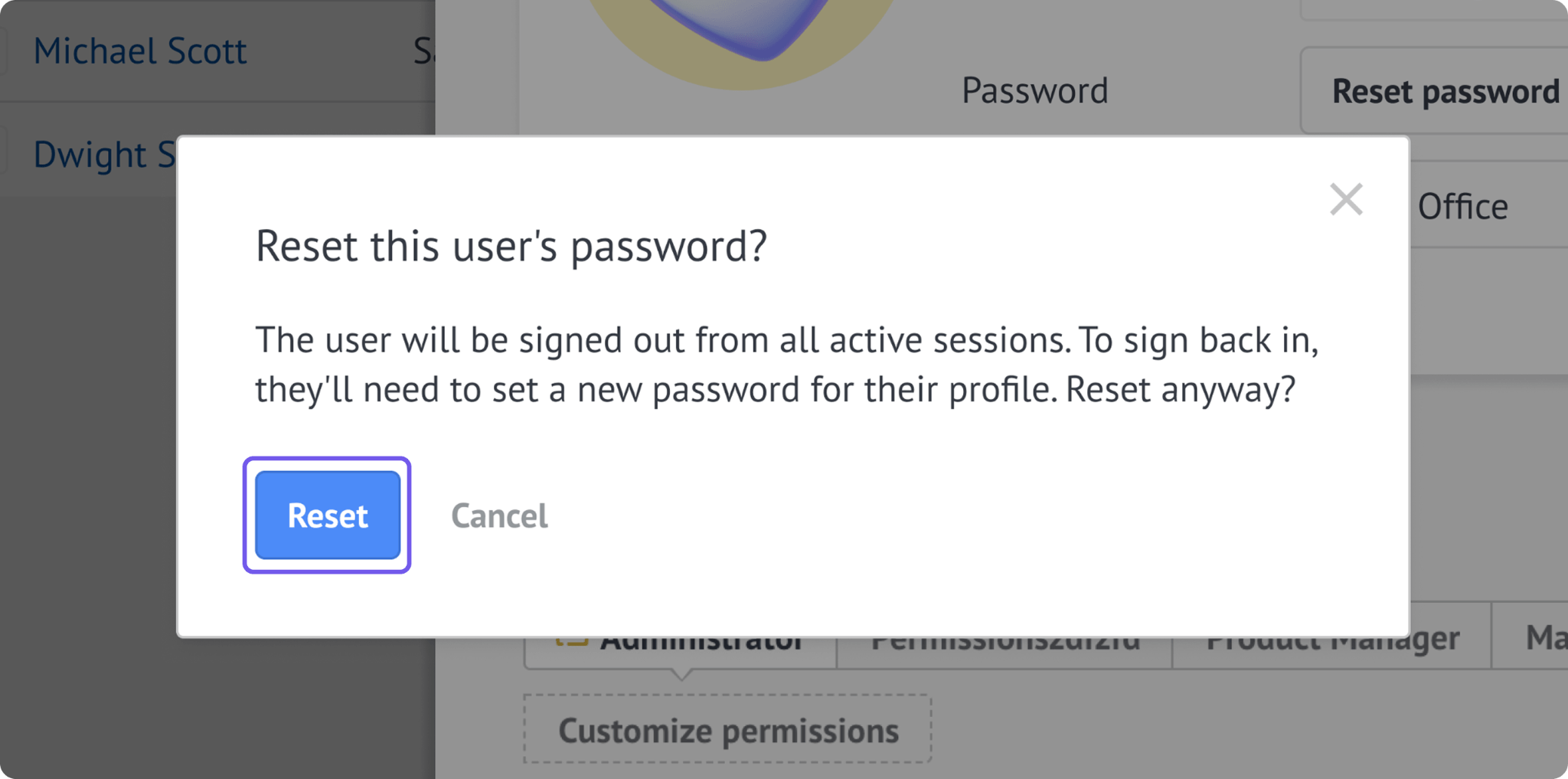
In the window that opens, confirm the action.
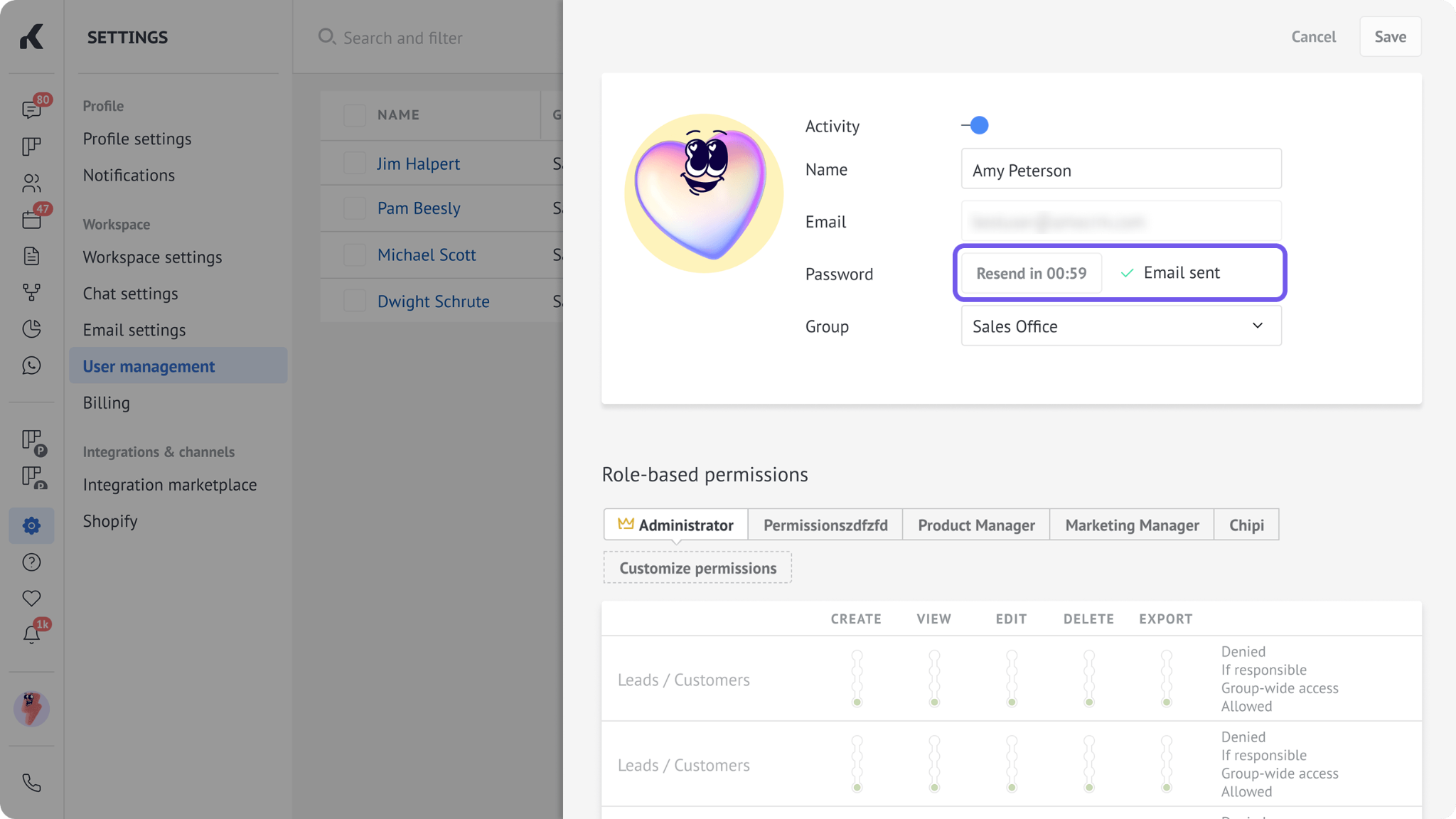
An Email sent label will appear in the user’s profile.
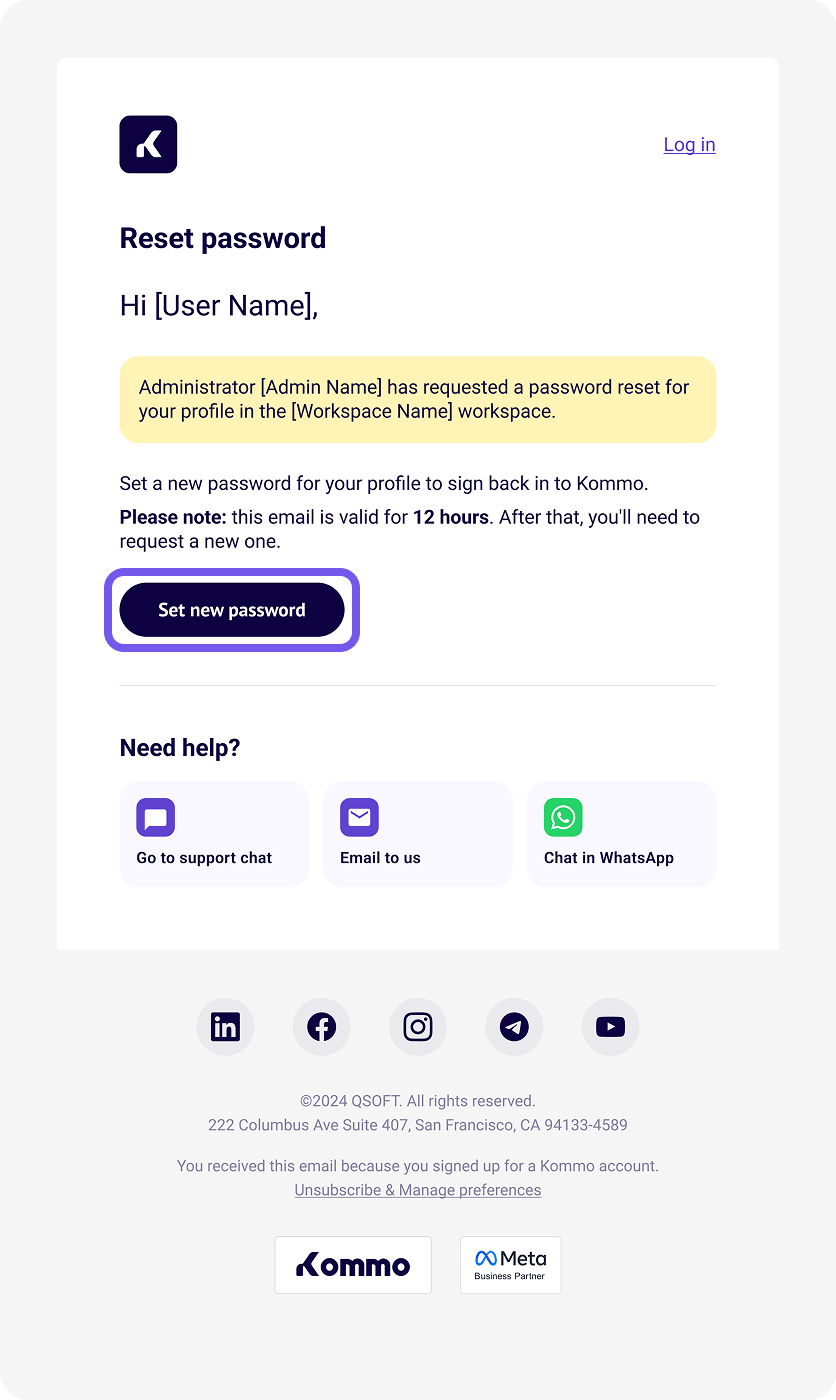
The user should then:
Open the password reset email.
Click the link in the email.
Enter and confirm a new password.
Log in to Kommo using the new password.
Fix a missing password reset email
Ask the user to:
Check their spam, junk, promotions, and other filtered folders.
Make sure their inbox is active and can receive new messages.
Confirm that they are checking the email address linked to their Kommo profile.
Wait a few minutes, as email delivery may take some time.
If the email still doesn’t arrive, ask the user to request a new password from the Kommo login page. For instructions, see Reset your password in Kommo.
Resend an expired or used password reset link
The password reset link expires after 12 hours and can be used only once. If it has expired or has already been used, send the user a new link. You can resend the email 1 minute after the previous email was sent:
Go to Settings → User management.
Open the user’s profile.
Click Resend.
The Email sent label appears again to confirm that a new password reset email has been sent to the user.