Requirements:
You must have a valid seller account in Mercado Libre.
The integration is available in Base, Advanced, Pro, and Enterprise plans or an active 14-day trial.
Limitations:
You can only send messages after the lead reaches the Paid stage.
First messages cannot be files — only text or text with a file (text will be delivered, file will be ignored).
Only certain file types and sizes are allowed: .jpg, .png, .txt, .pdf, max 25 MB.
You cannot send multiple messages in a row; you must wait for the buyer to respond.
Mercado Libre is only available in Spanish and Portuguese, not in English. However, if your Kommo interface is set to English, the integration with Mercado Libre will still function in English within Kommo.
For leads in the Payment Required and Payment in Process stages, it is not possible to chat. You, as a Kommo user (the seller), can attempt to send a message to leads in such stages, but the message will not be delivered, and an error will be displayed: “Lead payment is not confirmed”.
If you delete a Mercado Libre lead in Kommo, the chat will stay open in Mercado Libre, and chat history will still be available there. If the same buyer sends you another message, the lead will be recreated in Kommo and appear in the Paid stage with all previous order and chat details.
If you uninstall the Mercado Libre integration, you won’t be able to send messages to leads through Kommo. Trying to do so will show an error: “Lead source disabled.”
You can’t chat with leads who placed orders before installing the integration unless they message you first. Once they do, a new lead will be created automatically in the right stage.
If you remove a lead’s contact info from their card, all messages will be deleted. If the lead messages you again, their chat history and contact info will be restored.
Integrating Mercado Libre with Kommo makes sales management easier by automating lead handling and streamlining operations. You can connect your Mercado Libre account to Kommo, create a dedicated pipeline for Mercado Libre leads, and sync important data between the two platforms.
What is the Mercado Libre integration?
The integration facilitates the management of leads generated through Mercado Libre by automatically creating lead entries in Kommo when purchases are made. This ensures that sellers can efficiently track and communicate with potential buyers.
Integrating Mercado Libre with Kommo enhances sales management by automating lead handling and streamlining operations. This integration allows users to connect their Mercado Libre account to Kommo, create dedicated pipelines for leads, and synchronize essential data between the two platforms.
Use cases
What are the benefits of the Mercado Libre integration?
Analytics and reporting: The integration allows for better tracking of sales performance, enabling you to make informed decisions based on real-time data.
Centralized customer information: All customer interactions and purchase history are consolidated in one platform, making it easier for sellers to manage relationships and tailor communications.
Reduced manual data entry: Automating lead creation and updates minimizes the need for manual input, saving time and reducing errors associated with data entry.
How to install the Mercado Libre integration
To install the integration, follow this process:
Go to Settings > Integrations. Enter Mercado Libre in the search bar.
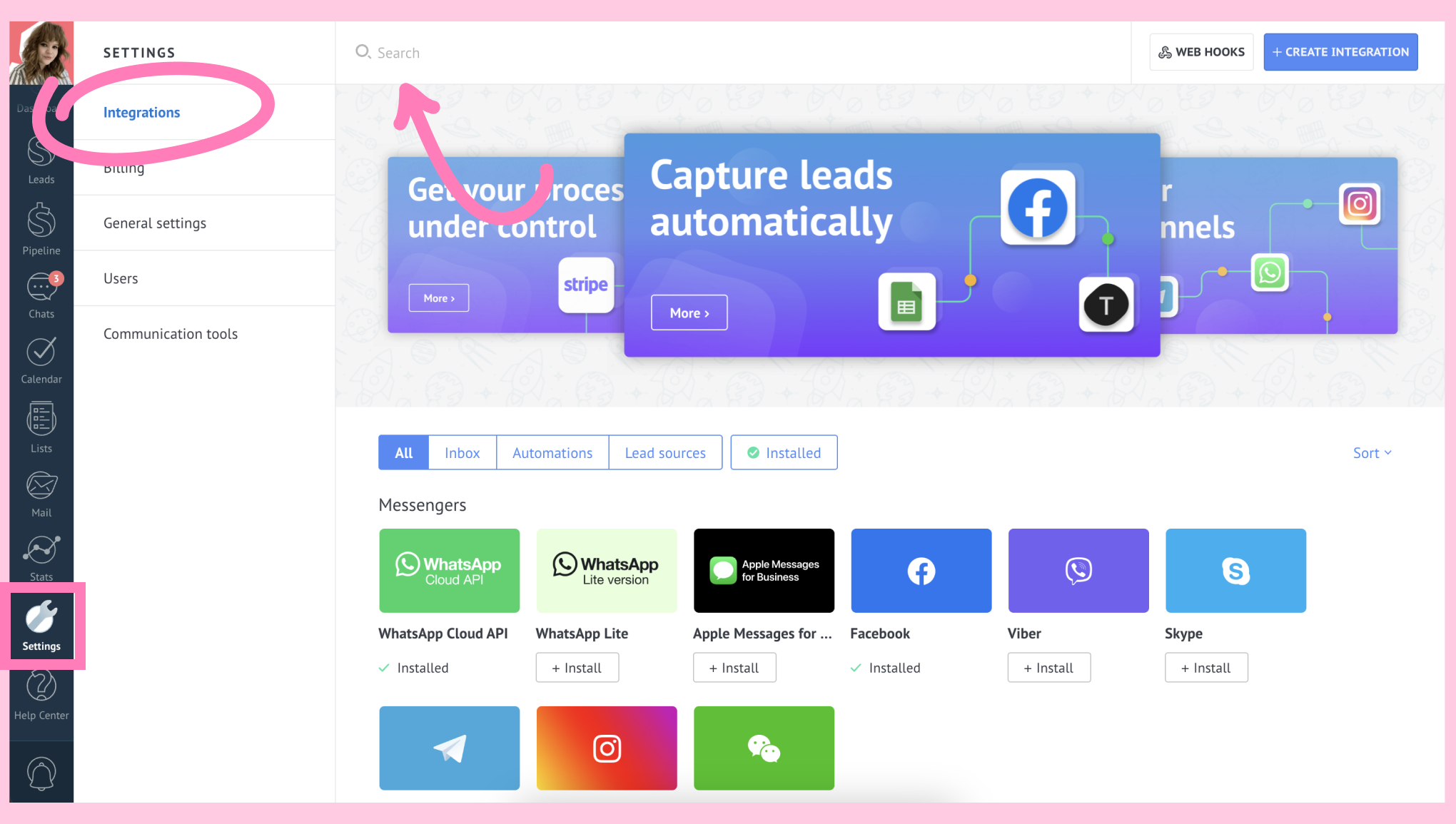
Click on the Mercado Libre icon. The widget's window opens. Check the privacy policy checkbox. The Install button will turn blue. Click Install.
In the settings window, copy the Redirect URL and select the country associated with your account.
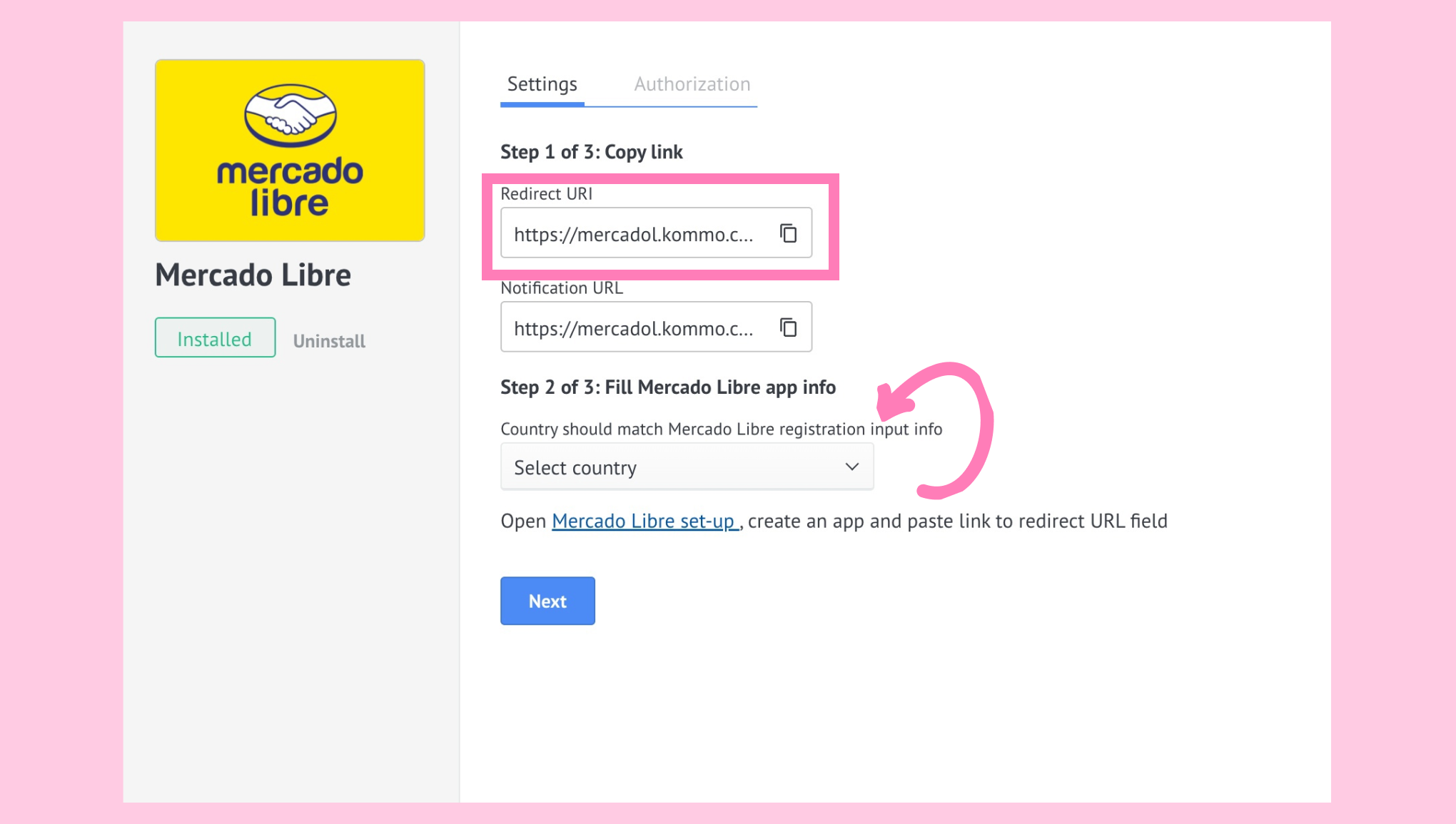 Then, click the Mercado Libre set-up hyperlink. If you are not already logged in, you will be redirected to the Mercado Libre authorization page to log in.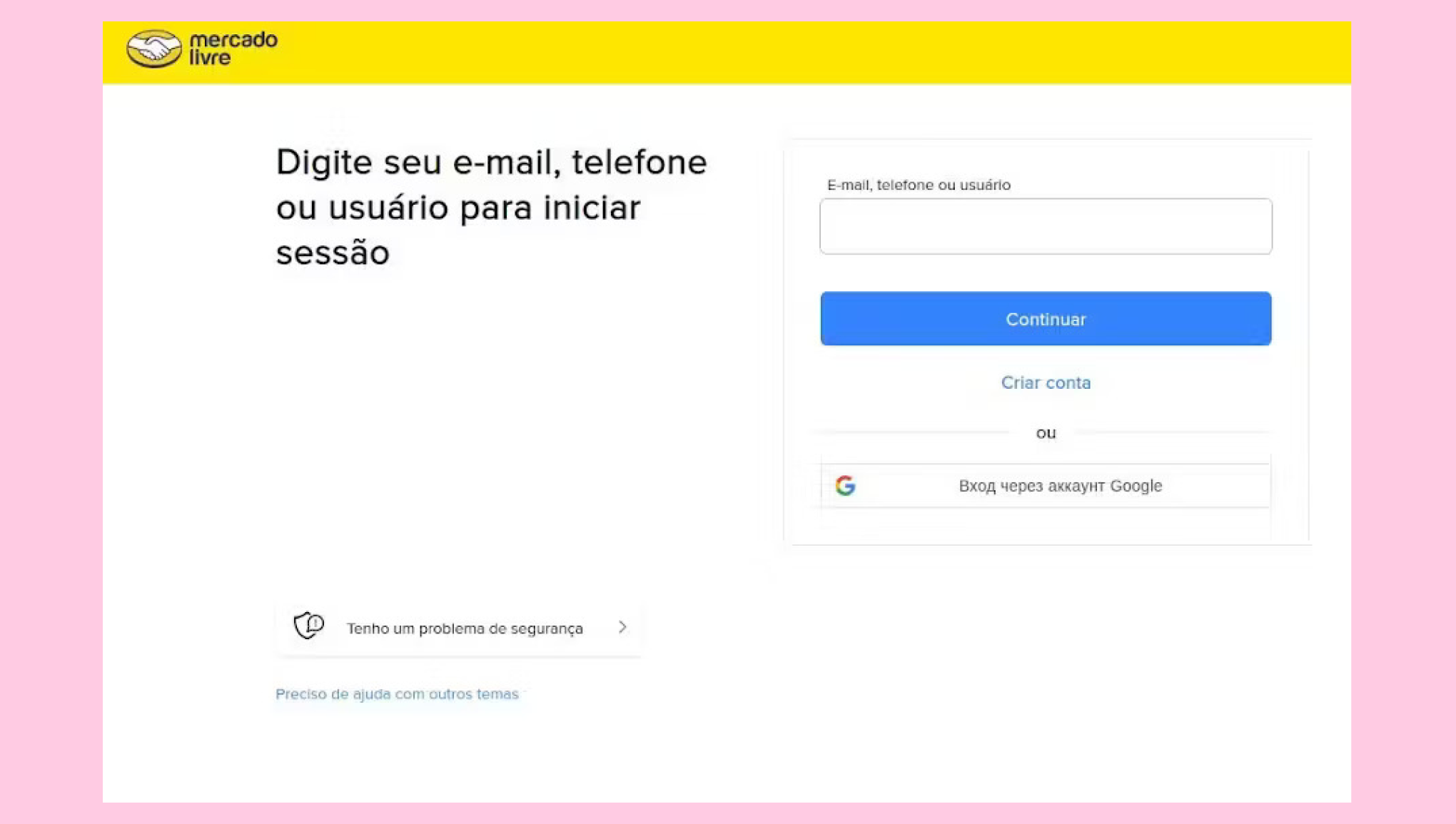
Note: After entering your login and password, Mercado Libre will redirect you to the main page. You will need to return to Kommo and click the Mercado Libre setup hyperlink again to continue the process. If you were logged in before, you will not need to log in or return to Kommo for now.
Once you click the Mercado Libre set-up hyperlink, you will be redirected to the OAuth client creation page in Mercado Libre. Click Criar nova aplicacao.
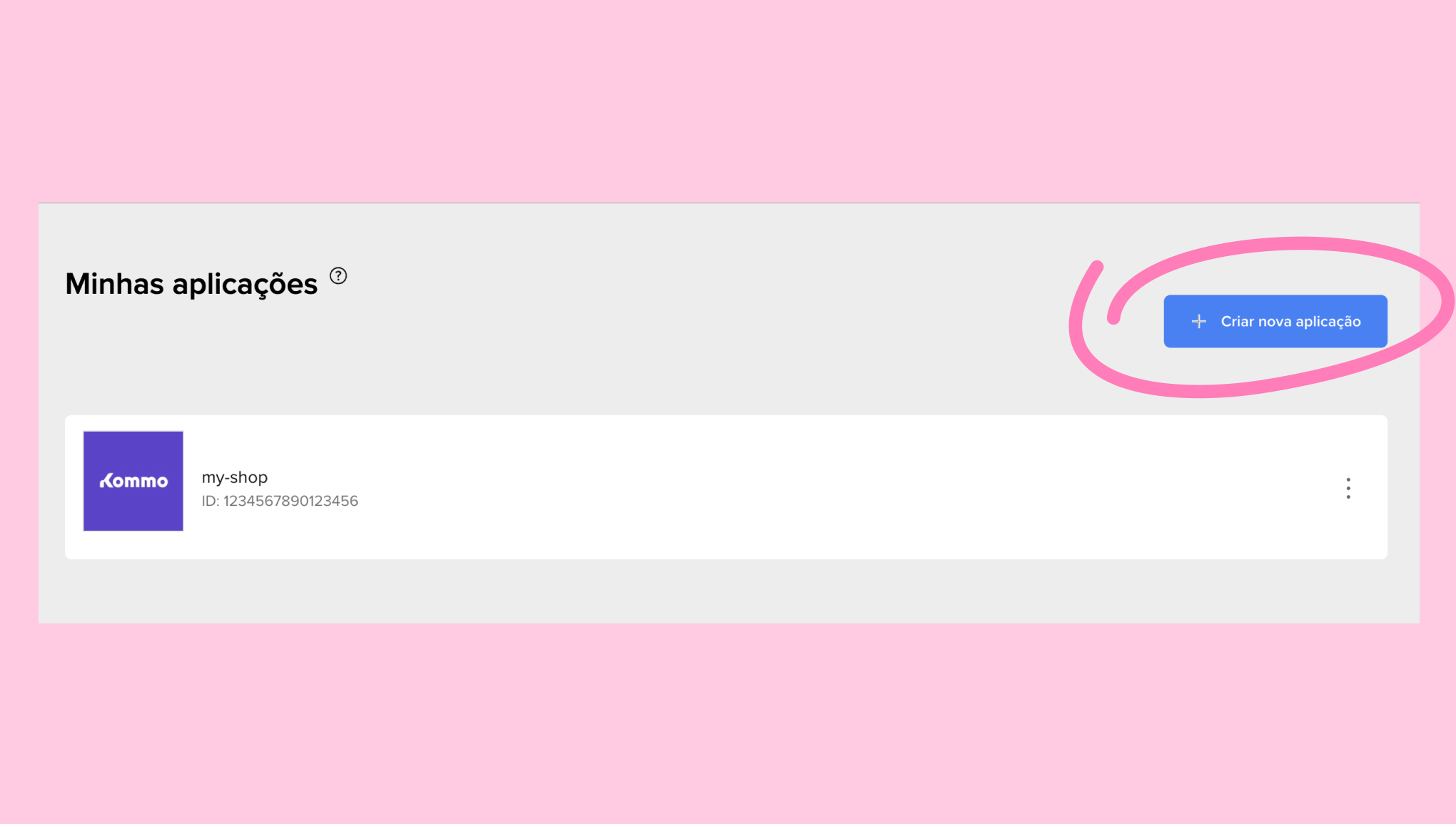
Complete the required fields — name, description, and logo. After that, click Continuar to proceed to the next step of creating the OAuth application.
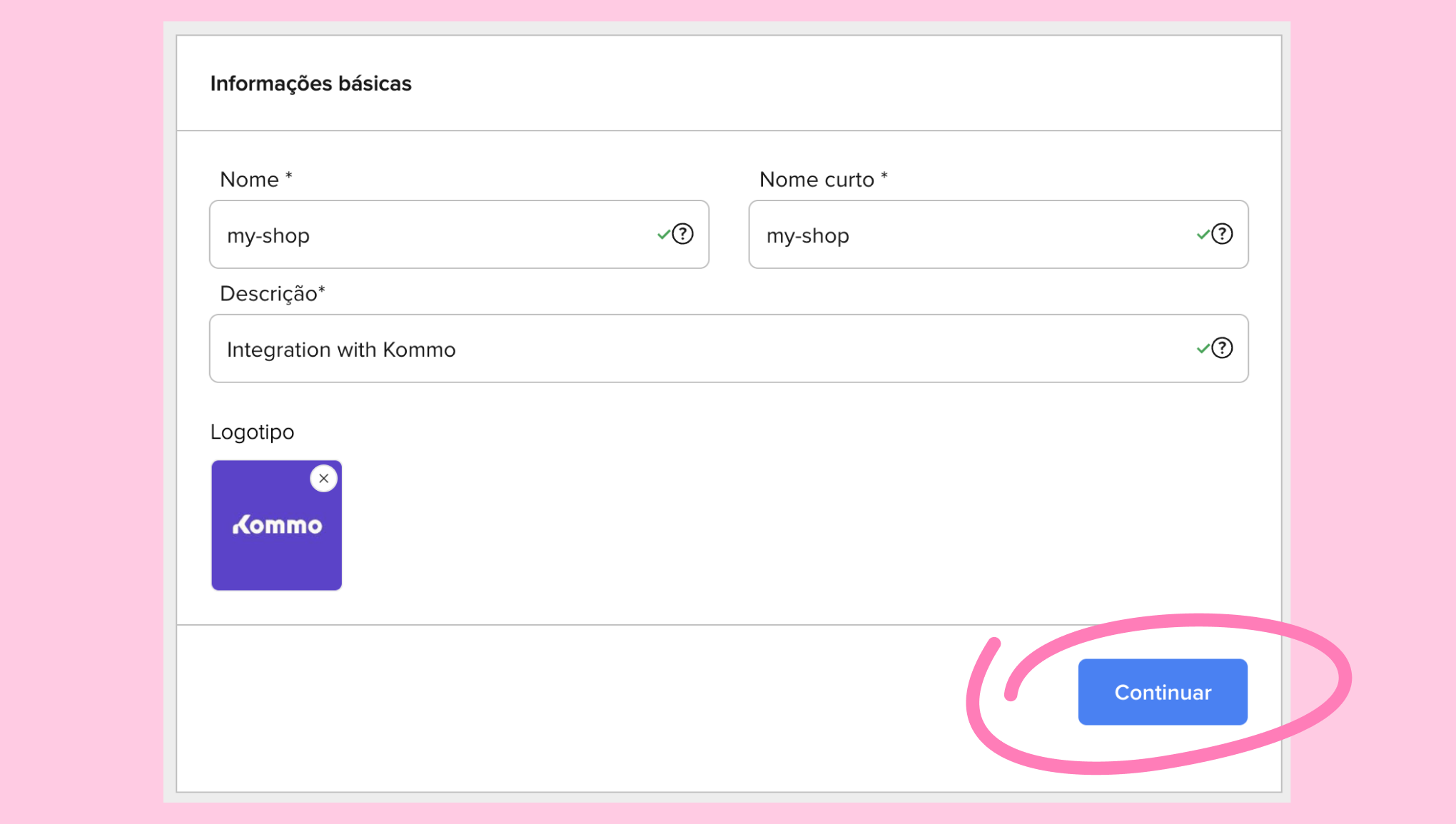
In this step, fill in the fields as follows:
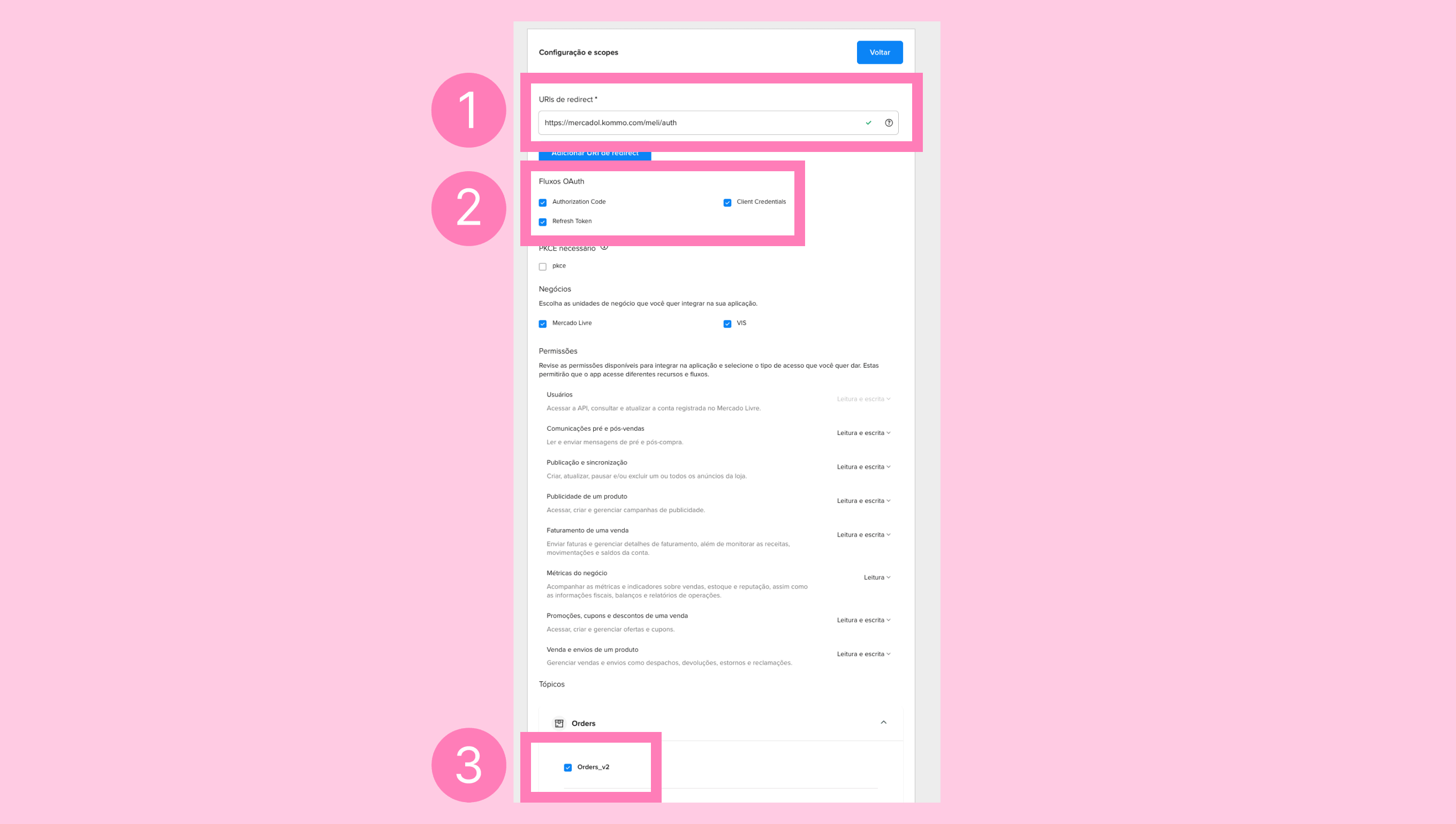
Paste the Redirect URL from Kommo (the one copied in step 3) into the URLs de redirect field.
Check all the boxes in the Fluxos OAuth section.
Сheck the Orders_v2 checkbox.
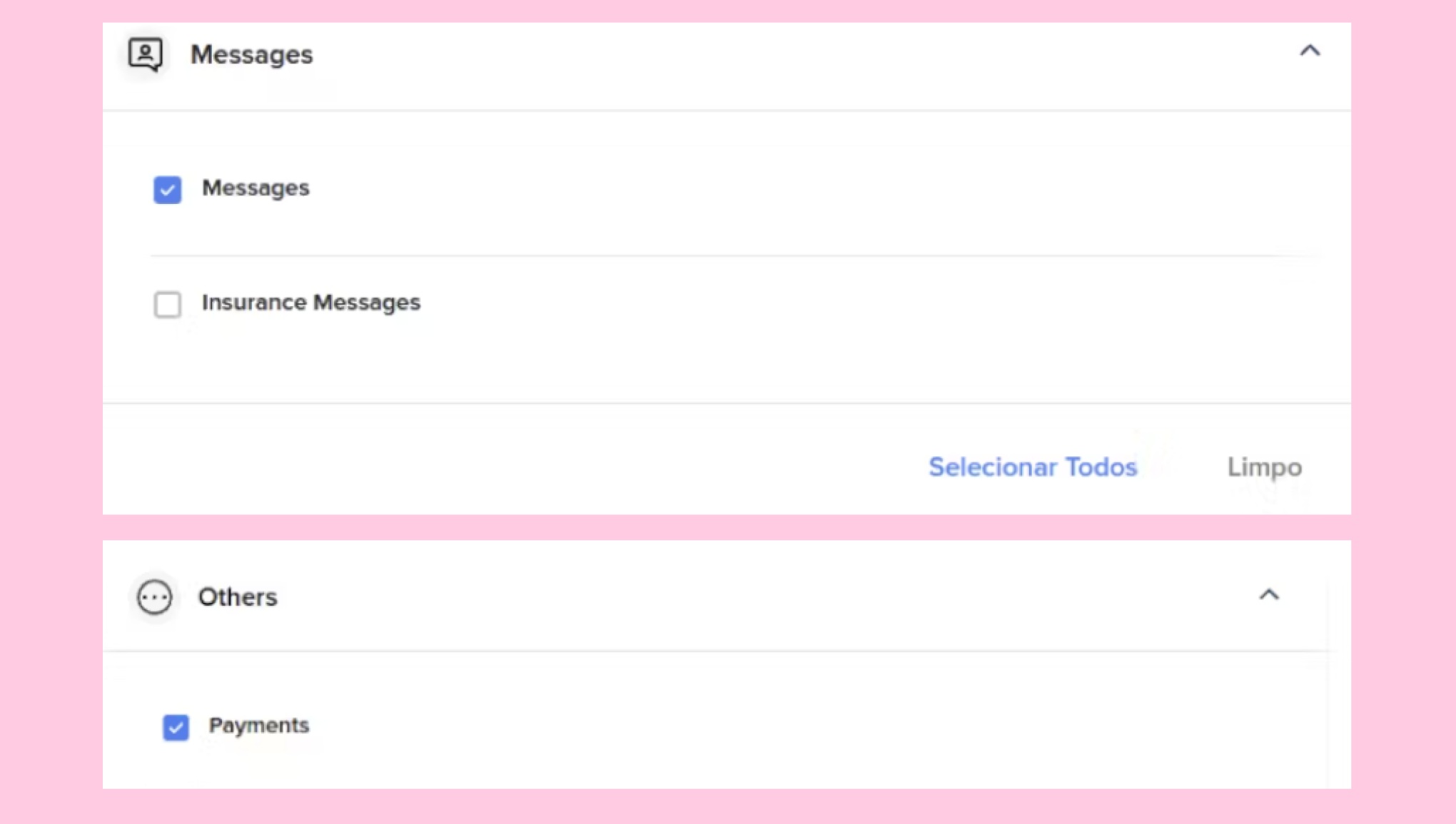
Note: If you select additional fields, notifications for those fields will be ignored. As of September 2024, notification processing for these fields has not yet been implemented.
Select the fields for the OAuth application as shown in the screenshot (check the Messages checkbox in the messages section and the Payments section in the Others section).
Return to Kommo, copy the Notification URL from the widget window.
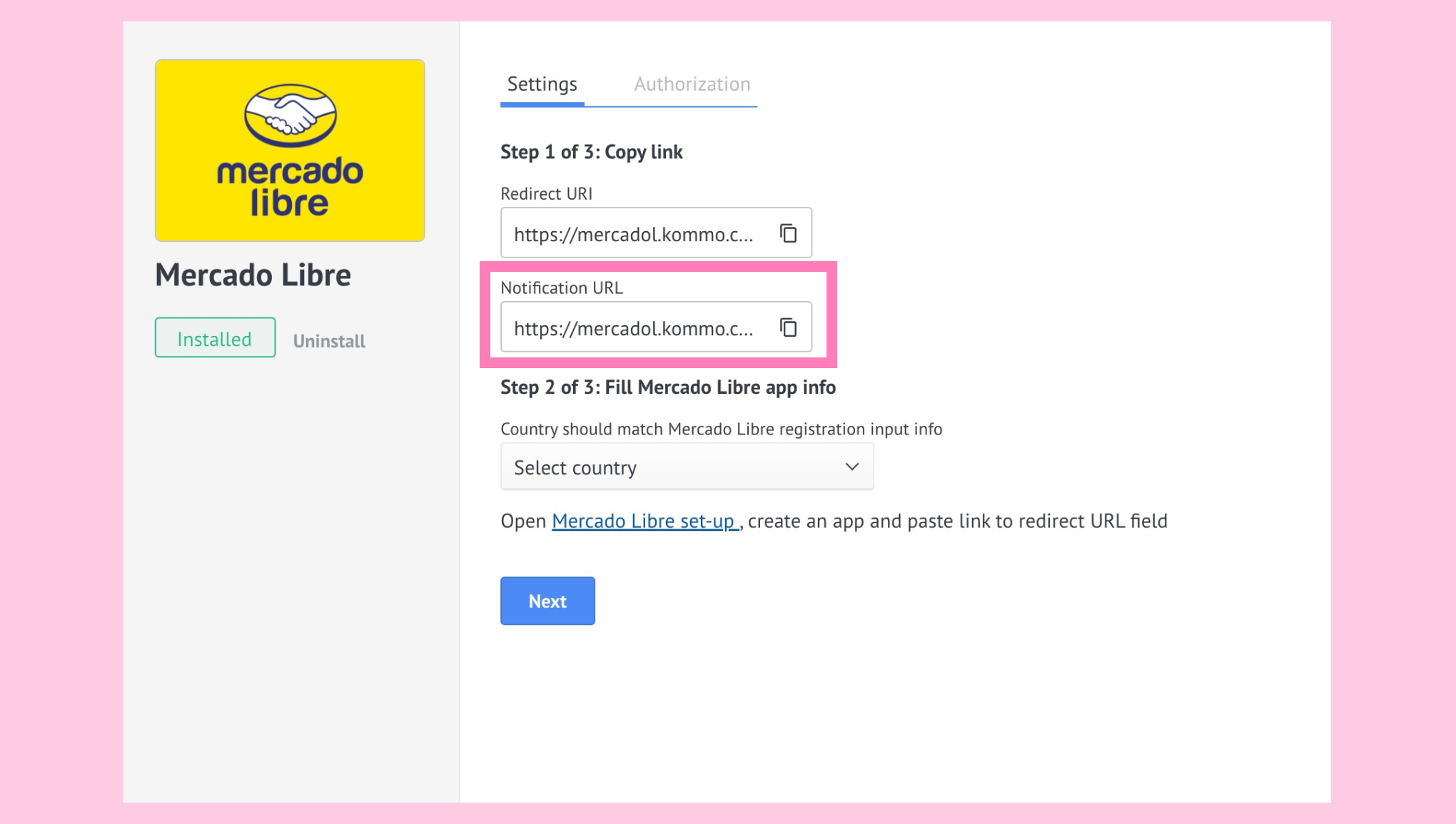
Paste the Notification URL into the final field. Click Criar.
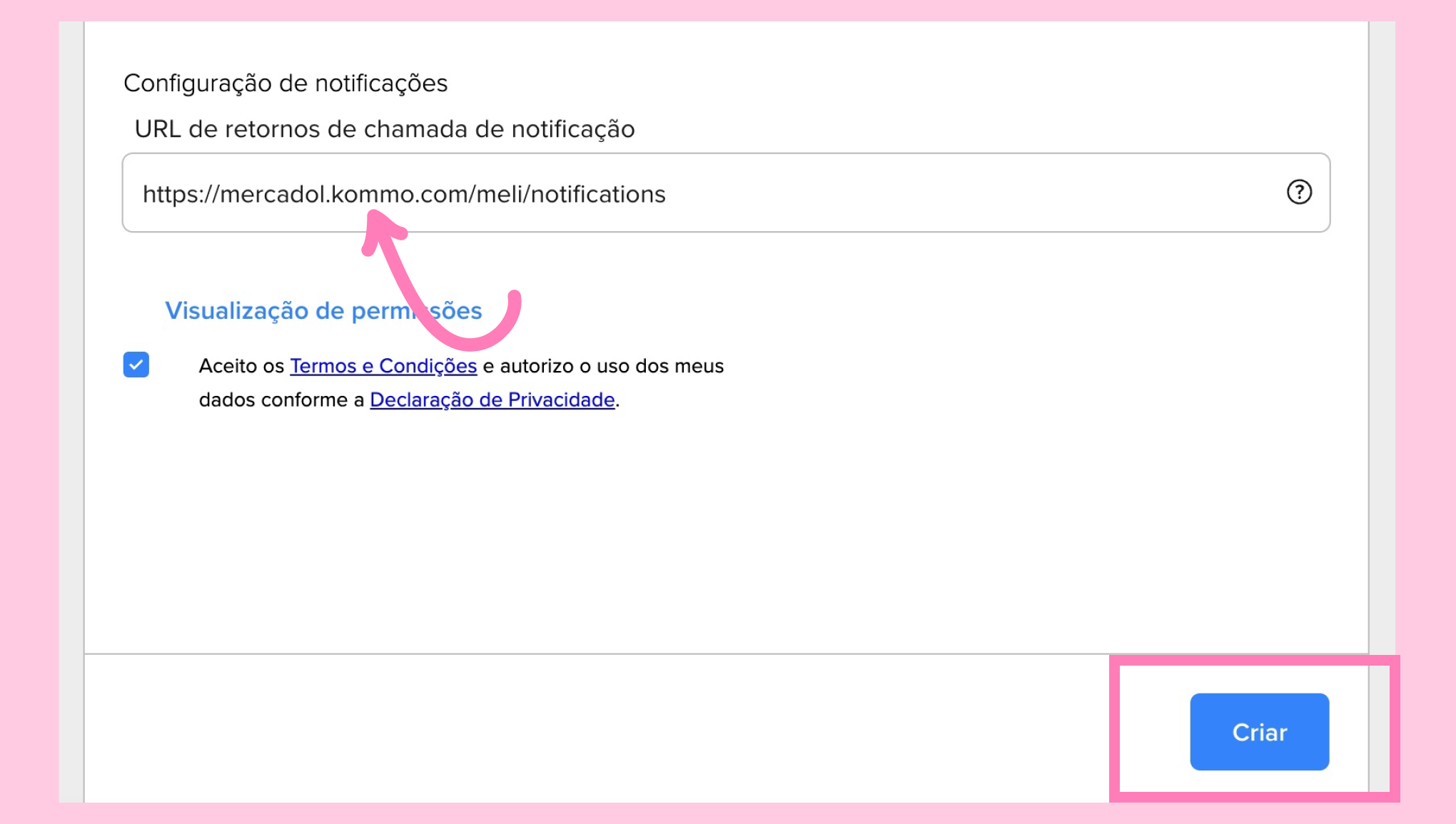
You will be redirected to the dev center, where you will see your newly created OAuth application.
Next, to finish the setup process, you will need to retrieve the Client ID and Client Secret. Follow this process:
Click on the three dots next to your OAuth application and select Editar.
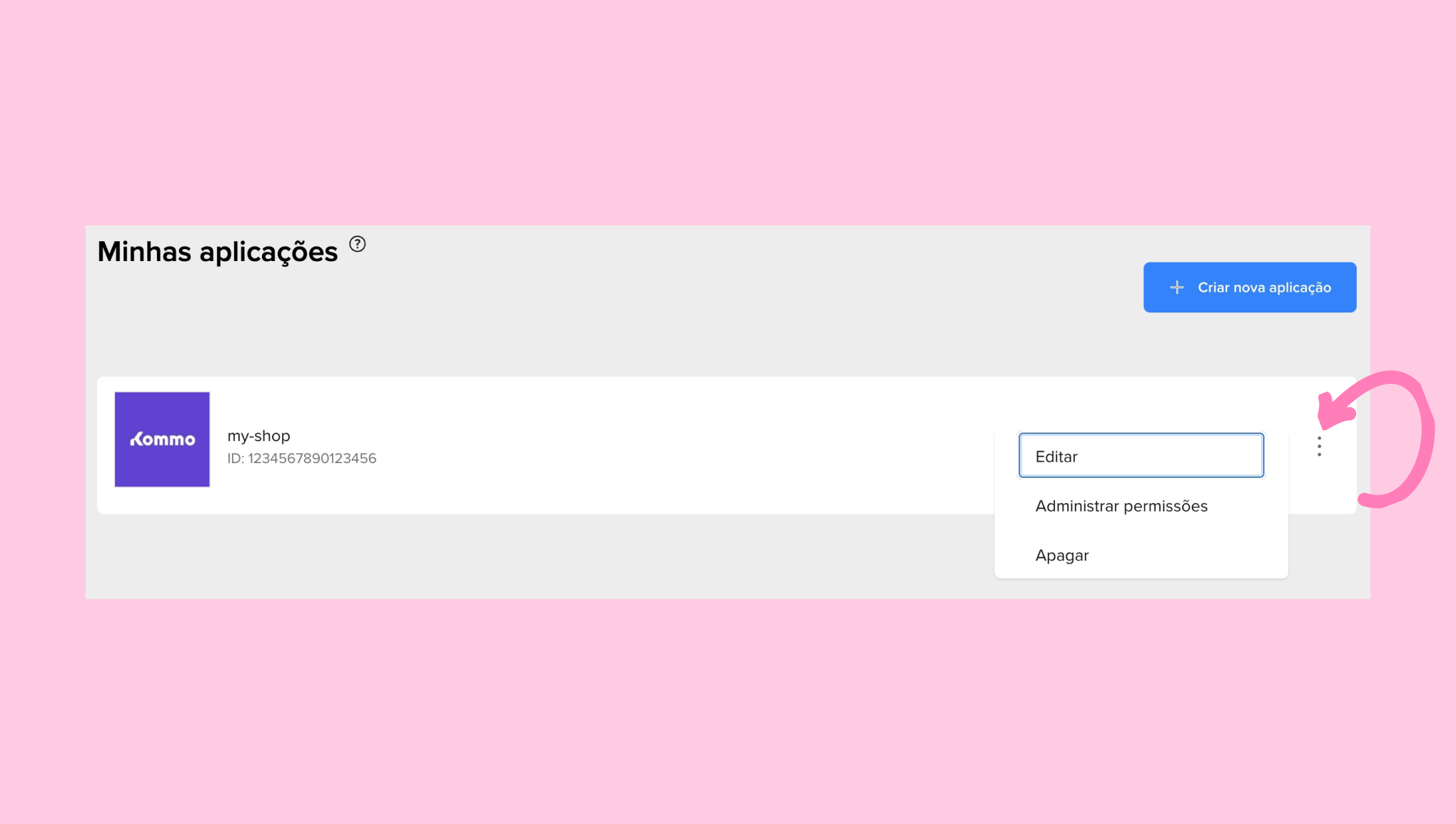 This will open a page with the OAuth application details.
 Go back to Kommo and click Next to proceed to the next step of the widget setup, where you will need to enter the Client ID and Client Secret.
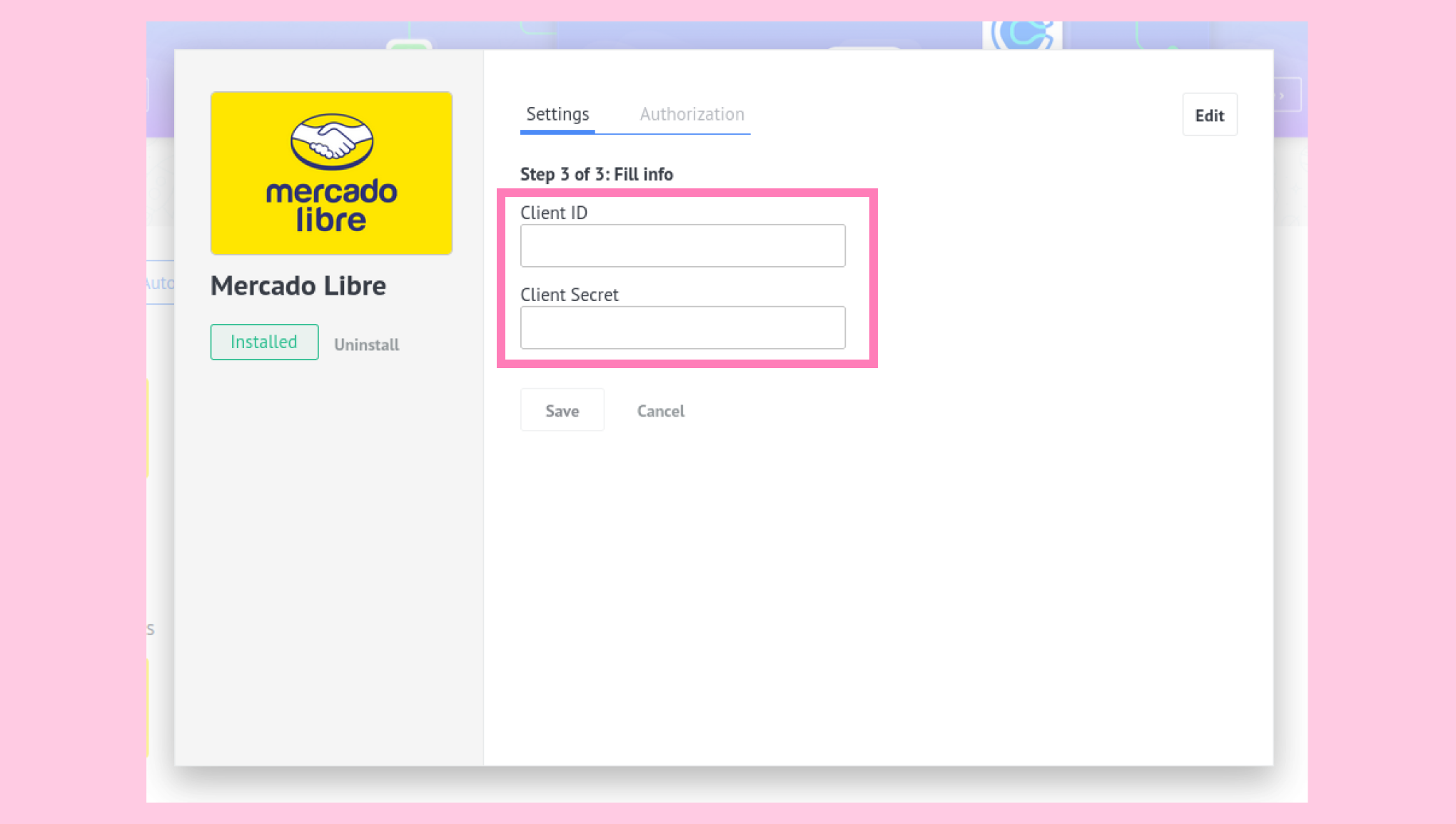
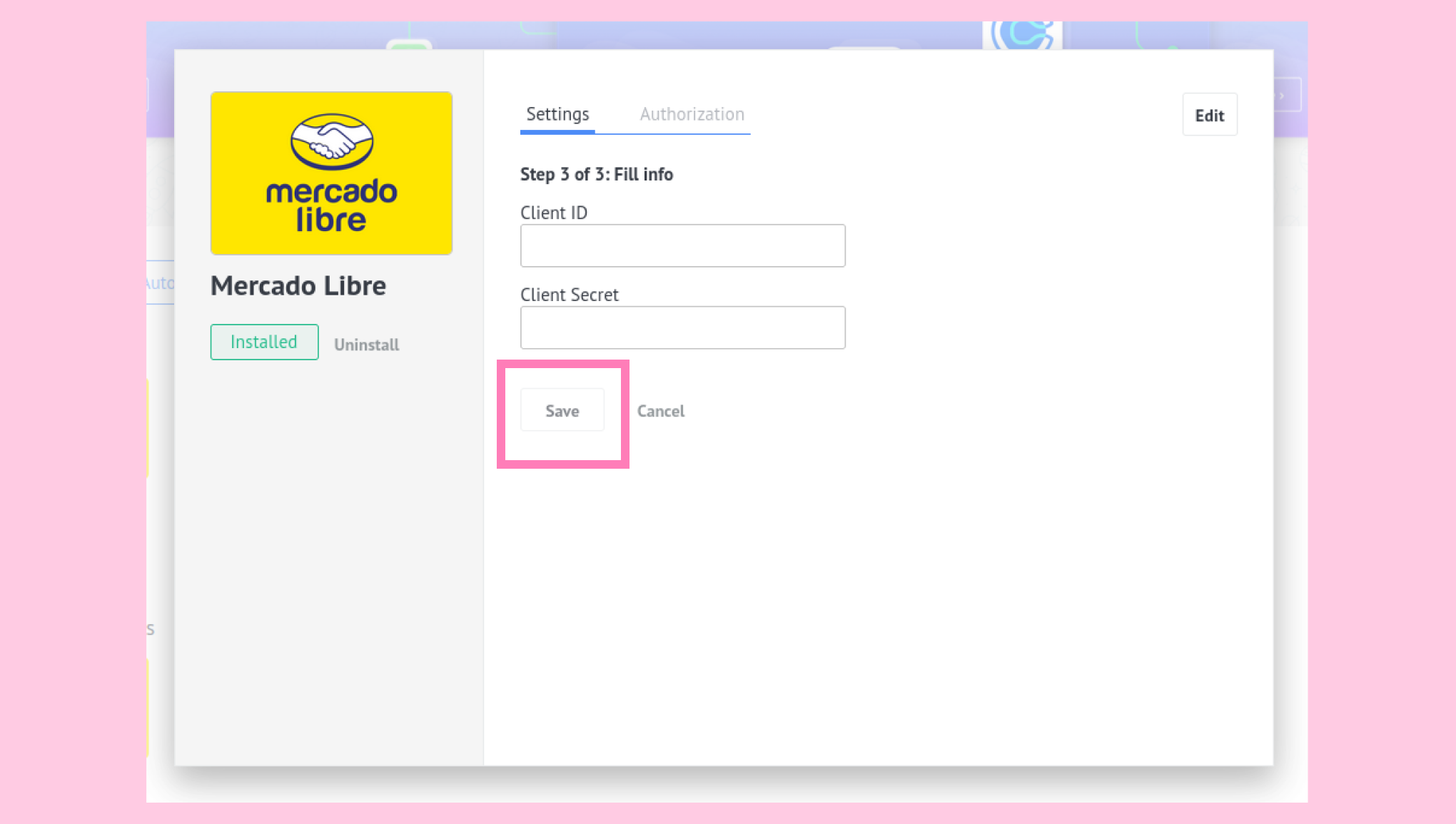
Copy the Client ID and Client Secret from the OAuth application details.
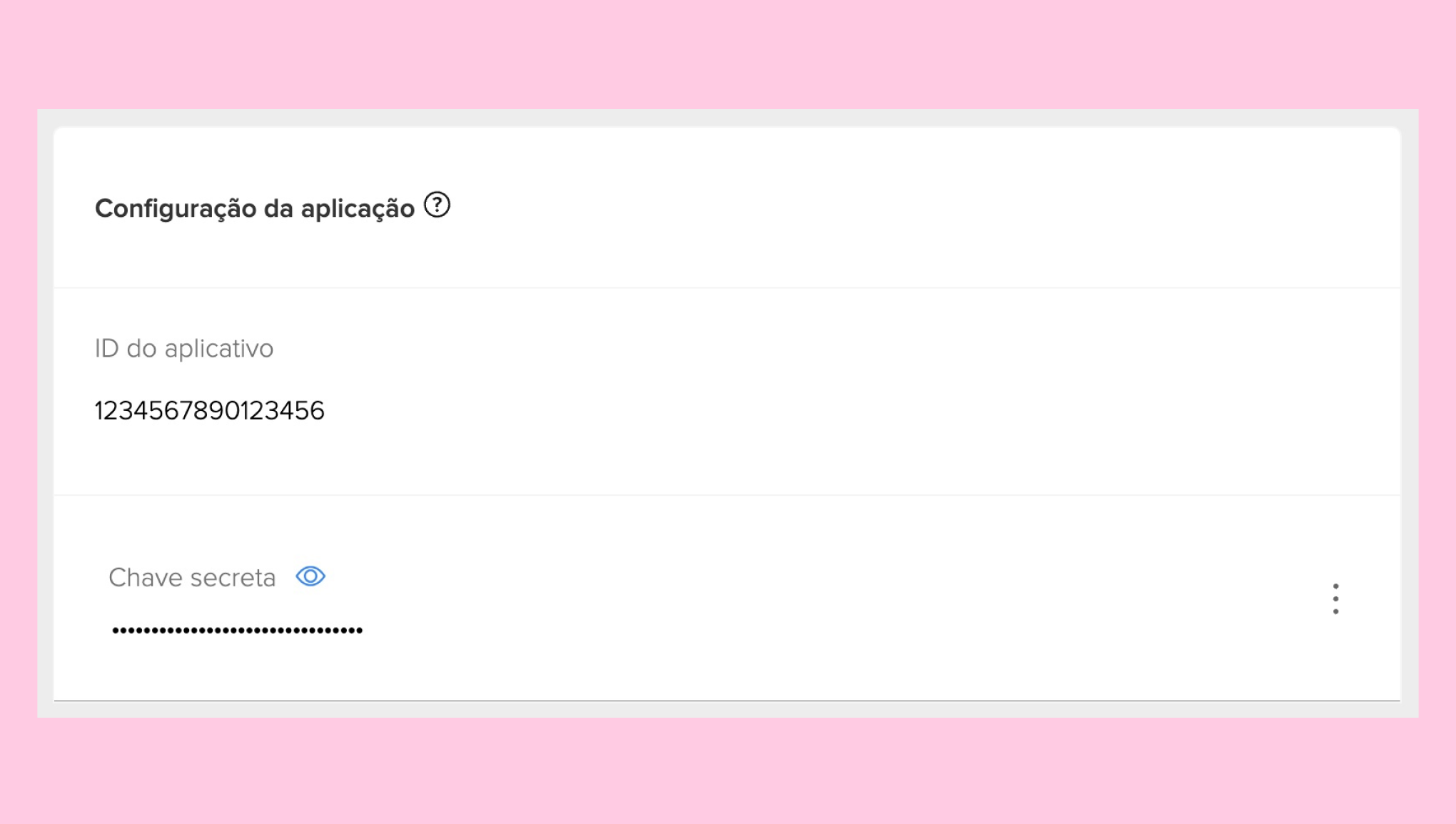
Paste this data into the corresponding fields in Kommo and click Save.
A Mercado Libre pop-up window will appear.
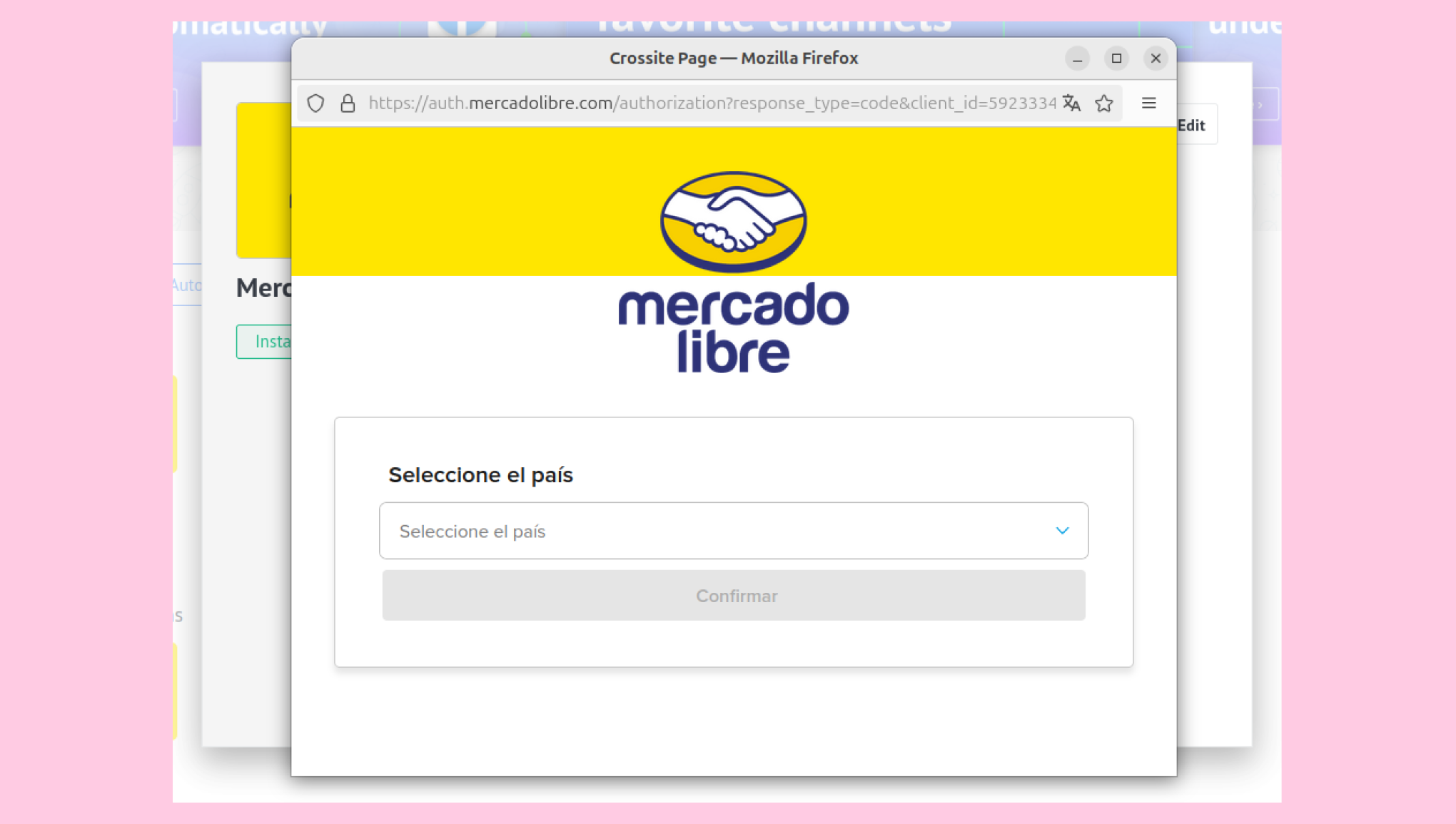
In the pop-up, select the country associated with your account, and click Save.
The Mercado Libre widget will confirm that the user is authorized, the integration is complete, and a custom sales pipeline for Mercado Libre leads has been created.
The pipeline includes the following stages: Payment Required, Payment in process, Paid, Canceled, and Invalid: 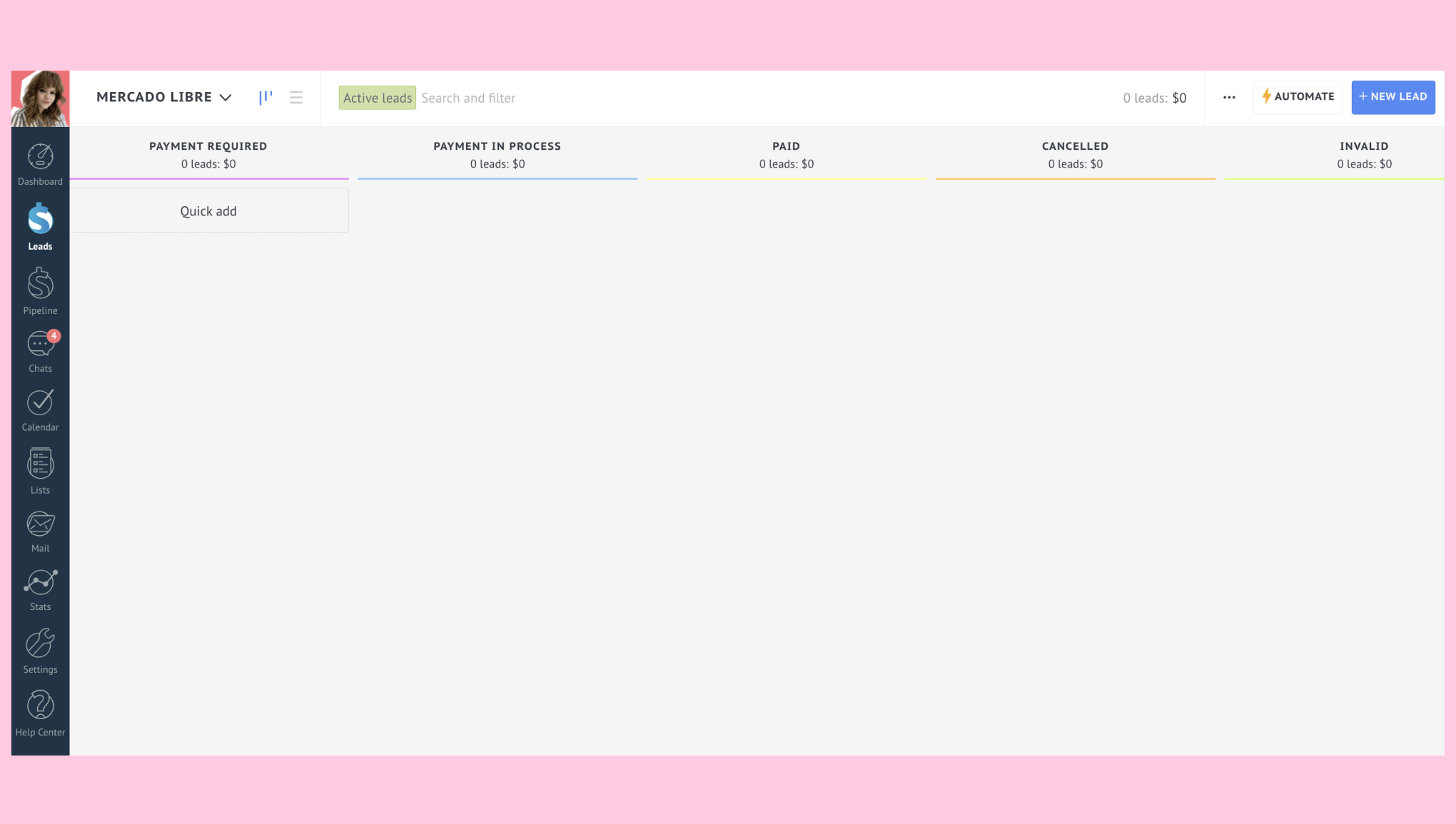
How to work with Mercado Libre leads
Note: Lead cards in Kommo are not updated when buyers make changes to their personal information in Mercado Libre.
New leads
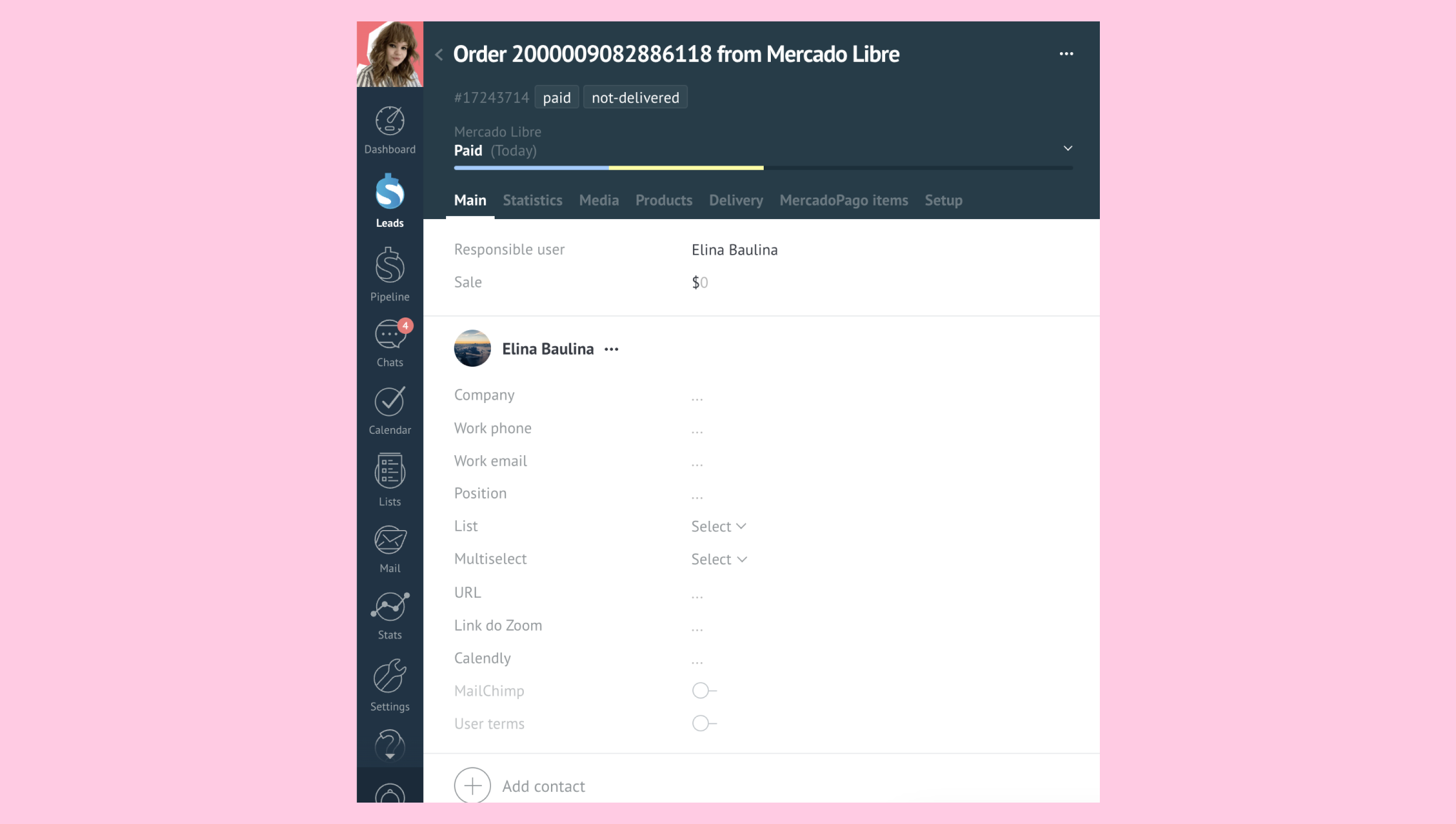
In Kommo's Leads, you'll see a new lead automatically created in the Paid stage of the pipeline whenever a buyer finishes their payment: 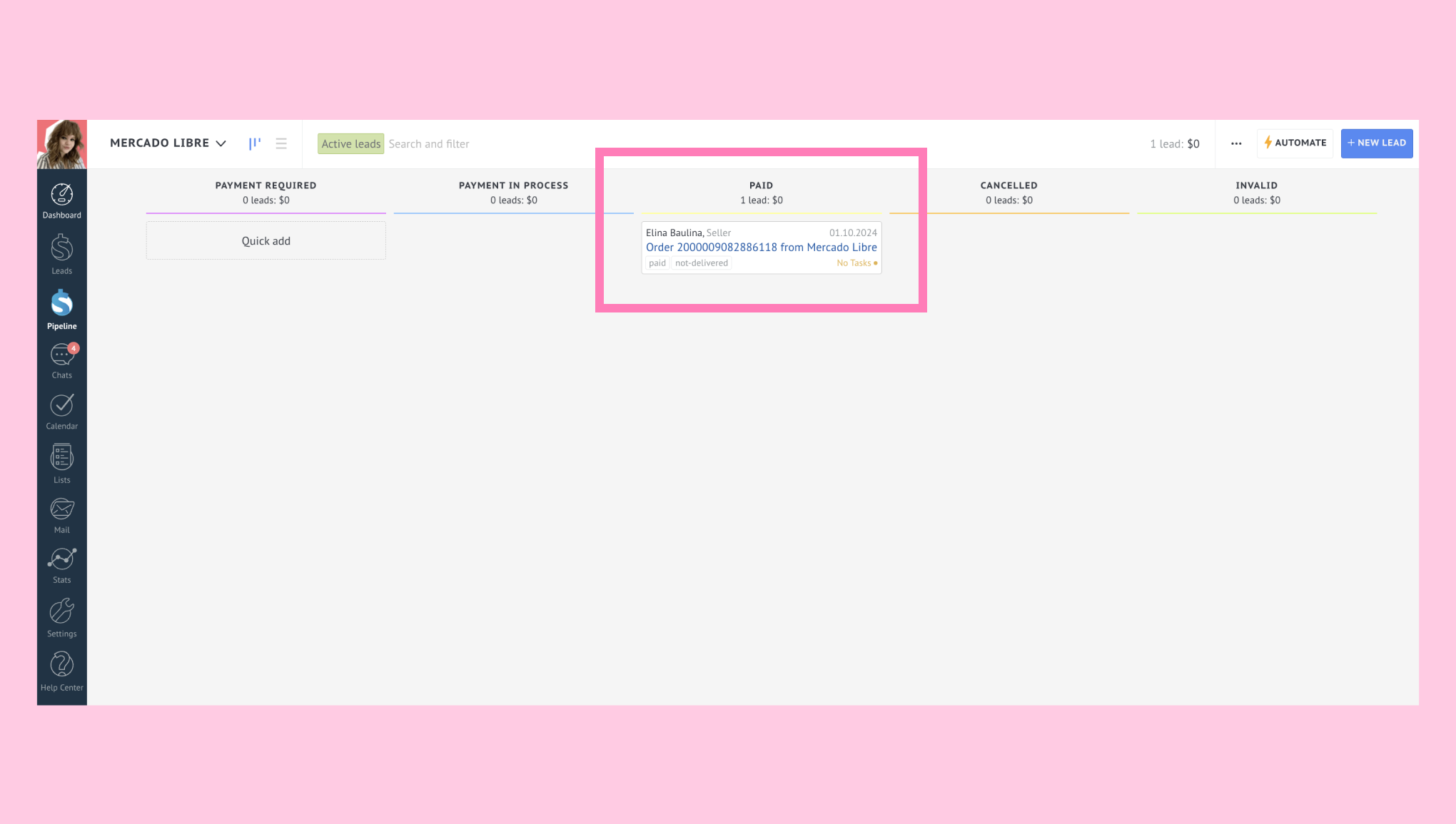
Open the created lead. You will see that the following information was added:
Name: Based on the buyer's number from Mercado Libre.
Tags: Based on relevant information from Mercado Libre (currently, it includes tags paid, not_paid, and not_delivered).
Contact Name: Filled in with the buyer’s name from the account used to make the purchase.
Note: Even if you delete the Paid stage from the pipeline, it will be automatically added back when a lead completes their payment. Similarly, if you delete the Mercado Libre pipeline, it will be recreated in Kommo as soon as a lead makes a payment. Any leads that were in the canceled stage will not be restored. Currently, Kommo does not support importing old leads, so if a pipeline status with existing leads is deleted, those leads will be lost.
Canceled leads
If the buyer сancels their order, it will be moved to the Canceled stage. All tags will be updated according to the current lead status in Mercado Libre.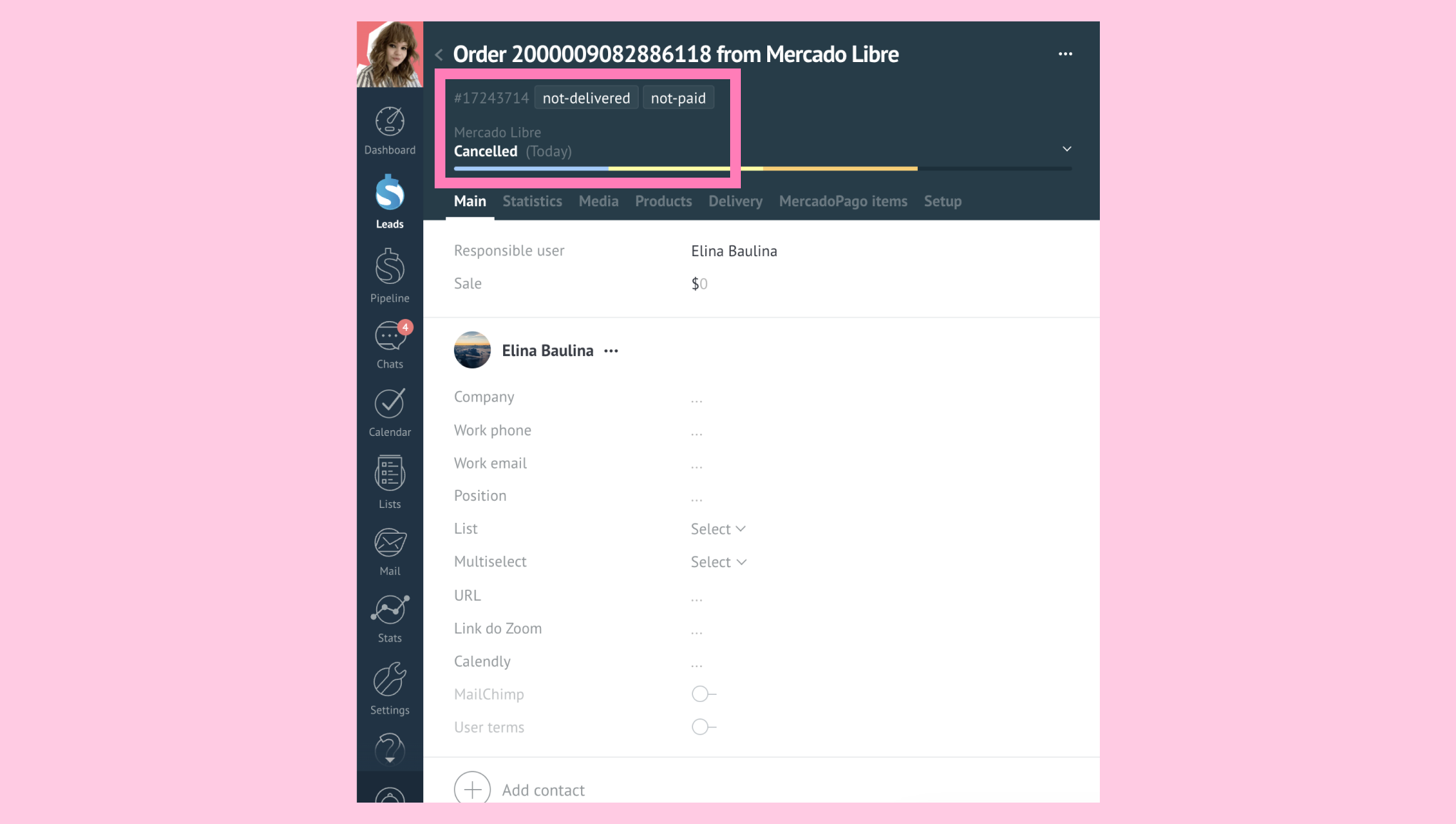
Pending payment leads
In some cases, payments can take up to 4 hours to be completed. In this case, you will see that a new lead was created in the Payment in Process stage. 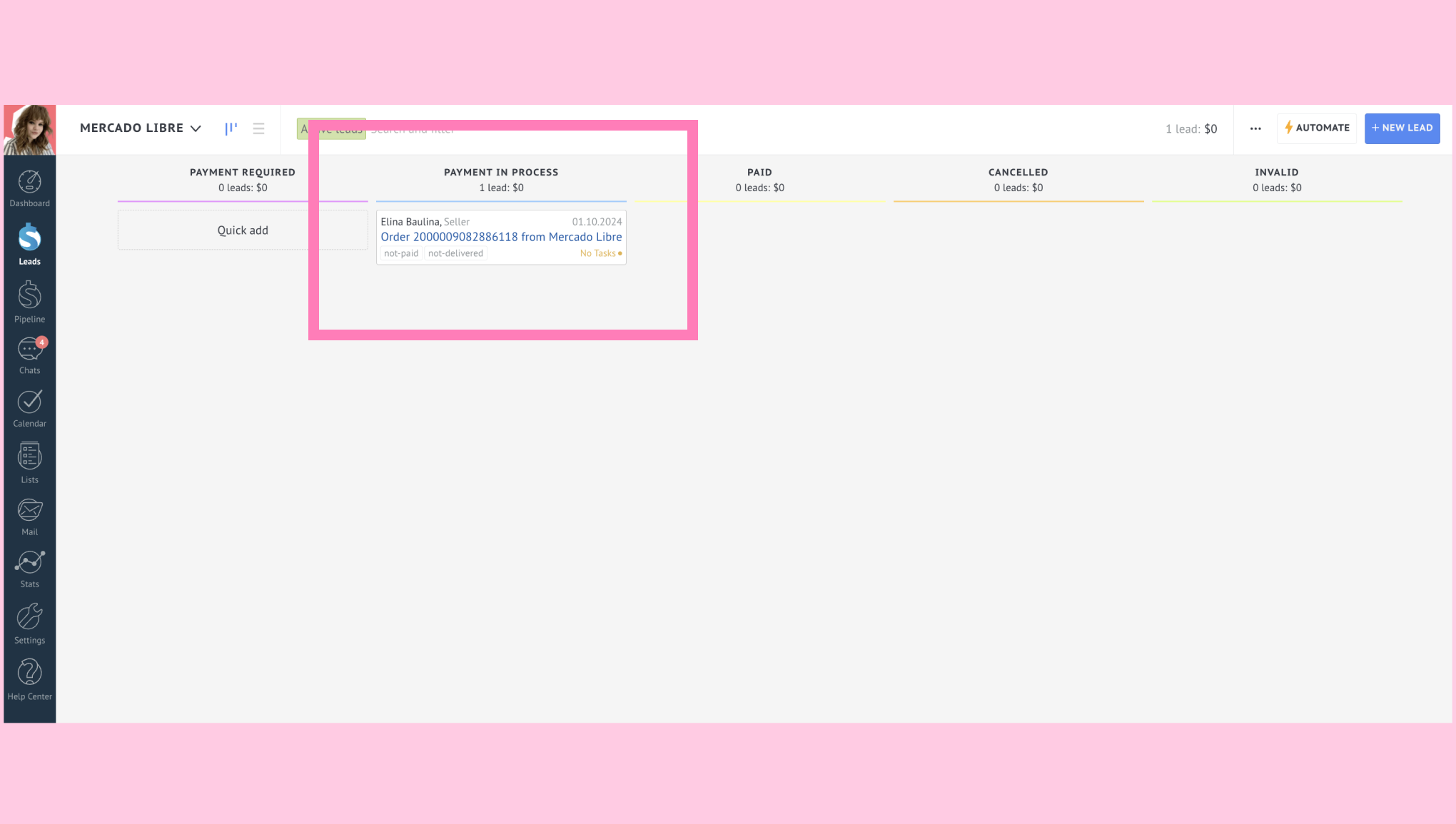
Open the lead to view the following details:
Lead Name: Matches the lead number from Mercado Libre.
Tags: Automatically generated based on information from Mercado Libre.
Contact Name: Based on the buyer's information from the account used for the purchase.
Chatting with leads via Mercado Libre
For you to initiate a conversation with a client, a lead must be in the Paid pipeline stage within Kommo.
Open a lead in the Paid stage. There, you can use our chat feature to communicate with buyers as usual. For more details, check out our Chats article.
In the future, when buyers send a message through Mercado Libre, you will receive it in Kommo within the chat with the corresponding existing lead.
Note: There is a specific case with messaging between the seller and buyer in Mercado Libre. If you, the seller, send a message to the buyer in Mercado Libre, the message will only appear in the Kommo chat if the buyer in Mercado Libre reads it. This is because the Mercado Libre API does not send us a webhook about the seller’s actions.